

“Batch change file extensions” is the job when Windows can’t open extensionless files or dozens of files have the wrong suffix. Start with a copy of the folder, because changing an extension doesn’t convert the file’s contents.
Fix #1: Show file extensions in File Explorer
Visible extensions help you separate files missing a suffix from files that already have one.
- Open the folder containing your files in File Explorer.
- Look for files showing a generic blank icon or opening the Open with dialog.

- In Windows 11, select View > Show > File name extensions.
- In Windows 10, select the View tab and check File name extensions.
File Explorer should now display suffixes such as .jpg, .txt, and .xlsx.
You can also press Windows + R, enter control folders, and select the View tab. Clear Hide extensions for known file types, then select OK.
Keep extensions visible while working. A misleading name such as invoice.pdf.exe is easier to spot when Windows shows the complete filename.
Fix #2: Change a few extensions in File Explorer
Manual renaming is quickest when you only have several files.
- Right-click the first file and select Rename. In Windows 11, you can also select the file and press
F2.
- Add the correct extension or replace the existing one. For example, rename
photo_001tophoto_001.jpg.
- Press
Enter. - Select Yes if Windows warns that changing the extension could make the file unusable.
The file should display its associated app icon and open normally. If it doesn’t, press Ctrl + Z immediately and confirm the file’s actual format.
Changing .png to .jpg doesn’t convert a PNG image into JPEG data. Use an image editor’s Save as or Export command when you need format conversion.
Fix #3: Rename extensions with Microsoft PowerRename
Microsoft PowerToys includes PowerRename, a graphical tool that previews bulk changes before applying them. It’s a promising option when you’d rather inspect every new filename than trust a typed command.
- Install Microsoft PowerToys if it isn’t already on your PC.
- Open PowerToys Settings, select PowerRename, and make sure the module is enabled.
- In File Explorer, select the files whose extensions need changing.
- Right-click the selection and choose Rename with PowerRename. On Windows 11, you may need to select Show more options first.
- To change
.jpegto.jpg, enter\.jpeg$in Search for and.jpgin Replace with. - Enable Use regular expressions.
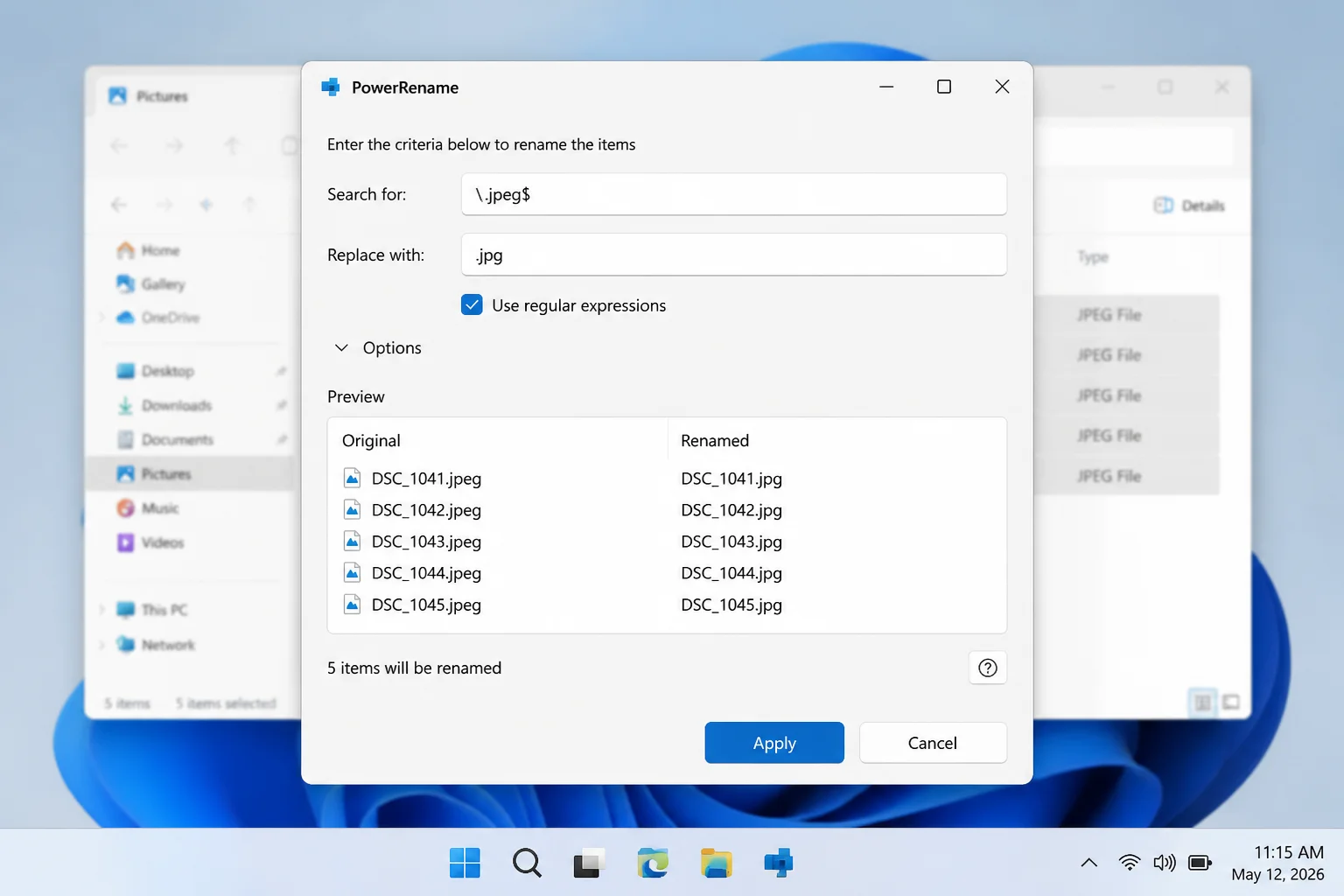
- Review the preview and clear any file you don’t want changed.
- Select Apply.
The selected filenames should end in .jpg. So far, so good: the preview catches an incorrect pattern before it reaches the folder.
PowerRename is also useful for prefixes, suffixes, numbering, and more complicated search-and-replace jobs. Bulk Rename Utility, Advanced Renamer, and Bulk Extension Changer offer additional controls, but I’d skip them unless PowerRename lacks a rule you need.
Fix #4: Change matching extensions with Command Prompt
The ren command handles a simple extension swap without installing another app. It only works in the current folder unless you build a more complicated loop.
- Copy the target folder before continuing. Command Prompt doesn’t offer a reliable undo after the command runs.
- Open the folder in File Explorer.
- Select the address bar, type
cmd, and pressEnter.
Command Prompt should open with the folder’s path before the cursor.
- To change every
.jpegextension to.jpg, run:
ren *.jpeg *.jpg- Return to File Explorer and confirm the new extensions.
The command changes only filenames ending in .jpeg. It doesn’t process subfolders or convert the files’ underlying format.
To add .jpg to a group of files with no extensions, first place only those known JPEG files in a separate folder. Then open Command Prompt in that folder and run:
ren * *.jpgDon’t use that command in a mixed folder. It can assign .jpg to files that aren’t JPEG images.
Fix #5: Preview and rename files with PowerShell
PowerShell takes more typing, but its filters and -WhatIf preview make it safer for large folders. This is the method I’d use when the selection rules matter.
- Open the target folder in File Explorer.
- Select the address bar, type
powershell, and pressEnter. - To preview adding
.jpgonly to files with no extension, run:
Get-ChildItem -File | Where-Object { $_.Extension -eq "" } |
    Rename-Item -NewName { $_.BaseName + ".jpg" } -WhatIf
You should see a proposed rename for each extensionless file, but no filenames will change.
- Confirm that every listed file is a JPEG image.
- Run the same command without
-WhatIf:
Get-ChildItem -File | Where-Object { $_.Extension -eq "" } |
Rename-Item -NewName { $_.BaseName + ".jpg" }- To preview changing
.jpegto.jpg, run:
Get-ChildItem -File -Filter *.jpeg |
Rename-Item -NewName { $_.Name -replace '\.jpeg$', '.jpg' } -WhatIf- Remove
-WhatIfand run the command again after checking the proposed names:
Get-ChildItem -File -Filter *.jpeg |
    Rename-Item -NewName { $_.Name -replace '\.jpeg$', '.jpg' }
File Explorer should show the updated extensions. No issues yet? Open several files to confirm their apps still recognize them.
To include subfolders, preview the change with -Recurse:
Get-ChildItem -Recurse -File -Filter *.jpeg |
    Rename-Item -NewName { $_.Name -replace '\.jpeg$', '.jpg' } -WhatIf
Remove -WhatIf only after reviewing the entire list. Recursive renames can affect thousands of files, so I’d test this on a copied folder first.
Fix #6: Create a batch file for repeated changes
A batch file makes sense when you regularly apply the same extension change to the same folder.
- Open Notepad.
- Enter these lines, replacing the path and extensions with your own:
@echo off
cd /d "C:\Users\YourName\Pictures\Convert"
ren *.jpeg *.jpg- Select File > Save as.
- Set Save as type to All files.
- Enter
change_extensions.batas the filename. - Select Save.
- Double-click the saved
.batfile.
The Command Prompt window may close quickly. Check the target folder to confirm the results.
A batch file repeats the same command every time you open it. Keep it outside the target folder, and don’t run it after changing the folder’s contents unless you’ve checked the script again.
When the rename doesn’t work
Copy the files into Documents or Pictures if PowerShell reports “Access denied.” Protected folders and some network locations require permissions your account may not have; use an administrator terminal only when you trust every file and command involved.
An extension change that completes successfully but leaves unreadable files usually means the suffix doesn’t match the actual format. Restore the original names from your backup, then open or convert the files with the app that created them.
Fix #3, PowerRename, is the solid choice for a typical mixed folder because its preview exposes mistakes before you apply them. PowerShell is worth trying for extensionless files or subfolders, but repeated access errors or files that remain unreadable point to permissions, corruption, or an incorrect assumed format.