

Does Discord have trouble loading messages on your phone or desktop? We will show you why that happens and what you can do to fix Discord.
If Discord displays a “Messages Failed to Load” error, there are a few possible reasons why this might be happening. For example, server outages, internet slowdowns, cache corruption, etc., are plausible reasons.
In this troubleshooting guide, you’ll learn how to fix the Discord error on iOS, Android, Mac, and Microsoft Windows.
1. Check the Discord Server Status
The Discord app or website will fail to load messages due to server issues and glitches. You can quickly check that by heading over to DiscordStatus.com or a third-party website monitoring tool like DownDetector.

If there appear to be server-side problems for other Discord users and gamers, you must wait until all systems come back online. If not, move on with the rest of the fixes.
2. Check Your Internet Connection
The Discord messages loading issue could be related to your internet connection. If other apps and programs also have trouble connecting to the internet, try these fixes:
- If you use Discord on a mobile device, try toggling Airplane Mode on, then off.
- Release and renew the IP lease for your desktop device.
- If the issue persists, restart or soft-reset your router.
- Flush the DNS (Domain Name System cache to force your mobile or desktop to resolve Discord’s IP addresses.
- Connect to a different wireless network if possible. On mobile devices, try switching from Wi-Fi to Cellular or vice-versa.
Learn what else you can do to troubleshoot a slow Wi-Fi or Cellular network.
3. Switch Text Channels
Some Discord servers have multiple text channels. Switching to a different channel and back again might prompt Discord to reload new messages.
4. Mark Text Channel as Read
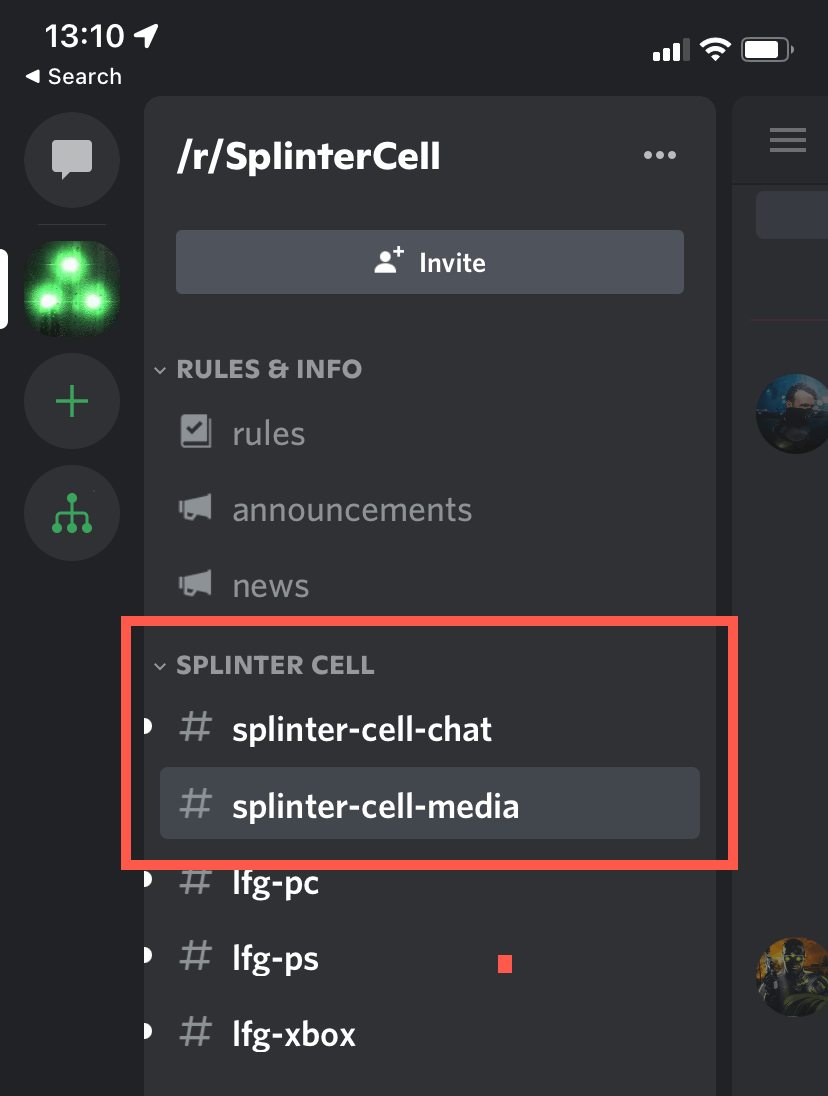
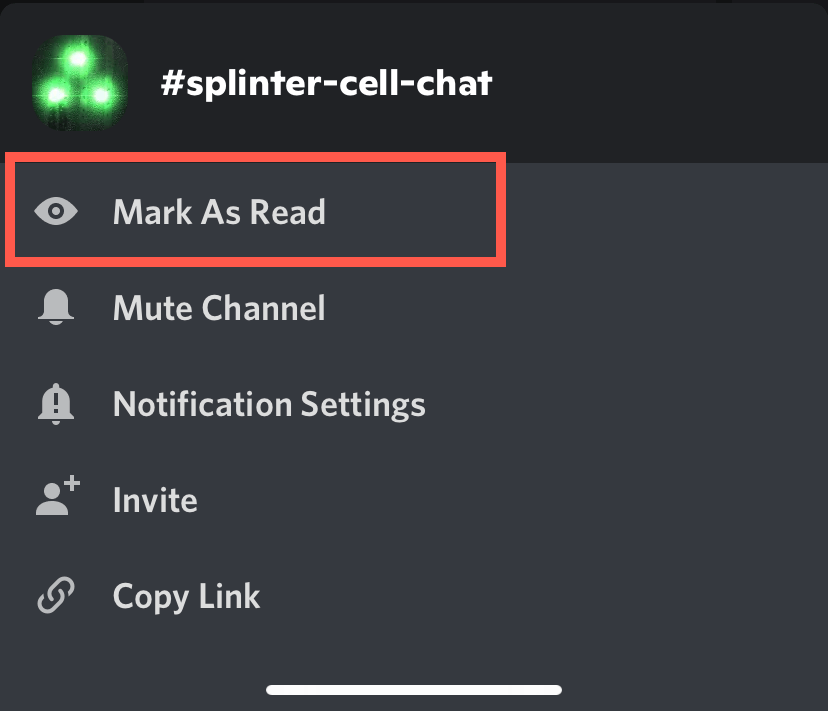
Marking a text channel as read is another quick fix that can help resolve message loading issues in Discord. To do that, right-click or long-press the problematic channel and select Mark as Read.
5. Force-Quit and Relaunch Discord
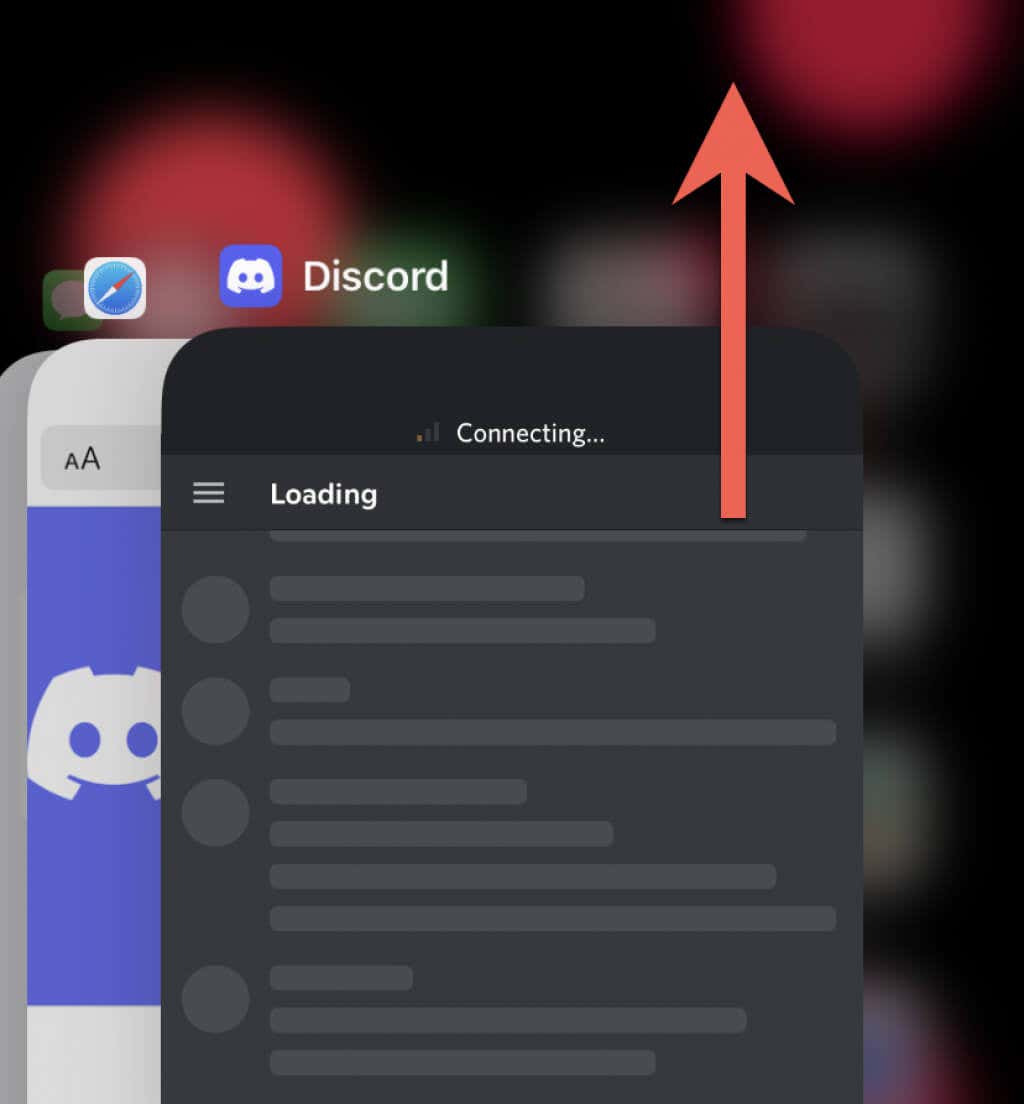
The following fix involves force-quitting and relaunching the Discord app on your mobile or desktop. On iOS and Android, start by bringing up the App Switcher. Then, locate and remove the Discord card, head back to the home screen, and tap the Discord icon.
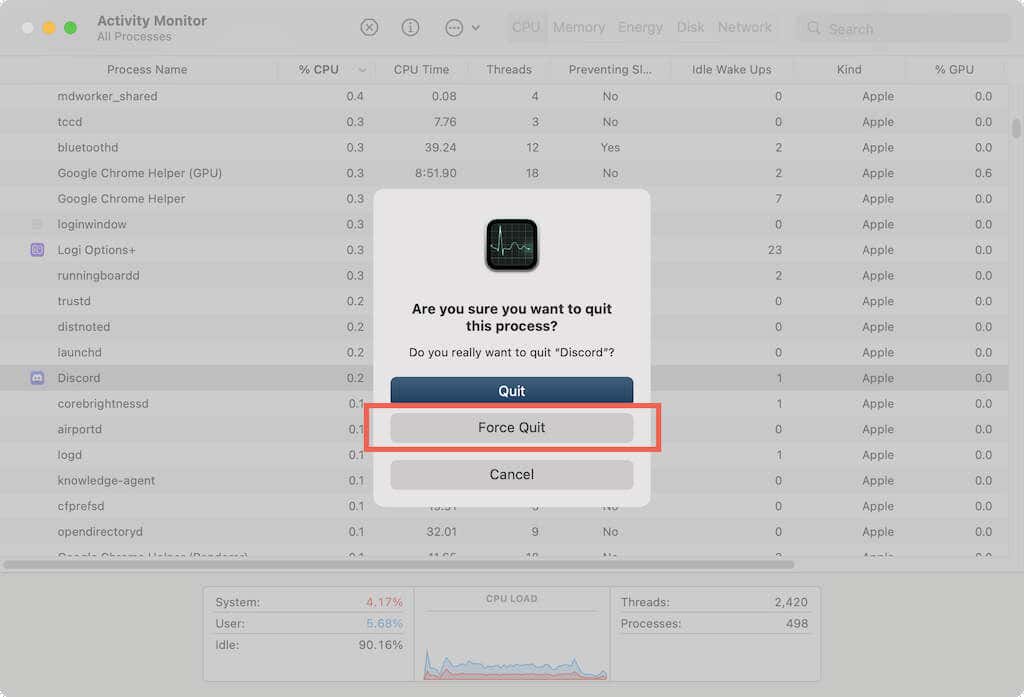
On desktop devices, shut down the app using the Task Manager or Activity Monitor before you restart Discord again.
- Windows: Press Ctrl + Shift + Esc to open the Task Manager. Then, select More details, locate all Discord-related processes, and choose End Task.
- Mac: Open the Launchpad and select Other > Activity Monitor. Then, locate and stop all Discord processes.
6. Wait An Hour And Try Again
Did you do anything to break the rules in a Discord server? If so, you could be under a ban preventing you from interacting with server channels for up to an hour.
For example, spamming reactions and copy-pasting too many messages in a short amount of time can easily trigger an automatic API ban that lasts up to an hour. Refer to the Discord Wiki for more details.
7. Log Out and In Again
Signing out and back into Discord often prompts the app to download stuck messages again. To do that, select the Profile/Settings icon at the bottom of the screen and select Log Out.
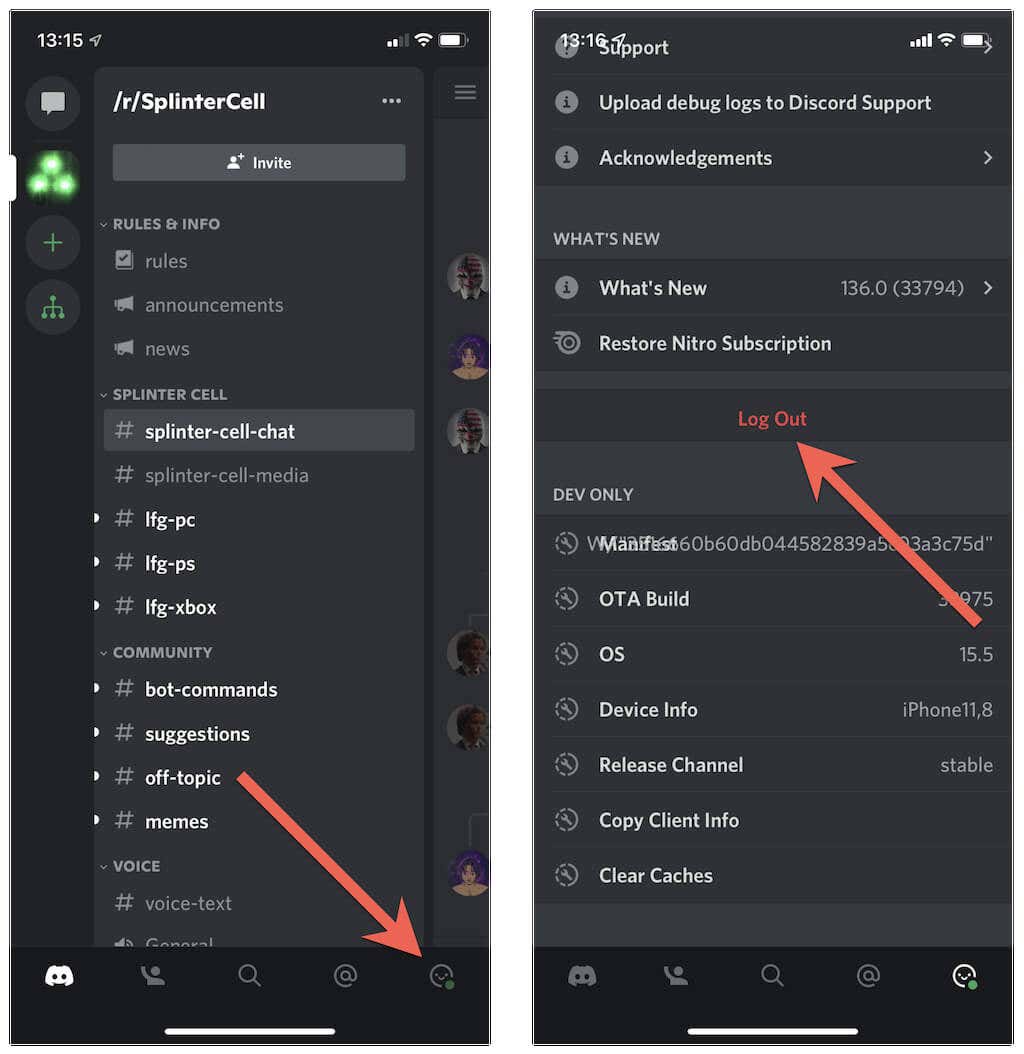
Once you do that, force-quit and relaunch the app, then log in with your Discord account credentials.
8. Update Discord or Browser
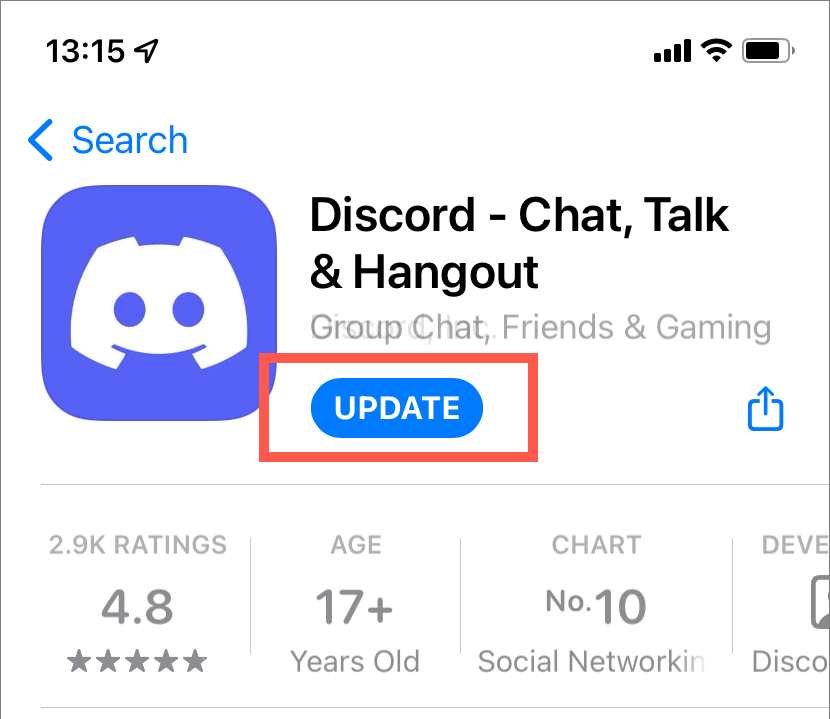
Updating Discord to its latest version is a terrific way to fix persistent issues with the app. On mobile devices, head over to the Play Store or App Store, search for Discord, and tap the Update.
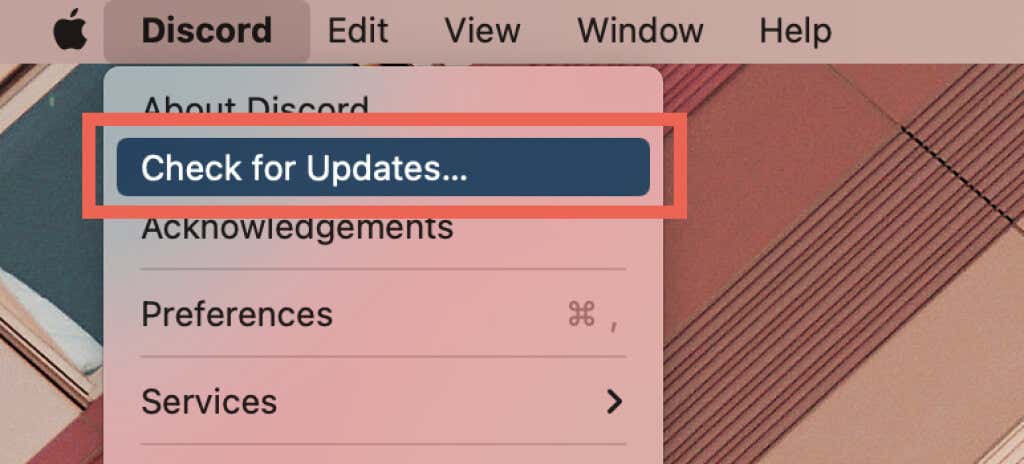
Right-click the Discord icon on the system tray in Windows and select Check for updates. Choose Discord > Check for updates on the menu bar on Mac.
Try updating your web browser if the issue occurs while using Discord’s web version. Here’s how to update Chrome or any other browser on Windows and macOS.
9. Clear the Discord Cache
A corrupt application cache is another reason Discord fails to load your messages. Clearing it out will force the app to re-download data from the servers.
Clear Discord Cache on Android
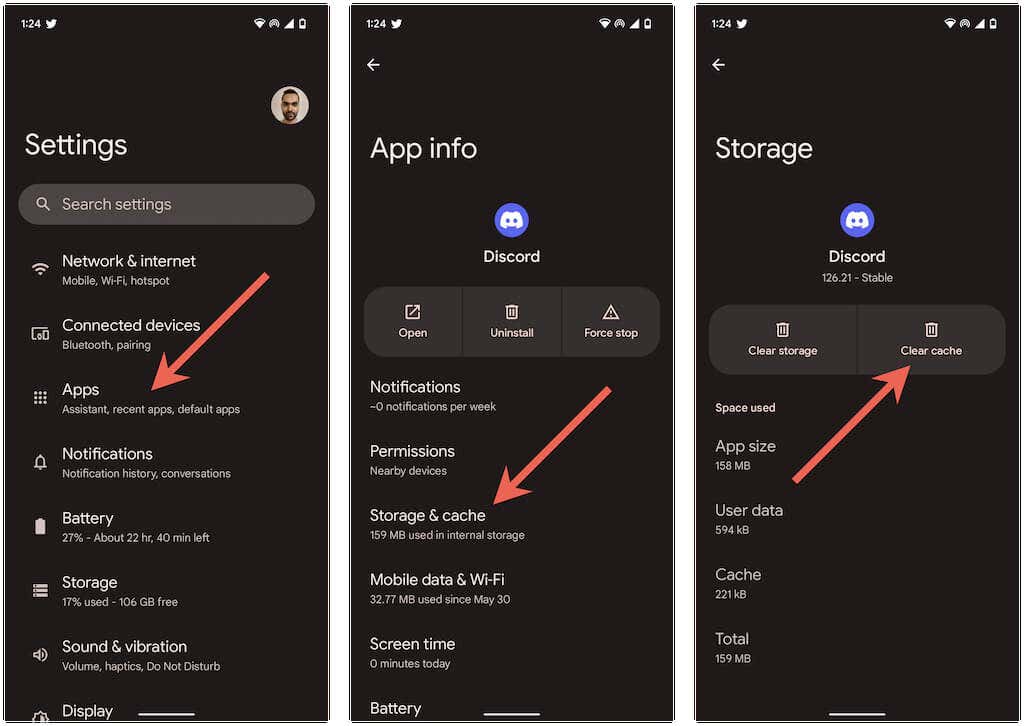
1. Open the Settings app and select Apps > See all apps.
2. Tap Discord.
3. Tap Storage and cache > Clear cache.
Clear Discord Cache on iPhone and iPad
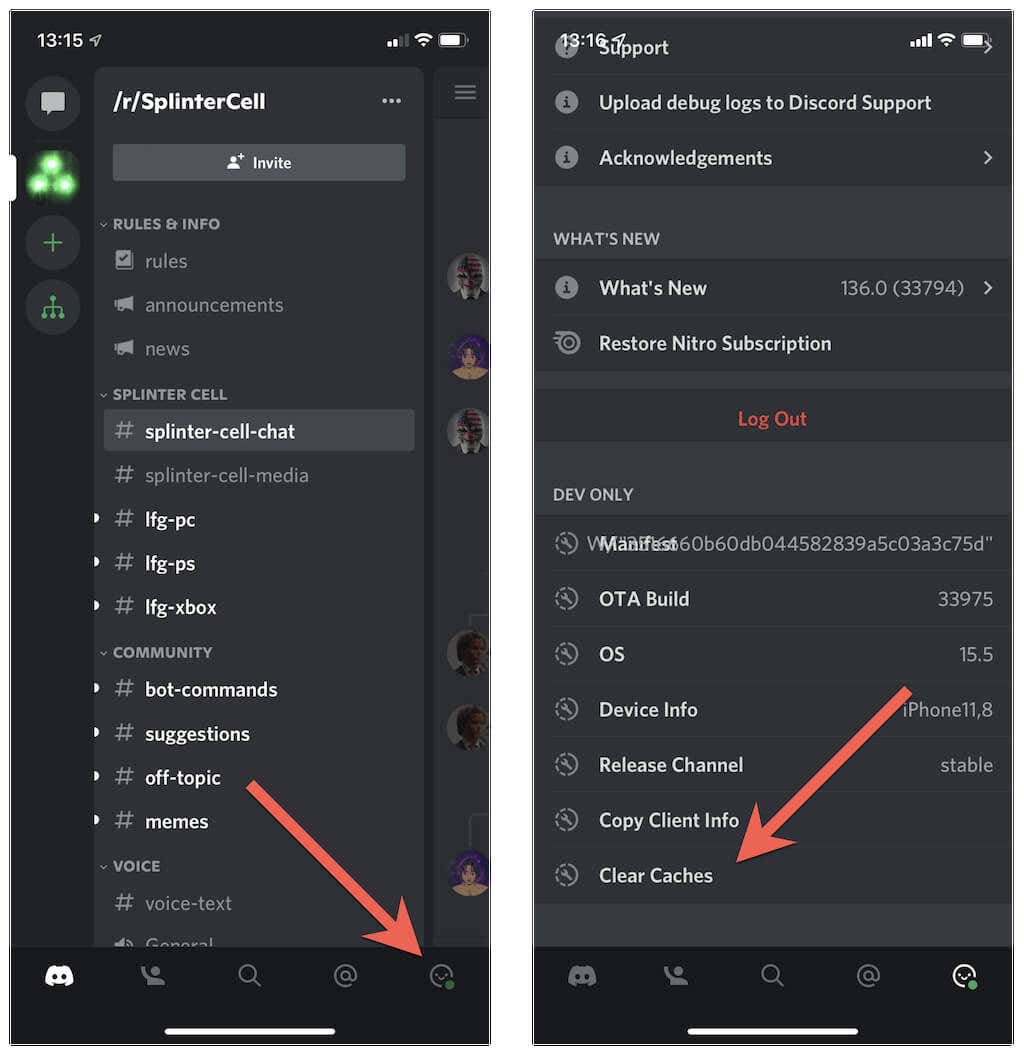
Select the Profile icon at the lower-right of the screen. Then, scroll down and tap Clear caches.
Clear Discord Cache on Windows and Mac
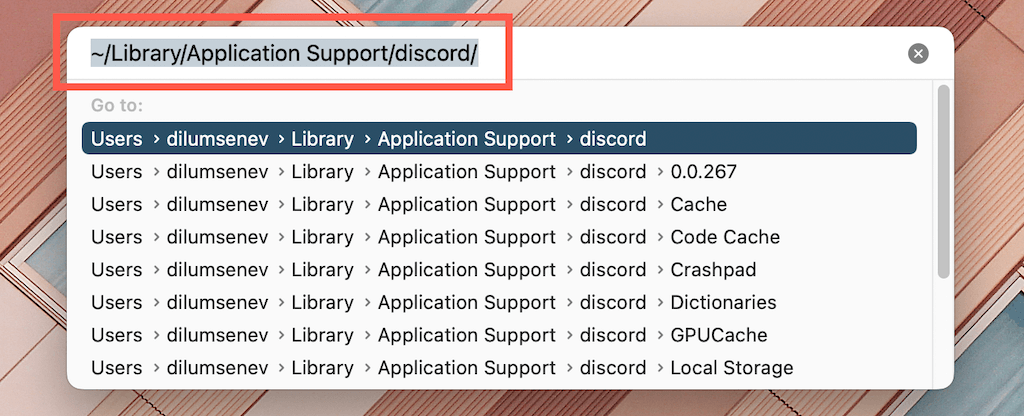
1. Press Windows + R to open a Run box. On the Mac, open Finder and select Cmd + Shift + G.
2. Type %appdata%/discord and press Enter. On Mac, type ~/Library/Application Support/discord/ instead.
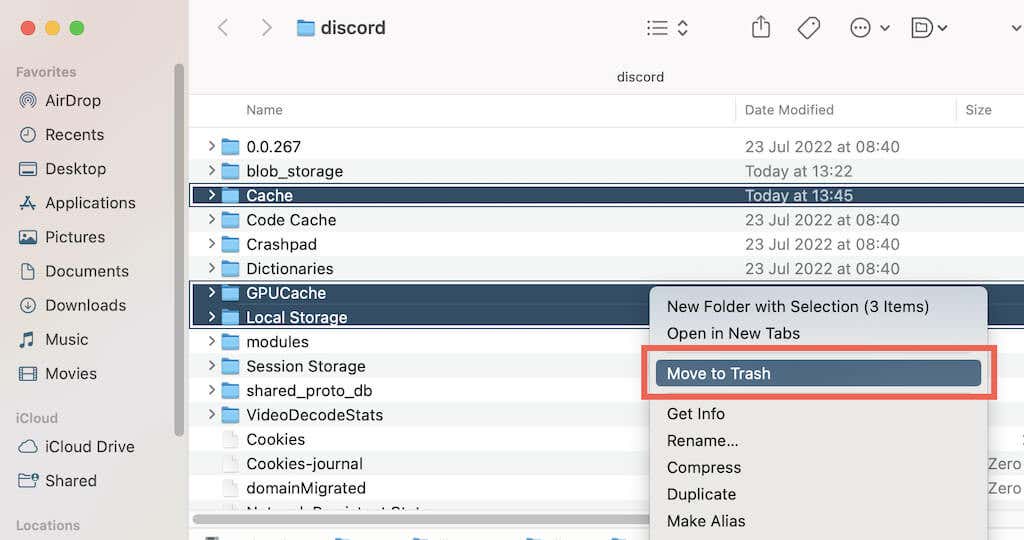
3. Delete the Code Cache, GPU Cache, and Cache folders.
If you use the web version of Discord, try deleting the browser cache. Here’s how to clear any browser cache on Windows and Mac.
10. Use a Virtual Private Network
A VPN (Virtual Private Network) is the best way to circumvent message loading issues caused by geo-restrictions or banned IP addresses. Learn about the best VPNs for mobile or desktop.
11. Remove and Reinstall Discord
If none of the fixes above work, you must remove and reinstall Discord. That should reset any conflicting app permissions or other settings preventing the app from loading messages.
Depending on your platform, here’s how to remove Discord.
- iPhone & iPad: Open the Settings app, go to General > iPhone/iPad Storage > Discord, and tap Delete App.
- Android: Open the Settings app, select Apps > Discord, and tap Uninstall.
- Windows: Right-click the Start button, choose Apps and Features, and select Discord > Uninstall.
- Mac: Open Finder, visit the Applications folder, and drag Discord into the Trash.
Follow that by redownloading Discord via the App Store, Play Store, or Discord website.
Discord’s “Messages Failed to Load” Error Fixed
Discord’s message loading issues are generally easy to resolve. However, if the issue persists, contact a server moderator for help. Contact the Discord support team if the problem is not limited to a specific server.
