

“The application-specific permission settings do not grant Local Activation permission for the COM Server application” under DistributedCOM Event ID 10016 can make a crash or freeze look worse than it is. Windows usually handles the denied request through a fallback, so change DCOM permissions only when the event matches a real failure.
Fix #1: Check whether Event ID 10016 matches a problem
Microsoft treats most DistributedCOM 10016 events as expected Windows behavior. If your PC works normally, leave the permissions alone.
- Press
Windows + Rto open Run. - Type
eventvwr.mscand pressEnter. - Expand Windows Logs and select System.
- Select Filter Current Log in the Actions pane.
- Enter
10016in Includes/Excludes Event IDs and select OK.

You should see only events with ID 10016.
- Double-click a recent event and compare its timestamp with the crash, freeze, or application failure you’re investigating.
A 10016 event recorded near a failure doesn’t prove it caused the failure. Check nearby Critical and Error events for application, driver, disk, or hardware problems too.
- Select the Details tab and choose XML View if you need the complete event data.
Stop here if Windows isn’t crashing, freezing, or refusing to open the named application. Repeated 10016 entries alone don’t require a repair.
Fix #2: Restart Windows and test the affected application
Restarting clears temporary service and application state without changing security permissions.
- Save your open work.
- Open Start > Power.
- Select Restart.
- Open the application that was failing and repeat the action that triggered the problem.
If the application now works, check Event Viewer again. A new 10016 entry without another failure is harmless.
Fix #3: Record the affected CLSID, APPID, and account
A targeted DCOM repair requires three values from the event. Don’t copy identifiers from another PC or a forum post because different components can generate the same event ID.
- Open Event Viewer and return to Windows Logs > System.
- Double-click the 10016 event recorded at the time of the failure.
- On the General or Details tab, record the complete
CLSID, including its braces. - Record the complete
APPID, including its braces. - Record the account or SID named after “to the user.”
The account may appear as SYSTEM, LOCAL SERVICE, NETWORK SERVICE, or a specific Windows user. Grant permissions only to the account named in your event.
Fix #4: Create a restore point and registry backup
I’d skip every remaining fix unless Event ID 10016 repeatedly lines up with the same application failure. Incorrect registry or DCOM permissions can stop Windows components from starting.
- Open Start, type
Create a restore point, and select the matching result. - Select the Windows system drive under Protection Settings.
- Select Create.
- Enter a descriptive name and select Create again.
You should receive a message confirming that the restore point was created. Keep an external backup drive or cloud backup service available if the PC contains files you can’t replace.
- Press
Windows + R, typeregedit, and pressEnter. - Approve the User Account Control prompt.
- Select Computer at the top of Registry Editor.
- Open File > Export.
- Set Export range to All, choose a safe location, and select Save.
A .reg backup should appear in the selected folder.
Fix #5: Identify the COM server in Registry Editor
The CLSID maps the event to a Windows component. Its registry entry should also show the matching APPID.
- In Registry Editor, go to:
HKEY_CLASSES_ROOT\CLSID\{CLSID-from-the-event}
Replace {CLSID-from-the-event} with the exact CLSID you recorded.
- Check the (Default) value for the component’s friendly name.
- Check the AppID value against the APPID from Event Viewer.
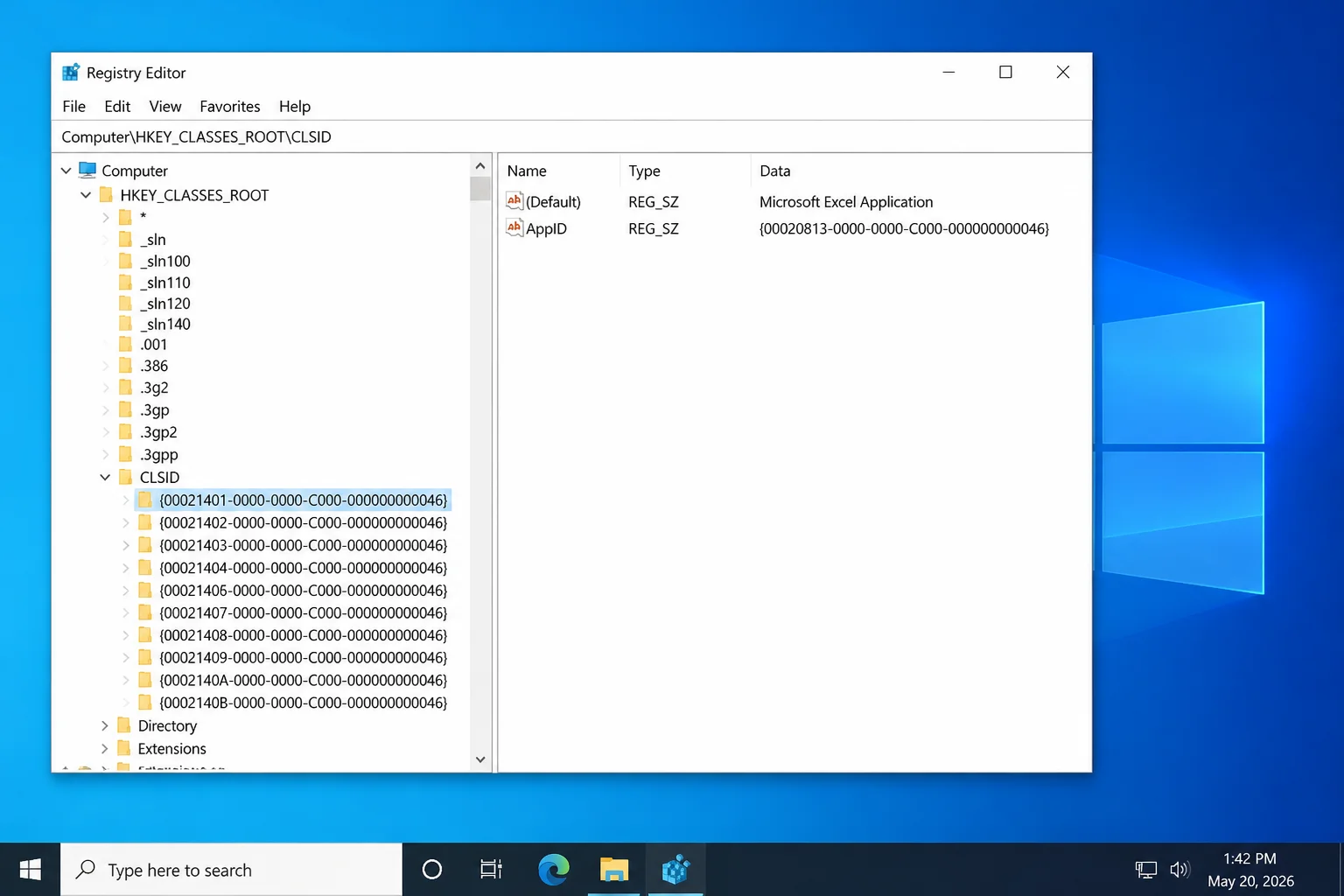
Both APPIDs should match exactly. If they don’t, close Registry Editor and verify that you copied the values from the correct event.
- Go to:
HKEY_CLASSES_ROOT\AppID\{APPID-from-the-event}
- Confirm that the key identifies the same component.
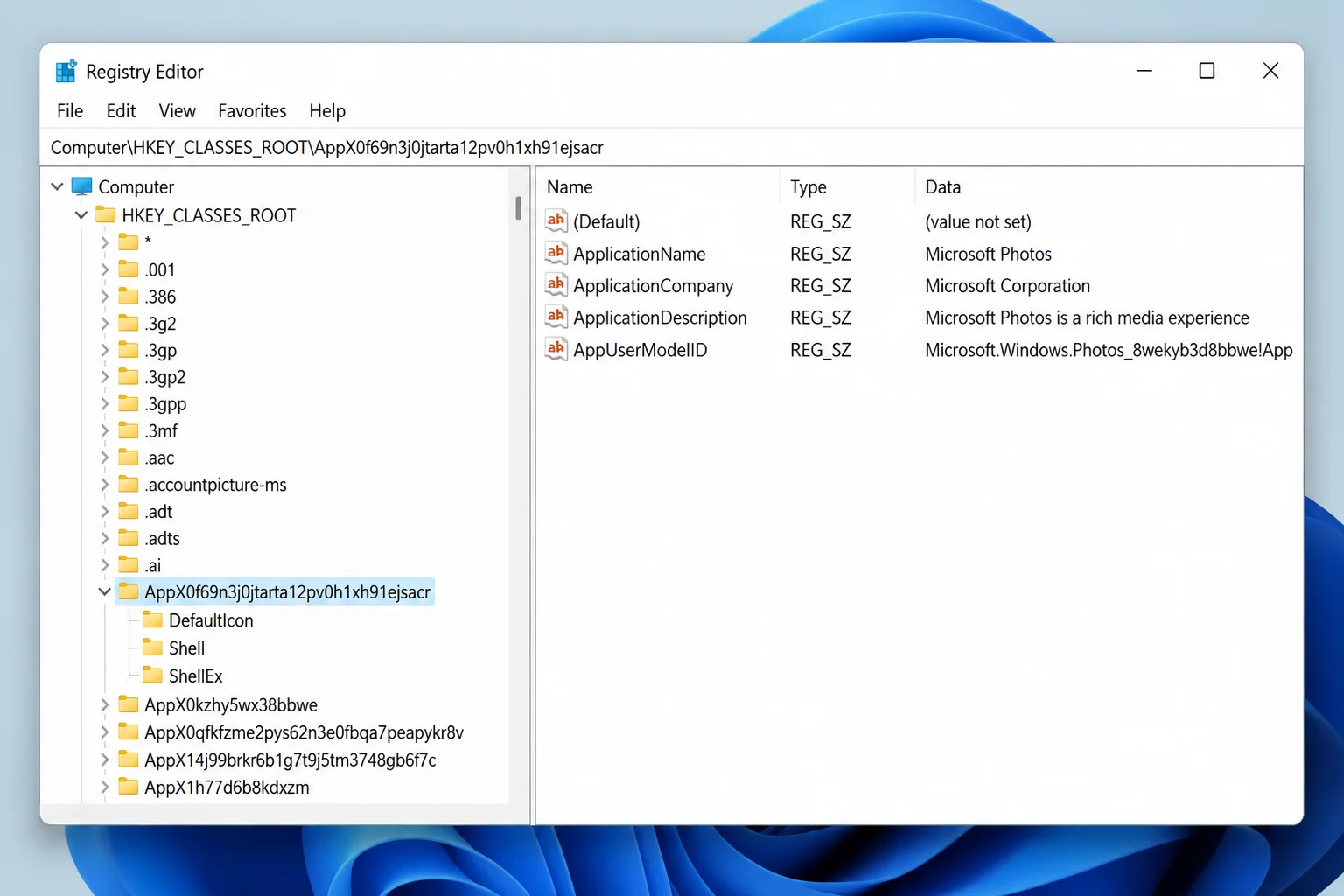
The component may be listed by a friendly name such as PerAppRuntimeBroker, or it may appear only as a GUID.
Fix #6: Allow access to the specific AppID registry key
Use this fix only if Component Services won’t let you edit the affected application’s launch and activation permissions.
- Right-click the matching AppID key and select Permissions.
- Select Advanced.
- Check whether the Administrators group can manage the key.
- If required, add Administrators and grant Full Control for this key only.
- Select Apply and then OK.
Don’t alter neighboring AppID keys. You should now be able to edit the matching component in Component Services.
Fix #7: Grant the account its requested DCOM permission
Match the permission to the wording in the event. For example, an event that names Local Activation doesn’t justify changing remote permissions.
- Press
Windows + R. - Type
dcomcnfgand pressEnter. - Expand Component Services > Computers > My Computer > DCOM Config.
- Find the component whose name or Application ID matches the registry entry.
- Right-click it and select Properties.
- Open the General tab and confirm that Application ID matches the APPID from Event Viewer.
- Open the Security tab.
- Under Launch and Activation Permissions, select Customize.
- Select Edit.
- If Windows warns about unrecognized permission entries, select Cancel rather than removing them.
Unknown accounts can belong to applications or profiles that no longer display a friendly name. Removing them isn’t part of this repair.
- Check whether the account named in the 10016 event already appears in the permissions list.
- If the account is missing, select Add.
- Enter the exact account from the event, such as
SYSTEM,LOCAL SERVICE, orNETWORK SERVICE. - Select Check Names, then select OK.
- Select the account in the permissions list.
- Under Allow, enable only the permission named in the event, such as Local Launch or Local Activation.
- Select OK on each open dialog.
- Restart Windows.
- Reproduce the action that previously caused the application to fail.
- Check Event Viewer for another 10016 event at the same time.
The repair worked if the application completes the action without crashing or freezing. A separate 10016 event from another CLSID or APPID is a different case.
What not to change
Don’t delete DefaultAccessPermission, DefaultLaunchPermission, MachineAccessRestriction, or MachineLaunchRestriction from HKEY_LOCAL_MACHINE\SOFTWARE\Microsoft\Ole. Those values control global DCOM security, and deleting them can cause wider permission problems.
Don’t add SYSTEM and LOCAL SERVICE automatically. Use the account and permission stated in the specific event.
When the fixes don’t work
A matching timestamp can still point to a side effect rather than the cause. Check adjacent events for display-driver failures, storage errors, application crashes, and unexpected shutdown records. If Windows keeps freezing or restarting, use a Windows repair service or the hardware manufacturer’s diagnostics before changing more DCOM entries.
Conclusion
Fix #1 is the right answer when Event ID 10016 appears without a matching failure: leave it alone. If one CLSID and APPID repeatedly coincide with the same broken application, Fix #7’s targeted permission change can solve it; continuing crashes suggest a driver, application, storage, or hardware fault instead.