

File Explorer opens on its own every time you log into Windows, a folder window sitting on your desktop before you’ve done a thing. The most common causes are the “Restore previous folder windows at logon” setting, a startup shortcut someone left behind, or a third-party app launching it for you.
Fix #1: Uncheck “Restore previous folder windows at logon”
This Folder Options setting tells Windows to reopen whatever File Explorer windows were open when you last shut down. If it’s checked and you had a folder open at shutdown, it comes back at every boot. Some Windows 11 builds had a bug where this option reopened windows unreliably, which Microsoft later fixed in a File Explorer update, so keep Windows updated too.
Windows 11
- Open File Explorer.
- Click the … (ellipsis) button in the toolbar and select Options.
- In the Folder Options window, select the View tab. Under Advanced settings, scroll to “Restore previous folder windows at logon” and uncheck it.
- Click Apply, then OK.
- Restart your PC and check if the window reappears.

Windows 10
- Open File Explorer and click the View tab in the ribbon.
- Click Options on the far right of the ribbon.
- In the Folder Options window, select its View tab, then under Advanced settings uncheck “Restore previous folder windows at logon”.
- Click Apply, then OK, and restart.
Fix #2: Delete shortcuts from the Startup folders
A shortcut pointing to File Explorer or a specific folder sitting in a Startup folder will open that location at every login. This is the most direct cause when a particular folder (Documents, a network drive, etc.) keeps appearing. If you’ve already turned off Restore previous folder windows at logon and a specific folder still opens, check here next.
- Press
Win+R, typeshell:startup, and press Enter. This opens your personal Startup folder.
- Look for a shortcut that points to File Explorer (
explorer.exe), a folder path, or a specific drive. Right-click it and select Properties to check its Target before deleting; leave shortcuts for apps you recognize and use.
- Press
Win+Ragain, typeshell:common startup, and press Enter. This opens the All Users Startup folder.
- Check and delete any Explorer or folder shortcuts here the same way.
- Restart your PC and test.
Fix #3: Disable the startup entry in Task Manager
If an app, rather than a plain shortcut, is launching File Explorer at login, Task Manager’s Startup tab is the fastest place to find and stop it. This is also worth checking if, as in this Microsoft Q&A thread, folders keep reopening even after you’ve cleared the Folder Options setting.
- Press
Ctrl+Shift+Escto open Task Manager. In Windows 10, click More details if it’s in compact mode.
- Click the Startup apps tab (labeled Startup in Windows 10).
- Look for entries that mention File Explorer, Explorer, or a folder or drive that opens at boot. Also watch for third-party utilities: backup apps, cloud sync tools, or OEM software from your PC’s manufacturer.
- Right-click any suspicious entry and select Disable.
- Restart and check whether the window still appears.
Fix #4: Turn off the app in Settings → Apps → Startup
Settings gives you a simpler on/off toggle for the same startup apps, which some people find easier to scan.
- Press
Windows+Ito open Settings.
- Go to Apps > Startup.
- Look for any app that could be opening a File Explorer window, cloud sync apps (OneDrive, Dropbox, Google Drive), OEM utilities, or backup software.
- Toggle the switch to Off for any suspect app.
- Restart and test.
Fix #5: Change AutoPlay settings
If File Explorer only opens when you have a USB drive, memory card, or other external device plugged in at boot, AutoPlay is the trigger, not a persistent startup entry.
- Press
Windows+S, type AutoPlay, and select AutoPlay settings from the results.
- Either turn off “Use AutoPlay for all media and devices” entirely, or scroll down and set Removable drive and Memory card to Take no action.
- Close Settings and restart your PC.
Fix #6: Check for third-party software
Some apps can be configured to open a File Explorer window at login. Categories worth checking:
- OEM utilities from your PC’s manufacturer that launch at sign-in
- Cloud sync apps (OneDrive, Dropbox, Google Drive), which may open their synced folder after setup or sign-in
- Backup software that may open a destination folder in Explorer after a run
- Mapped network drives or scripts that open a folder when they connect at sign-in
If the problem started around the time you installed something new, that app is a good first suspect. Open the app’s own settings and look for an option like “Open folder at startup,” “Launch at login,” or “Auto-open after sync,” and disable it there first. If no such option exists, disable the app via Task Manager’s Startup tab (Fix #3) or uninstall it entirely via Settings > Apps > Installed apps. For an example of users troubleshooting folders that keep reopening, see this r/Windows11 discussion.
Fix #7: Correct the Winlogon Shell and Userinit registry keys
Two registry values under Winlogon control which shell Windows runs and how your session initializes. If either has been changed, for example by a third-party installer or malware, File Explorer can misbehave at startup.
Warning: Editing the registry incorrectly can make Windows unstable. Back up the registry before making any changes, and don’t change any values other than the ones named below.
Step 1: Back up the registry
- Press
Win+R, typeregedit, and press Enter.
- In Registry Editor, click File > Export.
- Choose a save location, name the file (e.g.,
registry-backup-2026), and click Save.
Step 2: Check the Shell and Userinit values
- In Registry Editor, navigate to:
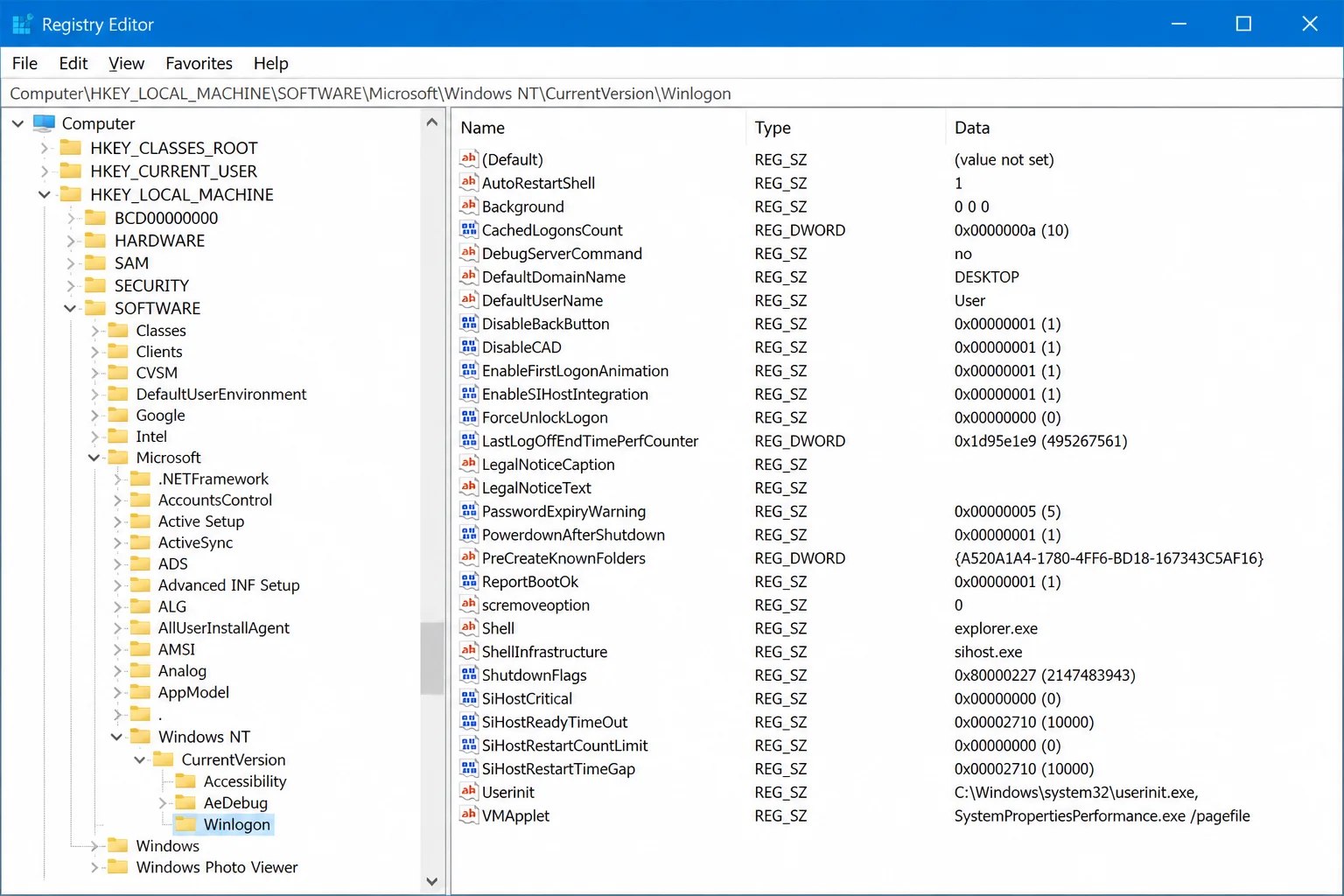
HKEY_LOCAL_MACHINE\SOFTWARE\Microsoft\Windows NT\CurrentVersion\Winlogon
- Find the Shell value in the right pane. It should read exactly:
explorer.exe. If it contains any other programs or folder paths, remove the extras so onlyexplorer.exeremains.
- Find the Userinit value. On a standard installation it reads
C:\Windows\system32\userinit.exe,(the trailing comma is intentional). If Windows is installed on a different drive or folder, the path uses that location instead; only remove extra programs appended after the comma, and leave the path itself alone if it matches your Windows folder.
- Close Registry Editor and restart your PC.
Fix #8: Clean up the Run and User Shell Folders registry keys
If Winlogon looks correct but File Explorer still opens uninvited, two more registry locations under your user profile may contain leftover entries that force it open at login.
Back up the registry first (see Fix #7, Step 1), then:
- In Registry Editor, navigate to:
HKEY_CURRENT_USER\Software\Microsoft\Windows\CurrentVersion\Explorer\User Shell Folders
- Check the Startup value. By default it reads
%USERPROFILE%\AppData\Roaming\Microsoft\Windows\Start Menu\Programs\Startup. If it points somewhere unexpected, correct it to that default path.
- Navigate to:
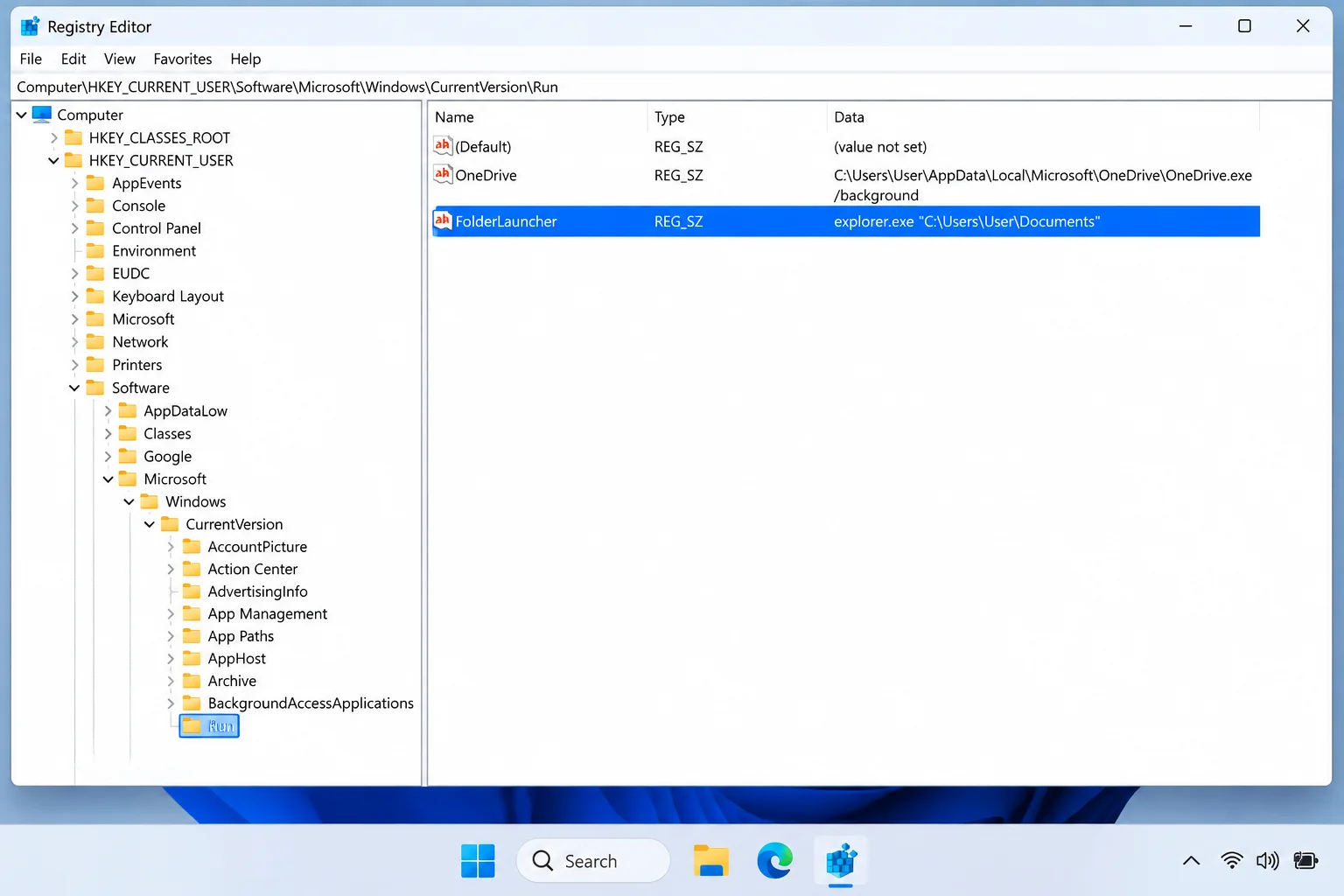
HKEY_CURRENT_USER\Software\Microsoft\Windows\CurrentVersion\Run
- Look for values whose Data runs
explorer.exewith a folder path, or opens a folder directly. Delete only entries you’ve confirmed are opening the folder; if a value names an unfamiliar program, search for it before removing it, since many legitimate apps start from this key.
- Close Registry Editor and restart.
When none of these work
If File Explorer still opens after all eight fixes, run System File Checker. It repairs corrupted protected Windows files, but it won’t remove a third-party startup entry, so use it only after the checks above. Open an elevated Command Prompt (search for cmd, right-click it, and select Run as administrator), type sfc /scannow, and press Enter. Let it complete, then restart. If the behavior survives that, run a full scan with Microsoft Defender or Malwarebytes; unwanted startup behavior that survives all of the above can be a sign of malware. NinjaOne’s guide to the Restore previous folder windows setting also covers how admins can control it across many PCs.
Conclusion
Start with Fix #1 (unchecking “Restore previous folder windows at logon”) and Fix #2 (removing a startup shortcut), since they’re the quickest to check. If something you installed recently kicked it off, Fix #6 is your next stop. Save the registry fixes (Fixes #7 and #8) for when the simpler options have come up empty, and change only the values described.