

“This device can’t use a Trusted Platform Module” appears when BitLocker can’t find an active TPM chip on your PC. The error message names the fix, a Group Policy setting, but not where to find it.

Fix #1: Enable BitLocker without a compatible TPM via Group Policy
A Trusted Platform Module (TPM) is a security chip, either dedicated hardware on the motherboard or firmware built into modern Intel and AMD processors, that stores BitLocker’s encryption key. Without one, BitLocker can still encrypt your drive; it just uses a startup password or a USB key instead of the chip. This Group Policy change tells Windows to allow that.
This fix works on Windows 10 and 11 Pro, Enterprise, and Education only. If gpedit.msc won’t open, you’re on Home, skip to Fix #3.
- Press
Windows + R, typegpedit.msc, and press Enter.
- In the left pane, expand Computer Configuration > Administrative Templates > Windows Components > BitLocker Drive Encryption > Operating System Drives.
- In the right pane, double-click Require additional authentication at startup.
- Select Enabled.
- Under Options, confirm that Allow BitLocker without a compatible TPM (requires a password or a startup key on a USB flash drive) is checked. It usually checks itself when you select Enabled, but verify it.
- Click Apply, then OK, and close Group Policy Editor.
Open Control Panel > System and Security > BitLocker Drive Encryption and click Turn on BitLocker next to your system drive. The error is gone. The setup wizard now prompts you to create a startup password or save a startup key to a USB flash drive.
On a work or school PC? If the change reverts after a reboot or the setting appears grayed out, your organization controls BitLocker policy centrally. Try running gpupdate /force in an elevated Command Prompt first. If that doesn’t stick, IT needs to update the setting from their side.
Fix #2: Enable TPM in UEFI/BIOS settings
If you’d rather use BitLocker with TPM, which needs no startup password or USB drive at every boot, your chip might be disabled rather than absent. To check, press Windows + R, type tpm.msc, and press Enter. If it says “A compatible TPM cannot be found,” the chip may just be turned off in firmware.
- Restart your PC and press the BIOS/UEFI key during startup. Common keys are
F2,Del,F10, orEsc. Your PC or motherboard documentation lists the exact one. - Go to the Security or Advanced section.
- Find the setting labeled TPM, Intel PTT (Platform Trust Technology), or AMD fTPM (firmware TPM) and enable it.
- Save your changes and exit. The PC restarts.
- Back in Windows, run
tpm.mscagain. It should now show “The TPM is ready for use.”
With TPM active, BitLocker decrypts the drive automatically at startup. You won’t need the Group Policy change from Fix #1.
Fix #3: The registry workaround for Windows Home (and why it won’t add BitLocker)
Windows Home doesn’t include Local Group Policy Editor, so gpedit.msc won’t open. You’ll sometimes see this registry key suggested as a workaround, but it’s worth knowing upfront: Windows 10 and 11 Home don’t ship BitLocker Drive Encryption at all, so creating this key doesn’t unlock functionality that isn’t there. It only changes a policy value that a Pro/Enterprise/Education installation would read, if you’re curious what the equivalent Group Policy change looks like at the registry level:
- Press
Windows + R, typeregedit, press Enter, and click Yes at the UAC prompt. - Navigate to
HKEY_LOCAL_MACHINE\SOFTWARE\Policies\Microsoft\FVE.
– If the FVE key doesn’t exist: right-click the Microsoft key in the left pane, select New > Key, and name it FVE.
- Right-click the
FVEkey and select New > DWORD (32-bit) Value. Name itEnableBDEWithNoTPM. - Double-click
EnableBDEWithNoTPM, set the Value data to1, and click OK.
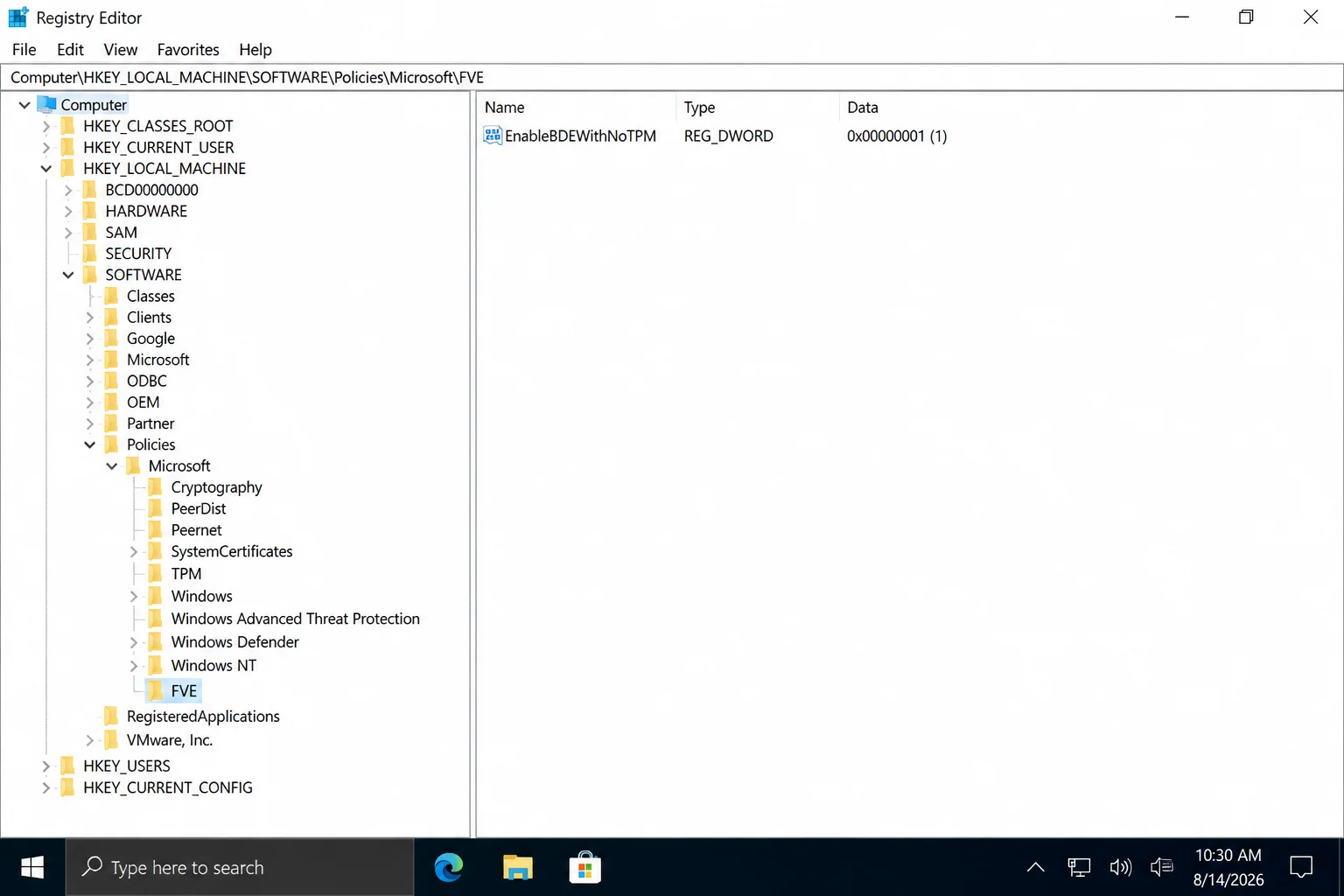
- Close Registry Editor and restart your PC. On Home, BitLocker still won’t be available afterward, this key has no effect there. (On Pro/Enterprise/Education without a compatible TPM, this is the change that lets BitLocker proceed with a startup password or USB key instead.)
Windows Home doesn’t get a “limited” version of BitLocker via this trick, it gets none at all; see the Device Encryption section below for what Home actually offers. Upgrading to Windows 11 Pro is the only path if you need full BitLocker control on a Home PC.
Device Encryption vs. BitLocker
If Settings > Privacy & security > Device encryption shows encryption as on, that’s BitLocker running automatically in the background. Same encryption engine, fewer controls. There’s no startup PIN option, no algorithm selection, and no manual recovery key management from that interface. Full BitLocker Drive Encryption, with the Group Policy controls above, is available only on Windows 10 and 11 Pro, Enterprise, and Education.
If your Home device shows Device Encryption as enabled, your drive is protected. You just can’t adjust the details from there.
Conclusion
Fix #1 clears the error for most people. The Group Policy change takes about two minutes, and BitLocker setup runs smoothly once it’s in place. Fix #2 is worth trying if your machine is fairly modern and you’d prefer no password at every boot. Home edition users hit a real wall with Fix #3, and upgrading to Windows 11 Pro is the honest long-term answer if you rely on BitLocker regularly.