

Someone on your shared, family, or kiosk PC keeps downloading files you never approved, such as installers, game mods, random attachments from a “download now” pop-up. None of the big three browsers has an obvious “Block All Downloads” switch. You’ll need to dig into policy settings, the registry, or an extension to actually stop it.
Good news: every browser here has at least one real fix. Most take under five minutes.
Before You Begin
Make sure you have:
- Administrator access to the Windows or Mac account you’re locking down
- Chrome, Edge, and/or Firefox already installed (current version)
- Windows 10 or 11 (Pro/Enterprise gives you Group Policy; Home users can still do everything through the Registry Editor)
- A few minutes of downtime on the shared PC; some steps require restarting the browser
- macOS with admin rights to Finder and System Settings, if you’re locking down a Mac instead of (or in addition to) a Windows PC
| Requirement | Details |
|---|---|
| Device | Shared, family, or kiosk PC |
| OS version | Windows 10/11 or macOS (current) |
| Browser | Chrome, Edge, and/or Firefox, latest version |
| Access level | Local administrator |
Chrome: Restrict or Block Downloads
Chrome’s everyday Settings menu doesn’t have a download-blocking toggle. The only native protection is Safe Browsing, which flags dangerous files, but it won’t stop someone from downloading a plain PDF or ZIP.
Fix #1: Turn On Chrome’s Enhanced Safe Browsing
- Open Chrome and click the three-dot menu > Settings.
- Go to Privacy and security > Security.
- Under Safe Browsing, select Enhanced protection.

This blocks known-dangerous files automatically, but it won’t stop legitimate downloads like .pdf or .docx files. If you need a true block, move to Fix #2.
Fix #2: Block All Chrome Downloads via the Registry
This is the closest thing Chrome has to a real “block everything” switch. It doesn’t require a third-party tool.
- Press
Win + R, typeregedit, and press Enter. - Navigate to
HKEY_CURRENT_USER\Software\Policies\Google\Chrome. If the Google or Chrome keys don’t exist, right-click and create them (New > Key). - Right-click inside the Chrome key, choose New > DWORD (32-bit) Value, and name it
DownloadRestrictions. - Double-click the new value and set it based on how strict you want:
0= no restrictions (default)1= block dangerous downloads only2= block dangerous and suspicious downloads3= block all downloads
- Close Registry Editor and restart Chrome.
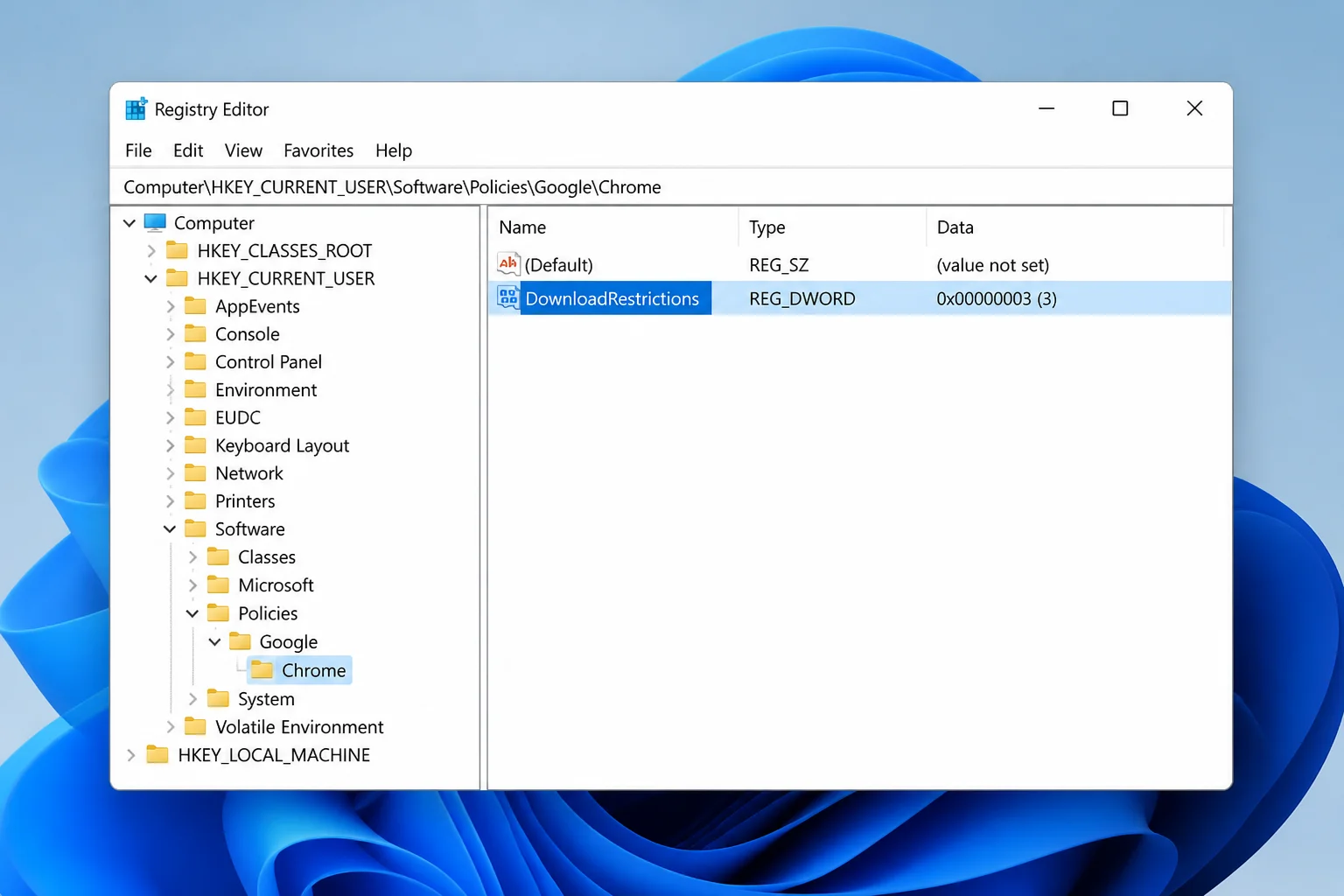
If you’d rather run a command than click through Registry Editor, use this from an elevated Command Prompt:
reg add "HKCU\Software\Policies\Google\Chrome" /v DownloadRestrictions /t REG_DWORD /d 3 /fFor a machine-wide block that applies to every Windows account, swap HKCU for HKLM. Run it as administrator:
reg add "HKLM\SOFTWARE\Policies\Google\Chrome" /v DownloadRestrictions /t REG_DWORD /d 3 /fTip: Set the value back to
0(or delete it) whenever you need to re-enable downloads temporarily.
Fix #3: Install a Download-Blocking Extension for Chrome
Prefer a GUI over the registry? Extensions like Download Blocker on the Chrome Web Store block downloads by file type without touching regedit.
- Open the Chrome Web Store and search for a download-blocking extension.
- Click Add to Chrome, then Add extension.
- Click the extension icon in the toolbar and configure which file types (
.exe,.zip,.msi) get blocked.
Extensions are easy to remove, though. Anyone with access to chrome://extensions can disable them in a few clicks. Combine this with a restricted standard user account if you want the block to stick.
Edge: Restrict or Block Downloads
Edge is the only browser of the three with a real, documented all-downloads block. It’s built right into the policy engine, so no registry hacking is required, as long as you’re on Windows Pro or Enterprise.
Fix #4: Review Edge’s Built-In Security Settings
- Open Edge and click the three-dot menu > Settings.
- Go to Privacy, search, and services.
- Scroll to the Security section and confirm Microsoft Defender SmartScreen and Block potentially unwanted apps are both turned on.
These settings flag risky files. Like Chrome’s Safe Browsing, they don’t block downloads across the board; for that, use the policy below.
Fix #5: Block All Downloads with Edge’s DownloadRestrictions Policy
On Windows Pro or Enterprise (Group Policy):
- Press
Win + R, typegpedit.msc, and press Enter. - Navigate to Computer Configuration > Administrative Templates > Microsoft Edge.
- Find Allow download restrictions and double-click it.
- Select Enabled, then choose 3 – Block all downloads from the dropdown.
- Click Apply, then OK, and restart Edge.
On Windows Home (no Group Policy Editor): create the same setting directly in the registry.
- Press
Win + R, typeregedit, and press Enter. - Navigate to
HKEY_LOCAL_MACHINE\SOFTWARE\Policies\Microsoft\Edge, creating the Policies, Microsoft, and Edge keys if they don’t exist. - Add a new DWORD (32-bit) Value named
DownloadRestrictionsand set it to3. - Restart Edge.
Or run this from an elevated Command Prompt:
reg add "HKLM\SOFTWARE\Policies\Microsoft\Edge" /v DownloadRestrictions /t REG_DWORD /d 3 /fOther accepted values: 1 blocks dangerous downloads, 2 blocks dangerous and potentially unwanted downloads, 4 blocks only known malicious files. 0 returns Edge to default behavior.
Warning:
BlockAllDownloadsstops link and prompt-triggered downloads, but it won’t stop someone from using Save page as or Print to PDF to save content locally. Pair it with the folder permission fix below if that matters for your setup.
If a legitimate download gets flagged before you apply the full block, click it in Edge’s download tray and choose Keep. That overrides it just for that file.
Fix #6: Block Specific File Types with DownloadBlockedForFileTypes
Want to stop executables and installers but still allow PDFs, images, and documents? Use Edge’s file-type policy instead of a full block.
- Open gpedit.msc > Computer Configuration > Administrative Templates > Microsoft Edge.
- Find Specify a list of file types that will be blocked from downloading (
DownloadBlockedForFileTypes) and double-click it. - Select Enabled, click Show, and enter the extensions you want to block, one per line, without the dot, for example
exe,msi,bat,cmd. - Click OK, Apply, and restart Edge.
On Windows Home, you have to build this policy by hand in the registry. Create it as a “List” value under HKLM\SOFTWARE\Policies\Microsoft\Edge\DownloadBlockedForFileTypes, with each blocked extension as a separate numbered string value (1, 2, 3…). It’s fiddly. If you’re managing several extensions, the Group Policy route on Pro/Enterprise is much faster.
Firefox: Restrict or Block Downloads
Firefox doesn’t have a policy equivalent to Edge’s BlockAllDownloads. It does block certain risky downloads by default, though, and supports a password-protected add-on for everything else.
Fix #7: Confirm Firefox Blocks Insecure HTTP Downloads
Since Firefox 93, the browser automatically blocks HTTP file downloads triggered from HTTPS pages, a common trick used by malicious sites. It’s on by default, but it’s worth confirming.
- Open Firefox and type
about:configin the address bar, then press Enter. - Click Accept the Risk and Continue.
- Search for
dom.block_download_insecure. - Confirm the value is set to
true.
If a download gets blocked unexpectedly, open the Downloads panel with Ctrl + J. Choose to allow that specific file rather than disabling the preference for everyone.
Fix #8: Install the Public Fox Add-on to Block File Types
For broader control, blocking by extension and locking settings behind a password, install the Public Fox extension.
- Open Firefox and go to about:addons.
- Search the Add-ons store for Public Fox and click Add to Firefox.
- Open the extension’s options page and add the file extensions you want blocked (
exe,msi,zip, etc.). - Set an admin password so the settings,
about:config, and the Add-ons page itself can’t be changed without it.
Like any extension, this only holds if the account itself is locked down. Someone with admin rights can uninstall it from about:addons in a few clicks.
OS-Level Fallback: Block Downloads Regardless of Browser
Browser policies only apply to that one browser and profile. Installing a portable browser, using another account, or plugging in a USB flash drive sidesteps the whole problem. None of the settings above matter once that happens. Locking the file system itself closes that gap.
Fix #9: Remove Write Permission on the Downloads Folder (Windows)
- Open File Explorer and locate the Downloads folder for the account you’re restricting (usually
C:\Users\[username]\Downloads). - Right-click it and choose Properties, then open the Security tab.
- Click Edit, select the relevant user or group, and uncheck Write and Modify under Allow.
- Click Apply, then OK.
You can also do this from Command Prompt with icacls:
icacls "%USERPROFILE%\Downloads" /deny "your-username":WBrowsers will still let the download “start,” but writing the file to disk will fail. That’s an effective, browser-agnostic block for a kiosk enclosure or a shared office desk.
Fix #10: Lock Down the Downloads Folder (macOS)
There’s no direct macOS equivalent to Windows’ registry-based Chrome/Edge policies, so folder permissions are your main OS-level lever.
- In Finder, Control-click the Downloads folder and choose Get Info.
- Expand Sharing & Permissions.
- Click the lock icon in the bottom corner and authenticate as an administrator.
- Select the relevant user and change their Privilege to Read Only.
Fix #11: Use Built-In Parental Controls for a Broader Lock
For a family computer, Windows’ Family Safety and macOS’ Screen Time restrict app installs and content system-wide. Neither is a dedicated “block downloads” toggle the way Edge’s policy is.
- Windows: Settings > Accounts > Family lets you manage a child’s account restrictions from the Microsoft Family Safety app.
- macOS: System Settings > Screen Time > Content & Privacy Restrictions lets you limit app installation and web content for a managed account.
These work best layered on top of a restricted standard user account rather than as a standalone fix. A determined teenager can usually find the admin password before finding a way around a policy key.
Can Someone Get Around These Blocks?
Yes, if they have enough access. Browser-only restrictions apply to one browser and one profile. Installing a second browser, running a portable copy from a USB flash drive, or logging into a different Windows or Mac account bypasses everything covered above, except the folder-permission and account-level fixes. For a genuinely locked-down kiosk PC, pair a browser policy with a restricted standard account and folder permissions. If the machine sits in a public space, use a wired-only setup with a Cat6 Ethernet cable instead of open Wi-Fi, to limit what gets pulled onto it in the first place.
Tips and Troubleshooting
- Chrome shows no visible “block downloads” setting: That’s expected; it’s registry-only. Use Fix #2.
- gpedit.msc won’t open: You’re on Windows Home. Use the registry method in Fix #5 instead; it produces the same result.
- Edge blocks a file you know is safe: Click it in the download tray and choose Keep rather than turning off SmartScreen entirely; disabling it removes protection for every download, including the one you trust.
- BlockAllDownloads is on, but someone still saved a page: That’s by design. The policy blocks downloads, not Save page as or Print to PDF; add the folder permission fix if page-saving is a problem too.
- Firefox blocked an HTTP file from an HTTPS page: Open the Downloads panel (
Ctrl + J) and allow that one file instead of settingdom.block_download_insecuretofalsefor everyone. - A file-type block isn’t enough:
DownloadBlockedForFileTypesin Edge only stops the extensions you list; pair it withDownloadRestrictionsif you want everything blocked by default and specific types allowed instead.
Wrapping Up
Edge’s DownloadRestrictions policy is the cleanest full block of the three. It’s documented, officially supported, and the registry version works fine even on Windows Home. Chrome’s registry method does the same job with less flexibility, and Firefox needs the Public Fox add-on for anything beyond its default insecure-download blocking.
None of these hold up against someone with local admin rights and a second browser, though. If the downloads keep coming back after you’ve applied a fix, the account itself, not the browser, probably needs to be locked down to a restricted standard user.
| Step | Action | Applies To |
|---|---|---|
| 1 | Enable Safe Browsing / SmartScreen | Chrome, Edge |
| 2 | Set DownloadRestrictions to 3 (registry or Group Policy) | Chrome, Edge |
| 3 | Block specific extensions with DownloadBlockedForFileTypes | Edge |
| 4 | Confirm dom.block_download_insecure is true | Firefox |
| 5 | Install Public Fox for extension-level blocking | Firefox |
| 6 | Remove write permission on the Downloads folder | Windows, macOS |
| 7 | Apply Family Safety / Screen Time restrictions | Windows, macOS |
Resources
- Google: Chrome blocks some downloads
- Microsoft Edge policy: DownloadRestrictions
- Microsoft Edge policy: DownloadBlockedForFileTypes
- Microsoft Q&A: Edge blocks downloads I know to be safe
- Internal SSD Upgrade for better performance
- USB-C Docking Station for more ports
- UPS Battery Backup for power protection