Skip to content
HELP 101010 DESK 010101 GEEK
  • How-To
  • Social Media
  • Streaming
  • Reviews
  • Newsletter
  • News

Subscribe to our Newsletter

Get troubleshooting tips, step-by-step guides, and the latest tech updates.

Sign in with Google

Explore

  • How-To
  • Social Media
  • Streaming
  • Reviews
  • Newsletter
  • News

About & help

  • About Us
  • Editorial Standards
  • Contact Us
  • Terms of Use
  • Privacy Policy
  • Advertise
0%
In this article
    1. Home/
    2. Social Media/
    3. How to Find and Use Emojis on Discord

    How to Find and Use Emojis on Discord

    Elsie Otachi
    August 12, 2021
    5 min read
    Share

    Help Desk Geek is reader-supported. We may earn a commission when you buy through links on our site. Learn more.

    Discord is a free app that was made for online gamers. The app combines voice and text messaging to ease communication between guilds, gaming clans, and other groups.

    Like TeamSpeak, Skype, and other communication platforms, Discord also comes with emojis, a fun way to add emotions to your messages.Ā 

    Table of Contents

      If you manage your own Discord, you can easily add emojis to text channel names, category names, and voice channel names. 

      This article covers how to find emojis on Discord and how to use those emojis on Discord servers.Ā 

      How to Find Emojis on Discord

      Discord has a nifty little system that helps you find, use and keep track of your emojis, so they’re always on hand whenever you need them. 

      You can use the emoji picker to find emojis on Discord.

      1. Open Discord and go to the message or text channel you want to use. Then, hover your mouse over the Emoji Picker button next to the text bar. 
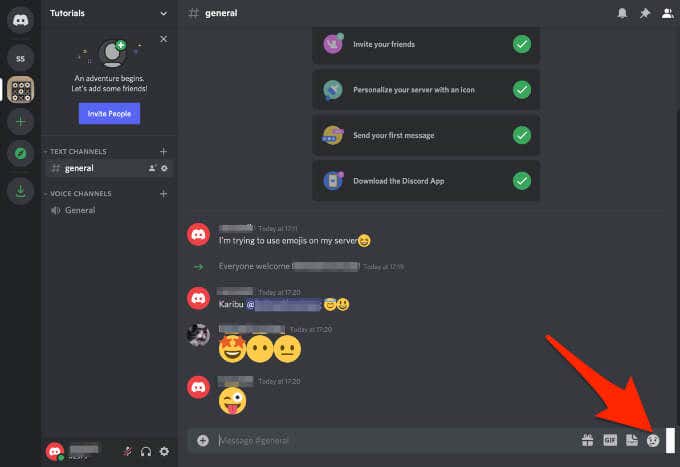
      Note: As you hover your mouse over the button, it will turn from gray to full color. 

      1. Select the emoji icon to bring up a list of emojis. You can press and hold the Shift key and left-click to add multiple emojis. 
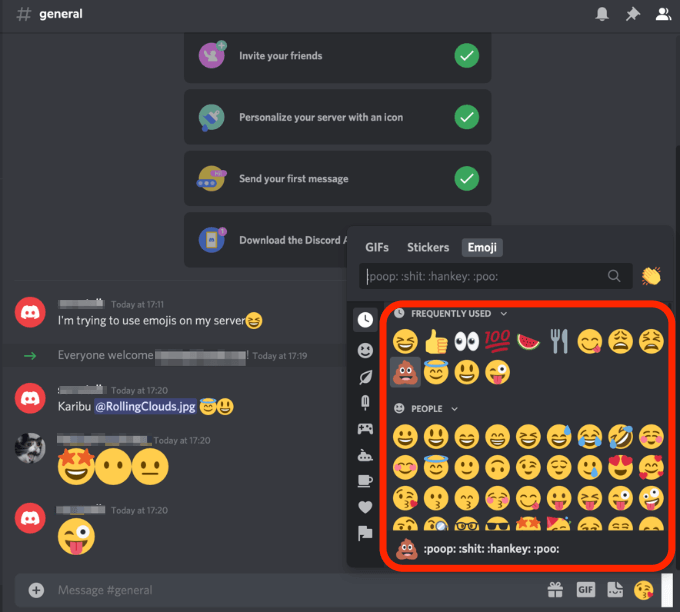
      Note: You can use the buttons just below the Emoji picker to filter the emojis. The picker also sorts custom emojis by server making it easier for you to pick out the emojis.

      If the emoji is grey, it means it’s either an animated emoji or you don’t have access to posting it on other servers. To gain access to animated emojis, you can pay for a Nitro or Nitro classic subscription and get the ability to post custom emojis everywhere.Ā 

      1. If you type a message with no other characters, your emojis will blow up in size. When this happens, the emoji becomes a wumboji, and you can have up to 27 of them in one message before they get too crowded and reduce in size. 
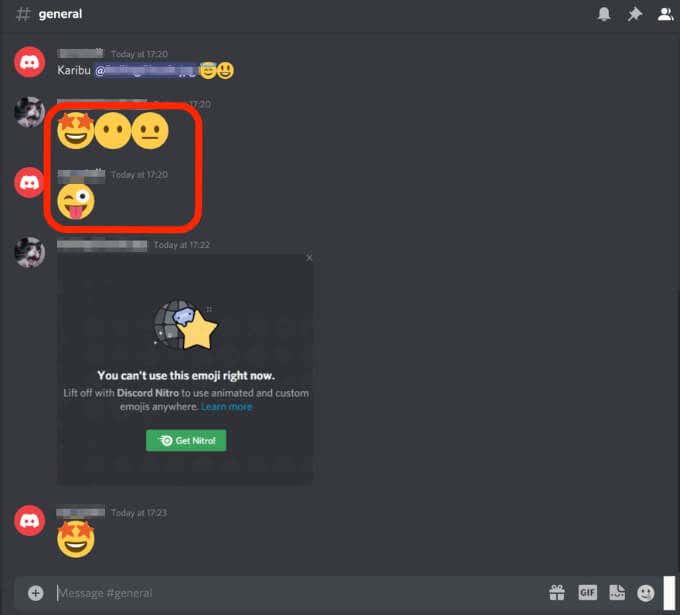
      Note: If you’re in Compact mode, the emojis won’t size up to become wumbojis.

      How to Add Custom Emojis on Discord

      Besides the standard universal emojis, Discord also allows you to upload and use personalized emotes on a Discord server. Custom created server emojis are specific to the Discord server, compared to integrated emojis, which you can use globally. 

      Note: To add a custom emoji, you need to be the server owner or have Manage Emoji permissions. 

      1. Select the down arrow next to your Discord server’s name. 
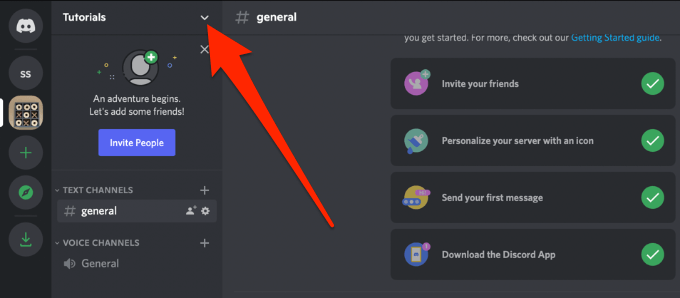
      1. Select Server Settings.
      1. Next, select the Emoji tab to upload up to 50 custom emojis to your personalized stash. This way, anyone on the Discord server can use emojis. 
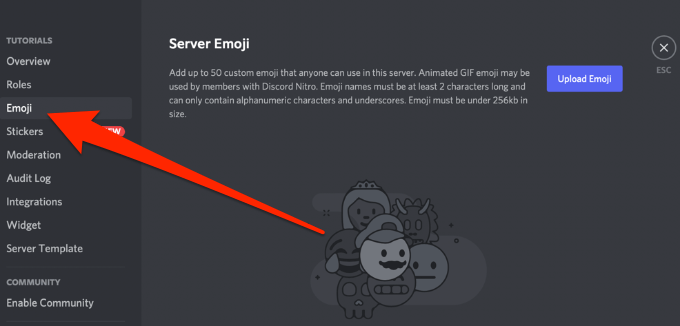
      When using custom emojis, the names must be at least two characters long, and only have underscores and alphanumeric characters. Plus, the emojis must be less than 256kb in size.

      Someone can only use the custom emojis on the server you uploaded them to. With Discord Nitro, you’ll have an extra 50 slots for animated custom emojis, and you can use the emojis on every group DM or server you’re in.

      1. Select Upload Emoji and find the file on your computer’s local storage. 
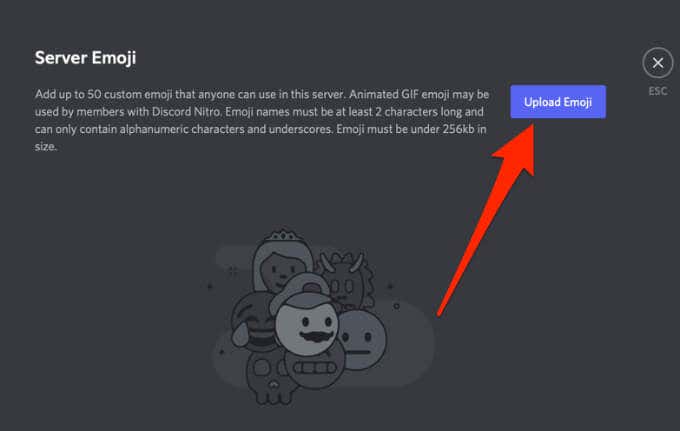
      If the file you’ve uploaded meets Discord’s 128×128 pixels requirement, it will appear in the emoji or animated emoji lists. 

      1. Custom emojis come with alias tags, which use the file name of the emoji image you upload. This is the tag you’ll use when adding your emojis to messages.
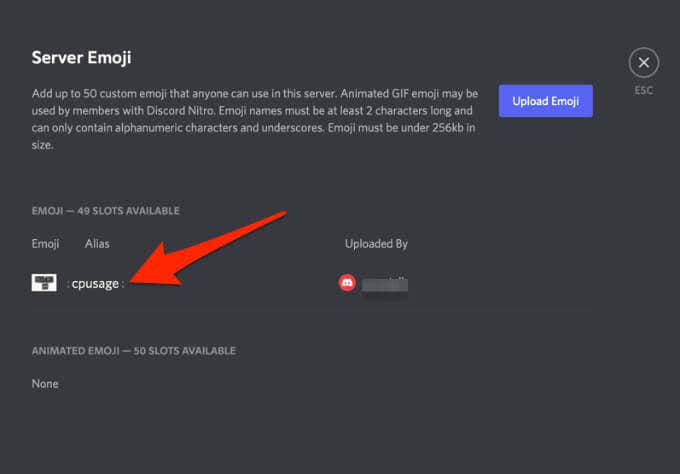
      1. You can select the Alias box next to a custom emoji and then type a new name to replace the default alias. 
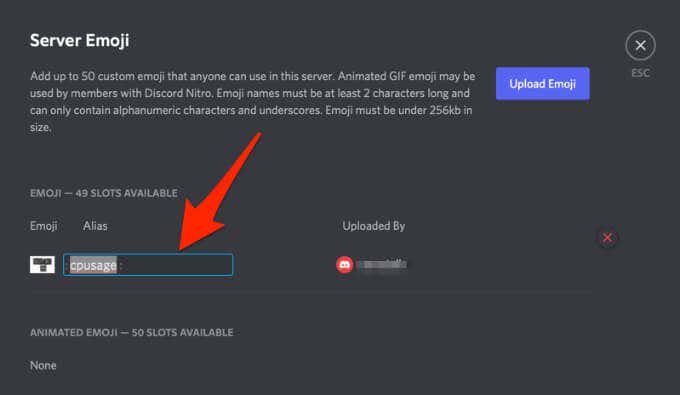
      Once you upload the emoji, start using it on your Discord server. You can hover over the emoji in the Emoji list and select the red X to delete the emoji.

      How to Use Emojis as Reactions on Discord

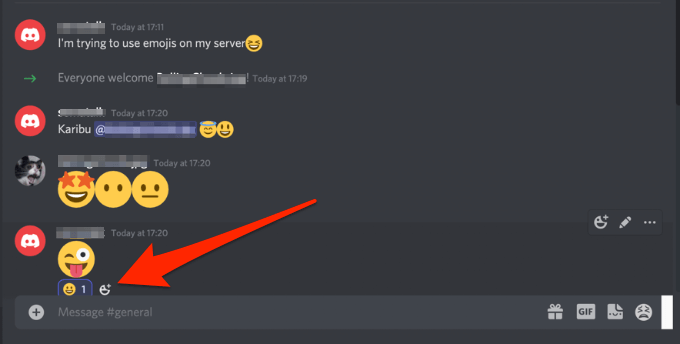
      Instead of typing out your response on discord, you can react to the post using an emoji and let people know what’s up.Ā You can add emojis to Discord by typing out its name or using the emoji menu.

      1. Select the little plus smiley icon next to the Edit Message menu icon to pull up your emoji menu.Ā You should see your newly added emoji in the list to choose from.
      1. Select the Add Reaction button next to the last emoji reaction to add multiple reactions to a message.
      Add Emotions to Your Discord Messages

      Unlike a face-to-face conversation where you can express yourself with verbal and non-verbal cues, it’s not easy to do that in virtual conversations. So, emojis are indispensable on Discord as they are handy when you want to add tone and meaning. 

      For more Discord tips and tricks, turn to our guides on why your Discord invites aren’t working, how to use Discord’s in-game overlay, or check out the best Discord alternatives.

      Leave a comment and let us know if this guide helped you find and use emojis on Discord.

      Tags: Discord

      Was this helpful? Share it.

      Send it to someone who is stuck on the same thing, or post it.

      MessagesWhatsAppEmailXFacebookLinkedInRedditBlueskyTelegramThreads
      Written by

      Elsie Otachi

      Elsie is a technology writer and editor with a special focus on Windows, Android and iOS. She writes about software, electronics and other tech subjects, her ultimate goal being to help people out with useful solutions to their daily tech issues in a simple, straightforward and unbiased style. She has a BCom degree in Marketing and currently pursuing her Masters in Communications and New Media. Read Elsie's Full Bio

      View Elsie's Profile

      Recent Posts

      • Laptop on a desk with video thumbnails flowing into a download folder, illustrating saving YouTube videos for offline viewing
        How to Download YouTube Videos With 4K Video Downloader PlusOct 7, 2026
      • Is 3D Pinball Coming Back to Windows 11? What Microsoft's Windows Chief Actually Said
        Is 3D Pinball Coming Back to Windows 11? What Microsoft’s Windows Chief Actually SaidOct 7, 2026
      • How to Fix the BitLocker Recovery Screen After a Windows Update
        How to Fix the BitLocker Recovery Screen After a Windows UpdateOct 7, 2026
      • How to Remove Adware Injected by a Chrome Extension in Windows 11
        How to Remove Adware Injected by a Chrome Extension in Windows 11Oct 6, 2026

      Ready for the best newsletter in tech?

      Get daily tips, tricks, guides, and special offers delivered right to your inbox.

      Thanks! Check your inbox for the next issue.

      Search

      Categories

      • Announcements (1)
      • Gaming (51)
      • How-To (2,930)
      • News (20)
      • Reviews (294)
      • Social Media (96)
      • Streaming (37)

      Popular Tags

      Adobe Amazon Android Antivirus Buying Guides Chrome Chromebook Discord Explainer Facebook Firefox Gadget Reviews Google Google Docs Google Drive Hardware Home Networking Internet iPhone Linux macOS Microsoft Excel Microsoft Office Microsoft OneNote Microsoft Outlook Microsoft PowerPoint Microsoft Surface Microsoft Teams Microsoft Word OneDrive Printers Roundups Software Reviews Steam Ubuntu Virtualization WhatsApp WiFi Windows 7 Windows 8 Windows 10 Windows 11 Windows XP Wordpress YouTube

      Our Publishing Family

      Help Desk Geek is part of the AK Internet Consulting publishing family.

      • ONLINE TECH TIPS
      • THE BACK ROOM TECH
      • SWITCHING TO MAC
      • XBOX ADVISOR

      Daily Email Newsletter

      CONNECT WITH US

      About Help Desk Geek

      Help Desk Geek has published practical troubleshooting guides, Windows and Office tutorials, and hardware fixes since 2009 — helping millions of readers solve tech problems and get more from their devices.

      Learn More →

      Advertise →

      © 2009-2026 Help Desk Geek.com, LLC.
      All Rights Reserved.

      • Home
      • About Us
      • Editorial Standards
      • Contact Us
      • Terms of Use
      • Privacy Policy
      • Advertise
      Online

      Share this article

      How to Find and Use Emojis on Discord

      Send to someone

      MessagesWhatsAppEmail

      Post on

      XFacebookLinkedInRedditBlueskyTelegramThreads
      Tired of Googling Tech Problems?

      Tired of Googling Tech Problems?

      Get step-by-step fixes from Help Desk Geek so the answer is already in your inbox next time.

      By signing up, you agree to the Terms of Service and Privacy Policy.

      Stay tuned for our step-by-step fixes, actionable guides, tech how-tos, and clear, practical advice for real-world problems.

      Thank you for subscribing!

      Stay tuned for our step-by-step fixes, actionable guides, tech how-tos, and clear, practical advice for real-world problems.