

Discord displays a “No Route” error when the client can’t successfully connect to a voice channel. This usually happens when your network doesn’t allow this connection, or there’s an issue on the platform’s end.
In any case, if you want to bring your voice channels back into action, you’ll have to tweak a few options on your system. You’ll learn how to do just that in this guide.
Reboot Your Router/Modem to Resolve the No Route Error
The easiest and quickest way to fix Discord’s “No Route” error is by rebooting your router. If your router has a dynamic IP problem (most likely due to your internet service provider), a normal reboot should get you a new IP address, fixing the problem.
You can restart your router by pressing the Power button on the device. If your router offers a settings page, you can access that page and select Maintenance > Restart The Router or a similar option to reboot your device.
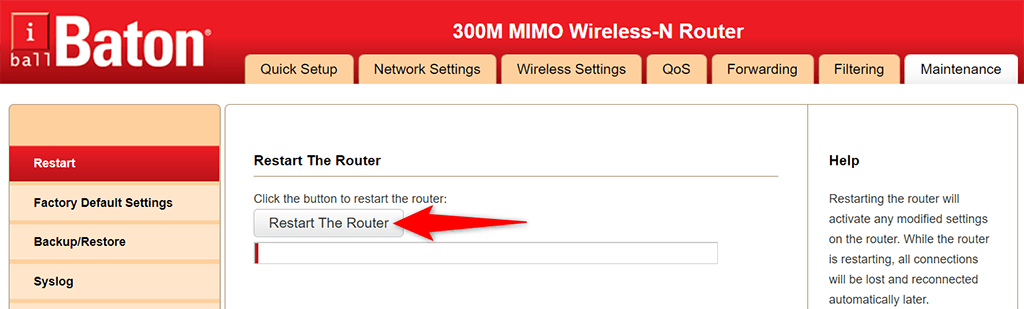
If you don’t have the Power button and you’re unsure how to access your router’s settings page, turn the power socket switch off and then on to reboot your router.
Flush Your DNS Cache to Get Around the Discord No Route Error
Your DNS cache issues can also cause Discord not to connect to a voice server, which results in the “No Route” error. In this case, try deleting your DNS cache and see if that helps fix the issue. Usually, most DNS-related problems are fixed when you do this.
Your computer will automatically re-build the cache as you browse websites, so you aren’t losing anything.
- Open the Start menu, search for Command Prompt, and select Command Prompt in the search results.
- Enter the following command on the Command Prompt window and press Enter: ipconfig /flushdns
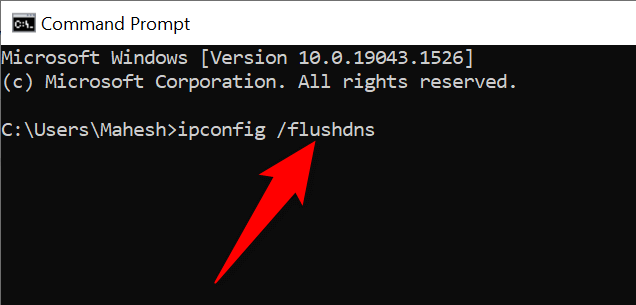
- You may close the Command Prompt window when your DNS cache is cleared. Optionally, you can release and renew your IP address to fix certain issues.
Allow Discord to Pass Through Your Firewall
If your firewall is activated on your system, that may be blocking Discord’s connection to the internet. In this case, you’ll have to allow the Discord client through your firewall to avoid the “No Route” error.
Most firewall tools allow you to specify the apps that you’d like to let through without any restrictions. If you use Windows’ built-in Windows Defender firewall, here’s how to whitelist Discord in this tool:
- Open Settings by right-clicking the Start menu icon and choosing Settings.
- Select Network & Internet > Windows Firewall to access your firewall settings.
- Choose Allow an app through firewall.
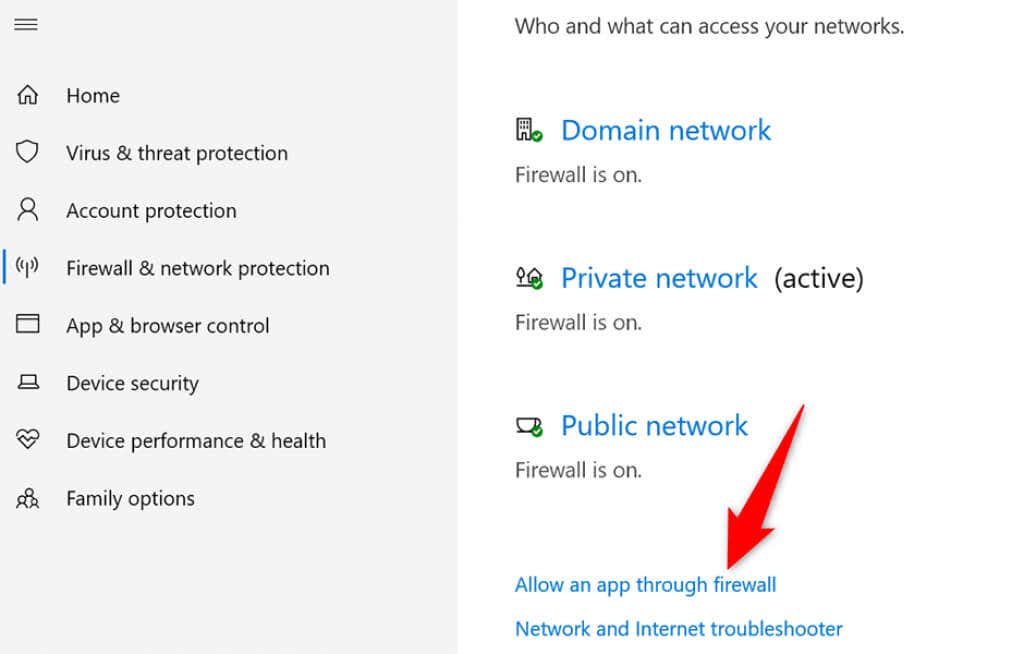
- You’ll see your app list on your screen. Make this list editable by selecting Change settings at the top-right corner.

- Find Discord in the list and enable both Private and Public checkboxes next to the app.
- Select OK at the bottom to save your settings.
- Launch Discord and see if you can successfully access your voice channels.
If you don’t see Discord in the app list above, manually add the app by selecting Allow another app and finding and choosing the Discord executable file.
Disable Quality of Service (QoS) High Packet Priority
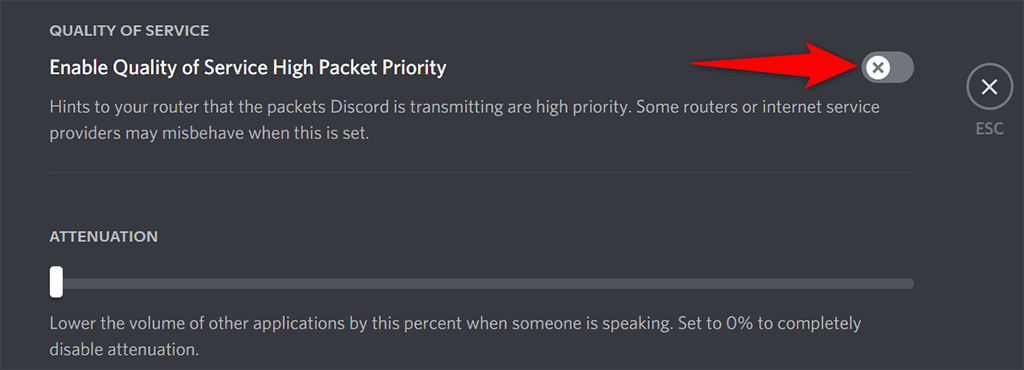
Discord has a Quality of Service High Packet Priority feature that indicates to your router that the data transmitted by Discord is of high priority. While this helps enhance your app experience, this feature doesn’t always work well with all routers.
To possibly fix the “No Route” error, disable this feature in the Discord app.
- Open Discord and select User Settings (a gear icon) at the bottom-left corner.
- Choose Voice & Video in the sidebar on the left.
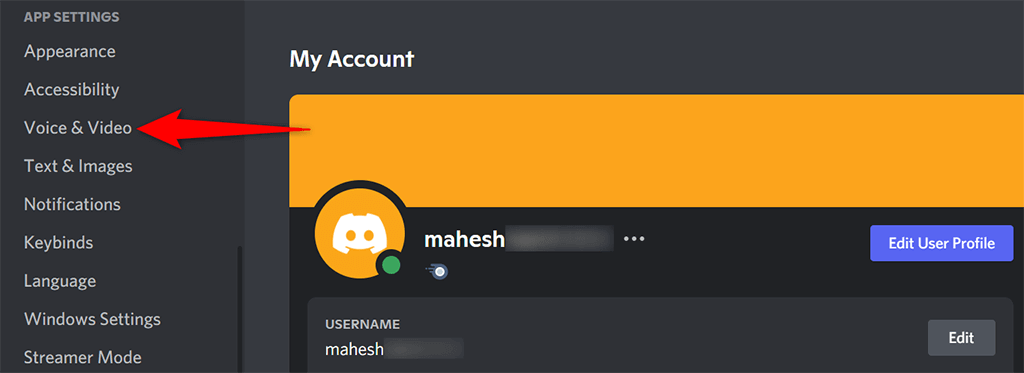
- Find and disable the Enable Quality of Service High Packet Priority option on the right.
- Choose Esc at the top to close the settings page.
- Close and reopen the Discord app.
Disable Your VPN
A VPN app helps secure your connection and fake your location, but this kind of service sometimes causes various network problems. Your “No Route” error in Discord could be the result of a poorly managed VPN.
One way to verify that is to temporarily turn off your VPN and see if you still get the “No Route” error in Discord. If you do, read on to find more solutions. If you don’t, your VPN is the culprit. In this case, you can try changing your VPN protocol to UDP if your app supports that.
In most VPN apps, you can head into Settings > Protocols and change the Transport mode to UDP. If that doesn’t help, you’ll probably have to get a new VPN provider.
Change Your Voice Region/Server Region
Discord automatically chooses the best performing server for your voice channels. Sometimes, though, these servers don’t perform as intended, and users end up having various issues, including the “No Route” error.
Luckily, you can manually change your voice server and see if that makes any difference. When you do this, all users in your channel also start using the newly selected server.
- Launch Discord, access your server, and select Edit Channel (a gear icon) next to your voice channel. This lets you access your channel server settings.

- Select the Overview tab from the sidebar on the left, in case you aren’t already there.
- Scroll down the page to the Region Override option. Open the drop-down menu and manually set a new voice server.

- Save your changes by selecting Save Changes at the bottom.
Change Your Discord Client
A possible reason you’re getting the “No Route” error is that your Discord client has an issue. For example, if you’re using the Discord app on your desktop, the app’s core files might be faulty, causing various problems.

You can verify that by accessing Discord on an alternative platform. For example, if you’re using the Discord desktop app, switch to Discord on the web and see if you still get the error. If you don’t, your client has an issue and you should uninstall and reinstall the client to potentially fix the problem.
No Route Error on Discord Is Easily Fixable
If you’re annoyed by Discord’s “No Route” error as the error is keeping you from accessing your voice channels, try a few of the methods above to fix your issue. Once your network and your client are well configured, you shouldn’t have any problems accessing the platform on your devices anymore.
