

The Discord app for Windows is well-optimized and tends to run superbly, even when you invoke it during a resource-intensive video game. However, various reasons—such as network-related issues, an obsolete app cache, and conflicting settings—can cause it to lag.
If you keep experiencing severe lag issues within Discord’s text, voice, or video chats or while interacting with the app in general, the following list of troubleshooting tips should help you fix Discord lag.
Check the Discord System Status
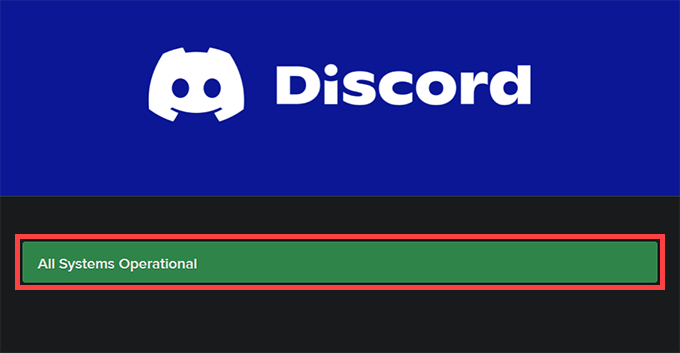
Discord relies on multiple server-side systems to function effectively. So whenever Discord starts to lag, it’s best to head over to DiscordStatus.com and check the system status.
If you notice any issues, you must wait it out until each system becomes fully operational again. However, if everything looks okay, move on with the rest of the fixes.
Refresh Discord or Quit & Re-Open
Pressing Control + R refreshes the Discord user interface and helps resolve problems caused by minor bugs and glitches. Give it a go.
If that doesn’t help fix the Discord lag, try quitting and relaunching Discord. To do that, right-click the Discord icon within the system tray and select Quit Discord. Then, open Discord via the desktop or Start menu.
Update Discord
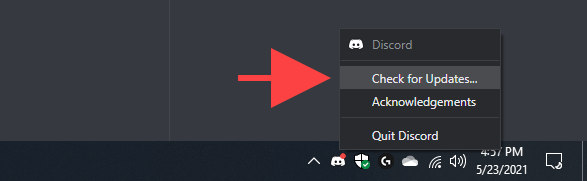
Running an outdated version of Discord is another reason for lag issues, so it’s a good idea to apply any pending updates immediately. You can request the app to check for and install the latest updates by right-clicking the Discord icon within the system tray and selecting Check for Updates.
Troubleshoot Your Internet Connection
Discord also lags when there’s something wrong with your internet connection. If you encounter spotty online connectivity during normal surfing on your web browser as well, try the following fixes:
- Go to Start > Settings > Update & Security > Troubleshooters > Additional troubleshooters and run the Internet Connections and the Network Adapters troubleshooters
- Reset your router
- Renew your computer’s IP lease
- Flush the Domain Name System (DNS) cache
Enable (or Disable) Hardware Acceleration
By default, Discord relies on hardware acceleration (which utilizes the GPU) to improve performance. However, if you’ve disabled the functionality within the app, that can end up creating severe Discord lag issues. Re-enabling it should help fix that.
Conversely, disabling hardware acceleration can resolve lag on PCs with older graphics hardware.
1. Select the cog-shaped User Settings icon to the bottom-left of the Discord app. Then, switch to the Advanced side tab.
2. Use the switch next to Hardware Acceleration to enable or disable the functionality.
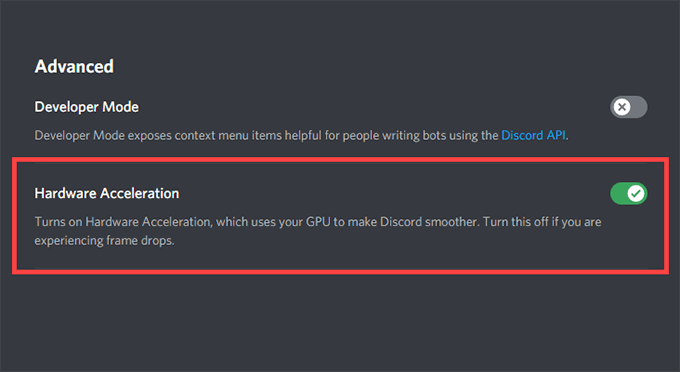
3. Select Okay to apply the changes.
Activate Reduced Motion
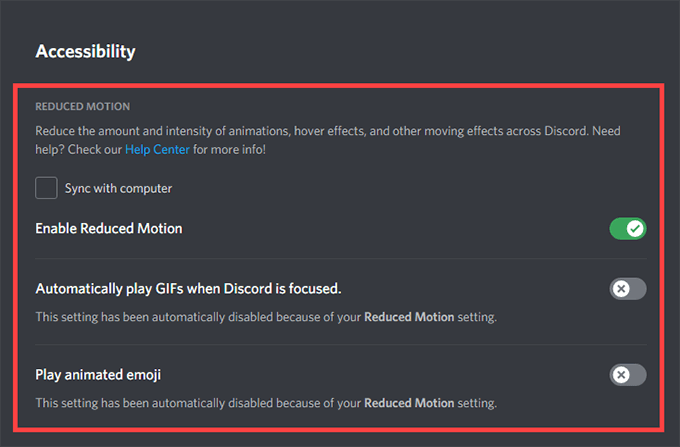
Toning down the intensity of animations and hover effects, and blocking GIFs and emojis from playing automatically, can help reduce lag in Discord.
1. Open Discord’s User Settings pane.
2. Switch to the Accessibility side tab.
3. Activate the switch next to Enable Reduced Motion. Then, turn off the switches next to Automatically play GIFs when Discord is focused and Play animated emoji.
Update (or Roll Back) Graphics Card Drivers
Outdated graphics drivers are a common reason behind severe lag issues in Discord. Updating them should not only help sort that out, but newer drivers also boost performance in video games.
Head over to your video card manufacturer’s website (NVIDIA, AMD, or Intel) and download the latest version of the graphics drivers. Then, install them and restart your computer.
However, if Discord’s lag issues started right after updating your graphics drivers, you should roll them back via the Device Manager.
1. Press Windows + X to open the Power User Menu.
2. Select Device Manager.
3. Expand the Display adapters category.
4. Right-click your display adapter and select Properties.
5. Under the Driver tab, select Roll Back Driver.
Reset Discord Voice and Video Settings
Incorrectly configured (or conflicting) voice and video settings in Discord can cause the app to lag. Try resetting them to their defaults.
1. Open Discord’s User Settings pane and switch to the Voice & Video side tab.
2. Scroll all the way down and select Reset Voice Settings.

3. Select Okay to confirm.
Clear Discord Cache
Clearing Discord’s cache helps flush redundant data and usually fixes most issues with the app. But to do that, you must manually locate the folder that holds the cached files using File Explorer.
1. Quit Discord via the system tray.
2. Press Windows + R to open the Run box. Then, type %appdata% and select OK.
3. Select the folder labeled discord and press Delete.
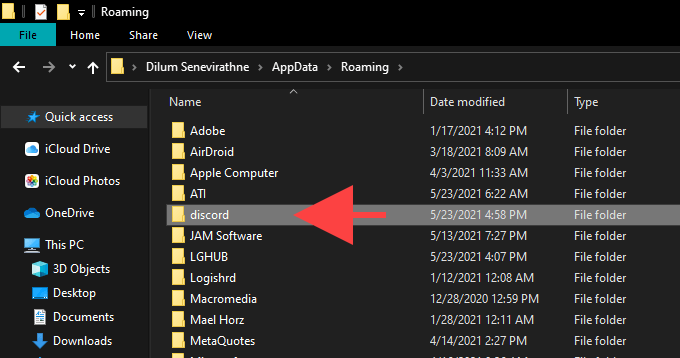
Follow this by restarting Discord. You must then sign back in with your Discord user credentials and re-configure your preferences.
Reinstall Discord
Removing and reinstalling the Discord app can fix lag issues caused by a corrupt or broken installation. This procedure is very straightforward, and you should be done within a few minutes.
1. Completely exit the Discord app.
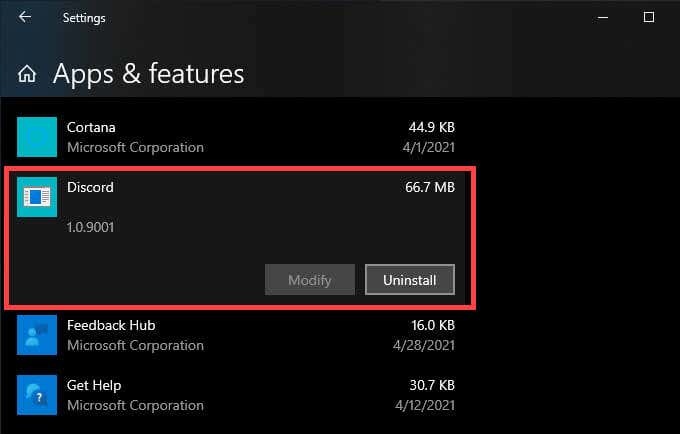
2. Go to Start > Settings > Apps > Apps & Features.
3. Select Discord > Uninstall.
4. Restart your computer.
5. Download and reinstall Discord.
Discord Lag Issues Fixed
Refreshing Discord, quitting and relaunching the app, and toggling hardware acceleration on and off alone can deal with most lag issues in Discord. If not, the other solutions described above should help get Discord up and running normally again.
