

A print job stuck at “Deleting” or “Error – Printing” can block every document behind it in Windows 11 or Windows 10. Start with the queue controls; if they don’t respond, reset the Print Spooler and remove the damaged job files.
Fix #1: Cancel jobs from the print queue
This is the quickest option, and it’s worth trying before deleting spooler files.
- Open Start > Settings.
- In Windows 11, select Bluetooth & devices > Printers & scanners.
- In Windows 10, select Devices > Printers & scanners.
- Select the affected printer.
- Choose Open print queue or Open queue, depending on your Windows version.

- Right-click each stuck job and select Cancel.
- If the queue window has a Printer menu, select Printer > Cancel All Documents.
The jobs should disappear within several seconds. If one remains stuck at “Deleting,” continue to Fix #2.
Fix #2: Restart the printer and PC
A restart can release a job still held by the printer or Windows.
- Turn off the printer.
- Wait about 60 seconds.
- Turn the printer back on.
- Open Start > Power > Restart.
- Open the print queue again after Windows starts.
The old jobs should be gone. Send a one-page test document to confirm printing works as expected.
Fix #3: Clear the Print Spooler manually
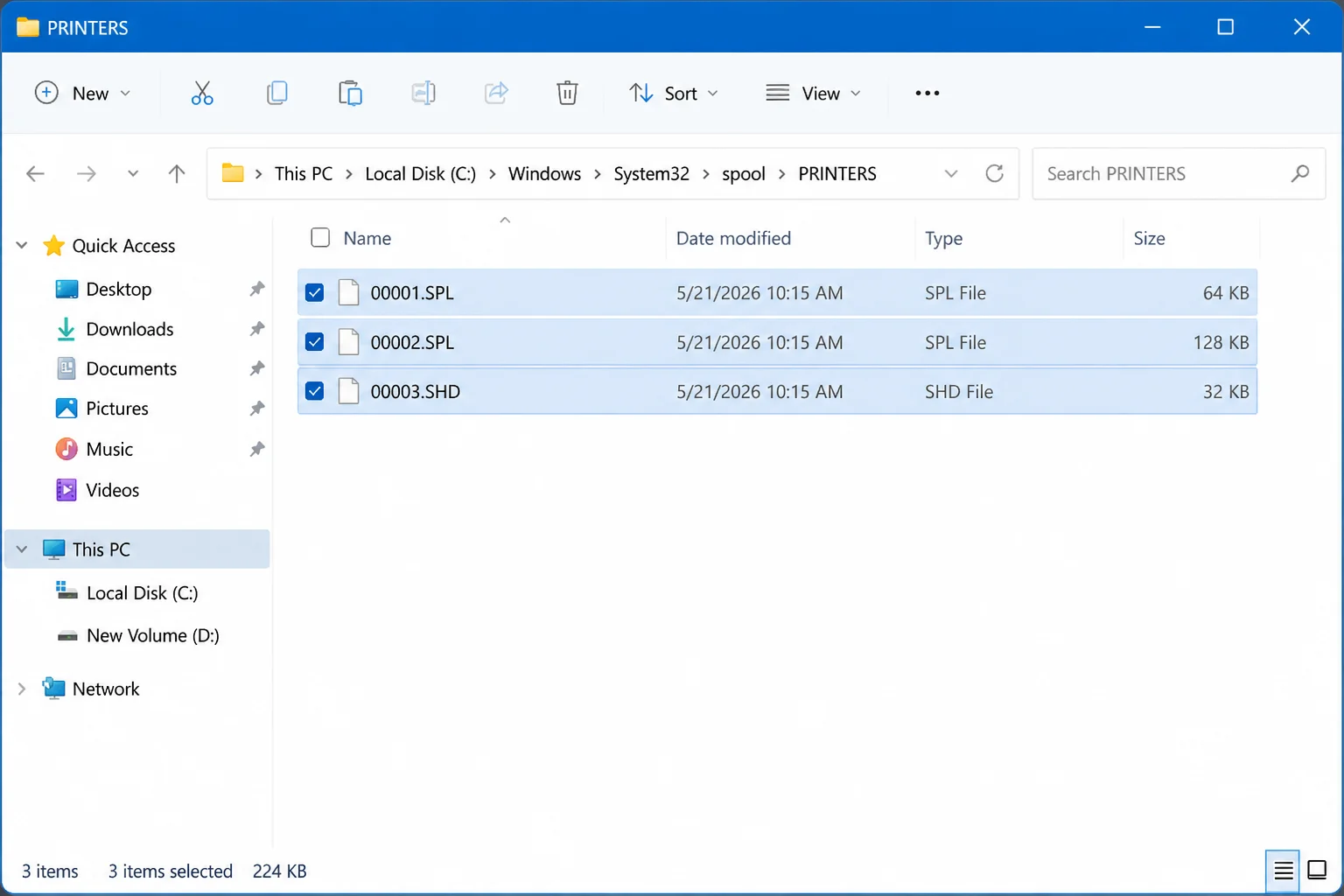
The Print Spooler stores pending jobs in C:\Windows\System32\spool\PRINTERS. This method deletes every queued job on the computer, so don’t use it while another printer is processing something you need.
You’ll need administrator rights. On a managed PC or print server, contact your IT administrator before stopping the service.
- Press
Windows + R. - Type
services.mscand pressEnter.
- Find Print Spooler in the Services window.
- Right-click Print Spooler and select Stop.
- Open File Explorer.
- Enter
C:\Windows\System32\spool\PRINTERSin the address bar and pressEnter. - Approve the administrator prompt if Windows displays one.
- Select every file inside the folder and press
Delete. Don’t delete thePRINTERSfolder itself.
- Return to the Services window.
- Right-click Print Spooler and select Start.
The service status should show Running, and the print queue should be empty. Try printing one page before resending a large document.
Fix #4: Reset the queue from Command Prompt
These commands perform the same reset without opening Services or File Explorer. They still delete every print job queued on this computer.
- Open Start and search for Command Prompt.
- Right-click Command Prompt and select Run as administrator.
- Select Yes when User Account Control asks for permission.
- Run these commands one at a time:
net stop spooler
del %systemroot%\System32\spool\printers\* /Q /F /S
net start spooler
You should see confirmation that the Print Spooler stopped and started successfully. The middle command removes the queued files without asking about each one.
If you need this reset regularly, you can place the commands in a batch file. See how to create a batch file for the required format.
Fix #5: Clear the queue with PowerShell
PowerShell is a practical option when you want a reusable script. Run it only from an administrator window.
- Open Start and search for PowerShell.
- Right-click Windows PowerShell and select Run as administrator.
- Select Yes when prompted.
- Paste the following script and press
Enter:
Get-Service *spool* | Stop-Service -Force -Verbose
Start-Sleep -Seconds 5
$path = $env:SystemRoot + "\system32\spool\printers\"
Get-ChildItem $path -File | Remove-Item -Force -Verbose
Get-Service Spooler | Start-Service -Verbose
PowerShell should report that the spooler stopped, the queued files were removed, and the service started again. Open the print queue to confirm it’s empty.
When the fixes don’t work
A local reset can’t remove jobs held by a network print server or the printer’s internal memory. Ask the print-server administrator to clear the server queue, or check the printer’s control panel for a cancel-jobs option.
If “Print Spooler service not running” returns after every restart, the service or printer driver needs further repair. Managed organizations may also disable the spooler through security policy, which requires an administrator to re-enable it. You can find more information on fixing Print Spooler service errors on the Microsoft support website.
Conclusion
Fix #1 usually clears an ordinary stuck print job, but Fix #3 is the solid choice when a job remains at “Deleting.” If the spooler keeps crashing or old jobs return after a full reset, reinstall the printer driver or have the network print server checked.