

If you’re an avid Facebook user, you probably like dozens of posts each day from your profile on the site. By liking a post, you’re actually telling the author of that post that you acknowledge their work. In the background, you’re also actually creating a list of curated items that you like on Facebook. What if we showed you a method of how to see all of your Facebook likes?
There’s indeed a way to see all the posts that you’ve ever liked on Facebook. The site has something called Activity Log that logs each and every activity of yours on the site. One of the sections in the log is for all of your likes and reactions, and accessing it should let you find all your likes on the Facebook platform.
Activity Log is accessible from both the web version and the mobile app of Facebook and so you can view all your Facebook likes regardless of what device you use.
How to See All Your Facebook Likes (Web Version)
We’ll start with teaching you how you can see your Facebook likes on the web version of the site. You’re actually just going to access an option that will then let you see your entire activity on the platform.
- Open a browser and head over to the Facebook site. Log into your account if you aren’t already.
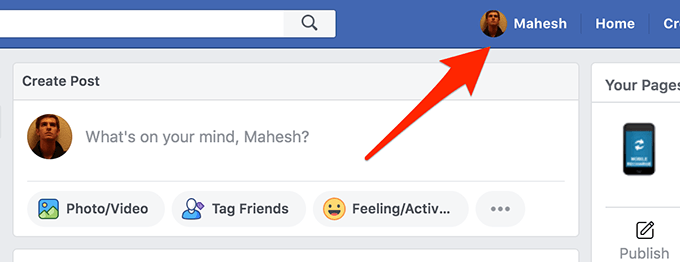
- When the Facebook newsfeed screen opens, click on your profile name at the top menu.
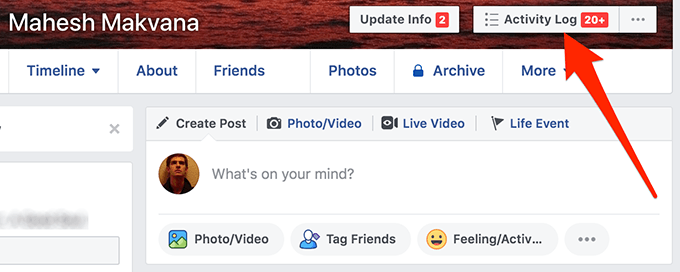
- It’ll open your Facebook profile showing your account information and posts. At the top of your profile right beneath the cover photo, you’ll find a button saying Activity Log. Click on it to open your activity information.
- The following screen lists out each and every activity ever performed by you on Facebook. Since it contains your entire activity and not just your likes, you’ll need to filter the list.
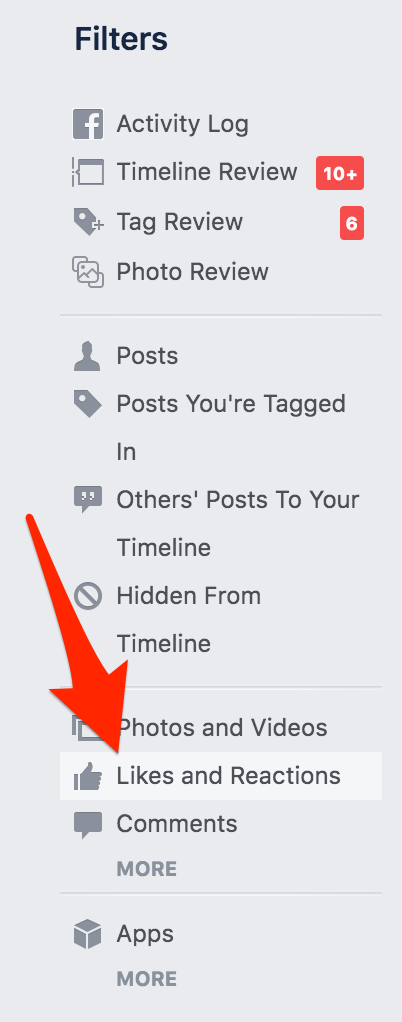
On the left-hand side menu, you’ll find various options to filter your activity. Find the option that says Likes and Reactions and click on it.
- What you now see on your screen is only your likes and reactions. Everything else has been filtered out for you to view just your Facebook likes.
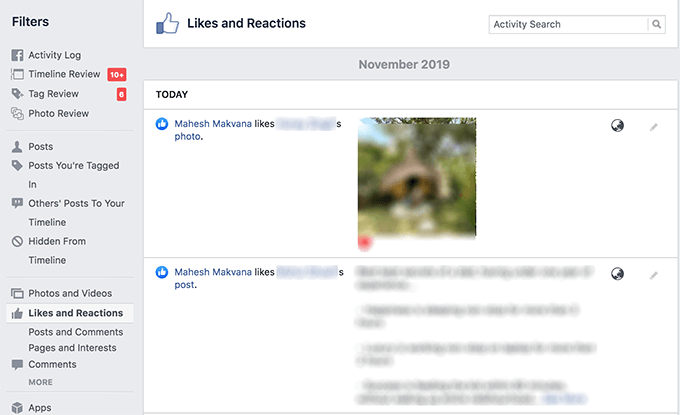
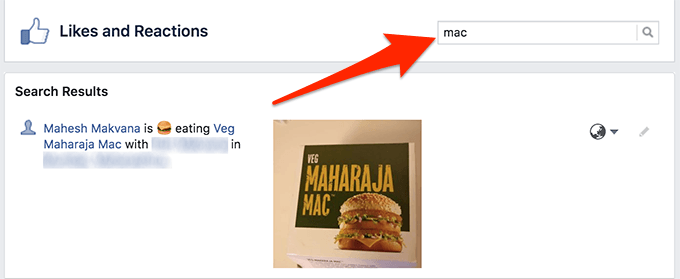
- If you’re looking for a specific like that you left on a post, you can search for it using the search option at the top of your activity.
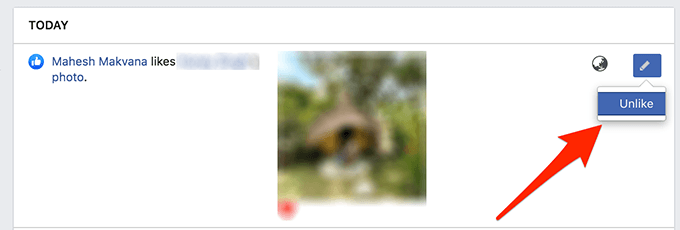
- This screen also lets you unlike the liked posts if you want to do it for some of the posts. It can be done by clicking on the Edit option next to the post you want to unlike and selecting Unlike from the menu.
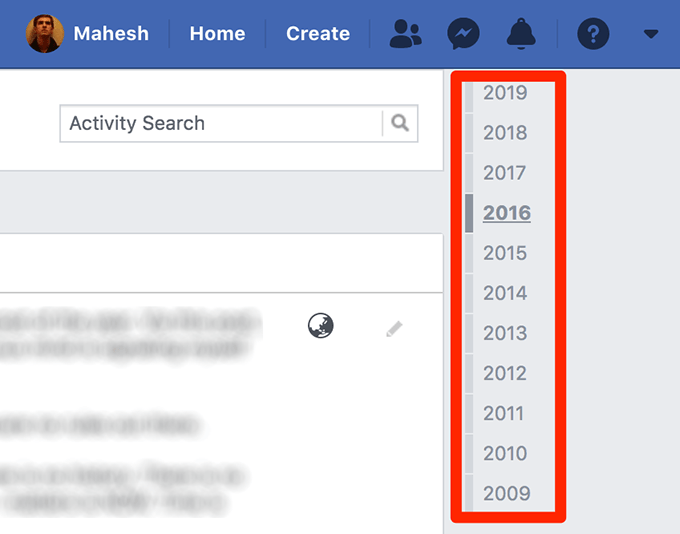
- If you want to view your Facebook likes from a particular year, say 2016, you can do so by clicking on the year number in the right-hand side menu.
Activity Log makes it extremely easy to find your liked posts, and with a number of filtering options, you can get to the exact posts you want to see with ease.
See/Find All Your Likes On Facebook (Mobile App)
Activity Log can be viewed from the Facebook app for Android and iOS devices as well. The option is located in your profile in the app and you can access and use it just like you could do on the web version.
- Launch the Facebook app on your smartphone and log-in to your account if you aren’t already.
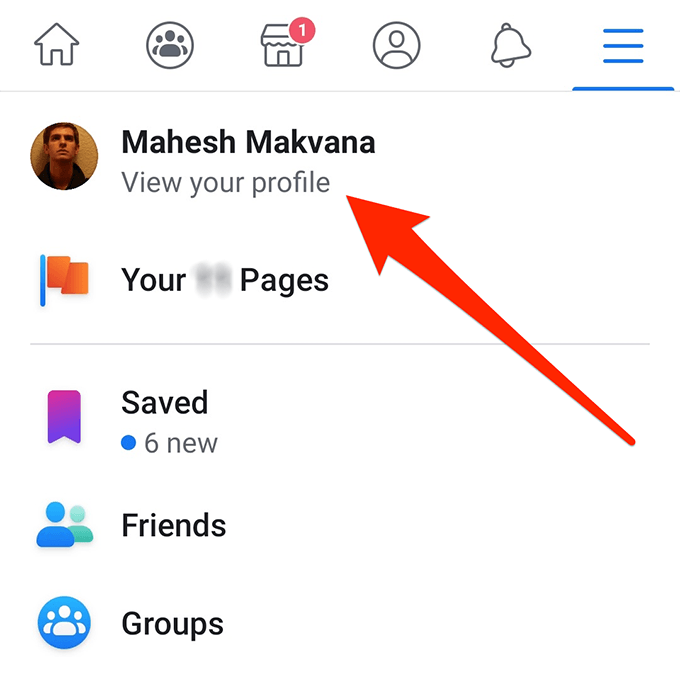
- Tap on the three horizontal-lines at the top-right corner of your screen and select your profile icon at the top. It’ll open your profile.
- When your profile opens, you’ll find four options right beneath your account name. Tap on the option that says More to view more options. Then select Activity Log from the newly opened menu.
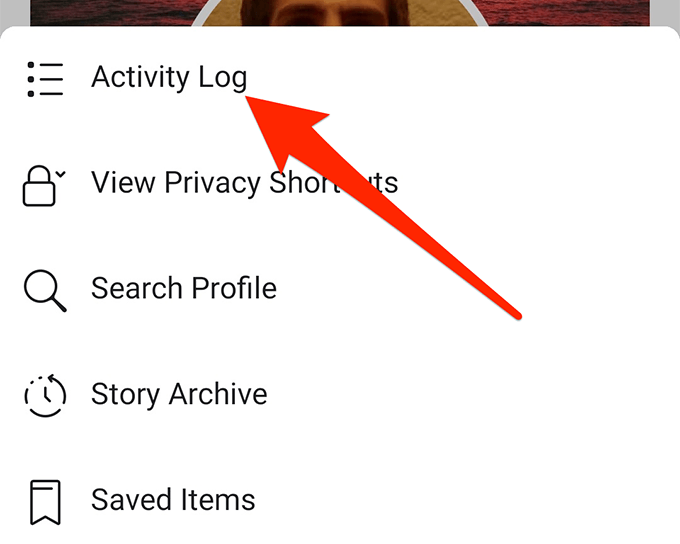
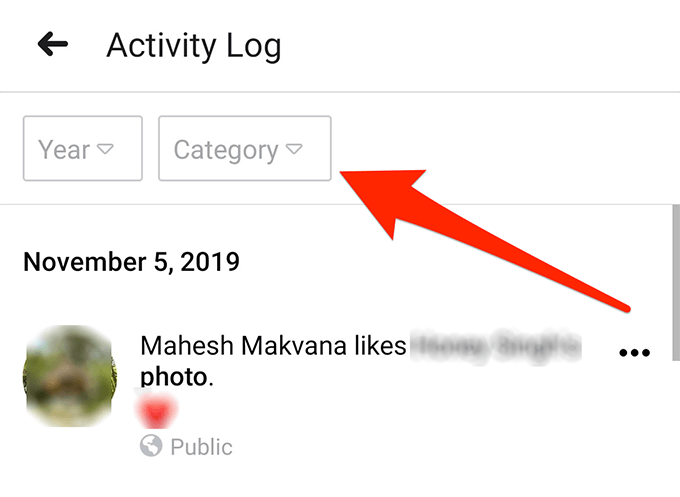
- You’ll now see your Facebook activity on your screen. You’ll want to filter out the unwanted items from the list. Tap on the Category option at the top to do so.
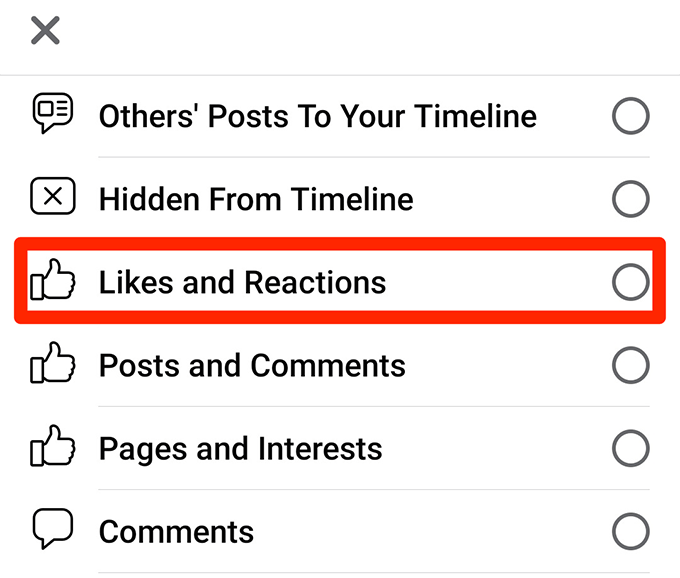
- Select Likes and Reactions from the Category menu to only view your Facebook likes and reactions.
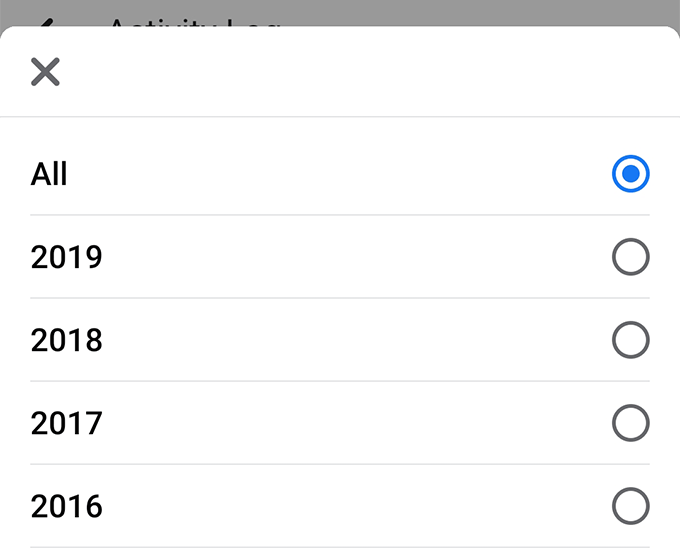
- Like the web version, you can tap on the Year field to filter your liked posts by that year.
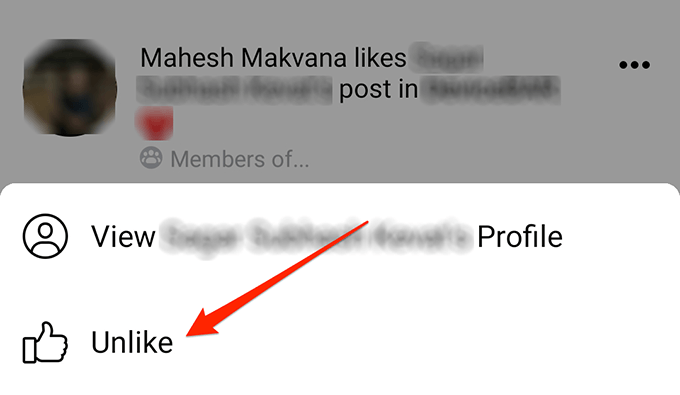
- The app also offers you the option to unlike any posts if you want to do it. Tap on the three-dots next to the post you want to unlike and select Unlike.
Being able to see all your Facebook likes is helpful in many scenarios. Maybe you liked a post and later you want to get to it but you’re unable to find it from the Facebook search option. The above methods will put the post right in front of you.
