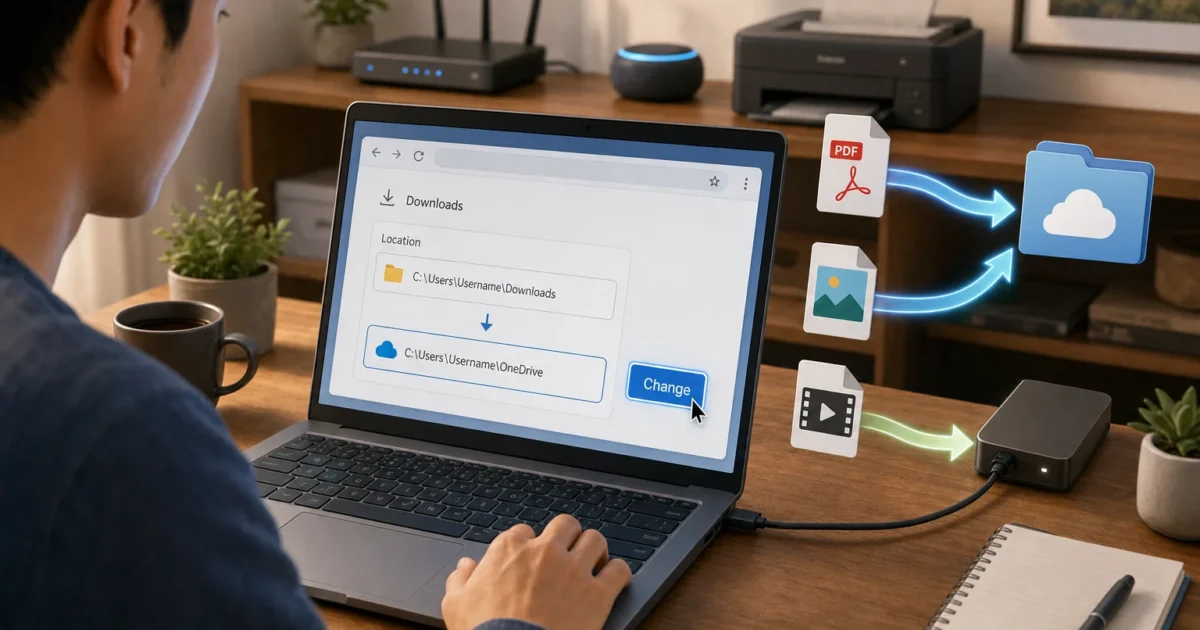
Chrome saves every file you download to C:\Users\<username>\Downloads by default. If that drive is running low on space, or you want files going straight to a NAS or cloud-synced folder, you can change it in about 30 seconds.
How to Change the Default Download Folder in Chrome
- Open Google Chrome.
- Click the three vertical dots (More) in the top-right corner.
- Click Settings.
- In the left sidebar, click Downloads.
Note: In some builds you may need to expand Advanced first, then click Downloads.
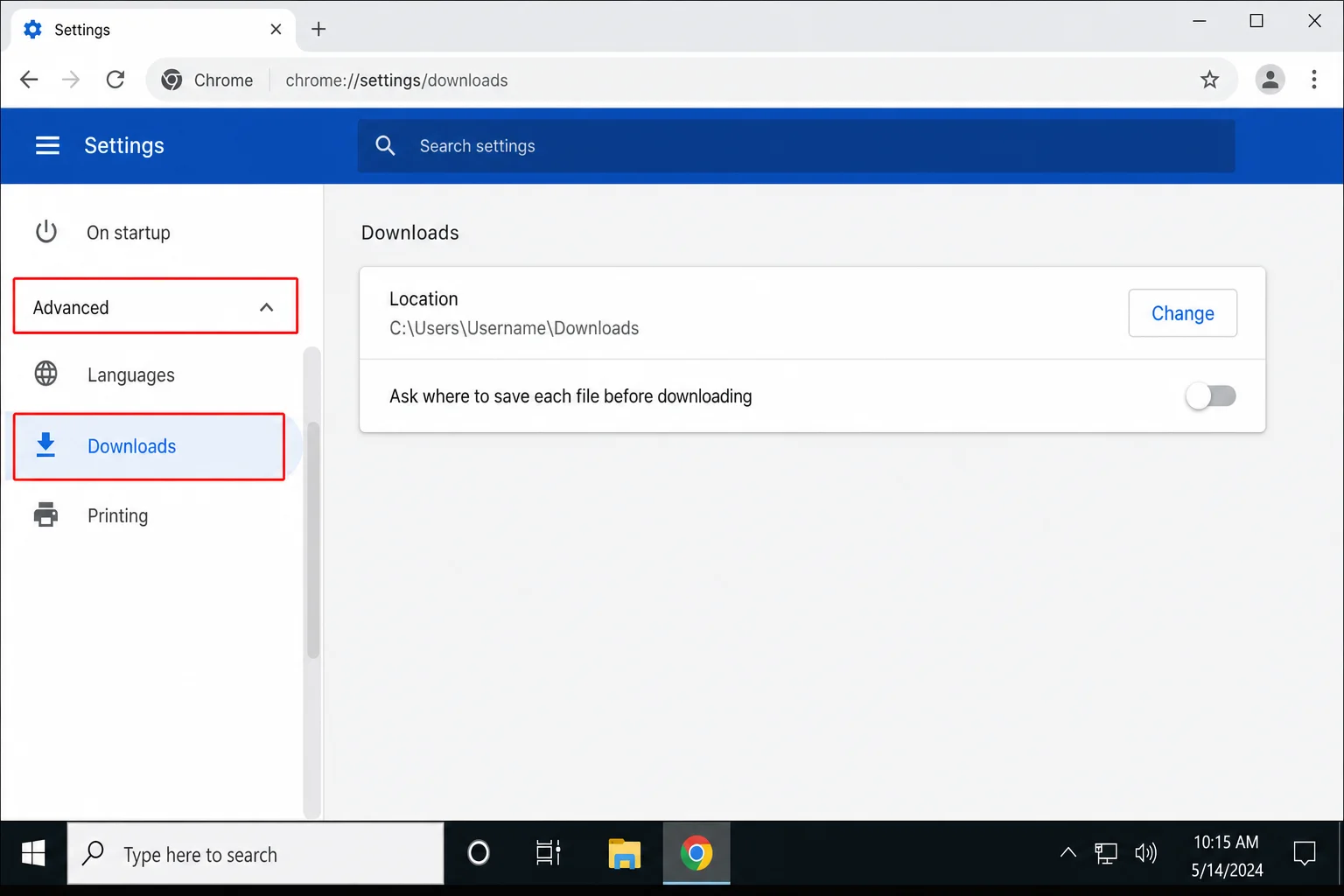
- Under Location, click Change.
- In the system file picker that opens, browse to the folder you want: a local drive, external drive, mapped network drive, or a cloud-synced folder like OneDrive or Google Drive.
- Select the folder and click Select Folder (the button label may read Select or Open depending on your OS).
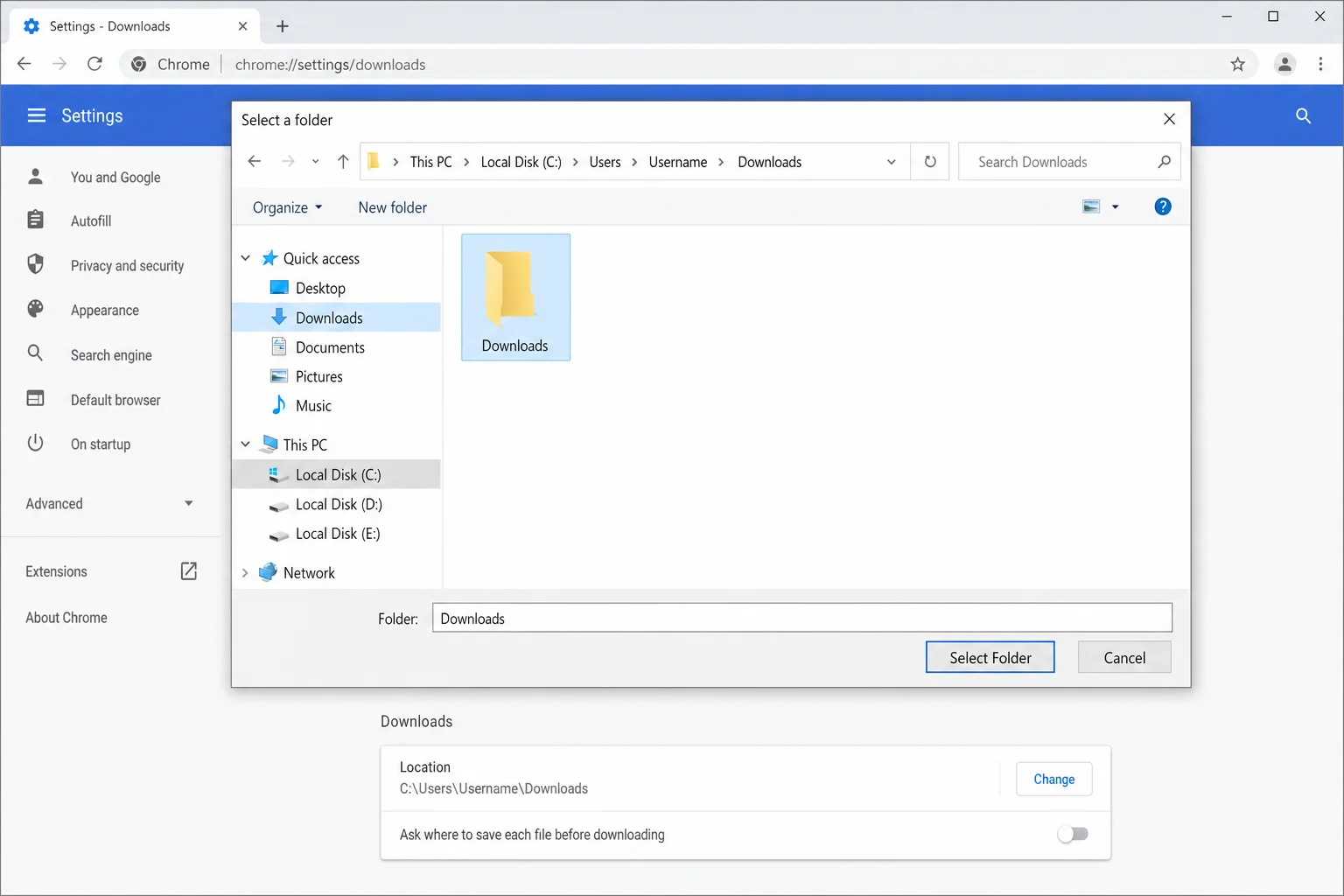
The new path appears under Location. All future downloads go there automatically.
How to Make Chrome Ask Where to Save Every File
If you’d rather pick a destination each time instead of using a fixed folder:
- Go to More > Settings > Downloads as above.
- Toggle on Ask where to save each file before downloading.
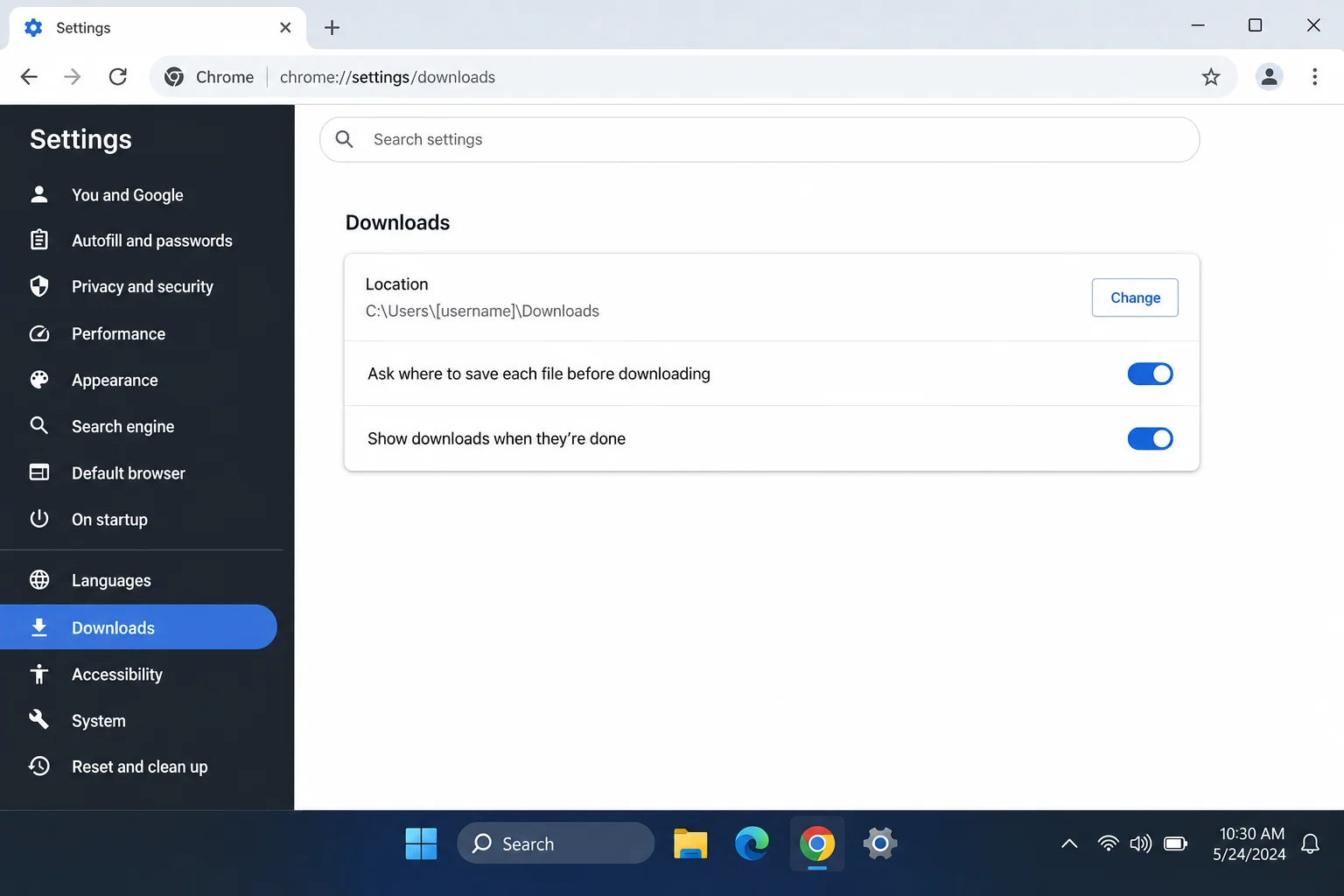
Chrome will now show a Save As dialog for every download, letting you rename the file and pick any destination on the fly.
Where Chrome Saves Files by Default
If you’ve never changed the setting, Chrome uses your system’s default Downloads folder:
- Windows 10 and 11:
C:\Users\<username>\Downloads - macOS:
/Users/<username>/Downloads - Linux:
/home/<username>/Downloads
Advanced: Where to Point Your Downloads Folder
A NAS or Network Drive
Pointing Chrome at a mapped network drive (e.g., Z:\Downloads on Windows) or a mounted NAS share works well as long as the connection is stable. A few things to keep in mind:
- If the network share drops mid-download, Chrome will show a “Failed, network error” message.
- If the target path is completely unreachable when you start a download, Chrome falls back to a Save As dialog so you can pick an alternative location.
- For large files, download to local storage first and then move them. It’s more reliable than streaming directly to NAS over a busy network.
A Cloud-Synced Folder (OneDrive, Google Drive, Dropbox)
Setting Chrome’s download location to a folder inside your OneDrive, Google Drive for Desktop, or Dropbox folder means every file is automatically backed up and available on your other devices. Just be aware:
- The sync client must be running, or files stay local until it restarts.
- Downloading a lot of large files can temporarily fill your local disk before the sync client catches up.
- On Chromebooks, enable Ask where to save each file before downloading and choose Google Drive from the file picker to save directly to Drive.
A Different Drive Entirely (Windows Symbolic Link, Advanced)
If you want every app, not just Chrome, to send downloads to a second drive, you can redirect the Windows Downloads folder itself using a symbolic link. This is a power-user move, but it solves the problem at the OS level so you never have to configure it per-browser.
- Move your existing Downloads folder to the target drive (e.g.,
D:\Downloads). - Open Command Prompt as Administrator.
- Run:
mklink /D "C:\Users\<YourUsername>\Downloads" "D:\Downloads"
Windows now treats C:\Users\<YourUsername>\Downloads as a pointer to D:\Downloads. Chrome and every other app follow the link without any additional configuration.
Troubleshooting: Common Download Folder Problems
Files are still going to the old folder
You may have changed the Windows system Downloads folder but not Chrome’s internal setting, or vice versa. Open Settings > Downloads inside Chrome and confirm the path shown under Location is the one you actually want.
Chrome isn’t asking where to save files
The Ask where to save each file before downloading toggle is off. Go to More > Settings > Downloads and switch it on.
Downloads fail or pause when using an external or network drive
If the drive disconnects mid-download, Chrome can’t write the file and will report a failure. Make sure the drive or share is connected and stable before starting large downloads. For anything critical, local storage is the safer target.
Can’t find a file after it downloaded
Press Ctrl+J (Windows/Linux) or Cmd+Shift+J (macOS) to open Chrome’s Downloads list. Click Show in folder next to any file to jump straight to its location in File Explorer or Finder.
A site keeps triggering multiple automatic downloads
Chrome controls per-site automatic download permissions separately from the default location. To adjust them:
- Go to More > Settings > Privacy and security > Site Settings.
- Scroll to Additional permissions > Automatic downloads.
- Set the default behavior or add a per-site exception.
Wrapping Up
For most people, the fix is straightforward: Settings > Downloads > Change, pick a folder, done. If you’re redirecting downloads to a NAS or external drive, the cloud-synced folder approach (OneDrive or Google Drive for Desktop) tends to be the most reliable. Files land locally first and sync in the background, so a brief network hiccup won’t kill your download. If Chrome stops asking where to save files or keeps writing to the wrong place, the Ask where to save each file before downloading toggle and a quick check of the Location path in Settings fixes it almost every time. For more details, see Google’s official guide on managing downloads in Chrome.