
Your PC wakes from sleep the moment someone nudges the desk, or the cat walks by, because Windows lets your mouse trigger a wake event by default. Turning that off takes about 30 seconds in Device Manager, and powercfg covers the trickier cases where something’s still waking the PC after you’ve unchecked the obvious box.
Fix #1: Uncheck “Allow this device to wake the computer” in Device Manager
This works on Windows 10 and Windows 11.
- Press
Win + Xand select Device Manager. - Expand Mice and other pointing devices.
- Right-click your mouse and select Properties.
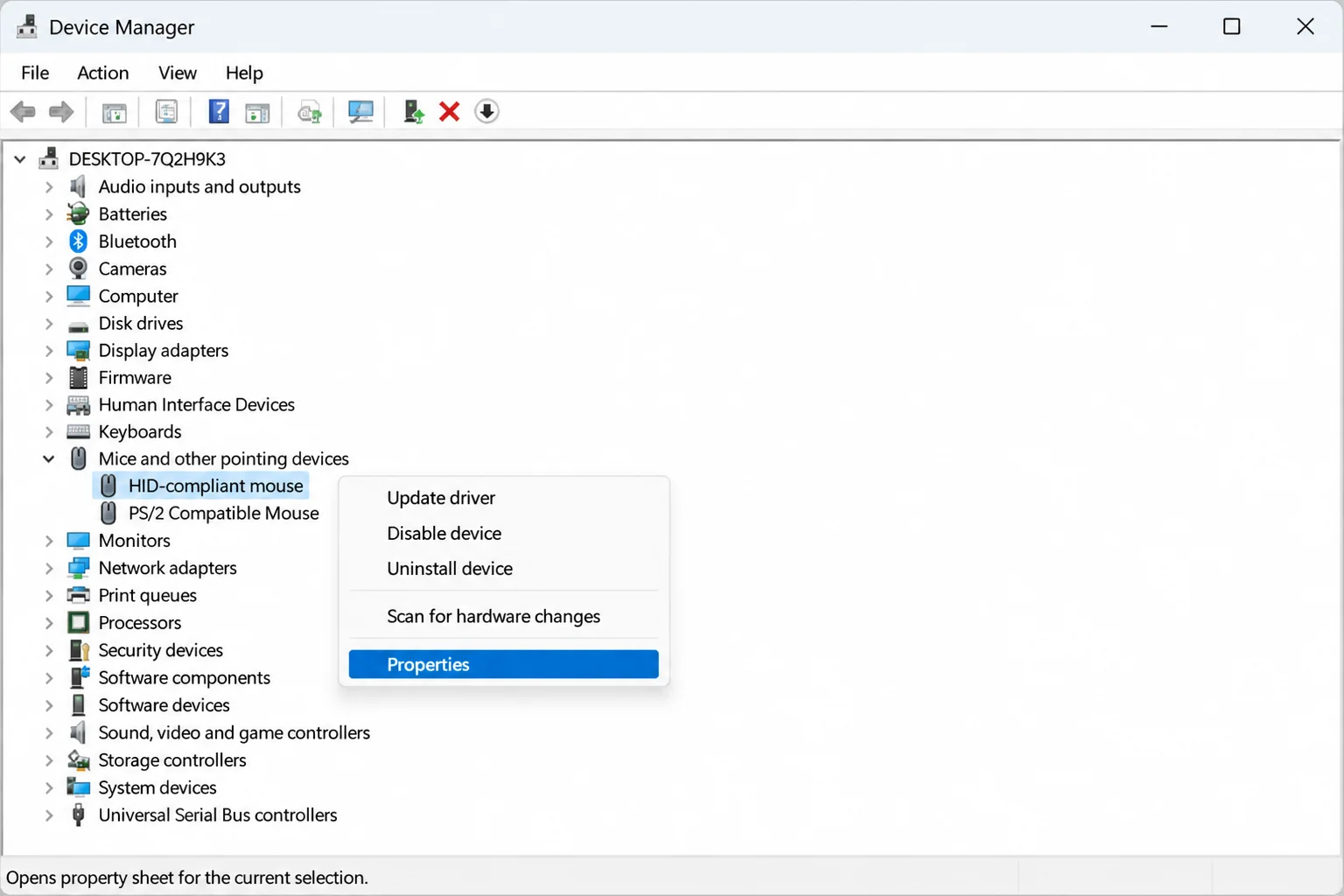
- Click the Power Management tab.
- Uncheck Allow this device to wake the computer.
- Click OK.
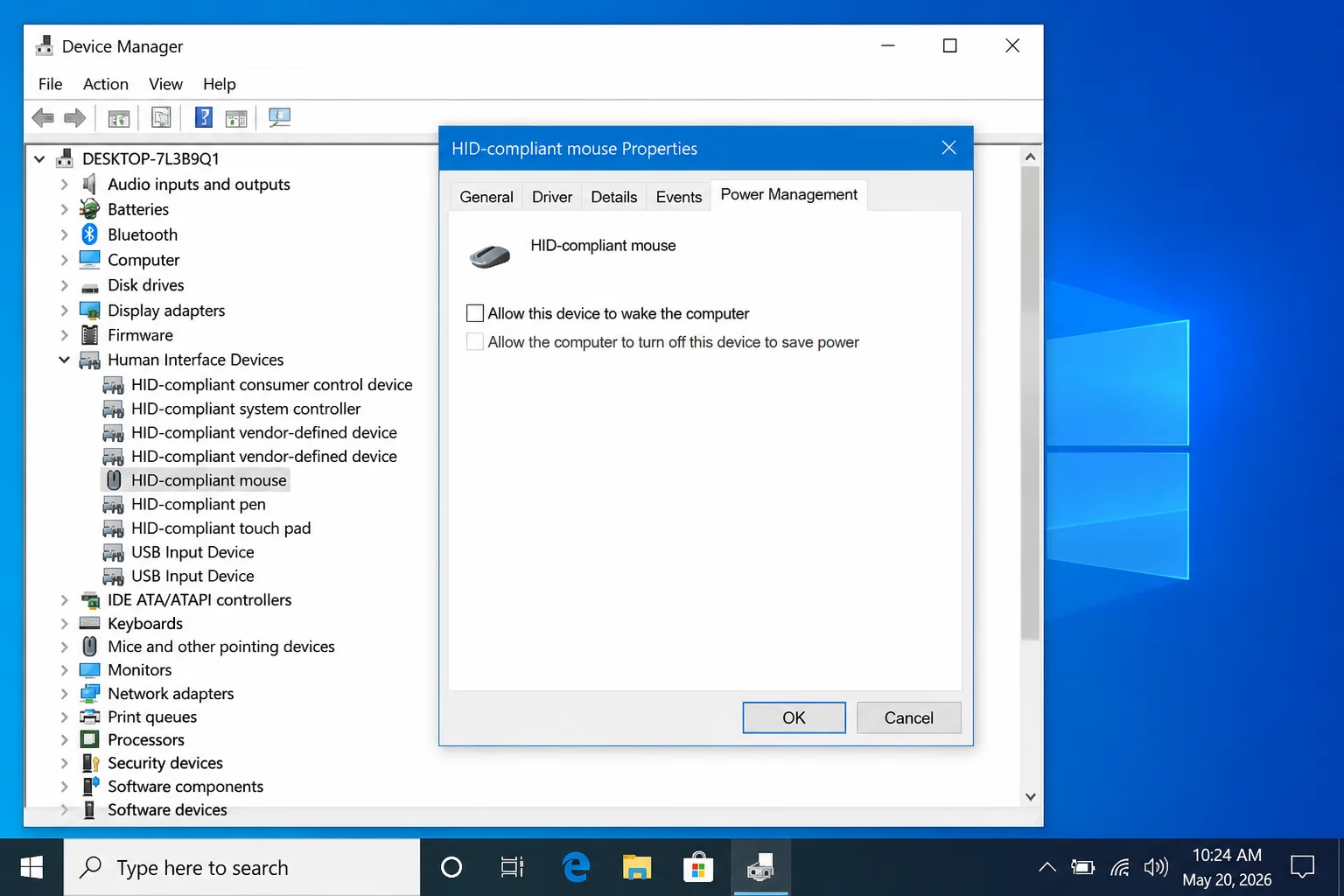
Put the PC to sleep (Start > Power > Sleep) and confirm a mouse move no longer wakes it.
Wireless mice and dongles: A wireless receiver typically shows up as multiple HID entries, so check under both Keyboards and Human Interface Devices for entries like “HID-compliant mouse” or “HID Keyboard Device.” Repeat steps 3–6 for each one, otherwise the PC will keep waking through whichever entry you missed.
Keyboards: Expand Keyboards, right-click your keyboard, and follow the same steps. If you want something to still wake the PC, leave the keyboard enabled and disable only the mouse.

Other devices: Bluetooth adapters, network adapters, and USB hubs can all wake the PC too. Right-click any of them in Device Manager, open Properties, and check the Power Management tab for the same checkbox.
Fix #2: Use powercfg to find and disable wake-armed devices
If the PC still wakes after Fix #1, powercfg shows you exactly what’s doing it.
- Right-click Start and select Windows Terminal (Admin), or search for Command Prompt, right-click it, and choose Run as administrator.
- Run:
powercfg /devicequery wake_armedThis lists every device currently allowed to wake the PC: entries like “HID-compliant mouse,” “HID Keyboard Device,” or a specific brand name.
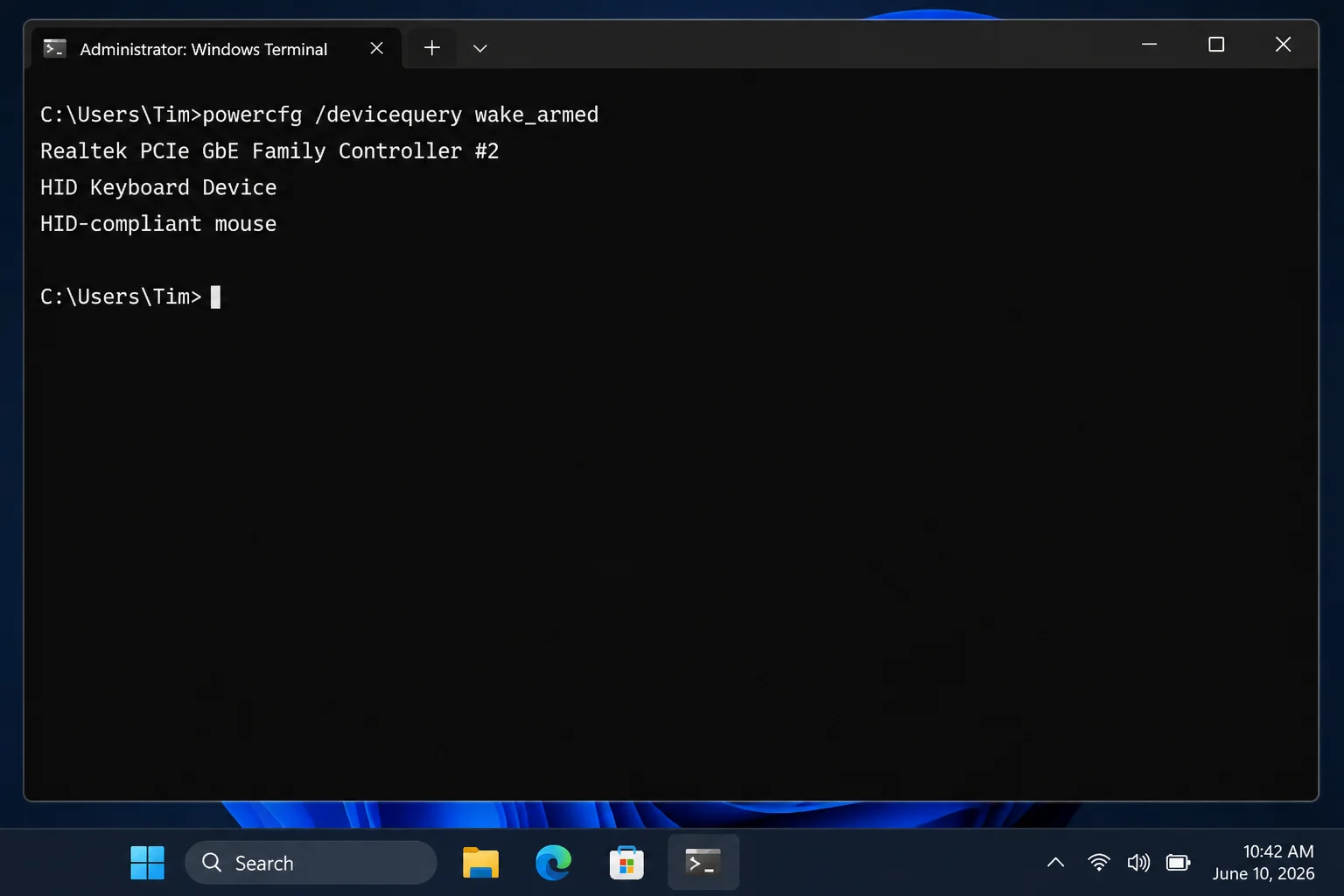
- For each device you want to stop, run:
powercfg -devicedisablewake "Device Name"Replace Device Name with the exact string from step 2. For example:
powercfg -devicedisablewake "HID-compliant mouse"- Verify the change:
powercfg /devicequery wake_armedThe device shouldn’t appear in the output anymore.
To re-enable a device later:
powercfg -deviceenablewake "Device Name"To see every device capable of waking the PC, including ones not currently armed, run:
powercfg -devicequery wake_from_anyThat’s useful when a Bluetooth dongle seems to be the culprit but doesn’t show up in wake_armed yet.
Troubleshooting
The Power Management tab is missing or grayed out
Three causes, in order of likelihood:
- Outdated driver: Grab the latest driver from the manufacturer’s site, then reopen Device Manager. The tab sometimes appears after a driver update.
- USB hub: Devices plugged through a hub often lose the Power Management option. Try a direct motherboard port instead.
- BIOS USB wake support disabled: Restart and enter firmware setup (the key is usually
F2,Del, orEscat boot, it’s displayed briefly on the startup screen). Look for an option called USB Wake Support, Wake from USB, or something similar under Advanced or Power Management settings. Enabling it there can make the Device Manager tab reappear.
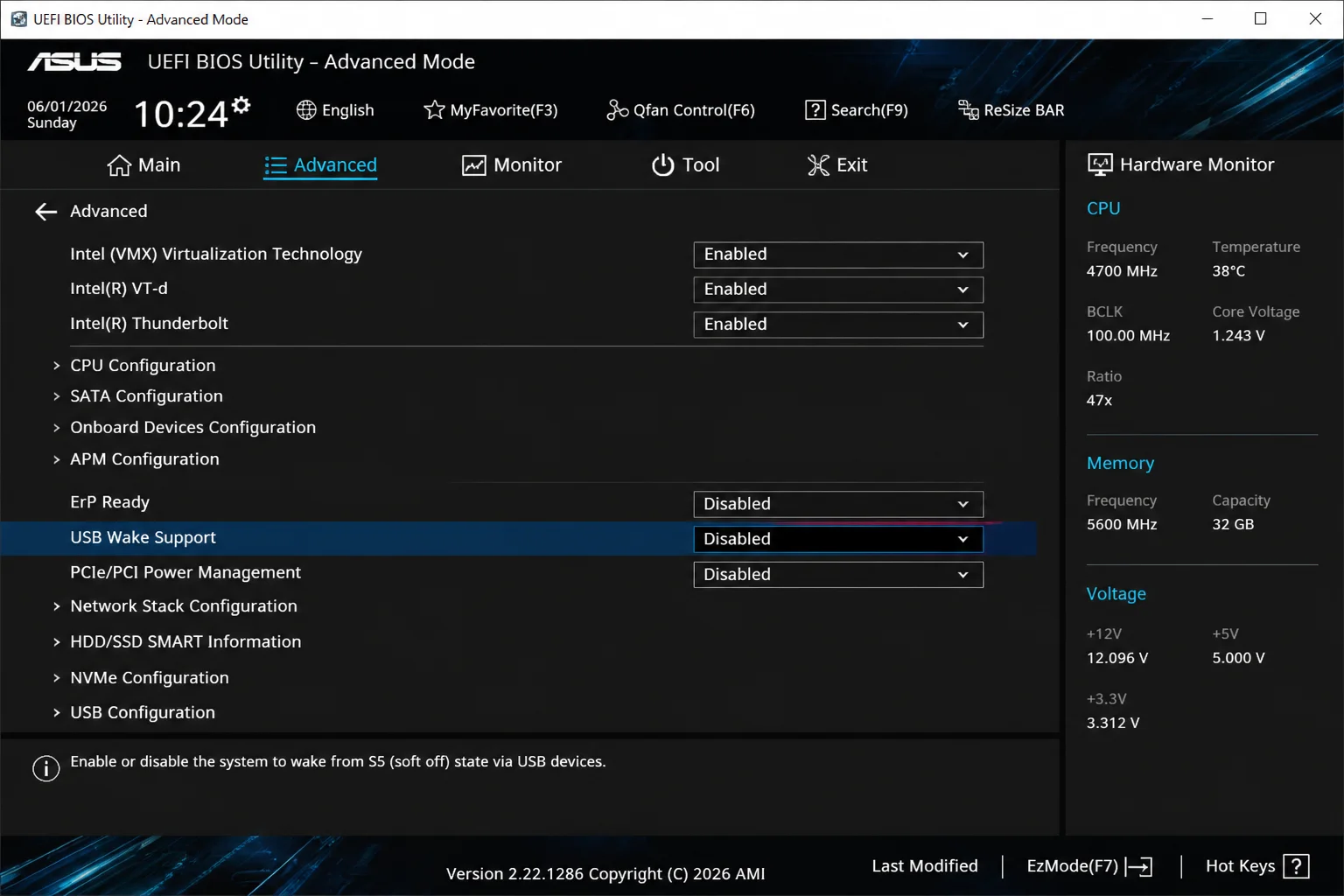
On newer hardware that uses Modern Standby (S0ix) instead of traditional S3 sleep, some devices don’t expose the wake checkbox at all. The BIOS is your only option in that case.
The mouse still wakes the PC after I disabled it
Run powercfg /devicequery wake_armed and check the output carefully. A wireless mouse dongle almost always registers as both a mouse and a keyboard HID device. If you disabled the mouse entry but left “HID Keyboard Device” alone, that’s the one still waking the PC. Disable wake for every related HID entry.
If the list looks clean, check Network Adapters in Device Manager. A Wake-on-LAN enabled network card is a common culprit that has nothing to do with the mouse.
The PC wakes on its own at night
Run this in an elevated Command Prompt or Terminal:
powercfg /lastwakeThis reports what triggered the most recent wake event. Windows Update, scheduled tasks, and network adapters wake PCs far more often than mice do.
Neither the mouse nor the keyboard wakes the PC anymore
In Device Manager, find your keyboard, open Properties > Power Management, and recheck Allow this device to wake the computer. Or run:
powercfg -deviceenablewake "HID Keyboard Device"Also confirm the BIOS still has USB wake enabled.
Advanced: Bluetooth devices missing the Power Management option
Some Bluetooth mice and controllers don’t show the wake checkbox until a specific registry flag exists. Open Registry Editor (regedit) and navigate to:
HKEY_LOCAL_MACHINE\SYSTEM\CurrentControlSet\Services\BTHPORT\Parameters
Create a new DWORD (32-bit) value named SystemRemoteWakeSupported and set it to 1. After a reboot, the Power Management tab typically appears for any Bluetooth HID devices that were missing it.
Conclusion
Fix #1, the Device Manager checkbox, handles it for most setups. If the PC still wakes, powercfg /devicequery wake_armed will point you at the actual device; a wireless dongle registering as an HID keyboard catches a lot of people off guard. And if the tab’s missing entirely, check the BIOS before anything else. That’s almost always where the block is. For more information on troubleshooting Windows not going to sleep, you can refer to our guide. Additionally, you can learn more about powercfg command-line options on Microsoft’s official documentation.