 Ananya Dixit · February 6, 2026 · 4 min read
Is your Windows 11 version freezing during multitasking? Are you facing an issue where apps are taking a longer time to open, and browsers are crashing with low memory warnings? One of the most common reasons is mostly ignored by almost all users, which is insufficient virtual memory in the system.
Virtual memory in your Windows 11 PC is a backup for RAM, as it uses some part of your storage device. When the virtual memory of the system fills up and is not optimized correctly, the performance of your PC might take a serious hit. But the good news is that you do not require new hardware right away. With the help of the right tweaks, you can immediately free up your PC’s virtual memory and speed it up.
In this blog, we will guide you through five effective Windows 11 tricks to solve sluggish performance.
Trick 1: Restart Your PC
Though restarting the PC might sound like a basic fix, it is often one of the most crucial ones, as restarting clears cached memory. It also includes background processes that run silently and consume your virtual memory. Moreover, many Windows 11 users depend on hibernate or sleep mode for weeks, which causes memory leaks.
Tip: Ensure that you restart your PC every once in a while if you keep working on it for long hours.
Trick 2: Close Background Applications
There is a requirement to close the memory-hogging apps, which might eat the virtual memory even when you are not using them at all.
What Steps To Follow?
- Click Ctrl+ Shift+ Esc so you can open the Task Manager
- Select the Processes tab
- Click Sort by Memory
- After that, you can end the tasks that are not required right now
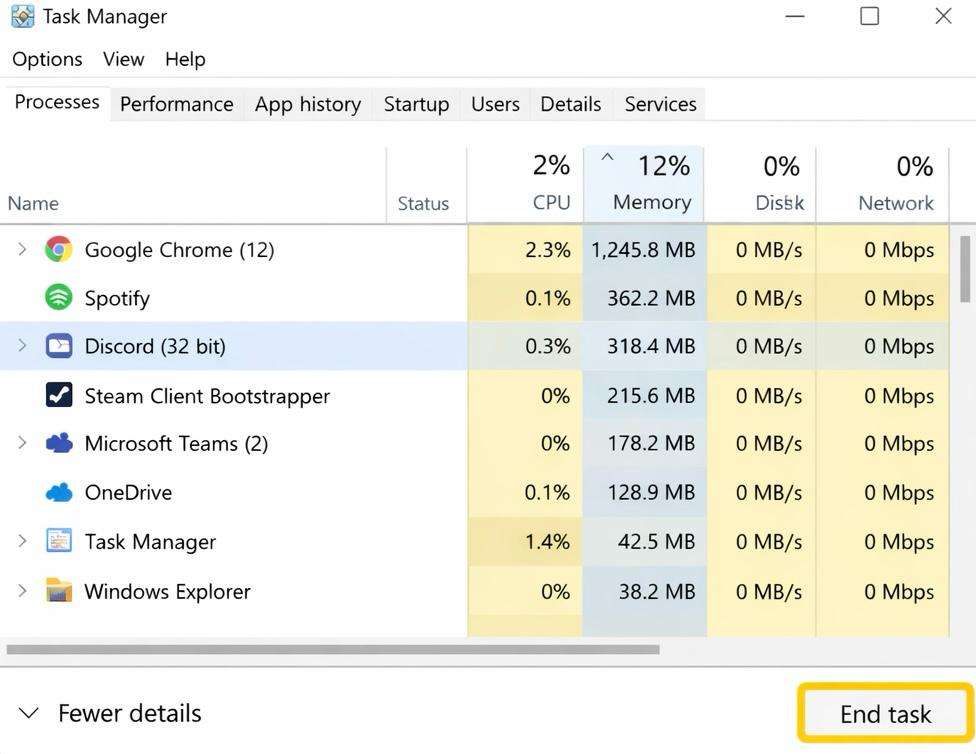
The common culprits that are eating away at the virtual memory are game launchers, browsers with multiple tabs, and some chat apps.
Trick 3: Increase Your Virtual Memory
Windows 11 is integrated with features that can manage the virtual memory automatically; however, manual tuning is mostly required on slow PCs.
What Steps To Follow?
- Press Windows + R, then enter sysdm.cpl
- Click on Advanced, and then select Performance
- After that, go to Settings
- From Settings, you can open the Advanced tab and then select Change, which is right under the Virtual Memory
- Moreover, uncheck the option that says, Automatically manage paging file size
- Click on the System Drive (C:)
- Then choose Custom size
Recommended Values
- Set the initial size to 1.5× your RAM
- And set the maximum size to 3× your RAM
After following the above-mentioned steps, select Set, then restart your PC.
Trick 4: Clear Temporary Files
You must make sure to clear the temporary files regularly because they pile up and decrease free disk space, which directly affects the virtual memory.
What Steps To Follow?
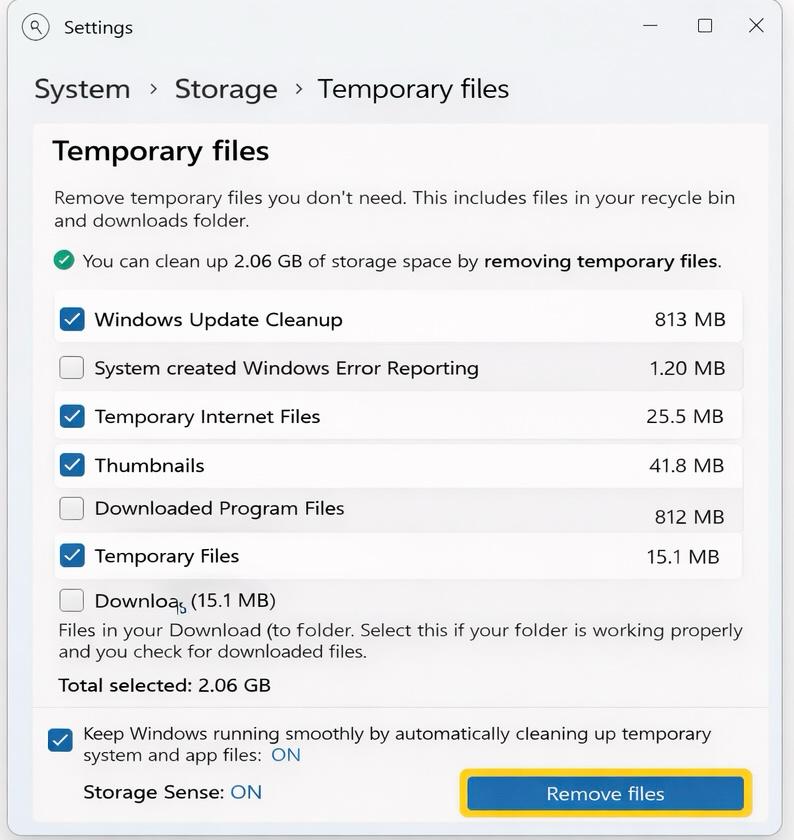
- Click Windows + I, go to System, and then click on Storage
- Select Temporary Files
- Then check all the safe options, skipping downloads if required
- Select Remove files
By following these steps, you can enable Storage Sense, which automatically cleans up the system.
Trick 5: Adjust The Visual Effects
Though fancy animations and other visual effects look nice, they consume a lot of memory, specifically on low-end systems.
What Steps To Follow?
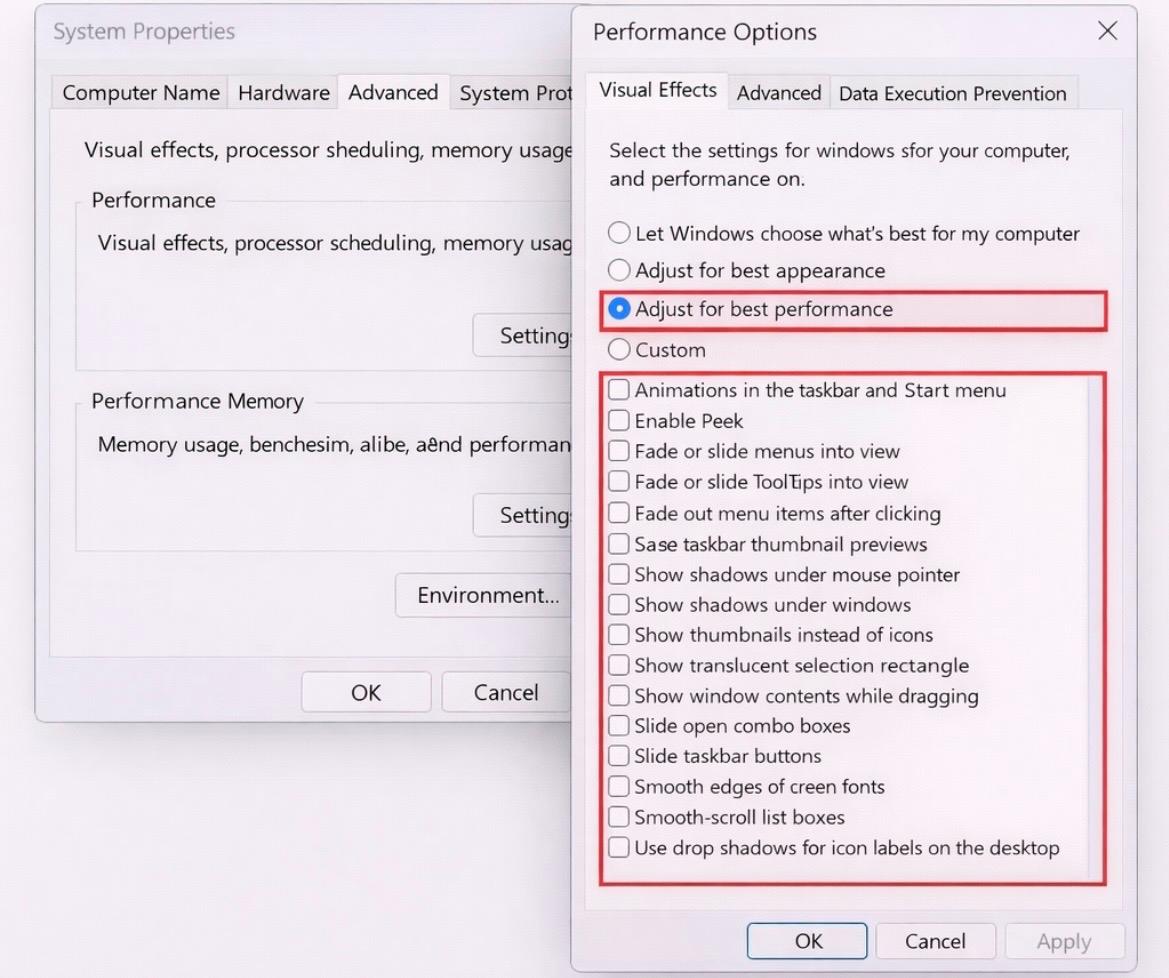
- Open your System Properties (sysdm.cpl)
- Click on Advanced and then go to Performance Settings
- Click on the option, Adjust for best performance
- Then, manually turn off all animations, shadows, and transparency
Thus, a sluggish Windows 11 system does not mean failing hardware; instead, in most cases, virtual memory is the real reason. So, cleaning the background applications, disabling visual effects, freeing up disk space, and optimizing paging can restore smooth performance.
Related Posts

Ananya Dixit is a seasoned content writer and editor with over seven years of experience in tech, finance, and media. She has written extensively about Microsoft technologies, covering multiple versions of Windows—from Windows 7 and 10 to the latest Windows 11 releases. Her work includes in-depth troubleshooting guides, feature breakdowns, how-to tutorials, optimization tips, and coverage of new system updates.Ananya is also passionate about trending topics in the tech world, including AI tools as her personal favorite, digital privacy, productivity apps, and the newest features rolling out across Android and iOS. Read Ananya’s Full Bio

