

Notifications on Windows are supposed to keep you informed about recent updates, alerts, or messages. Windows 11 has a modern interface with integrated smart features, but constant notifications can distract users. Whether it’s about update reminders, app alerts, pop-ups from the browser, or system tips, constant notifications can interrupt your work, gaming, studying, and even online meetings.
So, if you are one of those busy individuals living a 12-hour corporate life, it becomes a must for you to know how to turn off notifications on Microsoft Windows 11.
This step-by-step guide will walk you through all the possible methods via which you can partially or completely turn off system notifications.
Step 1: Turn Off All Notifications
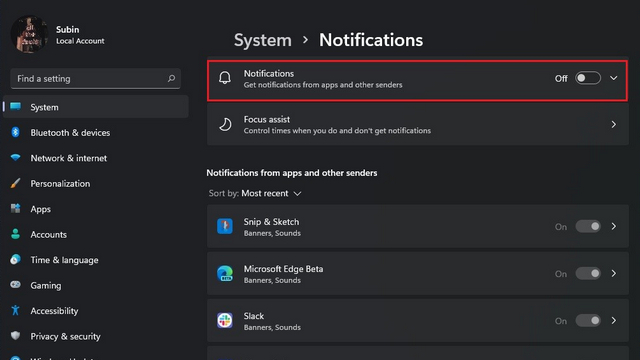
If you are an individual seeking peace and silence while working, through this method, you can disable all the notifications.
What Steps To Follow?
- Select the Start Menu
- Click on Settings
- Then go to System
- Tap on the Notifications
- After you reach this point, toggle it off
Consequently, once you follow these steps and toggle off the notifications, Windows will automatically stop showing any app or system notifications. This method is best for users who want no interruptions.
Step 2: Turn Off Notifications From Specific Apps Only
Even after disabling notifications, you might still need alerts from other important apps, such as email or messaging. You can follow the steps below to turn off notifications from specific apps.
What Steps To Follow?
- Select Settings
- Go to System and then Notifications
- You may now scroll down to see the list of all apps
- Choose the app that you want to manage
- After that, toggle off notifications for that app
Moreover, you can repeat the same process for any app you do not want notifications from.
Step 3: Disable Notification Sounds
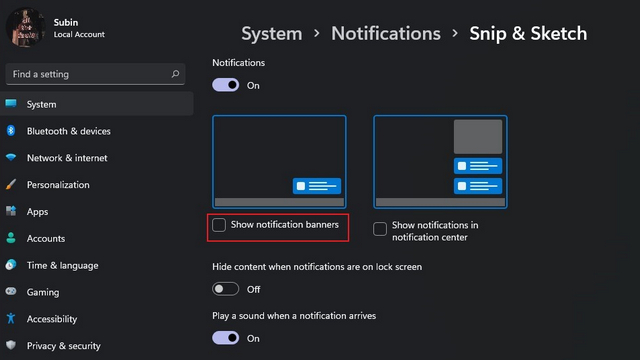
At times, users are only annoyed with the sound of notifications and not the pop-ups themselves.
What Steps To Follow?
- Click on Settings, then go to System.
- Click on Notifications.
- Select any app from the list.
- After that, just turn off “Play a sound when any notifications arrive.”
Using this method, you will see the notifications, but without any sound alerts.
Step 4: Use Do Not Disturb or Focus Assist
Focus Assist is a feature in Windows 11, through which you can block notifications for a particular time while doing some specific activities.
Enable Focus Assist
- Click on Settings
- Then go to System, and select Focus
- From there, turn on Focus Assist
In this case, you can allow important notifications and block alerts while you are presenting something or gaming. Also, you can schedule quiet hours. Moreover, Windows also provides presets such as priority only and alarms only, which are perfect during meetings or deep work.
Step 5: Turn Off Notifications From Browser
Websites or social platforms like Facebook can also send notifications, especially news or ads related.
For Microsoft Edge
- Go to Edge and click on Settings
- Then select Cookies and site permissions
- Select notifications
- After that, remove or block unwanted website notifications
For Google Chrome
- Open Chrome and click on Settings
- Go to Privacy & Security
- Select Site Settings and then choose Notifications
- Click on the block or remove sites
Final Thoughts
Windows 11 features are designed to help users, but only when they’re relevant. In case you are getting too many alerts, it can hamper your productivity and increase stress. Thus, Windows 11 provides you with complete flexibility to turn off notifications entirely, silence particular apps, or use Focus Assist.
