

Your PDFs open in a browser, your photos open in an editor you don’t recognize, or links launch the wrong app. To reset default apps in Windows 11 all at once, go to Settings > Apps > Default apps, scroll to the bottom, and click Reset. If only one file type is wrong, use Fix #2 or Fix #3 below instead.
What the Reset Changes (and What It Doesn’t)
The Default apps page in Settings controls which app opens each file type, such as .pdf or .jpg, and each link type, such as http or mailto. Microsoft Support covers changing these one at a time. The Reset button at the bottom of the same page sets every one of them back to Microsoft’s recommended app in one go.
- It changes: All file-type and link-type associations. Default apps are stored per user, so other accounts on the same PC keep their own settings.
- It doesn’t uninstall anything. Every program stays installed. It just stops being the default.
- It can’t be undone. There’s no undo button, so any custom choice you made has to be set again by hand. Microsoft’s recommended apps are usually its own, such as Edge for web links, though the exact picks can vary with your Windows build and installed apps.
Before You Begin
- A PC running Windows 11 (any edition)
- Your own Windows sign-in. The changes in Fixes #1 to #3 apply to the signed-in user, although installed-app registration and organization policy can still affect which apps are offered or reapplied.
- A note of any defaults you want to keep, such as your browser or a paid PDF editor like Adobe Acrobat Pro. You’ll need to set those again after a full reset.
- Windows 11 Pro, Enterprise, or Education and admin rights, only if you need Fix #4. Home doesn’t include the Local Group Policy Editor.
Step-by-Step Guide
Fix #1: Reset All Default Apps With One Click
- Press
Windows + Ito open Settings. - In the left sidebar, select Apps.
- Select Default apps. You can also press
Windows + R, typems-settings:defaultapps, and pressEnterto go straight there.

- Scroll past the app list to the very bottom of the page.
- Find the section labeled Reset all default apps or Reset to the Microsoft recommended defaults. The wording varies between Windows 11 builds.
- Click Reset. If Windows asks you to confirm, click OK.
Expected result: Windows should show a checkmark next to the button when the reset finishes, with no restart needed. Test by double-clicking a PDF or photo. If it still opens elsewhere, check that extension with Fix #2.
Fix #2: Change the Default for Just One File Type or Link Type
Use this if only one thing is wrong, or to put your favorite browser or PDF reader back after Fix #1.
- Open
ms-settings:defaultappsas shown in Fix #1. - Click the box under Set a default for a file type or link type.
- Type the extension or link type, such as
.pdf,.mp4, ormailto. - Click the app shown under the result. If no app is assigned yet, the button says Choose a default.
- Select the app you want from the list, then click Set default.
Expected result: The new app’s name should appear next to the file type, and only that one association changes. Test by opening a file or link of that type.
File extensions and link types are separate associations. To fully switch browsers, check http, https, .htm, and .html one by one. For email links, check mailto.
Fix #3: Undo an Accidental “Always Use This App” Choice
Clicking Always in the “Select an app to open this file” prompt (or ticking Always use this app in older builds) makes that app the default. You can reverse it without resetting everything.
- Open
ms-settings:defaultapps. - Under Set defaults for applications, select the app you picked by mistake.
- Find the file type it took over. You’ll see that app’s name listed under the extension.
- Click that entry.
- Choose the correct app from the list, then click Set default.
Expected result: Test by opening a file of that type. It should open in the app you chose, and every other file type stays the same.
Fix #4: Reapply a Saved Set of Defaults at Sign-In (Pro, Enterprise, Education)
This fix is for small-business or shared PCs where defaults keep reverting. It isn’t a casual home fix, and it doesn’t permanently lock anything. Per Microsoft’s policy documentation, Windows applies the associations in the file when someone signs in to the PC. A user can still change a default afterward, and the policy can set it back at a later sign-in. If your PC is managed by an organization, its MDM policy (such as Intune) takes precedence over this local setting, so ask IT first.
Important: This deploys a set of associations by policy. It doesn’t stop you, other users, or apps from changing a default between sign-ins, and what gets reapplied depends on what the exported XML file contains.
- Set every default the way you want it using Fixes #1 to #3.
- Right-click Start and select Terminal (Admin).
- Export your current associations:
Dism /Online /Export-DefaultAppAssociations:"C:\AppAssoc.xml"- Press
Windows + R, typegpedit.msc, and pressEnter. - Go to Computer Configuration > Administrative Templates > Windows Components > File Explorer.
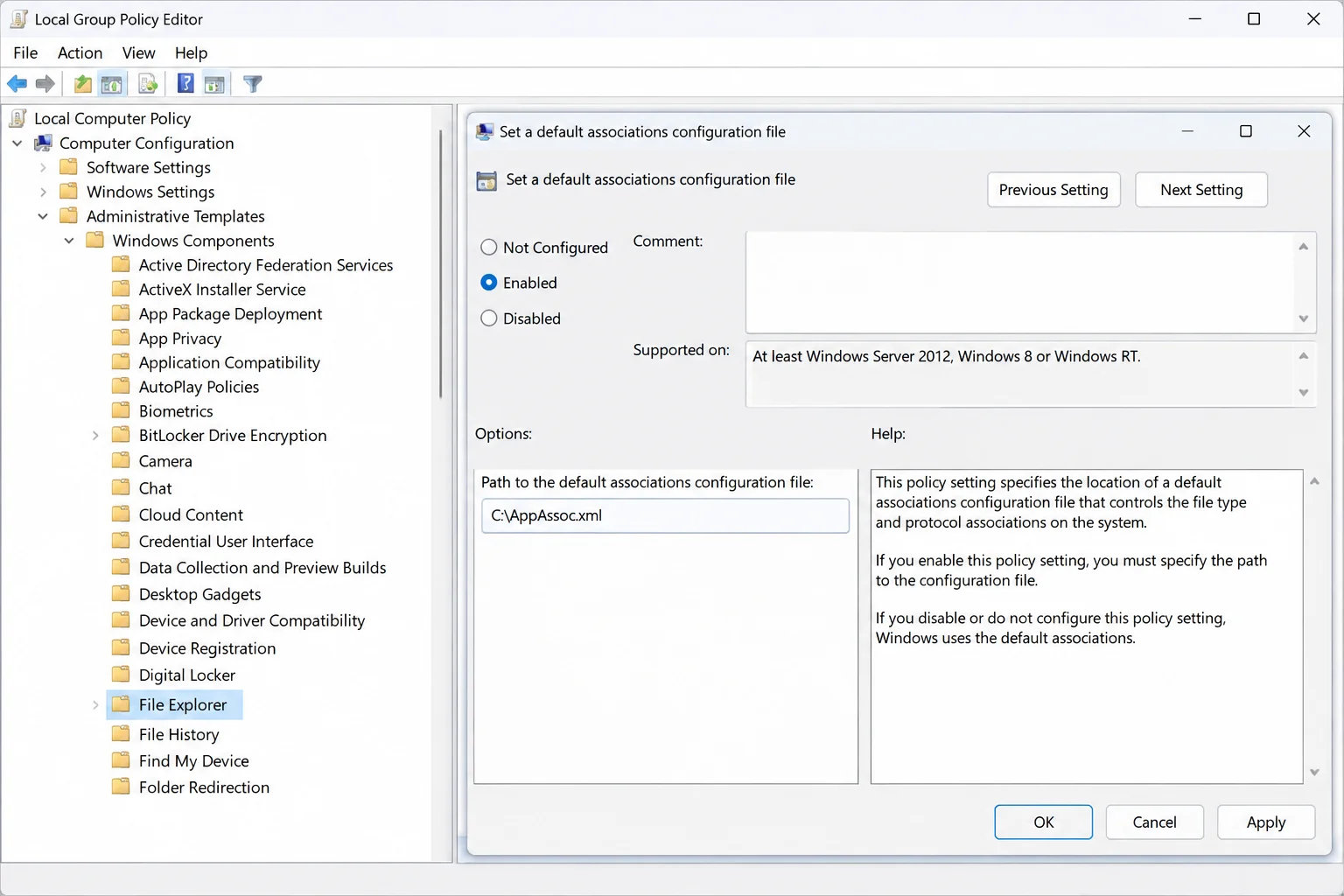
- Double-click Set a default associations configuration file.
- Select Enabled, enter
C:\AppAssoc.xmlas the file path, then click OK.
- Sign out and back in.
Expected result: After you sign back in, the file types and link types in the XML file open in the apps you exported. Keep C:\AppAssoc.xml where it is, because the policy reads it from that path.
Configuration
| Setting | Where | Scope |
|---|---|---|
| Reset all default apps | Bottom of Default apps | Every file and link type |
| Set a default for a file type or link type | Search box at top of Default apps | One extension or protocol |
| Set defaults for applications | App list on Default apps | Everything assigned to one app |
Tips and Troubleshooting
- Can’t find the Reset button: Open
ms-settings:defaultappsdirectly and scroll all the way down. If your build has the reset control, it sits at the bottom of the page, though the label may differ. If it’s missing, use Fix #2 or Fix #3 and check whether the PC is managed by work or school. - More changed than you expected: The reset is global by design. Use Fix #2 to reassign the few defaults you care about.
- Your app isn’t in the list: The app may not have registered its file types with Windows. Repair or reinstall it, then check again.
- Defaults revert after updates: Users have reported this in a Microsoft Tech Community thread. Set your defaults again, then look for the usual culprits: an app that asks to become the default when it starts or updates (decline the prompt or turn it off in that app’s settings), and Settings > Accounts > Access work or school. If a work or school account is connected, your organization’s policy may be reapplying its own defaults. Ask IT before trying Fix #4.
FAQ
Will resetting default apps delete my programs? No. Nothing is uninstalled. Apps simply stop being the default.
Do I need admin rights? Not for the reset or single-file-type changes, which only touch your own account’s settings. Fix #4 needs admin rights.
Is there a way to stop defaults from changing? Not completely. On Pro, Enterprise, or Education, Fix #4 can reapply your saved defaults each time you sign in. On Home, set your defaults again after a major update. It takes about a minute with Fix #2.
Wrapping Up
Fix #2 is the one most people actually need. Resetting everything is overkill when only your PDFs are wrong, so save Fix #1 for when everything is wrong at once. If defaults keep switching to an app you don’t remember installing, check Settings > Apps > Installed apps for it and run a Microsoft Defender scan to be safe.