
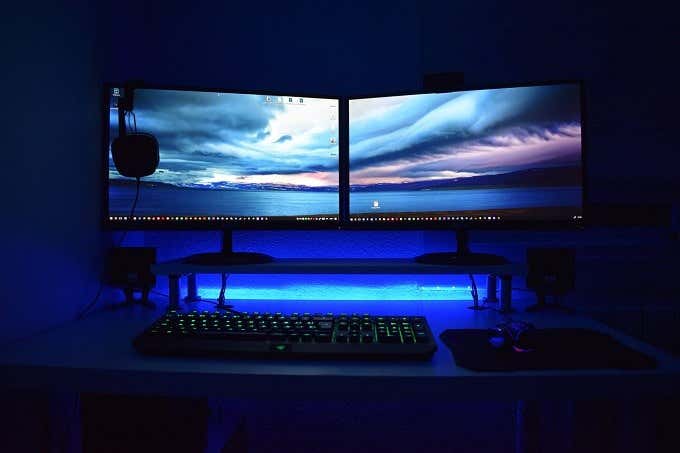
Having a dual-monitor setup has been the secret weapon of desktop productivity for years. Of course, these days a much more elegant solution is to buy a large ultrawide screen. However, simply hooking up a second monitor is fast and affordable way to add more workspace. Not to mention that any laptop users with external screens have a dual-monitor setup by default!
These free dual monitor programs make it easy to configure and control your multi-monitor setup in Windows. So you spend less time fiddling with monitor settings and more time actually doing productive work.
Dual Monitor Tools
Not only is Dual Monitor Tools free, this is also an open source dual monitor program. Actually, we should say “packages” since it’s actually a collection of modules that you can mix and match. For example, Dual Wallpaper is a standalone tool that lets you have different wallpapers on each screen. So if that’s all you want, that’s all you need to download.
DMT allows or some pretty interesting tricks. For example, DMT cursor lets you customize mouse cursor behavior. You can lock the cursor to one monitor, make it harder to move between monitors or allow free movement. This is pretty handy if you have a use case where the cursor accidentally ends up where it shouldn’t this could be a lifesaver.
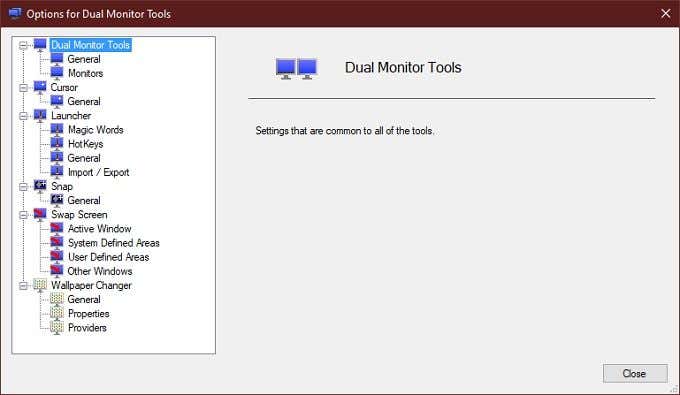
DMT resides in the notification area and you can quickly access all the modules from there. It’s not fancy (or pretty), but these tools are incredibly useful!
DisplayFusion (Free Version)
DisplayFusion is probably the best-known multi-monitor program around. With good reason! This is the application that brings it all together: Multi-monitor taskbars, variable wallpapers, keyboard shortcuts and more. The paid “Pro” version comes with much more on top of this, but for the vast majority of people DisplayFusion Free will be more than they need to get the most out of their dual-monitor setup.
Windows 8 users in particular will like the smattering of specialized tweaks included with the free version. You can hide the lock screen, disable the Windows 8 “hot” corners and change the border size of app windows. All points of irritation for many users of that operating system.
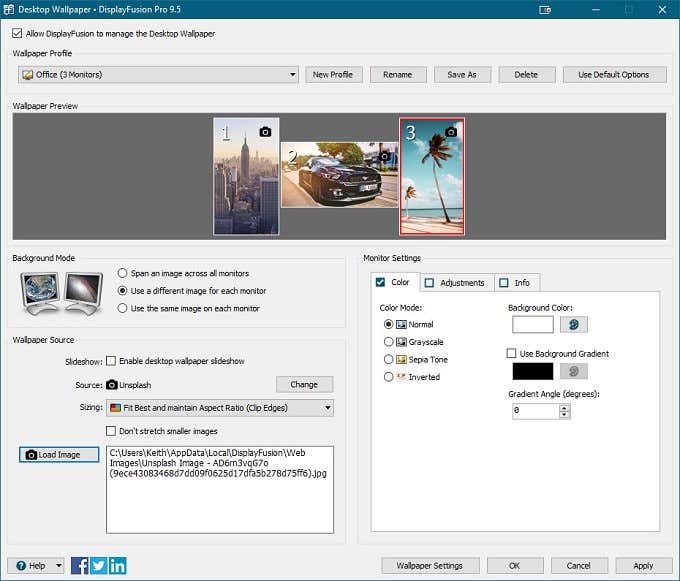
DisplayFusion also offers wonderful advanced window-snapping functions that make window management across multiple monitors that much easier. Which includes the ability to snap windows to monitor edges. An infuriating oversight in Windows itself.
Anyone running Windows with more than one monitor should at least give DisplayFusion a try. It really is a transformative tool. You’ll get a Pro version trial at the outset, so you’ll get to try the Pro features to see if any are worth the asking price.
MultiMonitorTool
Not every dual monitor program has to be elaborate or over-engineered to be useful. MultiMonitorTool is the perfect example of this. It’s a basic, lightweight utility that puts a lot of power right under your fingertips.
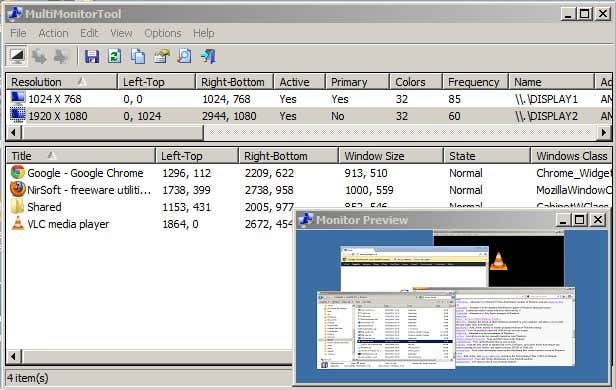
For one thing, it will accept command-line instructions and you can see a live preview of the multi-monitor setup you are currently using. That makes it perfect for computers that are running multiple monitors in a public space. Apart from the command-line interface, you can do common tasks such as moving windows between monitors with keyboard shortcuts.
This tool will work with versions of Windows as far back as XP all the way to current versions of Windows 10. So if you have to use a public computer, such as in a lecture hall, or are otherwise running older hardware on multi-monitor setups, MultiMonitorTool is a real lifesaver.
MultiMon Taskbar 2.1 (Free)
There is a newer version of MultiMon Taskbar available, sporting the version number “3.5”. However this is the “Pro” version which comes with a price tag. Users who want a free tool therefore have to opt for version 2.1, which isn’t necessarily a bad thing. There are simply feature differences here.
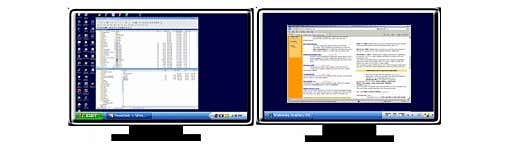
The free version of the dual monitor software adds taskbars to extended monitors in Windows. It can do this for up to three monitor setups. Each monitor’s taskbar only shows the apps on that monitor. That includes not showing apps on the primary monitor taskbar that aren’t that monitor.
This free tool is only designed to work up to Windows 7, but there are still plenty of computers out there running this older operating system. MultiMon is quite a stable piece of software as well, so if you have a multi-monitor system of the right vintage, it’s worth checking out.
Windows 10 (You Didn’t See This Coming!)
Microsoft has been paying attention to the world of third-party multi-monitor utilities. Which means that, if you are already running Windows 10, there are a bunch of features baked into the system that you’d have needed a third-party solution for in the past.
There are now a wealth of multi-monitor customization options built into windows, with support for just about any arrangement and mix or resolutions and orientations. Windows 10 natively supports having different wallpapers on each screen. Multi-monitor taskbars? Already done!
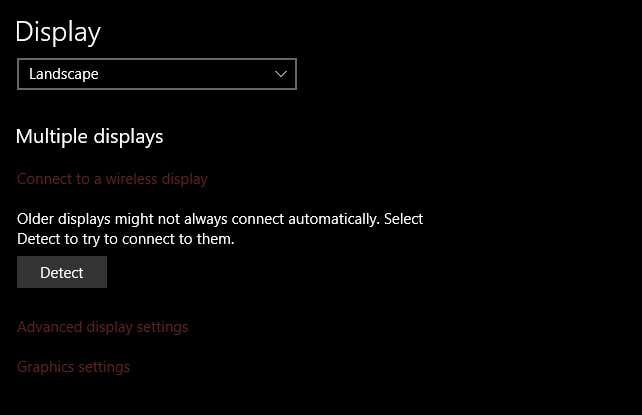
Windows 10 also has a snazzy virtual desktop feature, shortcut keys to quickly switch multi-monitor modes and easy shortcuts to snap or maximize windows.
The truth is that, for most users, the best dual-monitor management features are already built into Windows 10. Third-party developers did a lot of free research and development work for Microsoft, who simply had to copy the features that worked for their own operating system.
Is More Better?
We still recommend getting an ultrawide screen for the productivity gains and lack of mid-screen bezel, if you’re starting from a blank slate. But if you find the dual-monitor life is the one for you, then these dual monitor programs are essential to keep all that real-estate under control.
Don’t forget that you can also easily add an extra screen via USB. Either by using a dedicated USB display or using a tablet like the Apple iPad and an app like DuetDisplay. It’s a great trick if you don’t permanently need dual monitors, or want to benefit from that setup on the road.
There are even clip-on USB monitors for laptops that make dual- and triple- monitor setups possible in mobile setups. The dual monitor apps above could certainly come in handy with these solutions!
