
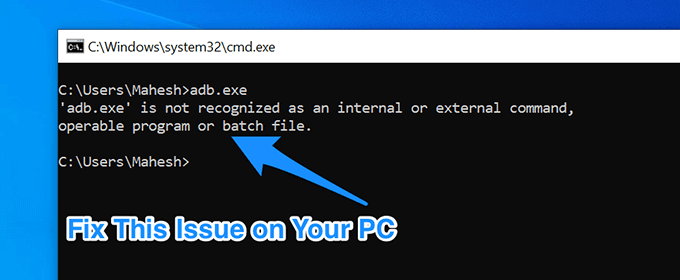
One of the great things about Windows is that you can get many of your tasks done from the Command Prompt on your machine. You just need to enter cmd.exe and Windows will run it for you. But occasionally, you might come across errors like “is not recognized as an internal command”.
This is actually one of the most common errors you can face with the Command Prompt. As the error itself suggests, it couldn’t recognize the tool you were trying to use with the Command Prompt. There are various reasons why it happens, and also there are multiple ways to get around the “not recognized as an internal or external command” error on your Windows PC.
Why The “not recognized as an internal command” Error Occurs
Before you start applying fixes, it’s a good idea to learn why the error occurred so you can ensure it doesn’t happen again in the future.
Other Apps Messing Up Your System
One of the most common reasons you may get this error on your PC is because another installed app modified your system variables. This prevents the Command Prompt from recognizing commands to launch other apps or tools.
Not Having The Program Installed On Your Computer
The second possible reason the “not recognized as an internal or external command” occurs is that you don’t have the appropriate program installed on your computer. It may be that the installer didn’t install the application files at the appropriate location, or the installer didn’t enable the tool to be launched with Command Prompt.
Fixing The “not recognized as an internal or external command” Error In Windows
Regardless of the cause, there are ways to fix this error and get the Command Prompt to recognize the program that you’re trying to use.
Ensure The Program Actually Exists On Your PC
The first thing to do is verify if the program that you’re trying to use with the Command Prompt actually exists on your computer. You may have used a fake installer that told you that the program was successfully installed on your machine, but that may not be true.
There’s an easy way to check if the program is indeed installed on your machine.
- Launch a File Explorer window on your PC.
- Head over to the following path.
C:WindowsSystem32
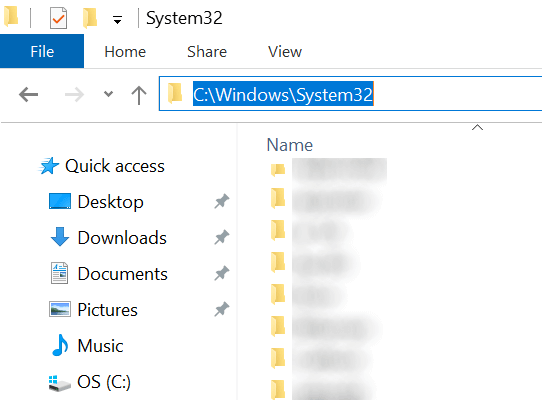
- Ensure the executable that you’re trying to run from the Command Prompt is available in this folder. If it’s not, the program is likely not installed on your computer.
The above isn’t a surefire way to check if a program is installed on your computer. This is because not all programs keep their files in the Windows’ System32 folder. However, it should help you locate most programs.
Use The Full Path To The Executable File
The “is not recognized as an internal command” error usually occurs because the computer can’t find the executable that you’re asking it to launch. However, you can provide it with the full path to your executable file and it should then be able to run it without any issues.
- Launch a Command Prompt window on your PC.
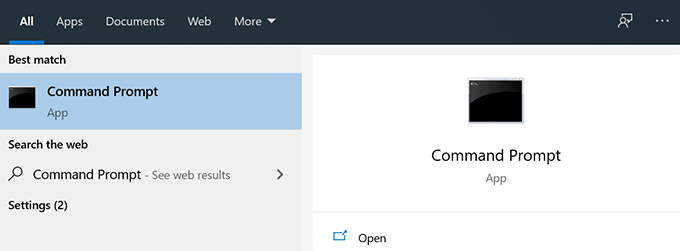
- Type in the full path of the executable that you want to use and hit Enter on your keyboard.
- For example, if you’re trying to use adb.exe that’s located in a folder called adb on your desktop, you’ll type something like the following.
C:Users<username>Desktopadbadb.exe
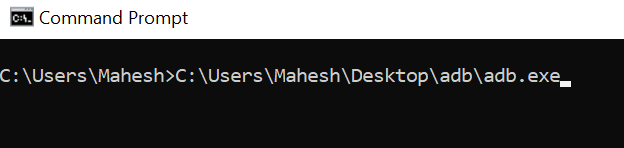
- The file should launch without an issue.
Enclose The File Path With Double Quotes
Specifying the full path to your executable file isn’t a bulletproof method. It can also cause the “is not recognized as an internal or external command” error if it isn’t used properly. The problem lies in the path that you specify in your Command Prompt window.
If your executable file’s full path has any spaces in it, that’s going to cause the error. This is because the utility can’t recognize the spaces, and it uses the characters up to the first space as a program name. Since that isn’t the correct path, you’ll get the aforementioned error.
You can fix this using the following method.
- While typing in a path that has spaces (whether single or multiple), enclose the path with double quotes.
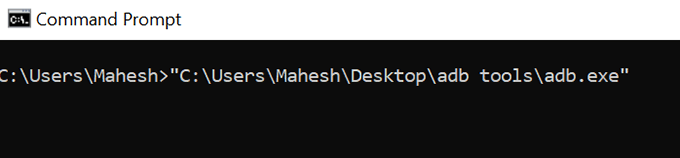
- Command Prompt will then recognize the entire path as a single item and launch the program appropriately on your machine.
Move The File To System32 Folder
By now, you know that when you try to run an executable from the Command Prompt utility, it looks into the System32 folder of your Windows installation and then opens the file, if it’s available there.
What if you could place your executable file there and then access it from the Command Prompt? You can do this as long as you have admin access on your computer.
- Copy the executable file along with all other files associated with it to the following folder on your computer.
C:WindowsSystem32 - Close Command Prompt if it was already open and relaunch it.
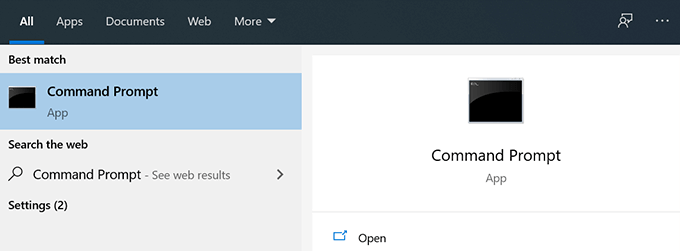
- Enter the name of your executable file without any path, and you’ll find it launches successfully.
While this method works great and helps you fix the “is not recognized as an internal or external command” error on your computer, you may want to use it cautiously.
This is because each time you want to use something from the Command Prompt, you’ll need to put the appropriate executable in the System32 folder. Eventually, the folder will grow large and you’ll have a large number of files sitting in there.
It also won’t work for executable tools that require installation into a specific directory. You won’t be able to move those into the System32 folder since the installation path is defined in the Windows Registry.
We recommend you only use this solution if you can’t fix the issue using the other methods and as long as the application doesn’t require installation.
Add The Executable File Path To Environment Variables
The most efficient way to fix the “is not recognized as an internal command” error is to edit your environment variable and add the appropriate file path there. This is because the Command Prompt utility looks at those paths when you enter a command, and then opens the file if it finds it in one of those directories.
By adding your file path there, you’re telling Command Prompt where a certain executable is located when you want to use it by its short-name in a CMD window.
It’s pretty easy to edit your variables and add a new path there.
- Launch Control Panel using the Cortana search on your PC.
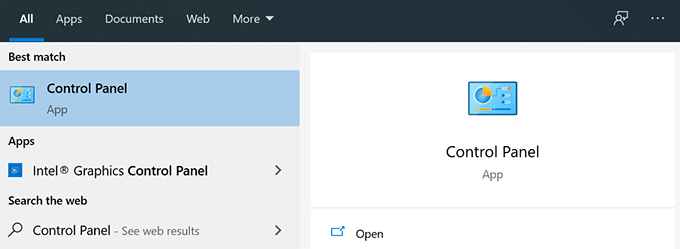
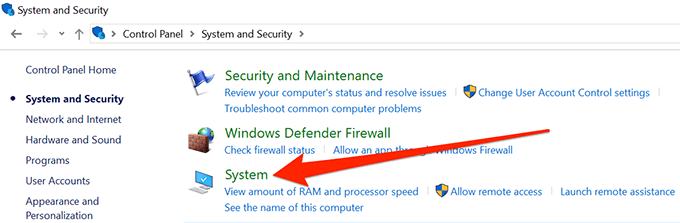
- Click on the option that says System and Security.
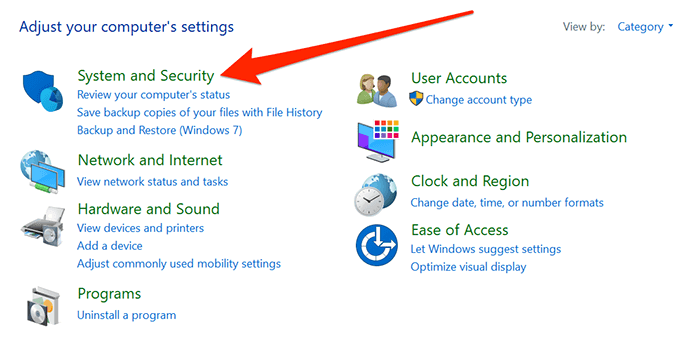
- Find and click on System on the following screen.
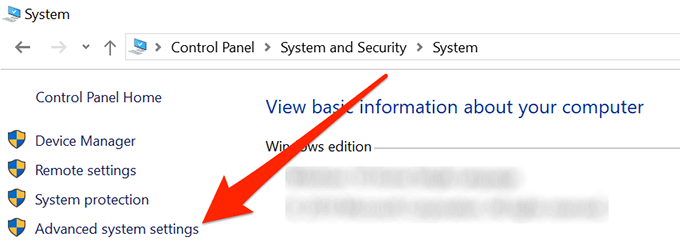
- Select Advanced system settings from the left sidebar on your screen.
- A box will open on your screen. Click on the Environment Variables button which is located at the bottom of the box.

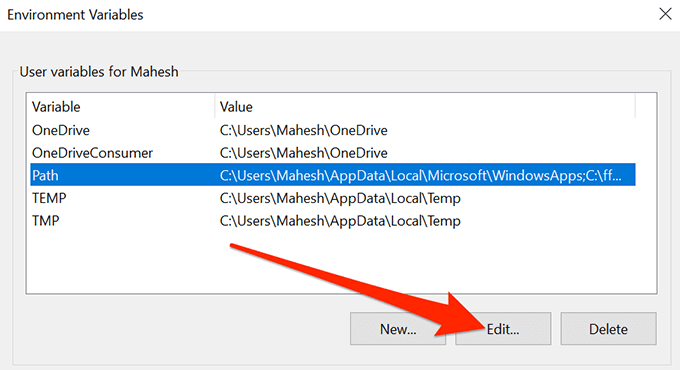
- You’ll see all the user variables for your account. Click on the one that says Path and then click on the Edit button.
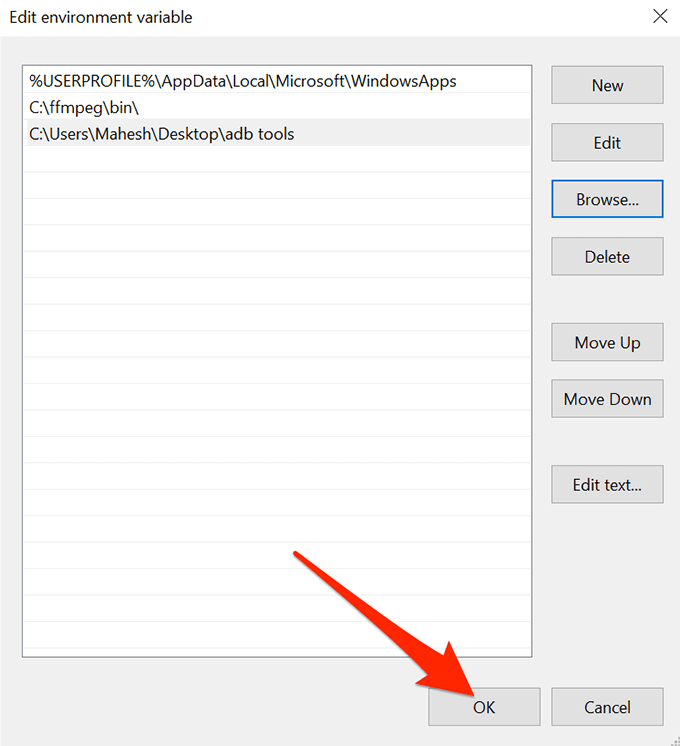
- You can now add the new path to the application you want to use with the Command Prompt. Click on Browse in the right sidebar to add a directory to the list.
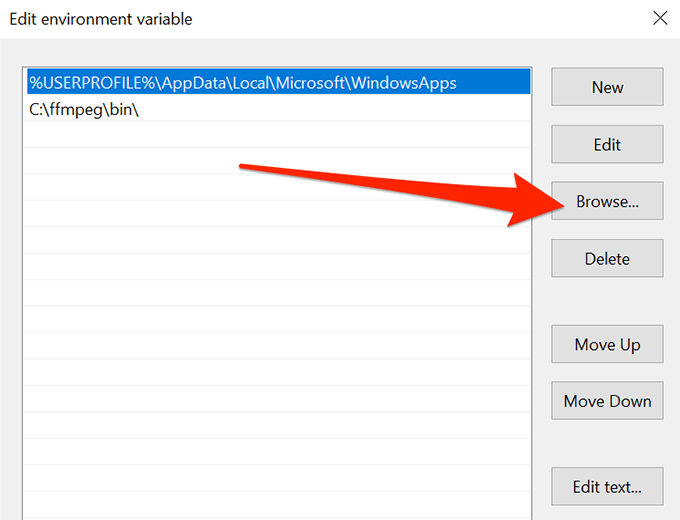
- Navigate to the folder where your executable is located and select it.
- You should see your newly added path is listed in the variables list. Click on OK at the bottom to save the changes.
- Click on OK in all other boxes as you close them.
- Open a Command Prompt window and type the name of the executable file. You’ll see that the file opens without CMD throwing any errors on your screen.
The “is not recognized as an internal command” error can sometimes be very frustrating, as it won’t let you use a program that you know you’ve installed on your computer.
Using the methods above, you should be able to get rid of this error and run any program from a Command Prompt window without any issues. If any of the methods above helped you fix the issue, we’d like to know about it in the comments section below.
