

Sleep mode-enabled PCs should enter sleep mode after the expiry of the specified time in settings. If this doesn’t happen, it’s a cause of concern as something is off with your system.
You can follow a few methods to get around the issue when Windows 10 won’t sleep. These methods include ensuring sleep mode is enabled and that the power settings are configured properly.
Also, before you get started, it’s worth checking your BIOS settings to make sure your PC is enabled for suspend or sleep mode. If that feature is disabled in the BIOS, none of the fixes below will help. Dell has a good article on how to enable sleep mode in the BIOS. If you have a different computer manufacturer, just Google the manufacturer name along with sleep mode to get instructions.
Enable Sleep Mode
Check the status of sleep mode on your PC. You or someone else may have turned off the mode for some reason or it could have been changed by the third-party app.
- Open the Start menu, search for Edit power plan, and select that option in the search results.

- On the following screen, ensure the dropdown menus next to Put the computer to sleep are not set to Never.
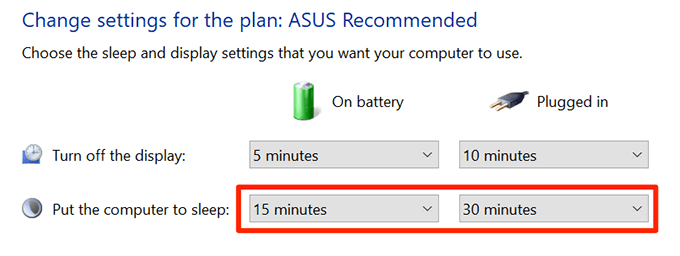
- If the option is set to Never, select the dropdown and set a time after which the PC should sleep.
Find the Programs Preventing PC Sleep
Your installed programs can cause your PC not to go into sleep mode, and it’s often difficult to find what program is causing this issue.
Luckily, Windows 10 includes a command to let you view the programs that prevent your PC from entering sleep mode.
- Launch the Start menu, search for Command Prompt, and select Run as administrator.
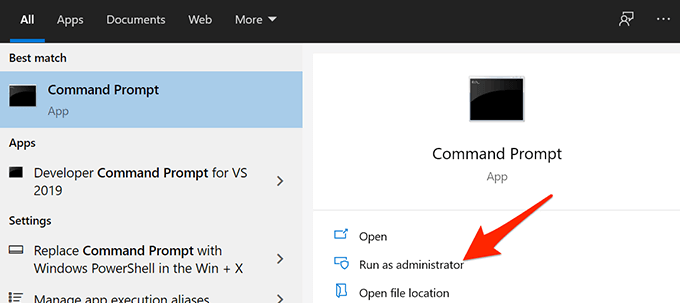
- Select Yes in the User Account Control prompt.
- On the Command Prompt window, type the following command and press Enter: powercfg /requests
- Command Prompt now displays a list of programs that prevent your PC from going into sleep mode.
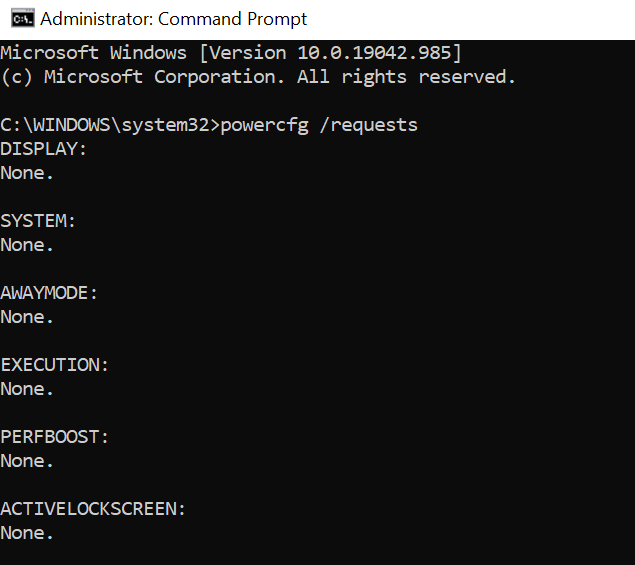
- Quit the programs shown in the Command Prompt window. Then, see if your PC successfully goes into sleep mode. If it does, you can prevent that program from starting up when Windows boots.
If something else pops up here like srvnet, make sure read our in-depth guide on how to fix that issue.
Close All Open Programs
If your Windows 10 PC won’t sleep even after closing specific programs, close all of the open programs and see if this makes any difference.
You can quit most programs by selecting the Exit option in the program’s File menu. Do this for all of the programs on the system tray as well.

Once you’ve closed all your open apps, wait for the time after which your PC usually goes into sleep mode. If it sleeps without issues, there’s an issue with one of your programs, and you need to remove the problematic ones from your PC.
To check what program is causing the issue, close one program at a time and see if the sleep mode issue persists. To be even more precise, it’s better to perform a clean boot of Windows 10. This will also shutdown any background processes that might be running even after you close all the open apps in the taskbar.
Change Power Options
Windows 10’s power settings can interfere with the workings of sleep mode and cause your PC to bypass sleep mode. In this case, check and ensure that the power settings aren’t the culprit here. You can even reset the settings just to be sure.
- Access the Start menu, search for Edit power plan, and select that option.
- Select Change advanced power settings on the following screen.
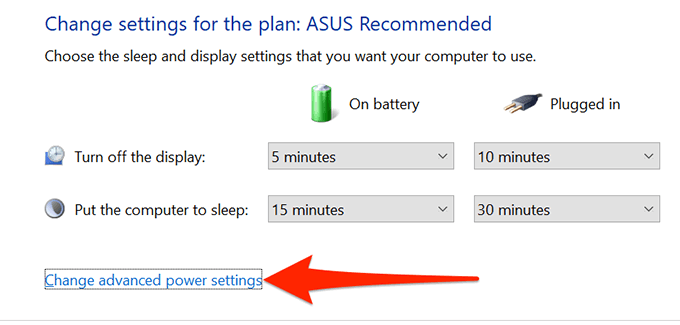
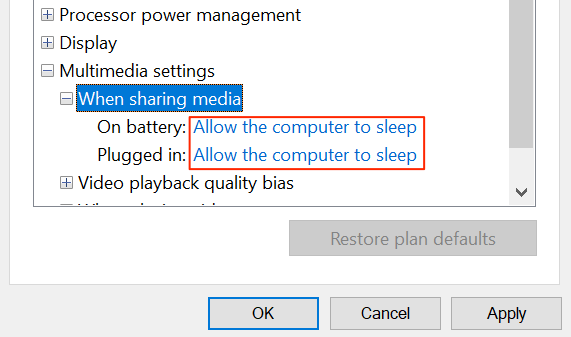
- In the Power Options window that opens, expand the Multimedia settings option and select When sharing media.
- Ensure both On battery and Plugged in options are set to Allow the computer to sleep. Then, select Apply and then OK at the bottom.
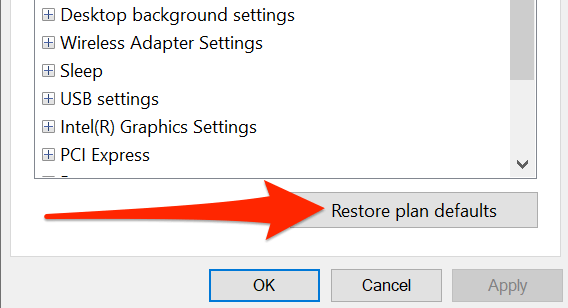
- If you’ve modified any other options but you can’t recall what those were, you can reset all the settings by selecting the Restore plan defaults button.
Turn the Screen Saver Off
It’s worth disabling the screen saver when your PC refuses to enter sleep mode. Then, if you want the screen saver back, you can turn it on anytime you want.
- Open the Start menu, search for Change screen saver, and select that option in the results.

- In the window that opens, select None from the Screen saver dropdown menu.

- Select Apply followed by OK at the bottom to save your changes.
Prevent a Device From Waking Your PC
Windows allows most of your connected devices, like your mouse and trackpad, to wake your PC. If you mistakenly move your mouse around or touch the trackpad, this can prevent your Windows 10 PC from entering sleep mode.
To fix this from always stopping sleep mode, disable the option that allows connected devices to wake your computer.
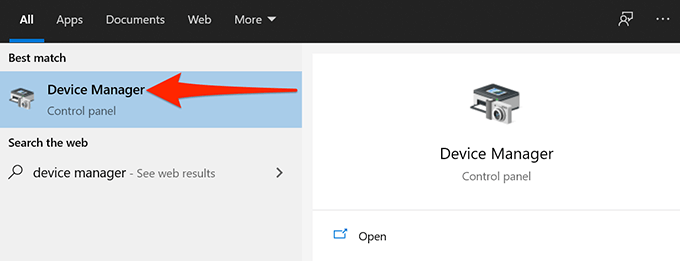
- Open the Start menu, search for Device Manager, and select Device Manager in the results.
- On the window that opens, select Mice and other pointing devices.
- From the expanded menu, right-click your device and select Properties.

- Go to the Power Management tab and deselect the Allow this device to wake the computer option.

- Select OK at the bottom to save your changes.
Disable Hybrid Sleep
Windows 10 offers a feature called hybrid sleep that combines both sleep and hibernation features into one. If this is enabled, it’s worth toggling it off to see if you can enter the normal sleep mode.
- Search for Edit power plan in the Start menu and select the Edit power plan option.
- Select Change advanced power settings on the following screen.
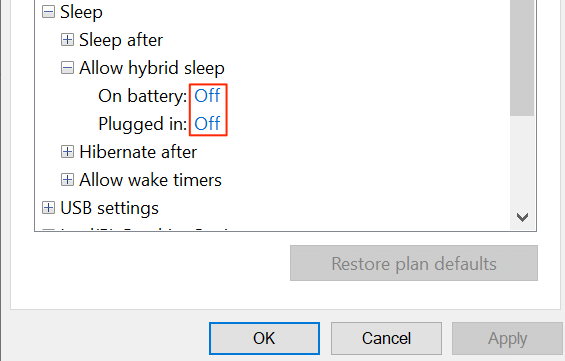
- On the Power Options window that opens, expand the Sleep option.
- In the expanded menu, select Allow hybrid sleep and ensure both On battery and Plugged in options are set to Off.
Run Power Troubleshooter
In some cases, it’s difficult to recognize the reason your Windows 10 PC won’t sleep. In these situations, one thing you can rely on is one of Windows 10’s troubleshooters.
Windows 10 comes with many troubleshooters that automatically detect and fix issues on your computer. For your specific problem, you can use the power troubleshooter.
- Open Windows 10’s Settings app by pressing Windows + I keys at the same time.
- In Settings, select Update & Security at the bottom.

- Select Troubleshoot in the left sidebar on the following screen.
- On the right pane, select Additional troubleshooters.

- Select Power and then select Run the troubleshooter.
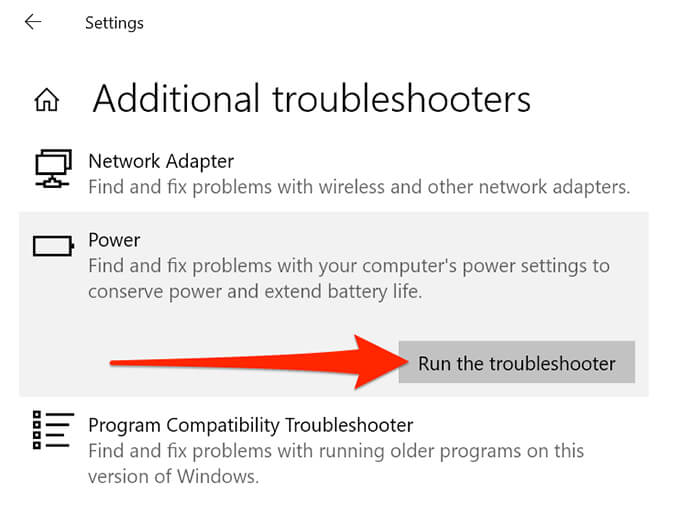
- Allow the troubleshooter to detect and fix power issues with your PC.
Install Windows 10 Updates
Last but certainly not least, ensure you’re running the latest version of Windows 10. Older Windows versions are known to cause issues, and your issue might be related to running an older Windows version.
Luckily, Windows 10 makes it easy to update your PC. As long as you have an active internet connection, you’re just a few clicks away from installing the latest Windows update on your computer.
- Open the Settings app by pressing Windows + I keys simultaneously.
- Select Update & Security on the Settings window.
- From the left sidebar, select Windows Update.
- Select Check for updates on the right pane.
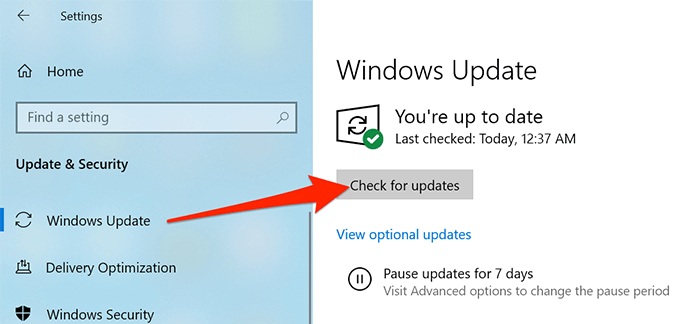
- Reboot your PC and see if sleep mode works as it should.
Does your Windows 10 PC now enter sleep mode without any issues? If so, let us know what method worked for you in the comments below.
