

It’s frustrating when your Instagram account isn’t working. We’ve all been there, when suddenly your Instagram feed isn’t loading, or an Instagram story won’t upload, or when your smartphone’s frozen on Instagram’s homepage. If you’re addicted to social media platforms, being disconnected from your Instagram account in any way, even if temporarily, is more than annoying.
There can be many reasons for Instagram not working. The problem could be on your side, or it could be caused by Instagram servers. Either way, there are certain things that you can try to fix it. Follow our troubleshooting guide to help you fix Instagram problems.
1. Is Instagram Down?
If Instagram isn’t working for you, the first thing you should do is check online to see if Instagram is down. Instagram has a stable network and, unlike other social networks, rarely experiences glitches and errors that lead to system crashes. However, this is still the first thing you should check before doing any manipulation with your app if you notice that Instagram is not working.
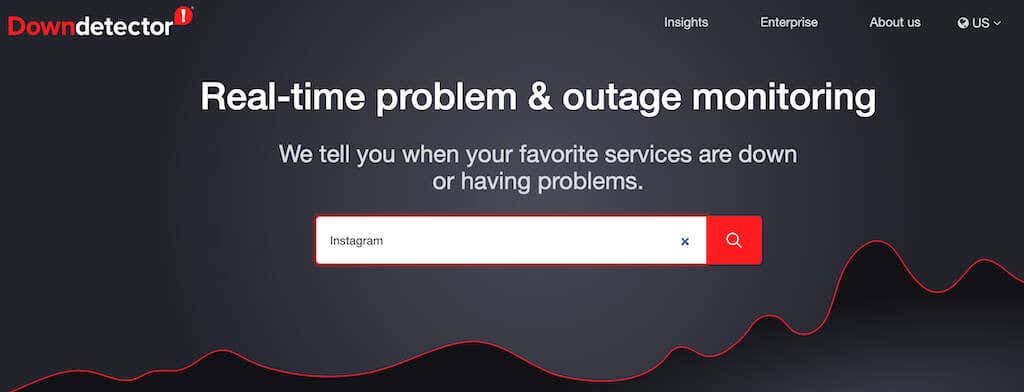
One way to check this is to simply Google “is Instagram down?”. If there’s a serious problem with the network, this news will be trending and you’ll find mentions of it on the first page of Google search. Alternatively, you can use an online platform called Downdetector that shows issues and outages of all kinds of services in real-time, including Instagram.
2. Time to Unfollow a Few Instagram Users
The second thing you should check is the number of people you follow on Instagram. Not many users know that Instagram has a limit to how many accounts you can follow. The maximum number of accounts is 7500, and once you reach that, your Instagram app might start lagging.
If you checked your Instagram and you reached that number, all you need to do is unfollow a few accounts and see if that fixes the problem.
To unfollow accounts, go to your Instagram profile page, then select Following in the top right corner of the screen.
*02_unfollow people*
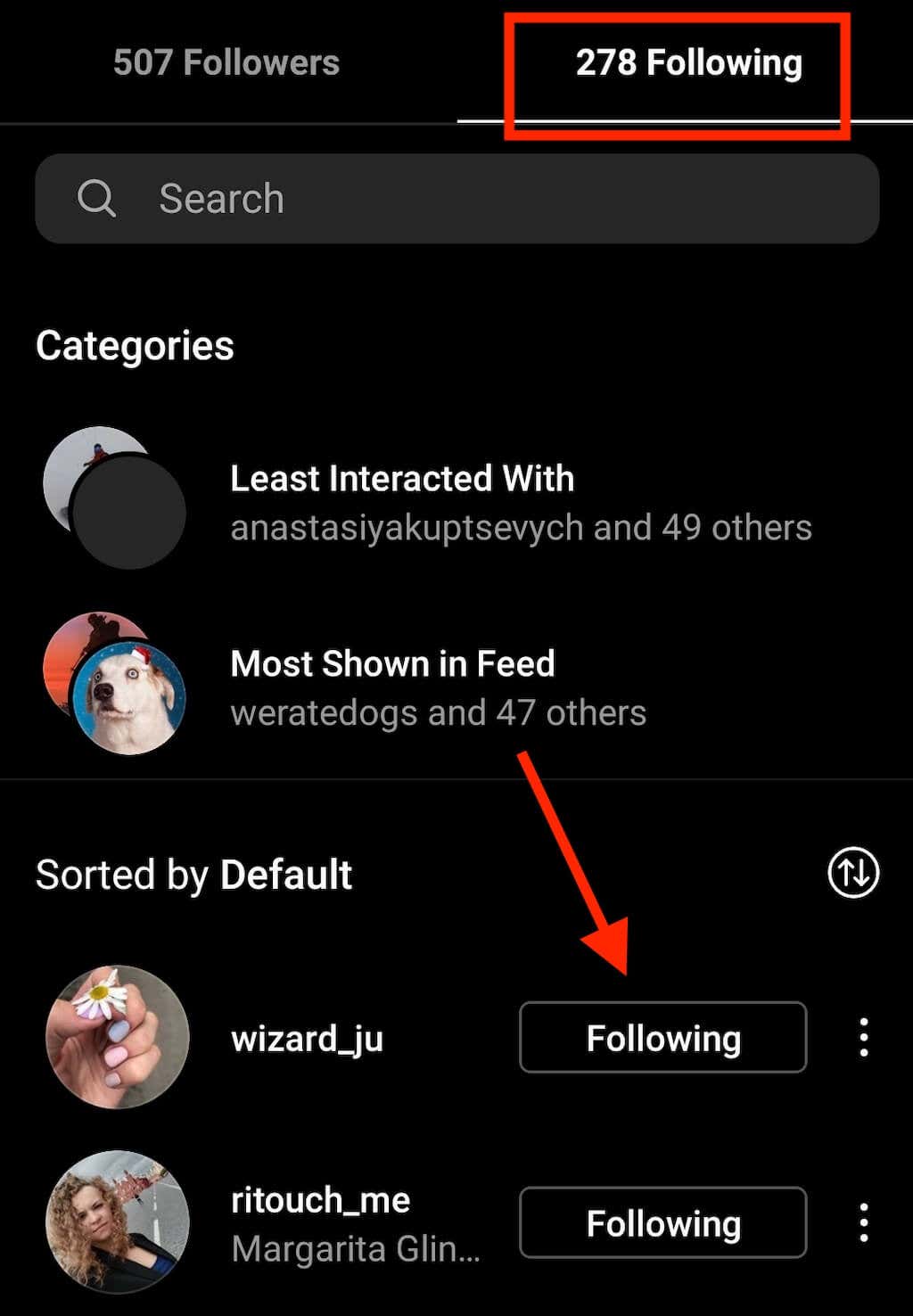
Now scroll down through the list of the people you follow and select Following to unfollow the ones that you don’t need in your feed anymore.
3. Log Out of the Instagram App & Log Back In
This one might seem obvious but the next troubleshooting technique that you should try is logging out of your Instagram app and then logging back in. If the issue’s with the app on your smartphone, this simple step might solve it.
To log out of your Instagram, open the Instagram app and go to your profile page.
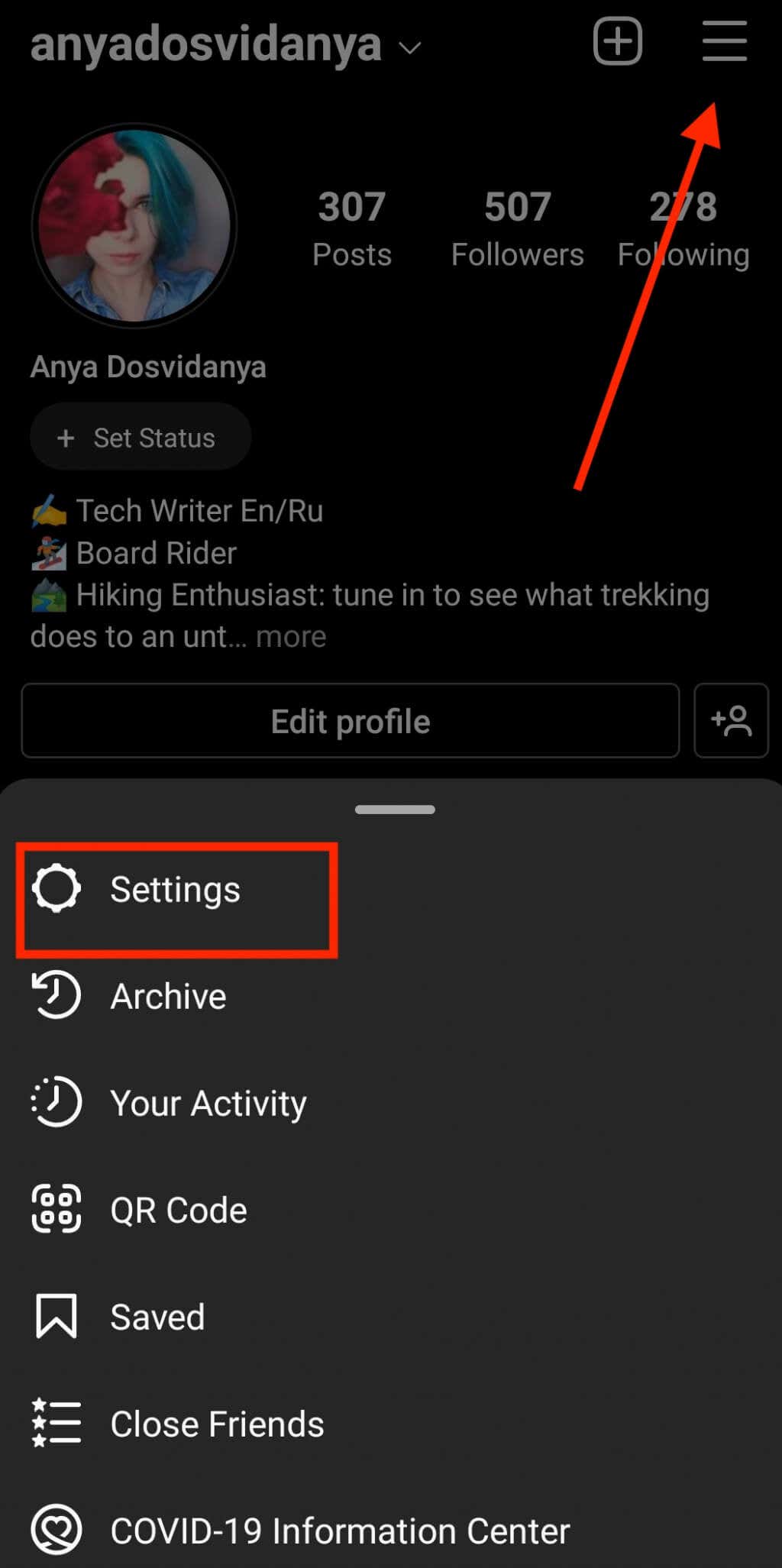
From the top right corner, select Menu. Then follow the path Settings > Log out.
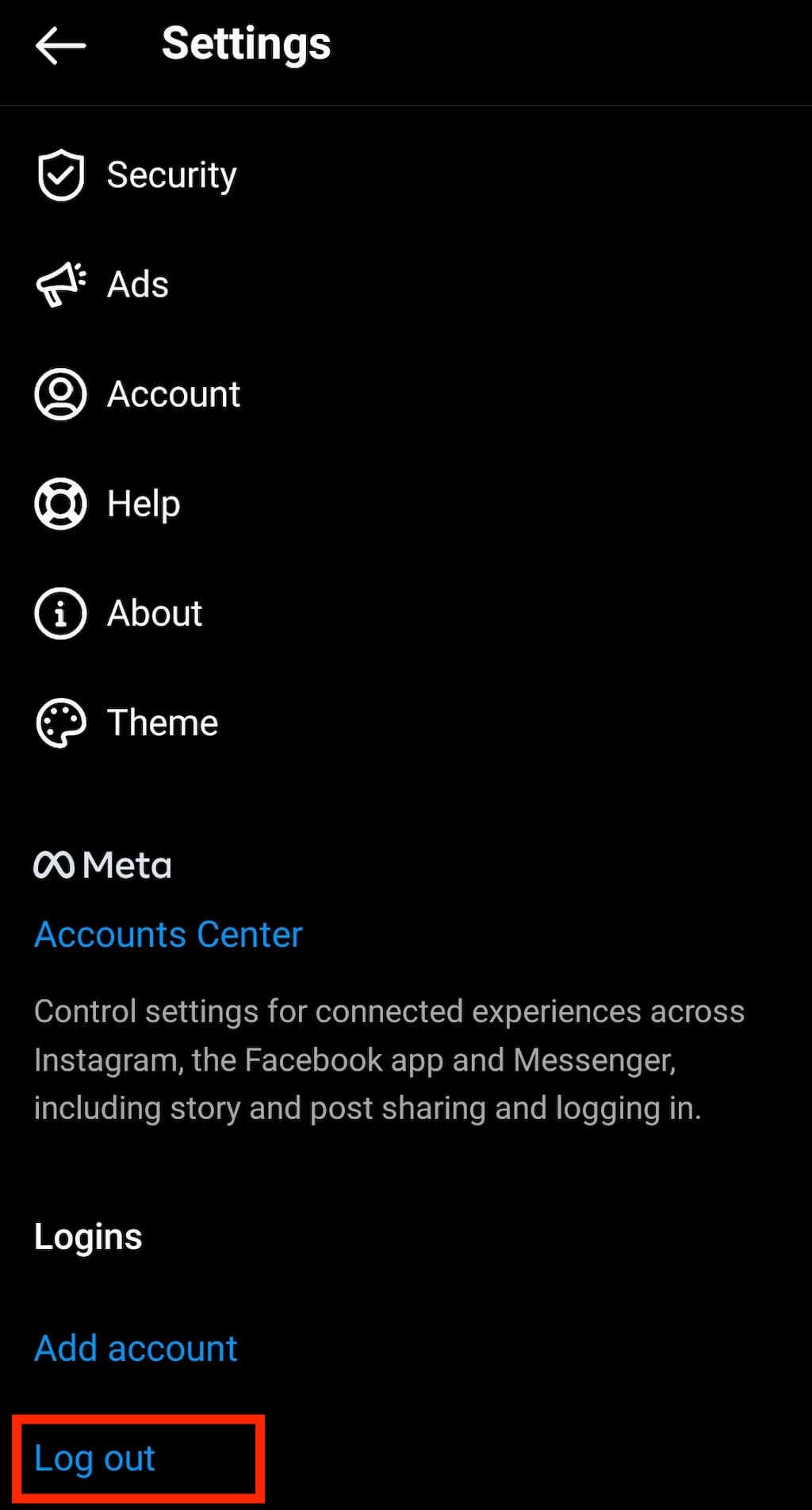
You can also go one step further and restart the app when you log out of your Instagram account.
4. Restart Your Phone
If restarting the app didn’t work, you can try restarting your phone as well. This should rid your smartphone of any corrupted memory or cache files. After you quit the Instagram app, shut down your Android phone or your iPhone, then restart your device.
Once your smartphone’s back on, open the app again and see if Instagram works now.
5. Try Using Instagram on Your Desktop
Are you experiencing issues with Instagram when you use it on your phone? It could be the problem is caused by your smartphone. To check if that’s true, try switching to a different device like your desktop. Log into your Instagram using your browser and see if you’re experiencing the same issue.
If you’re already using Instagram on your desktop, try opening it in a different browser. Finally, if you only have a smartphone available, ask a friend to use their iPhone or Android device to check if Instagram works there.
6. Clear Your Cache
If you seem to be able to access your Instagram from other devices but not your phone, there’s a good chance the problem’s in your phone’s cache. It might have some corrupted files which you need to purge before you can continue using the app.
To clear the cache on your Android smartphone, go to Settings, then find Instagram in the list of apps.
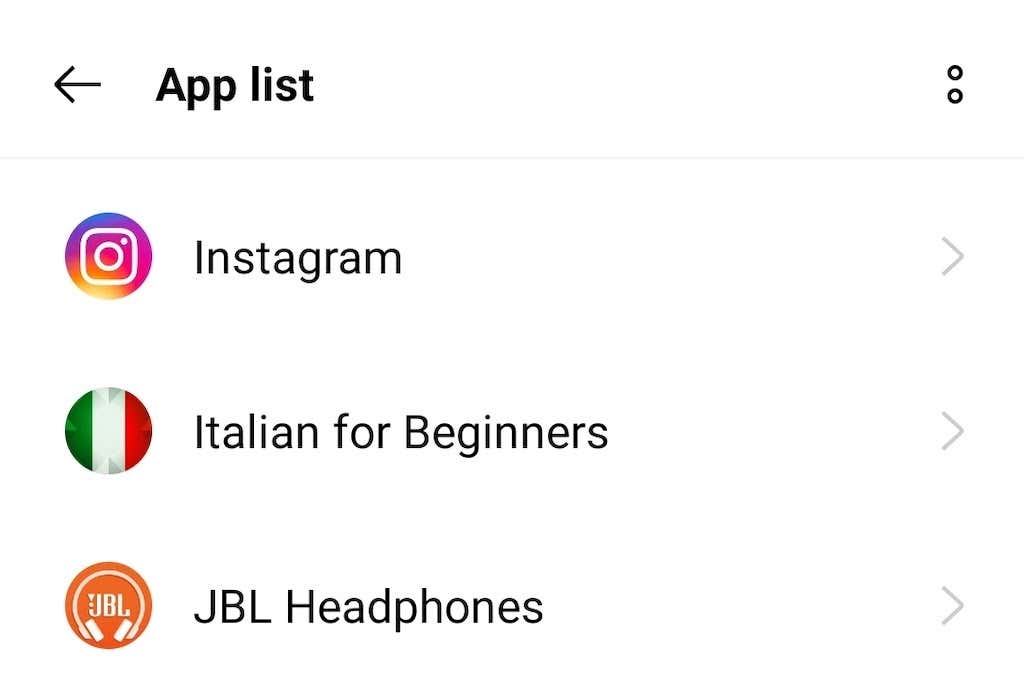
Select Storage & cache > Clear cache.
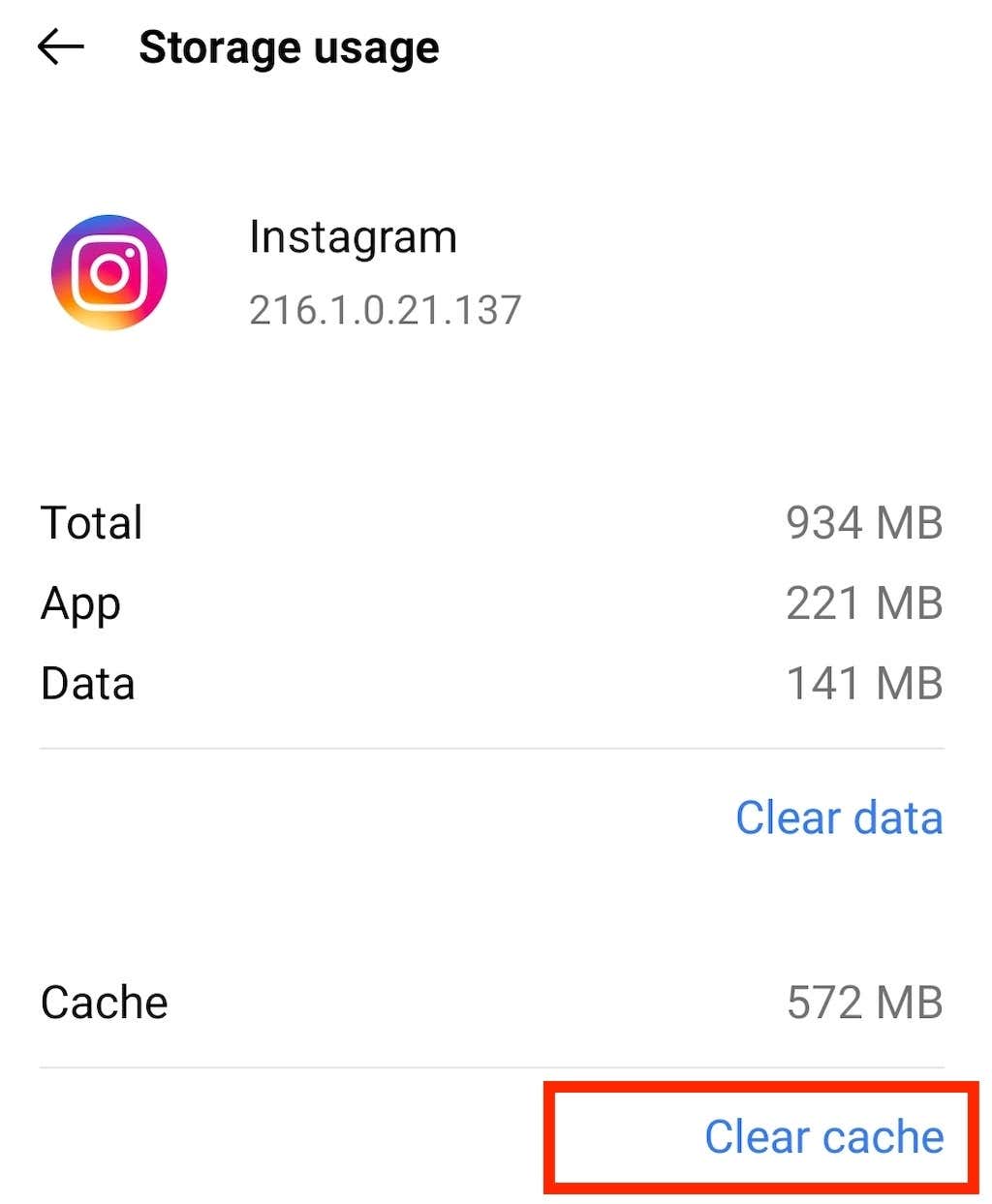
This should clear the storage of your Instagram app and anything that could be causing glitches.
On iPhone, in order to clear cache, you’ll have to uninstall Instagram and then reinstall it from the App Store.
7. Check Your Internet Connection
There’s a good chance that your internet connection is at fault. You can easily check if that’s the case by trying to run any other app on your device. If nothing seems to work, then the problem’s most likely your data.
One way to fix this is to switch to a different connection. If you’re using mobile data, switch to Wi-Fi and see if it helps. If you’re already on Wi-Fi, try switching to cellular data. See if you can get closer to your router, or try restarting it.
8. Are You Using a VPN?
VPN is a great tool for any internet user. It gives you more security and privacy when you go online. However, it also might be causing issues with your Instagram app. If you’re using a VPN, try to disable it temporarily. Then restart your Instagram app and check if it works.

9. Update Your Instagram App
When was the last time you updated your favorite social media app? If you start experiencing minor issues with Instagram on a daily basis, you need to check if you’re using the latest version of the app. It could be that you’re using an older version of Instagram that isn’t compatible with the new features that are being rolled out. That alone could be ruining your user experience on the platform.
To prevent that from happening, it’s best to regularly check if there are newer versions of the app available on the App Store or Google Play Store.
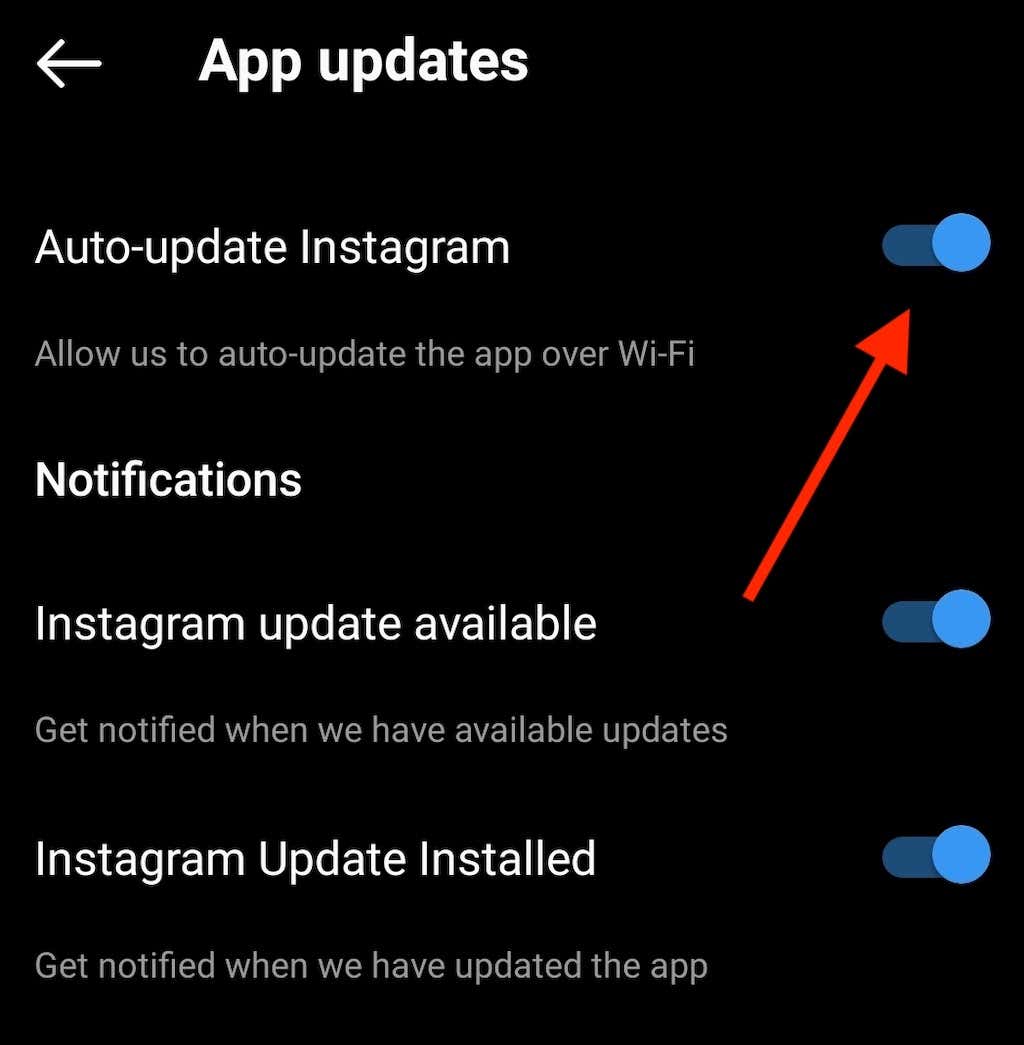
You can also enable automatic updates for Instagram if you don’t want to do it manually every time. To do that, follow the steps below. The steps are the same for both iOS and Android users.
- Open the Instagram app on your device.
- Select Menu in the top right corner.
- Follow the path Settings > About > App updates.

- Toggle the Auto-update Instagram switch on.
10. Turn On App Permissions
Instagram, like most apps, requests permission to use various data and resources on your phone. If you haven’t permitted them to access certain functions, it could be causing the app to malfunction. You can make sure you have enabled permissions for Instagram in your phone’s Settings. The steps are similar for both Apple and Android users.
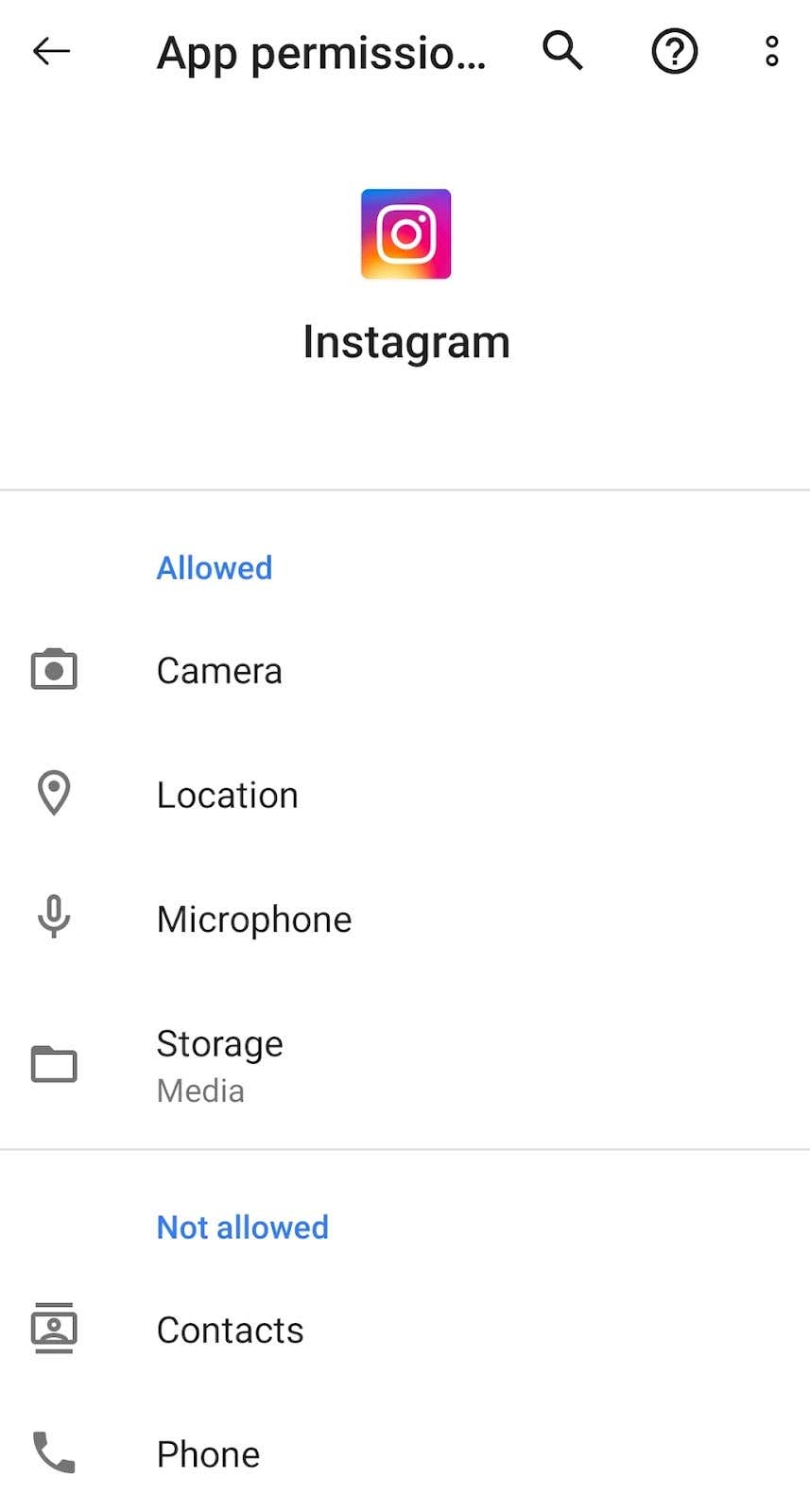
Open the Settings on your phone, open the list of apps and find Instagram. Then turn on each permission like Microphone, Camera, Contacts, and Photos one by one.
Instagram Still Not Working? Contact the Help Center
In case you’ve tried all of the troubleshooting techniques from above and your Instagram still won’t work, you can try contacting Instagram’s help center. To report the problem you’re having with the Instagram app, follow the steps below:
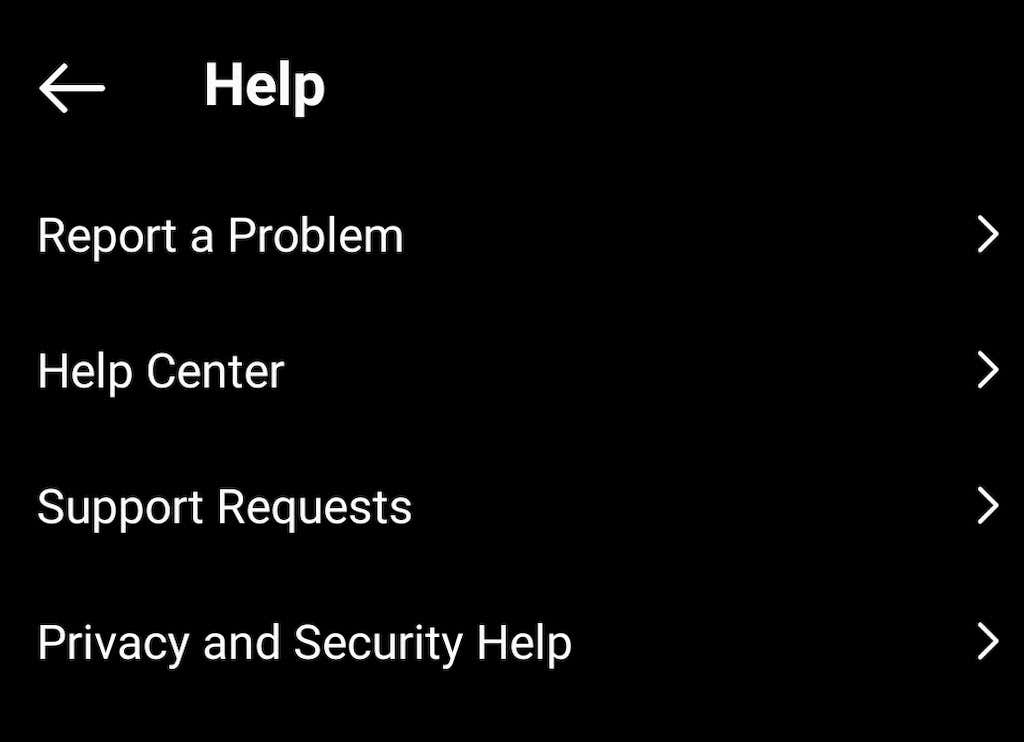
- Open the Instagram app and go to your profile page.
- Select Menu from the top right corner.
- Select Settings > Help.
File a report describing the issues you’ve been having with the app and wait until someone from Instagram contacts you with the solution.
