You middle-click a long webpage hoping it’ll start scrolling on its own, and instead a link opens in a new tab or nothing happens at all. Autoscroll depends on your browser, your mouse, and sometimes an extension, so start with the quickest check and work down.
Fix #1: Middle-click a blank part of the page
On Windows, middle-button autoscrolling often works without any setup. The catch is where you click.
- Open a long webpage.
- Move the pointer over a blank area of the page. Stay away from links, images, buttons, and the tab strip.
- Press the scroll wheel down once. Click it like a button instead of rolling it. A round crosshair icon should appear under the pointer.
- Move the pointer below the icon to scroll down, or above it to scroll up. The farther you move from the icon, the faster the page scrolls.
- To stop, middle-click again, press
Esc, or roll the wheel.
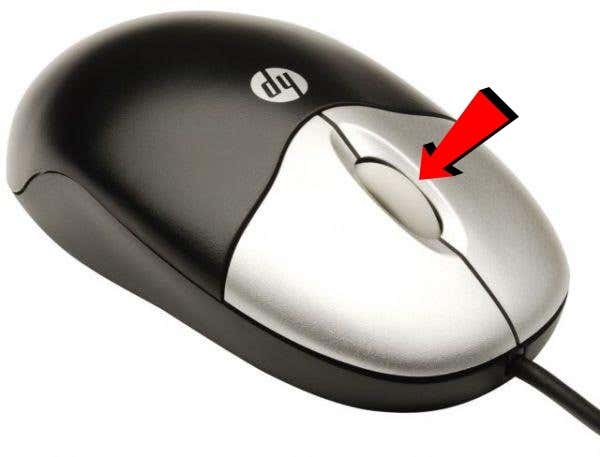
Where you click changes the result. A middle-click on a link opens it in a new tab. A middle-click on a tab closes that tab.
If the wrong section moves, the page probably has its own scrollable panel, such as a chat window, sidebar, or comments box. Put the pointer over that panel before you click.
If nothing happens anywhere, check your hardware. Some touchpads and budget mice can’t send a middle-click. On many Windows 11 systems with a Precision Touchpad (depending on your laptop manufacturer and driver support), you can configure a three-finger tap:
- Open Settings > Bluetooth & devices > Touchpad.
- Expand Three-finger gestures.
- Set Taps to Middle mouse button.

A three-finger tap now works as a middle-click. If your touchpad doesn’t show that option, a cheap USB mouse with a clickable scroll wheel is the easier route.
Fix #2: Turn on “Use autoscrolling” in Firefox
Firefox has autoscrolling built in, but it’s controlled by a setting that can be switched off. Mozilla documents the feature on its mouse shortcuts support page.
- Open Firefox and click the menu button (three lines) in the upper-right corner.
- Select Settings.
- Type
autoscrollin the Find in Settings box at the top. - Under General > Browsing, check Use autoscrolling.

- Open a long page and middle-click a blank area (or, in Firefox specifically, the scrollbar). You should see the crosshair icon.
- Move the pointer up or down to scroll. Middle-click again, click another mouse button, press
Esc, or roll the wheel to stop.
The setting applies right away. You don’t need to restart Firefox.
Fix #3: Add a middle-button autoscroll extension in Chrome, Edge, or Brave
Stuck with a Chromium browser that won’t scroll on a middle-click? That’s an extension job. This also applies if you use Chrome on macOS or many Linux setups, where Chromium browsers typically don’t enable middle-button autoscroll by default without a flag, launch switch, or extension. Middle Button Scroll is built specifically to add it on those platforms and runs on Manifest V3, the current Chrome extension platform.
AutoScroll is another option that copies the Windows middle-click behavior closely. Whichever one you pick, check the publisher, the last-updated date, the permissions it asks for, and recent reviews before you install. Autoscroll extensions need to inject code into pages, so they’ll ask to read and change site data.
- Open the extension’s page in the Chrome Web Store.
- Click Add to Chrome. In Edge or Brave, the button and prompts can be worded differently, and Edge asks you to allow extensions from other stores first.
- Review the permissions pop-up and click Add extension.

- Click the puzzle-piece Extensions icon next to the address bar and pin the new extension so its icon stays visible.

- Reload any tabs you already had open, since content-script extensions generally cannot run on pages that were loaded before installation.
- Middle-click a blank part of a page and move the pointer to scroll. Press
Escor middle-click again to stop.
To tweak how it behaves, right-click the extension icon and select Options. The exact labels vary between extensions and versions.

If the extension offers more than one trigger, such as middle-click and Ctrl + left-click, turn off whichever one clashes with something you already use. Some extensions also let you scroll in any direction by holding Shift while you middle-click, like Auto Scroll.
Extensions can’t run on browser-internal pages like chrome://settings, on Web Store pages, or in the built-in PDF viewer. If autoscroll works on one site but not another, that’s usually why.
Fix #4: Use a speed-based autoscroller for hands-free reading
Middle-click autoscroll still needs your hand on the mouse. If you want a page to crawl down at a steady pace while you read, use an extension with a speed setting, such as Simple Autoscroll.
- Install the extension using steps 1–4 from Fix #3.
- Open the page you want to read.
- Click the extension icon to open its pop-up.
- Set how many pixels to scroll and how often (in milliseconds). Simple Autoscroll’s publisher suggests 1 pixel every 30 milliseconds for smooth scrolling. A higher millisecond value scrolls more slowly.
- Click Go. The page should begin moving on its own.
- To stop, click the extension icon again. Since version 2.3,
Alt+Jpauses and resumes scrolling, and you can change that hotkey as shown in Fix #5.

Expect some trial and error with speed. These extensions often scroll a set number of pixels at fixed intervals, so a speed that feels right on one site can feel jumpy on a page full of ads, embedded video, or content that loads as you go.
Fix #5: Set a keyboard shortcut if you don’t have a middle button
Many autoscroll extensions come with keyboard shortcuts for starting, pausing, or stopping. The defaults differ between extensions, some have none at all, and they can collide with shortcuts from Windows or other apps. You can set or change them in one place.
- Type
chrome://extensions/shortcutsin Chrome’s address bar and press Enter. In Edge, useedge://extensions/shortcuts. - Find your autoscroll extension in the list.
- Click the pencil icon next to the action you want, such as start or pause.
- Press the key combination you want to use.

Press your new shortcut on a long page to check it. If nothing happens, the combination is probably taken by something else, so pick another.
Two more options that don’t need an extension at all:
- Keyboard paging.
SpaceandPage Downjump one screen at a time, andHome/Endjump to the top or bottom. - Mouse button remapping. If your mouse has spare side buttons, its companion software (Logitech Options+, Razer Synapse, and similar) can usually assign one of them to middle-click.
Common autoscroll problems
| Problem | Likely cause | What to try |
|---|---|---|
| Middle-click opens a link or closes a tab | You clicked on a link or tab | Middle-click a blank area of the page |
| Nothing happens in Chrome on a Mac or Linux PC | Chromium typically lacks default middle-button autoscroll there | Install a middle-button extension (Fix #3) |
| Works on some sites, not others | Internal pages, PDFs, Web Store pages, or strict site security | Test on a normal webpage; check the extension’s site access |
| The sidebar scrolls instead of the article | The page has several scrollable panels | Start autoscroll with the pointer over the part you want to move |
| Scrolling stops on its own | Pointer left the window, or focus jumped into a text box or frame | Click inside the main content area and start again |
| Speed feels wrong | Pointer distance (middle-click) or pixel-based speed (extensions) | Move closer to the crosshair, or lower the extension’s speed |
When the fixes don’t work
If an extension installs but never runs on any site, open its details page in your browser’s extensions menu and check its site access. If it’s set to on click, it only runs after you click its icon, so allow it on the sites you want to scroll.
Try a second extension from a different publisher before you give up on the browser entirely. If the middle button doesn’t register in any app, including Notepad or File Explorer, the mouse itself is probably failing, and a replacement wireless mouse is cheaper than the time you’ll lose troubleshooting it.
Conclusion
Start with Fix #1 on Windows by middle-clicking a blank area of the page, or check Fix #2 if you use Firefox and need to re-enable built-in autoscrolling. If you need hands-free reading or middle-button support on macOS/Linux, use a vetted extension from Fix #3 or Fix #4 after reviewing its permissions, or rely on native keyboard paging (Space / Page Down) in Fix #5.