Microsoft Teams won’t open on Windows. You click the icon and nothing happens, the window flashes and closes, or it sits on the loading screen forever.
Quick Diagnosis
Start with a reversible check: fully quit Teams, reopen it, and try the web app if the desktop window still fails. Microsoft’s reconnection guidance includes restarting and using the web version. A launch failure can involve local state, a service issue or your organization’s account policy; use the checks below to narrow it down before clearing data or reinstalling.
- Need to join a meeting right now? Try Teams on the web in a supported desktop browser using the same account. Microsoft’s web guidance provides the current entry point. Organization policies can still affect access.
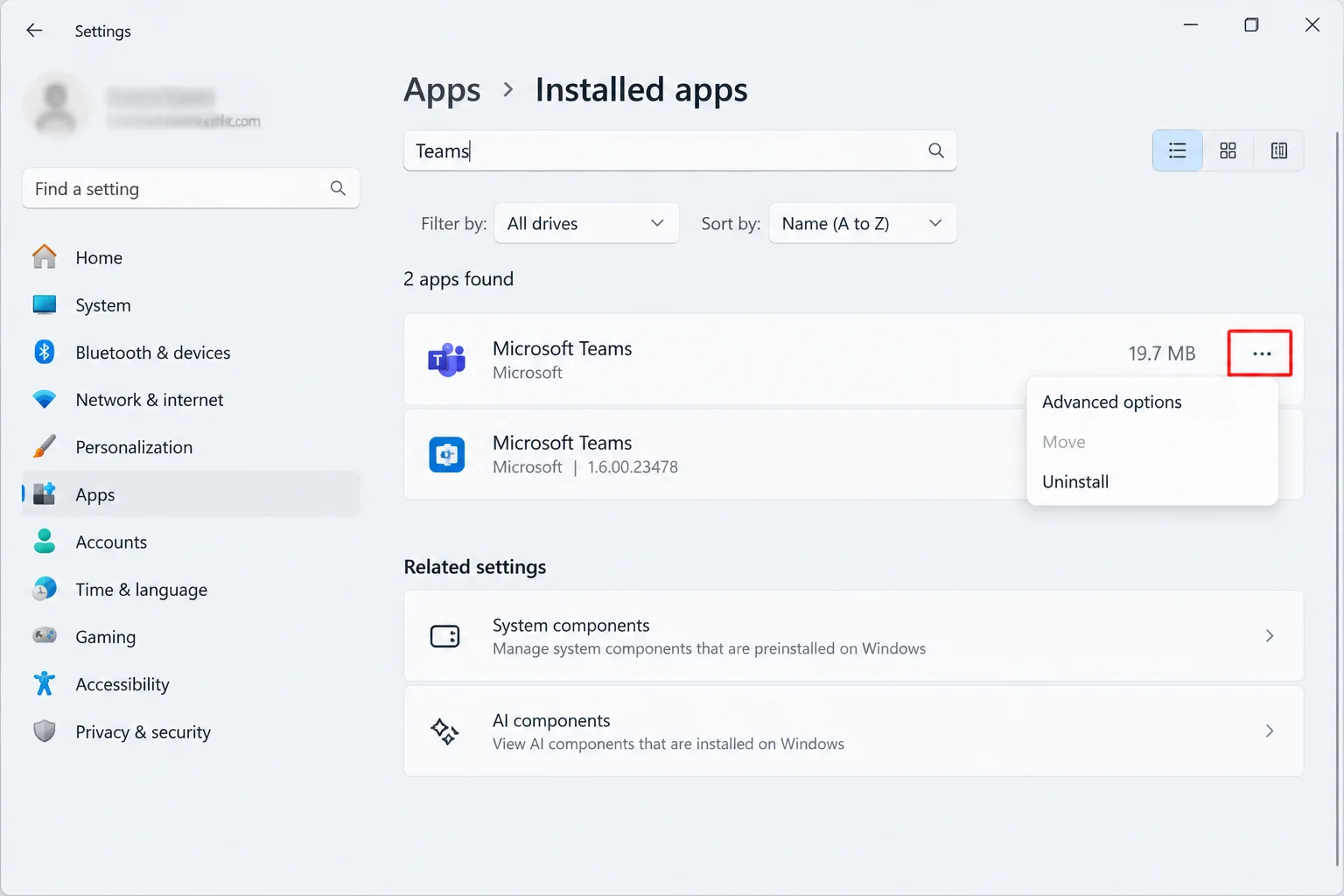
- Confirm you’re on the new Teams. Open Settings > Apps > Installed apps and search for “Teams.” The new app is listed as Microsoft Teams. If you also see Microsoft Teams classic or Teams Machine-Wide Installer, those are leftovers from the retired classic client. Ask IT before removing organization-managed packages; Microsoft documents classic Teams retirement. For background on the switch, see our guide to Classic Teams vs New Teams.
- Note what you’re seeing. Match your symptom to the table below, then start at the suggested fix.
Symptoms and Fixes
| Symptom | Likely Cause | Quick Fix |
|---|---|---|
| Nothing happens when you click the Teams icon | Hidden background process is stuck | Fix #1 |
| Window flashes open, then closes | Stuck process or corrupted cache | Fix #1, then Fix #6 |
| Stuck on the loading or spinning screen | Corrupted cache or damaged install | Fix #4, then Fix #5 |
| Stopped working after an update | Several app, runtime or compatibility causes are possible | Note the update and check Fix #7 |
| Opens but loops on sign-in or errors | Account, network or policy issue; not enough evidence to name a cause | Fix #8 |
| The web app fails too | Service outage or account problem | Fix #3 |
Fixes for Microsoft Teams Not Opening
Fix #1: Quit the Hidden Teams Process
Symptoms: No window appears, or it flashes and closes.
Why it happens: Closing the Teams window with the X doesn’t exit the app. A background process stays running in the system tray. If it hangs, every new launch attempt runs into it and quietly gives up.
What it deletes: Nothing.
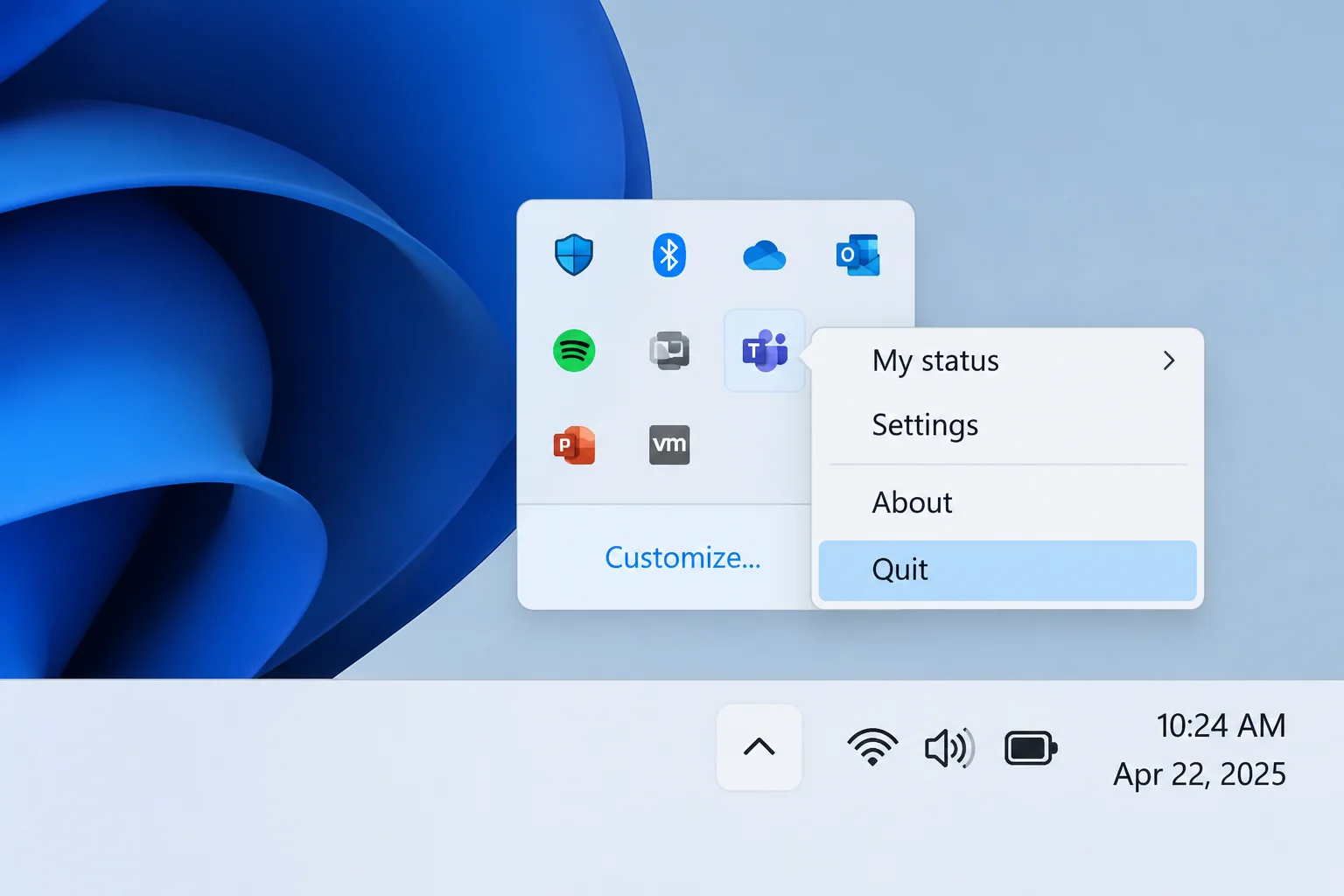
- Click the ^ arrow near the clock to open the system tray overflow.
- Right-click the Teams icon and choose Quit.
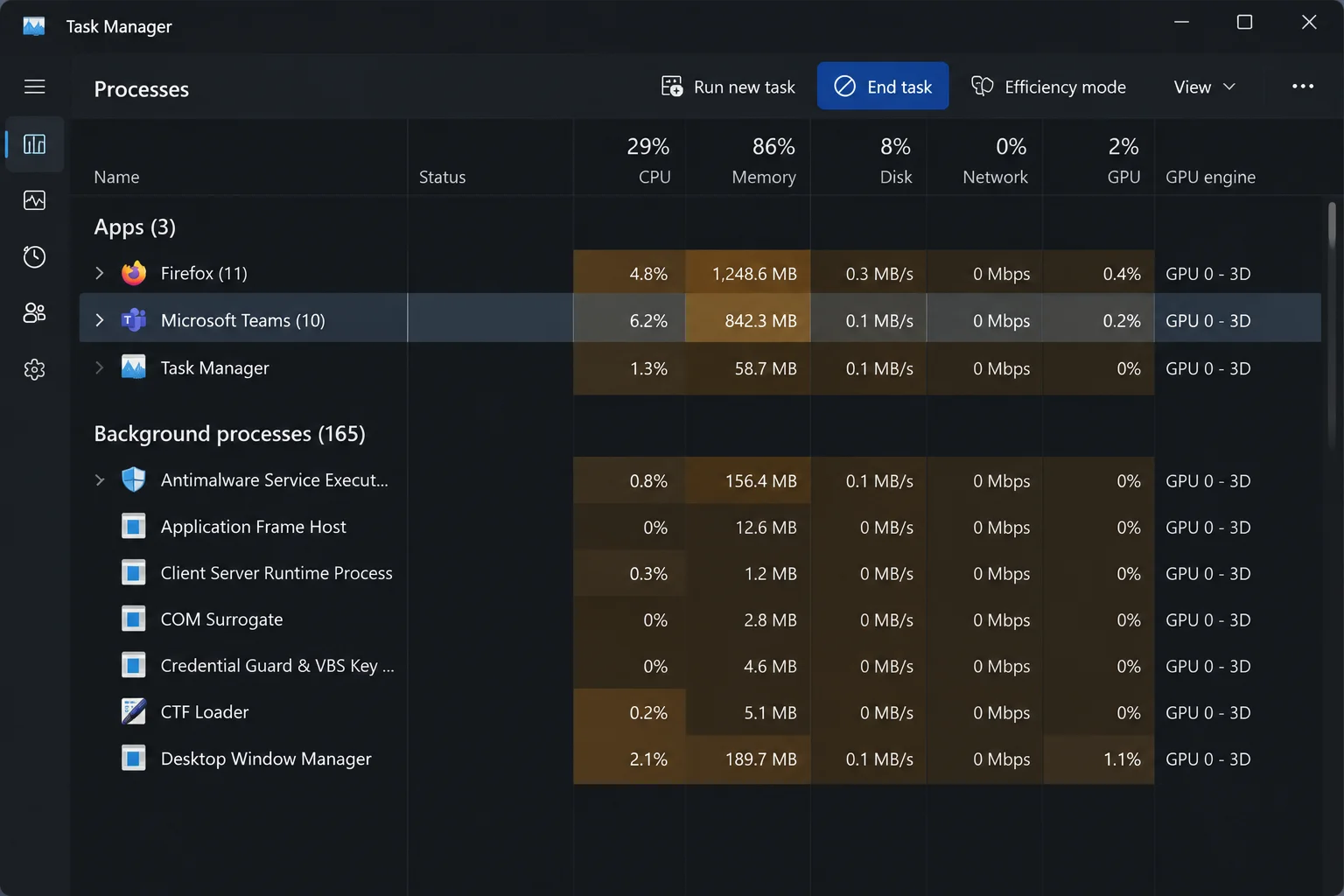
- Press
Ctrl + Shift + Escto open Task Manager. - On the Processes tab, select any Microsoft Teams entry and click End task.
- Open the Details tab and end any remaining
ms-teams.exeentries. - Relaunch Teams from the Start menu.
If Task Manager won’t cooperate, run this in Command Prompt: taskkill /f /im ms-teams.exe
Verify: The Teams window opens and loads your chat list.
Fix #2: Restart Your PC
Why it happens: A pending update or a locked file can block Teams until Windows restarts. A restart also clears any Teams processes you missed.
What it deletes: Nothing.
- Save your work.
- Click Start > Power > Restart, then wait for Windows to reload.
- Open Teams after you sign back in to Windows.
Verify: Teams launches normally.
Fix #3: Check Whether Teams Is Down
Symptoms: Teams opens but won’t load chats, or you get connection errors.
Why it happens: Sometimes the problem is on Microsoft’s side, not your PC.
What it deletes: Nothing.
- Check Microsoft’s public service status. For work accounts, ask IT to check tenant-specific service health too; a public page is not a complete view of your organization.
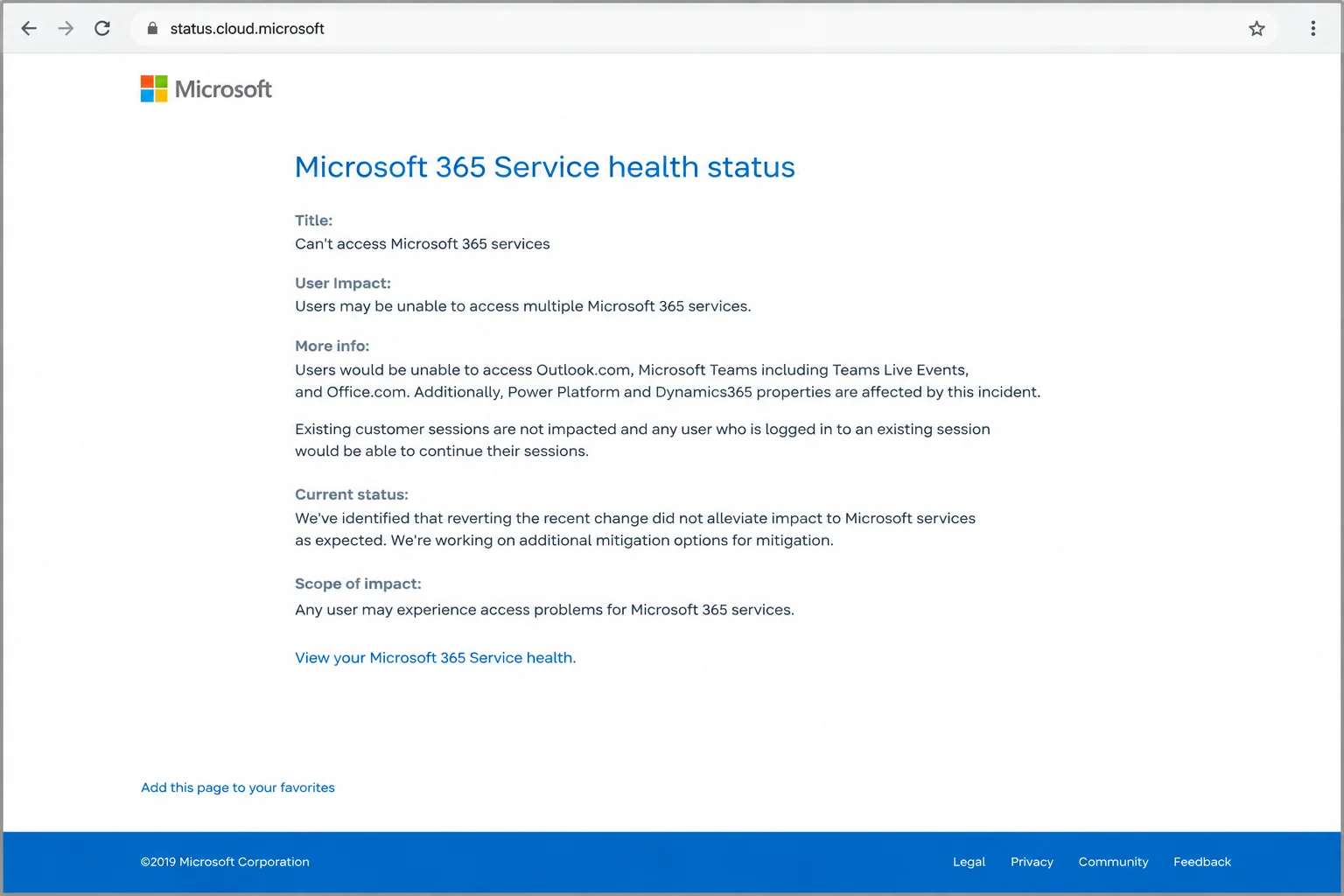
- Open Teams on the web with the same account and sign in.
- Compare the results:
- The web app works: The problem is your desktop app. Continue to Fix #4.
- The web app fails too: It’s an outage, a network problem, or an account issue. Wait for the outage to clear, or skip to Fix #8 and the escalation section.
Verify: The status page shows no Teams incidents and the web app loads your chats.
Fix #4: Repair the Teams App
Symptoms: Endless loading screen, or crashes on every launch.
Why it happens: An interrupted update can damage some of the app files. Try Windows app Repair if available. Its options depend on the installed package.
Data impact: Repair is the less disruptive option to try before Reset; read Windows’ prompt rather than assuming sign-in will be preserved.
- Fully quit Teams (Fix #1).
- Open Settings > Apps > Installed apps.
- Find Microsoft Teams, click the three dots (…), and choose Advanced options. On Windows 10, go to Settings > Apps > Apps & features, click Microsoft Teams, then click Advanced options.
- Scroll down and click Repair.
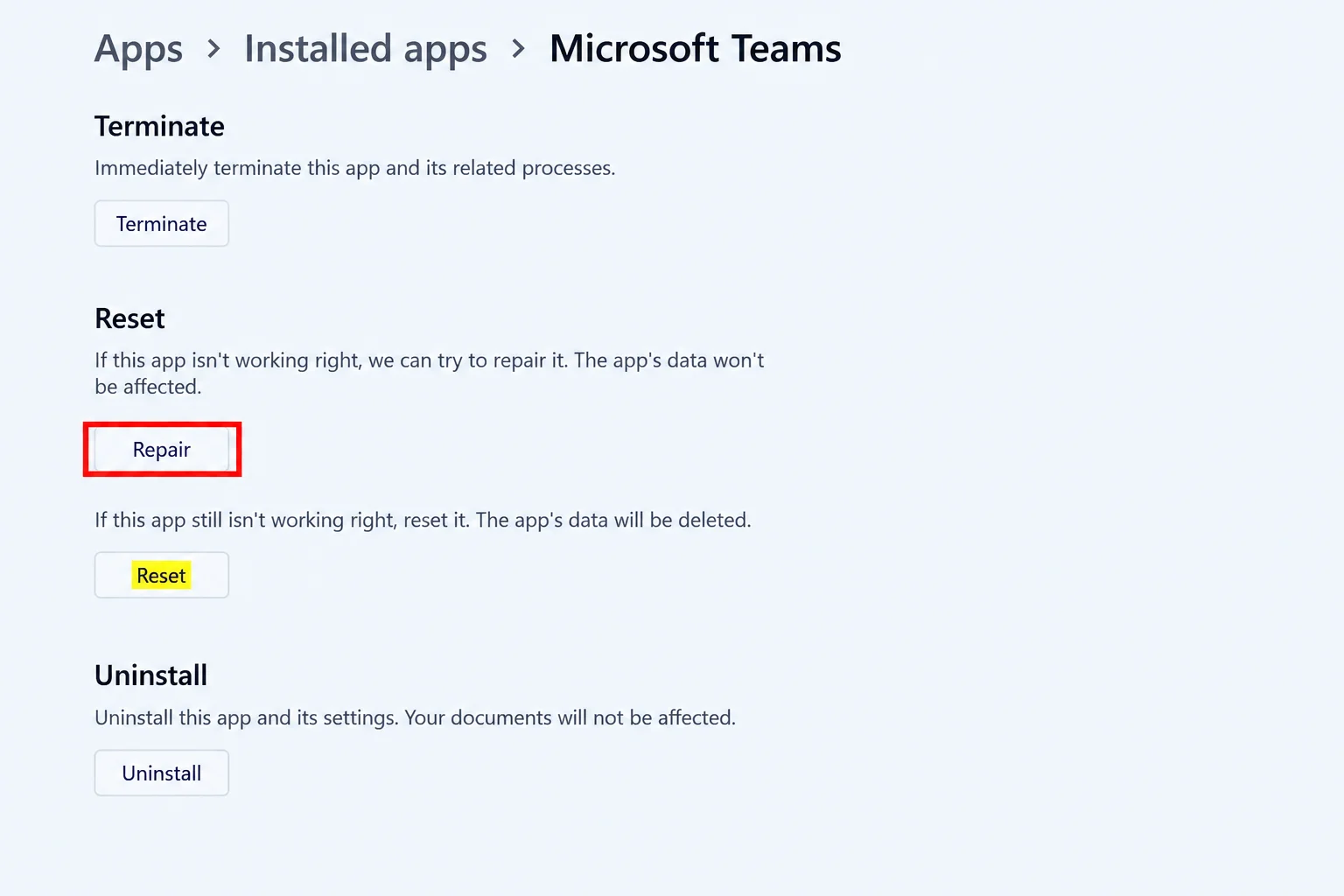
- Wait for the checkmark to appear next to the button, then open Teams.
Verify: Teams gets past the loading screen.
Fix #5: Reset the Teams App
Why it happens: If Repair didn’t help, the corrupted data is probably in the app’s local storage, not in the program files.
What it deletes: Local app data, including your sign-in and local preferences such as theme and zoom level. Reset is a local operation, not a command to delete server-side conversations. Save local work and confirm important files are synced or backed up first; do not treat this as a guarantee for unsynced files.
- On the same Advanced options page from Fix #4, click Terminate.
- Click Reset, then click Reset again to confirm.
- Open Teams and sign in.
Verify: Teams opens and the expected conversations are available after sign-in. If messages are missing, stop resetting and contact support.
Fix #6: Clear the Teams Cache Manually
Why it happens: Microsoft’s current cache guidance treats this as a targeted local-client step. Do not clear cache for missing chats/channels or notification counts: it can erase diagnostic logs without fixing those problems. Collect support logs first if IT needs them.
Data impact: Removes local cached files; expect rebuilding and possible sign-in. Save local work first and confirm the exact new-Teams folder.
- Fully quit Teams (Fix #1).
- Press
Win + R. - Paste this path and press Enter:
%localappdata%\Packages\MSTeams_8wekyb3d8bbwe\LocalCache\Microsoft\MSTeams - Press
Ctrl + Ato select everything in the folder, then pressDelete. - Relaunch Teams.
This is the equivalent of the new-Teams path in Microsoft Learn. If absent, confirm the installed package with IT; do not delete a guessed directory or clear other Office apps as a Teams repair.
Verify: Teams rebuilds the folder and opens normally.
Fix #7: Update Windows and the WebView2 Runtime
Symptoms: Teams broke right after a Windows update, or it closes instantly no matter what you try.
Why it happens: Microsoft lists current Microsoft Edge WebView2 Runtime among Teams requirements. A launch failure alone does not prove that WebView2 is the cause.
What it deletes: Nothing.
- Open Settings > Windows Update and click Check for updates.
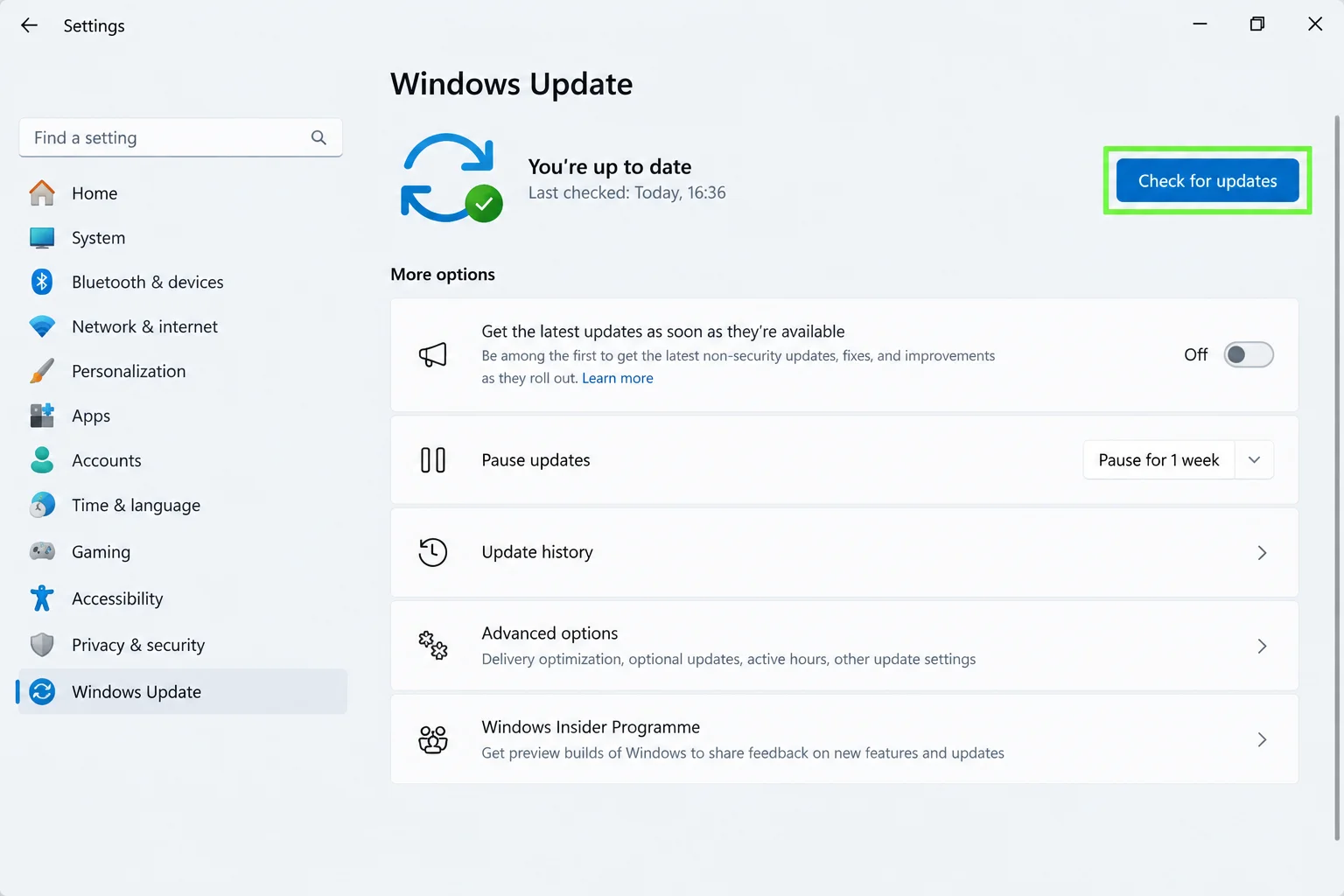
- Follow your organization’s Windows update policy, install appropriate pending security/quality updates, and restart. Choose optional drivers or previews only for a documented relevant issue.
- Go to Settings > Apps > Installed apps and search for “WebView2.”
- If WebView2 is present, check its version and use Microsoft’s installer troubleshooting or ask IT; do not assume every installation exposes a Modify > Repair menu.
- If it’s missing, download the Evergreen Bootstrapper from Microsoft’s WebView2 page and run it.
- Relaunch Teams.
Verify: WebView2 appears under Installed apps and Teams opens.
Fix #8: Diagnose Sign-In Without Deleting Other Apps’ Credentials
Symptoms: Teams opens but cannot finish sign-in, or signs in to the wrong account.
- Record the exact error code and whether the same account works on the web.
- Confirm the intended personal or work account; use the organization’s required network and sign-in method.
- Follow Microsoft’s sign-in diagnostics. A work-account diagnostic may require an administrator.
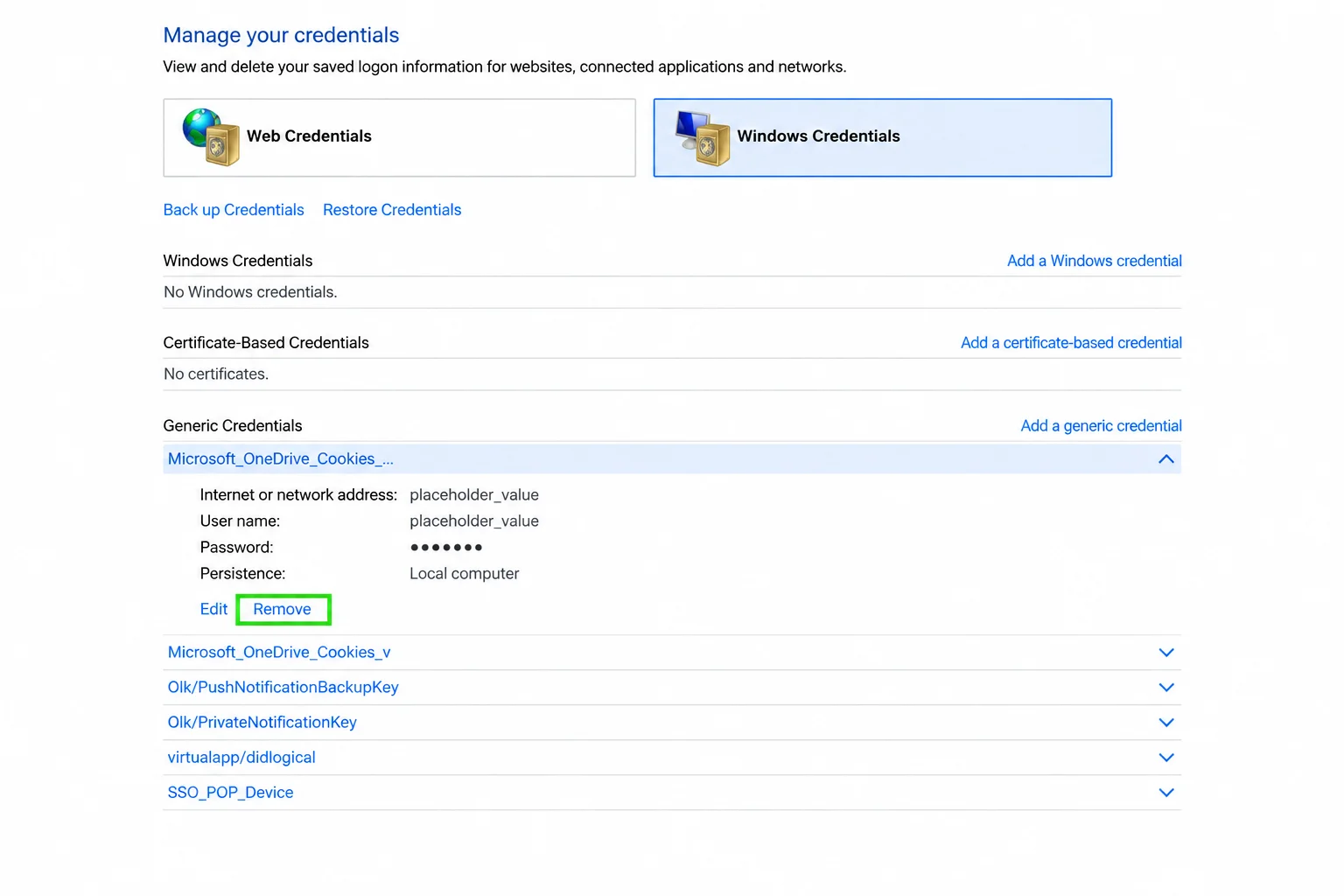
- Send persistent errors to IT with the code and time. Do not blindly delete MicrosoftOffice, OneAuth or OneDrive credentials as a general Teams fix.
Verify: The intended account completes sign-in and opens its conversations. If policy or licensing blocks it, IT must resolve that condition.
Fix #9: Uninstall and Reinstall Teams
When to use it: Consider reinstalling if the earlier local-client steps did not help and account access works. Failure of those steps alone does not prove install damage.
Data impact: Removes the local app; save local work and verify backups first. For a managed work device, let IT handle package removal and installation.
- Go to Settings > Apps > Installed apps.
- Uninstall the identified Microsoft Teams app if you manage this PC. Ask IT before removing classic or Machine-Wide Installer packages on a work device.
- Restart your PC.
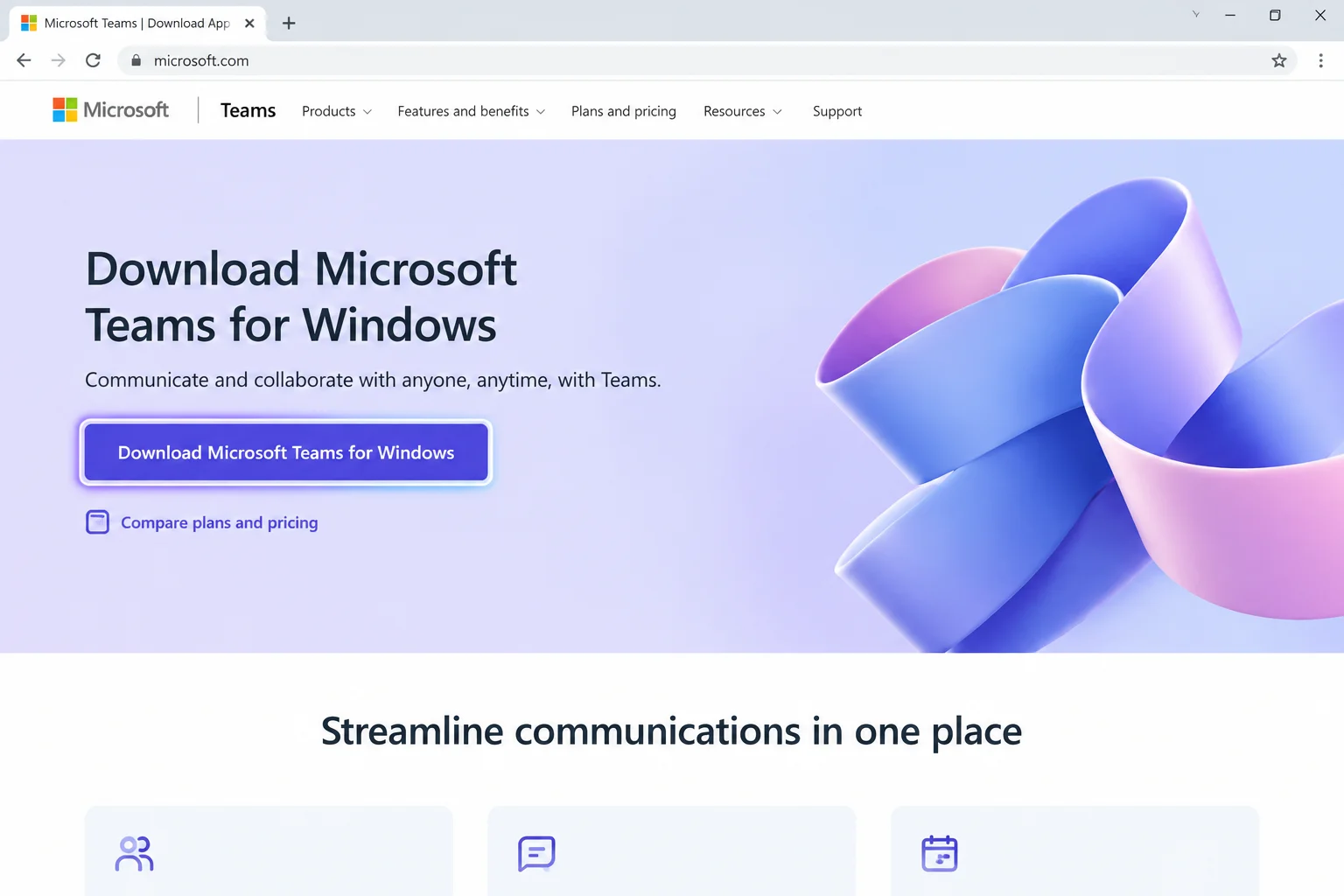
- Download Teams from Microsoft’s official download page.
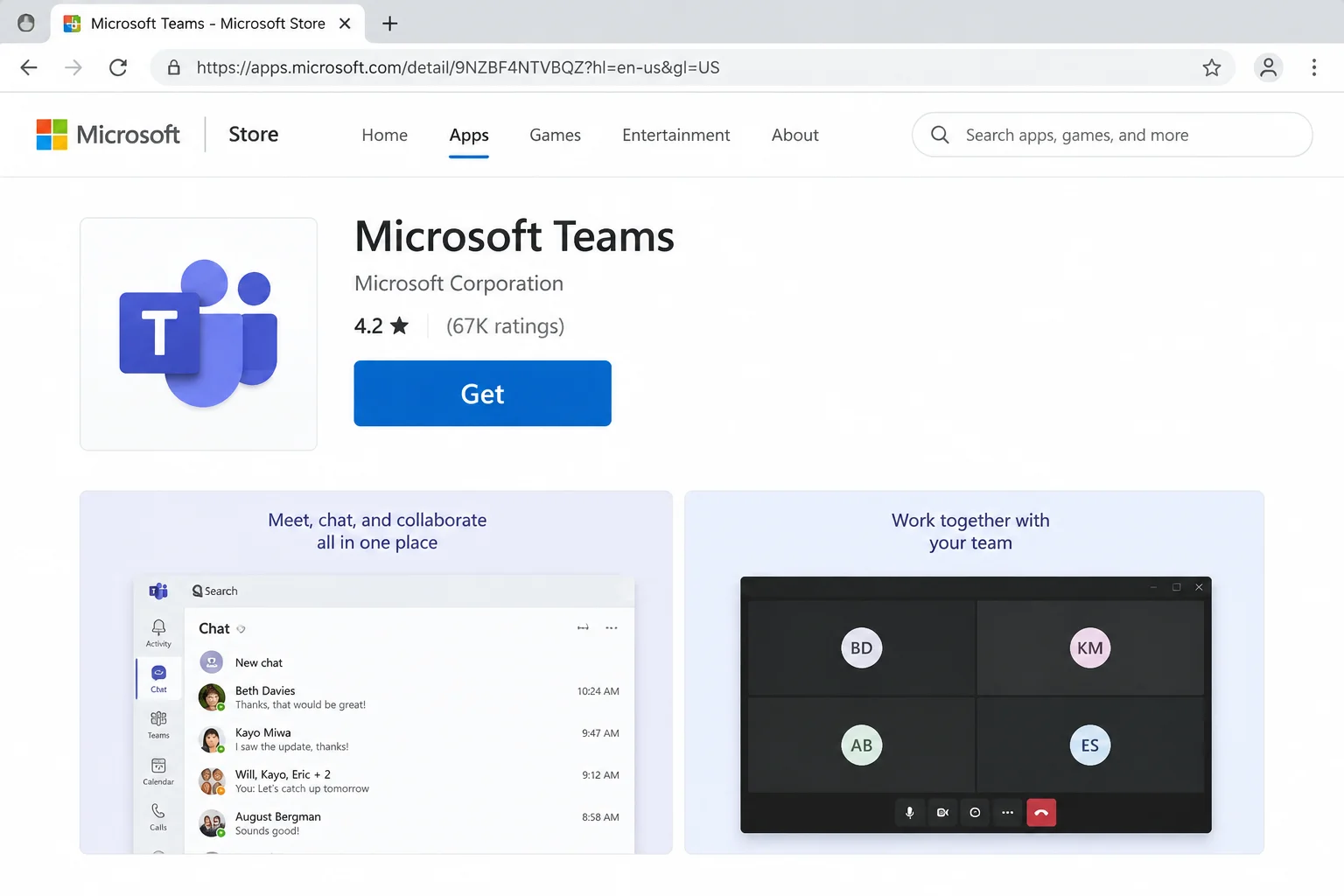
- Or install it from the Microsoft Store listing.
- Run the installer, then sign in.
Verify: Teams opens and your chats sync down.
Error Messages Quick Reference
| Error or Message | What It Means | Try |
|---|---|---|
| “We’re sorry, we’ve run into an issue.” | The app hit a general launch failure | Fix #1, then Fix #5 |
| “Something went wrong.” (during sign-in) | The message alone does not establish a cause | Fix #8 |
Error code caa20003 | Record the full message; this guide has not established a single cause | Fix #8; give the code to IT |
Error code caa70004 | Microsoft links this group to connection/sign-in troubleshooting | Fix #8 and the vendor’s linked guidance |
Error code 0xCAA82EE2 | Microsoft recommends checking internet access and network configuration | Fix #8; ask IT about the required network endpoints |
| “You’re missing out! Ask your admin to enable Microsoft Teams” | Your organization needs to check access, policy and entitlement | Contact IT; do not assume a license is the only cause |
Use the full code and message with Microsoft’s sign-in guide; do not infer a cause from wording alone.
Platform-Specific Notes
On Windows
The main instructions target Windows 11. Microsoft lists Windows 10 build 19041 or later as a client floor; that is separate from the operating system’s lifecycle and your organization’s support policy. According to Microsoft’s system requirements, Windows LTSC editions are not supported by the Teams desktop client; ask IT about an approved supported environment.
On macOS
The same approach works on a Mac: quit fully, clear the cache, then reinstall.
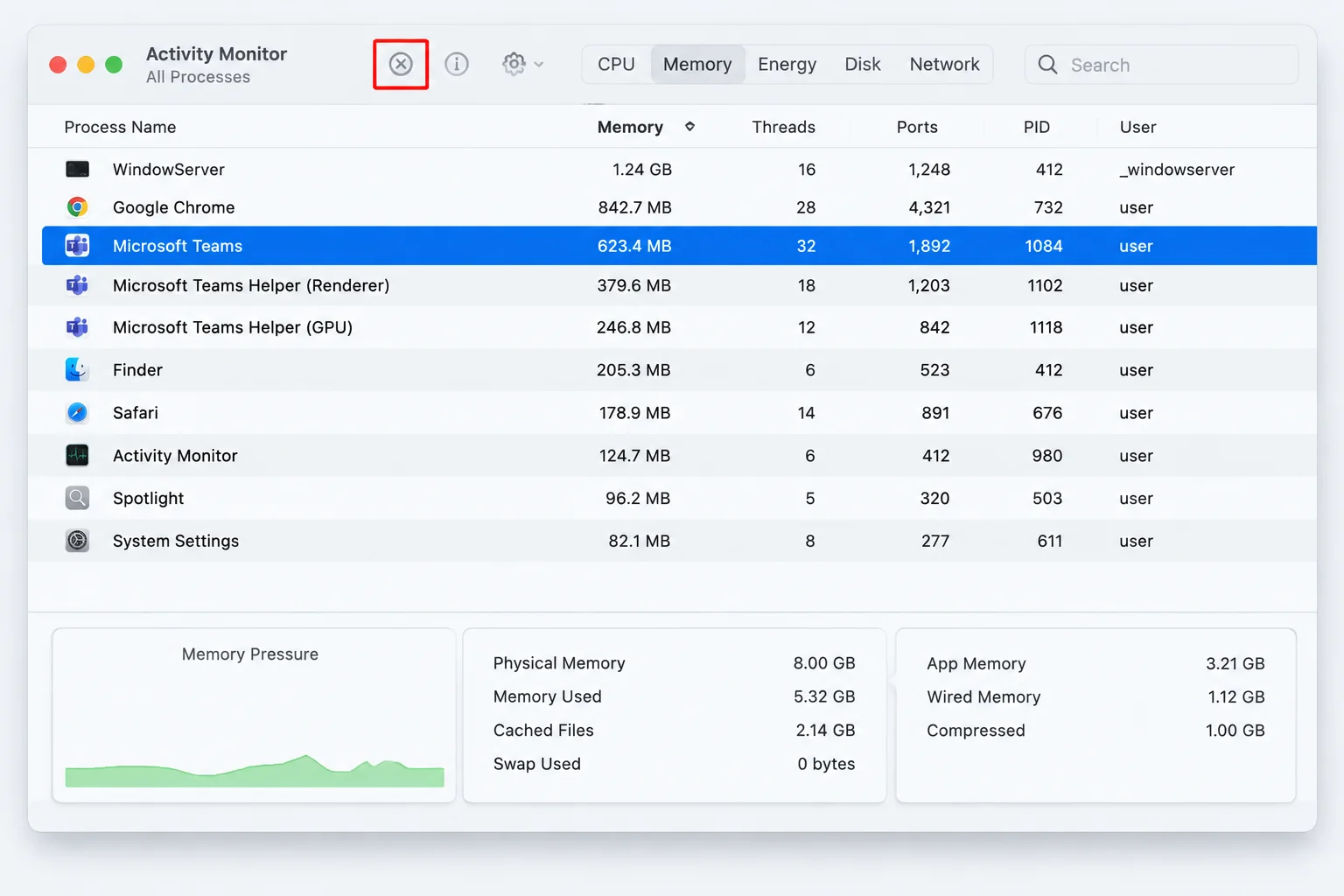
- Press
Cmd + Qin Teams, then end any leftover Microsoft Teams process in Activity Monitor.
- Use Microsoft’s new-Teams Mac cache method only after saving work and checking the installed client. It names
~/Library/Group Containers/UBF8T346G9.com.microsoft.teamsand~/Library/Containers/com.microsoft.teams2; do not substitute other folders. Ask IT to assist if deletion or sign-in is unclear. - Reinstall from the download page if needed.
On the Web
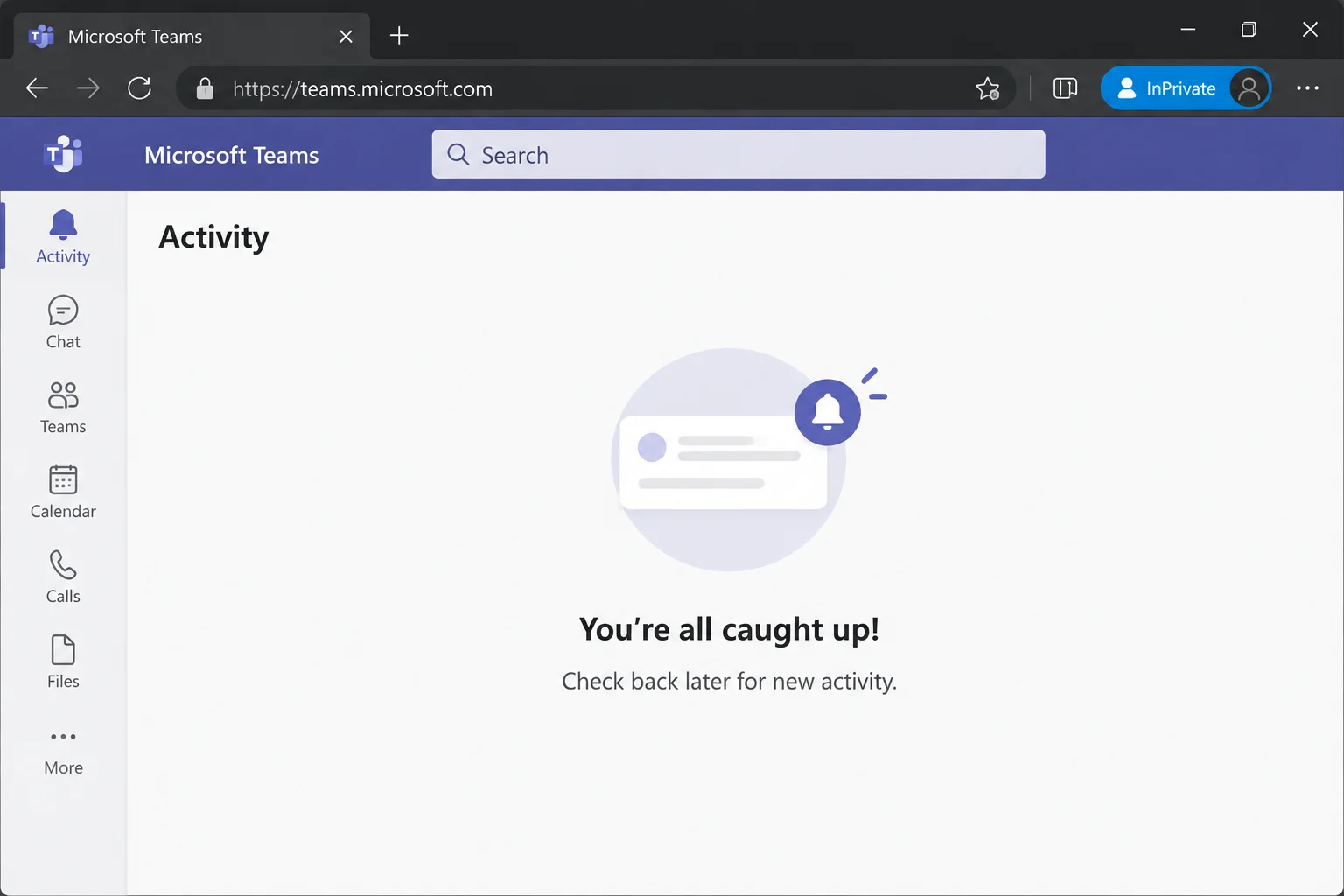
If the web app misbehaves too, try an InPrivate or Incognito window. If that works, your regular browser profile has a bad cookie or an extension conflict.
Configuration Issues to Check
- Wrong PC clock: Go to Settings > Time & language > Date & time, turn on Set time automatically, and click Sync now. A clock that’s even a few minutes off can break sign-in.
- VPN or proxy: Ask IT which connection is required; do not disable an organization-required VPN to work around sign-in. If your Wi-Fi keeps timing out, plugging in with a Cat6 Ethernet cable is a quick way to rule out the wireless connection.
- Wrong account: Personal and work accounts are separate tenants. Make sure you’re signing in to the account that actually has your team.
- Low disk space: Teams can fail to update or rebuild its cache when your drive is almost full. Check Settings > System > Storage. If you’re always short on space, an SSD upgrade can add capacity, but check hardware compatibility and backups; it is not a diagnosis or guaranteed Teams fix.
When to Escalate
Contact your IT admin if:
- The web app fails with the same work account.
- Errors mention your organization, conditional access, or an admin block.
- A coworker can sign in on your PC but you can’t.
Keep using the web app in the meantime. For personal accounts, try the Microsoft Community forums or Microsoft’s reconnect troubleshooting page.
What to give support: Record the error and timestamp. If Teams is responsive, use Collect support files or Ctrl + Alt + Shift + 1, as described in Microsoft’s log collection guide. Share logs through your support channel; collect them before clearing cache.
Prevention Tips
- Quit properly before updates: Right-click the tray icon and choose Quit before a big Windows update. Don’t just close the window.
- Keep WebView2 updated: Don’t uninstall it to “clean up” your apps list. Teams needs it.
- Protect against power cuts: A sudden shutdown during an update can corrupt the install. A small UPS protects a desktop PC.
- Remove classic leftovers: Remove classic Teams entries once so they stop competing with the new app.
Once Teams opens again, check our guides on how to fix Microsoft Teams camera not working and how to fix Microsoft Teams microphone not working. A USB headset with a built-in mic avoids most audio problems in the first place.
Frequently Asked Questions
Will resetting Teams delete my chats?
Reset deletes local app data and personalization. It is not a server-side chat deletion command, but save local work and check file syncing before resetting; support should investigate any missing messages.
Why does Teams open and then close immediately?
Several local-client and account conditions can produce that symptom; it does not identify a cause by itself. Try Fix #1, then Fix #6, then Fix #7.
Does Teams need WebView2 to run?
Microsoft lists an up-to-date WebView2 runtime in its client requirements. Check that requirement without assuming it explains every crash.
How do I know I’m using the new Teams app?
It’s listed as Microsoft Teams in Installed apps, and its cache folder is under Packages\MSTeams_8wekyb3d8bbwe. Classic Teams is retired and shows “classic” in its name.
What if Teams still won’t open after trying everything?
Test the web app. If the web app fails too, contact IT or Microsoft support. If only the desktop app fails, you may have a deeper Windows problem, such as corrupted system files.
Can I use Teams without the desktop app?
Try Teams on the web in a supported desktop browser. Features and account access depend on the browser and organization; mobile browsers are not supported.
Wrapping Up
Start with quitting and reopening Teams, then compare desktop and web access. Use Repair before more disruptive local-data changes. Repeated failures need logs and support investigation; they do not prove that the SSD is failing.
| Step | Action | Applies To |
|---|---|---|
| 1 | Quit the background process and relaunch | Windows, macOS |
| 2 | Repair, then Reset in Advanced options | Windows |
| 3 | Clear the cache folder | Windows, macOS |
| 4 | Update Windows and WebView2 | Windows |
| 5 | Diagnose sign-in with IT; reinstall only when appropriate | Windows |
| 6 | Use the web app as a stopgap | Web |
Source review: October 2, 2026 | Primarily Windows 11/new Teams; Mac and web notes are separately qualified. No firsthand troubleshooting test is claimed.