
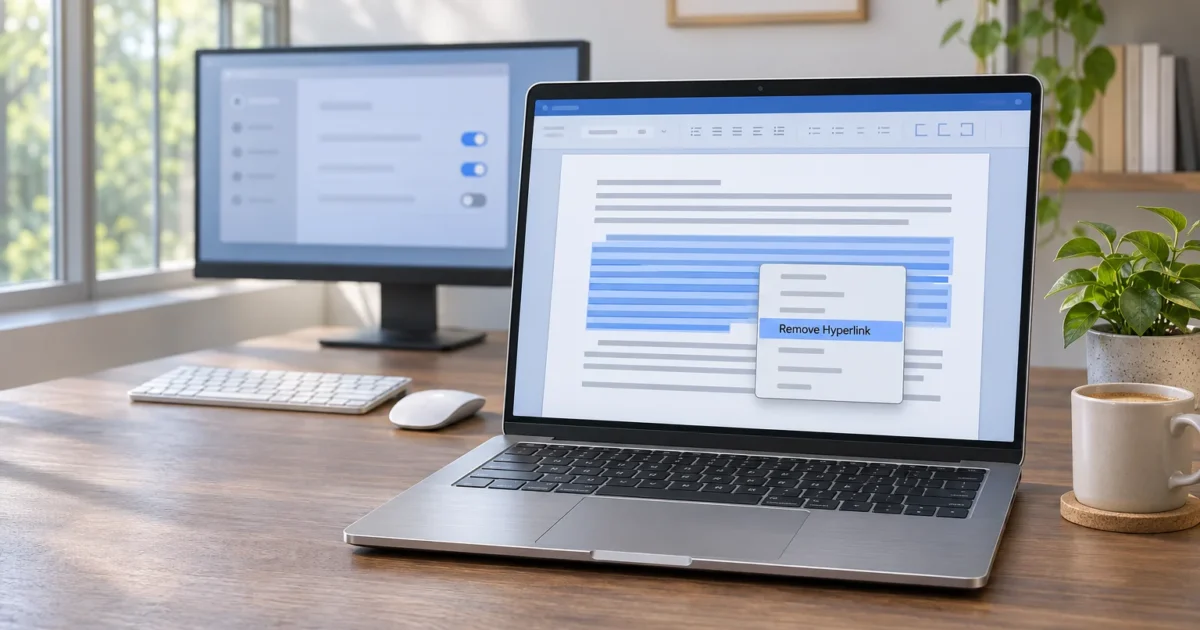
Unwanted hyperlinks make your Word document frustrating to clean up when you need to keep every word. In Microsoft 365 Word for Windows, Ctrl+A, then Ctrl+Shift+F9, removes links but also unlinks other selected fields.
Fix #1: Bulk Remove All Hyperlinks from a Word Document on Windows
Windows: Use the document-wide shortcut
You don’t need an add-in or a separate tool. The documented method works in desktop Word with an editable document.
Choose the approach that fits your document before selecting everything:
| Your situation | Recommended action | What it does |
|---|---|---|
| You want to remove hyperlinks throughout ordinary document text | Use Ctrl+A, then Ctrl+Shift+F9 | Removes hyperlinks and unlinks other selected fields |
| You need to keep document content that updates | Remove hyperlinks individually | Targets the link you choose |
| You use Word for Mac and want one link gone | Use Hyperlink > Remove Hyperlink | Removes one hyperlink |
| You use Word for Mac or Word for the web and want bulk removal | Select all, then Ctrl+Shift+F9 (add Fn if needed) | Microsoft lists this shortcut for Mac and web too; check links afterward |
| You’re pasting text that contains a hyperlink | Use Paste > Keep Text Only | Strips the hyperlink but may change formatting |
| Word turns newly typed addresses into links | Change AutoFormat As You Type | Stops automatic hyperlinks as you type |
- Open the editable document in Microsoft Word for Windows.
- Save a separate copy before making changes. Keep the original if you’ll need its links or updating content later.
Warning: Ctrl+Shift+F9 also unlinks other selected fields. These are parts of your document whose content can update. Common examples are a table of contents, cross-references, date fields, page-number fields, and citations or a bibliography. Once unlinked, they become static text and stop updating. If your document has any of these, save a copy first and use individual removal (Fix #2) instead.
- Click inside the main document text.
- Press
Ctrl+Ato select the document text.

- Press
Ctrl+Shift+F9. Selected hyperlinks should become plain text while their displayed text stays in place. Any other selected fields are unlinked too.
- Right-click a former link to check the result. The Remove Hyperlink command disappearing from the menu is one sign that link was removed; you can also confirm the text is no longer clickable.
Microsoft documents this method on its Remove or turn off hyperlinks page. Its shorter Remove a hyperlink support article gives the same Ctrl+A, then Ctrl+Shift+F9 method and lists Word for Microsoft 365, Word for Mac, and Word for the web.
Add Fn if F9 triggers a laptop function
Some keyboards assign a hardware action to the function keys. If pressing F9 triggers that action instead of removing hyperlinks, try adding the Fn key to the shortcut.
- Select the text containing the hyperlinks.
- Press
Ctrl+Shift+Fn+F9.
- Right-click a former hyperlink to check whether Remove Hyperlink still appears in the menu.
If your keyboard has no F9 key, remove each link individually instead. Follow Fix #2.
Limit removal to part of the document
A smaller selection limits where the shortcut takes effect. Use this when one pasted passage has unwanted links.
- Select only the affected passage instead of pressing
Ctrl+A.
- Check that the selection leaves out updating content you want to keep.
- Press
Ctrl+Shift+F9, addingFnif your keyboard needs it.
- Check a former link within the selection to confirm removal.
The field warning still applies. Selecting less text limits the changes, but the shortcut still unlinks other selected fields.
Check headers, footers, and text boxes separately
Selecting the main document text doesn’t prove you’ve removed links from every document area.
- Check any headers containing links.
- Check any footers containing links.
- Check any text boxes containing links.
- Use Fix #2 for individual links you find in those areas.
Fix #2: Remove an Individual Hyperlink Without Deleting Its Text
Use this method when you need to keep other document fields working. It’s also the fallback when your keyboard has no F9 key.
- Right-click the hyperlink you want to remove.
- Select Remove Hyperlink. The displayed text stays in the document.
- Repeat for each additional link you want to remove.
Microsoft confirms these steps on the same Remove or turn off hyperlinks page.
Microsoft documents this context-menu command for one link at a time. For many links, Fix #1 is the faster route.
Don’t press Delete if you want to keep the words. Deleting selected linked text removes the text itself.
Check the link rather than its color
Removing a link and changing text formatting are separate tasks. Blue or underlined text alone doesn’t prove a link remains.
- Right-click the text you think is still linked.
- Select Remove Hyperlink if the command appears.
- Check the same text again before trying another removal method.
Use a removal command to remove the link’s destination. Clearing formatting doesn’t replace that step.
Fix #3: Remove Hyperlinks in Word for Mac
macOS: Use the Hyperlink submenu
Word for Mac has a documented menu command for individual hyperlinks. Use this path for single links, and see the next section if you want to try removing many links at once.
- Open your document in Word for Mac.
- Hold
Controland click the hyperlink you want to remove.
- Open Hyperlink in the contextual menu.
- Select Remove Hyperlink. The displayed text stays in place.
- Repeat for each additional hyperlink.
Microsoft gives this exact Control-click > Hyperlink > Remove Hyperlink path in its hyperlink-removal instructions.
If your document has updating fields, individual removal is the cautious choice. You choose each link yourself.
Mac: What Microsoft documents for bulk removal
Microsoft’s short Remove a hyperlink support article lists Word for Microsoft 365 for Mac and gives one bulk method for all its listed versions: select everything, then press Ctrl+Shift+F9. The same field warning from Fix #1 applies on a Mac.
- Press
Command+Ato select the document text.
- Press
Ctrl+Shift+F9, using theControlkey. AddFnif your Mac’s F-keys are set to control brightness or volume instead of sending F9.
- Control-click a former link to check that Hyperlink > Remove Hyperlink no longer applies to it.
If nothing changes, try Command+Shift+F9 instead. Mac shortcuts often swap Control for Command, but Microsoft doesn’t document that variant here, so check several links afterward. Results can vary by Word version and keyboard settings. Individual removal (above) remains the cautious, documented fallback.
Word for the web: Try the same shortcut, then fall back
That same Microsoft article also lists Word for the web, so the bulk method is worth trying in your browser first.
- Open the document in Word for the web and click inside the text.
- Press
Ctrl+A(Command+Aon a Mac), thenCtrl+Shift+F9.
- Check a few former links. Some browsers or keyboard utilities can intercept function-key shortcuts before Word sees them.
If the shortcut doesn’t work in your browser, right-click each link and select Remove Hyperlink, or open the file in desktop Word and use Fix #1. To avoid bringing new links in from the web, paste with Keep Text Only (Fix #4).
Fix #4: Stop Word from Creating New Hyperlinks
Removing existing hyperlinks doesn’t stop Word from adding new ones. Two separate behaviors create hyperlinks you didn’t ask for: typing a web address, and pasting text that already contains a link.
Typing: Turn off AutoFormat As You Type
These steps apply to Word for Windows.
- Select File > Options.
- Select Proofing.
- Select AutoCorrect Options.
- Open the AutoFormat As You Type tab.
- Clear Internet and network paths with hyperlinks.
- Select OK to close the AutoCorrect dialog.
- Select OK to close Word Options.
- Type a web address followed by a space to check that Word leaves it as text.
The full path is File > Options > Proofing > AutoCorrect Options > AutoFormat As You Type > Internet and network paths with hyperlinks. Microsoft documents it under turning off automatic hyperlinks.
This setting stops automatic hyperlinks as you type. It doesn’t remove existing links. Use Fix #1 or Fix #2 for those.
Don’t assume it also blocks links in pasted text, use Keep Text Only below instead.
Pasting: Use Keep Text Only to strip source hyperlinks
When you paste text copied from a webpage, email, or another document, Word often keeps the source hyperlink along with the original formatting. The Keep Text Only paste option strips that hyperlink and inserts plain text instead.
Expect to lose some formatting when you choose this option. Bold, italics, colors, and fonts from the source usually don’t survive the switch to plain text. If you need to remove a hyperlink but keep other formatting, paste normally and then use Fix #1 or Fix #2 afterward.
These steps describe desktop Word for Windows. Word for Mac and Word for the web offer Keep Text Only too, but the Paste Options control looks and sits differently, and in a browser the available paste options can depend on your browser.
- Copy the text containing the hyperlink from its source.
- Click where you want to paste it in your Word document.
- On the Home tab, select the lower part of the Paste button to open Paste Options.
- Select Keep Text Only.
- Check the pasted text to confirm it isn’t clickable.
You can also right-click immediately after pasting to reach the same Paste Options icons, including Keep Text Only.
This option only affects text you paste after choosing it. It doesn’t change hyperlinks already in your document; use Fix #1, Fix #2, or Fix #3 for those.
Leave the Ctrl+Click setting out of this task
Word also has File > Options > Advanced > Editing Options > Use CTRL + Click to follow hyperlink.
That setting controls how you follow an existing link. Changing it doesn’t remove link destinations or stop automatic hyperlink creation.
Wrapping Up
Fix #1 is my pick for quick cleanup of ordinary text in Windows Word. On a Mac or in Word for the web, try the same Ctrl+Shift+F9 method from Fix #3 first. Use Fix #2 when you need a table of contents, cross-references, or other fields to keep updating.
If you’re pasting content from the web, use Keep Text Only in Fix #4 to avoid introducing new hyperlinks in the first place. If links keep appearing as you type, change the AutoFormat setting in the same fix.