

Many users are looking for Chrome’s Auto Browse feature after viewing mentions online. However, the truth is that Google Chrome does not have an official feature called Auto Browse. Consequently, what these mentions mean is that people are searching for automatic page loading, auto-refresh pages, auto-sign-in, and browsing suggestions.
In this guide, we will walk you through the definition of Auto Browse and show you how to enable the related features in Chrome.
What is Auto Browse in Chrome?
As mentioned above, there is no official feature with the exact name, Auto Browse. So, users are searching for automatically loading pages faster, continuing to browse from where they left off, pages getting refreshed, and signing in to various websites.
Let’s have a look at every option and how we can enable them.
Enable Preloading
Google Chrome automatically loads the pages that it thinks you are going to open next.
How to Enable Preloading in Chrome?
- Click to open Chrome.
- Now go to the three dots in the top-right corner of Chrome.
- Navigate to Settings.
- Select Privacy & Security.
- Click on Cookies and other site data.
- After that, enable Preload pages for faster browsing and searching.
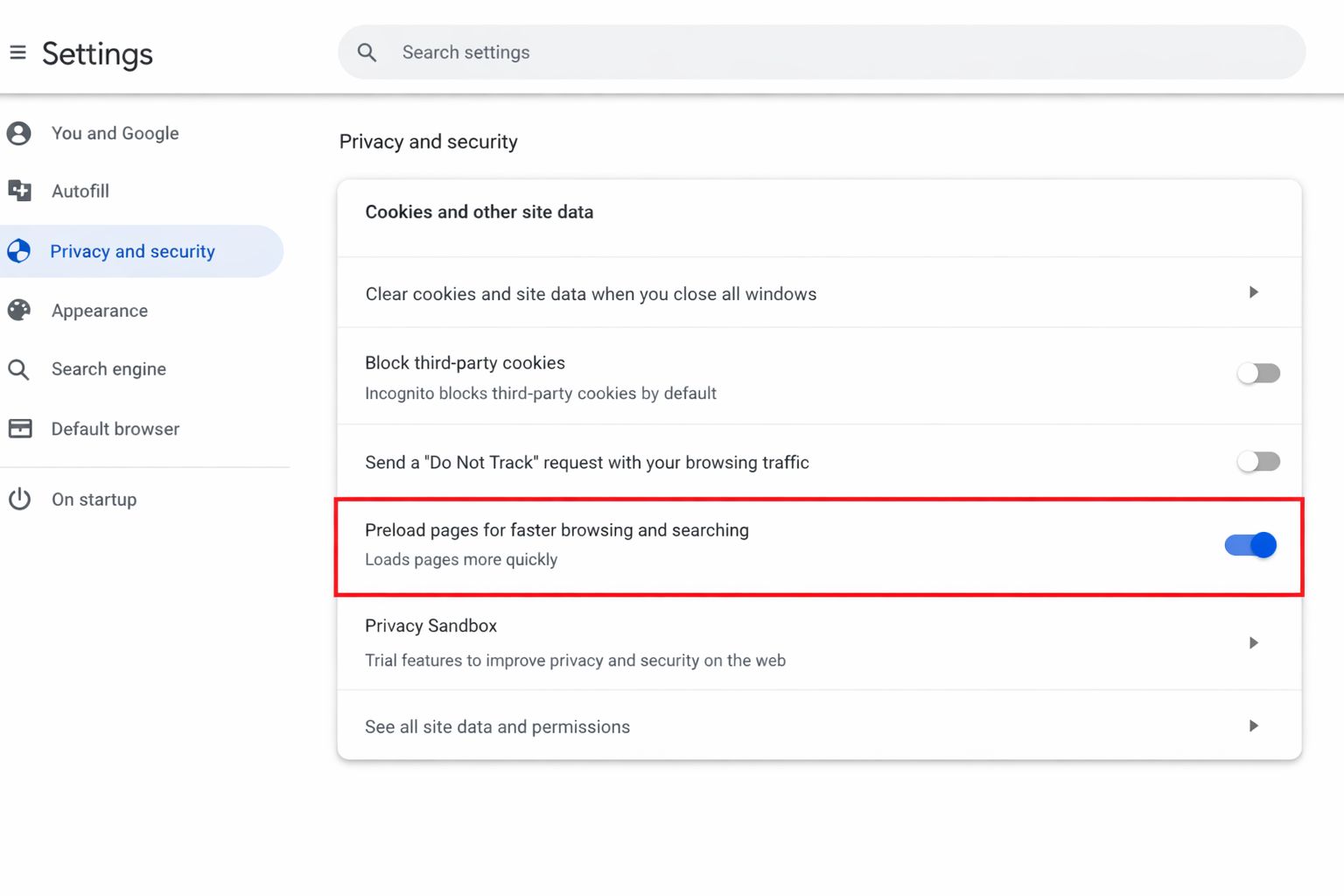
Once this feature is turned on, Google Chrome will start preloading pages automatically in the background, depending on your browsing preferences.
Thus, this feature increases the browsing speed and makes navigation easier, along with loading pages in advance.
Open Tabs After Restart
In case you want the Chrome browser to reopen the pages you were working on in your previous session, follow the steps below.
What Steps to Follow?
- Open Chrome.
- Navigate to Settings.
- Now, tap on On Startup.
- Choose Continue where you left off.
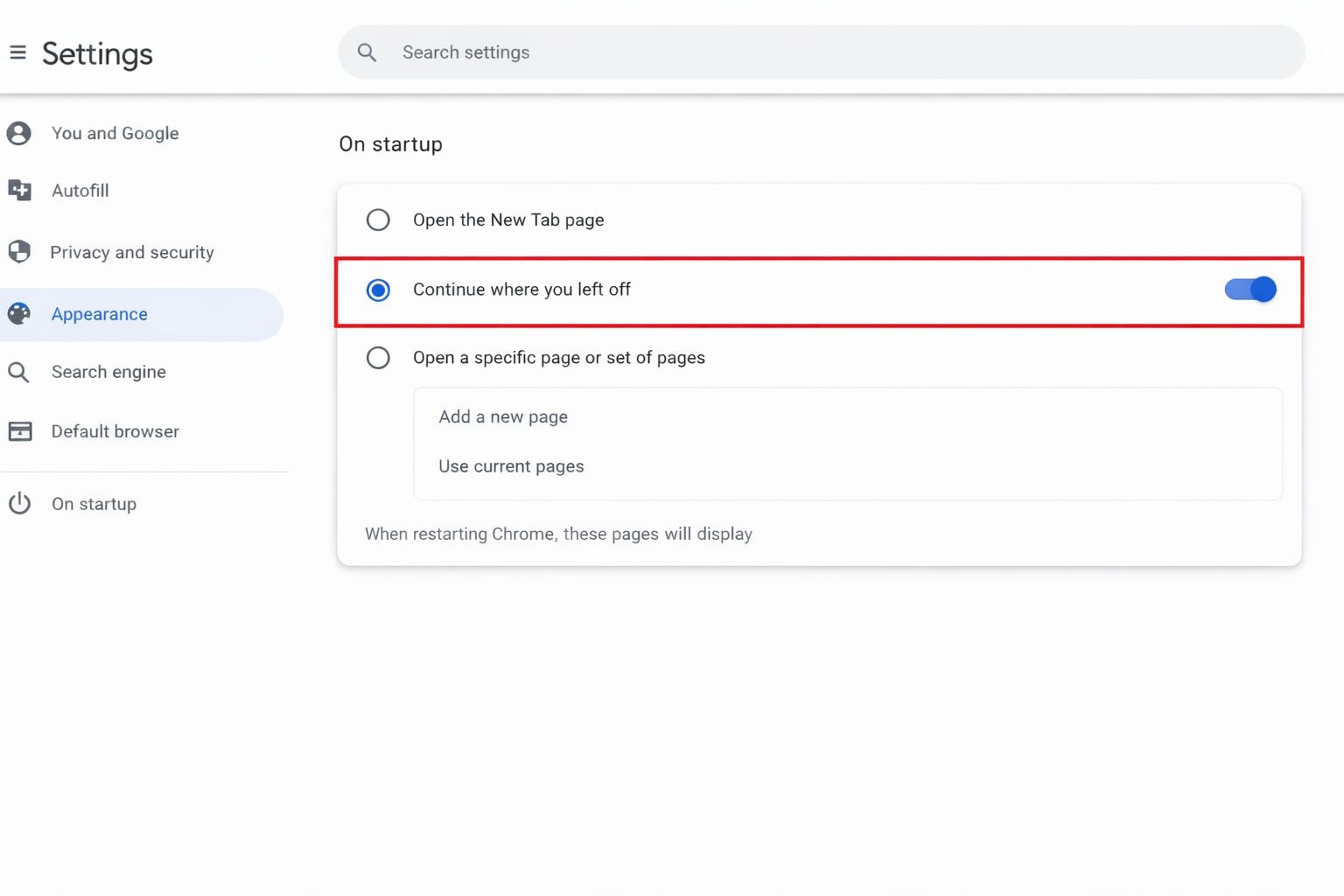
Every time you start a new session on Chrome, it will automatically restore previously opened tabs.
Turn On Auto Sign-in
One of the best features of Chrome is that it can automatically sign you in with your credentials.
What Steps to Follow?
- Navigate to Settings.
- Select Autofill and Passwords.
- Click on Google Password Manager.
- Now, enable Auto Sign-in.
Enable Chrome Suggestions
While you are typing websites or searching for anything in the Search Bar, Chrome shows automatic suggestions. Additionally, this creates a semi-automatic experience.
How to Enable It?
- Go to Settings.
- Select You and Google.
- Ensure that Sync options are enabled.
- Navigate to Privacy & Security.
- Turn on “Make searches and browsing better” and “Help improve Chrome’s features and performance.”
After turning it on, you will get automatic suggestions for websites, and frequently visited pages will open faster.
Enable Auto Refresh
In case you are searching for an automatic refresh feature on Chrome, you should know that it does not have this feature built in. But you can use extensions if you want to use them.
How to Install?
- Open Chrome.
- Now, go to Chrome Web Store.
- Look for Auto Refresh.
- Select Add to Chrome.
The popular Auto Refresh extensions are Easy Auto Refresh, Auto Refresh Plus, and Super Auto Refresh. Once this is installed, you can adjust and set time intervals for automatic loading or refreshing a page.
Although Google Chrome officially does not have an Auto Browse feature, there are several built-in tools that provide a similar experience and functionality. Hence, by enabling the above-mentioned features, users can create a powerful browsing experience.
