

Taskbar thumbnail previews still can’t be fully disabled through Windows Settings in 2026 as Microsoft reportedly removed that option back in Windows 10 Creators Update, and it never came back. Three working methods exist: a registry delay, Group Policy (Windows 10 Pro/Enterprise only), and a free tool that actually kills them completely.

Method 1: Registry Delay (Works on Windows 10 and 11)
This is the most reliable method in 2026. It sets the hover delay so high, 30 seconds or more, that previews effectively never appear during normal use. The trade-off: the text list of open windows also won’t appear during the delay period.
Fix #1: Set ExtendedUIHoverTime via Registry Editor
- Press
Windows + R, typeregedit, and press Enter. Click Yes if prompted by UAC. - Before making any changes, back up your registry: click File > Export, choose a save location, and click Save.
- Navigate to:
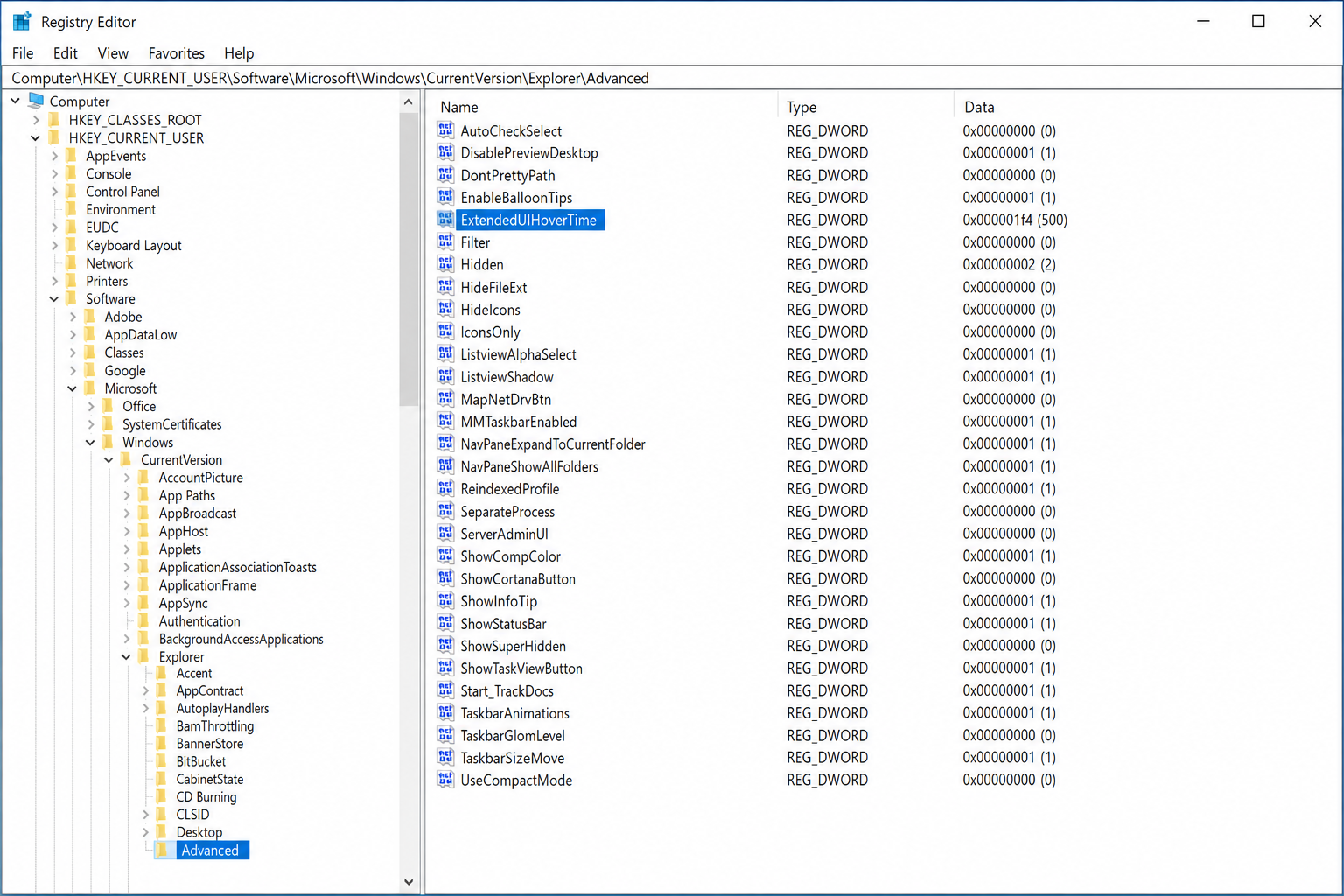
HKEY_CURRENT_USER\Software\Microsoft\Windows\CurrentVersion\Explorer\Advanced - Right-click an empty area in the right pane and select New > DWORD (32-bit) Value.
- Name the new value ExtendedUIHoverTime and press Enter.
- Double-click ExtendedUIHoverTime, select Decimal, and enter 30000 (30 seconds). Use a higher number like 60000 if you want even more delay.
- Click OK and close Registry Editor.
- Restart your PC, or restart Explorer: open Task Manager (
Ctrl + Shift + Esc), find Windows Explorer, right-click it, select End task, then click File > Run new task, typeexplorer.exe, and press Enter.
After restarting Explorer, hover over a taskbar icon and the preview should no longer pop up instantly.
Fix #1b: Set the delay via Command Prompt (faster)
If you’d rather skip the Registry Editor, this one-liner does the same thing:
- Press
Windows + S, type cmd, right-click Command Prompt, and select Run as administrator. - Paste the following command and press Enter:
reg add "HKEY_CURRENT_USER\Software\Microsoft\Windows\CurrentVersion\Explorer\Advanced" /v ExtendedUIHoverTime /t REG_DWORD /d 30000 /f- Restart your PC or restart Explorer as described in step 8 above.
To undo this later, delete the ExtendedUIHoverTime value from the registry key, or run: reg delete "HKEY_CURRENT_USER\Software\Microsoft\Windows\CurrentVersion\Explorer\Advanced" /v ExtendedUIHoverTime /f
Method 2: Group Policy (Windows 10/11 Pro and Enterprise Only)
Group Policy’s “Turn off taskbar thumbnails” setting works reliably on Windows 10 Pro and Enterprise. On Windows 11, user reports indicate it’s hit-or-miss because the Desktop Window Manager can override it. If you’re on Windows 11 Home or the policy doesn’t stick, use Method 1 or Method 3 instead.
Fix #2: Disable thumbnails via gpedit.msc
- Press
Windows + R, typegpedit.msc, and press Enter. - In the left pane, navigate to: User Configuration > Administrative Templates > Start Menu and Taskbar
- In the right pane, double-click Turn off taskbar thumbnails.
- Select Enabled and click OK.
- Restart your PC.
If previews come back after a reboot on Windows 11, a third-party tool like Start11 may be overriding the policy. Disable the “Enhance taskbar” option in that tool, then reapply the Group Policy setting.
Method 3: 7+ Taskbar Tweaker (Free Tool, Most Reliable)
7+ Taskbar Tweaker is a free utility that gives you a proper on/off toggle for thumbnail previews — no registry digging required. Unlike the delay method, it suppresses the preview entirely without affecting the text list. It works on both Windows 10 and Windows 11.
Fix #3: Disable previews with 7+ Taskbar Tweaker
- Download 7+ Taskbar Tweaker from the official Ramen Software site. It’s a portable executable — no installation needed.
- Run the downloaded file. It will sit in your system tray.
- Click the 7+ Taskbar Tweaker icon in the system tray to open its settings.
- Under the Thumbnail preview section, check the Disable box.
The change takes effect immediately, no reboot needed. If you ever want previews back, uncheck the box.
Comparison: Which Method Should You Use?
| Method | Works on Windows 11 | Fully disables previews | Cons | Difficulty |
|---|---|---|---|---|
| Registry delay (ExtendedUIHoverTime) | Yes | Effectively (with long delay) | Text list of open windows is also hidden during the entire delay period | Easy |
| Group Policy (gpedit.msc) | Unreliable (user reports vary) | Yes (when it sticks) | May not persist on Windows 11; Pro/Enterprise only | Easy |
| 7+ Taskbar Tweaker | Yes | Yes (true disable) | Requires a third-party tool running in the background | Easy |
Conclusion
For most people, 7+ Taskbar Tweaker is the cleanest fix as it’s a true disable with a single checkbox, and it works on both Windows 10 and 11 without touching the registry. If you’d rather not install any extra software, the ExtendedUIHoverTime registry tweak set to 30000 ms is the next best option and works everywhere. Group Policy is worth trying on Windows 10 Pro, but don’t rely on it in Windows 11, user reports indicate it’s too inconsistent.