

If you need to block InPrivate browsing in Microsoft Edge, whether for company policy or household monitoring, Group Policy or a registry value gets it done in under five minutes. Windows Home users without gpedit.msc should go straight to Fix #2.
Fix #1: Disable InPrivate browsing in Edge via Group Policy
Group Policy is the cleanest approach on Windows 10 or 11 Pro, Enterprise, or Education. The setting you want is Configure InPrivate mode availability, inside the Microsoft Edge administrative template.
- Press
Windows + R, typegpedit.msc, and press Enter to open Local Group Policy Editor. - In the left pane, go to Computer Configuration > Administrative Templates > Microsoft Edge.
- In the right pane, double-click Configure InPrivate mode availability.

- Select Enabled.
- In the Options drop-down, choose InPrivate mode disabled.
- Click OK.
- Open an elevated Command Prompt, run
gpupdate /force, and press Enter, or just restart Edge.
The New InPrivate window entry in Edge’s menu will be greyed out after that.
Don’t see “Configure InPrivate mode availability”? Your Edge ADMX templates may be outdated. Look for Allow InPrivate browsing under Computer Configuration > Administrative Templates > Windows Components > Microsoft Edge instead. Setting that to Disabled has the same effect on older template versions.
Fix #2: Disable InPrivate browsing in Edge via Registry
This method works on every Windows edition, including Home. It writes the same policy the Group Policy Editor applies, directly into the registry.
- Press
Windows + R, typeregedit, and press Enter to open Registry Editor. - Navigate to
HKEY_LOCAL_MACHINE\SOFTWARE\Policies\Microsoft\Edge.
– If the Edge key doesn’t exist, right-click the Microsoft key, choose New > Key, and name it Edge.
- In the right pane inside the Edge key, right-click and select New > DWORD (32-bit Value).
- Name the value
InPrivateModeAvailability.
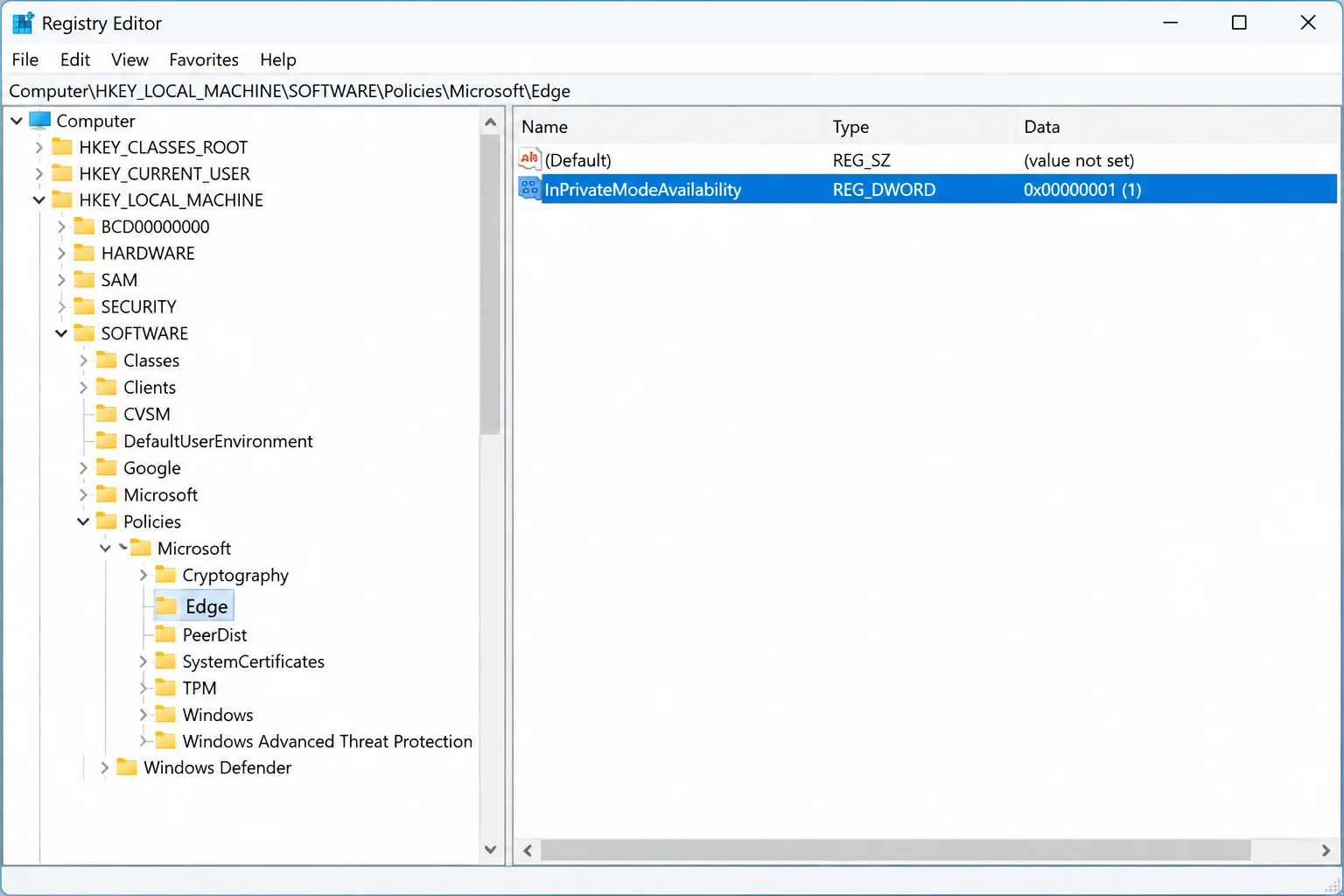
- Double-click
InPrivateModeAvailabilityand set Value data to1. - Click OK and close Registry Editor.
- Fully close Edge and confirm no
msedge.exeprocesses remain in Task Manager, then reopen it.
The InPrivate option should now be greyed out in Edge’s menu. To undo this later, set InPrivateModeAvailability back to 0 or delete the value entirely.
Heads up on older registry guides. Many instructions still point to HKEY_LOCAL_MACHINE\SOFTWARE\Policies\Microsoft\MicrosoftEdge\Main with a value called AllowInPrivate. That path doesn’t work with Chromium-based Edge. The correct location for modern Edge is InPrivateModeAvailability under HKEY_LOCAL_MACHINE\SOFTWARE\Policies\Microsoft\Edge.
Legacy: Internet Explorer and IE Mode
Internet Explorer is retired and disabled on modern Windows. If your organization still runs IE Mode inside Edge for specific legacy web apps, you can disable InPrivate browsing for that context separately.
- Open Registry Editor and go to
HKEY_LOCAL_MACHINE\SOFTWARE\Policies\Microsoft\Internet Explorer\Privacy.
– Create the Internet Explorer and Privacy subkeys under HKEY_LOCAL_MACHINE\SOFTWARE\Policies\Microsoft if they don’t already exist.
- In the Privacy key, right-click the right pane and choose New > DWORD (32-bit Value).
- Name it
EnableInPrivateBrowsingand set Value data to0. - Close Registry Editor. No restart needed. Just close and reopen IE or reload the IE Mode tab in Edge.

For most environments running current Windows, the Edge fixes above are what you actually need.
Troubleshooting
“Configure InPrivate mode availability” doesn’t appear in the list. The Edge ADMX templates are likely missing or out of date on that machine. Look for Allow InPrivate browsing under Windows Components > Microsoft Edge and set it to Disabled. That’s the older policy name for the same control.
Users can still open InPrivate after the registry edit. Four things to verify:
- The key path is exactly
HKEY_LOCAL_MACHINE\SOFTWARE\Policies\Microsoft\Edge, not underHKEY_CURRENT_USER, not under any non-Policies path. - The value name is exactly
InPrivateModeAvailability, notAllowInPrivate. - The value data is
1. - Edge was fully closed. Open Task Manager, end all
msedge.exeprocesses, and relaunch Edge.
InPrivate is blocked but users are opening Guest mode. The InPrivate policy doesn’t affect Guest mode. That’s a separate Edge policy setting you’d need to configure independently.
Does disabling InPrivate cover all unmonitored browsing? InPrivate only prevents local history and cookies from being saved when the window closes. Network traffic stays visible to proxies and logging tools regardless. For stricter compliance, pair the InPrivate policy with a network-level proxy or secure web gateway that captures traffic at the infrastructure layer. If you manage a larger fleet, Microsoft Intune lets you push InPrivateModeAvailability across every device through configuration profiles, which is far more consistent than editing individual machines by hand.
Conclusion
Fix #1 (Group Policy) is the right pick for Pro, Enterprise, and Education machines. One policy setting, no registry work, and it holds across Edge updates. For Windows Home, the InPrivateModeAvailability registry key gets the same result just as reliably. Worth keeping in mind: a determined user can route around any browser restriction using a VPN or a mobile hotspot, so a network-level proxy or secure web gateway that logs traffic independently will always be a more durable audit trail than browser policy alone.