

“File Explorer is not responding” appears when Windows 11’s file manager freezes, closes, or gets stuck on “Working on it.” That’s maddening when you only need a file, so restart Explorer before changing anything else.
Quick Diagnosis
Fix #1: Restart Windows Explorer
Restarting explorer.exe reloads File Explorer, the desktop, and the taskbar. You won’t need to restart your PC.
Symptoms:
- Explorer displays “Not responding.”
- Folders don’t react to clicks.
- The desktop or taskbar freezes with Explorer.
Why it happens: Explorer can freeze while reading a folder, creating previews, or working with another program. A restart clears the stuck process and often fixes a one-time freeze.
- Press
Ctrl + Shift + Escto open Task Manager.
- Select Processes in the left sidebar.
- Select Windows Explorer in the process list.
- Select Restart task, or right-click Windows Explorer and select Restart.

- Wait for the desktop and taskbar to reload. They may vanish briefly because Explorer controls them.
- Press
Windows key + Eand check whether File Explorer responds.
If Restart isn’t available, select Run new task in Task Manager. Enter explorer.exe, then select OK.
Symptoms and Likely Causes
Use the exact symptom to narrow the cause before trying deeper repairs.
| Symptom | Likely cause | Start with |
|---|---|---|
| Explorer freezes everywhere | Stuck process or damaged Windows files | Restart Explorer |
| Problems began after an update | Update bug | Install newer updates |
| Home hangs on “Working on it” | Damaged history or unavailable location | Clear Explorer history |
| Images load slowly or crash Explorer | Damaged thumbnail cache | Rebuild preview caches |
| Icons appear blank or incorrect | Damaged icon cache | Rebuild preview caches |
| Explorer freezes when right-clicking | Third-party shell extension | Disable non-Microsoft extensions |
| Explorer works in another account | Damaged user profile | Move to a fresh account |
Common Issues and Solutions
Fix #2: Install the Latest Windows Update
Install a newer cumulative update before removing a security update. These packages include earlier fixes, so the current update may repair Explorer without causing another problem.
Symptoms:
- Explorer started failing soon after Windows Update ran.
- The taskbar, desktop, or other Windows shell parts also act differently.
- Restarting Explorer helps only for a short time.
Why it happens: A cumulative update can cause a bug on some PCs. A later update may fix it.
- Open Settings > Windows Update.
- Select Check for updates.
- Install every available cumulative update.
- Select Restart now if Windows asks you to.
- Open several folders and select different file types. Explorer should stay stable during the test.
Claims about a July 2026 image-selection crash and an April 2026 blank-icon or search-lag bug aren’t confirmed by the official Microsoft pages supplied for this article. KB5074105 also lacks a matching Microsoft support or update-history page. Treat those dates as clues. Install the current update offered to your PC instead of chasing an unverified KB.
Fix #3: Confirm and Remove a Problematic Update
I’d skip uninstalling updates unless Explorer broke right after one was installed and no newer update fixes it. Removing the wrong update adds risk and proves nothing.
Symptoms:
- Explorer worked before a specific update.
- The failure began on the update’s installation date.
- Installing newer updates didn’t fix it.
Why it happens: A Windows build can conflict with a driver, shell extension, or Explorer feature on your PC.
- Open Settings > Windows Update > Update history.
- Compare the latest quality update’s date with the day Explorer began crashing.
- Note the installed update’s KB number.
- Select Uninstall updates near the bottom of Update history.
- Select Uninstall beside the update that matches the failure date.
- Restart Windows.
- Test Explorer before changing or installing other software.
Removing a security update makes your PC less secure. Reinstall it, or its replacement, when Microsoft publishes a working cumulative update.
Fix #4: Clear File Explorer History
Try this when Home freezes, recent files won’t load, or Explorer stays on “Working on it.” This quick reset doesn’t touch your personal files.
Symptoms:
- Explorer hangs when opening Home.
- A disconnected network folder appears in recent locations.
- Other local folders open normally.
Why it happens: Explorer may keep checking damaged history or trying to reach a location that no longer exists.
- Press
Windows key + E.
- Select See more (the three-dot button) > Options.
- On the General tab, set Open File Explorer to to This PC.
- Clear Show recently used files and Show frequently used folders.
- Select Clear beside Clear File Explorer history.
- Select OK.
- Close and reopen Explorer. This PC should load without the long pause.
Clearing history removes the list of recent locations. Your documents, pictures, and folders stay where they are.
Fix #5: Reset the Recent-Destinations Cache
Use this deeper reset if Home still freezes after you clear Explorer history. Windows rebuilds the removed cache as you use Explorer.
Symptoms:
- Recent files return in the wrong order.
- Clearing Explorer history has no effect.
- Explorer keeps waiting for old shortcuts.
Why it happens: Damaged jump-list data can remain in the AutomaticDestinations folder. Jump lists show recent and pinned app items on the taskbar and Start menu.
- Press
Windows key + R.
- Enter
%APPDATA%\Microsoft\Windows\Recent\AutomaticDestinations.
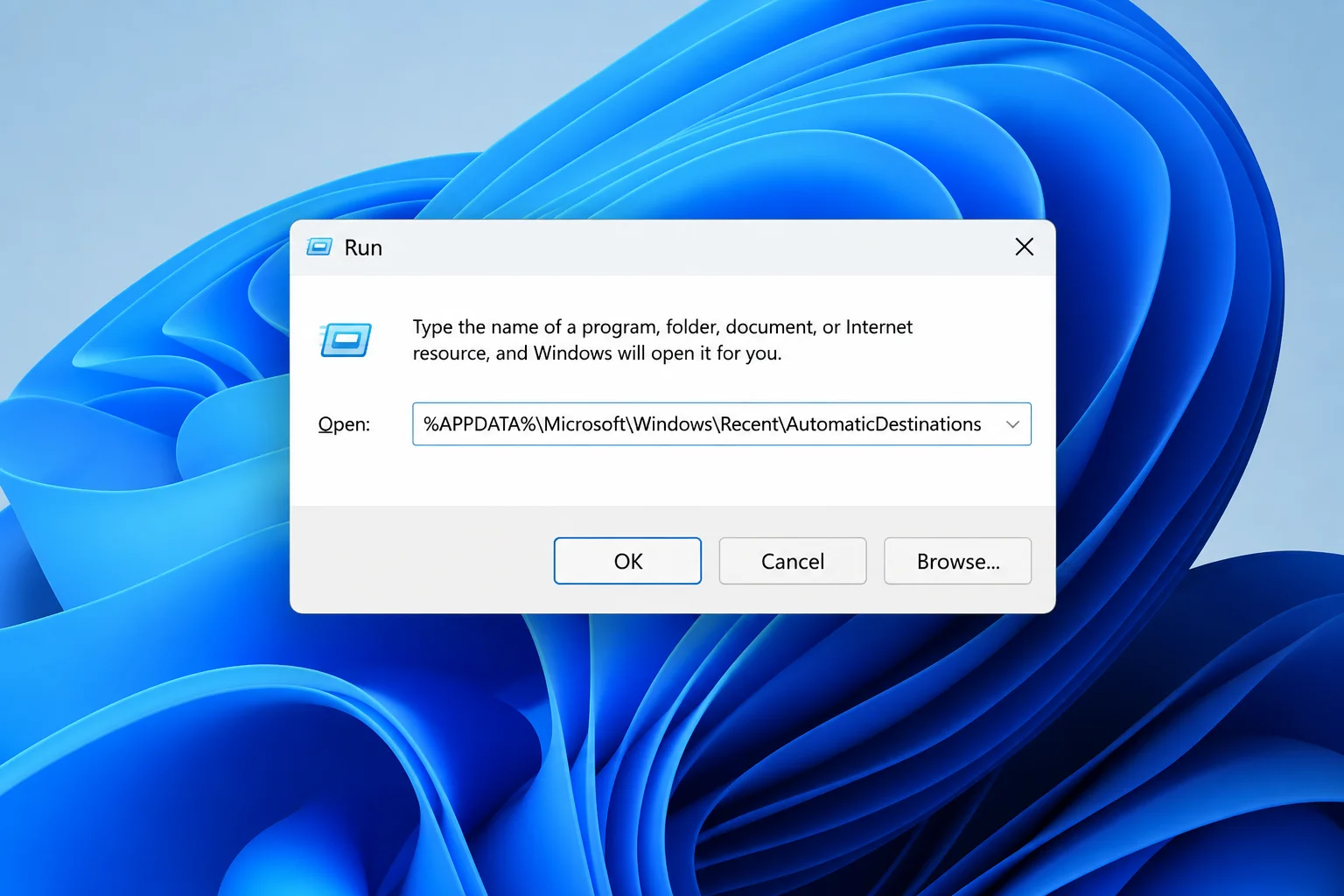
- Select OK.
- Press
Ctrl + Ainside the folder.
- Press
Deleteto remove the files inside the folder. Don’t delete theAutomaticDestinationsfolder.
- Restart Windows.
- Check that Home and This PC open normally.
Fix #6: Rebuild the Icon and Thumbnail Caches
Rebuild these databases when icons are blank, previews look wrong, or selecting an image crashes Explorer. Your desktop will vanish for a moment. That’s expected.
Symptoms:
- Desktop or folder icons are blank.
- Image thumbnails show old or incorrect previews.
- Explorer slows down in folders with many images.
Why it happens: Explorer stores icons and previews in cache databases. A damaged database can cause display errors or repeated preview failures.
- Save any open work.
- Search for Command Prompt and select Run as administrator.
- Run these commands one at a time:
ie4uinit.exe -ClearIconCache
taskkill /IM explorer.exe /F
del /f /q "%localappdata%\Microsoft\Windows\Explorer\thumbcache_*.db"
start explorer.exe- Wait for the desktop and taskbar to return.
- Reopen an image folder and give Windows time to rebuild its previews.
These commands delete saved previews, not your pictures or documents. If one image crashes Explorer, copy it to another folder and test it alone. The image may be damaged, or its preview software may be causing the crash.
Fix #7: Repair Windows with DISM and SFC
Use Windows’ repair tools when Explorer crashes in several folders and user accounts. This takes longer, but it can fix damage that cache resets can’t reach.
Symptoms:
- Explorer keeps failing after cache repairs.
- Other Windows tools are also unstable.
- Task Manager shows repeated
explorer.exefailures.
Why it happens: The Windows component store or protected system files may be damaged. DISM repairs the component store. System File Checker then replaces damaged protected files.
- Search for Command Prompt.
- Select Run as administrator.
- Run DISM to check and repair the Windows component store:
DISM /Online /Cleanup-Image /CheckHealth
DISM /Online /Cleanup-Image /ScanHealth
DISM /Online /Cleanup-Image /RestoreHealth- Keep the PC online while
RestoreHealthruns. If your Wi-Fi drops often, use Ethernet and a Cat6 cable.
- Run System File Checker after DISM finishes:
sfc /scannow- Wait until the scan reaches 100%, then restart Windows.
- Open File Explorer and repeat the action that caused the crash.
Run DISM before the final SFC scan. DISM repairs the source files that SFC uses. If you ran SFC first, run DISM and repeat sfc /scannow.
Fix #8: Disable Non-Microsoft Shell Extensions
This is my first suspect when Explorer freezes as soon as you right-click a file or folder. A menu extension from another app can crash the whole Explorer process.
Symptoms:
- Right-clicking causes a long delay or crash.
- The problem began after you installed an archive, cloud storage, security, or media program.
- Explorer works until a context menu opens.
Why it happens: Programs can add commands to Explorer’s right-click menu. These shell extensions run inside Explorer, so a faulty one can freeze or crash it.
- Download a trusted shell-extension viewer, such as ShellExView.
- Open the tool and sort entries by Company or Type.
- Find the non-Microsoft context-menu extensions.
- Disable the non-Microsoft entries. Leave Microsoft extensions enabled for the first test.
- Restart Windows Explorer through Task Manager.
- Right-click the same item again.
- Turn extensions back on in small groups until the freeze returns.
- Update or remove the program linked to the faulty extension.
A clean boot can also confirm whether third-party software is involved.
Fix #9: Test Another Windows Account
If Explorer works in another account, your main profile likely has damaged settings or cache data. Testing a fresh account is quicker than hunting for the broken profile file.
- Open Settings > Accounts > Other users.
- Select Add account.
- Create a local test account or add another Microsoft account.
- Sign out, then log in to the new account.
- Press
Windows key + Eand repeat the action that caused the crash.
- If Explorer works, copy needed folders from the old profile under
C:\Users. These may includeDesktop,Documents,Downloads, andPictures.
- Check that local and cloud files open before removing the old account.
Use an external SSD or encrypted USB drive as a temporary backup while moving profile data. Don’t remove the old profile until you’ve checked local files and cloud sync.
Fix #10: Repair or Reset Windows
Use a repair installation after updates, cache resets, file repairs, extension tests, and profile testing have failed. A reset comes last because it removes installed apps.
- Back up important files to an external SSD or cloud storage.
- Open Settings > System > Recovery.
- Use Fix problems using Windows Update if it’s available. It reinstalls your current Windows version but keeps your apps, files, and settings.
- If needed, run Windows 11 setup from official Microsoft installation media. Choose Keep personal files and apps.
- Use Reset this PC > Keep my files only if the repair installation fails. The reset keeps personal files but removes installed apps.
- Reinstall the apps you need. Test Explorer before restoring shell changes.
Keep the PC connected to a UPS during a long repair if power outages are common where you live.
Error Messages Quick Reference
The message often points to the next useful test.
| Message or symptom | Meaning | Recommended action |
|---|---|---|
| “File Explorer is not responding” | explorer.exe is blocked or stuck | Restart Windows Explorer |
| “Working on it” | Explorer is waiting for history, previews, or an unavailable location | Clear history and open to This PC |
| “Windows Resource Protection found corrupt files and successfully repaired them” | SFC repaired protected files | Restart and test Explorer |
| “Windows Resource Protection found corrupt files but was unable to fix some of them” | SFC needs a repaired component source | Run DISM, then repeat SFC |
| “The restore operation completed successfully” | DISM repaired the component store | Run SFC and restart |
| Blank icons without an error | The icon cache may be damaged | Rebuild the icon and thumbnail caches |
Platform-Specific Issues
File Explorer is part of Windows, so these steps don’t apply to macOS, Android, or iOS. To find your Windows 11 edition and version, open Settings > System > About. Check Windows specifications.
When reporting an update-related crash, include the edition, version, OS build, and installed KB number. Those details are more useful than saying Explorer broke after “the latest update.”
Configuration Issues to Check
Small setup mistakes can bring the problem back after a repair.
| Common mistake | Correct configuration |
|---|---|
| Opening Explorer to a damaged Home view | Set Open File Explorer to to This PC |
| Keeping disconnected folders in recent history | Clear history and remove unavailable pinned locations |
| Removing an update based only on its KB number | Confirm the KB is installed and matches the failure date |
| Disabling every shell extension | Test non-Microsoft context-menu extensions first |
| Running SFC once after it reports unrepaired files | Run DISM, then repeat sfc /scannow |
| Assuming cache cleanup removes personal files | Icon, thumbnail, and recent-destination caches contain generated data |
Getting Help
If Explorer still crashes, collect the fault details before reporting it. The failing module’s name can point to a Windows file, driver, codec, or third-party extension.
- Press
Windows key + R, enterperfmon /rel, and pressEnterto open Reliability Monitor.
- Find Windows Explorer failures and note the faulting module.
- Open Event Viewer. Check Windows Logs > Application for an
Application Errorinvolvingexplorer.exe.
- Record your Windows build from Settings > System > About. Find installed updates under Settings > Windows Update > Update history.
- Submit the crash details through Feedback Hub or use Microsoft’s File Explorer support page.
Repeated disk errors, clicking sounds, missing files, or SMART warnings may mean the drive is failing. Back up the PC now and consider replacing the SSD. Strange file extensions, ransom notes, or disabled security tools call for an offline malware scan.
Prevention Tips
You can’t prevent every Explorer crash, but you can remove common triggers.
- Keep Windows and hardware drivers current. Note the date before installing major updates.
- Remove unused context-menu tools and old cloud storage clients.
- Disconnect unavailable network locations from Explorer.
- Keep at least 15–20% of the system drive free for caches and updates.
- Back up important folders before changing profiles or repairing Windows.
- Avoid codec packs and preview handlers from unknown publishers.
Frequently Asked Questions
Why does File Explorer keep crashing or freezing?
Common causes include a stuck explorer.exe process, damaged caches, broken system files, update bugs, unavailable network folders, and faulty shell extensions.
The timing and trigger matter. A right-click crash points to an extension. “Working on it” often points to history, previews, or an unavailable location.
How can I restart File Explorer without restarting the PC?
Press Ctrl + Shift + Esc, select Windows Explorer in Task Manager, and choose Restart task. Your desktop and taskbar may disappear for a moment.
Why did my taskbar disappear when I restarted Windows Explorer?
The Windows Explorer process controls File Explorer and parts of the Windows shell. That includes the desktop and taskbar. Both should return when explorer.exe starts again.
Can clearing File Explorer history delete personal files?
No. It removes recent-file and frequent-folder records. Your original files stay in their folders.
Can rebuilding the icon cache delete pictures or documents?
No. Windows removes and rebuilds saved icons and previews. It doesn’t delete the original pictures or documents.
How can I tell whether a Windows update caused the problem?
Compare the day the failures began with Settings > Windows Update > Update history. Matching dates are useful evidence, especially if removing the update stops the crashes. Timing alone doesn’t prove the cause.
Should I install a newer update or uninstall the most recent one?
Install a newer cumulative update first. Remove the current update only if its installation date matches the first failures and no fixed release is available.
Why does File Explorer freeze when I right-click?
A third-party context-menu extension is the usual suspect. Disable non-Microsoft shell extensions and test the menu. Then turn extensions back on in groups to find the faulty program.
What if Explorer works in another user account?
Your original user profile is likely damaged. Back up your data and move your personal folders to the working profile. Reconnect your apps and cloud accounts before removing the old profile.
When is an in-place repair or Reset this PC justified?
Use an in-place repair when targeted fixes fail and Explorer also crashes in another account. Use Reset this PC only if the repair installation fails or Windows has wider, lasting damage.
Wrapping Up
| Step | Action | Applies To |
|---|---|---|
| 1 | Restart Windows Explorer | Sudden freezes |
| 2–3 | Update or carefully remove an update | Update-timed failures |
| 4–6 | Reset history and preview caches | Home, icon, and image problems |
| 7–8 | Repair Windows and test extensions | Repeated or right-click crashes |
| 9–10 | Replace the profile or repair Windows | Persistent failures |
Restarting Windows Explorer is my pick for a sudden, one-time freeze. For repeat crashes, clear the related cache next. If right-clicking causes the crash, test shell extensions before repairing Windows.
Disk errors, missing files, or suspicious system changes need faster action. Back up your data, then check the drive or run an offline malware scan before trying another Windows repair.