

“Windows Update failed,” an update is frozen at one percentage, or a package won’t install. That’s frustrating, so start with a restart and save the heavier repairs for later.
Quick Diagnosis
Fix #1: Restart and Check for Updates Again
Problem: Windows Update appears stuck, shows “Pending install,” or returns to the same failed update.
Symptoms:
- The download stays at one percentage.
- The installation appears frozen.
- Windows asks for repeated restarts.
- Check for updates returns the same failure.
- A failed update and KB number appear in Update history.
A large feature update can stay at one percentage while Windows checks files or installs a driver. Check for activity before deciding it’s frozen.
- Wait at least 30-60 minutes if the percentage has stopped changing.
- Press
Ctrl + Shift + Esc, select Performance, and check Disk and Wi-Fi or Ethernet. A flashing storage light also means Windows is still working.
- Leave the PC connected to power and the internet while activity continues. Feature updates can take several hours on slower PCs.
- Save your work if the percentage and disk activity don’t change for over an hour.
- Open Start > Power > Restart. Choose Restart, not Shut down, because Fast Startup can keep part of the current Windows session.
- Open Windows Update after signing back in:
– Windows 11: Settings > Windows Update – Windows 10: Settings > Update & Security > Windows Update
- Select Check for updates.

- Install the update and restart when prompted.
- Return to Windows Update. Confirm that it shows You’re up to date. You can also open Update history and check that the package installed.
Try this fix first. It clears temporary service and installer faults without changing Windows files or settings.
Fix #2: Run the Windows Update Troubleshooter
Problem: Windows keeps failing to download or install updates but doesn’t explain why.
Symptoms:
- Windows Update retries the same package.
- An update remains pending after a restart.
- The download doesn’t begin.
- Windows Update reports that it found a problem.
The troubleshooter checks common service, database, and settings faults. Its location differs between Windows 10 and Windows 11.
On Windows 11
- Press
Windows key + Ito open Settings.
- Go to Settings > System > Troubleshoot > Other troubleshooters.
- Find Windows Update, then select Run.
- Approve any repair the troubleshooter suggests.
- Close the troubleshooter when it finishes.
- Restart Windows.
- Open Settings > Windows Update and select Check for updates.
On Windows 10
- Press
Windows key + I.
- Go to Settings > Update & Security > Troubleshoot > Additional troubleshooters.
- Select Windows Update.
- Select Run the troubleshooter.
- Apply the suggested repair.
- Restart the PC.
- Return to Settings > Update & Security > Windows Update and select Check for updates.
Check Update history after the package installs. If the same error returns, check your storage next.
Fix #3: Free Up Disk Space
Problem: Windows shows “Windows needs more space” or fails late in a feature update.
Symptoms:
- The system drive is nearly full.
- The update downloads but can’t install.
- Setup rolls back after a restart.
- Error
0x80070070appears.
Windows needs room for the update, temporary setup files, and rollback data. A feature update can need far more space than its download size.
On Windows 11
- Open Settings > System > Storage.
- Select Cleanup recommendations.
- Expand Temporary files.
- Review each item before selecting it. Don’t select Downloads until you’ve checked that folder for files you want to keep.
- Select files you can safely remove.
- Select Clean up.
- Review Large or unused files and Unused apps to free more space.
- Empty the Recycle Bin.
On Windows 10
- Open Settings > System > Storage.
- Select Temporary files.
- Wait while Windows calculates the data it can remove.
- Review the listed categories.
- Select items you no longer need.
- Select Remove files.
Check the result
- Open File Explorer with
Windows key + E.
- Select This PC.
- Check the free space under the
C:drive.
- Restart the computer.
- Retry Windows Update.
No single free-space target fits every update, and Microsoft doesn’t publish one universal minimum since requirements vary by release and setup scenario. As a general guideline, aim for at least 20-30 GB before a feature update. Moving large videos or disk images is faster than deleting hundreds of tiny files.
Common Windows Update Issues and Solutions
Fix #4: Pause and Resume Updates to Break a Retry Loop
Problem: Windows keeps downloading the same update or returning to the same restart prompt.
Symptoms:
- The download restarts at zero.
- Windows Update switches between downloading and pending restart.
- The PC restarts but doesn’t finish the update.
- The same update starts again right away.
Pausing stops normal update activity for a short time. Resuming makes Windows Update refresh its state. This can clear an old retry loop.
On Windows 11
- Open Settings > Windows Update.
- Find Pause updates.
- Open the duration menu.
- Select Pause for 1 week.
- Restart the PC.
- Return to Settings > Windows Update.
- Select Resume updates.
- Select Check for updates if Windows doesn’t check on its own.
On Windows 10
- Open Settings > Update & Security > Windows Update.
- Select Pause updates for 7 days. If you don’t see it, open Advanced options and choose a pause date.
- Restart Windows.
- Return to Windows Update.
- Select Resume updates.
- Select Check for updates.
Check whether the percentage moves and the update finishes after one restart. This refresh won’t repair damaged files, but it often clears a stuck pending state.
Fix #5: Clear the SoftwareDistribution Cache and Reset Update Components
Problem: Windows keeps failing to download or install the same package after restarts and troubleshooting.
Symptoms:
- The same KB update fails every time.
- The download reaches a percentage and starts over.
- Windows reports damaged or incomplete update data.
- Pausing and resuming doesn’t break the loop.
Windows stores pending packages in C:\Windows\SoftwareDistribution. You can safely clear its contents while the update services are stopped. Installed updates stay in place, but Windows will download pending packages again.
Reset the components with Command Prompt
- Save your work.
- Open Start.
- Type
cmd.
- Select Run as administrator under Command Prompt.
- Select Yes when User Account Control asks for permission.
- Stop the Windows Update service:
net stop wuauserv- Stop the Background Intelligent Transfer Service:
net stop bits- Stop the Cryptographic Services component:
net stop cryptsvc- Stop the Windows Installer service:
net stop msiserverEach successful command should say that the service stopped successfully. If a service wasn’t running, continue with the next command.
- Open File Explorer.
- Enter
C:\Windows\SoftwareDistributionin the address bar.
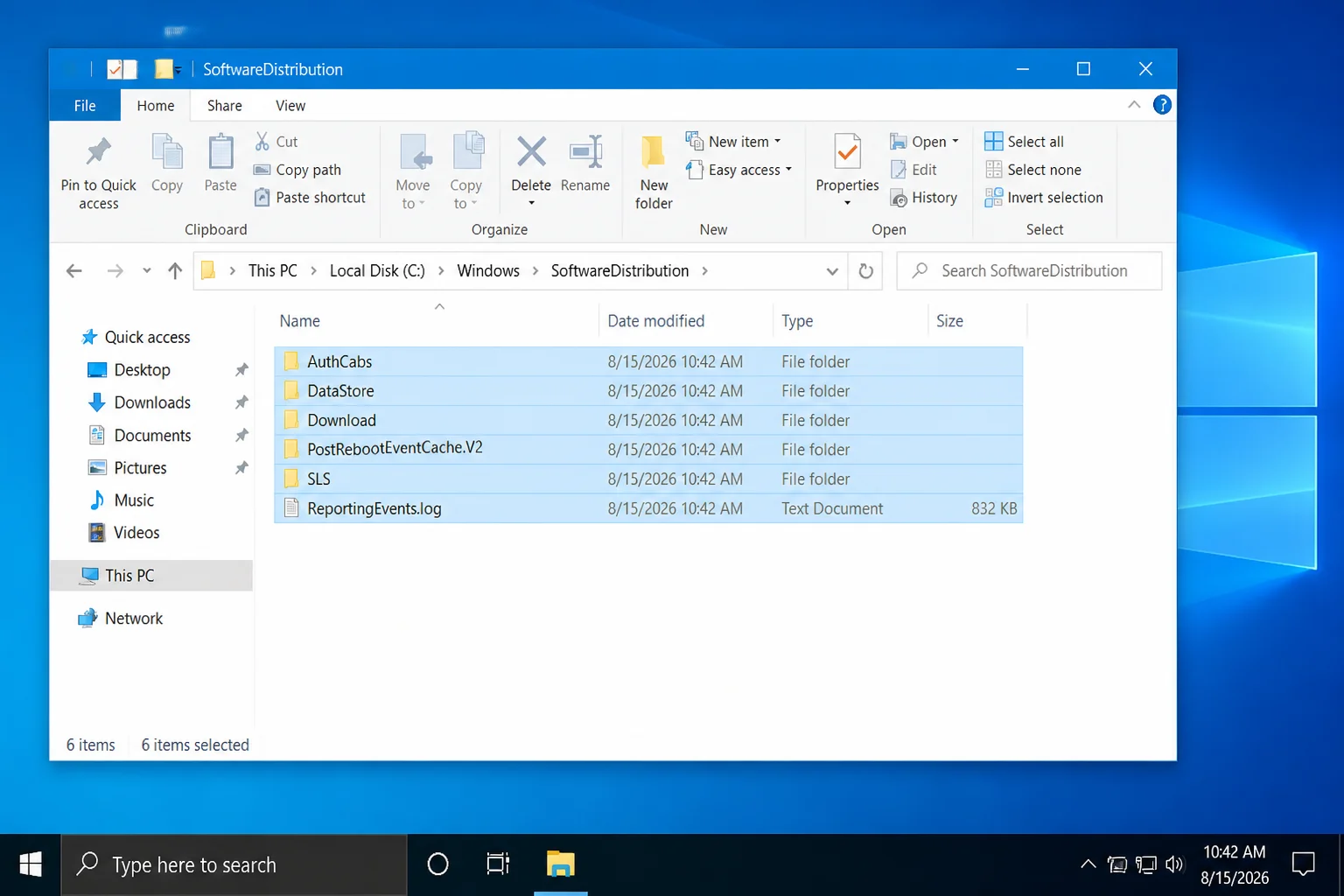
- Press
Ctrl + Ato select the folder’s contents.
- Press
Delete.
- Approve the administrator prompt if one appears. If Windows says a file is in use, restart and repeat the service-stop commands.
- Return to the administrator Command Prompt.
- Start the Cryptographic Services component:
net start cryptsvc- Start the Background Intelligent Transfer Service:
net start bits- Start the Windows Installer service:
net start msiserver- Start the Windows Update service:
net start wuauserv- Restart the PC.
- Open Windows Update and select Check for updates.
Use Services if a command will not stop Windows Update
- Press
Windows key + R.
- Enter
services.msc.
- Select OK.
- Find Windows Update.
- Right-click Windows Update and select Stop.
- Clear the contents of
C:\Windows\SoftwareDistribution.
- Return to Services.
- Right-click Windows Update and select Start.
Windows should create fresh files in C:\Windows\SoftwareDistribution when it downloads the update again. Clear only the folder’s contents. Don’t delete the SoftwareDistribution folder unless you’re renaming it while the services are stopped.
Fix #6: Run DISM and System File Checker
Problem: Updates still fail after you reset the cache.
Symptoms:
- Updates fail during installation instead of the download.
- Windows reports missing or damaged files.
- Error
0x80073712appears. - Other Windows tools also behave incorrectly.
Deployment Image Servicing and Management, or DISM, repairs the Windows component store. System File Checker then uses that store to replace damaged or missing protected files.
- Connect the PC to the internet. DISM may need Windows Update as a repair source.
- Open Start.
- Type
cmd.
- Select Run as administrator under Command Prompt.
- Select Yes.
- Run the DISM health scan and repair:
DISM.exe /Online /Cleanup-Image /RestoreHealth- Wait for DISM to reach 100%. It can pause at some percentages for several minutes, so leave the window open.
- Run System File Checker after DISM finishes:
sfc /scannow- Wait for the scan to finish.
- Restart Windows.
- Open Windows Update.
- Select Check for updates.
If SFC says it repaired corrupt files, restart before trying the update. If it couldn’t fix some files, run DISM and SFC once more before trying a manual install.
Fix #7: Download and Install the Update Manually
Problem: One KB update fails through Settings even though other updates work.
Symptoms:
- The same KB number appears after every retry.
- Windows Update downloads the package but can’t install it.
- A standalone package is available in the Microsoft Update Catalog.
- Other Windows Update tools work normally.
The Microsoft Update Catalog is Microsoft’s public source for standalone update packages. Skip third-party package sites. An unofficial file isn’t worth the risk.
On Windows: Find the KB number and architecture
- Open Windows Update:
– Windows 11: Settings > Windows Update > Update history – Windows 10: Settings > Update & Security > Windows Update > View update history
- Find the failed update.
- Write down its full KB number, such as
KB5034123. Use the number shown on your PC, not this example.
- Open Settings > System > About.
- Find System type under Device specifications.
- Note whether the PC uses an x64-based or ARM-based processor.
Most Intel and AMD PCs need x64 packages. Windows PCs with Snapdragon and other ARM processors need arm64 packages. Choose x86 only for a 32-bit Windows installation.
On the web: Find and download the package
- Open a browser.
- Visit the Microsoft Update Catalog.
- Enter the complete KB number in the search box.
KB5034123
- Select Search.
- Match the package title to your exact Windows release. Windows 11 packages don’t work on Windows 10. Packages for different Windows 11 releases may also differ.
- Match the architecture to System type:
– Choose x64 for an x64-based PC. – Choose arm64 for an ARM-based PC. – Choose x86 only for 32-bit Windows.
- Select Download beside the correct package.
- Select the
.msulink in the download window.
- Open the downloaded file.
- Approve the installer prompt.
- Follow the installation prompts.
- Restart Windows when asked.
- Return to Update history.
- Confirm that the KB appears under successfully installed updates.
The Catalog may show several packages with the same KB number. Don’t guess. Check both the Windows release and processor type before downloading.
Last-Resort Repair
Fix #8: Perform an In-Place Repair Upgrade
Problem: Windows Update still fails after cache, component, and system-file repairs.
Symptoms:
- Several unrelated updates fail.
- DISM or SFC can’t finish repairs.
- Windows components behave incorrectly.
- A feature upgrade keeps rolling back.
- Manual installation fails too.
An in-place repair upgrade reinstalls Windows system files. It keeps your files and installed apps when you choose the correct option. Back up important files first.
Try the built-in Windows 11 repair option
Some Windows 11 systems have a repair reinstall option in Windows Update. It’s the cleaner choice when available.
- Open Settings > System > Recovery. On some builds, you can also use Settings > Windows Update > Advanced options > Recovery.
- Look for Fix problems using Windows Update.
- Select Reinstall now if the option is available.
- Read the confirmation message.
- Keep the PC connected to power and the internet.
- Start the reinstall.
- Restart when Windows asks.
- Open Windows Update and check for updates again.
This option may be missing on Windows 10, managed PCs, or some Windows 11 builds. Use official installation media if you don’t see it.
Repair Windows with an ISO
- Create a backup of important files.
- Check your edition, version, and system type at Settings > System > About.
- Download Windows installation media from Microsoft:
– Download Windows 11 – Download Windows 10
- Choose media that matches the installed Windows language and edition.
- Let the ISO finish downloading.
- Right-click the ISO file.
- Select Mount.
- Open the new virtual DVD drive in File Explorer.
- Double-click
setup.exe.
- Select Yes at the User Account Control prompt.
- Follow the setup prompts.
- Select Change what to keep if Windows doesn’t show the correct choice.
- Select Keep personal files and apps.
- Confirm that the final setup screen says Keep personal files and apps before selecting Install.
- Start the repair installation.
- Keep the PC connected to power while it restarts several times.
- Sign in after setup finishes.
- Open Windows Update and select Check for updates.
Run setup.exe from your current Windows session. Booting from the installation USB or ISO opens a different setup path and may remove installed apps. Check for the exact words Keep personal files and apps before selecting Install.
Windows Update Error Messages and Codes
Write down the full code, KB number, Windows version, and the point where the failure occurs. Microsoft’s update documents place each code in a category, but one code can have several causes.
| Error message or code | Microsoft’s documented meaning | Best starting fix |
|---|---|---|
| “We couldn’t complete the updates. Undoing changes.” | Windows couldn’t finish installing an update and rolled back the changes. The message alone doesn’t identify one cause. | Restart, run the troubleshooter, and check free space. |
| “Failure configuring Windows updates. Reverting changes.” | Windows couldn’t configure the installed update and restored the prior state. | Restart, disconnect unneeded devices, and run the troubleshooter. |
0x80070070 | The device doesn’t have enough free disk space. | Use Fix #3 to free space. |
0x80073712 | A file needed by Windows Update is damaged or missing. | Run DISM and SFC in Fix #6. |
0x800F0922 | The PC may be unable to connect to Windows Update, or the System Reserved partition may need more free space. A VPN can also cause this error. | Disconnect a VPN, retry, then use Fix #6. Don’t resize partitions without a backup. |
0x80070002 | Windows can’t find one or more update files. | Clear the update cache with Fix #5, then retry. |
0xC1900101 | A driver caused the upgrade to fail. Codes starting with 0xC1900101 usually point to driver compatibility. | Update or remove the affected driver and disconnect unneeded hardware. |
0x80070020 | Another process is using a file that Windows Update needs. | Restart, close security or backup tools for the test, then retry. |
0x80240034 | Windows Update couldn’t install the update. This code doesn’t identify one hardware or settings fault. | Run the troubleshooter, reset the cache, or install the KB manually. |
Microsoft has broader references for Windows Update errors and Windows upgrade resolution procedures. Search Microsoft Support for the full code if it isn’t listed here.
Platform-Specific Issues
Fix #9: Check Windows-Specific Update Conditions
Windows Update repairs run inside Windows. The Catalog provides packages through a web browser. You can’t repair a Windows installation from macOS or a mobile device.
Windows 11
- Open Settings > Windows Update.
- Check whether Windows shows a compatibility hold. A safeguard hold means Microsoft blocked a feature update because of a known hardware, driver, or app fault.
- Don’t force a feature release while a safeguard notice is present.
- Install current driver and app updates.
- Check Windows Update again later.
A safeguard hold can look like another error. Forcing the release can cause the compatibility fault Microsoft is blocking.
Windows 10
- Open Settings > Update & Security > Windows Update.
- Select View update history to find failed packages.
- Use Additional troubleshooters instead of the Windows 11 Other troubleshooters path.
- Confirm that your Windows 10 release still gets updates from Microsoft. An unsupported release may not get routine security fixes.
Web: Microsoft Update Catalog
- Use the Catalog only for a known KB number.
- Match the Windows release in the package title.
- Match x64, arm64, or x86 to the System type shown by Windows.
- Download only from
catalog.update.microsoft.com.
- Return to Windows Update after installation and check the result.
Fix #10: Correct Settings and Hardware Conflicts
Problem: Repairs work for a short time, or a feature update keeps rolling back despite healthy update files.
Symptoms:
- The failure returns when a VPN or security tool runs.
- Setup stops after checking drivers.
- The PC has several USB devices connected.
- The date and time are wrong.
- A clean startup lets the update install.
A driver, VPN, device, or background program can block setup after the files pass their checks. Remove everything setup doesn’t need.
- Disconnect unneeded USB drives, printers, docks, and adapters.
- Disconnect any VPN before checking for updates.
- Open Settings > Time & language > Date & time.
- Turn on Set time automatically.
- Turn on Set time zone automatically, if available.
- Restart Windows.
- Retry the update.
- If it still fails, perform a clean boot to check for third-party conflicts:
1. Press Windows key + R.
2. Enter msconfig.
3. Select OK.
4. Open the Services tab.
5. Select Hide all Microsoft services. Don’t skip this step.
6. Select Disable all.
7. Open the Startup tab.
8. Select Open Task Manager.
9. Disable enabled third-party startup items one at a time.
10. Restart Windows.
11. Retry the update.
- Restore normal startup after testing:
1. Open msconfig again.
2. Select Normal startup on the General tab.
3. Re-enable the startup apps you need.
4. Restart Windows.
A clean boot is a temporary test. If the update works, re-enable services and startup apps in small groups. This will help you find the program causing the conflict.
Getting Help
Fix #11: Gather Logs and Contact Microsoft Support
Problem: Windows Update still fails, but the visible error doesn’t show the cause.
Another blind retry won’t tell you much. The update logs can show which package, driver, or setup stage failed.
- Record the full error code.
- Record the failed update’s KB number from Update history.
- Record the Windows edition, version, OS build, and System type from Settings > System > About.
- Press
Windows key + R.
- Enter
eventvwr.msc.
- Select OK.
- Open Applications and Services Logs > Microsoft > Windows > WindowsUpdateClient > Operational.
- Look for errors recorded when the update failed.
- Open an administrator PowerShell window.
- Generate a readable Windows Update log:
Get-WindowsUpdateLog- Find
WindowsUpdate.logon the desktop after the command finishes.
- For feature-upgrade failures, check these setup log locations:
– C:\$WINDOWS.~BT\Sources\Panther\setupact.log
– C:\$WINDOWS.~BT\Sources\Panther\setuperr.log
– C:\Windows\Panther\setupact.log
– C:\Windows\Panther\setuperr.log
- Contact Microsoft Support with the error code, KB number, Windows build, and failure stage.
- Remove personal details from logs before posting them in the Microsoft Community.
Repeated disk errors, sudden shutdowns, or files that become corrupt again can point to bad storage or memory. Run a full malware scan if security settings change by themselves or the update services keep getting disabled.
Prevention Tips
- Keep free space available: Microsoft doesn’t set one official minimum since requirements vary by release, but as a general guideline, leave at least 20-30 GB free on the system drive when possible, especially before a feature update.
- Restart regularly: A restart finishes pending service tasks and releases files held by running programs.
- Install driver updates carefully: Prefer drivers from Windows Update or the PC maker.
- Avoid unofficial update tools: Third-party “update repair” packages can change services or install the wrong files.
- Keep a current backup: Back up important files before feature upgrades and repair installs.
- Leave the PC powered: Connect laptops to AC power during large downloads and installs.
- Don’t interrupt an active install: Wait while disk activity continues, even if the percentage pauses.
- Check compatibility notices: Respect safeguard holds instead of forcing a feature update onto affected hardware.
- Review Update history: A repeated KB number can separate one bad package from a wider Windows fault.
Frequently Asked Questions
How long should I wait before deciding Windows Update is stuck?
Wait at least 30-60 minutes if the percentage doesn’t change. Keep waiting if Task Manager shows disk or network activity.
Large feature updates can take several hours on slower PCs. Restart if the percentage and activity haven’t changed for over an hour.
What should I try first when Windows Update fails?
Restart the PC, open Windows Update, and select Check for updates. If it fails again, run the Windows Update troubleshooter before clearing caches or using command-line repairs.
Where is the Windows Update troubleshooter?
On Windows 11, use Settings > System > Troubleshoot > Other troubleshooters > Windows Update > Run.
On Windows 10, use Settings > Update & Security > Troubleshoot > Additional troubleshooters > Windows Update > Run the troubleshooter.
Can pausing and resuming updates break a retry loop?
Yes. Pausing, restarting, and resuming can refresh an old download or restart state. It won’t repair damaged system files, so reset the cache if the loop returns.
Is it safe to clear the SoftwareDistribution folder?
It’s safe to clear the folder’s contents after stopping Windows Update and its related services. This removes cached downloads, not installed updates. Windows will download pending files again.
What do DISM and System File Checker repair?
DISM repairs the Windows component store used to maintain the system. System File Checker uses that store to replace damaged or missing protected files. Run DISM first, then run sfc /scannow.
How do I find the KB number of a failed update?
Open Update history from the Windows Update page and find the failed package. Its name usually includes a number starting with KB.
How do I choose between x64 and arm64 Catalog packages?
Open Settings > System > About and read System type. Choose x64 for an x64-based processor or arm64 for an ARM-based processor. The package must also match your Windows release.
Does an in-place repair upgrade keep files and applications?
It can if Windows Setup shows Keep personal files and apps. Run setup.exe from inside Windows and check that exact choice before selecting Install. Back up your files first.
Wrapping Up
| Step | Action | Applies To |
|---|---|---|
| 1 | Restart and retry | Stuck or one-time failures |
| 2 | Run the troubleshooter | Repeated general failures |
| 3 | Free disk space | Storage errors and feature updates |
| 4 | Pause and resume | Download or reboot loops |
| 5 | Reset the update cache | Repeated KB download failures |
| 6 | Run DISM and SFC | Damaged Windows components |
| 7 | Install from the Catalog | One specific failed KB |
| 8 | Run an in-place repair upgrade | Persistent system-wide failures |
A restart and the troubleshooter usually fix ordinary Windows Update failures. If one KB keeps retrying, clearing SoftwareDistribution is my pick. Test the drive and scan for malware if corruption returns after DISM, SFC, or a repair upgrade.
Last updated: 2026-08-15 | Applies to Windows Update on Windows 10, Windows 11, and the Microsoft Update Catalog