

Microsoft Teams on Windows 11 can get stuck in two ways: it keeps sending you back to the sign-in screen, or it opens to a blank white or gray window that never loads your chats.
Common troubleshooting suspects include the local cache (which Microsoft documents how to clear), a stale saved sign-in, the WebView2 runtime, your network, or your organization’s account policy. Some of these are documented fixes and others are reasonable hypotheses to rule out, so start with the quick check below and then work through the fixes in order.
| Symptom | Likely Cause | Recommended Fix |
|---|---|---|
| Teams asks you to sign in over and over | Corrupted cache or stale sign-in token | Fix #1 (Reset), then Fix #2 (delete cache) |
| Teams opens to a blank white or gray window | Bad app data or possibly a broken WebView2 runtime | Fix #1, then Fix #3 (WebView2) |
| You cleared the cache and nothing changed | You cleared the wrong folder for your Teams version | Fix #2, using the path for your version |
| Sign-in never finishes and the clock looks wrong | Wrong date, time, or time zone | Fix #4 |
| Your work account loops, but your personal account works | Your organization’s security policy | Contact IT (see below) |
| You need to join a meeting right now | Any of the above | Use the Teams web app |
Is It a Teams Outage or a Problem With Your PC?
Test this first. It’s quick, and it keeps you working while you troubleshoot.
- Open a private window in your browser. In Microsoft Edge, press
Ctrl + Shift + N. - Go to
teams.microsoft.comand sign in with the same account. - Check the result:
- If the web app works, your account can sign in through the web, so the desktop app’s cache, installation, or device setup is a reasonable place to look next. Continue with Fix #1.
- Device policy or network differences between the web and desktop clients are also possible, so move on to the IT section below if the fixes in this guide don’t help.
- If the web app also fails, first check whether Teams is having a wider outage (your organization’s service health page or IT status channel, if you have one) and try another network or browser. If it still fails with a work or school account, the cause may be on your organization’s side. Skip to the IT section below.
A private window matters because it ignores any saved browser sign-ins that could hide the real result. If the web app works for you, you can usually stay in it for meetings and chats until the desktop app works again. It needs a supported browser such as current Edge or Chrome, and some features can differ from the desktop app or be limited by your organization’s policy.
How to Fix Microsoft Teams Login Loop or Blank Screen on Windows 11
Start by quitting Teams completely. Closing the window isn’t enough, because Teams keeps running in the background.
- Click the ^ arrow on the taskbar to show the notification area.
- Right-click the Teams icon and choose Quit.
This guide covers new Teams, the current Teams desktop app for Windows 11. Depending on your Windows image, organization, and deployment policy, it may be preinstalled, installed by IT, or installed from the Microsoft Store. Microsoft lists its releases in the Teams app version history.
Microsoft treats support and availability as separate milestones for classic Teams. Its end of support came on July 1, 2024, when Microsoft stopped providing updates and technical support. Its end of availability came on July 1, 2025, when Microsoft stopped making the classic client available, so it shouldn’t be used as a working Teams client today.
Classic Teams isn’t a repair target anymore. If an old classic Teams entry still shows up under Settings > Apps > Installed apps, uninstall it and use new Teams instead of trying to fix it.
Fix #1: Reset Teams From Windows Settings
This is the safest first repair. It clears Teams’ local app data with a built-in Windows control, so you don’t have to find any folders. You will need to sign in again afterward.
- Quit Teams from the notification area as described above.
- Open Settings > Apps > Installed apps.
- Type
Teamsin the search box. - Next to Microsoft Teams, select the … (More options) button and choose Advanced options.

- Scroll down to the Reset section. If you see a Repair button, try it first. In Windows, Repair generally tries to fix an app without removing its data, while Reset clears it.
- If Repair doesn’t help, select Reset, then select Reset again to confirm.
- Open Teams and sign in.
To check that it worked: Teams should load your chats and teams after one sign-in. If you see the sign-in screen again, or the window stays blank, go to Fix #2.
Fix #2: Delete the Teams Cache Folder Manually
If Reset doesn’t help, delete the new Teams cache files yourself. Microsoft documents both cache locations in Clear the Teams client cache.
The new Teams cache lives in %userprofile%\appdata\local\Packages\MSTeams_8wekyb3d8bbwe\LocalCache\Microsoft\MSTeams. Microsoft documents the older %appdata%\Microsoft\Teams folder as the classic Teams cache path, so clearing it isn’t the documented way to reset new Teams.
- Quit Teams from the notification area.
- Press
Windows + Rto open the Run dialog. - Paste
%userprofile%\appdata\local\Packages\MSTeams_8wekyb3d8bbwe\LocalCache\Microsoft\MSTeamsand pressEnter.
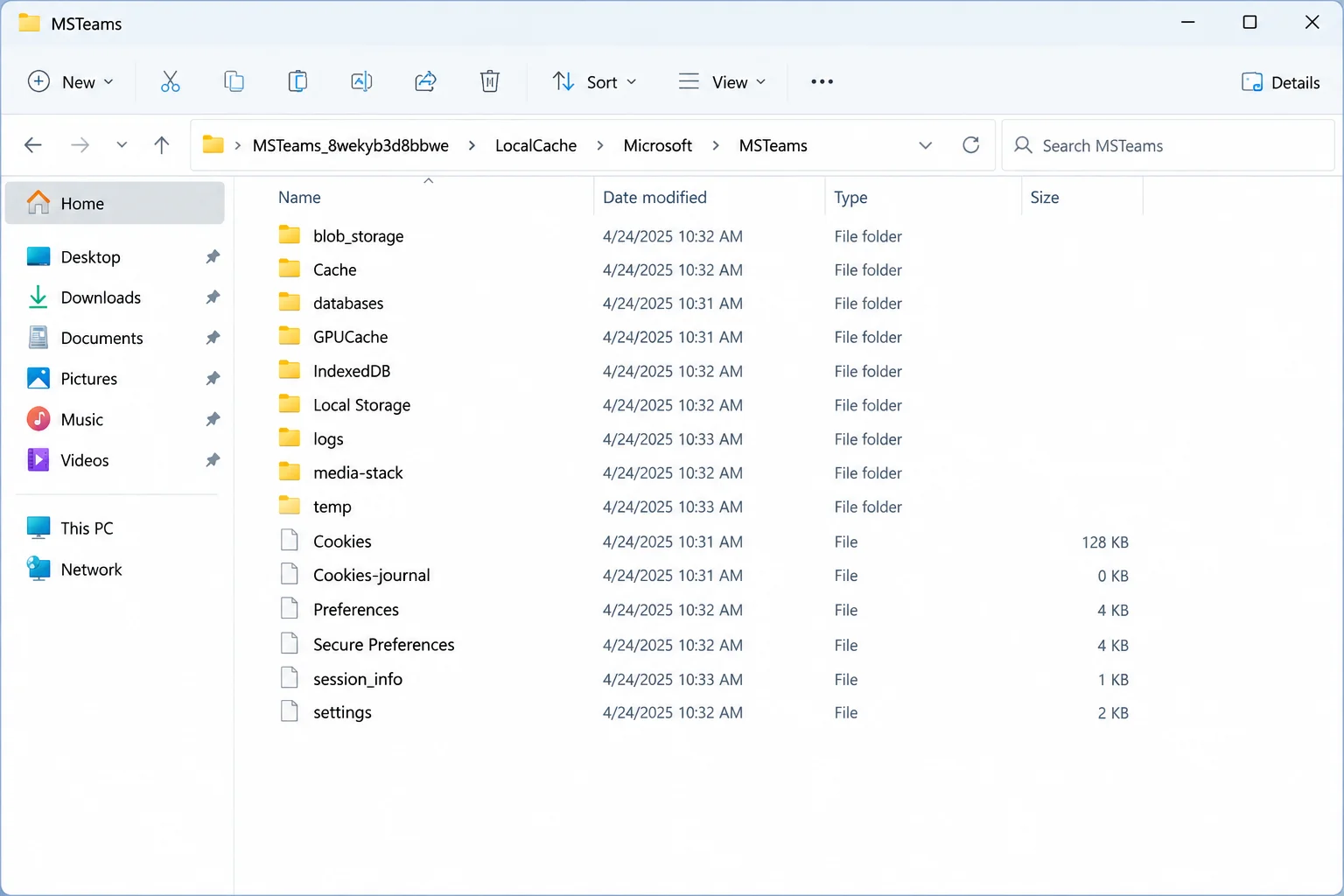
- Press
Ctrl + Ato select everything in the folder. - Press
Delete. - Open Teams and sign in.
If Windows says a file is in use, Teams is still running. Open Task Manager with Ctrl + Shift + Esc, end any Microsoft Teams tasks, and try again.
To check that it worked: The first launch after clearing the cache can take longer than usual. After that, Teams should load normally.
Fix #3: Check and Repair the WebView2 Runtime
New Teams is built on Microsoft Edge WebView2, a browser engine that apps use to display web-based interfaces; you never open it yourself. That dependency is part of how new Teams is built, but Microsoft hasn’t published a Teams-specific link between WebView2 problems and blank screens. Treat a missing or damaged WebView2 Runtime as an inferred possibility to rule out, not a documented cause.
Checking it takes a minute and is worth doing if Fix #1 and Fix #2 didn’t clear the blank window.
- Open Settings > Apps > Installed apps.
- Type
WebView2in the search box. - Look for the entry named Microsoft Edge WebView2 Runtime.
- If the entry is there, select … and look for a Modify or Repair option; the exact wording can vary by Windows 11 build. Run the repair option if one appears.
- If the entry is missing, or no repair option appears, download the Evergreen WebView2 Runtime installer from Microsoft’s official WebView2 page and run it.
- Restart your PC, then open Teams.
To check that it worked: The Teams window should now show the sidebar, chats, and menus instead of an empty frame.
Fix #4: Correct Your PC’s Date, Time, and Time Zone
Sign-in tokens have a validity period, and a badly wrong date, time, or time zone on your PC can, in some cases, make sign-in fail or behave unpredictably. We haven’t found Microsoft documentation that ties this specifically to Teams sign-in loops, so treat it as a quick check to rule out rather than a known Teams cause.
- Open Settings > Time & language > Date & time.
- Turn on Set time automatically.
- Turn on Set time zone automatically. If you’d rather set the time zone yourself, pick the correct one from the list.
- Under Additional settings, select Sync now.
- Quit Teams completely, open it again, and sign in.
To check that it worked: The taskbar clock should match the real local time. If the clock was the problem, sign-in should now finish; if it still loops, the cause is elsewhere, so continue with Fix #5.
Fix #5: Remove Saved Teams Sign-In Entries in Credential Manager
Windows can hold on to an old saved sign-in even after you reset Teams. Clearing saved credentials tied to your Microsoft account is a general troubleshooting step that may help force a fresh sign-in.
Microsoft doesn’t publish an official list of which stored credential names specifically affect Teams, so treat this as a general step rather than a guaranteed fix.
- Quit Teams.
- Press
Windows + S, typeCredential Manager, and open it. - Select Windows Credentials.
- Look only for entries whose names clearly include Teams. Entry names vary from PC to PC, and Microsoft doesn’t publish a list of which ones new Teams uses. Don’t remove entries just because they contain your email address, and leave generic Microsoft, Office, and identity entries alone: Outlook, OneDrive, and Windows sign-in may rely on them, and removing them can force re-sign-in or break other apps.
- Expand one Teams-named entry at a time and select Remove. If you don’t see any clearly Teams-named entry, skip this fix.
- Restart your PC, open Teams, and sign in.
Only remove entries you recognize. If your PC is managed by work or school, check with IT before you delete credentials in bulk.
Fix #6: Uninstall and Reinstall Teams
This is the most invasive fix, so save it for last.
- Open Settings > Apps > Installed apps.
- Select … next to Microsoft Teams and choose Uninstall.
- If an old classic Teams install was also on the PC, uninstall it too. You can then delete the leftover
%appdata%\Microsoft\Teamsfolder as cleanup. - Restart your PC.
- Reinstall Teams from the Microsoft Store or from Microsoft’s official Teams download page.
- Sign in.
For more problems with the app failing to start, see our guide on Teams not opening in Windows 11.
Work or School Account Still Loops? Stop and Contact IT
If your personal Microsoft account signs in fine, but your work or school account keeps looping after Fixes #1–#5, the cause may be an account, tenant, or device policy that only your IT team can check.
Many organizations use conditional access policies through Microsoft Entra ID (formerly Azure AD). These are rules your IT team sets, such as “only allow sign-ins from registered, company-approved devices.” If your PC doesn’t meet a rule, the sign-in gets blocked. Sometimes that shows an explicit error or an extra verification prompt; other times it can look like a login loop.
You can’t change these policies from Windows Settings, and you shouldn’t try. Send your IT help desk this information:
- Your account email address
- The Teams version you’re running
- Whether the web app at
teams.microsoft.comworks in a private window - The exact error text, or a screenshot of the loop
- The fixes you’ve already tried
Administrators with the right Entra and device-management access can check your device registration and policy status, so your help desk may need to escalate. An answer on Microsoft’s Q&A forum about Teams sign-in loops likewise suggests contacting your admin when cache and reset steps don’t fix a managed account; that’s community-forum guidance, not official product documentation.
Common Mistakes When Clearing the Teams Cache
| Mistake | What happens | Correct approach |
|---|---|---|
Clearing the old %appdata%\Microsoft\Teams folder | The new Teams cache stays in place | Use the MSTeams_8wekyb3d8bbwe path for new Teams |
| Deleting the cache while Teams is running | You get “file in use” errors, or the cache is only partly cleared | Quit Teams from the notification area first |
| Closing the window instead of quitting | Teams keeps running in the background | Right-click the Teams icon and choose Quit |
| Reinstalling first | Takes longer and may leave the bad cache behind | Start with Fix #1 |
Prevention Tips
- Keep automatic time sync on. If your clock keeps drifting after the PC is fully powered off, the motherboard’s CMOS battery may be failing.
- Keep the WebView2 Runtime current. The Evergreen WebView2 Runtime normally updates itself, although on managed PCs your organization’s policy or installer channel can control those updates. If it looks broken, reinstall it from Microsoft’s official WebView2 page as described in Fix #3, or ask IT on a managed PC.
- Bookmark
teams.microsoft.com. It’s your backup when the desktop app breaks just before a meeting.
Frequently Asked Questions
Where is the Teams cache folder on Windows 11?
For new Teams, it’s %userprofile%\appdata\local\Packages\MSTeams_8wekyb3d8bbwe\LocalCache\Microsoft\MSTeams.
How do I reset Microsoft Teams without reinstalling it?
Go to Settings > Apps > Installed apps > Microsoft Teams > … > Advanced options, then select Reset. This keeps the app installed and clears its local data.
What is WebView2 and why does Teams need it?
WebView2 is a Microsoft Edge-based browser engine that apps use to display web-based interfaces, and new Teams is built on it. If Teams opens to a blank window, Fix #3 shows how to check and repair it.
Can my computer’s clock really break Teams sign-in?
Possibly. Sign-in tokens have validity periods, so a badly wrong date, time, or time zone can interfere with sign-in in some cases. We haven’t found Teams-specific documentation for this scenario, so treat it as a quick check rather than a likely cause.
Why does my work account loop but my personal account works?
It may be an organization-side cause, such as a security policy that blocks unrecognized devices, but account configuration, tenant service issues, device registration, network rules, or client differences can also produce this symptom. Your IT team can check those from their side.
Wrapping Up
Start with Fix #1 (the Settings Reset) and Fix #2 (deleting the new Teams cache). Microsoft describes cache clearing as a targeted fix for certain local client problems rather than a cure-all, so if the problem persists, work through the other fixes in order.
Use the web app in the meantime if you need to keep working.
If a work account still loops after all of this, stop troubleshooting and contact IT.
| Step | Action | Applies To |
|---|---|---|
| 1 | Reset in Settings | New Teams |
| 2 | Delete the new Teams cache folder | New Teams |
| 3 | Repair WebView2 | New Teams |
| 4 | Fix date, time, and time zone | New Teams |
| 5 | Remove Teams-named saved credentials | New Teams |
| 6 | Reinstall | New Teams |
| Contact IT | Managed work or school accounts |
Last updated: November 4, 2026 | Applies to new Microsoft Teams on Windows 11