

Microsoft Teams won’t open: you click the icon and nothing happens, a window flashes and vanishes, or Teams sits on the loading screen with a meeting starting in five minutes. On your own PC, the new Teams app often fails because of a hidden background process, a corrupted local cache, or a broken WebView2 component, and you can fix all three yourself.
Quick diagnosis
Run these checks before the fixes below. They take about two minutes and often point straight at the right fix.
- Open Teams in your browser. Go to
teams.microsoft.comfor a work or school account, orteams.live.comfor a personal account. If the web app works, your account can sign in, and the desktop app is the most likely problem. If the web app fails too, jump to Fix #3. - Confirm which Teams you have. Press
Windows + Iand go to Apps > Installed apps. Search for “Teams”. The current app is listed as Microsoft Teams. - Remove classic leftovers. Microsoft Teams classic is retired. If you see Microsoft Teams classic or Teams Machine-Wide Installer in the list, click the … menu next to each one and select Uninstall. Old shortcuts and the machine-wide installer can still launch or reinstall the retired app, which then refuses to start.

Your chats, channel messages, meeting recordings, and shared files live in Microsoft’s cloud. None of the fixes below delete them. You may have to sign in again after some of them, so keep your password and your authenticator app handy.
Symptom, likely cause, and fix
| What you see | Likely cause | Start with |
|---|---|---|
| Nothing happens when you click the icon | Hidden ms-teams.exe process still running, or a classic Teams leftover | Quick diagnosis, Fix #1 |
| A window flashes, then closes | Corrupted app data or a damaged WebView2 Runtime | Fix #4, Fix #6, Fix #7 |
| Stuck on the loading screen | Service outage, network or proxy block, or stale cache | Fix #3, Fix #6 |
| Sign-in loop, or it keeps asking for your password | Stale saved credentials or an account policy problem | Fix #8 |
0xCAA20004: request not approved | Your organization hasn’t approved the sign-in request | Contact your IT admin |
0xCAA20003: authorization problem | Wrong date and time on your PC | Fix the clock in Settings > Time & language > Date & time, then Fix #8 |
0xCAA82EE7: server name not resolved | No working internet connection | Fix #3 |
0xCAA82EE2: request timed out | Firewall, proxy, or antivirus blocking sign-in | Fix #3 and the security software note below |
0xCAA90018: wrong credentials | Incorrect email or password, or a stale saved login | Check your credentials, then Fix #8 |
Fixes for Microsoft Teams not opening
Fix #1: End the hidden ms-teams.exe process
Closing the Teams window doesn’t always close Teams. A frozen ms-teams.exe process keeps running in the background, and every time you click the icon, Windows hands the request to that stuck copy instead of starting a fresh one.
- Press
Ctrl + Shift + Escto open Task Manager. - On the Processes tab, type
teamsin the search box at the top. - Right-click Microsoft Teams and select End task. Repeat for any other Teams entries.
- Open Teams from the Start menu.
If Task Manager won’t let go of it, open Command Prompt and run taskkill /f /im ms-teams.exe. You should see “SUCCESS: The process “ms-teams.exe” with PID … has been terminated.”
What it deletes: Nothing. It only stops the running app. Verify: Teams opens to your chat list within about 30 seconds.
Fix #2: Restart your PC
A restart clears stuck background processes, pending update installs, and locked files that Task Manager can’t reach. Save any open work first.
- Click Start > Power > Restart.
- Wait for Windows to finish loading.
- Open Teams.
Use Restart, not Shut down. With Fast Startup turned on, shutting down and powering back on doesn’t fully reset Windows.
What it deletes: Nothing. Verify: Teams launches without hanging on the splash screen.
Fix #3: Check Microsoft 365 service status and your connection
If Teams fails in the browser too, the problem sits outside your PC. It’s either Microsoft’s servers, your network, or your account.
- Ask a coworker whether Teams works for them. If nobody on your team can connect, the cause is likely a service outage or a shared network, proxy, or account-policy problem rather than your PC.
- If you’re an admin, open the Microsoft 365 admin center and go to Health > Service health to see active Teams incidents.
- Check Downdetector for a spike in Teams reports.
- Open a few other websites. If they’re slow or failing, restart your router and reconnect.
- If you’re on Wi-Fi and the connection is flaky, plug in an Ethernet cable and try again.
What it deletes: Nothing.
Verify: Teams loads in the browser at teams.microsoft.com or teams.live.com. Once it does, return to the desktop app.
Fix #4: Repair Microsoft Teams in Settings
Windows has a built-in repair for the new Teams app. Still stuck after the first three fixes? Start here before deleting anything by hand.
- Press
Windows + Ito open Settings. - Go to Apps > Installed apps.
- Find Microsoft Teams, click the … menu, and select Advanced options.
- Scroll to the Reset section and click Repair.
- Wait for the check mark to appear next to the button, then open Teams.
The exact labels can differ slightly between Windows builds. On some work-managed PCs, Advanced options is hidden entirely. If you can’t find it, skip to Fix #6.
What it deletes: Usually nothing. Repair keeps app data, so you’ll typically stay signed in, but some setups ask you to sign in again afterward. Verify: Teams opens and loads your chats.
Fix #5: Reset Microsoft Teams
Reset goes further than Repair. It wipes the app’s local data and returns Teams to a fresh-install state.
- Go back to Settings > Apps > Installed apps > Microsoft Teams > Advanced options.
- Click Reset.
- Click Reset again in the confirmation pop-up.
- Open Teams and sign in.
What it deletes: Local app data, including your sign-in session and local settings such as notification preferences and theme. Verify: Teams shows the sign-in screen, and after you sign in, it loads normally.
Fix #6: Clear the new Teams cache manually
If Repair and Reset aren’t available, or Teams still flashes and closes, delete the cache yourself. Microsoft Learn’s troubleshooting documentation for new Teams lists this cache location.
- Quit Teams completely (see Fix #1).
- Press
Windows + Rto open the Run dialog. - Paste this path and press Enter:
%userprofile%\appdata\local\Packages\MSTeams_8wekyb3d8bbwe\LocalCache\Microsoft\MSTeams
- Press
Ctrl + Ato select everything in the folder. - Press
Delete. - Open Teams and sign in.
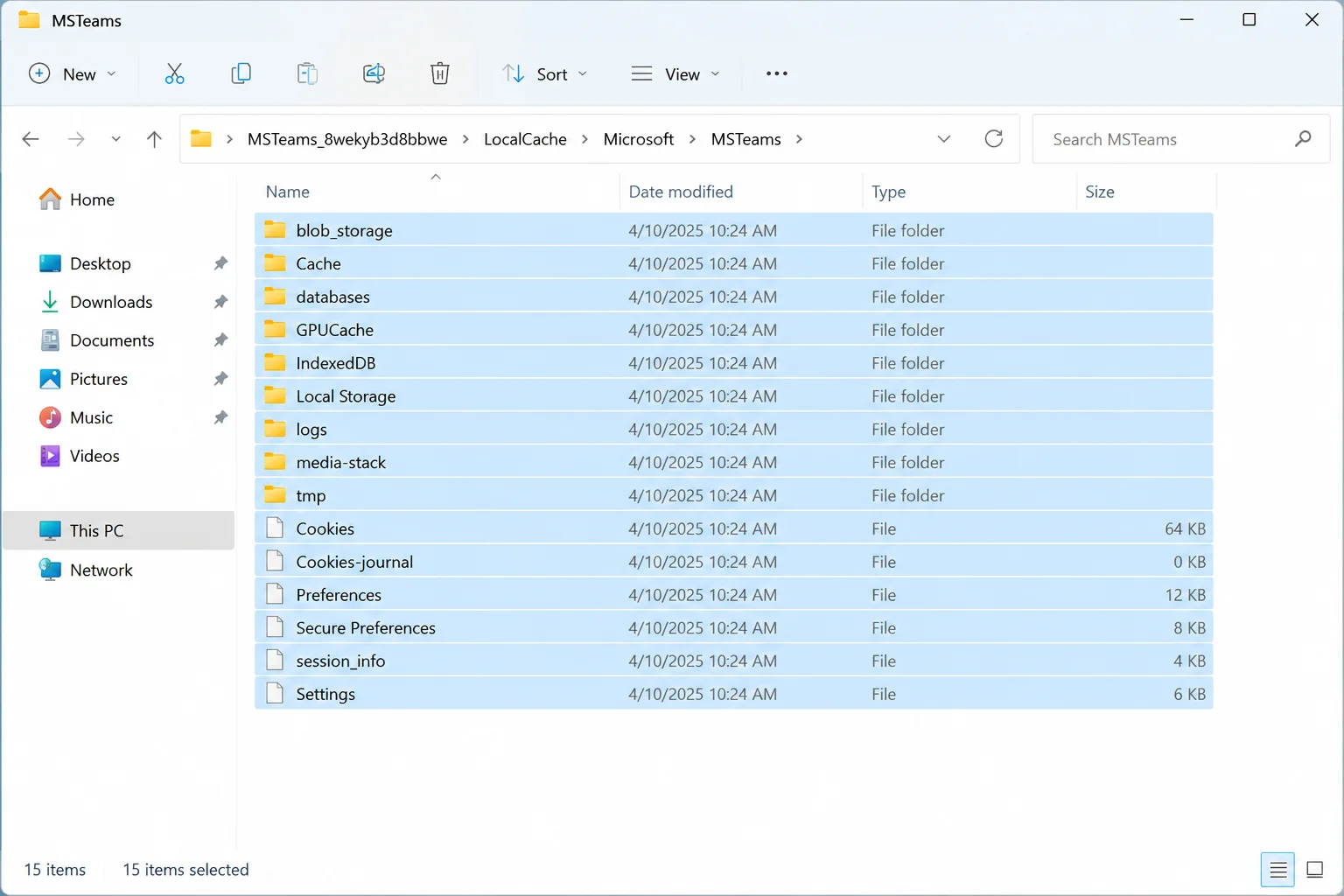
If Windows says a file is in use, close Outlook and end any leftover Teams processes, then try again. Outlook’s Teams meeting add-in sometimes holds these files open.
The old %appdata%\Microsoft\Teams folder belongs to classic Teams. Clearing it won’t help the new app.
What it deletes: Temporary local files and your sign-in session for Teams. Verify: Teams rebuilds the cache on launch. The first start is a little slower, then it should load normally.
Fix #7: Update Teams, Windows, and repair WebView2
Teams relies on the Microsoft Edge WebView2 Runtime to display much of its interface. A damaged WebView2 install is a common reason Teams shows a blank white window or closes on launch. New Teams also needs Windows 10 build 19041 or later as a minimum.
- Press
Windows + Iand go to Windows Update. - Click Check for updates and install everything available, then restart.
- Go to Settings > Apps > Installed apps.
- Find Microsoft Edge WebView2 Runtime, click the … menu, and select Modify.
- Click Repair in the window that opens and wait for it to finish.
- Open Teams.
If Teams opens, update it too. Click Settings and more (the … next to your profile picture) and select Check for updates. The label and its position vary between Teams releases. Microsoft publishes build numbers on its Teams app version history page if you want to compare yours.
What it deletes: Nothing. It repairs damaged WebView2 files and installs any pending updates. Verify: Teams draws its full interface instead of a blank or white window.
Fix #8: Clear saved Teams credentials in Credential Manager
Stuck in a sign-in loop? Why isn’t your password sticking? Windows may be handing Teams an expired saved token. Clearing the Teams entries forces a fresh sign-in, although work accounts can also depend on other Microsoft sign-in components that IT manages.
- Quit Teams.
- Press
Windowsand type Credential Manager, then open it. - Click Windows Credentials.
- Under Generic Credentials, expand entries whose names mention Teams or
msteams. - Click Remove on each Teams entry and confirm.
- Open Teams and sign in again, completing multifactor authentication if prompted.
Be careful here. Entries named for Microsoft Office or your work account are often shared with Outlook, OneDrive, and Word. Removing those signs you out of every Microsoft 365 app on the PC, including Teams. Stick to the Teams-named entries first.
Also check Settings > Accounts > Access work or school for old organizational accounts you no longer use. Disconnect them only if your IT team allows it.
What it deletes: Saved sign-in tokens. Nothing in your account. Verify: Teams asks for your credentials once, then stays signed in after you quit and reopen it.
Fix #9: Uninstall and reinstall Microsoft Teams
This is the last resort. It replaces every local Teams file.
- Go to Settings > Apps > Installed apps.
- Find Microsoft Teams, click the … menu, and select Uninstall. Remove Microsoft Teams classic and Teams Machine-Wide Installer too if they’re still there.
- Restart your PC.
- Download the current Teams installer from Microsoft’s official Teams download page or the Microsoft Store. Skip third-party download sites.
- Run the installer, leaving the install location at its default.
- Open Teams and sign in.
On a work computer, Teams may be installed through Intune, Company Portal, or another management tool. A manual reinstall might be blocked or undone by policy, so reinstall from Company Portal or ask IT.
What it deletes: The app and all local Teams data. Verify: Teams opens to the sign-in screen and loads your chats after you sign in.
Check VPN, proxy, and security software
VPNs, proxies, and third-party antivirus can block Teams from reaching Microsoft’s servers, which usually shows up as endless loading or 0xCAA82EE2. Turn off your VPN briefly and try again. Corporate proxies, DNS filtering, and your organization’s sign-in policies can cause the same symptoms. On a work PC, don’t disable corporate security tools yourself. Ask IT to check the firewall, proxy, and endpoint-protection logs.
On a Mac
The same logic applies on macOS, but the steps are shorter:
- Control-click the Teams icon in the Dock and select Quit.
- If it won’t close, press
Option + Command + Esc, select Microsoft Teams, and click Force Quit. - Install pending macOS updates in System Settings > General > Software Update.
- If Teams still won’t open, drag it from Applications to the Trash, restart, and install the current Teams package from Microsoft. Dragging the app to the Trash can leave its support files behind, and on a work-managed Mac, IT may reinstall Teams automatically, so check with them first.
When the fixes don’t work
If Teams fails on the desktop and in the browser, and coworkers can sign in fine, the problem is tied to your account. An admin needs to check licensing, Conditional Access, device compliance, and sign-in logs. Give IT your Windows version, Teams version, whether the web app works, the exact error message, and roughly when it started. Until then, the web app at teams.microsoft.com keeps you in meetings.
Conclusion
Start with the quick wins: ending the hidden ms-teams.exe process (Fix #1) or running Repair (Fix #4), then clearing the cache (Fix #6). If Teams breaks again every few days, suspect a leftover classic install or a damaged WebView2 Runtime, and do the full reinstall in Fix #9. Once Teams is back, our Microsoft Teams Video Conference Guide walks you through checking your headset and webcam before your next call.