
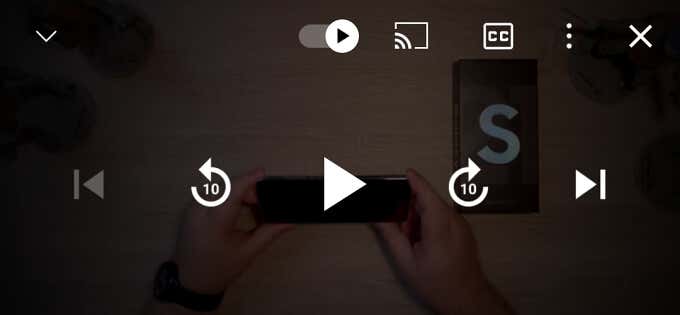
YouTube automatically hides the overlay buttons (pause, play, fast-forward, and rewind) when you play a video. If the buttons show up, tapping a blank space on the video player hides the buttons in the background. But that isn’t the case for some YouTube users.
For instance, in this YouTube Community thread, many users can’t get the pause button off their screens when watching videos. We’ll explain why YouTube’s pause button is not disappearing and six ways to resolve the problem.
Why Is YouTube’s Pause Button Not Disappearing?
Several factors cause YouTube not to hide the overlay buttons when playing videos. Sometimes, the problem could be due to a temporary glitch on your device or the YouTube app. We also discovered that your device’s accessibility settings could also impact how YouTube manages the overlay buttons.
Listed below are some troubleshooting steps that’ll help fix the YouTube pause button not disappearing issue.
1. Force Close the YouTube App
Forcefully closing YouTube is sometimes sufficient to restore the overlay buttons’ behavior, especially if the issue is due to a temporary disruption. Try and see if it helps.
Force Close YouTube on iOS
On your iPhone or iPad, swipe up from the bottom of the screen and pause when a preview of recently-used apps shows up on the screen. For devices with a Home button, double-clicking the Home button will reveal active applications. Locate YouTube and swipe up on the app’s preview.
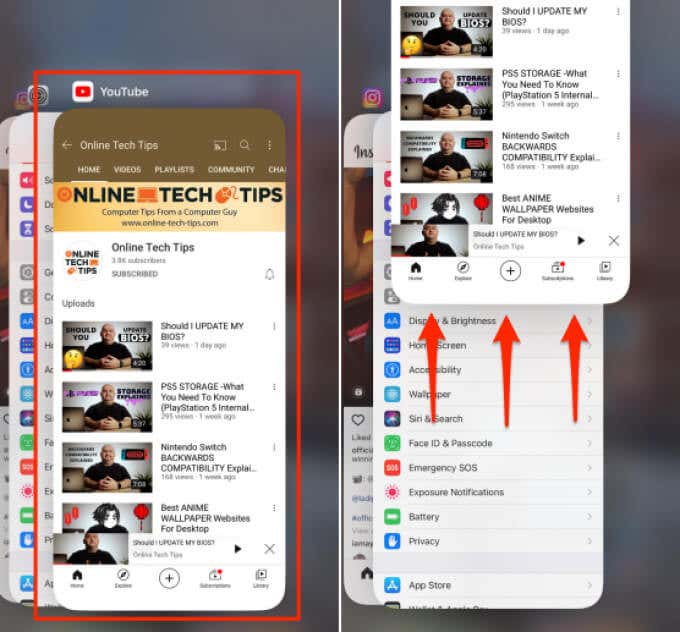
Re-open YouTube, play a video, and check if that resolves the issue.
Force Close YouTube on Android
Unlike iOS, Android ships with a dedicated “Force Stop” functionality that permanently terminates an app in the background. Here’s how to forcefully close YouTube on your Android device.
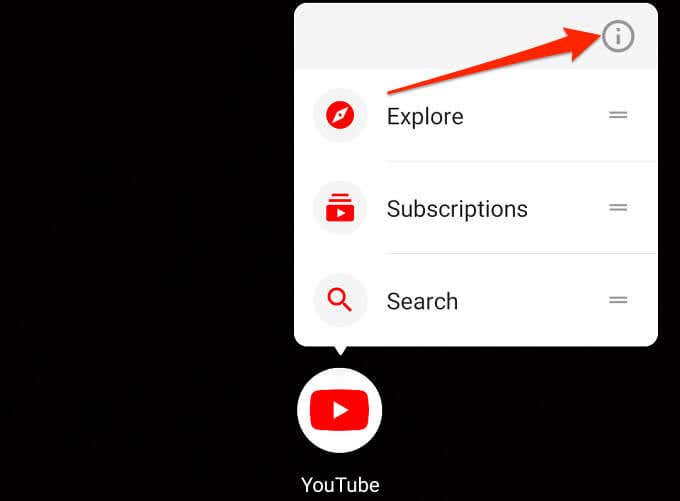
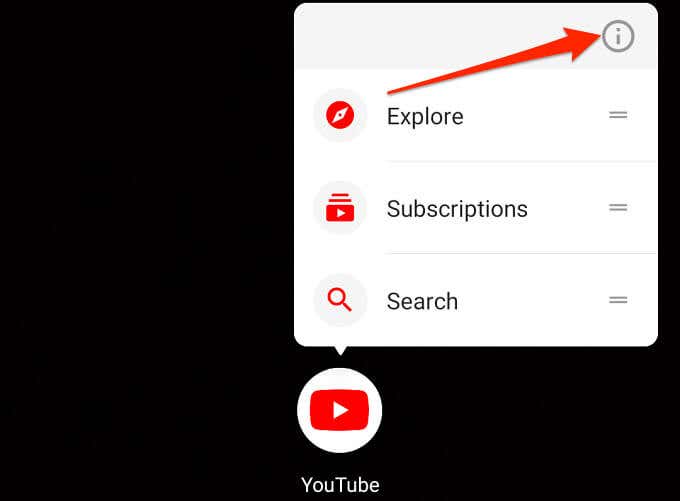
- Hold the YouTube icon and tap the info 🛈 icon.
- Tap the Force Stop icon.
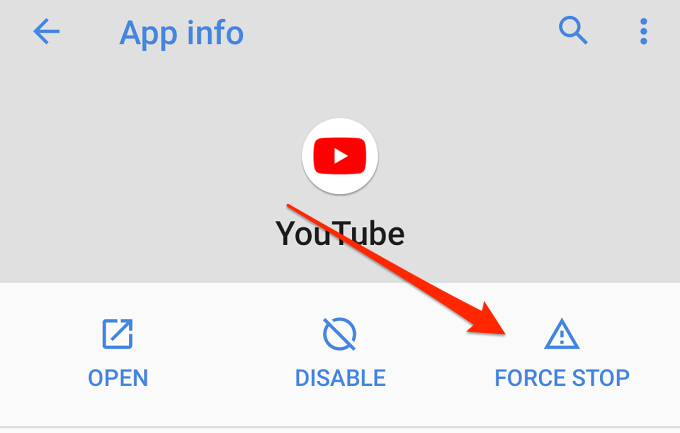
- Select OK on the confirmation prompt to proceed.
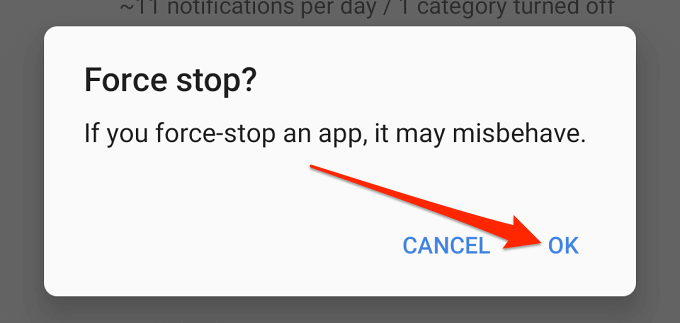
- Afterward, tap Open to relaunch YouTube.
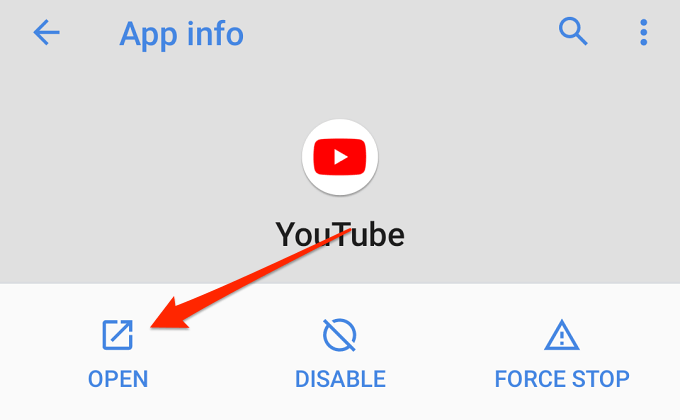
Check if YouTube now hides the pause button when you play a video or tap the player’s screen.
2. Change YouTube’s Accessibility Settings (Android Only)
The Android Accessibility menu contains tools that allow users to modify how they interact with on-screen elements on their devices—particularly people with visual, hearing, speech, and physical disabilities.
The YouTube mobile app for Android devices also has an Accessibility option that lets users with disabilities easily control video playback. When enabled, the player controls stay on the screen permanently.
There are two things you can do to make the overlay buttons fade into the background:
- Disable the player’s Accessibility option.
- Configure YouTube to hide the player controls after a fixed period.
We’ll show you how to do both.
Disable Accessibility Player for YouTube (Android Only)
As mentioned earlier, only the Android version of the YouTube app comes with a built-in Accessibility option in the settings menu. Here’s how to make the YouTube pause button (and other controls) disappear during playback:
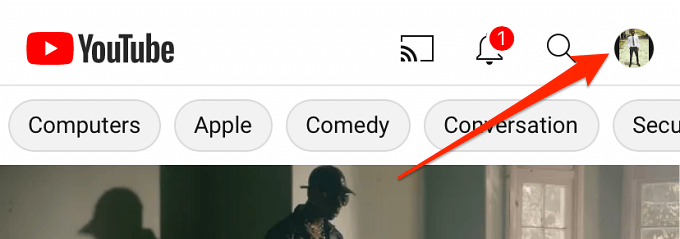
- Launch YouTube and tap the profile picture or avatar at the top-right corner.
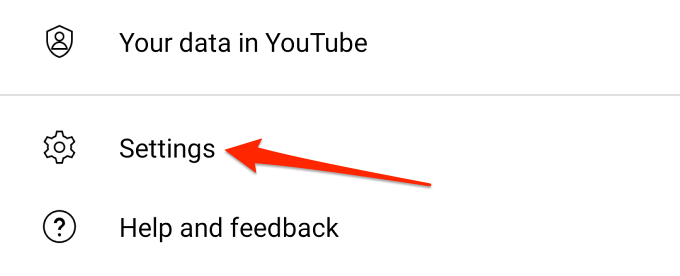
- Select Settings.
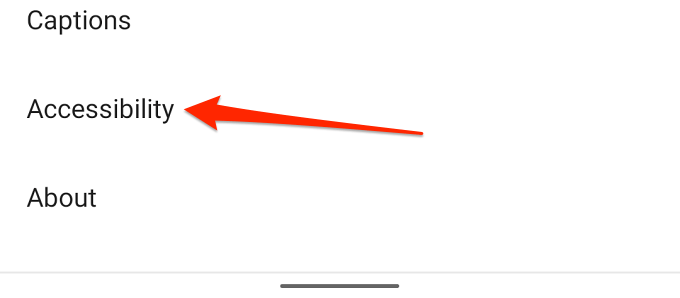
- Select Accessibility.
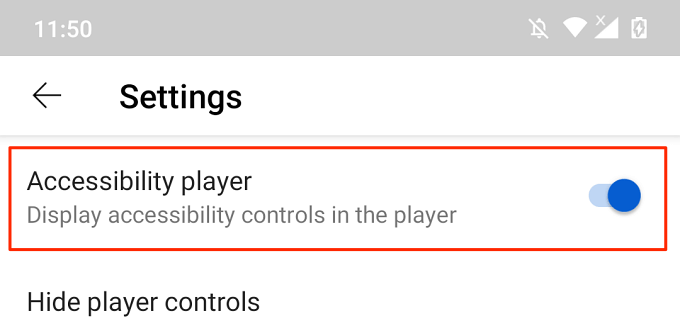
- Toggle off the Accessibility player option.
Disable Accessibility Player for YouTube (Android Only)
Say you use the Accessibility feature, but you also don’t want the player controls glued to the screen while watching videos. What to do? Simply set a timeout for the player controls within YouTube or from your device’s settings menu.
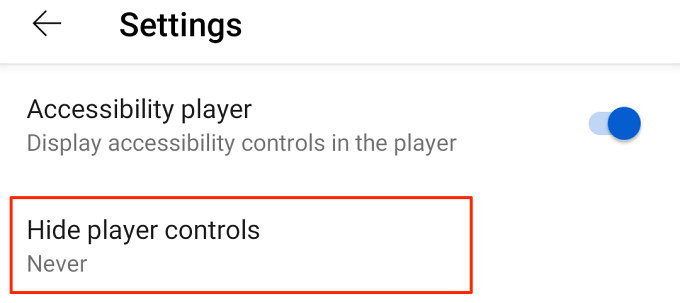
- Open the YouTube’s Accessibility menu (YouTube > Settings > Accessibility), toggle on Accessibility player, and tap Hide player controls.
- Select your preferred timeout from the preset options.
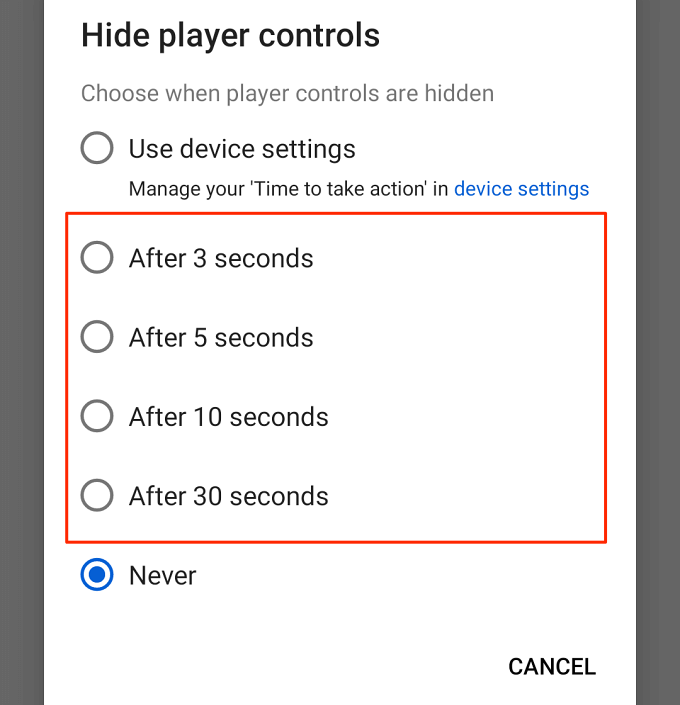
The maximum timeout for the button control within the YouTube app is 30 seconds. You can extend this timeout from Android’s built-in Accessibility settings. Proceed to Step 6 to learn more.
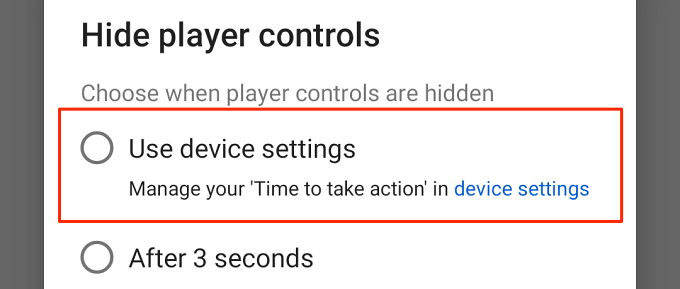
- On the “Hide player controls” option, select Use device settings.
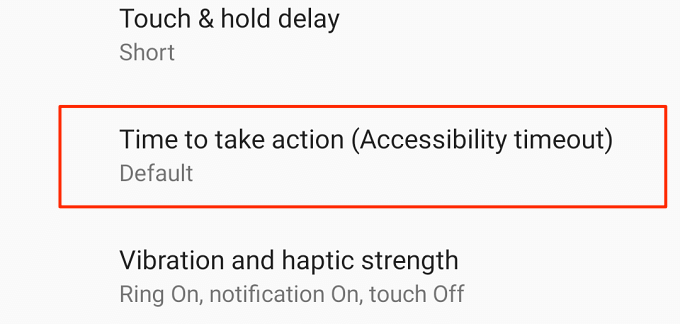
- Afterward, open your device’s Settings app, select Accessibility, and select Time to take action (Accessibility timeout).
- Select how long you want the YouTube player controls to stay on the screen before they fade into the background.
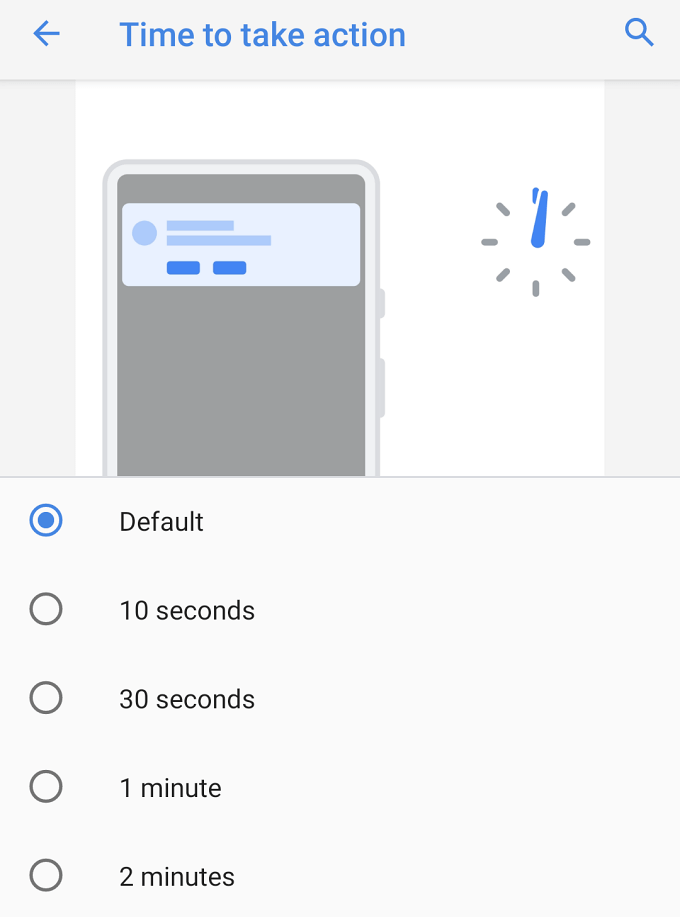
Note: Modifying the “Time to take action” duration will also affect the behavior of system and app notifications. For instance, selecting “30 seconds” will hide the YouTube overlay buttons after 30 seconds. Likewise, some app notifications will also stay on the screen for 30 seconds before disappearing from the screen.
3. Clear YouTube’s Cache Data
Applications store temporary files (also called “Cache files” or “Junk files”) on your device as you use them. Although cache files should help applications perform better and faster, they sometimes lead to performance hiccups in the long run. Deleting these junk files can resolve simple and complex performance issues.
If YouTube’s pause button still isn’t disappearing despite modifying its accessibility setting, clear the app’s cache and check again.
- Long-press the YouTube icon and tap the info 🛈 icon.
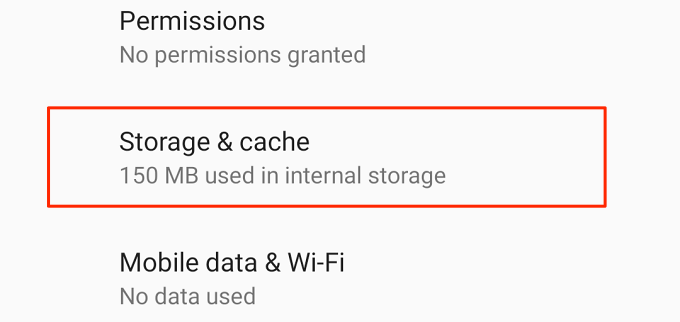
- Select Storage & cache.
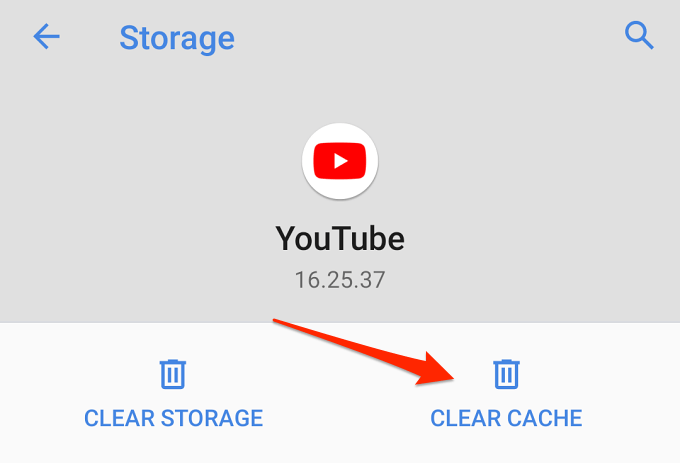
- Tap the Clear Cache icon.
4. Update YouTube
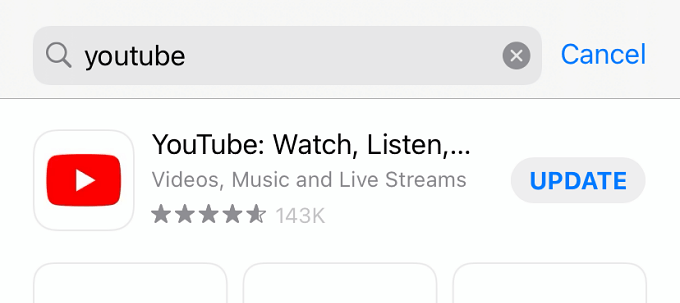
Mobile applications will malfunction if outdated or bug-ridden. If a component of the YouTube app isn’t working correctly on your mobile device, check if there’s an update available for the app. Head to the YouTube page on the Google Play Store (for Android) or the App Store (for iOS) and tap Update.
5. Reset YouTube
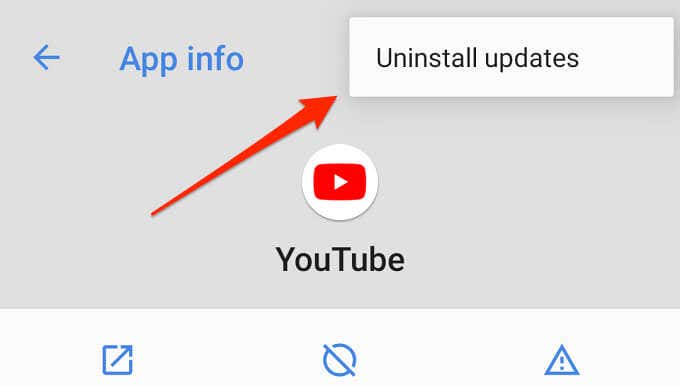
This is similar to uninstalling and reinstalling the app, except that you cannot uninstall YouTube as it’s a system app on Android. However, you can reset the app to factory default and re-update it from the Play Store. That could help eliminate bugs causing the overlay button not to disappear.
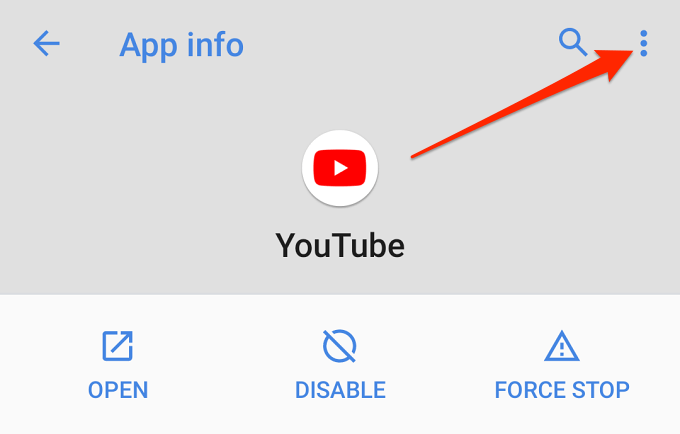
- On the YouTube app info page and tap the three-dot menu icon on the top-right corner.
- Select Uninstall updates.
- Select OK on the confirmation prompt.
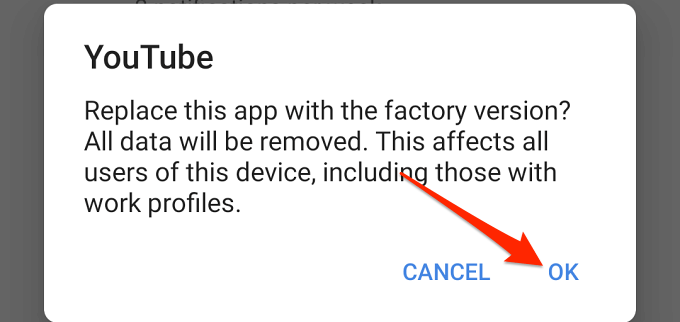
- Wait for your Android to uninstall YouTube updates, restart your device, and re-update YouTube from the Play Store.
6. Update Your Device
Updating your device is a good idea 90 percent of the time, especially if you’re having difficulties using certain apps. When you’ve tried everything and YouTube’s overlay buttons still aren’t disappearing, check if there’s an update available for your device.
- For Android, head to Settings > System > System update and tap Check for updates.
- On iPhone and iPad, go to Settings > General > Software Update and wait for your device to check new Android updates.
Pause at Liberty, Take Control
We’re confident that at least one of these recommendations will resolve the problem, so let us know which one worked the magic for you. By the way, you should check out our YouTube channel where we cover diverse tech-related topics. You’ll find hundreds of high-quality videos demystifying complex tech concepts, (mobile and PC) tutorials, gaming tips & tricks, product reviews, and so on.
