

An IP address, or Internet Protocol address, is a series of numbers that acts as an identification for your computer network as well as the device you are using. This IP address allows you to receive information via the internet. Your IP address also can reveal your physical location or may be connected to your ISP’s (Internet Service Provider’s) location. If you’re using a VPN, your IP address changes according to the server your PC is connected to, which changes the associated location.
If you want to be able to see what your IP address is on your Windows PC, you can find it on your desktop. In this article, we’ll show you how to find your IP address on Windows 10.
How to Find Your IP Address
There are several ways to find your IP address depending on how you access the internet.
If you’re using a Wi-Fi connection, follow these steps:
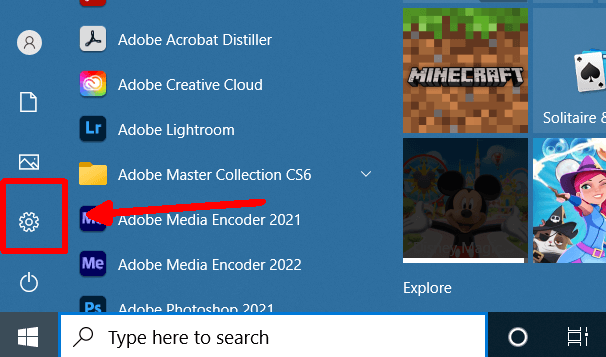
- Go to the Start menu, and then Settings.
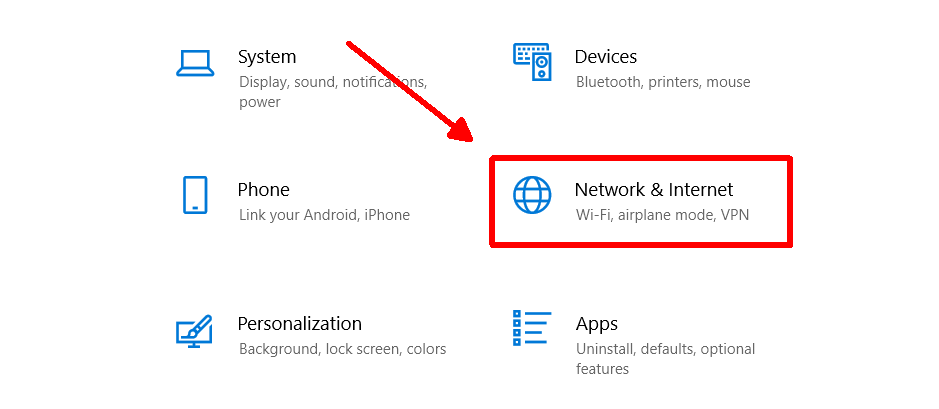
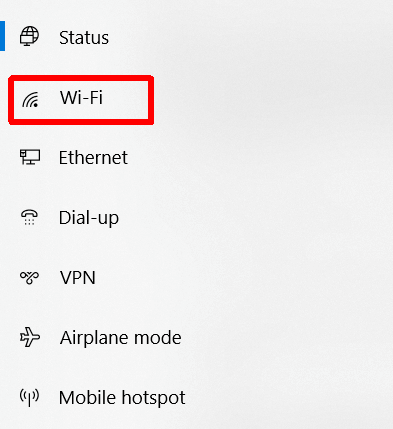
- Click Network & Internet > Wi-Fi on the control panel, and then select the Wi-Fi connection you’re using.
- Scroll down to Properties and look next to IPv4 address. Here you’ll see your IP address.
You can also find your IPv6 address here if you’d like to know that. However, your IPv4 address is commonly known as your IP address.
If you’re using an ethernet connection for the internet, here’s how you can find your IP address:
- Go to Start, and then Settings.
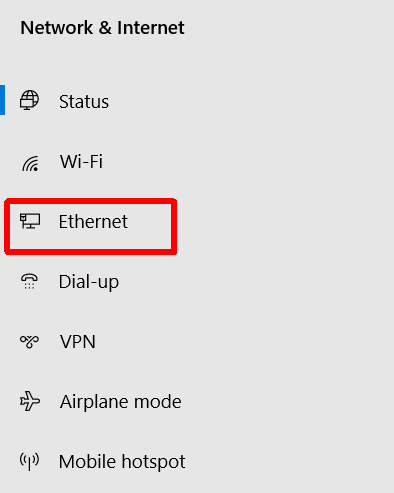
- Select Network & Internet > Ethernet.
- Scroll to Properties and look next to IPv4 address to find your IP address.
If you aren’t connected to the internet through Ethernet, the Properties section will not appear. So make sure you are connected before you go to check your IP address.
Another Way to Quickly Check Your IP Address
There’s another method to find your IP address on Windows 10, which helps if you need to find it quickly. Again, it’ll be slightly different depending on if you have a wireless network or ethernet connection.
For a Wi-Fi connection:
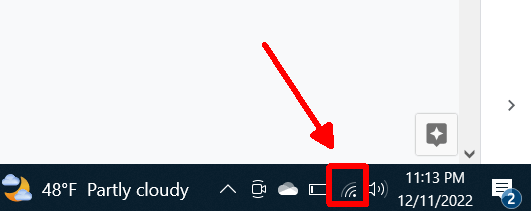
- Go to the taskbar and click on the Wi-Fi connection icon.
- Under the Wi-Fi network connection you’re currently connected to, select Properties.
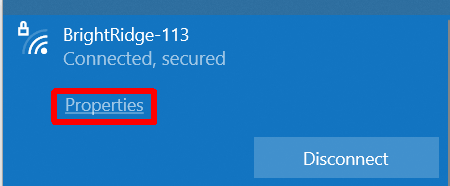
- Scroll down to Properties and find the IPv4 address, which lists your computer’s IP address.
For an ethernet connection:
- Go to the taskbar and select the ethernet connection icon.
- Select the ethernet connection.
- Scroll to Properties, and locate the IPv4 address listed there for your IP address.
This method and the one above technically bring you to the same place to find your IP address, so it’s just a matter of which route you prefer to take.
How to Find Your IP Address Online
Another way to figure out your IP address on your computer is by using a browser. It can be a quick way to check if you’re already using the internet, and it won’t necessarily matter whether you’re using Wi-Fi or ethernet to connect.
Here’s how to find it:
- On a web browser, head to Google search.
- Type “What is my IP address” into the search bar and search.
- At the top of the page, you should find your IP address listed.
If you don’t want to use a Google search, there are a number of websites where you can get your IP address, such as whatismyip.com. Websites like these may also show the location associated with your IP address.
Find Your IP Address Easily
For whatever reason, you want to see what your IP address is, there are many ways to do it on Windows. Keep in mind that if you’re using a VPN and it’s turned on, the IP address you see will not be the actual one associated with your ISP. So if you want your real IP address, be sure to turn any VPNs off. Otherwise, checking your IP address with a VPN can be a good way to check if it’s working.
The methods outlined above are the best for locating your IP address, allowing you to find it quickly and easily for any purpose you need.
