

Discord’s notification issues are rare, but when they occur, they make you miss out on some of the important activities happening on the platform. If you’ve found yourself in a similar situation where you don’t get timely Discord notifications, you can try a few things to troubleshoot the issue.
You can try changing your Discord status, disable your PC’s feature that blocks all notifications, and even reinstall the Discord client. Here are all the ways you can make the app deliver alerts on time on your computer.
Change Your Discord Status to Online
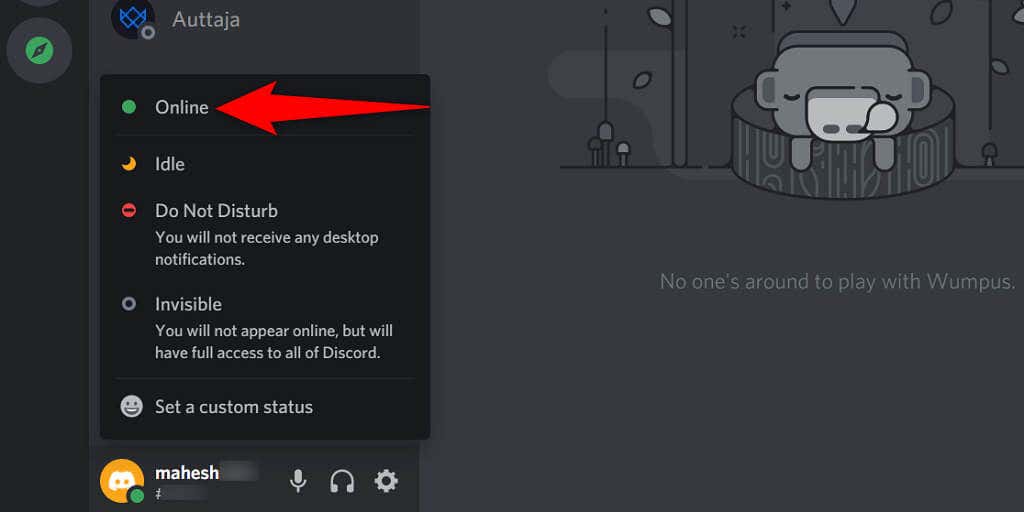
Discord offers multiple user statuses so you can tell people what you’re up to. One of these is Do Not Disturb, which blocks all your desktop notifications. You need to make sure you’re not using this status, and if you are, change that to Online to resume your app alerts.
Here’s how you can check that:
- Launch Discord on your computer.
- Select your profile icon at the bottom-left corner.
- Choose Online as your new status, and your Discord notifications should resume.
Enable Notifications in Discord
Discord allows you to enable and disable notifications from the app’s settings menu. If you or someone else has toggled that option, you’ll need to make sure the option is enabled, so you get all the app alerts.
Here’s where to find the option to allow notifications in Discord:
- Launch Discord and select the gear icon at the bottom-left corner.
- Choose Notifications from the sidebar on the left.
- Turn on Enable Desktop Notifications in the pane on the right.

- Select Esc at the top-right to go back to Discord’s main screen.
Turn Off Focus assist on Windows to Fix Discord Notifications
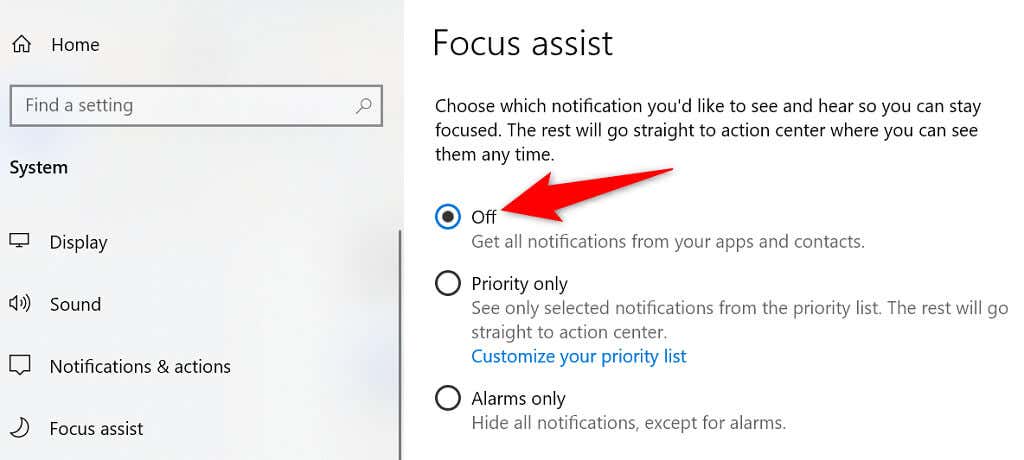
Windows’ Focus assist feature helps you focus on your tasks by blocking all distractions, like app notifications. If you’ve enabled this option, that may be why your Discord notifications are blocked.
You can resolve the issue by turning off Focus assist on your PC as follows:
- Open Settings on your PC by pressing Windows + I keys simultaneously.
- Select System in Settings.
- Choose Focus assist from the sidebar on the left.
- Select Off on the right to disable Focus assist.
- Turn off all rules in the Automatic rules section as well.
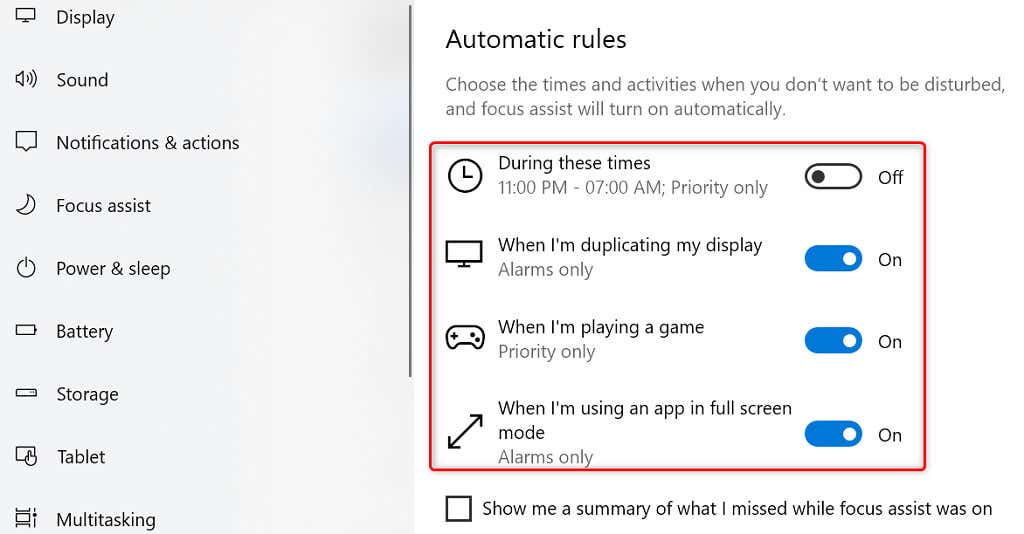
Discord should now send you all alerts as and when they’re available.
Check Discord Server Notifications
If you’re only missing specific server alerts from Discord, chances are you’ve customized the server notification settings for that specific server. You can customize the option to start receiving all alerts from that server.
- Open Discord and find the server you’re missing notifications from.
- Right-click the server and hover over Notification Settings.
- Choose the alerts you’d like to enable. For example, if you want to receive all alerts from the server, choose All Messages.
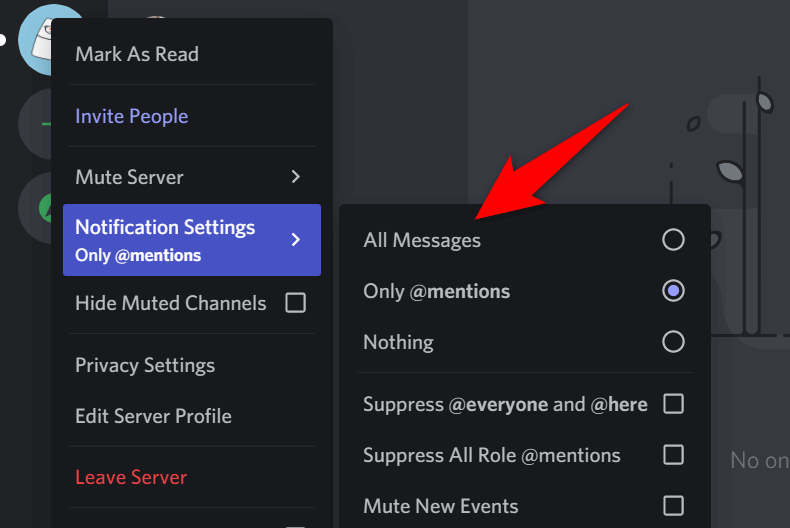
- Repeat the above process for each server you’re missing notifications from.
Update Discord
Your Discord application isn’t without bugs, and one of these bugs is likely making you miss notifications. One way to possibly fix this issue is to update your Discord app. The newer app version should likely resolve your problem.
- Find the Discord icon in your PC’s system tray.
- Right-click the Discord icon and choose Check for Updates.

- Wait for Discord to find and install the latest updates.
Log Out and Back Into Your Discord Account
Minor app glitches with Discord are common, and you can resolve most of these issues by logging out and back into your account in the app. You’ll need your Discord account logins to do this, so keep those handy.
- Open Discord and select the gear icon at the bottom-left corner.
- Scroll down the left sidebar and choose Log Out.
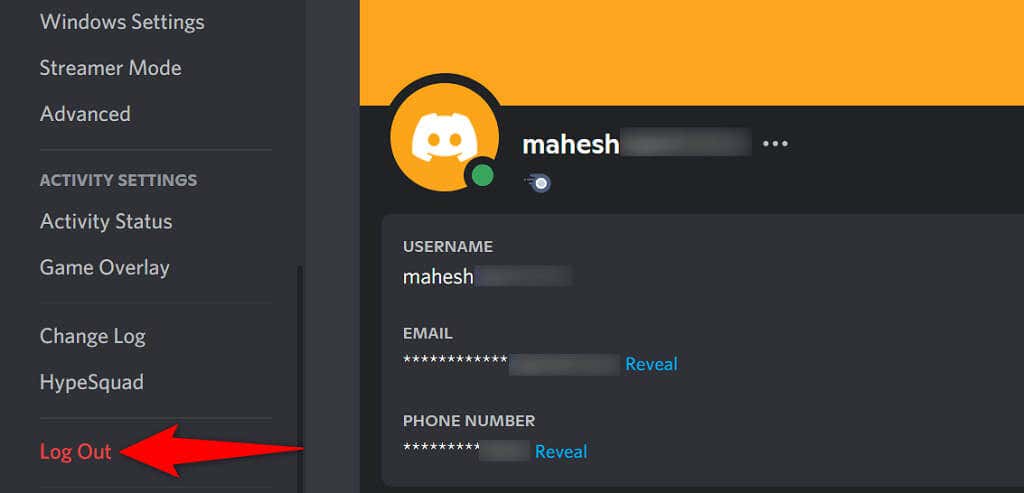
- Select Log Out in the prompt to sign out of your account.
- Log back into your account in Discord.
Uninstall and Reinstall Discord
If your Discord notifications are still not working, try removing and reinstalling Discord on your computer. This deletes all Discord’s core files, including the possibly corrupt and problematic files.
You’ll need your Discord login details to log back into your account, so keep those handy.
- Open Settings by pressing Windows + I keys simultaneously.
- Choose Apps on the Settings window.
- Find and select Discord in the app list. Then, choose Uninstall.
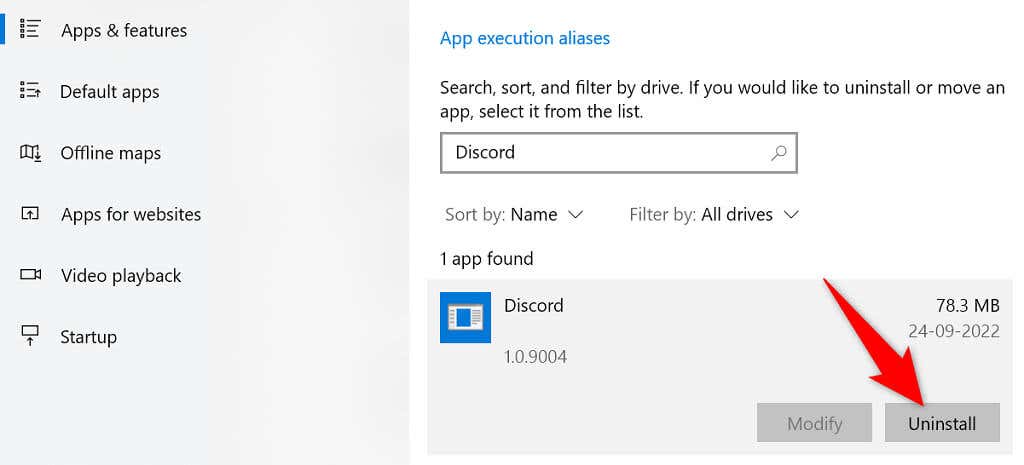
- Select Uninstall in the prompt to uninstall Discord on your PC.
- Restart your PC.
- Launch a web browser, head over to the Discord site, and download the app to your PC.
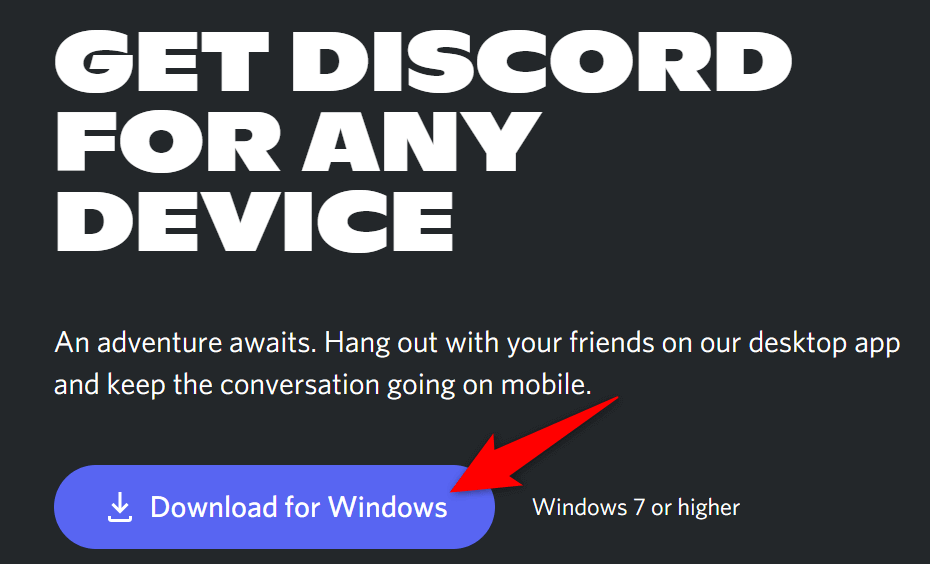
- Run the downloaded file to install Discord.
Update Your Computer
Keeping your PC’s operating system updated is as important as keeping your apps updated. OS-level updates bring core enhancements and bug fixes, likely resolving your notification problems.
You can update your Windows PC in a few easy clicks as follows:
- Access Settings by pressing Windows + I.
- Choose Update & Security in Settings.
- Select Windows Update on the left and Check for updates on the right.

- Download and install the available updates.
- Reboot your PC once your updates are installed.
Disable Streamer Mode
When you enable streamer mode, Discord turns off all your notifications so you don’t get disturbed. It’s worth disabling this mode, or the option that disables your app alerts, when you experience notification problems.
- Launch Discord and select User Settings at the bottom-left corner.
- Choose Streamer Mode in the sidebar on the left.
- Turn off the Enable Streamer Mode option on the right.
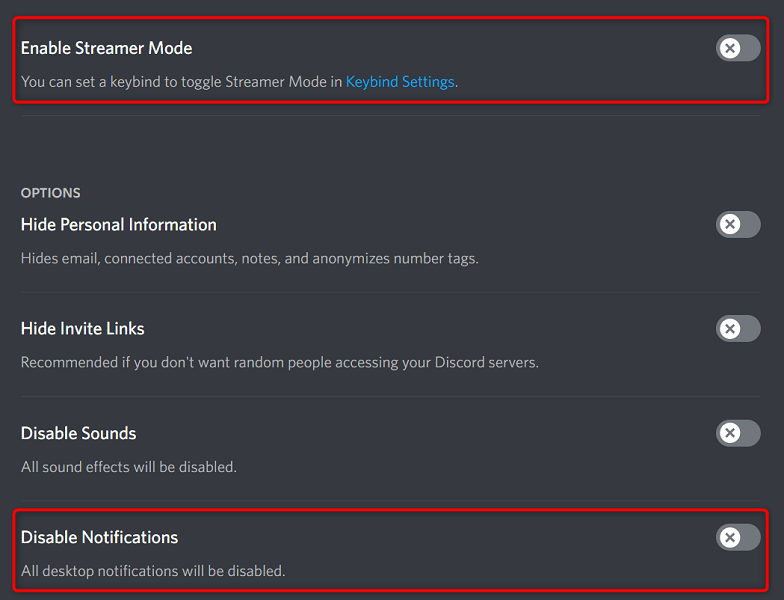
4. If you’d like to enable notifications while streamer mode is turned on, toggle off the Disable Notifications option.
Getting Around the Discord Notifications Not Working Issue
If Discord happens to be your primary chat client, missing out on important updates can cost you quite a lot. Luckily, there are various ways to get around this app’s notification problems. Once you’ve followed the above methods, your Discord app should resume your notifications.
