

If Snapchat displays a “Tap to Load” message continuously, your app is stuck at loading a snap. There are many reasons why you may see this message. Most issues have to do with your internet connection, but there are other causes, too.
It may be that your phone is not connected to the internet, your app has a cache problem, or you’ve enabled a data saver, causing the app not to load your content.
Luckily, you have several ways to get around Snapchat’s “Tap to Load” problem.
Check Your Internet Connection
When Snapchat has issues loading your content, the first thing to check is your phone’s internet connection. Snapchat requires an active link to download and display the content in the app.
One way to check if your internet is working is by launching a web browser on your phone and opening a site like Google or Yahoo. If you can load the site, your internet is working. In this case, keep reading to discover more fixes.

If your site doesn’t load, your internet connection has a problem. This will require you to fix the connection yourself or reach out to your ISP and seek their help.
Reboot Your iPhone or Android Phone to Fix the Tap to Load Problem in Snapchat
Another quick way to possibly resolve Snapchat’s “Tap to Load” problem is by restarting your phone. Doing so turns off all your phone’s features and then turns all those features back on. This gives a fresh start to all your phone’s functionalities, which could fix any underlying glitches.
Restart an iPhone
- Press either Volume button and the Side button at the same time.
- Drag the slider on the screen to turn off your phone.
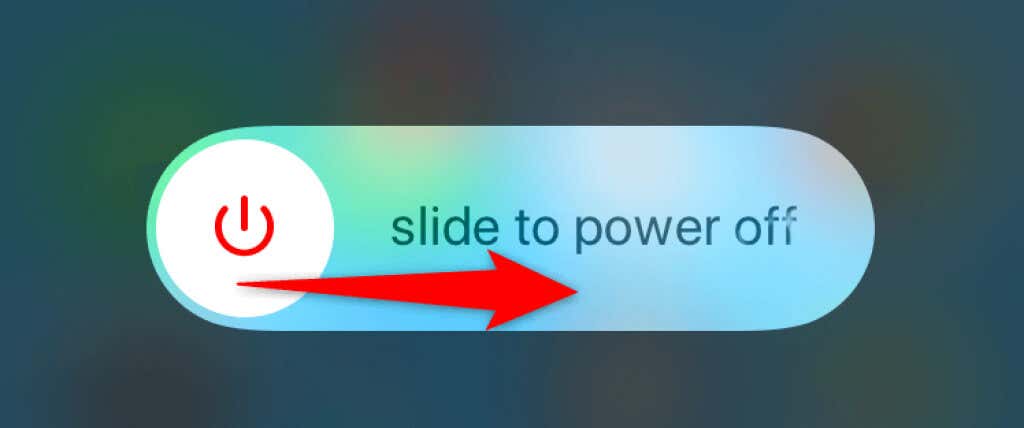
- Turn your phone back on by pressing and holding down the Side button.
Restart an Android Phone
- Press and hold down the Power button on your phone.
- Choose Restart in the menu that opens on your phone’s screen.
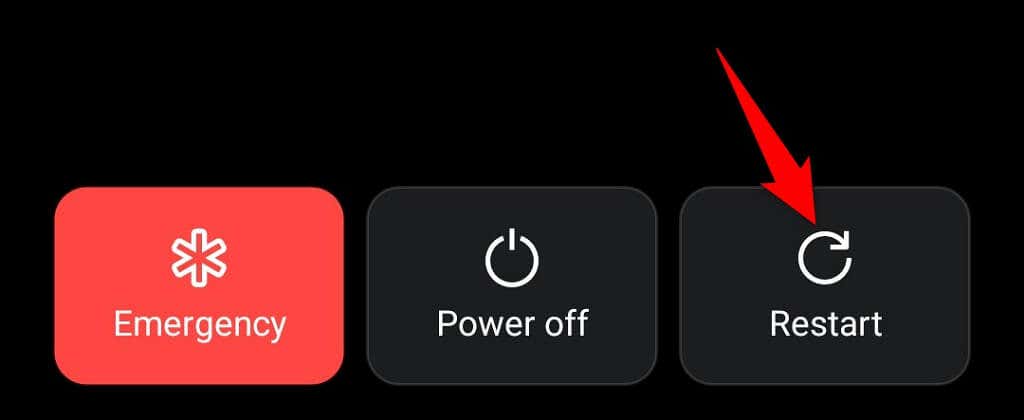
Launch Snapchat when you’ve rebooted your phone, and the app should work as expected.
Clear Cache for Snapchat
Snapchat stores cache files on your phone like all other apps to improve your app experience. Sometimes, these cache files get corrupted for various reasons.
If that happens, issues like “Tap to Load” occur. Luckily, the solution to this issue is easy: clear the cache files for the Snapchat app. Doing so removes the problematic cache and fixes your problem.
You only have to do this on an Android phone, as the iPhone doesn’t let you clear the app cache.
- Open Settings on your Android phone.
- Select Apps & notifications > Snapchat in Settings.
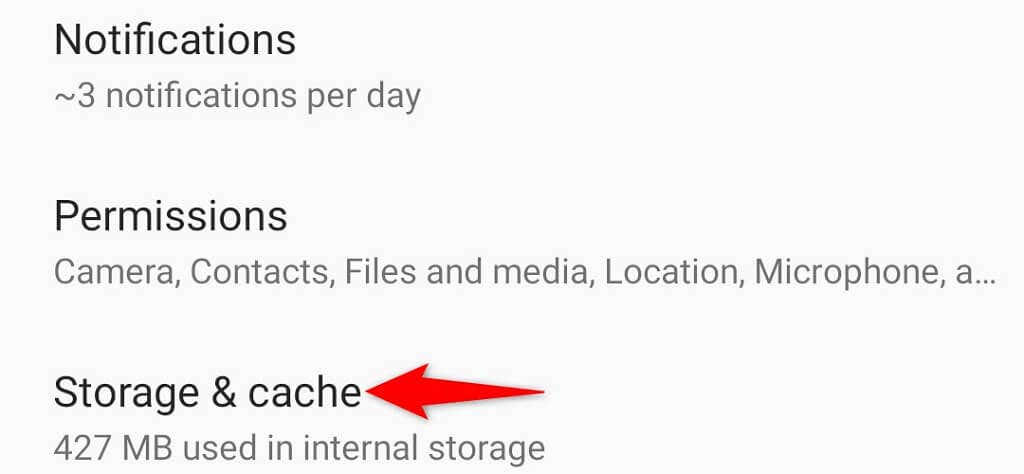
- Choose Storage & cache on the app page.
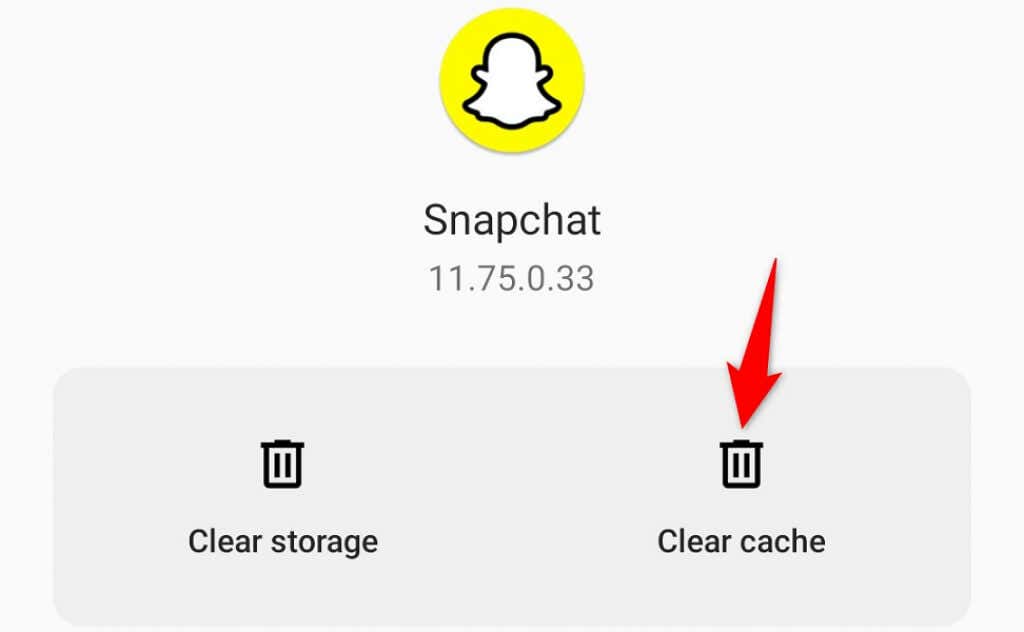
- Tap Clear cache to clear the app’s cache files.
- Launch the Snapchat app.
Disable Data Saver in Snapchat on Android and iOS
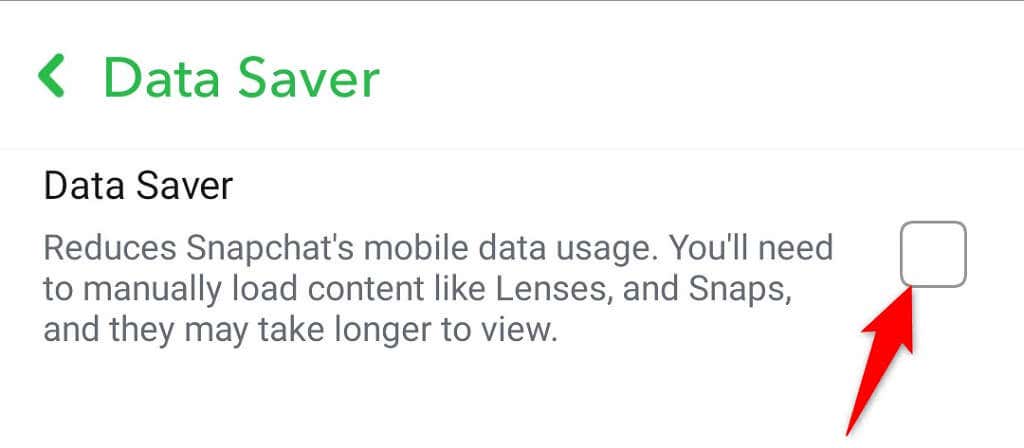
Snapchat offers a data saver function to reduce the app’s internet data usage. It’s worth toggling this option off when you experience problems loading your snaps. You can turn the option back on at any time you want.
- Open Snapchat on your phone.
- Choose the profile icon at the top-left corner.
- Select Settings (a gear icon) at the top-right corner.

- Scroll down and tap Data Saver.
- Turn off the Data Saver option to disable the mode.
- Relaunch the Snapchat app.
Fix Tap to Load by Disabling Battery Optimization Mode
Android offers a battery optimization mode to reduce an app’s battery usage on your phone. By default, this mode is enabled for all your apps, including Snapchat.
Since the mode restricts an app’s battery usage, it could have a negative impact on Snapchat’s performance, leading to various issues. So, it’s worth disabling this mode for Snapchat to see if that resolves your problem.
Later, you can re-enable the mode if you want.
- Launch Settings on your Android phone.
- Scroll down and select Battery.
- Choose Battery optimization.
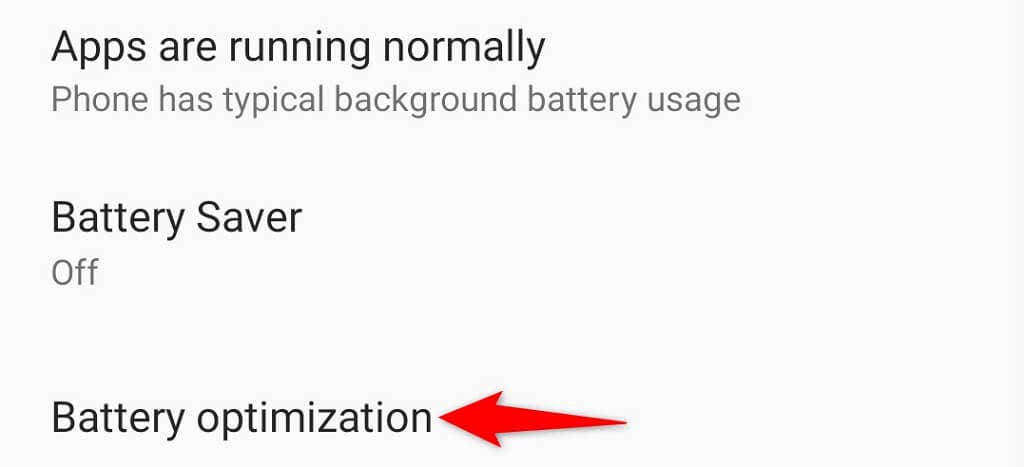
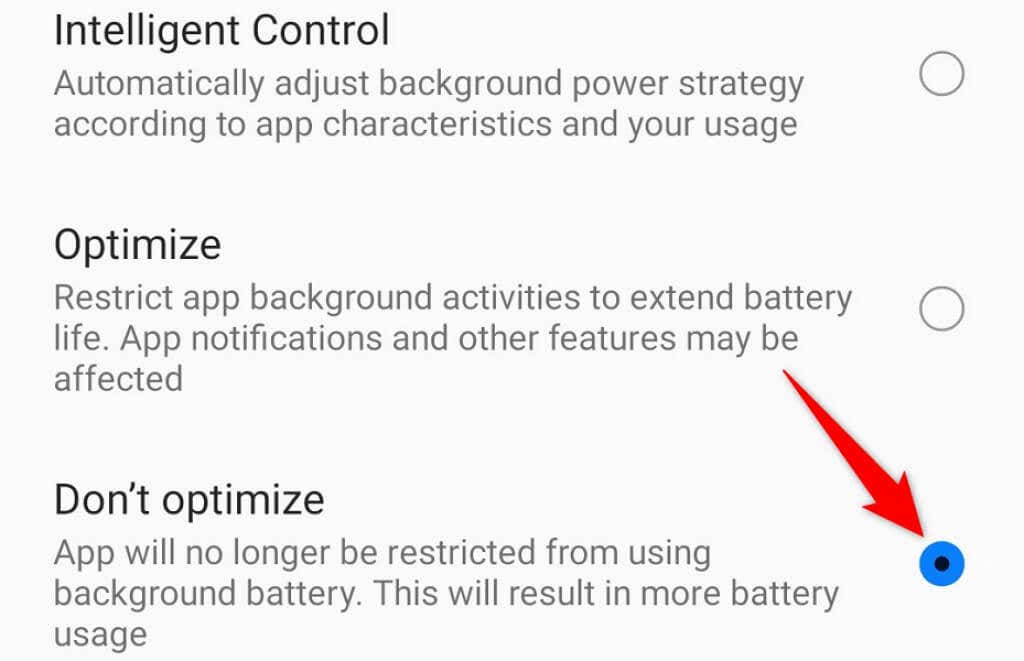
- Find and tap Snapchat on the app list.
- Activate the Don’t optimize option so your phone doesn’t limit Snapchat’s functionalities to reduce the battery usage.
Disable Battery Saver on Your iPhone or Android Phone
A possible reason Snapchat displays a “Tap to Load” message is that you’ve enabled a phone-wide battery saver mode on your iPhone or Android device. You should turn off this option to see if your Snapchat problem gets resolved.
Turn Off Battery Saver on Android
- Launch Settings on your phone.
- Select Battery in Settings.
- Choose Battery Saver.
- Turn the Turn on now option off.
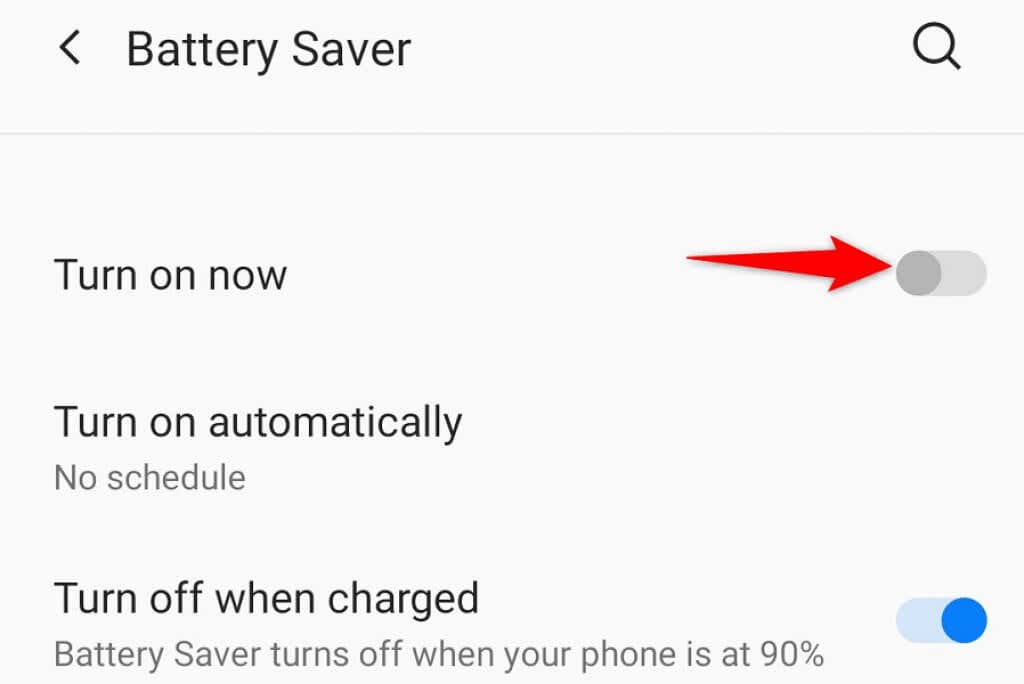
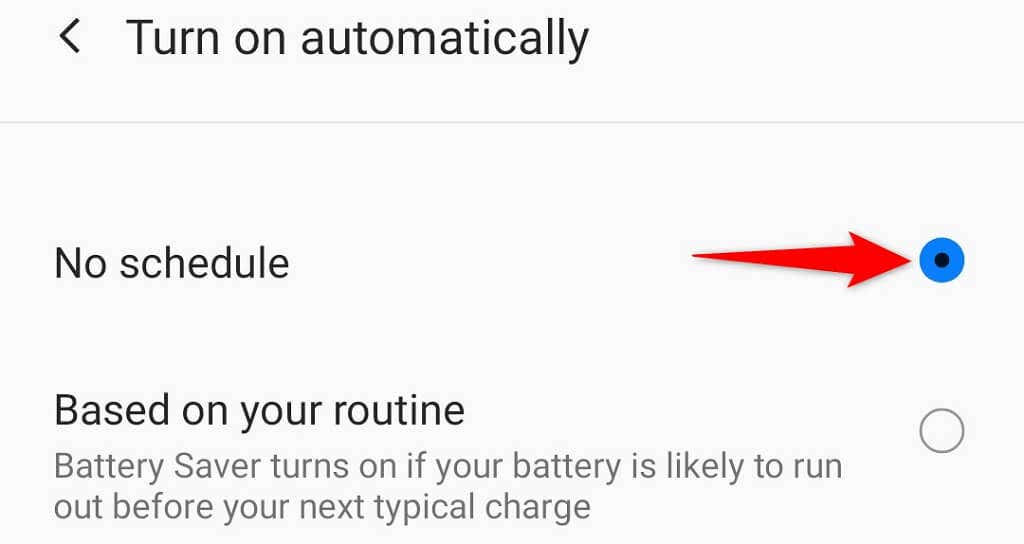
- Prevent the feature from automatically turning on by selecting Turn on automatically and choosing No schedule.
Turn Off Battery Saver on iPhone
- Open Settings on your iPhone.
- Tap Battery in Settings.
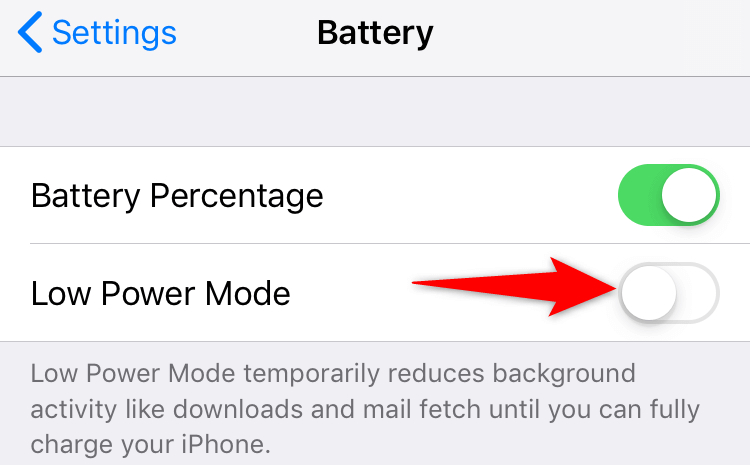
- Toggle off the Low Power Mode option.
Uninstall and Reinstall the Snapchat App
If your “Tap to Load” issue persists, Snapchat’s core files may have become problematic. This usually happens when you have malware or other threats on your phone. However, there are other reasons as well.
Since you can’t manually fix your app’s core files, a practical way to get around this problem is to uninstall and reinstall the Snapchat app on your phone. This removes the old corrupt files and brings in fresh new working files.
Reinstalling Snapchat doesn’t delete your account data. You can log back into your account once you’ve reinstalled the app.
Reinstall Snapchat on iPhone
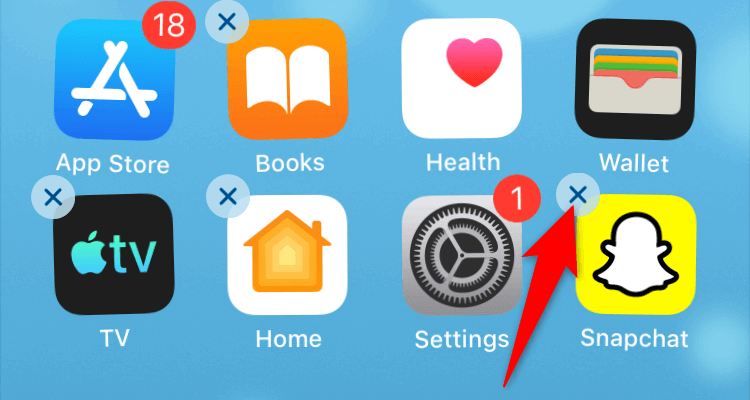
- Tap and hold on Snapchat on your iPhone’s home screen until all your app icons start juggling.
- Select X in Snapchat’s top-left corner.
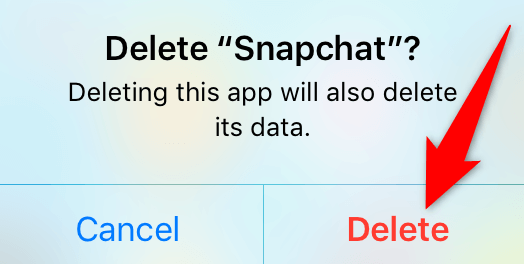
- Choose Delete in the prompt to uninstall Snapchat on your iPhone.
- Launch the App Store, search for Snapchat, and tap the download icon to download the app to your phone.
Reinstall Snapchat on Android
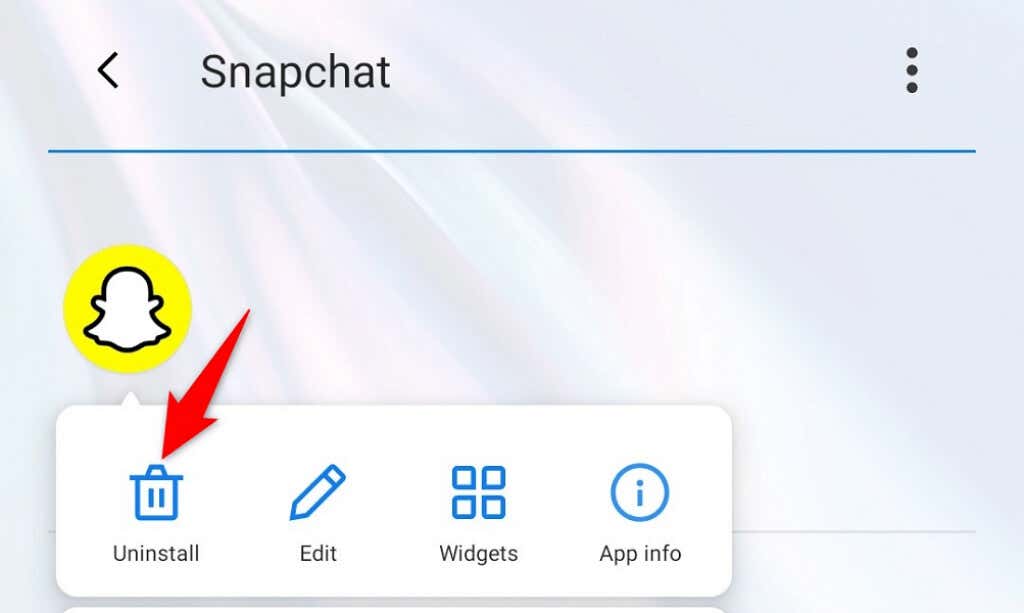
- Tap and hold on Snapchat in your phone’s app drawer.
- Choose Uninstall from the menu.
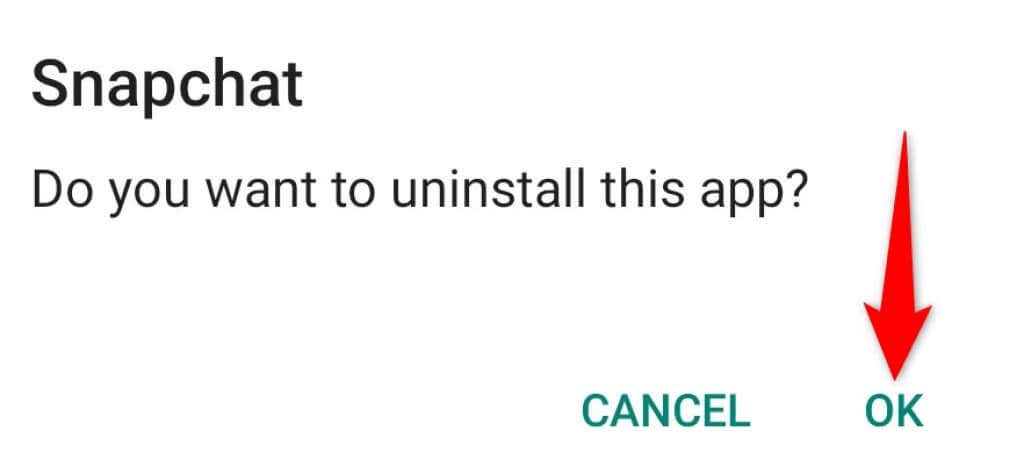
- Select OK in the prompt to remove the app.
- Launch the Google Play Store, search for Snapchat, tap the app, and choose Install.
- Launch the newly installed Snapchat app.
Fixing the Snapchat Tap to Load Issue Isn’t Difficult
It’s frustrating when Snapchat displays the “Tap to Load Snap” message instead of your actual snaps. If you’re irritated by this issue, the methods in this guide will help you resolve your problem.
Once you’ve fixed the issue, you’ll be able to see your snaps without a single problem in your Snapchat app.
