

For many people, missing a WhatsApp notification means missing a personal or professional opportunity. There are various reasons why WhatsApp notifications may not be working. It’s possible your internet connection isn’t working as it should, or there’s an issue with WhatsApp’s notification settings.
Regardless, your priority should be to get the WhatsApp notifications back up and running as soon as possible. That’s what this guide will help you with.
Make Sure Your Internet Works to Get WhatsApp Notifications
WhatsApp needs internet connectivity to receive new messages and send you notifications. If your phone’s mobile data or your Wi-Fi network isn’t working as it should, this can cause WhatsApp not to send any notifications.
To check if your internet works, open a web browser, like Chrome, on your phone and launch the Google site. If the site loads, your internet is working. If the site fails to load, there’s an issue with your internet connection.
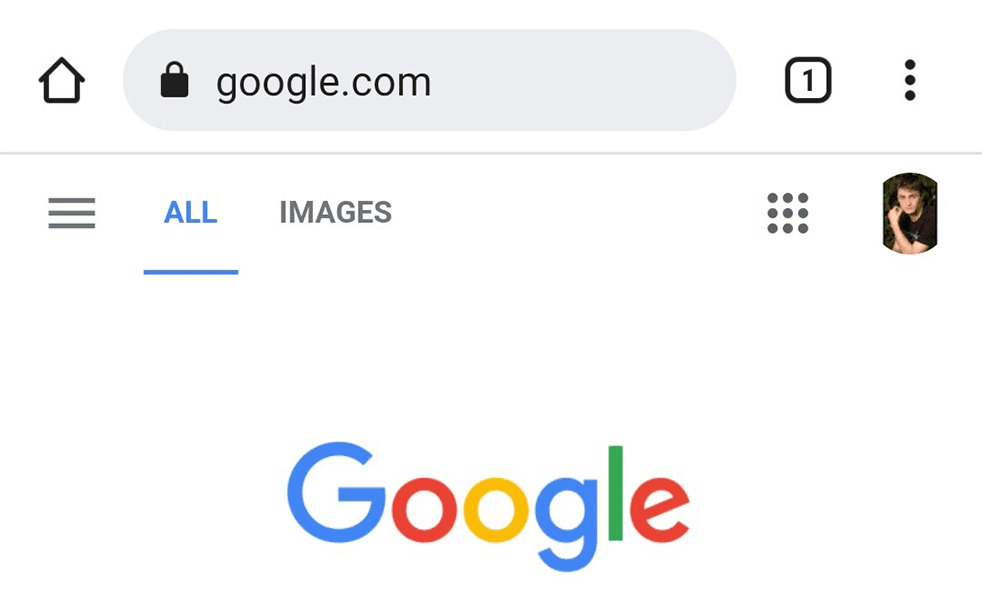
In the latter case, troubleshoot your internet issue and see if you can get the connectivity restored. You may also want to seek your internet service provider’s (ISP) help for the issue.
Restart Your Phone to Fix WhatsApp Notification Problems
A minor glitch on your phone can also cause WhatsApp notification issues. To get around that, restart your phone, and that should most likely resolve the glitch.
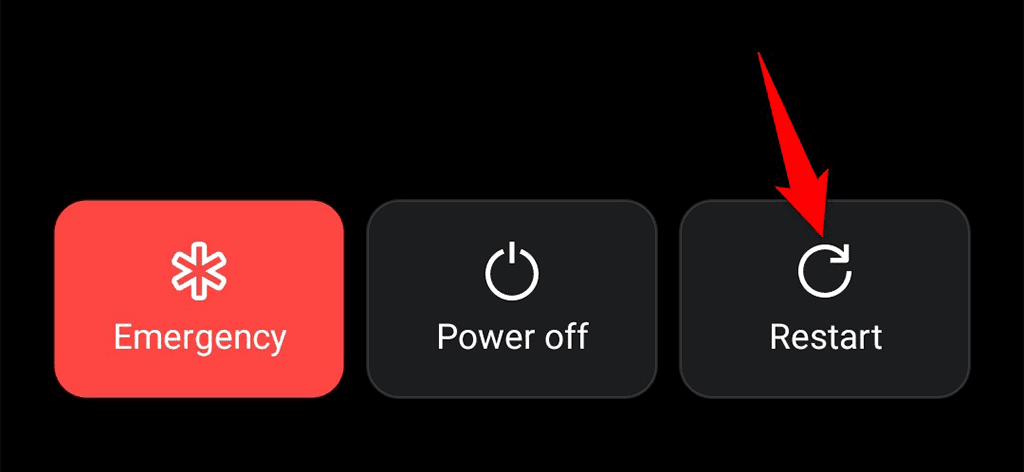
You can restart most phones by pressing and holding down the Power button and choosing Restart from the menu.
Enable WhatsApp Notification Sounds
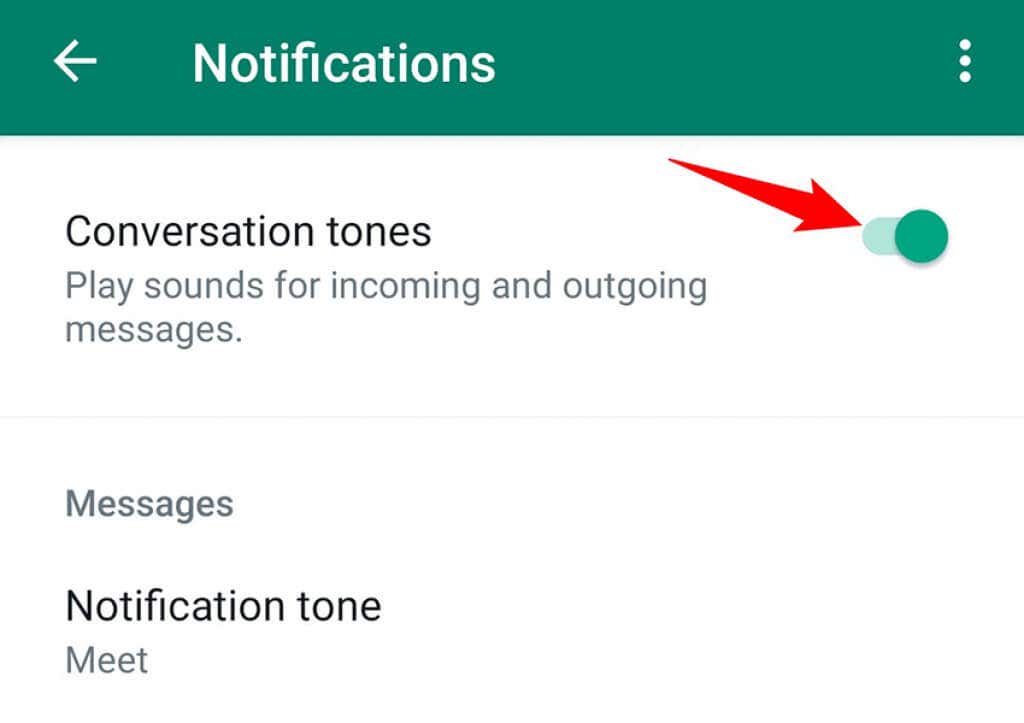
If you’re getting WhatsApp notifications but without sound, the sound notification option might be turned off in the app. Turn the toggle on, and your notification sound will be back.
Here’s how.
- Open WhatsApp on your phone.
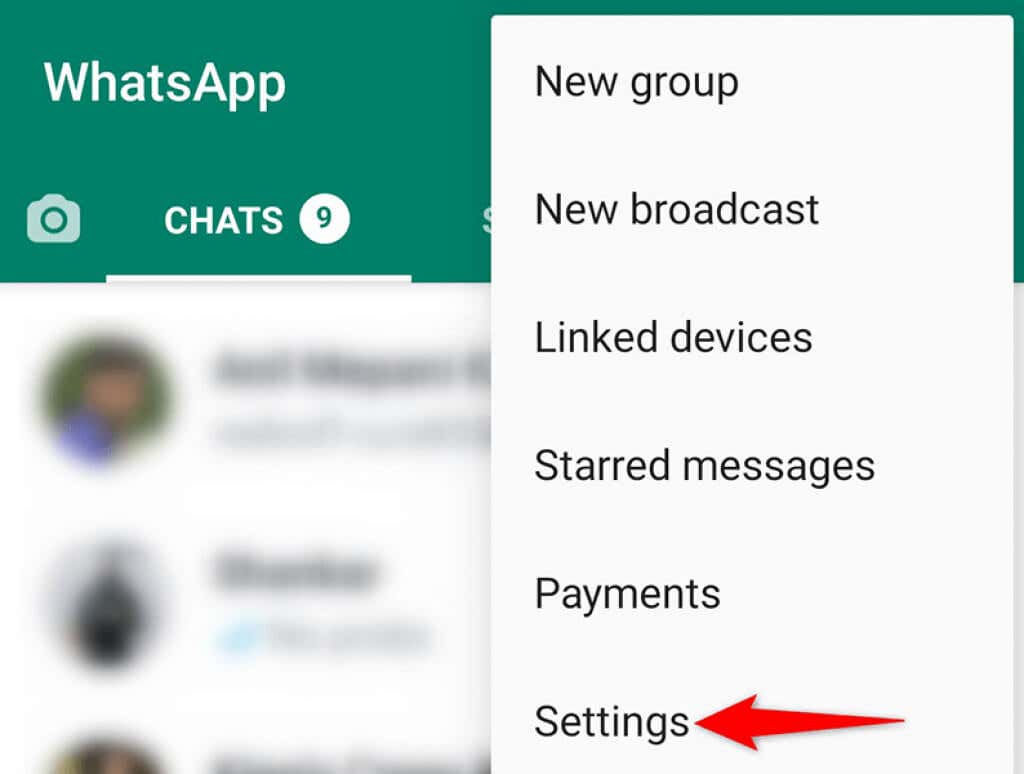
- Tap the three dots at the top-right corner and choose Settings.
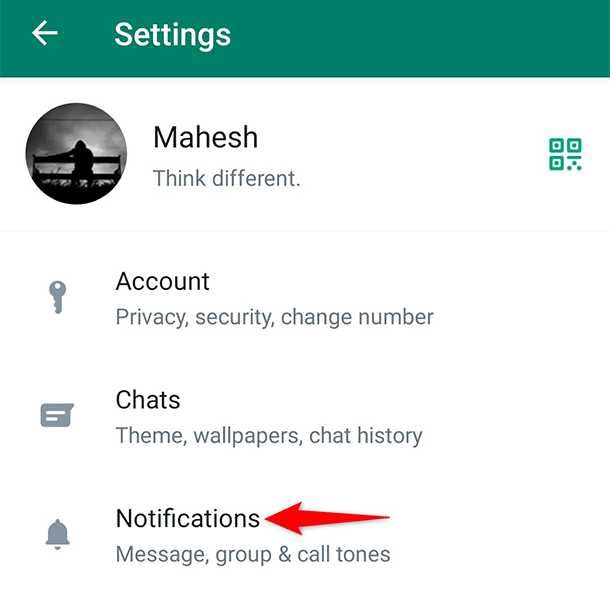
- Select Notifications on the Settings screen.
- Turn on the Conversation tones option to enable sounds for WhatsApp notifications.
Disable Your Phone’s Power Saver Mode
When power saver mode is turned on, your phone tries to consume as little energy as possible. This sometimes affects WhatsApp notifications as these notifications do use your phone’s battery.
To get around this, disable power saver mode on your phone and then see if you receive your usual WhatsApp notifications.
On iPhone:
- Launch the Settings app on your iPhone.
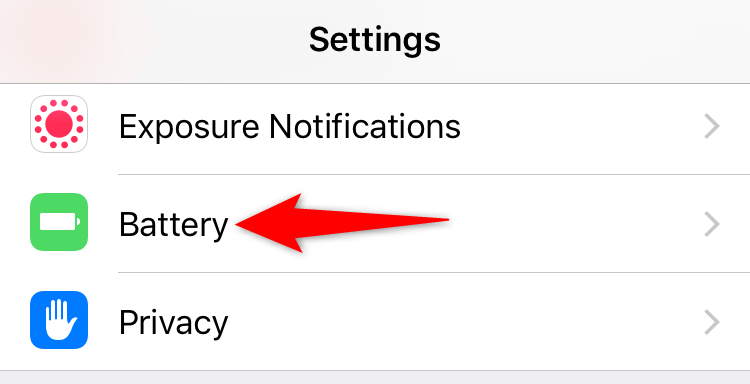
- Tap Battery in Settings.
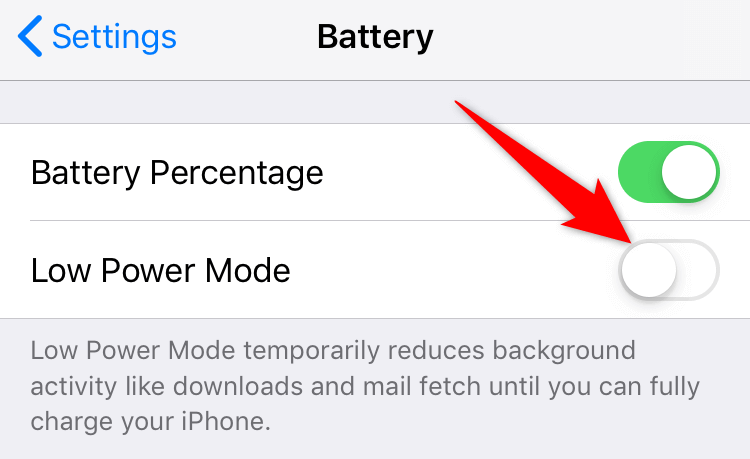
- Toggle off the Low Power Mode option.
On Android:
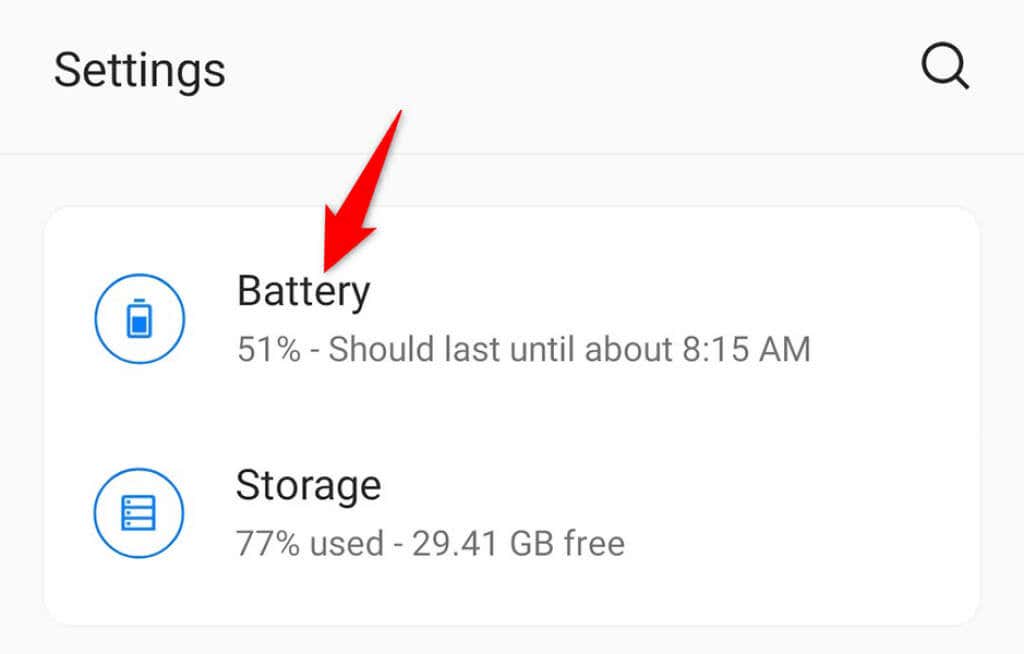
- Open the Settings app and tap Battery.
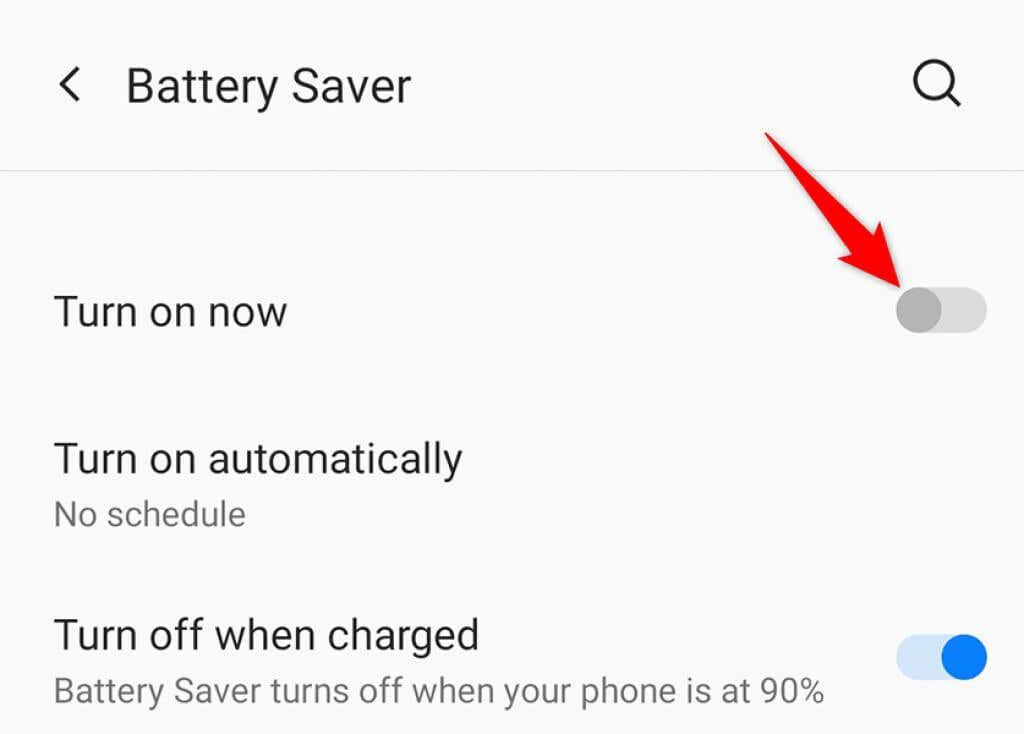
- Select the Battery Saver option.

- Make sure the toggle at the top is turned off.
Turn Off Do Not Disturb To Start Receiving WhatsApp Notifications
Do Not Disturb on your phone does what its name claims—turn off any notifications that might disturb you. These notifications include the ones from WhatsApp as well, so you’ll have to turn DND off to receive notifications from WhatsApp.
On iPhone:
- Launch the Settings app on your phone.
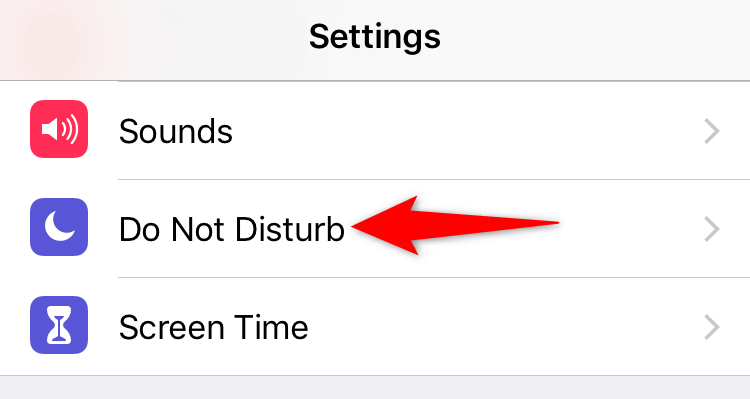
- Tap Do Not Disturb in Settings.
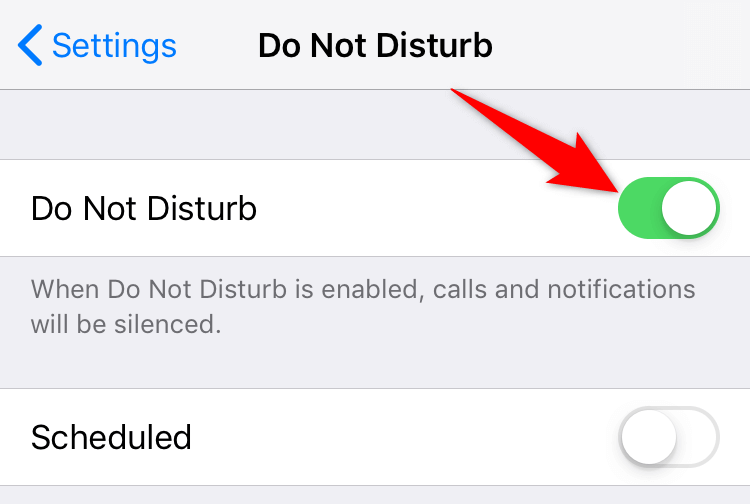
- Disable the Do Not Disturb toggle at the top.
On Android:
- Access the Settings app on your phone.
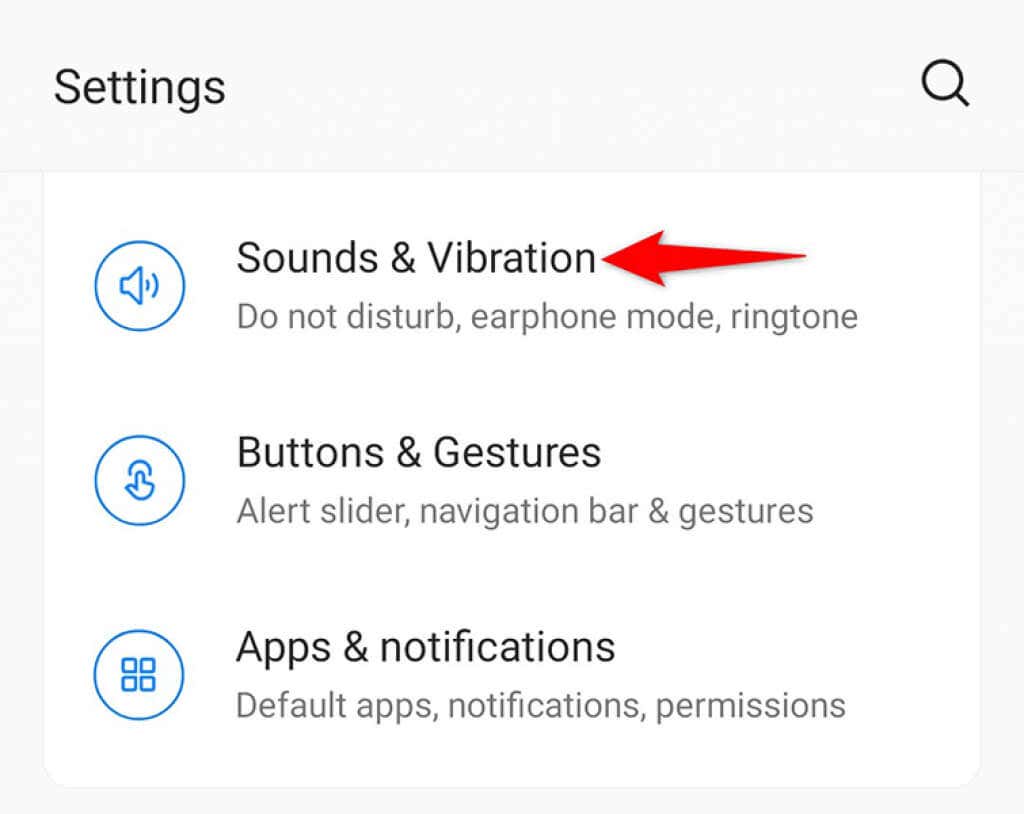
- Tap Sounds & Vibration in Settings.
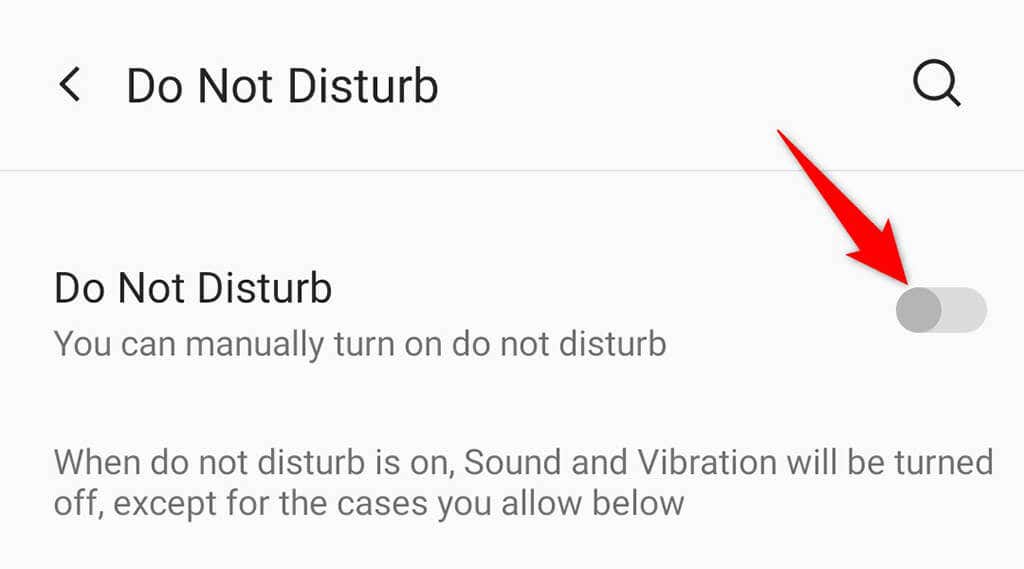
- Select the Do Not Disturb option.
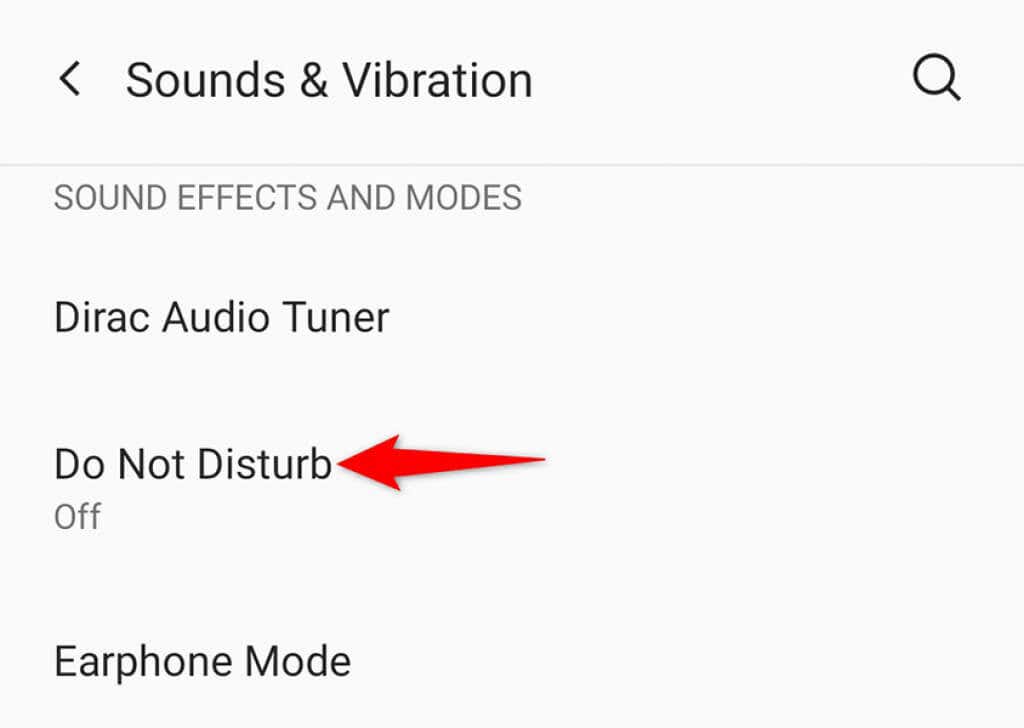
- Deactivate the Do Not Disturb toggle at the top.
Allow WhatsApp to Use Background Data for Notifications
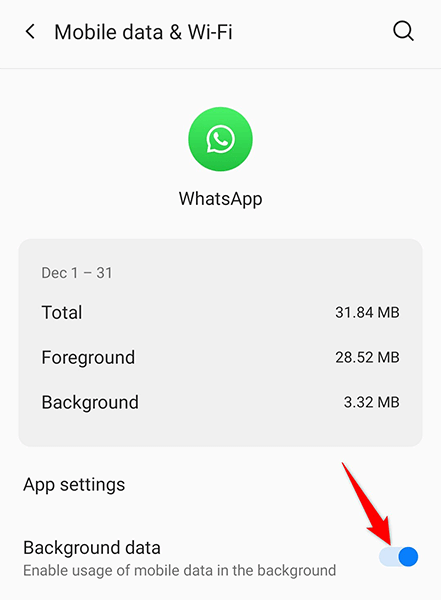
WhatsApp requires internet connectivity in the background so the app can fetch new messages even when you’re not chatting with someone. If you’ve disabled background data for WhatsApp on your phone, you’ll have to enable that to allow notifications.
On iPhone:
- Open the Settings app on your phone.
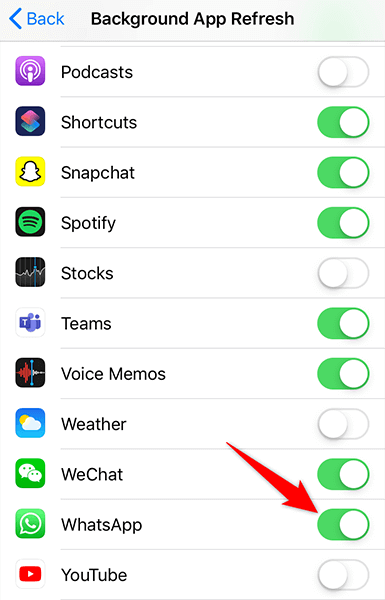
- Head into General > Background App Refresh in Settings.
- Turn on the toggle for WhatsApp in the list of apps.
On Android:
- Launch the Settings app on your phone.
- Head into Apps & notifications > WhatsApp in Settings.
- Tap Mobile data & Wi-Fi on the app page.
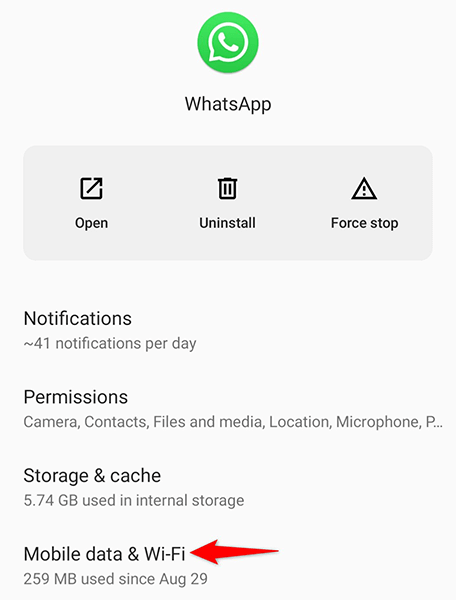
- Toggle on the Background data option.
Reset WhatsApp Notification Settings
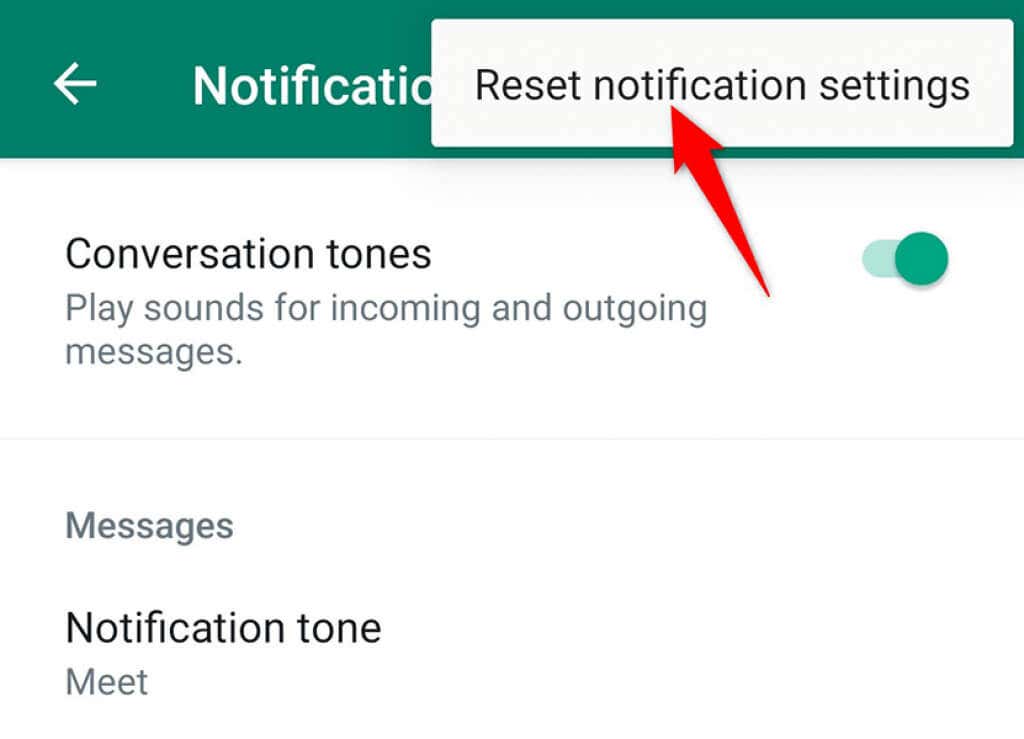
WhatsApp offers customizable notification settings. If you’ve used that option and have gone a bit too far in changing them, you might want to reset your settings to see if that fixes the issue.
- Launch WhatsApp on your phone.
- Tap the three dots at the top-right corner and choose Settings.
- Tap Notifications on the Settings screen.
- Select the three dots at the top-right corner and choose Reset notification settings.
Clear WhatsApp’s Cache Files To Fix Notification Issues
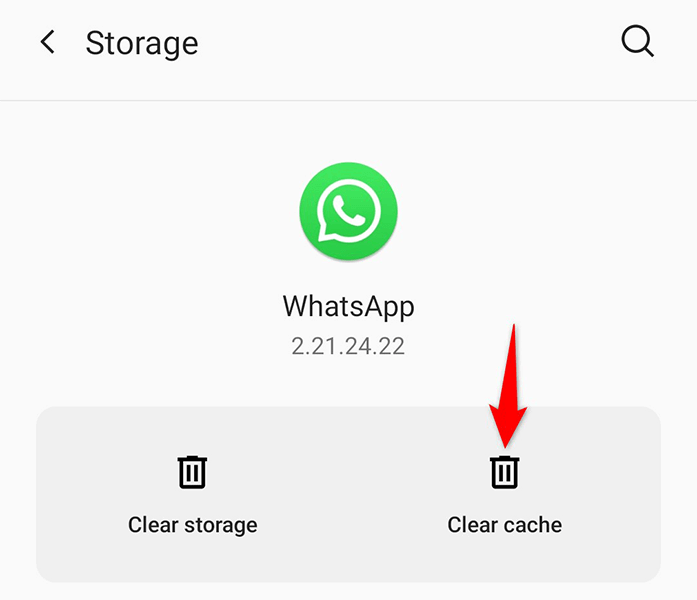
Cache files are often the cause of many issues, and this could be the case with the WhatsApp issue on your phone. Luckily, you can clear WhatsApp’s cache files without affecting any of your personal data on your phone.
The exact option to clear cache is only available on Android phones.
- Launch Settings on your Android phone.
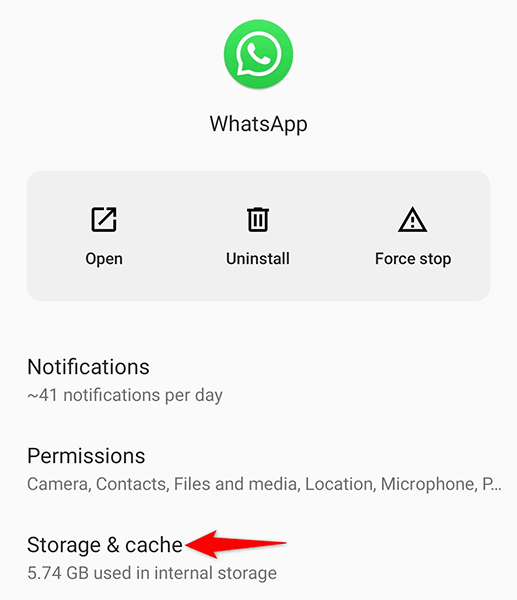
- Head into Apps & notifications > WhatsApp.
- Tap the Storage & cache option.
- Select Clear cache to delete WhatsApp’s cache files.
Reset Your App Preferences
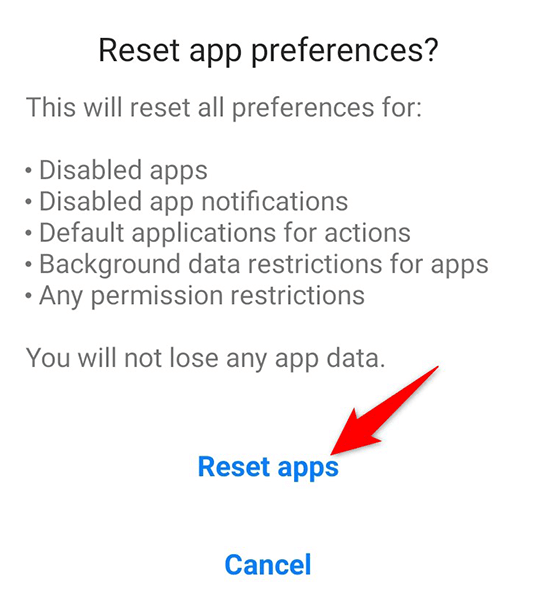
WhatsApp recommends you reset the app preferences when you experience notification problems. This doesn’t delete any of your installed apps.
You can only do this on Android.
- Open Settings on your phone.
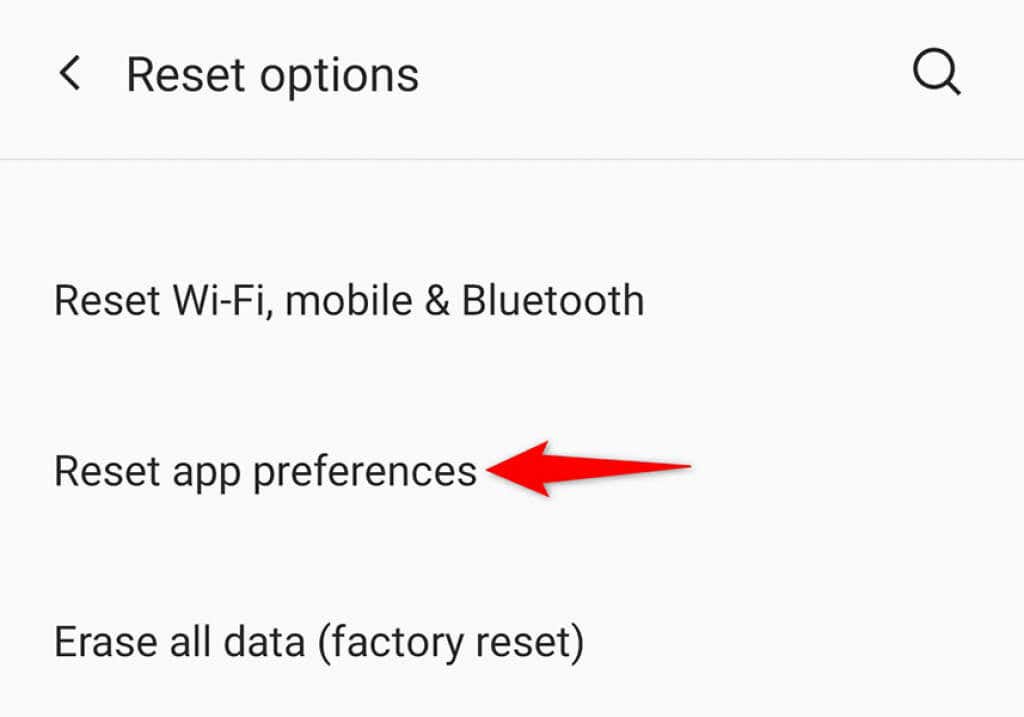
- Head into System > Reset options in Settings.

- Tap the Reset app preferences option.
- Tap Reset apps in the prompt that opens to confirm your choice.
- Restart your phone.
Log Out From WhatsApp on Your Computers
It may be that WhatsApp is sending its usual notifications but to another device where you’re logged in. This is usually the case when you use WhatsApp Web on your computers.
To fix that, log out of WhatsApp Web on your devices, and you should then get all your notifications directly on your primary phone.
- Open WhatsApp Web on the device you’re logged in.
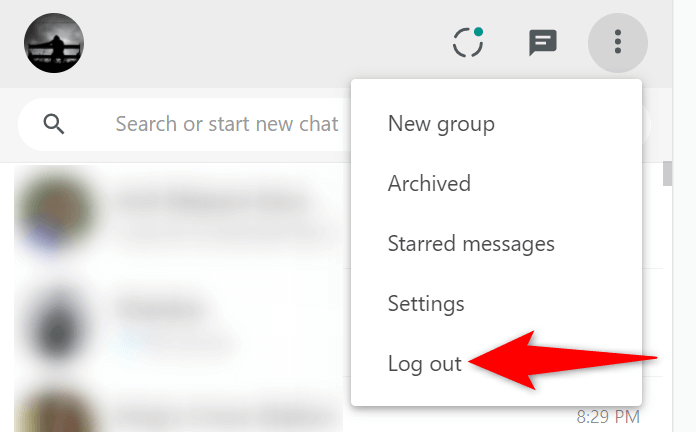
- Select the three dots at the top of the WhatsApp Web interface.
- Choose Log out from the menu that opens.
WhatsApp Notification Issues Aren’t Difficult to Deal With
A missed WhatsApp notification can sometimes cost you quite a bit. If that ever happens, use the methods in the above guide to fix the issue on your phone. Your notifications will then start pouring in, as they did before.
