Skip to content
HELP 101010 DESK 010101 GEEK
  • How-To
  • Social Media
  • Streaming
  • Reviews
  • How-To
  • Social Media
  • Streaming
  • Reviews
  1. Home/
  2. Social Media/
  3. How to Make a Post Shareable on Facebook

How to Make a Post Shareable on Facebook

Jake Harfield
January 18, 2023
3 min read

Help Desk Geek is reader-supported. We may earn a commission when you buy through links on our site. Learn more.

Woman using Facebook on laptop.

The point of social media platforms like Facebook is to share content with your friends. On Facebook, some content is shareable, and some aren’t — it all depends on the privacy settings of whoever posted the content in the first place.

In this article, we’ll explain how to make a post shareable on Facebook.

Table of Contents

    What Are the Facebook Privacy Settings?

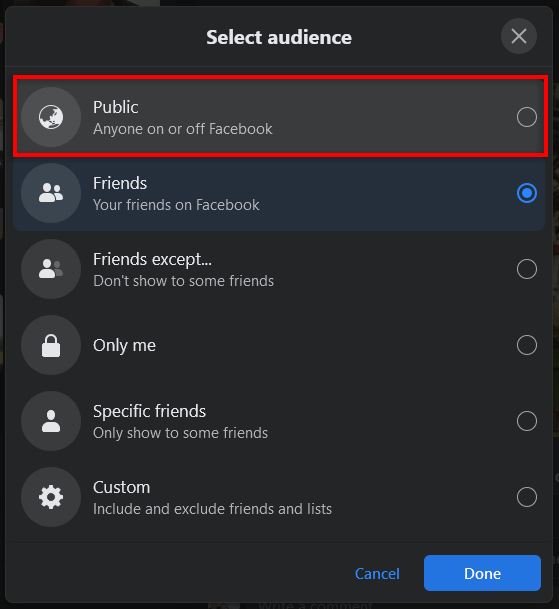
    You must choose a privacy setting whenever you post something to your Facebook profile. These sharing settings will determine who can view and share your posts.

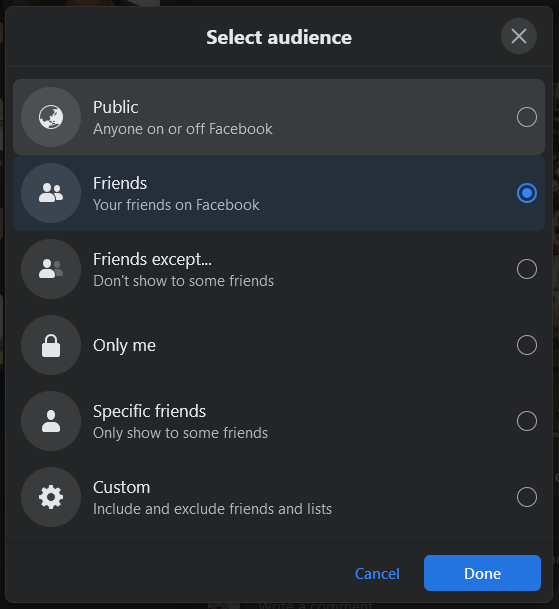
    The privacy options are as follows:

    1. Public. Anyone on Facebook can see public posts.
    2. Friends. Those on your friend list can only see posts set to the “Friends” share option.
    3. Friends Except. This allows all your friends to see the post, except specific friends you choose to exclude.
    4. Specific Friends. This option lets you choose certain people to share the post with.
    5. Only Me. A post set to “Only Me” cannot be seen by anyone else, essentially hiding the post.
    6. Custom. Using the “Custom” option, you can combine “Friends Except” and “Specific Friends” to include or exclude friends at will.
    If you see a post in your newsfeed, but the share button isn’t visible, or you’re unable to share posts with your friends, it means the author of the post has made it private (or it’s in a private Facebook group).

    Note: You can also check who shared your Facebook post.

    How to Make Your Facebook Post Shareable

    To make an existing post shareable on the Facebook website:

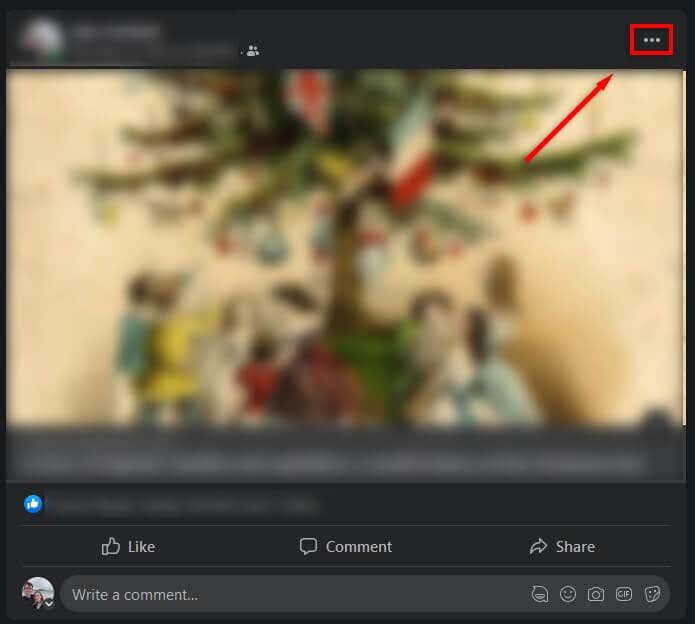
    1. Select the three horizontal dots at the upper-right corner of your post.
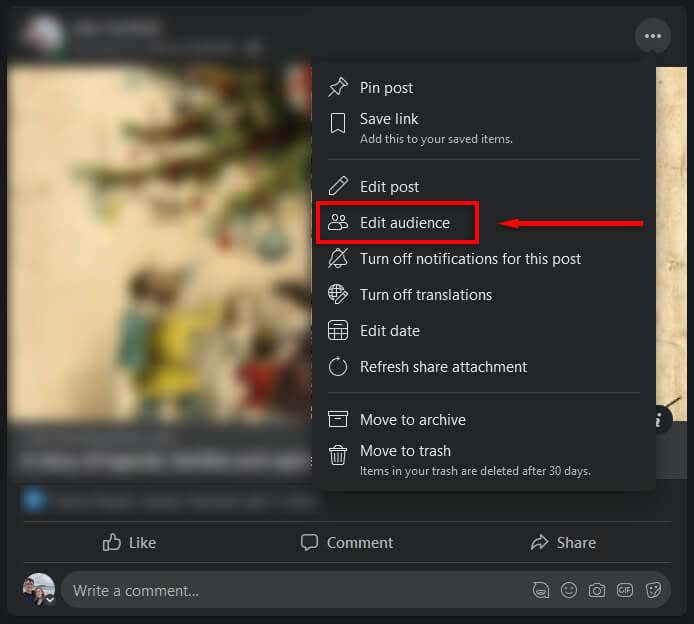
    1. In the drop-down menu, select Edit Audience.
    1. Choose Public.

    Note: You can select Edit Post, then on the audience drop-down menu, choose Public.

    To make a post shareable on your mobile device:

    1. Open the Facebook app and log in to your Facebook account.
    2. Find the post you want to make shareable.
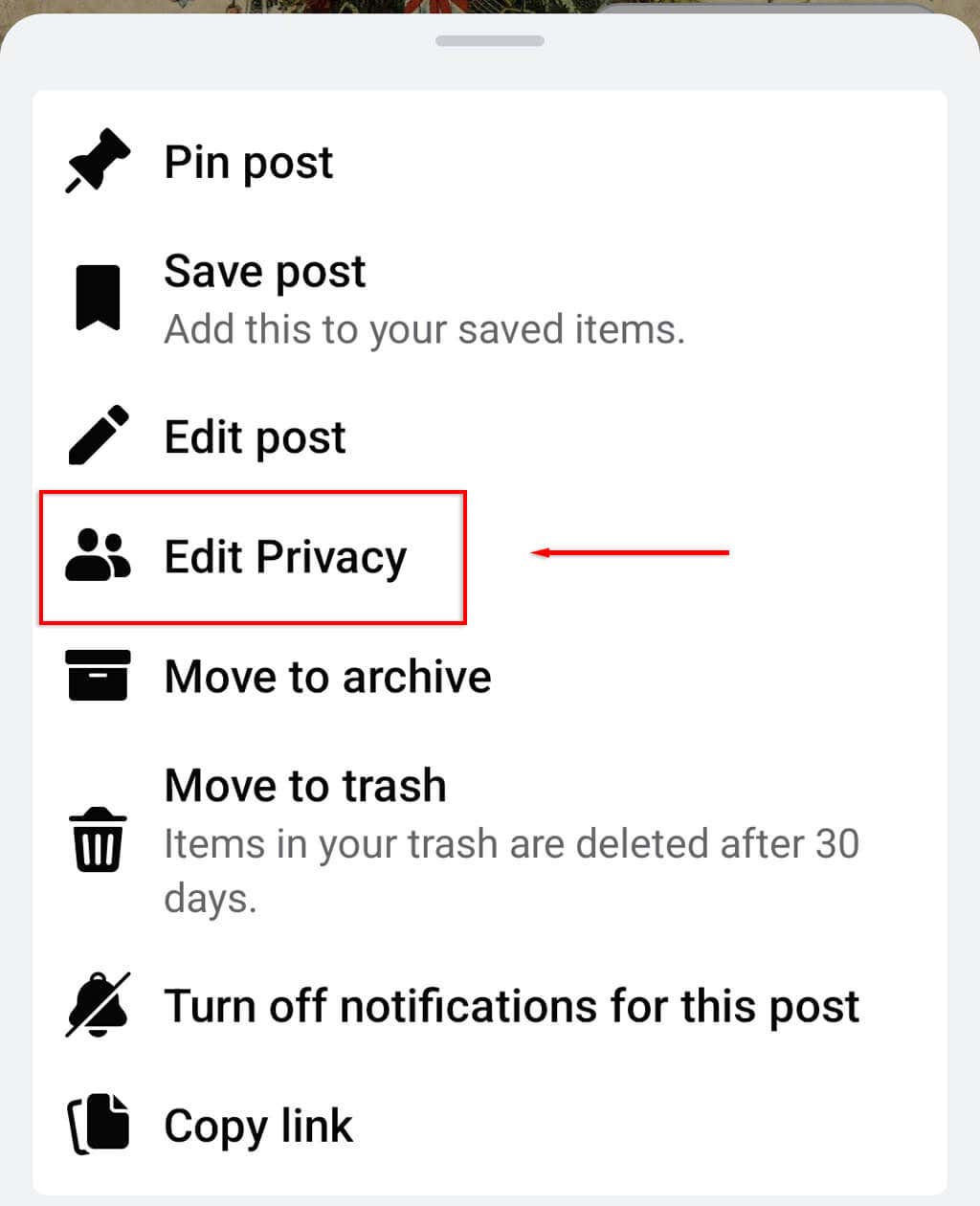
    3. Tap the three horizontal dots at the top-right corner of the post.

    1. Select Edit Privacy.
    1. Tap Public.

    Note: This should work for both the Android and iOS versions of the mobile app.

    You can also change the privacy settings when creating your post:

    1. Sign in to your Facebook account and head to the Facebook homepage.
    2. Tap What’s on your mind? to create a new post.
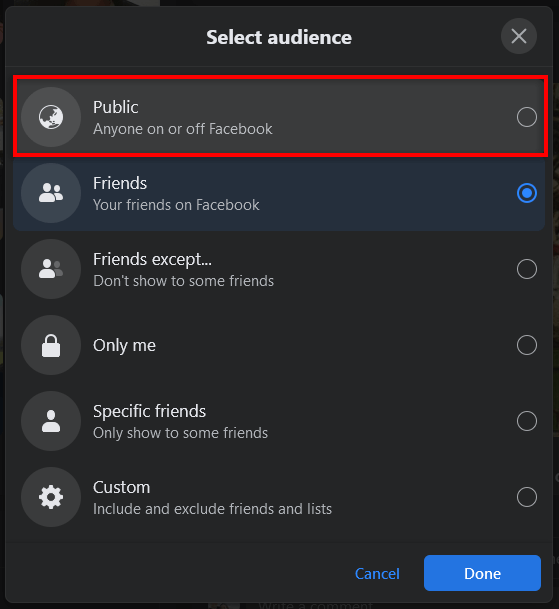
    1. Underneath your profile name, select the post audience pop-up menu.
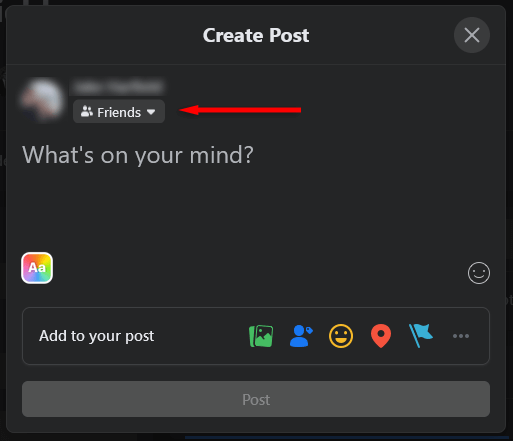
    1. Select Public then hit Done.
    1. Finish creating the post and select Post.

    Sharing Is Caring

    By making your post public, anyone on Facebook should be able to share your existing or future posts to their timelines or via other apps like Facebook Messenger. While it isn’t always a good idea to let everyone see your activity or full profile page, it is useful if you want to keep in touch with your friends.

    Tags: Facebook
    Share
    Written by

    Jake Harfield

    Jake Harfield is an Australian freelance writer whose passion is finding out how different technologies work. He has written for several online publications, focusing on explaining what he has learned to help others with their tech problems. He’s an avid hiker and birder, and in his spare time you’ll find him in the Aussie bush listening to the birdsong. Read Jake's Full Bio

    View Jake's Profile

    Recent Posts

    • How to Fix App Notifications in Windows?Feb 27, 2026
    • Using an Old Device? 5 Account Security Settings You Should EnableFeb 26, 2026
    • How to Find Features Moved from Control Panel to Settings in Windows 11?Feb 26, 2026
    • How to Back Up Your Android Downloads Automatically?Feb 25, 2026

    Ready for the best newsletter in tech?

    Get daily tips, tricks, guides, and special offers delivered right to your inbox.

    Thanks! Check your inbox for the next issue.

    Search

    Categories

    • Announcements (1)
    • Gaming (51)
    • How-To (2,947)
    • News (12)
    • Reviews (294)
    • Social Media (96)
    • Streaming (37)

    Popular Tags

    Adobe Amazon Android Antivirus Buying Guides Chrome Chromebook Discord Explainer Facebook Firefox Gadget Reviews Google Google Docs Google Drive Hardware Home Networking Internet iPhone Linux macOS Microsoft Excel Microsoft Office Microsoft Outlook Microsoft PowerPoint Microsoft Surface Microsoft Teams Microsoft Word OneDrive Printers Roundups Software Reviews Steam Ubuntu Virtualization WhatsApp WiFi Windows 7 Windows 8 Windows 10 Windows 11 Windows Vista Windows XP Wordpress YouTube

    Our Publishing Family

    Help Desk Geek is part of the AK Internet Consulting publishing family.

    • ONLINE TECH TIPS
    • THE BACK ROOM TECH
    • SWITCHING TO MAC
    • XBOX ADVISOR

    Daily Email Newsletter

    CONNECT WITH US

    About Help Desk Geek

    Help Desk Geek has published practical troubleshooting guides, Windows and Office tutorials, and hardware fixes since 2009 — helping millions of readers solve tech problems and get more from their devices.

    Learn More →

    © 2009-2026 Help Desk Geek.com, LLC.
    All Rights Reserved.

    • Home
    • About Us
    • Editorial Standards
    • Contact Us
    • Terms of Use
    • Privacy Policy
    Online
    Tired of Googling Tech Problems?

    Tired of Googling Tech Problems?

    Get step-by-step fixes from Help Desk Geek so the answer is already in your inbox next time.

    By signing up, you agree to the Terms of Service and Privacy Policy.

    Subscribed! Next Tech Headache: Handled.

    Stay tuned for our step-by-step fixes, actionable guides, tech how-tos, and clear, practical advice for real-world problems.

    Thank you!

    Subscribed! Next Tech Headache: Handled.

    Stay tuned for our step-by-step fixes, actionable guides, tech how-tos, and clear, practical advice for real-world problems.