

When you have multiple machines at your work desk, seamless file sharing can make work easier. Connecting two computers wirelessly is easy, but a wired connection offers better speed. Transferring several gigabytes of data with slow speeds can eat away a big chunk of your time. If you want to know how to network two computers together, we’ll give you a few options that offer great speeds.
Wired connections using an Ethernet cable can be especially fast and great for when you want to transfer large files. A pocket-friendly ethernet cable like Cat 5e can allow connection speeds of up to 1,000Mbps, and some other cables can transfer data at speeds of up to 10Gbps.
However, you can also opt for other, slightly slower options if you don’t have a crossover ethernet cable lying around. For instance, USB 3.0 can allow transfer speeds of up to 5Gbps, so it still works just fine for transferring large files.
The thing is, you may need to tweak the settings a tad on both PCs you want to transfer files between. If you’re wondering how, that’s what we’ll walk you through in this article.
How To Network Two Computers Together Using a Crossover Ethernet Cable
Using a crossover ethernet cable is your best bet for fast connectivity between computers. Find an ethernet cable and plug each end of the cable into the PCs you’re trying to connect.
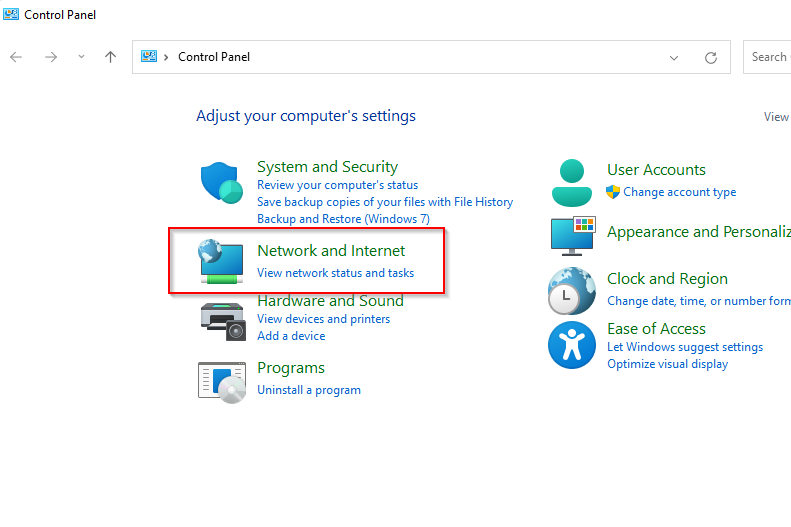
- First, you’ll need to enable network sharing on both PCs. To do this, search for control in the Start Menu and select Control Panel. Next, select Network and Internet.
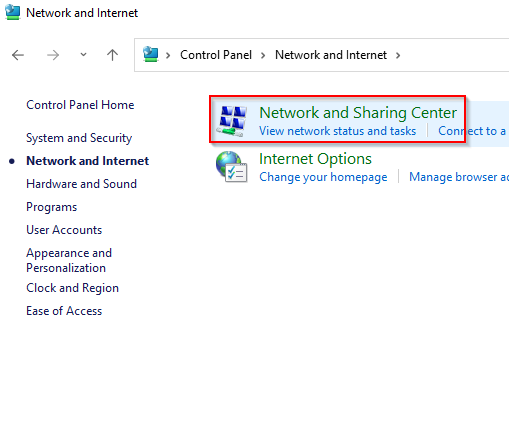
- Select Network and Sharing Center.
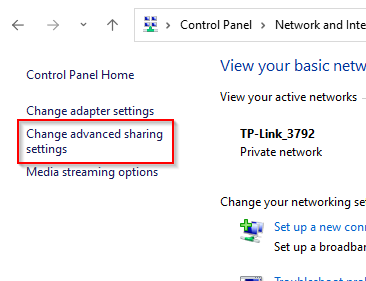
- Select Change advanced sharing settings from the left panel.
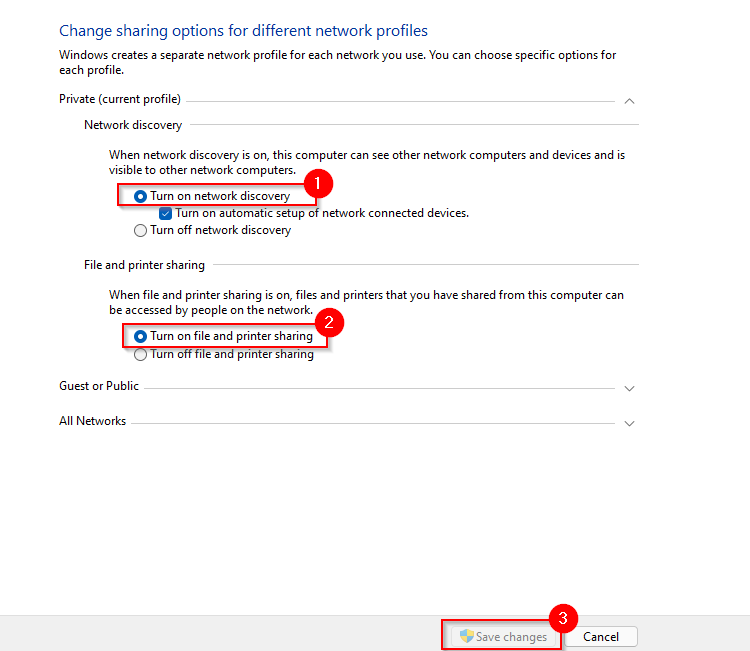
- Now, expand the settings for the Private profile, assuming you want to only share files over your home or work network. Select radio buttons beside Turn on network discovery and Turn on file and printer sharing. Then, select Save changes.
- Since you’re not connected to LAN, you’ll also need to configure the IP for each computer. To do this, go back to the Network and Sharing Center and this time, select Change adapter settings.
- Right-click on the Ethernet adapter and select Properties.
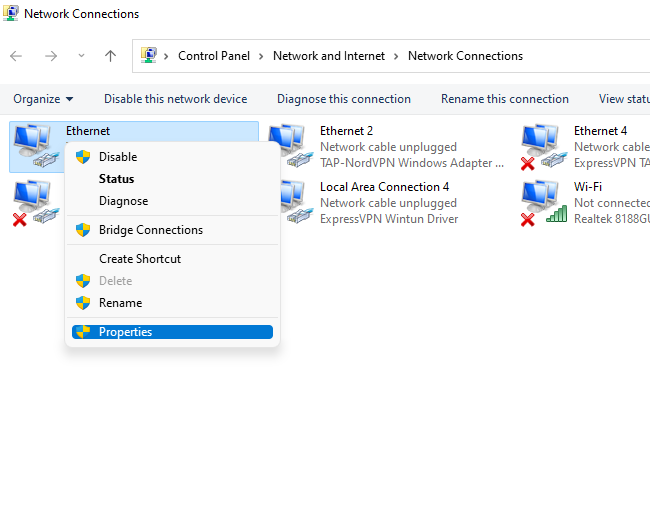
- Double-click on Internet Protocol Version 4 (TCP/IPv4).
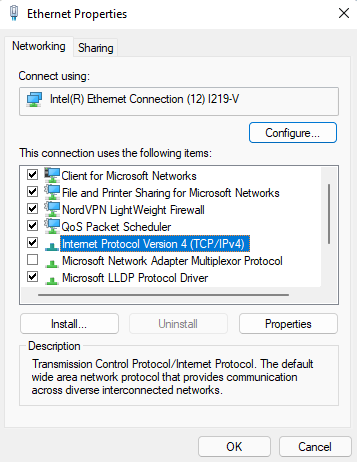
- Select the radio button beside Use the following IP address. Use the following configuration.
For the first computer:
IP address: 192.168.1.1
Subnet mask: 255.255.255.0
Default gateway: 192.168.1.1
Preferred DNS server: blank
Alternate DNS server: blank
For the second computer:
IP address: 192.168.1.2
Subnet mask: 255.255.255.0
Default gateway: 192.168.1.1
Preferred DNS server: blank
Alternate DNS server: blank
Select OK when done.
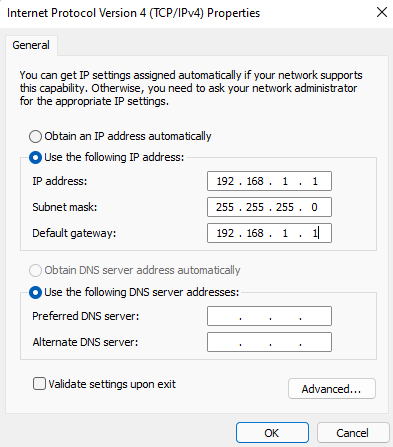
- You’re now ready to share files and folders. Go to the folder you want to make accessible on another computer, right-click, and select Give access to > Specific people.
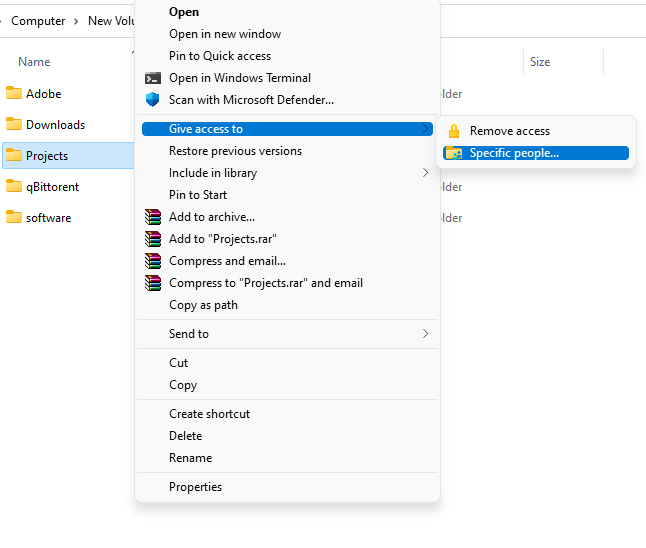
- Select the user you want to share the file with, select Add, and select the Share button.

- The settings discussed up to this point must be applied to both PCs. Once you’re done, launch the File Explorer and select Network from the left pane. You should see the other PC here.
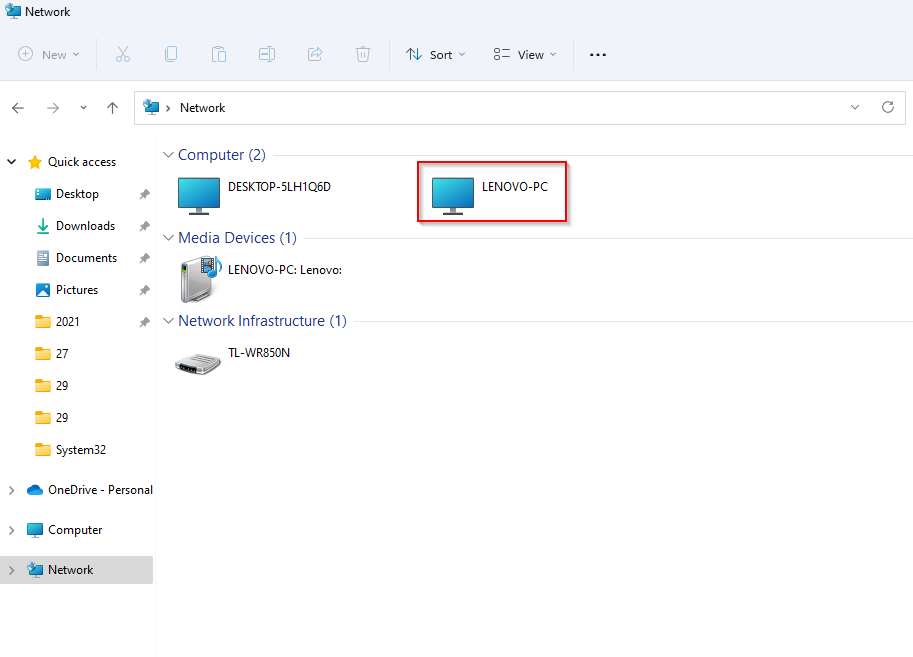
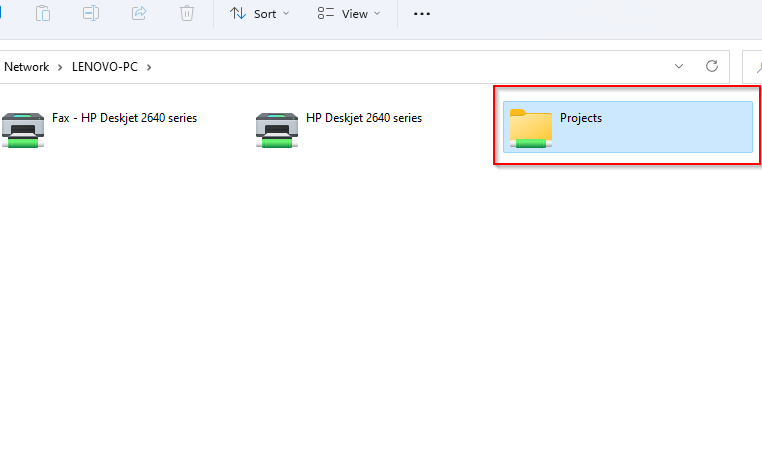
- Double-click on the PC’s name and you’ll see the folder you shared in there.
How To Network Two Computers Together Over LAN
If you don’t have a crossover ethernet cable, you can still transfer files over a LAN connection using a regular ethernet cable. Once you’re connected to a LAN, the process is exactly the same as with a crossover ethernet cable, but you may not need to assign a static IP to the computers, so you could just skip steps 5 through 8.
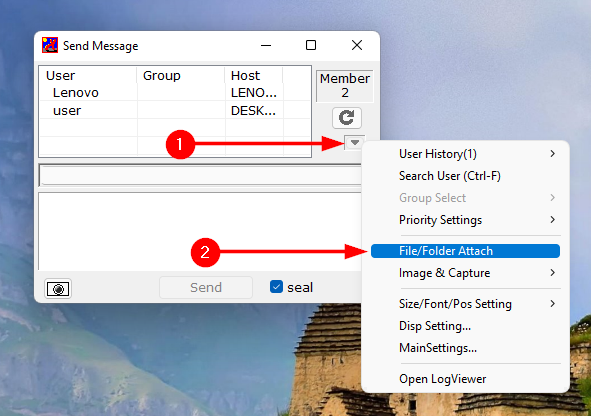
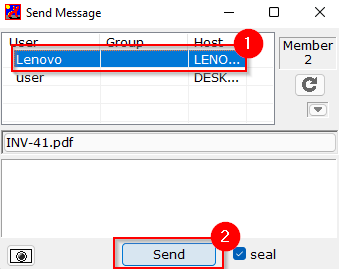
If you don’t want to jump through all those hoops, you do have the option to use a third-party tool like IP Messenger for transferring files over LAN. You’ll need to install the utility on both PCs. Once you’re done, launch the utility. You’ll see the PCs connected to the same LAN, provided they have IP Messenger installed.
- Select the down-arrow button at the right of the window, and select File/Folder Attach.
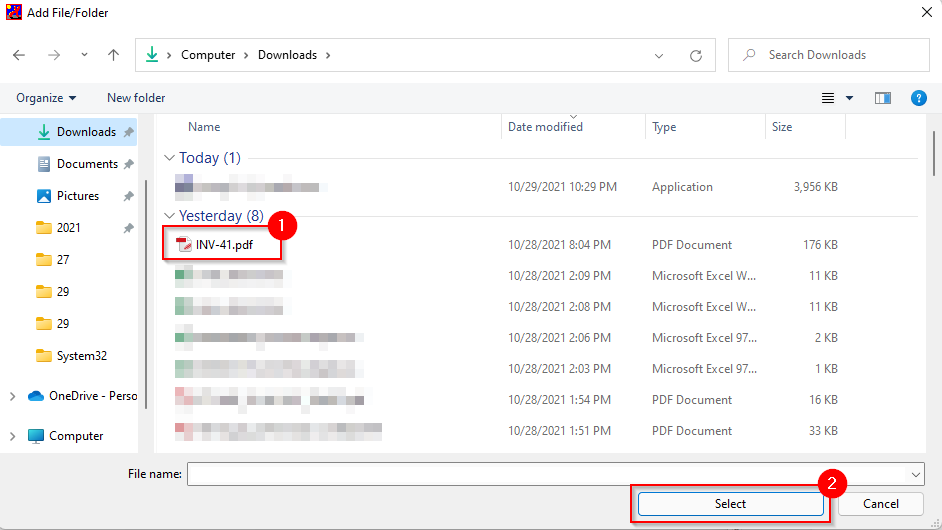
- Navigate to the file or folder you want to share, select it, and click on the Select button.
- Select a PC you want to send the file to from the list and select Send.
How To Network Two Computers Together With a USB
To transfer files between computers using USB, you’ll need a USB-to-USB bridging cable. The thing is, depending on which cable you have, the specifics of the process may be slightly different. However, the general steps in the process remain the same.
The first thing you’d need to do is install the software that came with the USB-to-USB cable. If the package didn’t come with any installation media, the USB cable will likely have a built-in utility that will allow file transfer. If not, you’ll need to download the drivers from the manufacturer’s website.
- Connect one end of the USB cable to each of the computers.
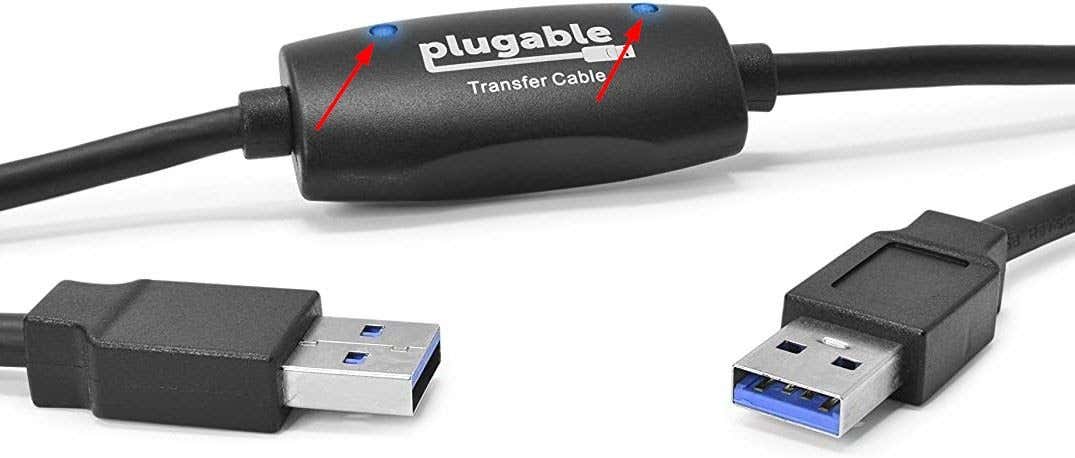
- Most USBs bridging cables have two LEDs placed somewhere on the cable. When your computer has successfully connected, you’ll notice the LEDs indicate that. For instance, here’s what the Plugable USB bridge cable looks like:
- Once you’re done, you’ll need to use the USB cable manufacturer’s utility to transfer the files. This is where the process differs among manufacturers, but it’s typically straightforward.
Wired Connections Allow Lightning Fast Transfers
Once you’ve connected both your PCs through a wired connection, you’ll be able to transfer files much more quickly than you could have over a wireless network. If you don’t happen to have a crossover ethernet cable or a USB bridge cable, you can still use your LAN for sharing files over a wired connection.
