

There are many valid reasons to record a WhatsApp conversation—to gather evidence, for research purposes, to record a meeting, etc. However, unlike other instant messaging and video conferencing apps, WhatsApp lacks native support for call recording.
That makes it a little complicated to record WhatsApp calls, but it’s not impossible. In this tutorial, we’ll show you how to record WhatsApp video calls and audio calls on Android and iOS devices.
Limitations of WhatsApp Call Recording in Android and iOS
Although Android and iOS have built-in screen recording features, they aren’t the best option for recording WhatsApp calls. The tools are only equipped to record visuals and audio from your device’s screen and speakers, respectively.
The built-in screen recorders cannot record audio input from your microphone, so you cannot use it to record two-way interaction. You could use external audio devices (e.g. Pass-through earphones) to create high-quality audio recordings of your WhatsApp conversations. However, these devices often retail for about $40 or more. Plus, the audio doesn’t always sound as good as the original.
Do Third-Party Call Recorders Work?
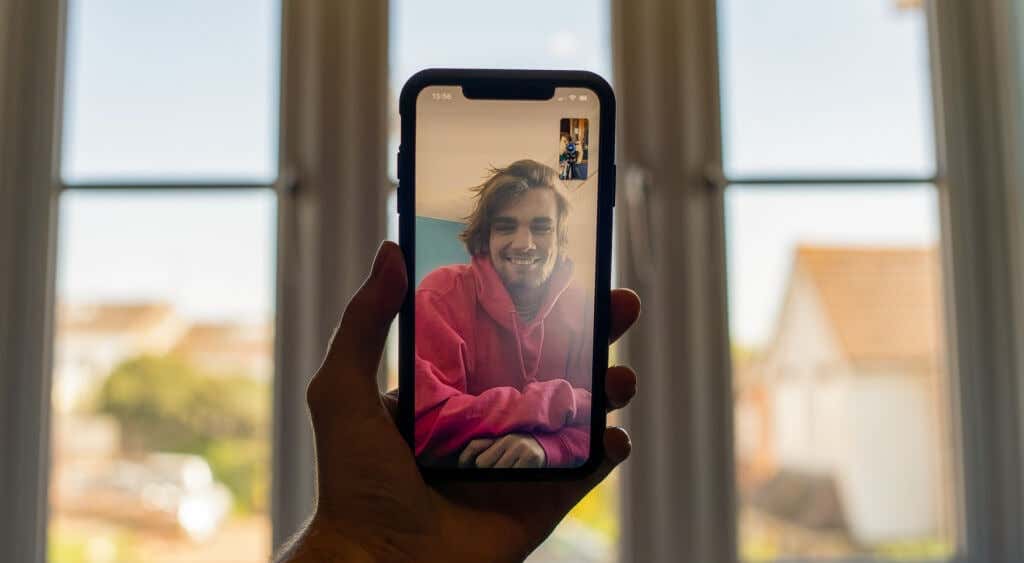
If you go online to search for ways to record WhatsApp audio and video calls, you’ll find several blog posts recommending third-party apps. These voice or screen recorder apps can’t give you what you need. We tried a handful of them on Android and iOS devices, and none worked efficiently. This is because third-party voice recorders cannot simultaneously access your device’s microphone during audio and video calls.
For WhatsApp video calls, the apps will only record the content on your screen but won’t capture audio. When you record WhatsApp voice calls, the audio playback produces muffled and crackling noises. Some call recording apps outrightly state that they cannot record VOIP calls made with social apps (WhatsApp, Skype, Telegram, etc.).
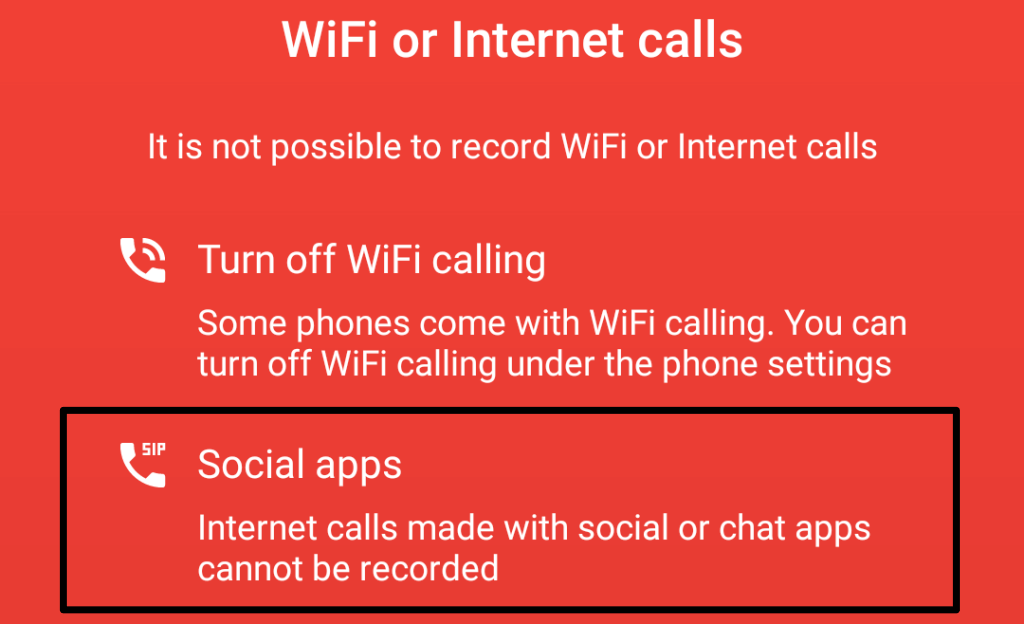
So, it’s (currently) impossible to record WhatsApp calls using third-party recording apps on iOS and Android devices. The best workaround is to manually record calls using another smartphone or computer.
Record WhatsApp Call Using Another Device
If you have a secondary device (smartphone, tablet, or PC), use the built-in recording app on the device to record WhatsApp calls. To record WhatsApp video calls, open the camera app on the secondary device, switch to “video” mode, and start recording. Install a third-party call recording app on the secondary device if it doesn’t have built-in audio or video recorder.
Make sure you put the call on speaker so that the secondary device can properly capture the voice of the other participant(s).
If you use an iPhone, there’s an easier alternative that involves using a Mac notebook or desktop to remotely record WhatsApp conversations. Jump to the next section to learn how to get it done.
Record WhatsApp Audio Call Using QuickTime Player on Mac
QuickTime Player is a multimedia player utility built into the mac operating system. The tool lets you mirror your iPhone/iPad screen to a Mac and record calls from VOIP or instant messaging apps like FaceTime, WhatsApp, etc.
From our experiment, we couldn’t record a two-way (audio and video) conversation using QuickTime. The app only started recording when we created a group WhatsApp call/conversation.
Basically, you can only use this tool/method to record a group WhatsApp audio or video call. All you need is a Mac desktop or notebook with QuickTime player pre-installed, your iPhone, and a USB lightning cable.
- Plug your iPhone into your Mac using the USB cable. Select Trust and enter your iPhone’s passcode if you’re prompted to grant the Mac access to your settings and data.
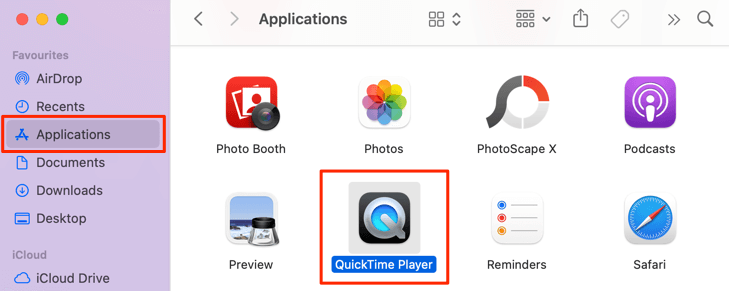
- Open Finder, select Applications on the sidebar, and double-click QuickTime Player.
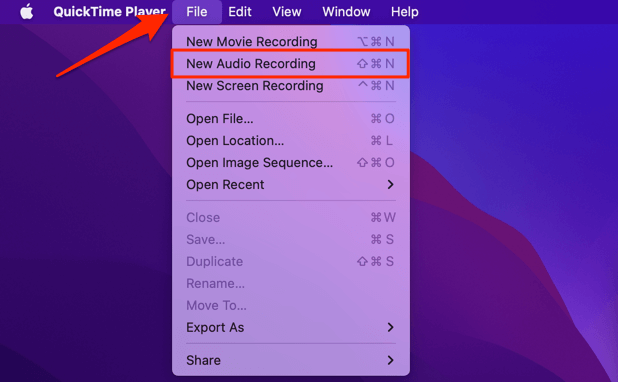
- Afterward, select File on the menu bar and select New Audio Recording if you want to record a group audio call. Otherwise, select New Movie Recording to record a group WhatsApp video call.
- Tap the arrow-down icon next to the record button.
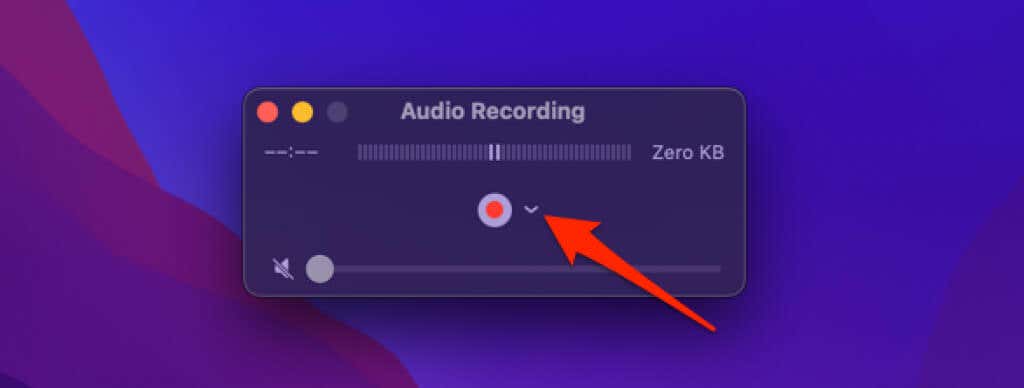
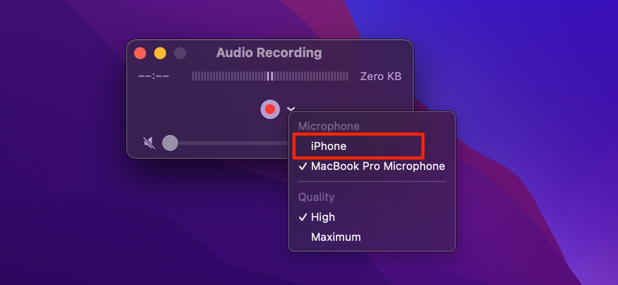
- In the “Microphone” section, select your iPhone as the audio input source.
If you’re recording a group WhatsApp video call, ensure you select iPhone as the audio and video source in the “Camera” and “Microphone” sections.
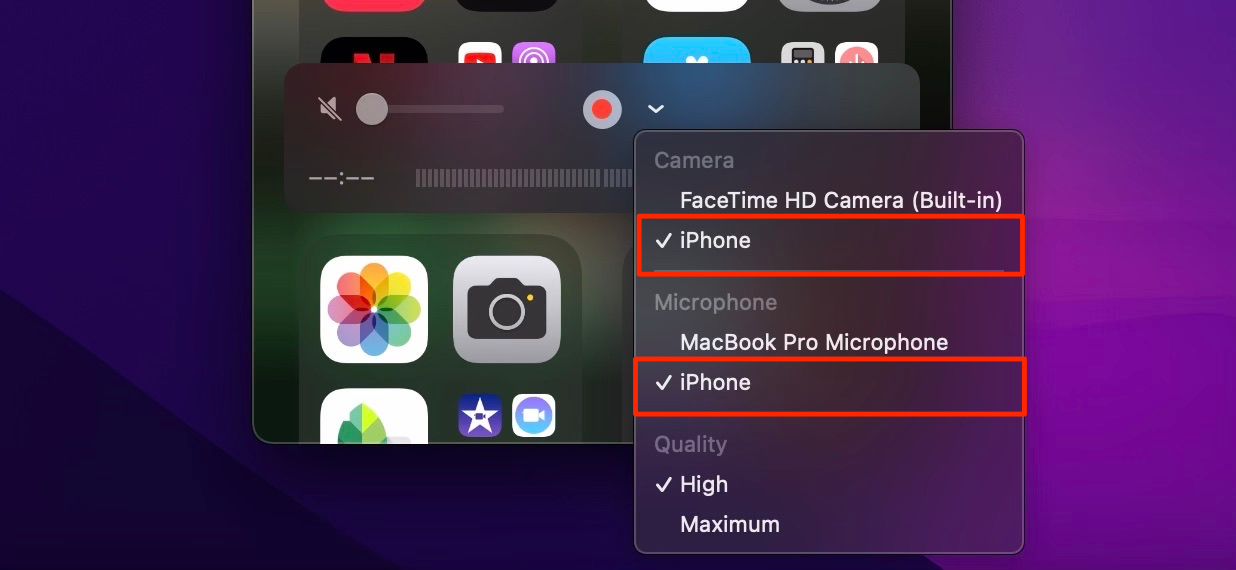
You can also select your preferred audio output quality in the “Quality” section. Remember, the audio quality you select has an impact on the size of the recording. The higher the audio/video quality, the bigger the disk space the recording file occupies on your Mac.
- Hit the record icon, start the WhatsApp call, and add participants to the call.
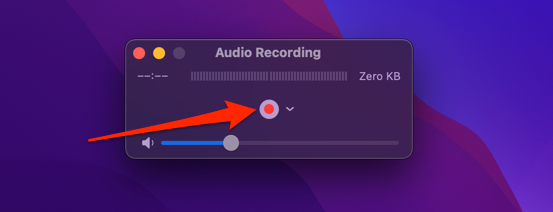
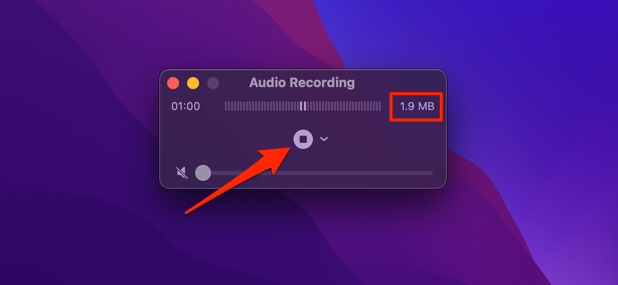
QuickTime will immediately start recording audio or video when there are at least three participants in the group call. You’ll see the estimated size of the audio or video file as QuickTime records the conversation.
- When the call is over, select the Stop button to stop recording.
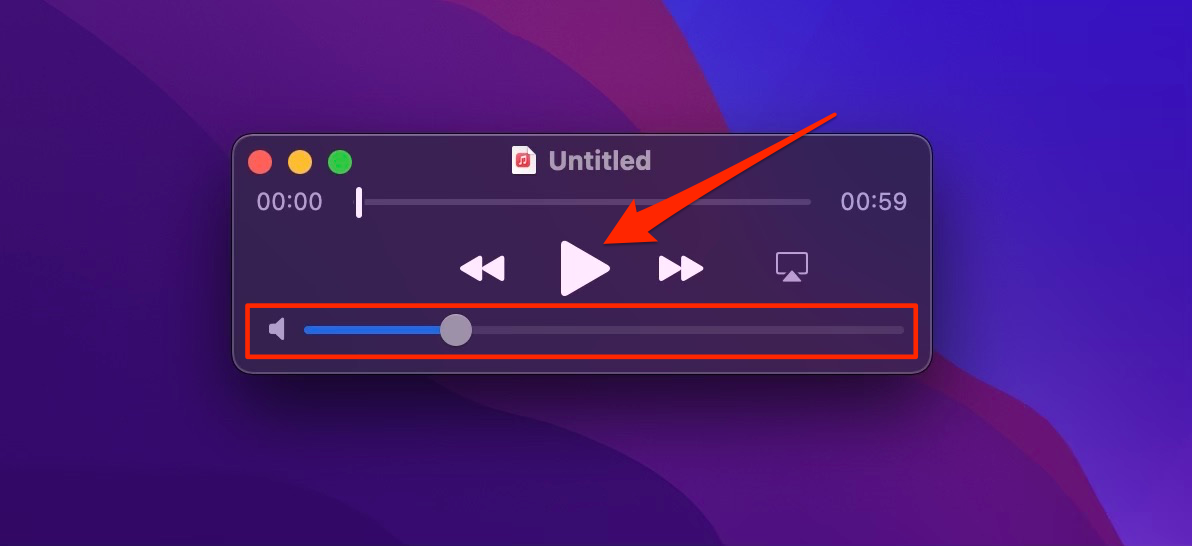
- Select the play button to listen to the recording before saving it to your Mac. Remember to unmute the QuickTime player by moving the volume slider to the right.
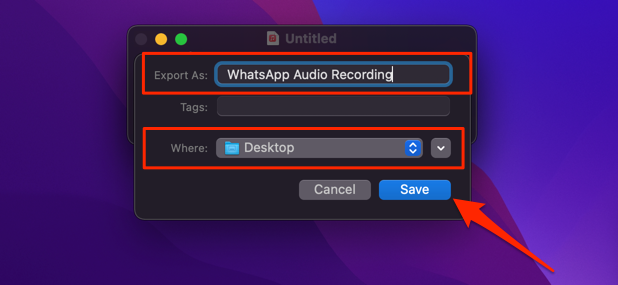
- Use the command + S keyboard shortcut to save the audio or video recording. Rename the recording if you wish, choose the destination folder, and select Save.
WhatsApp Call Recording: Legal or Illegal?
In some countries, it’s completely illegal to secretly record any type of private phone conversation. So, before using these apps or methods to record WhatsApp audio and video calls, confirm that call recording is legal in your country or region. If legal, it’s also ideal to get the consent of all participants before recording your conversations.
It may also be against an organization’s communication policy to record phone calls. Hence, before you record that business meeting or virtual conference via WhatsApp, check with your supervisor or HR that you’re allowed to do so.
