

Transferring a Microsoft Office license or subscription from one computer to another is easy. However, note that not all Office licenses are transferable. This tutorial is a step-by-step guide on transferring Microsoft Office licenses on Windows and Mac computers.
But first, skim through the following section to learn about the types of Microsoft Office licenses. Subsequent sections cover steps to check Office license types and transfer licenses to a new device.
Types of Microsoft Office Licenses
There are different types of Microsoft Office licenses. Each license has varying apps, services, and features. Let’s have a look at some popular Microsoft Office licenses:
- Original Equipment Manufacturer (OEM) License: OEM Office licenses are pre-installed on new Windows devices from the factory by the manufacturer. The product key attached to this license cannot be transferred or used to activate Microsoft Office apps on another computer.
- Full Product Pack or Full Packaged Product (FPP) License: Also called a “Retail License,” this license ships with Office apps that you manually install on your computer. If you purchase Office online or in-store, you can use its license on any computer.
However, you can only use it on one PC at a time. To transfer a retail license to another computer, you must first deactivate the product on the current device. Home Use Programs (HUP), Electronic Software Download (ESD), Point of Sale Activation (POSA), and Product Key Card (PKC) are different variations of retail licenses sold online and in stores.

- Volume Licenses: When a company or enterprise buys Microsoft Office for five or more computers, they get a volume license. The software can be installed and activated on multiple computers using one license key. Volume licenses are transferable, but the process isn’t exactly straightforward. You’ll need to contact Microsoft’s Volume Licensing Service Center (VLSC) to start the process.
- Not For Resale (NFR): These are Office products given away as gifts, typically for promotional purposes. Licenses for NFR products are not transferable.
How to Check Office License Type in Windows
Only “Retail” or “Full Product Pack (FFP)” licenses can be transferred to a different device. The steps for checking your Office license typically depend on the Office version and your computer’s operating system.
Check License Type for Office 2016, 2019, and 2021
If you use these versions of Office products (Word, Excel, etc.), follow the steps below to check their license types:
- Open the Windows Start Menu, type cmd or command prompt in the search bar, and select Run as administrator.

- If you use a 32-bit PC, type or paste cd c:Program Files (x86)Microsoft OfficeOffice16 into the terminal and press Enter:

On a 64-bit computer, type or paste cd c:Program FilesMicrosoft OfficeOffice16 in the terminal and press Enter.

Not sure about your PC’s processor architecture? Refer to our tutorial on checking whether your PC uses a 32-bit or 64-bit processor.
- Next, type or paste cscript ospp.vbs /dstatus in the terminal and press Enter.

- Wait for the command to run and check the “LICENSE DESCRIPTION” row for your Office license type.

Check License Type for Office 2013
Open Command Prompt with administrative privileges and follow the steps below.
- On 32-bit computers, type or paste cd c:Program Files (x86)Microsoft OfficeOffice15 in the terminal and press Enter.

If Office 2013 is installed on a 64-bit PC, type or paste cd c:Program FilesMicrosoft OfficeOffice15 and press Enter.

- Type or paste cscript ospp.vbs /dstatus and press Enter.

If you have a “RETAIL” or “FFP” license, proceed to the next section to learn how to transfer your copy of Office to another computer.
You can also determine the license type of Office 2013 products through its ISO or DVD installation file.
Insert the DVD into your PC, open File Explorer, and navigate to the DVD or ISO file. If there’s an “Admin” folder in the installation file, the product has a volume license (VL). Retail editions of Microsoft Office products don’t have an “Admin” folder.
How to Check Microsoft Office License in macOS
Open the Office product on your Mac computer or desktop and follow the steps below to check its license detail.
- Select the product name on the menu bar and select About [Product Name]. For example, if you’re using Microsoft Word, select Word on the menu bar, and select About Microsoft Word.

- Check the “License” row to view the product’s license type.

How to Transfer a Microsoft Office License
Again, you can only use a retail license on one device concurrently. Uninstalling Office frees up the product to be used on another computer.
If your old computer is dead or broken, you don’t have to uninstall Office from the device. Instead, install Office on the new PC and activate the product using the same product key.
Make sure you have the 25-character product key handy. Check the disc’s physical packaging or the receipt sent to your email for the product’s license key.
Deactivate Microsoft Office License on Windows

Uninstalling an Office product deactivates or unlinks the license from your device. We cover three different ways to uninstall Office products on Windows devices below.
Uninstall Office from Control Panel
Removing Office from the Windows Control Panel is ideal if you installed the product using a DVD, ISO file, or Microsoft Installer (MSI).
- Open your PC’s Control Panel and set the “View by” option to Category. Select Uninstall a program in the “Programs” category to proceed.

- Select the Office product you want to remove and select Uninstall.

- Select Uninstall on the confirmation prompt and wait for Windows to remove the product from your PC.

Uninstall Office from the Settings Menu
If you installed the Office app from the Microsoft Store, follow the steps below to remove the software.
- Go to Settings > Apps > Apps & features, select the three-dot icon next to the Office app, and select Uninstall.

- Select Uninstall again on the pop-up.

Uninstall Office Using Microsoft’s Support and Recovery Assistant
Microsoft has an official tool that wholly and automatically removes Office on Windows computers. Download and install the tool from Microsoft’s website and wait for it to download the necessary setup files.
The tool automatically detects all Office products installed on your computer. Select the product you want to remove and select Next to proceed.
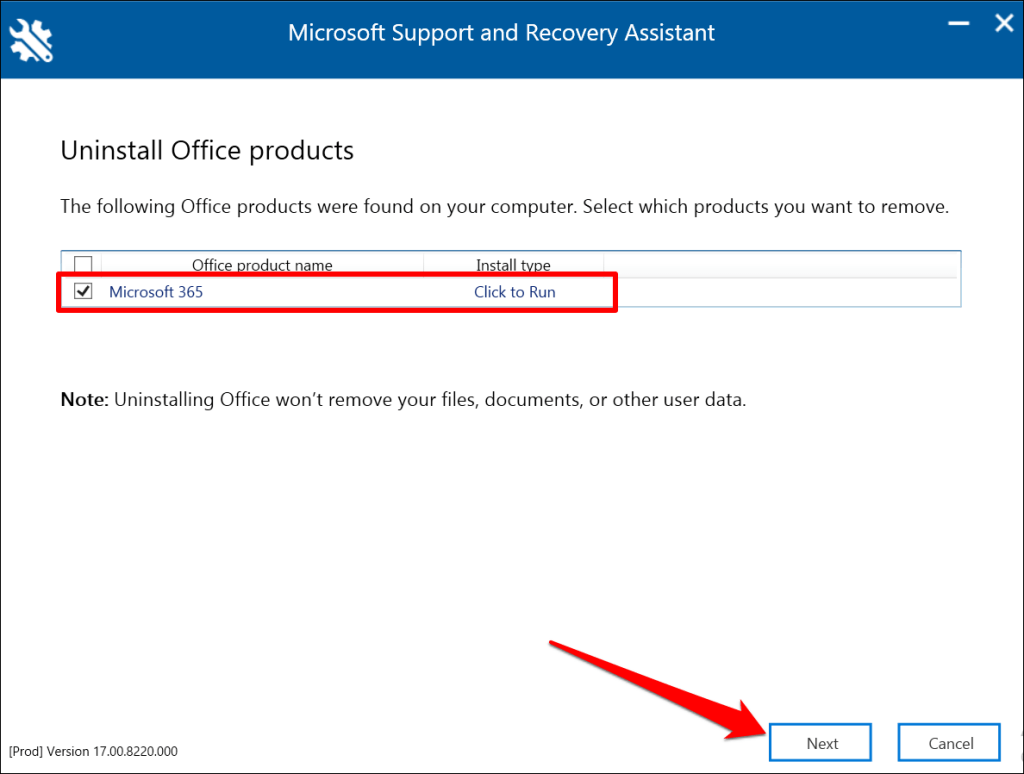
Confirm that you’ve saved your work and closed all active Office applications. Select Next to start the uninstallation.

Uninstall Office on Mac Computers
Go to Finder > Applications, right-click the Office application, and select Move to Trash.

Deactivate Office License from Your Microsoft Account
AnOffice 365 subscription allows you to install and use Office products on five devices simultaneously. If you’ve hit the number of concurrent installations, you must unlink one device to use the license on a new computer.
Follow the steps below to remove a device from your Microsoft Office 365 subscription remotely.
- Sign in to your Microsoft Office account on any web browser. Expand the Subscriptions drop-down menu and select Manage below your Microsoft 365 subscription.

- Expand the Office apps for PC or Mac drop-down menu.

- In the “Signed in devices” section, select Sign out next to the device whose Office license you want to deactivate.
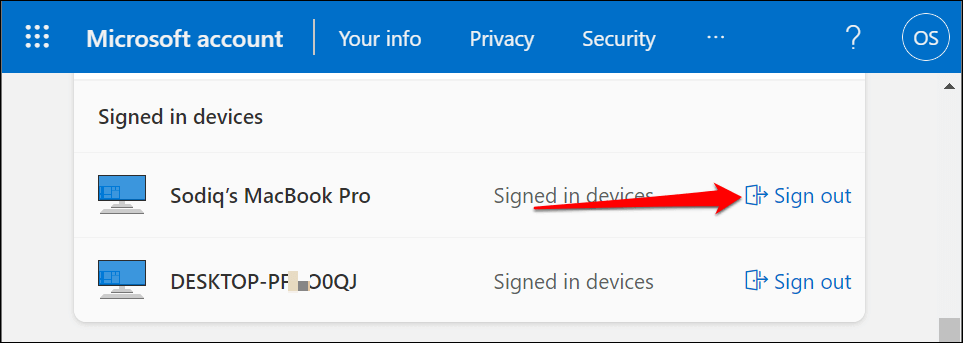
- Select Sign out on the confirmation prompt.

Use Office on Your New Computer
Uninstalling Office on your old device is just half of the license transfer process. The concluding part is to install Microsoft Office on the new computer. Enter the same license key used on the old machine when setting up the software (on the new device). Make sure your PC has an internet connection during the activation.

It can take Microsoft up to 72 hours for Microsoft to remotely unlink the license from your old device. If the license doesn’t work on the new PC after 72 hours, contact Microsoft Support or refer to our tutorial on fixing Office license problems.
