

In this tutorial, we’ll show you how to transfer WhatsApp data from Android to iPhone using AnyTrans and iCareFone. We should mention upfront that these tools aren’t free, but they both get the job done.
To migrate your data, you’ll need either of these apps, a computer (PC or Mac), USB cables, and a Wi-Fi connection. Also, install WhatsApp on the new device (iPhone) and log in to your WhatsApp account before transferring your data.
Why Third-Party Apps?
Transferring WhatsApp messages and data between devices running similar operating systems is easy. Google Drive powers Android-to-Android migration while iOS-to-iOS transfers work with iCloud. However, inter-OS WhatsApp data migration is a little complicated. But it’s not impossible.
Currently, there’s no official method for transferring WhatsApp chat history between devices running different operating systems. Inter-OS data transfer is only available for WhatsApp users moving from an iPhone to Samsung devices. To move from an old Android phone to a new iPhone, you’ll need to use third-party data transfer tools.
Transfer WhatsApp Messages Using AnyTrans
AnyTrans’ “Social Messages Manager” can help transfer your WhatsApp data from Android or iOS to a new phone. The software is available for Mac and Windows computers. Install AnyTrans on your computer and follow these steps to use the tool to transfer WhatsApp data from Android to iPhone.
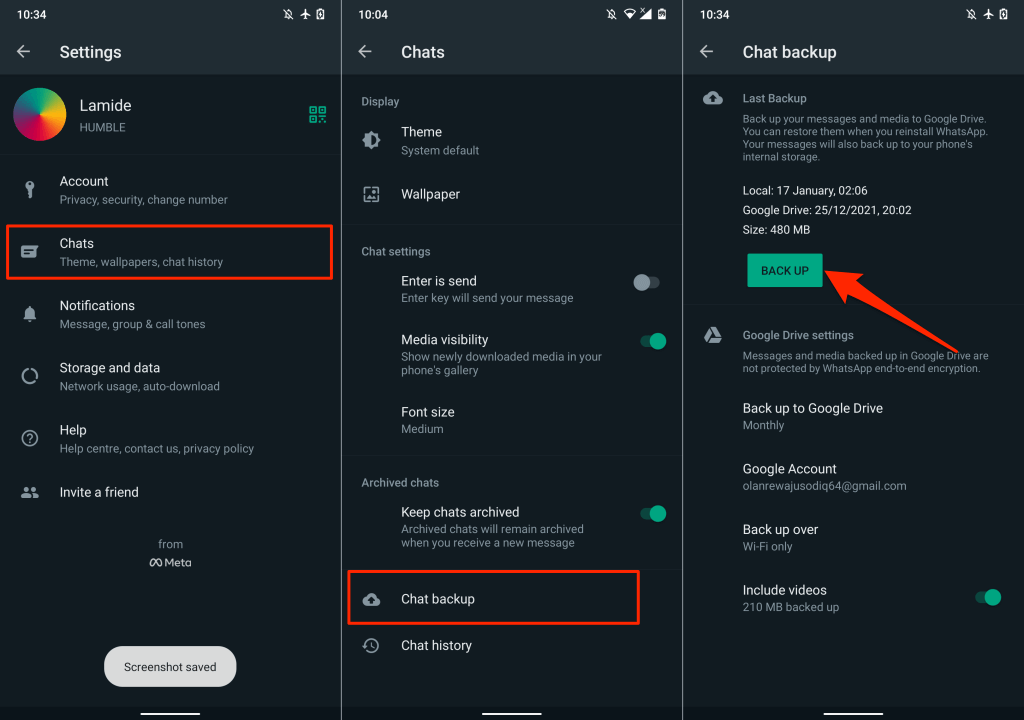
Note: We recommend backing up WhatsApp to Google Drive before transferring data to your iPhone. Go to Settings > Chats > Chat backup, tap the Back Up button, and wait until the backup is complete.
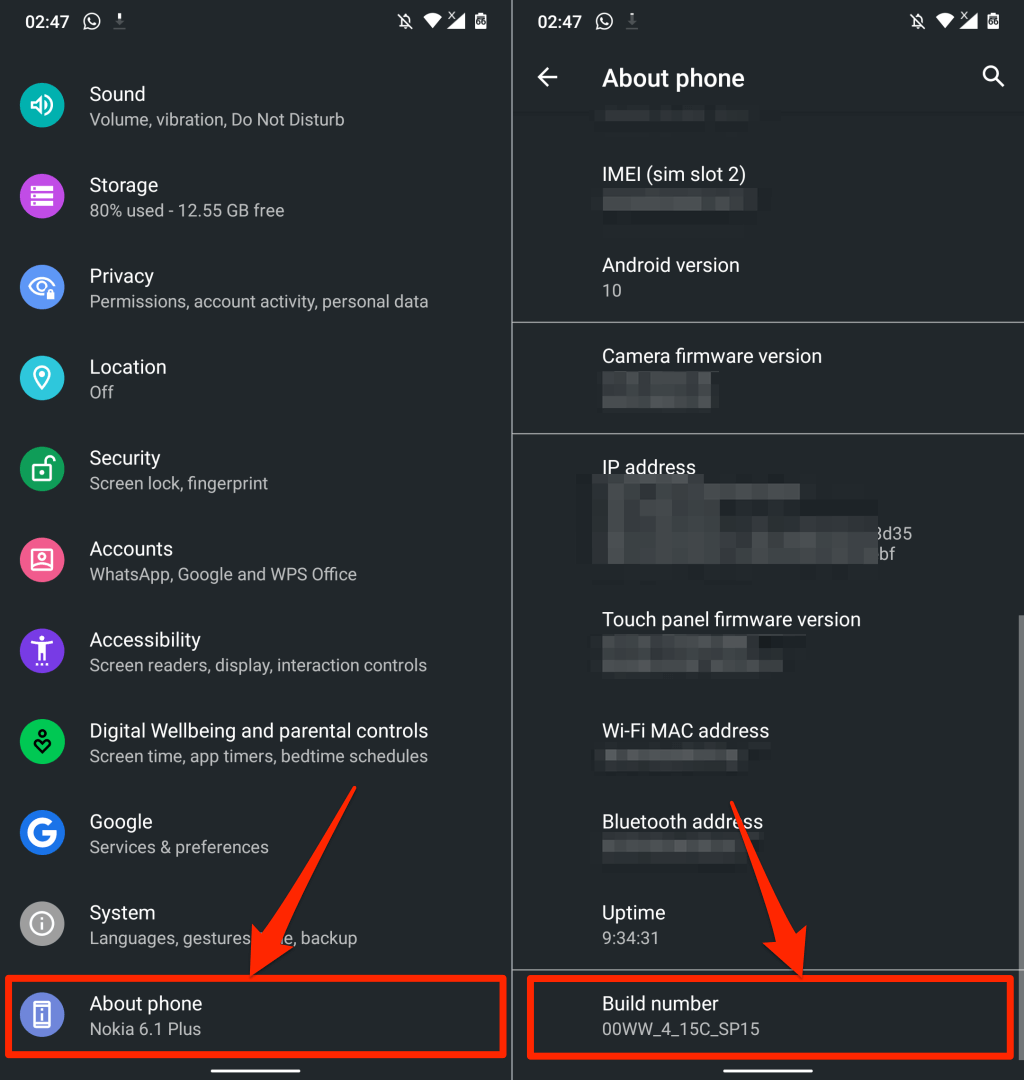
Before you proceed, ensure USB Debugging is enabled on your Android device. Go to Settings > About Phone and tap Build Number seven times consecutively to activate Developer Options.
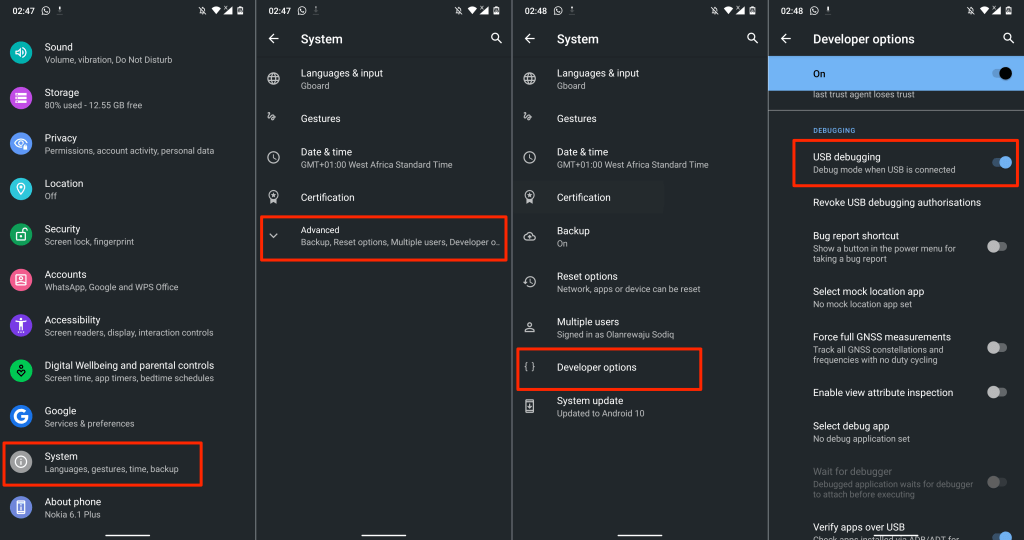
Afterward, go to Settings > System > Advanced > Developer options, scroll to the “Debugging” section, and toggle on USB Debugging.
From our experience, AnyTrans doesn’t look optimized for a wide range of Android devices. The Windows and macOS versions of the app failed to detect our Android device via USB. We used an authentic USB cable, USB debugging was enabled, and MTP (or File Transfer) preferred USB mode. Nothing worked.
We connected our Android device to the AnyTrans desktop client using the AnyTrans Android app. We’ll show you how to use the AnyTrans Android app (see step #3), just in case you encounter similar issues.
How to Use AnyTrans Desktop Client to Transfer WhatsApp Data
- Launch AnyTrans and plug your iPhone and Android device into your Mac or PC.
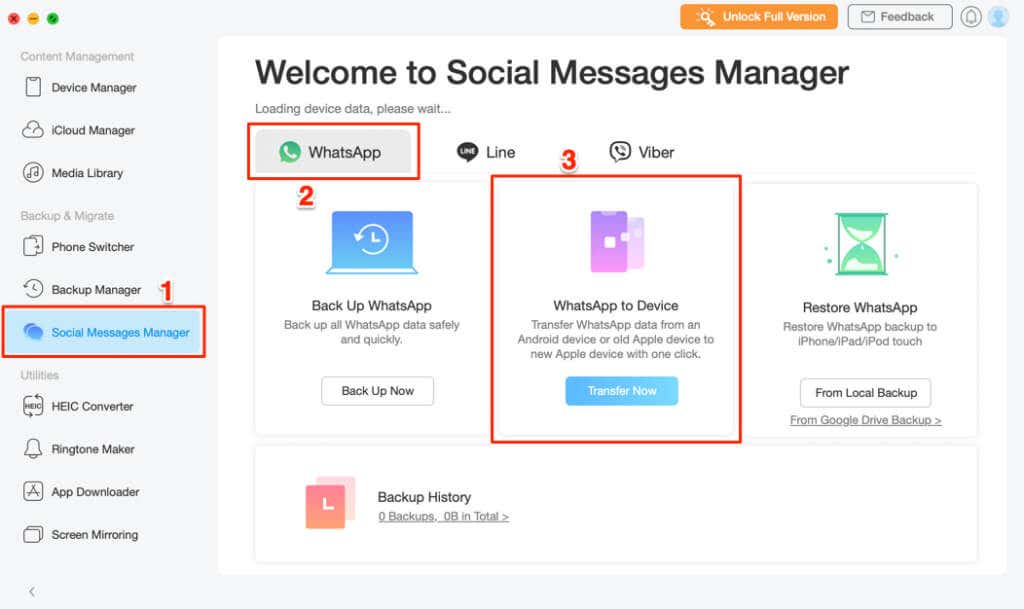
- Select Social Messages Manager on the sidebar, head to the WhatsApp tab, and select Transfer Now in the “WhatsApp to Device” section.
- Select your Android phone or tablet as the source device in the left drop-down menu. In the other drop-down menu, select your iPhone as the target device.
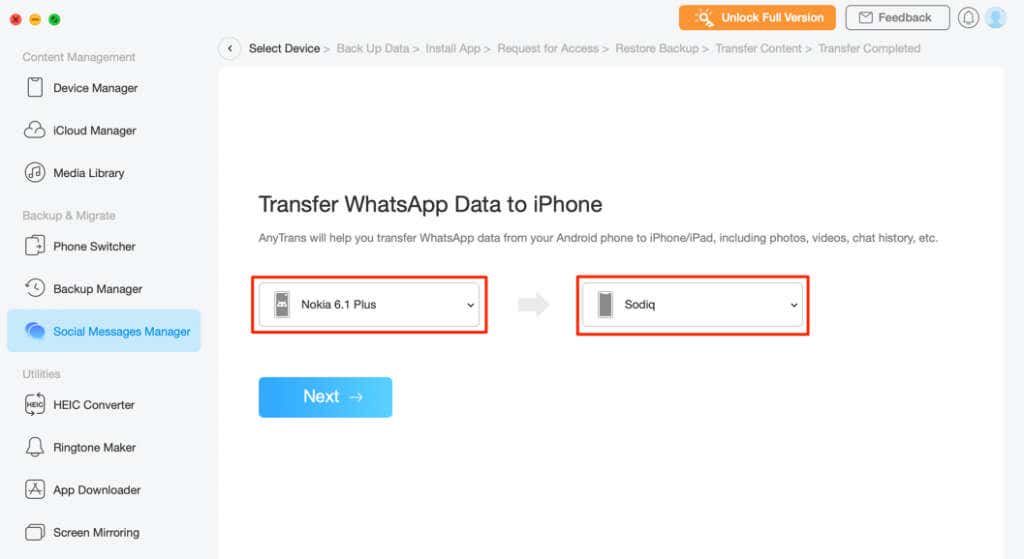
AnyTrans software failed to recognize our Android device via USB. We had to link the app to our phone to the desktop client using the AnyTrans Android app.
If you’re experiencing a similar problem, install AnyTrans on your Android device and proceed to the next step. Otherwise, jump to step #7 to start the data transfer.
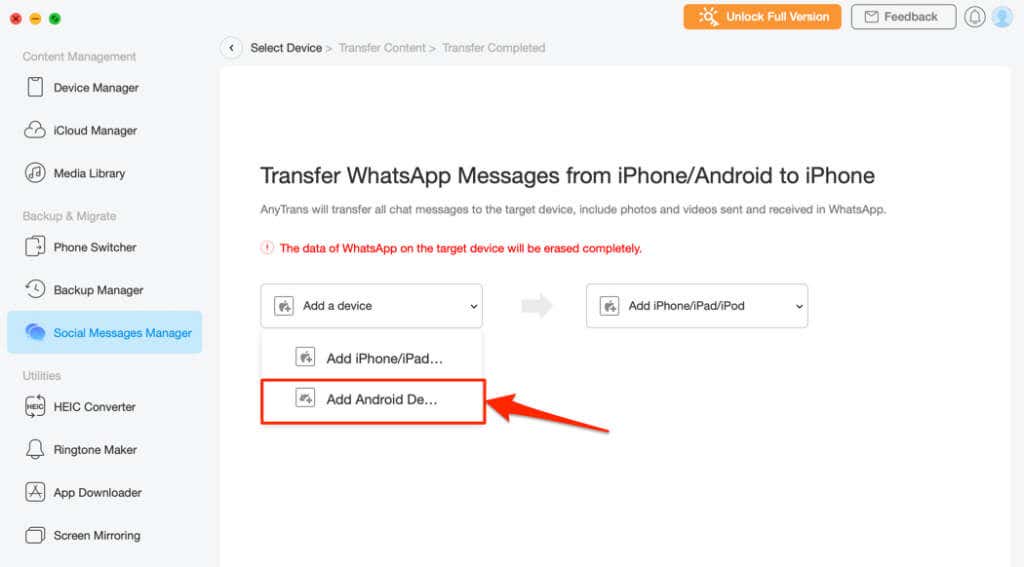
- Tap the Add a device drop-down menu for the source device and select Add Android Device.
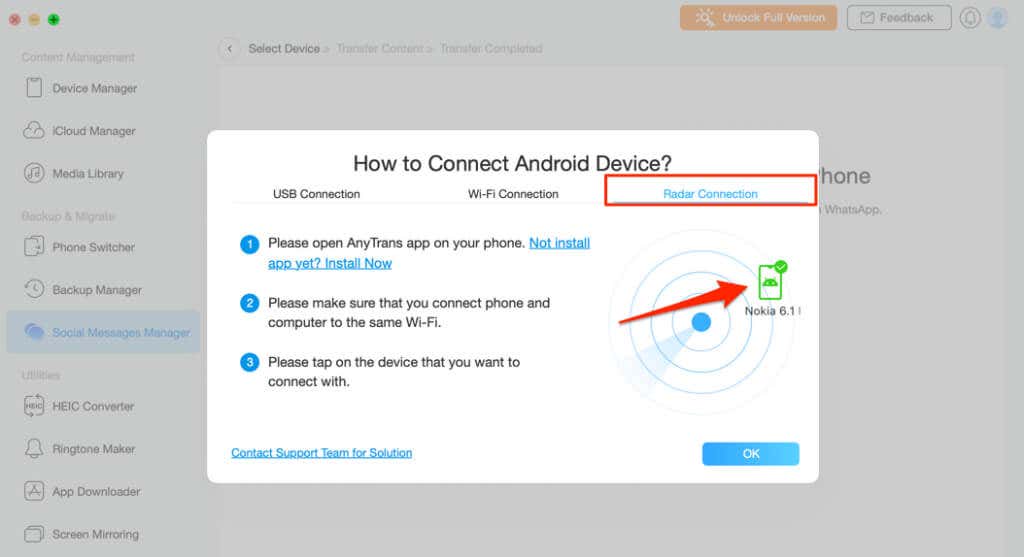
- Open the AnyTrans Android app and connect your phone to the same Wi-Fi network as your PC or Mac. Head to the Radar Connection tab and select your Android device on the map.
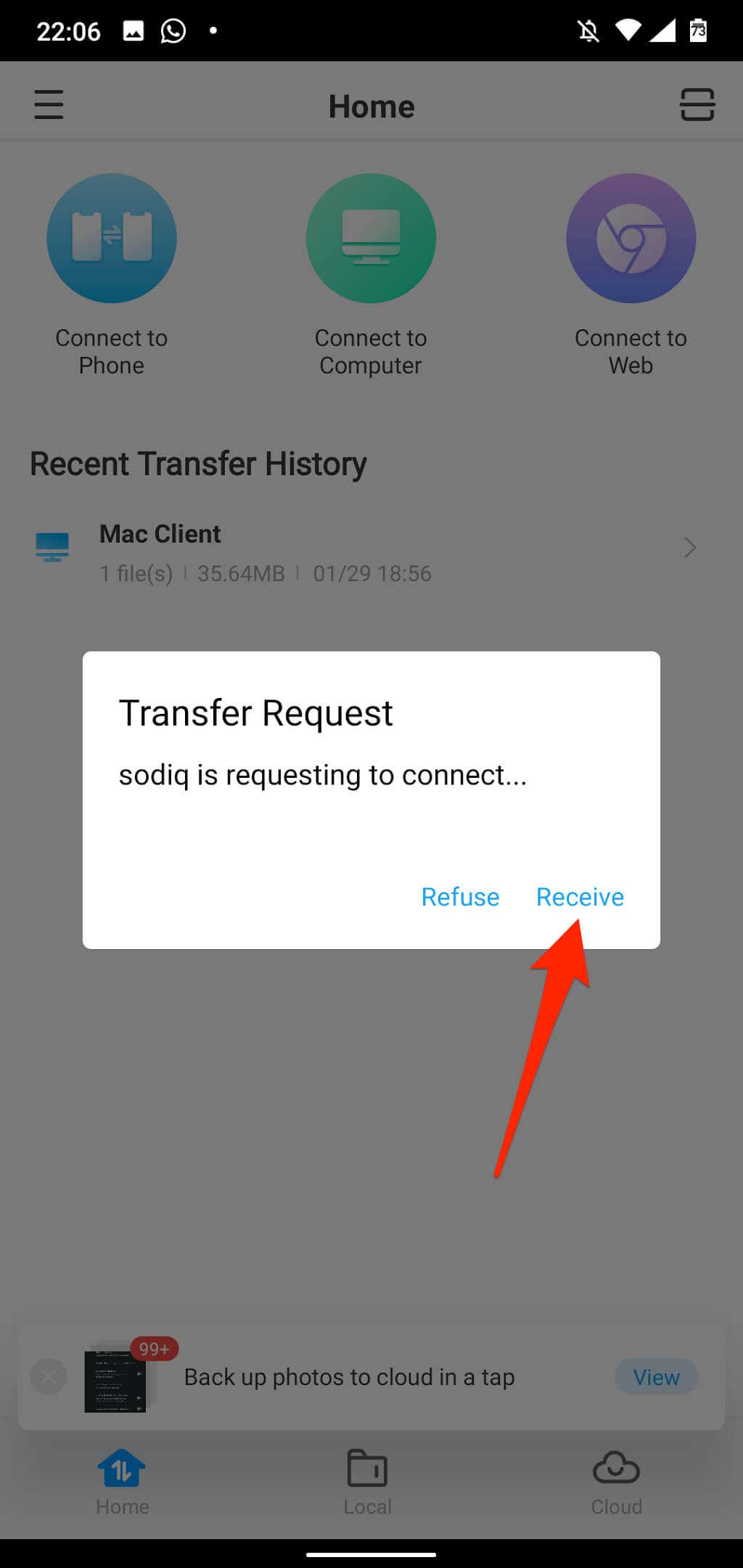
- Check the AnyTrans app on your Android phone and tap Receive on the pop-up to authenticate the transfer request.
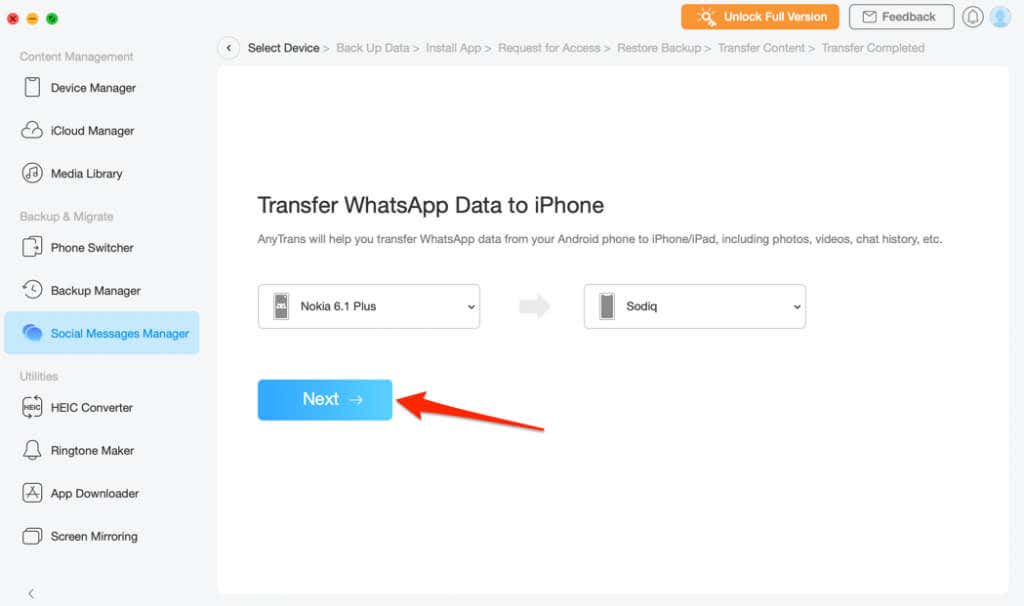
- After selecting the “Source” and “Target” devices, select Next to proceed with the data transfer process.
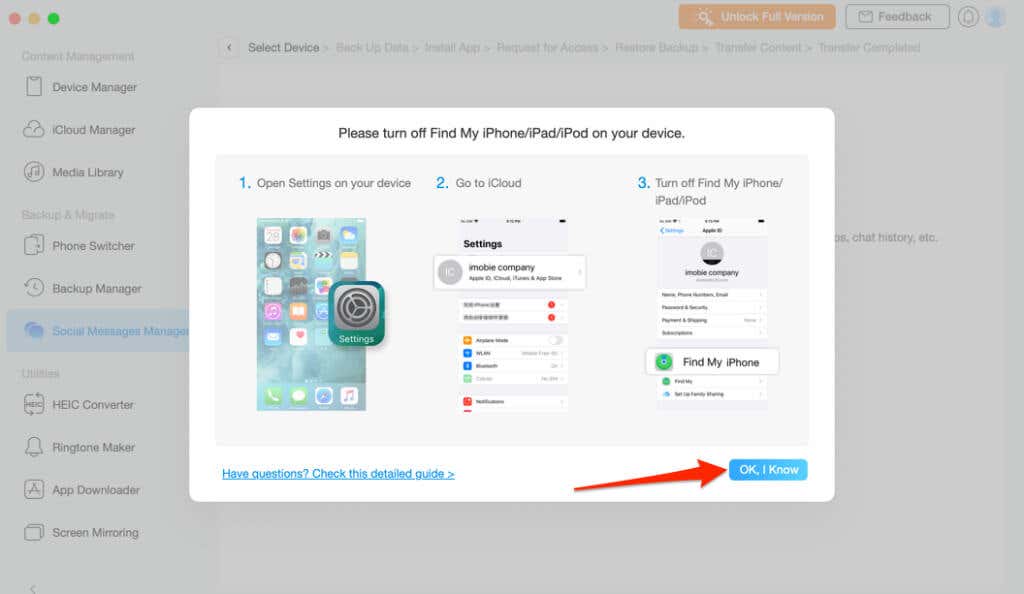
- Turn off Find My iPhone on your iPhone as instructed on the next page. Select OK, I Know to proceed.
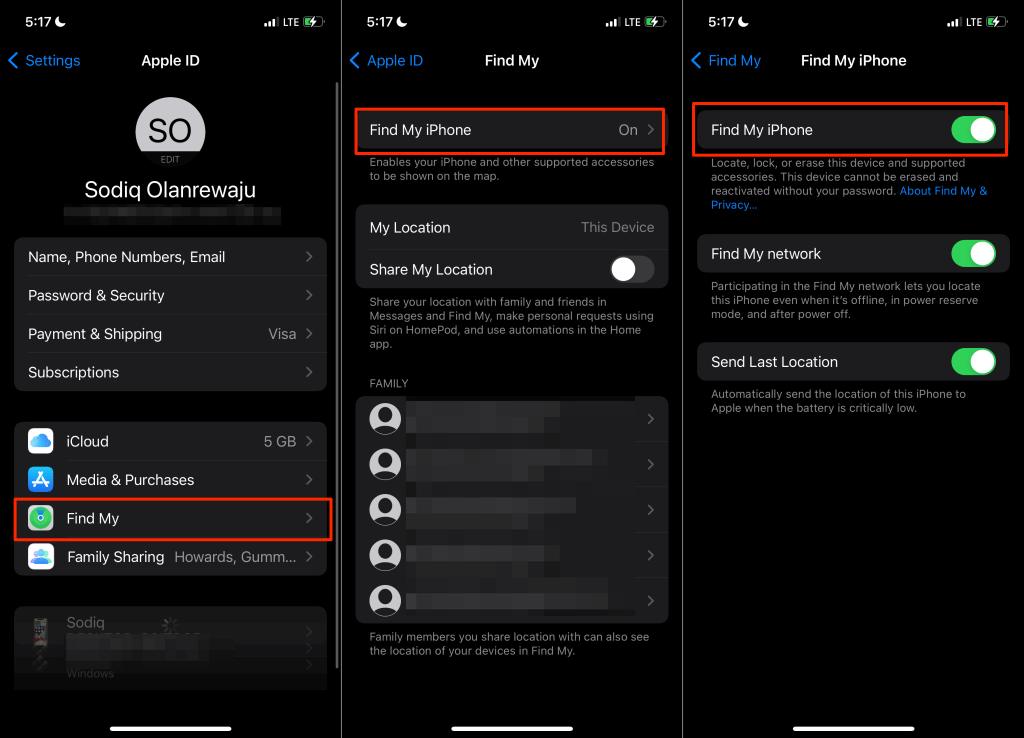
- On your iPhone, go to Settings, tap your Apple ID name, select Find My, tap Find My iPhone, and toggle off Find My iPhone.
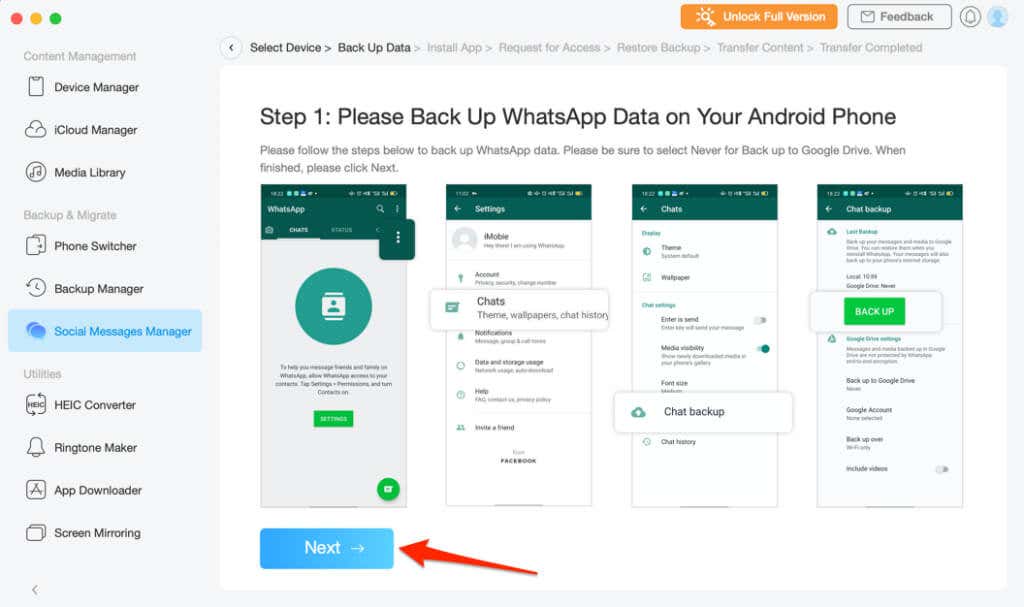
- Select Next on the next page to continue.
To access your WhatsApp data, AnyTrans will download and install a modified/enhanced version of WhatsApp on your device.
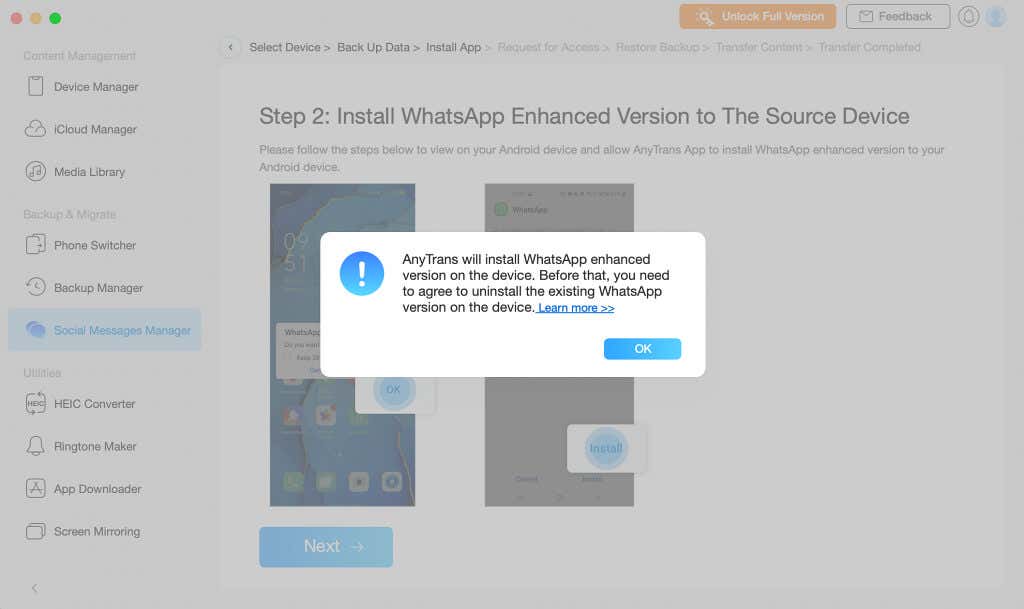
- In the AnyTrans Android app, select Settings on the pop-up and toggle on Allow from this source to install the enhanced WhatsApp.
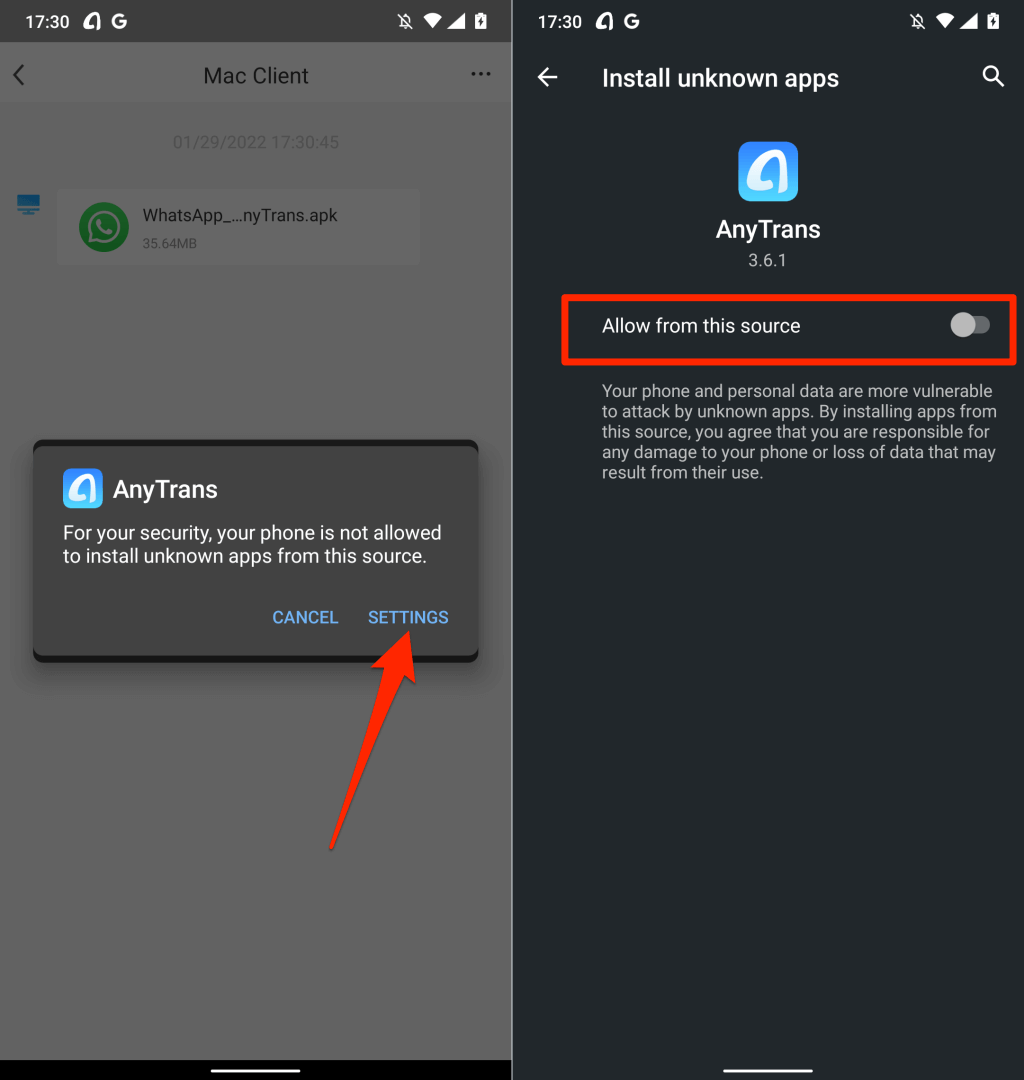
- Open WhatsApp enhanced version when AnyTrans installs the app on your device.
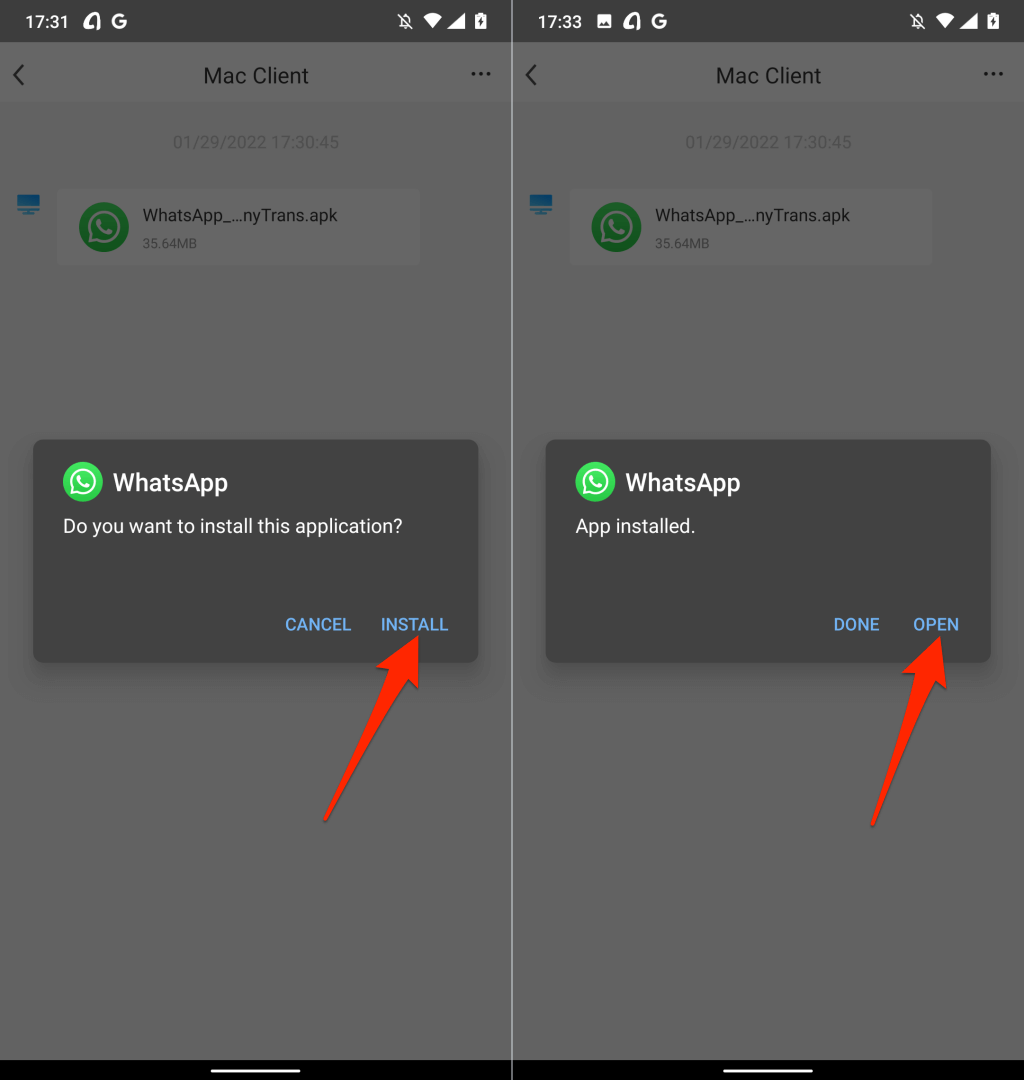
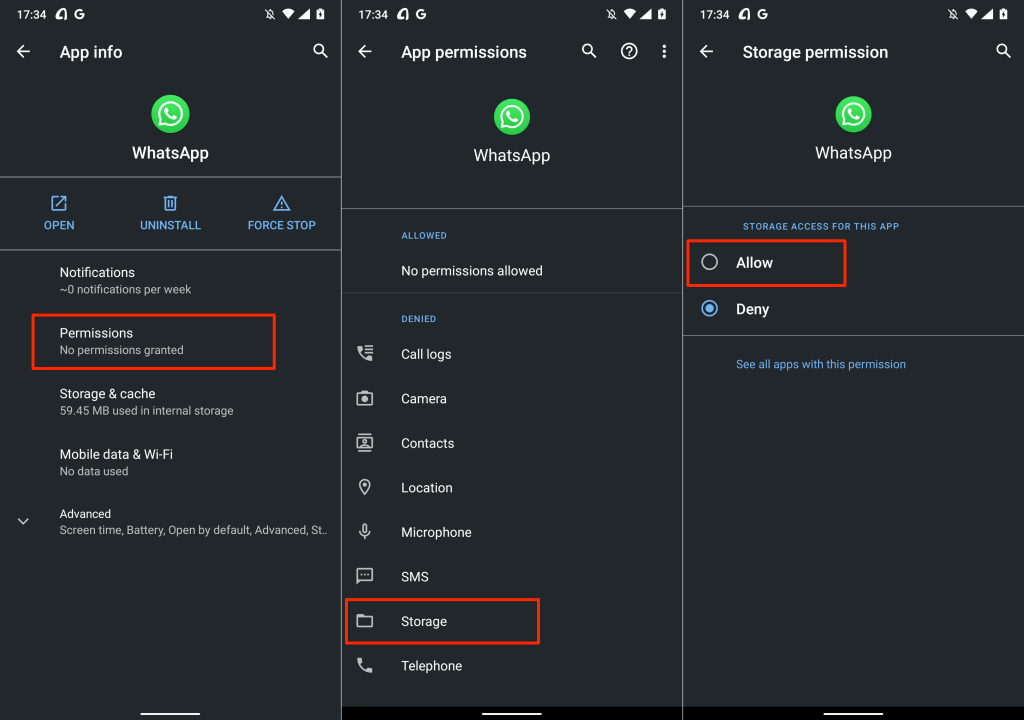
You’ll get another pop-up to grant the app permission to your device’s storage.
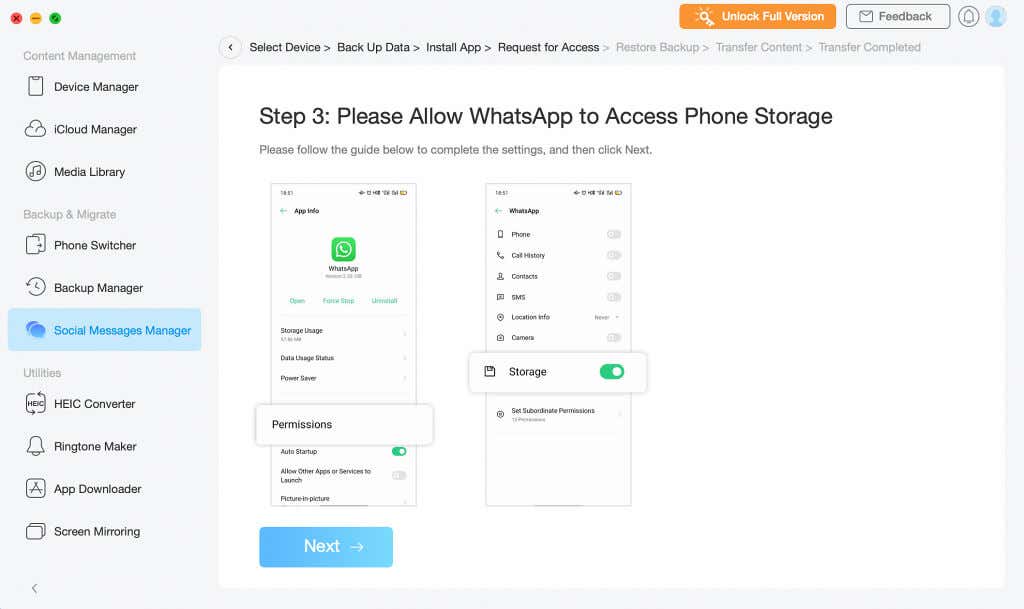
- Follow the prompt, select Permissions on the app info page, tap Storage, and Allow storage access.
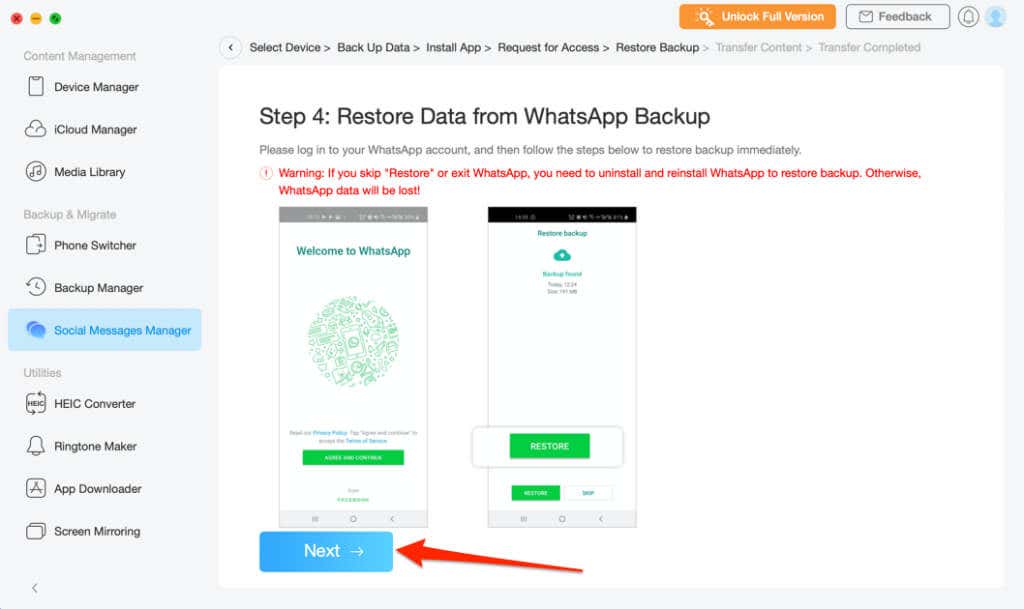
The next step is to restore WhatsApp backup on the newly-installed “WhatsApp enhanced.”
- Open WhatsApp enhanced, restore the backup, and tap Next to proceed.

Everything is now ready for you to transfer WhatsApp data from your Android device to your iPhone.
- Select Next to start the data transfer process.
Make sure your iPhone remains plugged into the computer during the process. The data transfer usually takes a couple of minutes, so wait until you get a success message before unplugging your iPhone. You’ll need to verify the phone number connected to your WhatsApp account on the new phone.
AnyTrans’ data transfer functionality isn’t limited to WhatsApp—Viber, Line, and iMessage are other supported messaging apps. If you ever need to download iMessage chat history or transfer iMessage data to another iPhone, AnyTrans can facilitate the process.
You can also use the tool to batch convert images, create custom ringtones, manage iCloud files, wirelessly screen mirror your phone to a computer, etc.
iCareFone Transfer (from $24.95)
This software facilitates app data transfer between two devices—from Android to iPhone and vice versa. Unlike AnyTrans, iCareFone Transfer’s device detection is a lot faster. Plus, it has distinct data transfer options for WhatsApp and WhatsApp Business.
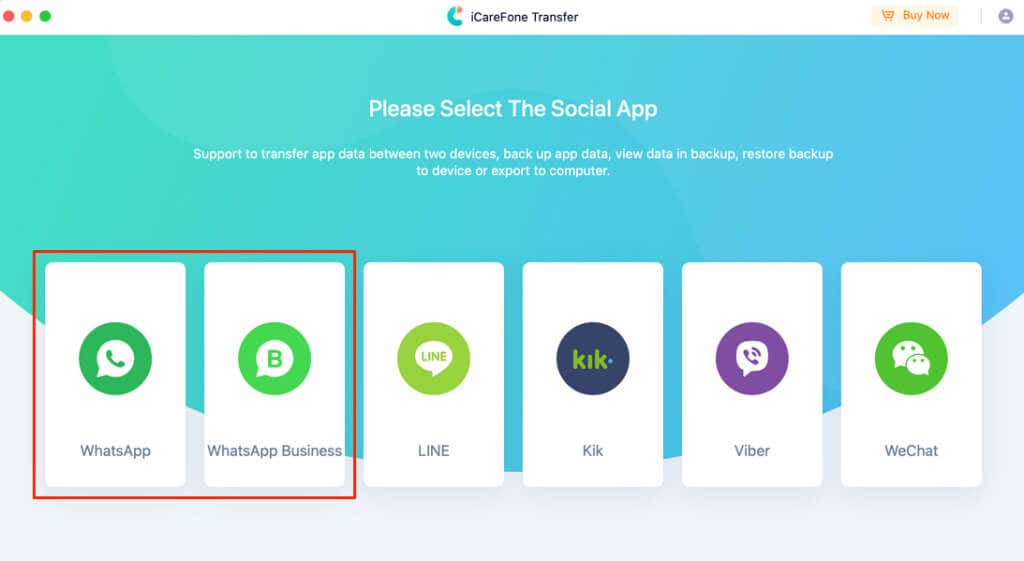
Connect your devices to the computer via USB and make sure they’re unlocked. Additionally, make sure you enable USB Debugging on the Android device.
Select WhatsApp or WhatsApp Business on the dashboard and head to the Transfer section. Afterward, choose your Android phone as the source device and your iPhone as the target device. Select the Transfer button to start the data migration.
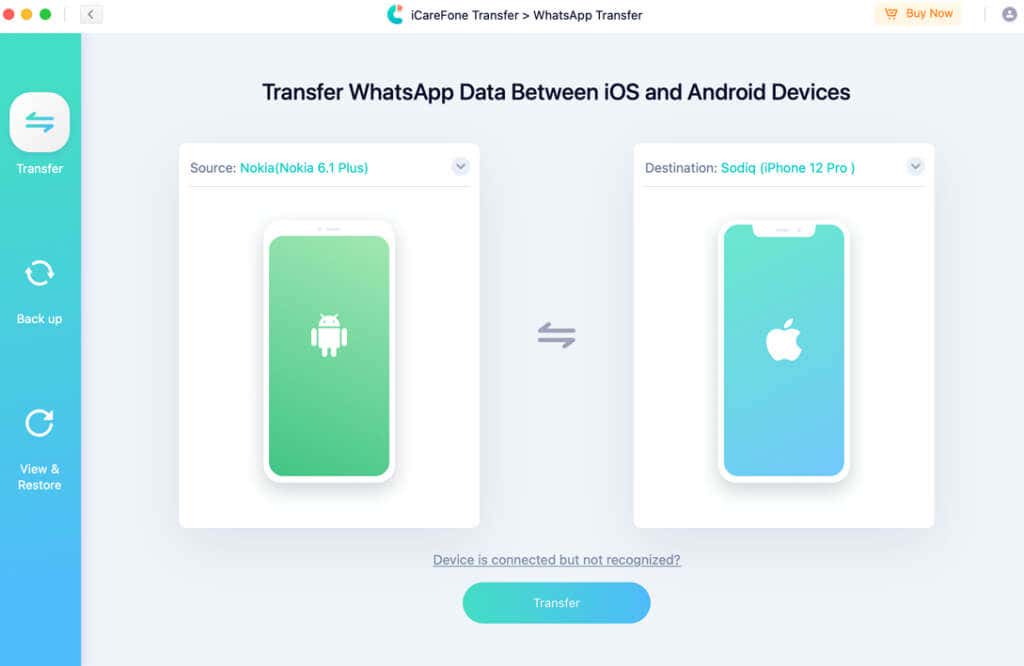
You can install iCareFone Transfer on your Mac or Windows PC for free, but you’ll need a subscription plan to use the data transfer functionality.
Transfer WhatsApp Data with Ease
These tools will transfer all your data—WhatsApp account information, conversations, media files, documents, and other settings. Sadly, they aren’t free. AnyTrans subscription plans start from $39.99 (1-year plan) to $79.99 (family plan).
iCareFone Transfer’s subscription plans are costlier—$24.95 (1 month), $59.95 (1 year), and $69.95 (Lifetime). Most likely because it supports more messaging platforms than AnyTrans, plus it’s easier to set up and use. The dedicated WhatsApp Business transfer option is also a bonus.
These are the best tools for transferring WhatsApp data from Android to iPhone. Hopefully, WhatsApp will integrate more (free) methods for transferring chats between different OS in the future.
