

Transferring your YouTube account to another person or business isn’t something you think about when creating a YouTube channel. However, it can happen that one day you’ll decide to change the owner of your YouTube channel.
While this seems like a very easy task, in reality, the process of transferring your account to another user could be complicated and even impossible for some channel owners. Let’s dive in and figure out how to transfer the ownership of your YouTube account to someone else.
Personal vs Brand YouTube Account
The process of transferring your YouTube account to another entity differs depending on your account type.
You can have personal or brand accounts on YouTube. The personal account is connected to your Google account directly, can only have one owner and automatically displays the name that you have in your Google account. The brand account can be linked to several Google accounts simultaneously and can have multiple owners and managers of a brand YouTube account.
How to Transfer Your Personal YouTube Account to Another Person
Surprisingly, changing the ownership of your personal YouTube account is more difficult than that of a brand account. This is because the only way you can do that is by changing the email address associated with your account, and that’s only possible for some users.
Follow the steps below to see if you can transfer your account, or if you’ll have to delete your old YouTube account and start again from scratch with a new email.
- Sign into your Google account and then go to YouTube.com.
- Select your profile picture in the upper-right corner to open the menu.
- From the menu, select Manage your Google Account right under your profile picture.
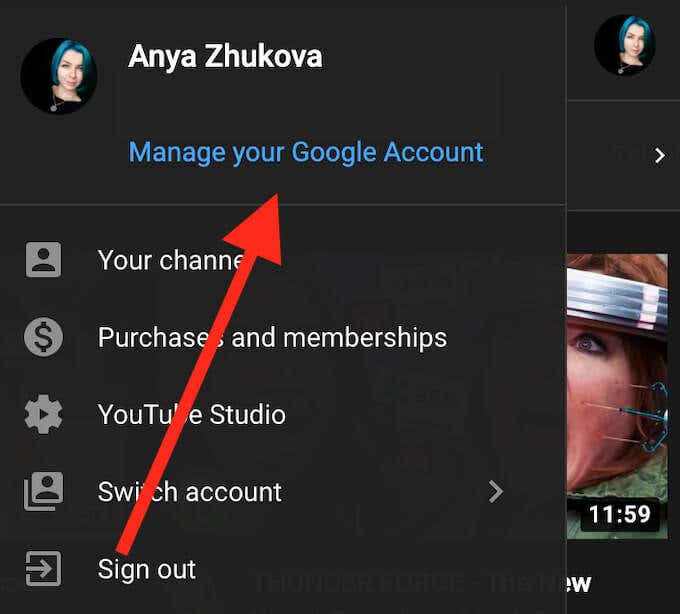
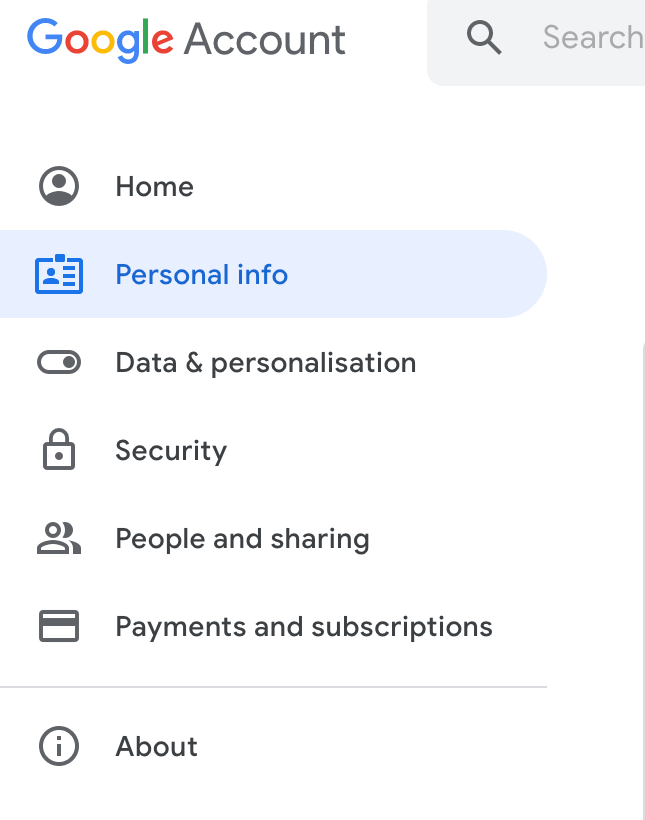
- On the left side of the screen, select Personal info.
- Scroll down until you see the Contact info and select Email.
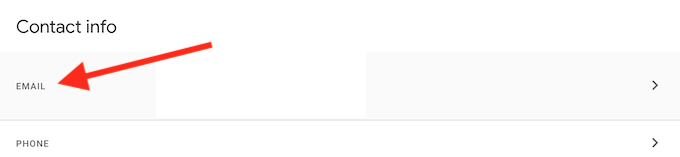
- If you’re using a Gmail address as your YouTube account email address, you won’t be able to change your email address, according to Google Support. In which case, you’ll either need to create a new YouTube account and link it to another email, or move your personal YouTube account to a brand account and then transfer the ownership, as listed in the section below.
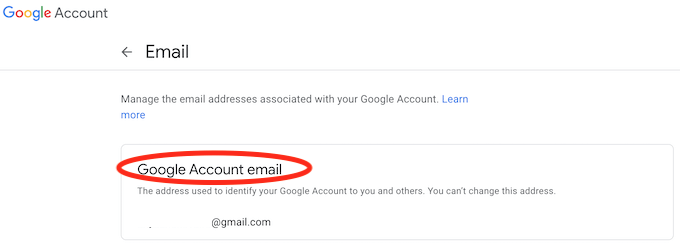
- If you see Edit next to the email address, select it. Then enter the email address of the potential new owner of your YouTube account and select Save to confirm. After the person receives the email from YouTube confirming the transfer, they’ll become the new account owner.
How to Transfer Your Brand YouTube Account to Another Person or Business
Transferring your brand YouTube account to another person or business is an easy process that only requires you to follow the steps below.
- Sign into your Google account and open YouTube.com.
- Select your profile picture in the upper-right corner to open the menu.
- From the menu, select YouTube Studio.
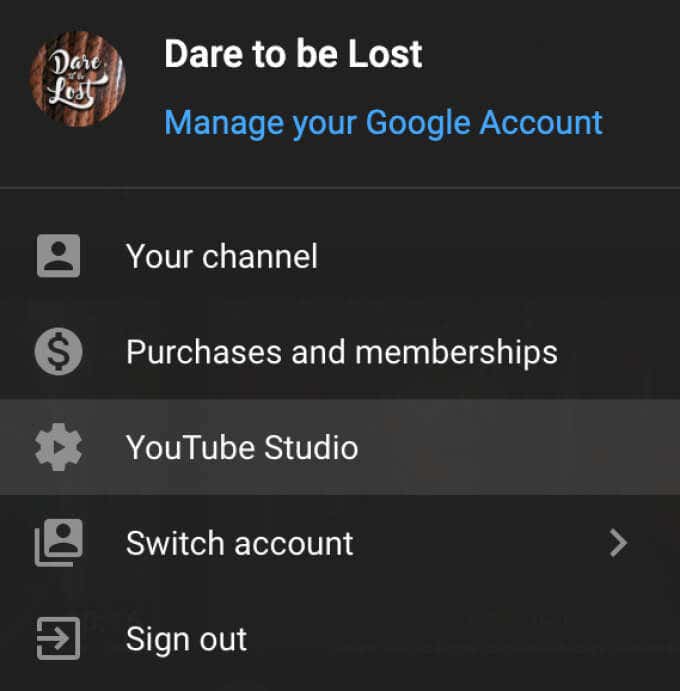
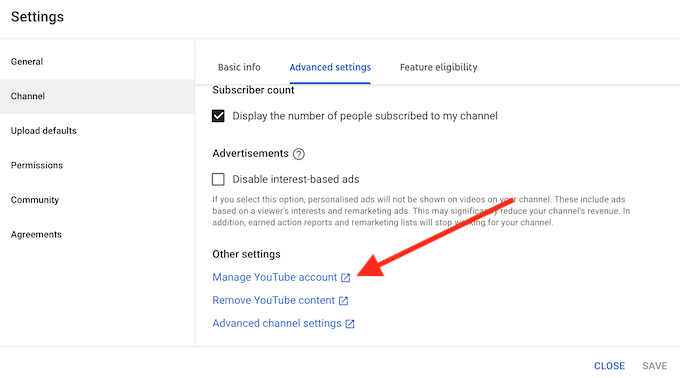
- In the YouTube Studio’s menu, on the left side of the screen, select Settings > Channel > Advanced Settings. Settings is all the way at the bottom of the left panel.
- Scroll down until you see the Other settings section. Then select Manage YouTube account.
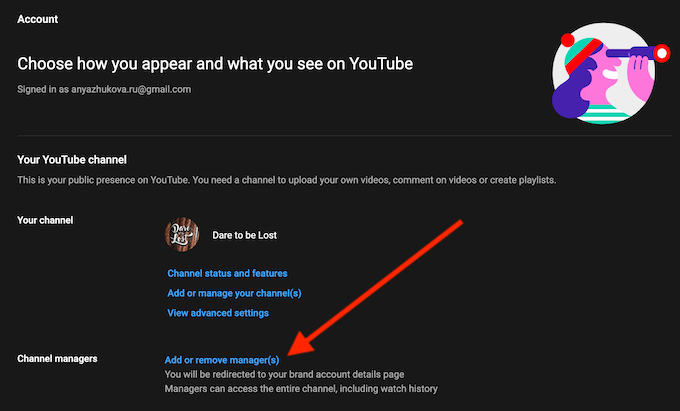
- Under Channel managers, select Add or remove manager(s). You will then be redirected to a page with your brand account details.
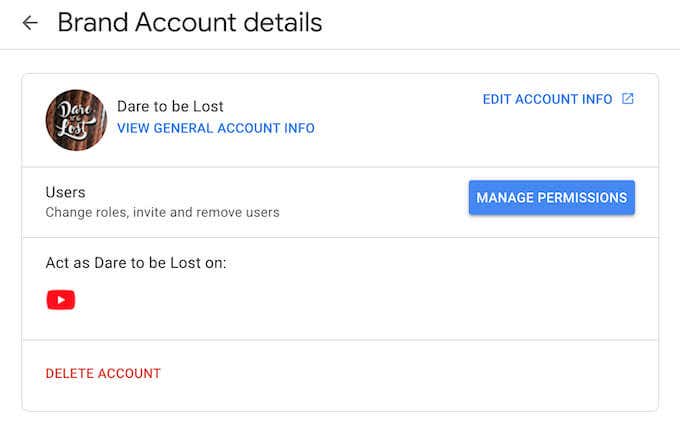
- Under Users, select Manage permissions. Google will verify that the legitimate owner is requesting the changes by requiring you to enter your Google account password to re-sign you into your Google account.
- In the Manage permissions window, you’ll see all the current owners and managers of your YouTube account.
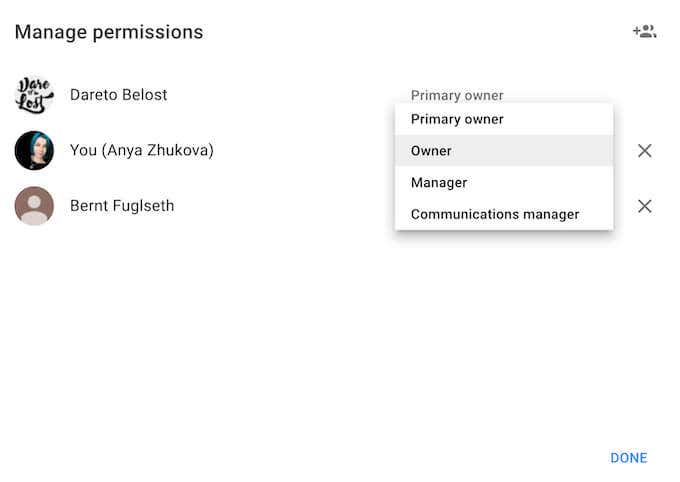
- There are four different roles for a YouTube brand account: One primary owner of the channel, multiple owners who control the management of the account and can add or remove any roles and can delete the channel, managers, who can use Google services like share photos on Google Photos or post videos on YouTube, and communications managers that simply act as channel moderators.
- If you want to change any of the current roles, select the down-arrow next to the name on the list, pick the new role, and select Done.
- If the person or business that you want to transfer your YouTube brand account to isn’t on the list, select Invite new users (small icon at top right).
- Add the contact/business name or email address, choose the role (either owner or manager), then select Invite > Done.
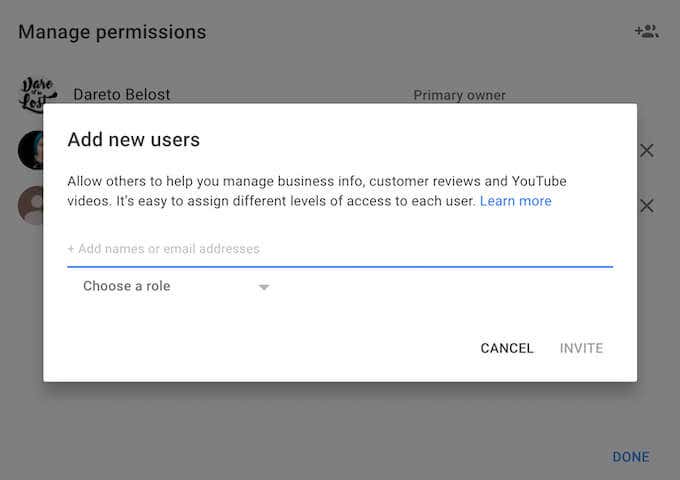
- After the person or company accepts the invitation, you’ll have to wait for 7 days until you can make them a primary owner of your brand YouTube account. To do that, follow the same path as described above.
- In your account’s Permissions Settings select Primary Owner > Transfer next to the person’s or company’s name. Once you remove yourself as the primary owner of the channel, the transfer of your YouTube account is finished.
Protect Your Copyrighted Content Before Transferring it to Someone Else
If you’re planning to transfer your YouTube channel’s ownership to another entity, check if you have any copyrighted content that you don’t want other people to use. Learn how to protect your copyrighted content online if you want other people to know that you’re the original creator of that content.
Have you ever tried to transfer your YouTube account to another person or company? Please comment below and let us know which method worked for you.
