Discord is one of the most popular communication platforms on the internet. Not surprisingly, there are multiple versions of Discord, including the Discord app, and several good Discord alternatives. Then, there is the option to use Discord on a web browser from any device.
It only takes a few steps to access Discord via the web browser rather than through the Discord app. Discord will run in the web browser on both Windows and Mac, but you’ll need to download the app to use it on Android or iOS.
How to Use Discord Via the Web Browser
Discord will work with almost all desktop web browsers, but many users report that Chrome is the best option because it provides a superior experience compared to Firefox or Opera. To access and use the web version of Discord, start by going to Discord.com/login.
- Enter your email or phone number and password in the correct fields.
- Select Login.
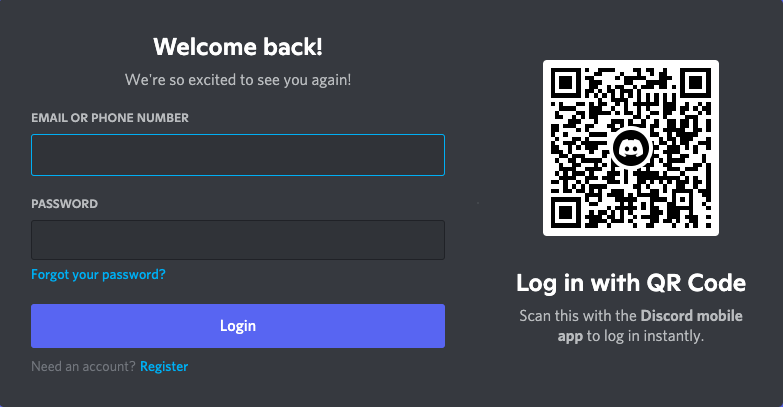
After you log in, you’ll land on the Friends tab of Discord. From this point, you can navigate through Discord’s menus just like you would in the desktop app.
Discord Web Vs. Discord App
Although navigating the Discord versions is similar, there are several notable differences between them.
The browser version of Discord requires less system resources than the Discord application. It runs easily in almost every browser, although many users have suggested using Google Chrome.
The downside to being less resource-intensive is that Discord Web lacks some of the features gamers have come to love about the desktop application.
The Discord application will show what game you’re currently playing to all your friends, but the browser version will not. In some instances, this might be a benefit; if you want to chat with friends and play a game without anyone trying to join, use the web browser instead. On the other hand, if you want all your friends to see you grinding away in Phantasy Star Online: New Genesis, you’ll want to boot up the desktop version.

Another key difference lies in voice chat which is an essential tool for multiplayer games. Many gamers today use mechanical keyboards due to their increased responsiveness and better feel, but these keyboards are loud. To avoid flooding your voice channel with the sound of clacky keys, Discord has a push-to-talk feature. This feature works on the web app, but only if it’s an active window.
If you want to use push-to-talk while playing a game, you will need to use the desktop version of Discord. You can swap between these options in the User Settings menu.
- Open Discord.
- Select User Settings on the bottom-left side of the screen beside your name.
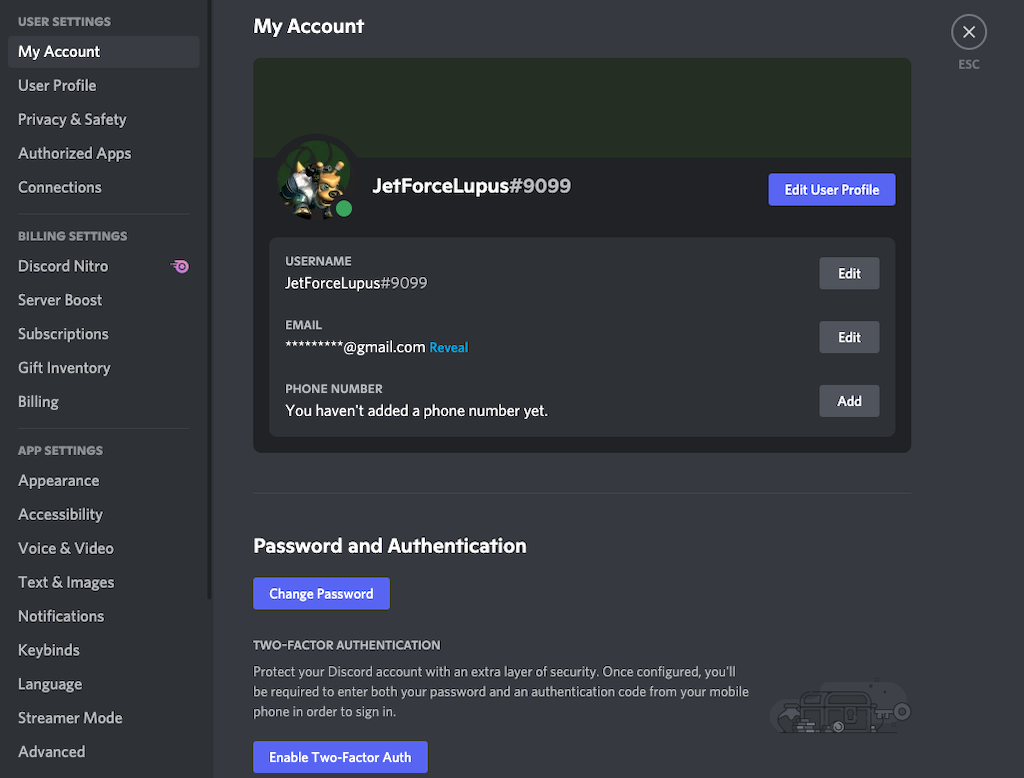
- Select Voice & Video.
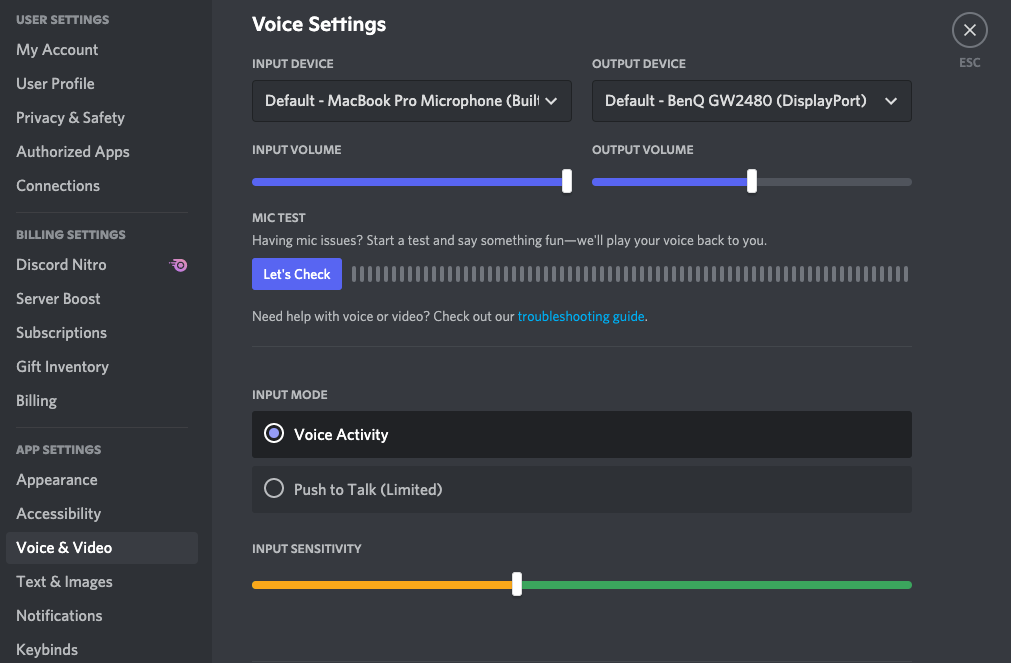
- Select Push to Talk. If you’re accessing Discord through the web browser, the word Limited will appear beside the option in parentheses.
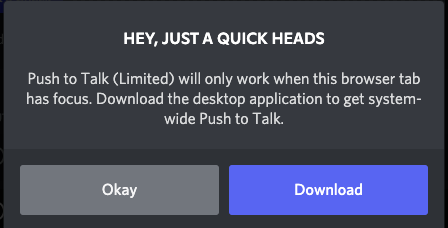
If you select Push to Talk while on the web browser, a warning will say that Push to Talk is only active when the window is in focus. The browser version defaults to Voice Activity.
Which Discord Version Should You Use?
These are several factors to consider when you need to decide on the version of Discord to use. The Discord app can be set to launch on startup. If you only use your PC for gaming, the ability to jump straight into Discord as soon as you boot your PC can save you time. It can also utilize your PC’s system notifications to send Discord notifications.
While versions of Discord are available on mobile devices like iPhone and Android, these are more limited in function than either of the desktop versions. So while you can access Discord Nitro through basically any version of Discord, it’s best experienced through the desktop app.
Gamers have asked for console-based versions of Discord for a while now, hoping that Xbox will adopt Discord. Unfortunately, there is no word at the time of writing whether Discord will make its way to Xbox, although PlayStation supports Discord Voice Chat with some workarounds.