

In 2018 Instagram announced a new feature where users can add music to Instagram Stories. This lets you add your music to an Instagram story to get the vibe you’re going for. Unfortunately, this popular feature doesn’t always work as expected.
If you want to use the Instagram Story music feature, but it’s not working because of a glitch, one of these quick tips will likely get you back to posting your content.
1. Does the Instagram Music Sticker Work?
Before we go through the steps of troubleshooting Instagram music, it’s best to start by checking whether the feature is the problem in the first place.
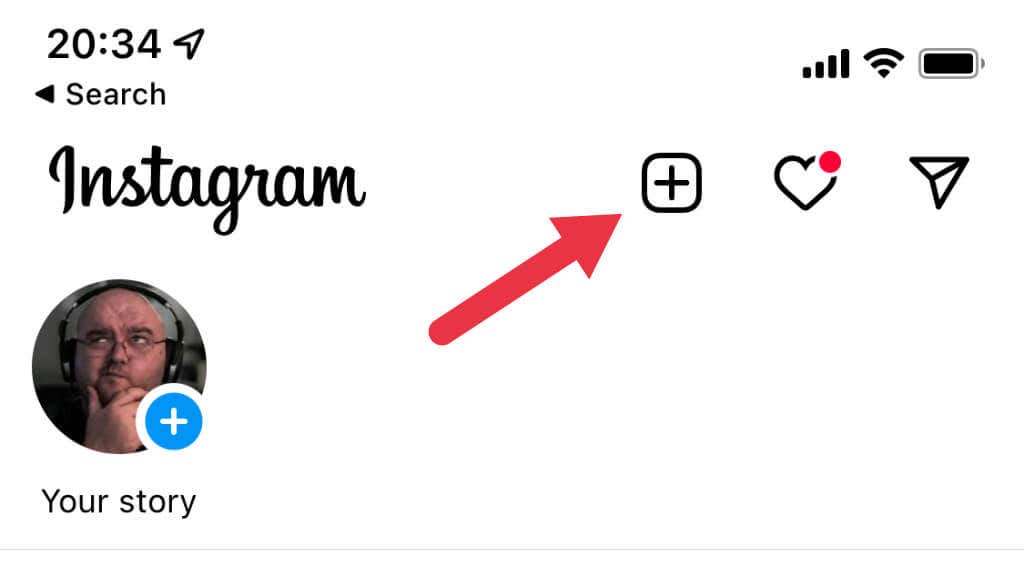
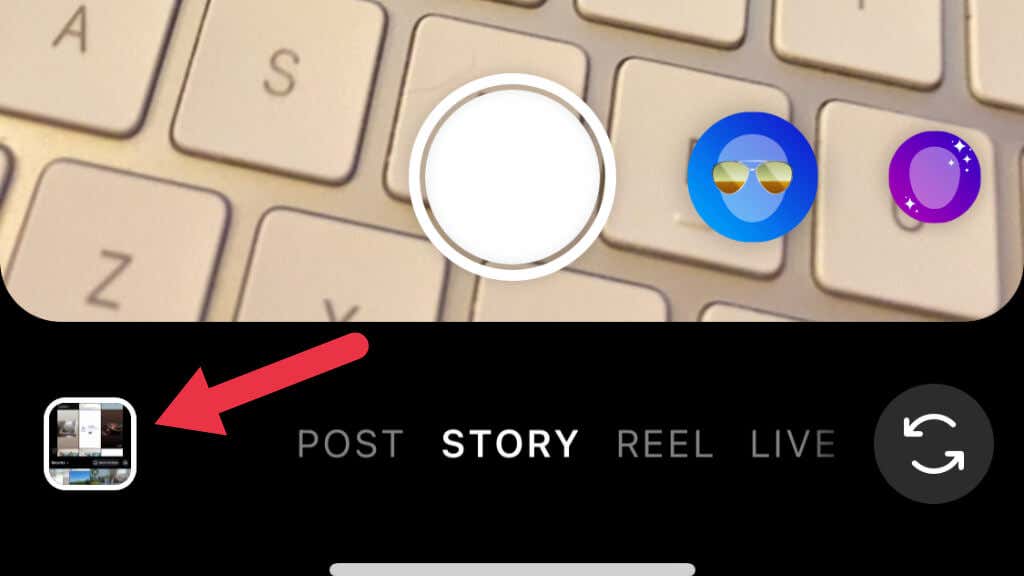
Select the “+” button in the Instagram app and select Story. Following this, select a video or photo you want to share as a Story by selecting the gallery at the bottom left of the screen.
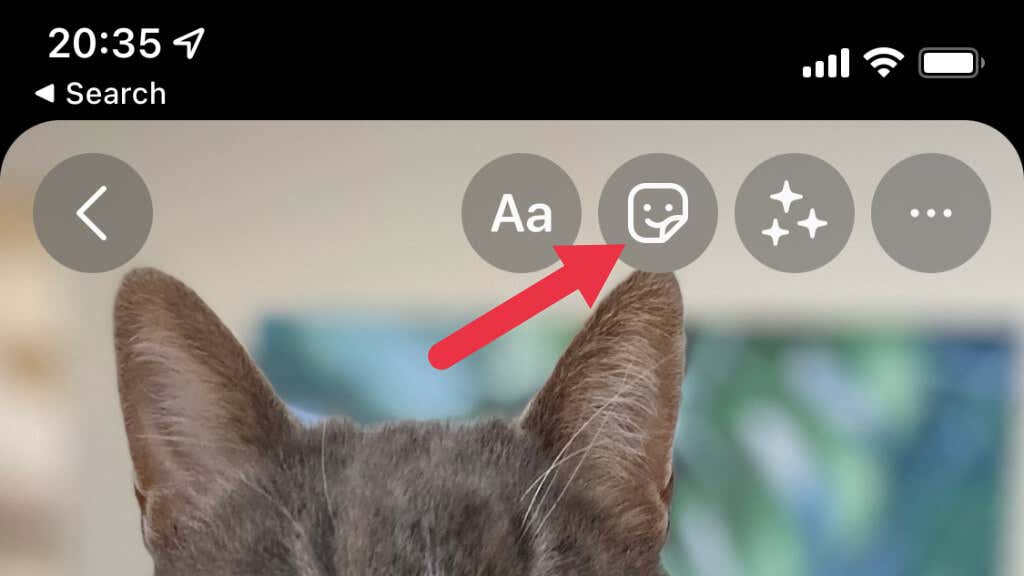
Select the Stickers option, search for the Music Sticker, and select it.
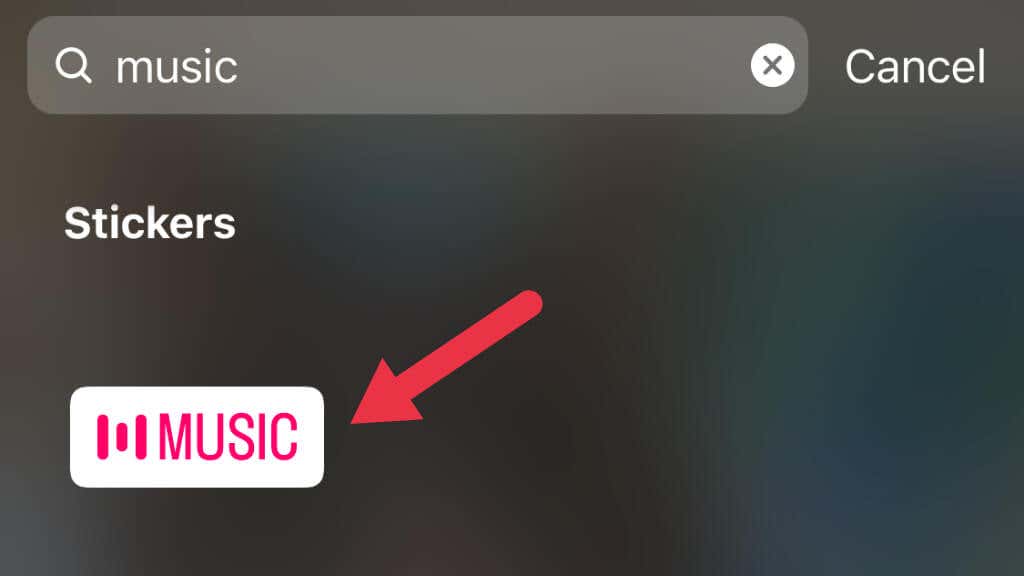
If tapping on the Music Sticker opens the music library, everything works as it should.
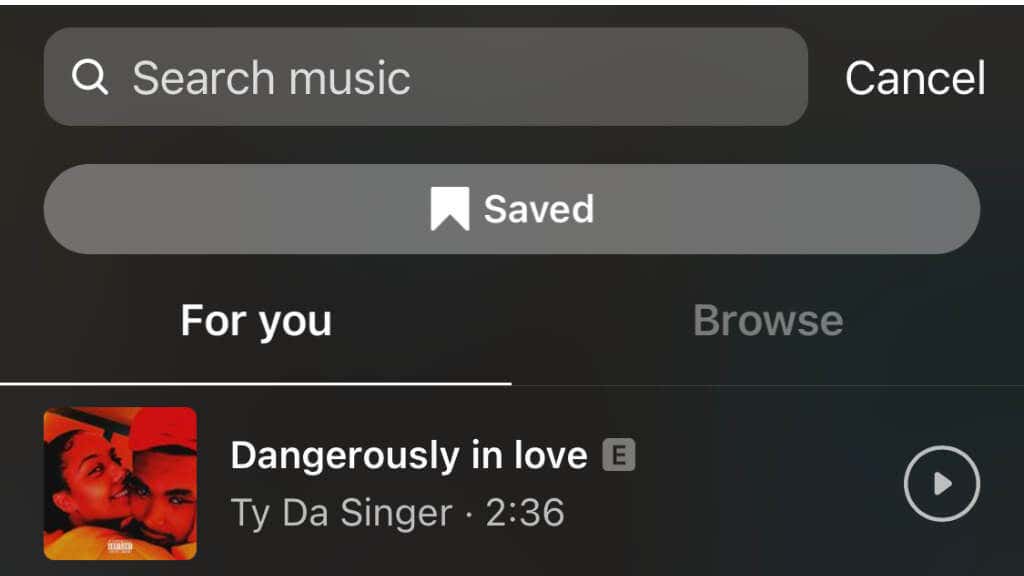
However, if it doesn’t, that means something has gone wrong, and you should proceed through the following steps.
2. Update the Instagram App
As always, your first stop should be to check if there’s an update waiting in the Apple App store or Google Play Store. Updating the Instagram app is simple whether you’re using iOS or Android devices. Just search for the app in your device’s storefront, and there should be an “Update” button where the buy or install button usually resides. If not, it means your app is up to date.
Updating your app to the latest version ensures that any known bugs are resolved and that any changes made on Instagram’s servers are now compatible with the version of the app on your device.
3. Check if Other People Are Complaining
Sometimes, the problem isn’t with your device or with your app. Instead, the Instagram servers are simply having issues. The easiest way to figure out if this is the case is to check out Instagram’s social media accounts to see if there’s an official announcement.
Alternatively, check Instagram or sites like Twitter to see if anyone else is having issues with the Instagram Music feature. If other people are complaining about the same problem, then the right move is to wait until Instagram resolves the outage.
4. Do You Have a Business Account?
There are different kinds of Instagram accounts; not all have equal access to the Instagram music feature. If you have a business account, you can’t use music from the library since it’s not licensed for commercial use.
You’ll have to switch to a personal or creator account to use the feature. Of course, this might not be what you want to hear since your business account has the audience you want to reach, so check out tip number eight below for an alternative solution.
5. Log Out and Log Back In
Sometimes the problem is with your current logged-in Instagram session. Log out of the app and log back in to refresh your session, which might resolve some underlying issues preventing app features from working.
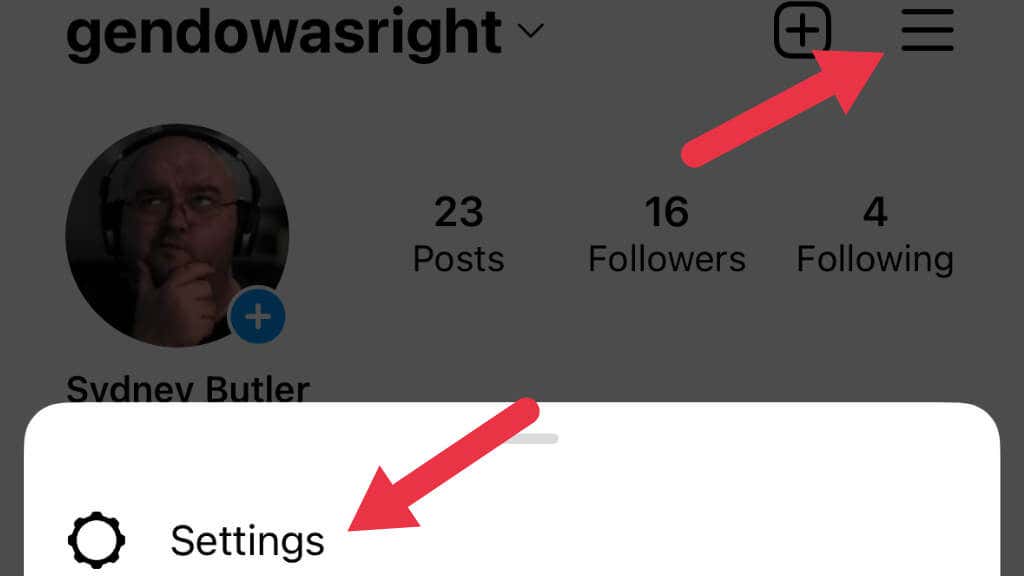
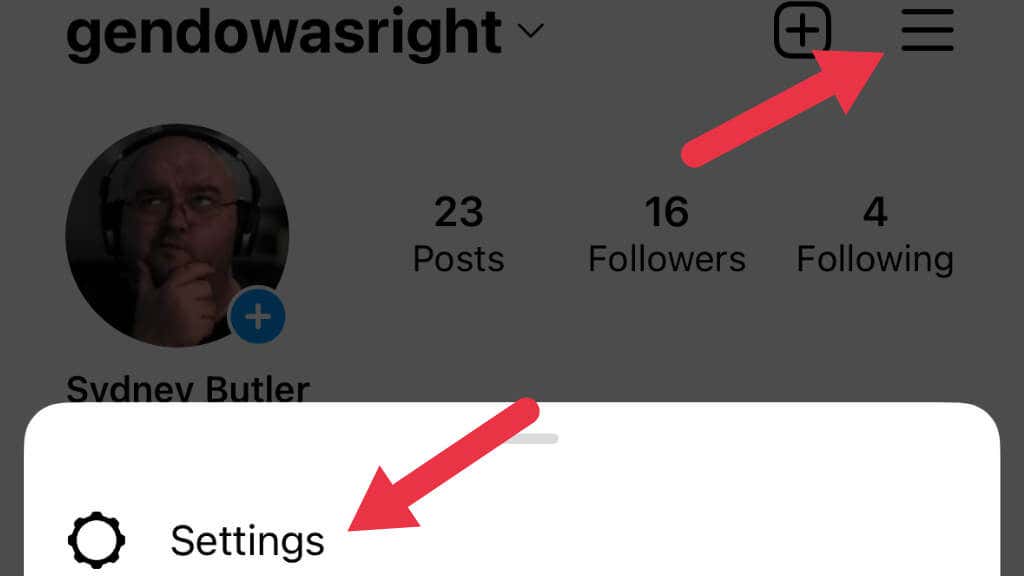
To log out, select the three lines (the “hamburger” menu), then go to Instagram Settings.
Select Log Out.
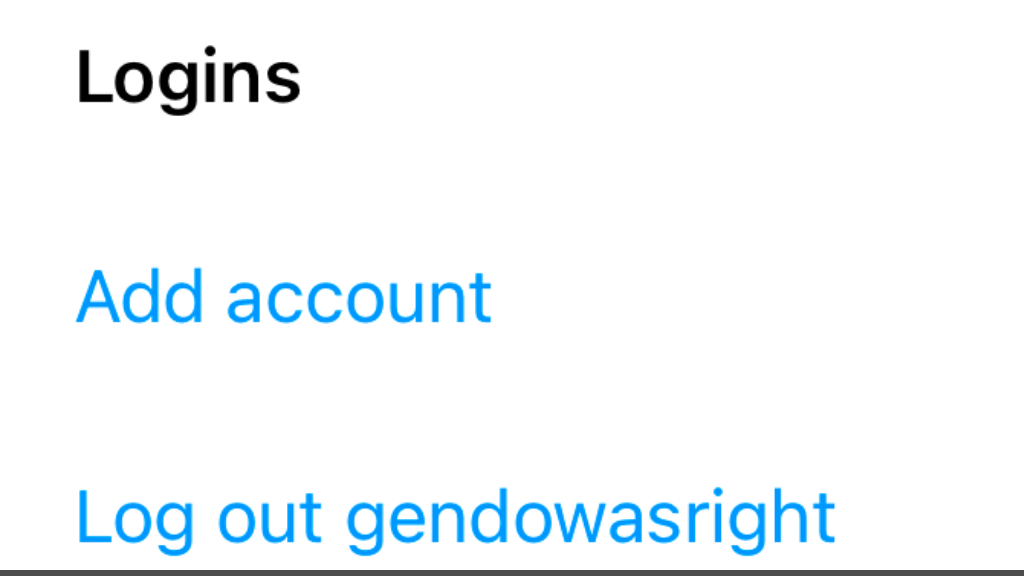
Now log in and try to use music again to see if this resolves the problem.
6. Use a VPN
Instagram music isn’t available in every region, usually due to how music licensing works where you live or are currently visiting. You can use a VPN (Virtual Private Network) service to fool the Instagram app into thinking you’re in a different physical location.
The VPN encrypts your internet connection and creates a network “tunnel” between your computer and the VPN server. All internet traffic flows through the VPN server, and its location and IP address is the one everyone else on the internet sees when communicating with you.
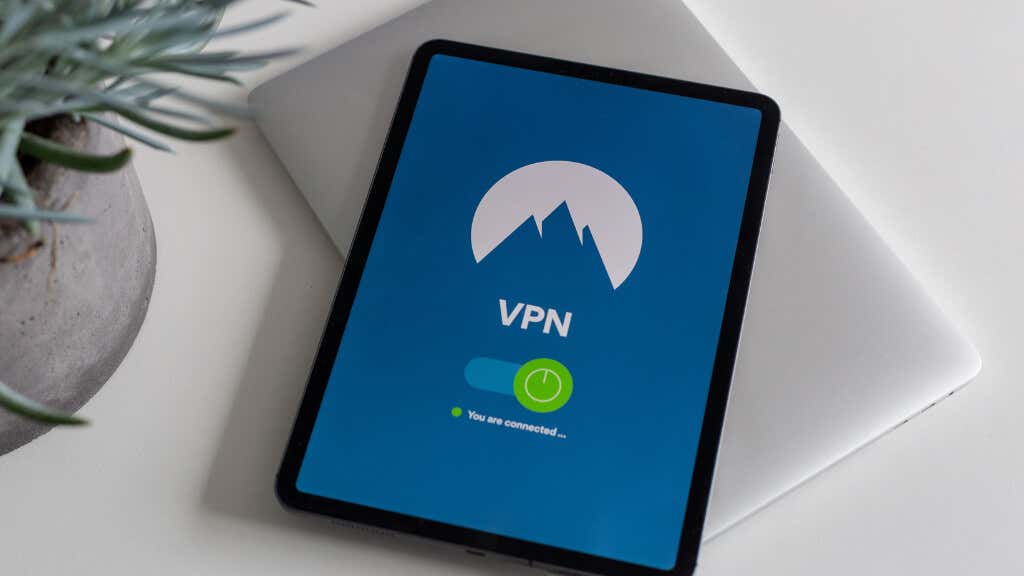
By changing which VPN server you’re connected to, you can change your apparent location and unblock services restricted by region.
7. Reinstall Instagram
Although it’s rare, apps and their associated data can become corrupted or misconfigured on your mobile device. While it shouldn’t be your first resort, you may want to consider deleting the app from your device and then installing it again from the app store.
The process of removing an app is similar on Android and iOS devices. Touch and hold the app’s icon and then choose to remove or uninstall the app from the context menu that appears. Following this, go to your device’s app store, search for Instagram, and install the app from its store page.
8. Use a Third-party Video Editor
Many of the problems that Instagram users have when it comes to using music in their Stories come down to copyright problems. Instagram cannot offer the music you want to use for licensing or regional restrictions.
While the music feature of Instagram stories is convenient, it’s not the only way to get music into the video clip you want to share.
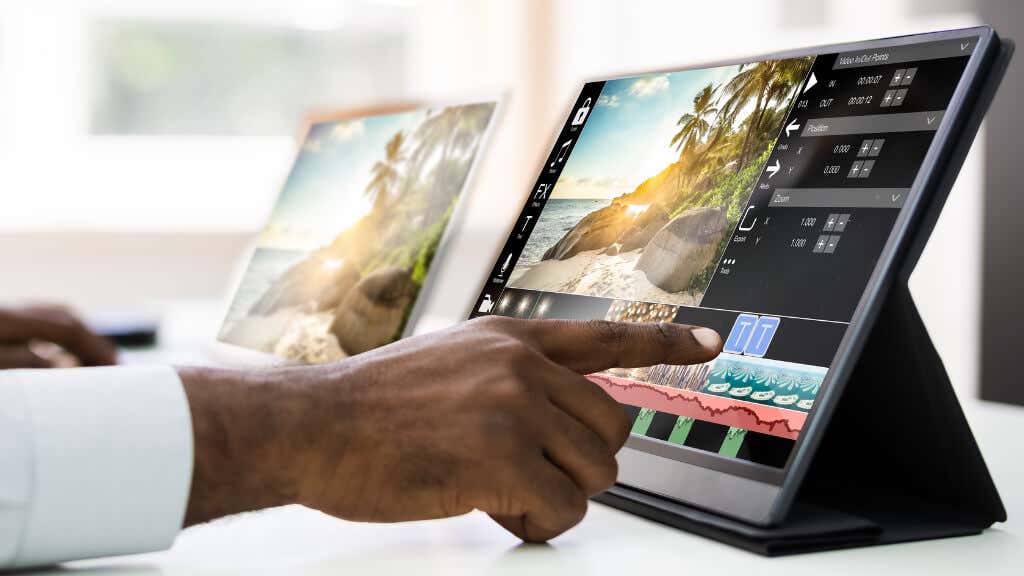
If you have an iPhone or an iPad, you also have a free copy of Apple’s iMovie app, which you can use to put any music you like into your video. If you have a Samsung Galaxy phone, there’s also an included rudimentary video editor.
Then there are numerous third-party apps, free and paid, that can add the music of your choice to your Instagram videos without limitation.
You need to source the music from somewhere before importing it into your video editor. There are a few options here:
- Use a video ripper to get the audio from a site like YouTube.
- Use your device’s screen-recording function to record the music while playing back on your phone.
- Use a CD ripping program on your computer to grab the music from the disc.
Once you have the audio, you can insert it into your video editing project and finalize your video once everything is lined up to your satisfaction.
9. Switch Internet Connections
When you try to access the music library using the Music Sticker, the app has to load the list of available songs from the servers. Most of the Instagram app’s content is cached to the device locally, but new content can have an issue loading if something is wrong with your internet connection.
An internet connection doesn’t just work perfectly or not at all. Configuration or routing issues along the line can make some services fail, even though your connection to other services works just fine.

You can try to change the internet connection you’re currently using to see if that resolves the issue. Try temporarily connecting to a different Wi-Fi network or changing to mobile internet. This could fix Instagram music issues caused by your internet connection itself.
You can also try changing your DNS servers. These servers point your device to the correct server when it requests resources from the internet. If your DNS server has an issue, switching to a different option might help. Switching to another internet connection may help because it usually moves you to a different set of DNS servers.
10. Contact Instagram Support
If you live somewhere where Instagram music is officially supported, and you’ve done everything else on this list to try and fix the Instagram music not working issue, it’s time to get in touch with the Instagram support team. You can report a problem that Instagram may be unaware of, or get some help if you think the feature has been disabled for your account in particular.
To get in touch from within the Instagram app, select the three lines at the top-right corner of the screen and then select the gear icon that represents Instagram Settings.
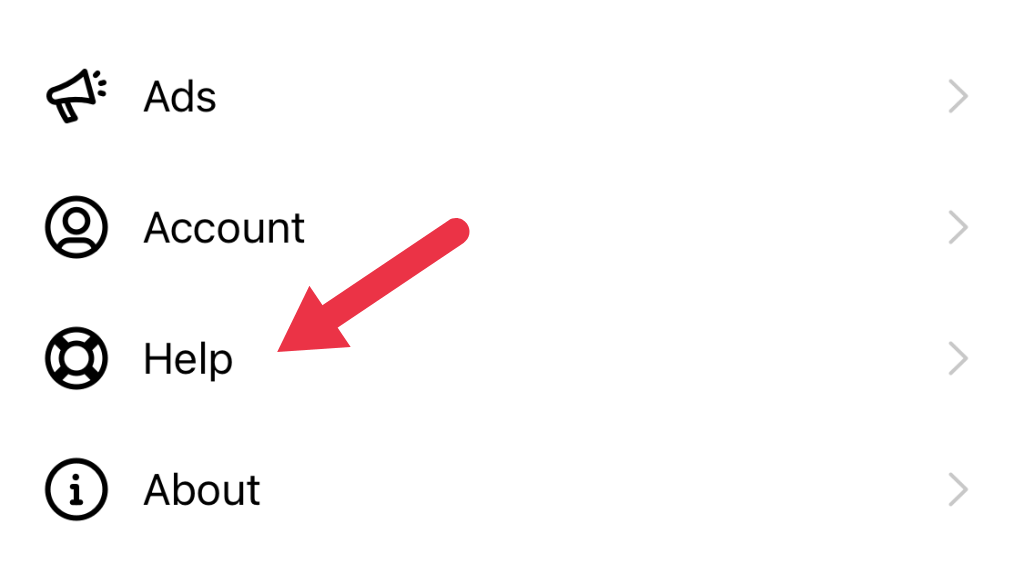
Next, select Help.
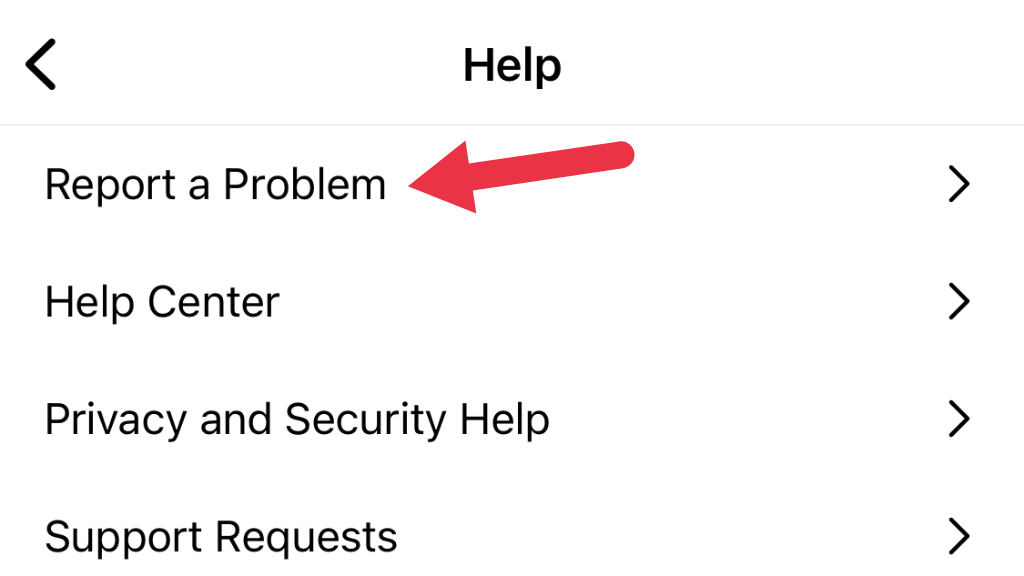
Then select Report a Problem.
You may see a new feature where you can go back to where you had the problem and physically shake the phone to show Instagram’s developers where the issue is.
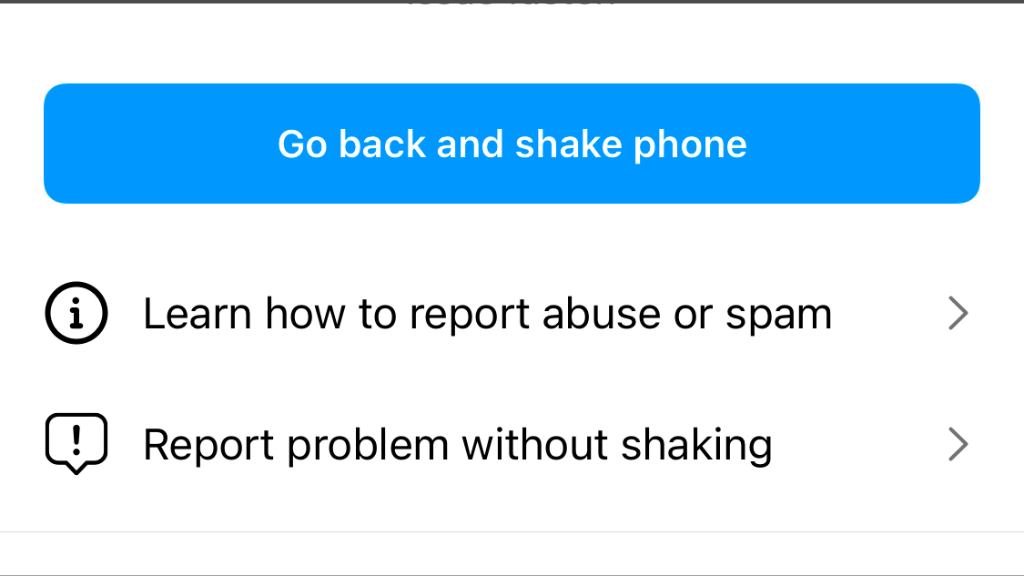
Just tap on Go back and shake the phone. If you don’t want to do that, select Report a problem without shaking the phone and enter a manual bug report.
You can also browse the Help Center (found below Report a Problem, to look through the FAQs).
Adding Music to Reels
You can add music to Instagram Reels as well as Stories. The troubleshooting tips above deal mainly with music for Stories, but they should also help fix any issues when adding stories to Reels.
If you were looking to add music to Reels, here’s a brief overview of how to do that:
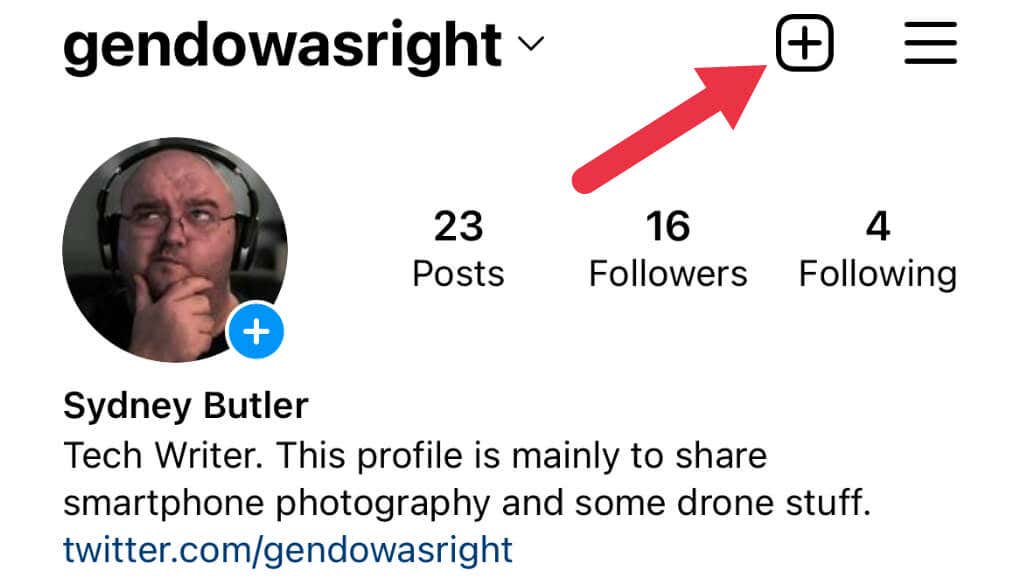
- Select the “+” icon at the top-right corner of the app screen.
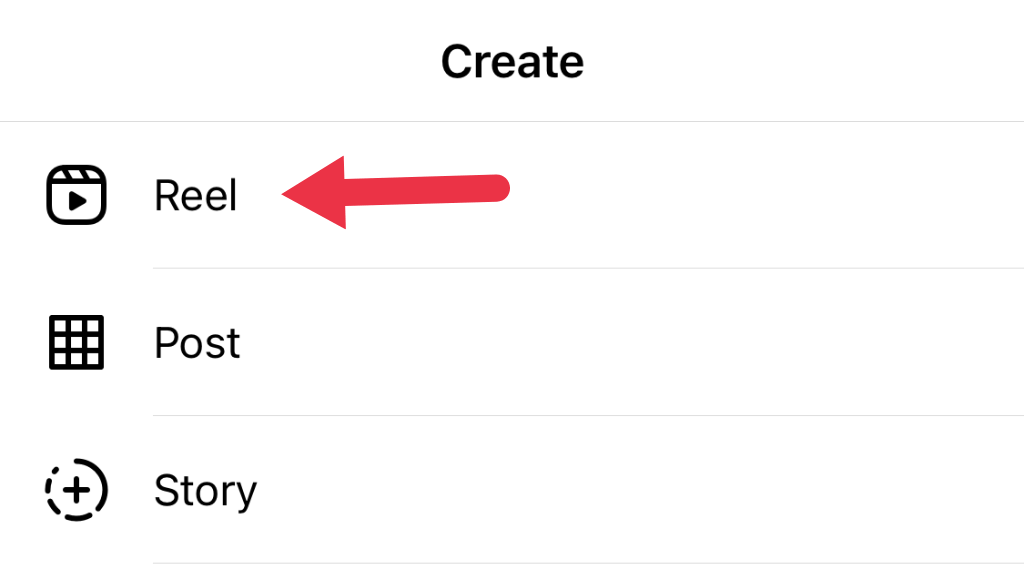
- Select Reel.
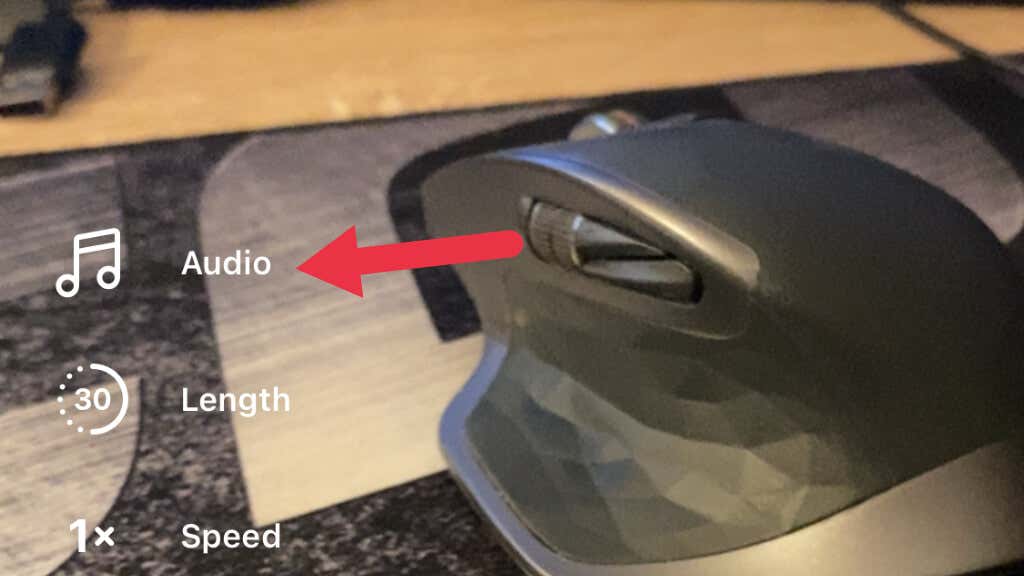
- On the left-hand side of the screen, select the audio icon.
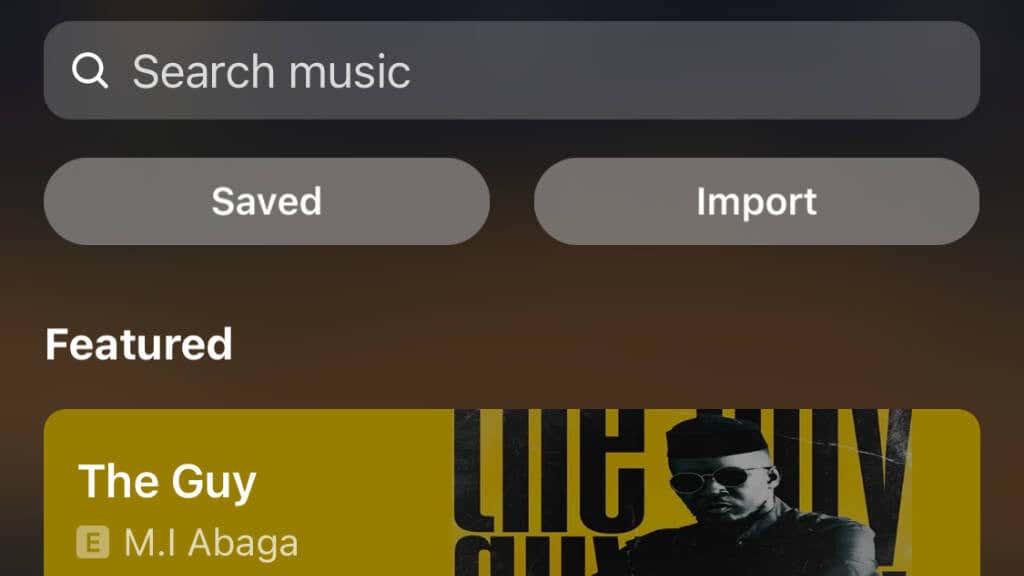
- Browse the available music to use in your Reels.
If you have a Creator account, you can record your Reel and add music to it later using the music tab.
