

You’re in the middle of important work when your mouse and keyboard suddenly stop working. What do you do? Panic? Scream? Have a drink?
Don’t call in a technician yet. You can take a few basic steps to fix the problem on your own. In this post, we’ll share some tricks to get your mouse and keyboard working again.
Reboot Your Computer
Have you tried restarting the computer? Sometimes, users get so overwhelmed when faced with computer issues that they forget the most basic troubleshooting step. Take a minute to reboot your PC before doing anything else.
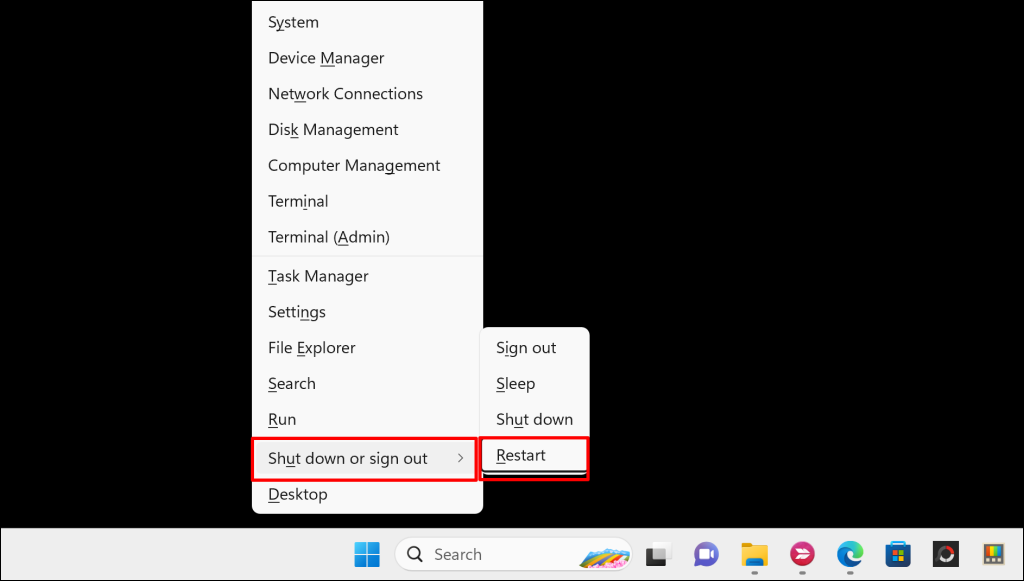
If your mouse isn’t working, you can perform a restart from the Quick Link menu using your keyboard.
Press the Windows key + X, use your keyboard arrow keys to navigate to Shut down or sign out > Restart, and press Enter.
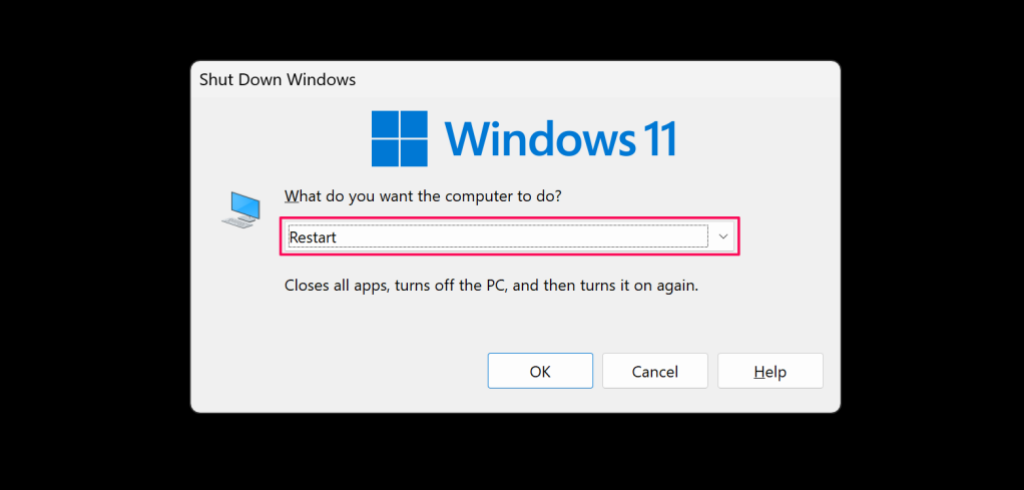
You could also restart your PC from the Shut Down window. Press the Windows key + D to show your desktop, then press Alt + F4 to open the Shut Down window.
Press the arrow-down key to change the shutdown option to Restart, and press Enter to reboot your computer.
Use the On-Screen Keyboard
If your physical keyboard doesn’t work after the system reboots, you’ll need a temporary one that works. Fortunately, Windows has a built-in keyboard for such an occasion.
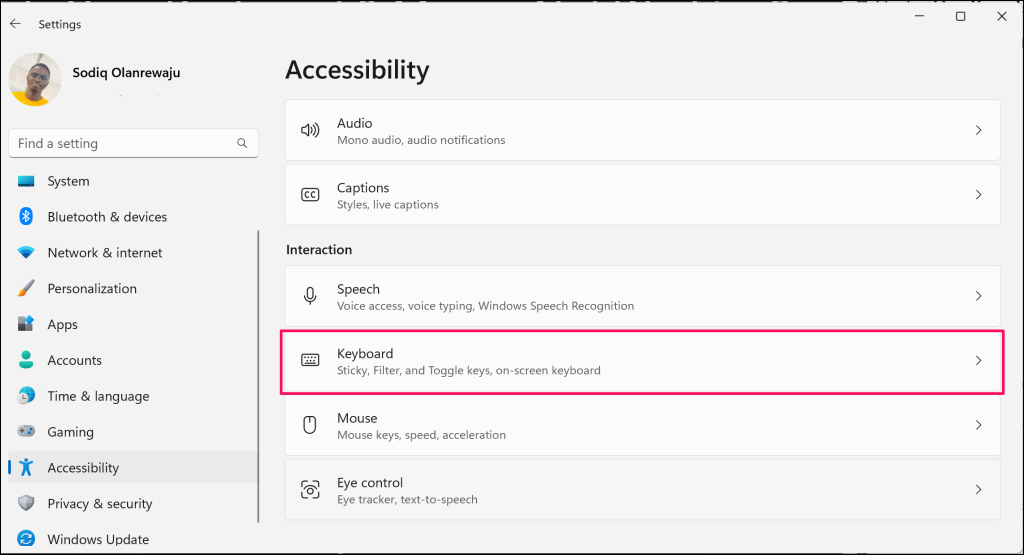
The On-Screen Keyboard (OSK) can be accessed by going to Windows Settings > Ease of Access > Keyboard.
Under Use Your Device Without a Physical Keyboard, switch Use the On-Screen Keyboard to the On position.
- Open the Settings app, select Accessibility on the sidebar, and choose Keyboard in the “Interaction” section.
- Turn on the On-screen Keyboard option.
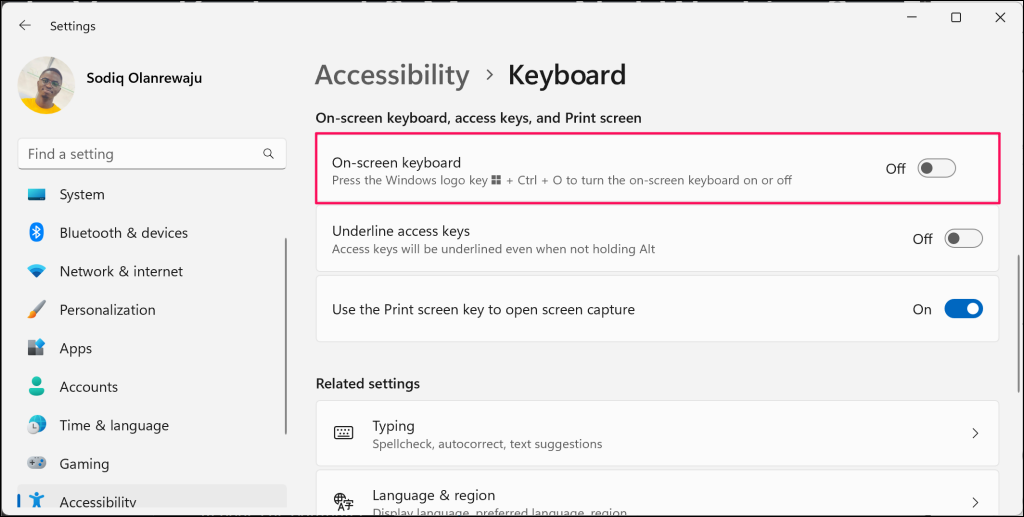
That’ll open the On-Screen Keyboard (OSK). Use your mouse to type or navigate through Windows as you search for a permanent fix.

Check for Loose Cable Connections
If you’re using a wired mouse or keyboard, ensure the cables aren’t loose or damaged. Check the cables for signs of wear and tear, and ensure they fit securely in your PC’s USB ports. Adjust the cables if dislodged from their designated ports, or remove and reinsert them.
Wireless or Bluetooth accessories mice may malfunction due to low battery or charge. If you’re using a wireless mouse or keyboard, check the battery level and charge it if low. Replace their batteries if they keep turning off or disconnecting from your PC.
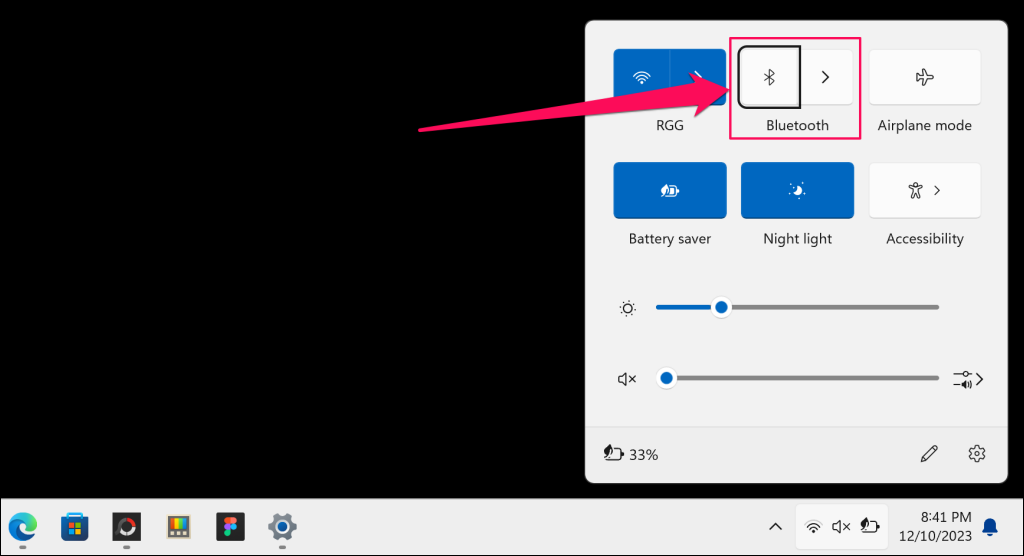
You should also ensure that your computer’s Bluetooth is active. Otherwise, your wireless mouse or keyboard won’t connect to your PC.
Press the Windows key + A to open Action Center and turn on Bluetooth. If you don’t have a functional mouse or trackpad, navigate to Bluetooth using your keyboard arrow keys and press Enter to turn it on.
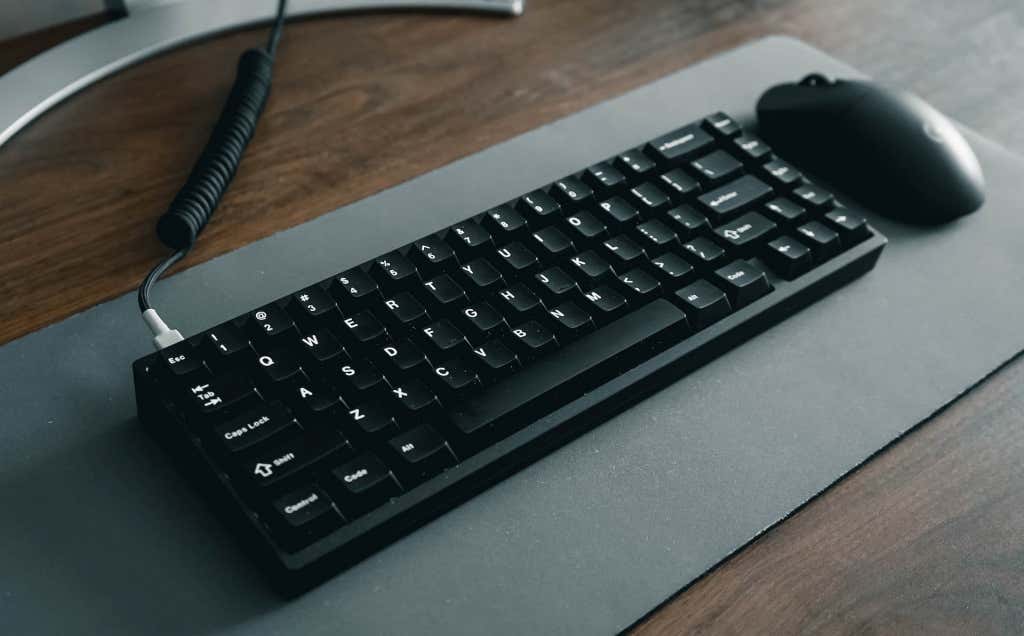
If your wireless mouse or keyboard has a transmitter, ensure the transmitter fits securely in your PC’s USB port.
You can try plugging in a different keyboard and mouse. The issue could be software-related if your computer doesn’t respond to any keyboard or mouse. In that case, updating your keyboard and mouse drivers might resolve the problem.
Update or Reinstall Your Keyboard and Mouse Driver
Your mouse and keyboard might stop working if their drivers are corrupt or outdated. Updating your mouse or keyboard drivers in the Windows Device Manager should get them working correctly again.
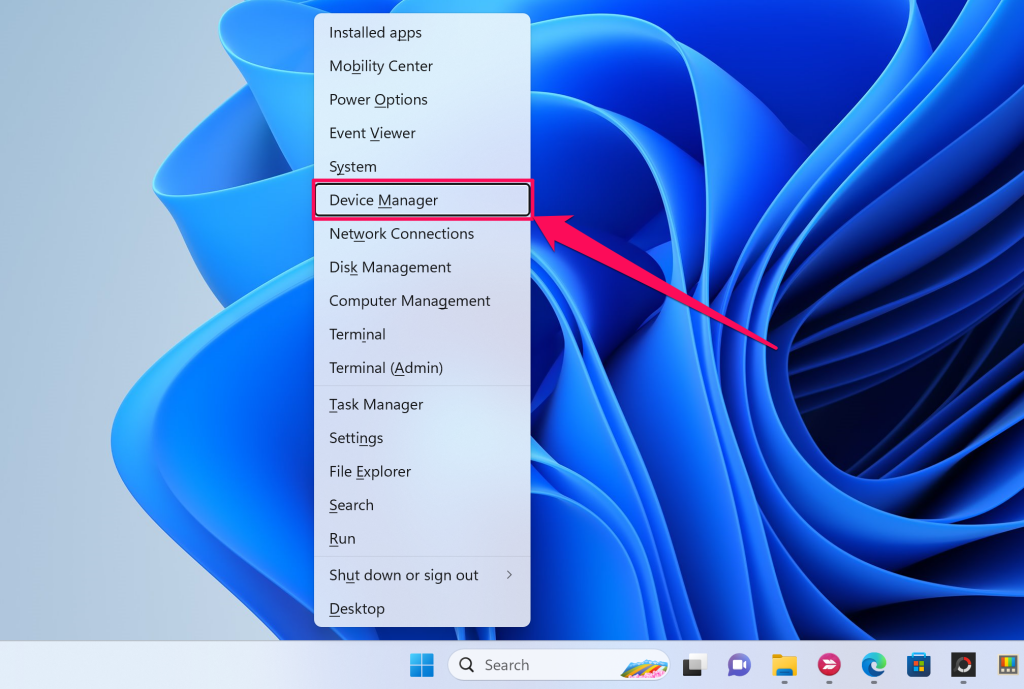
- Press the Windows key + X and select Device Manager in the Quick Link menu.
- Expand the Keyboards and Mice and other pointing devices categories.
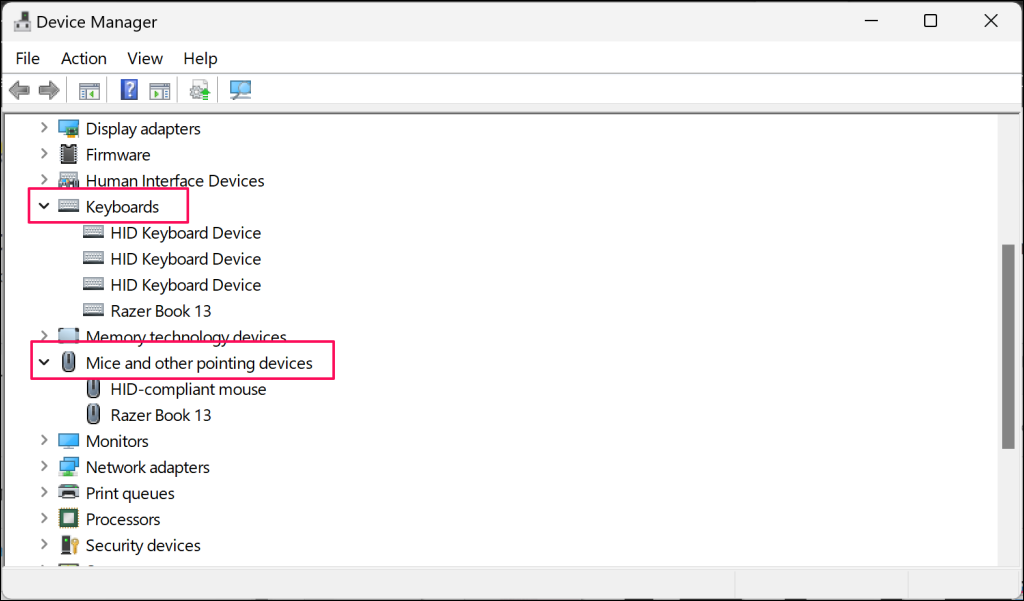
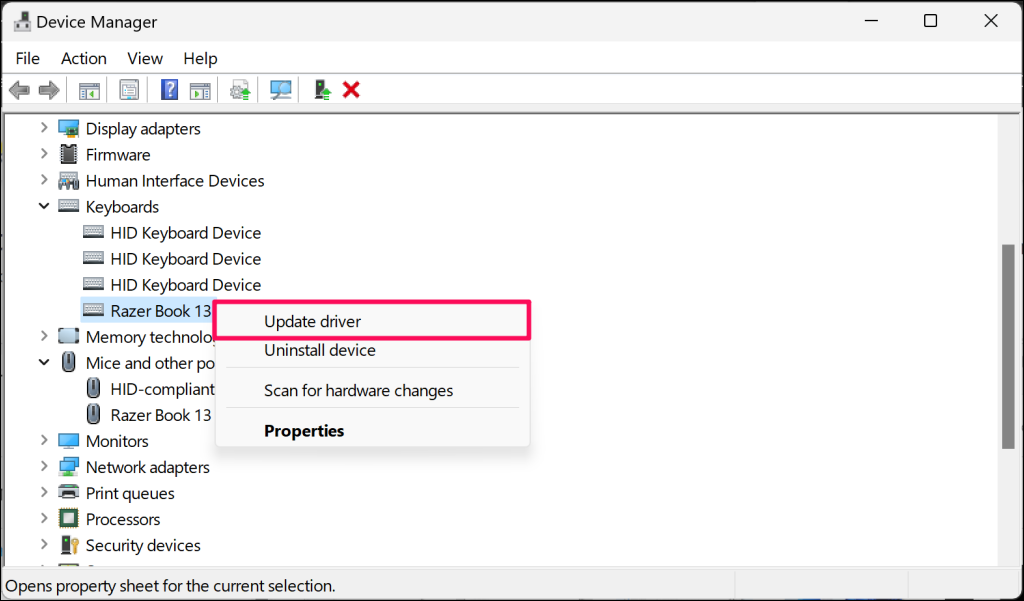
- Right-click your mouse or keyboard driver and select Update Driver.
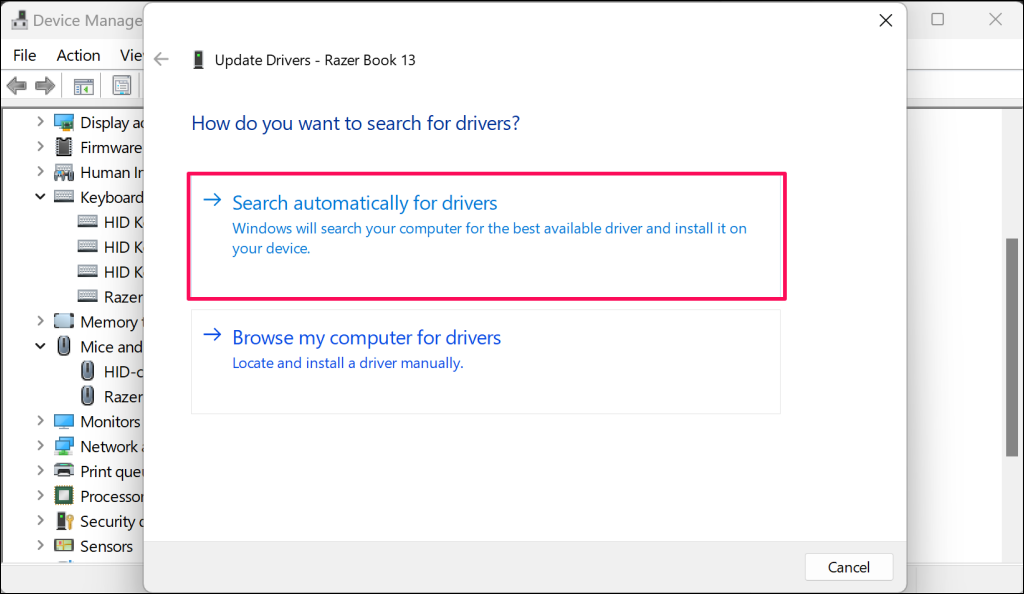
- Select Search automatically for drivers.
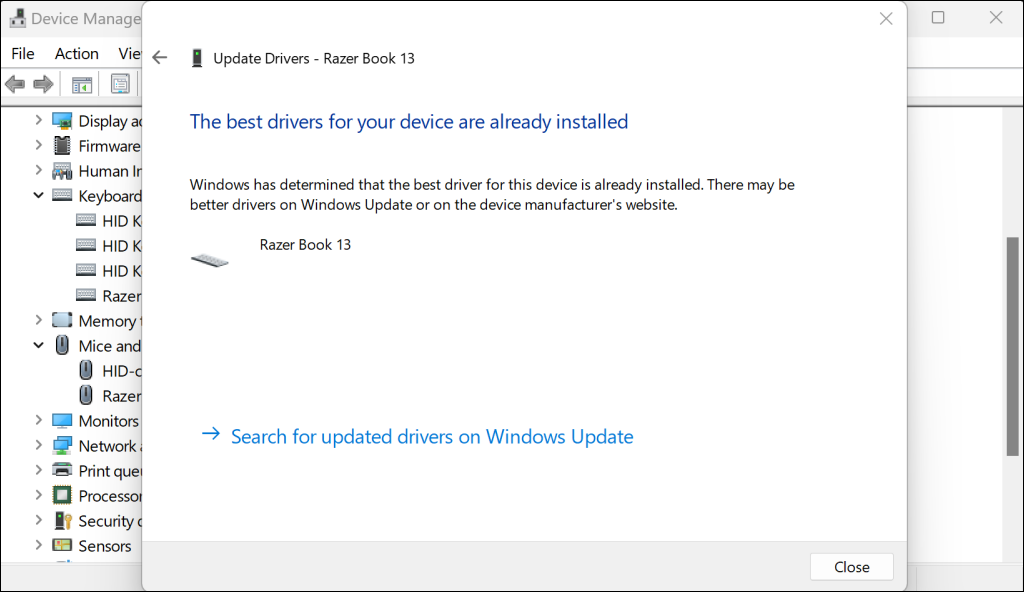
Uninstall the driver and reboot your computer if Device Manager says you have the best driver for your device. Windows automatically reinstalls the driver(s) when your computer restarts.
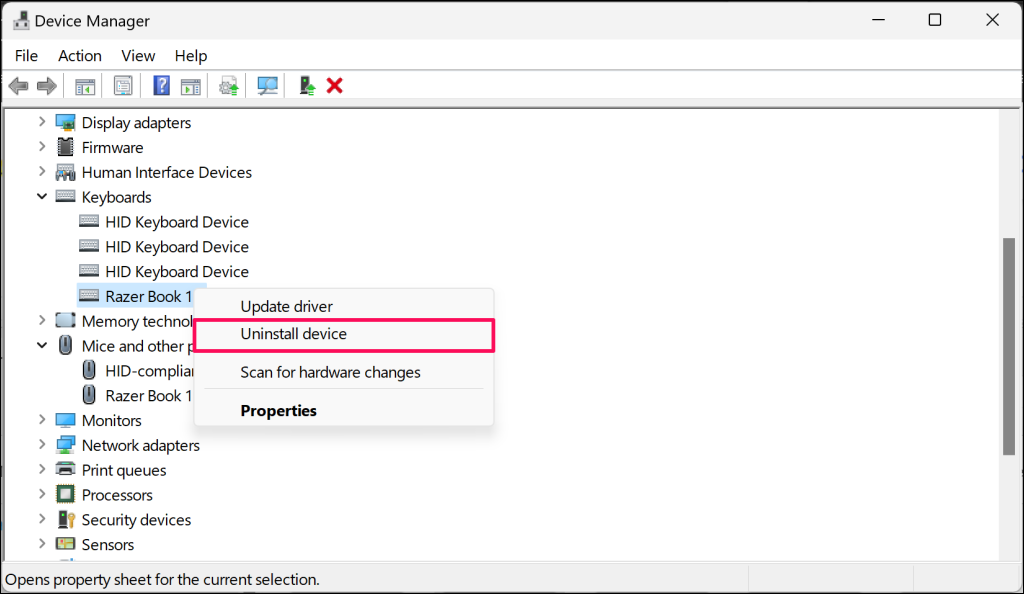
- Right-click the driver and select Uninstall device.
- Select Uninstall on the confirmation pop-up to proceed.
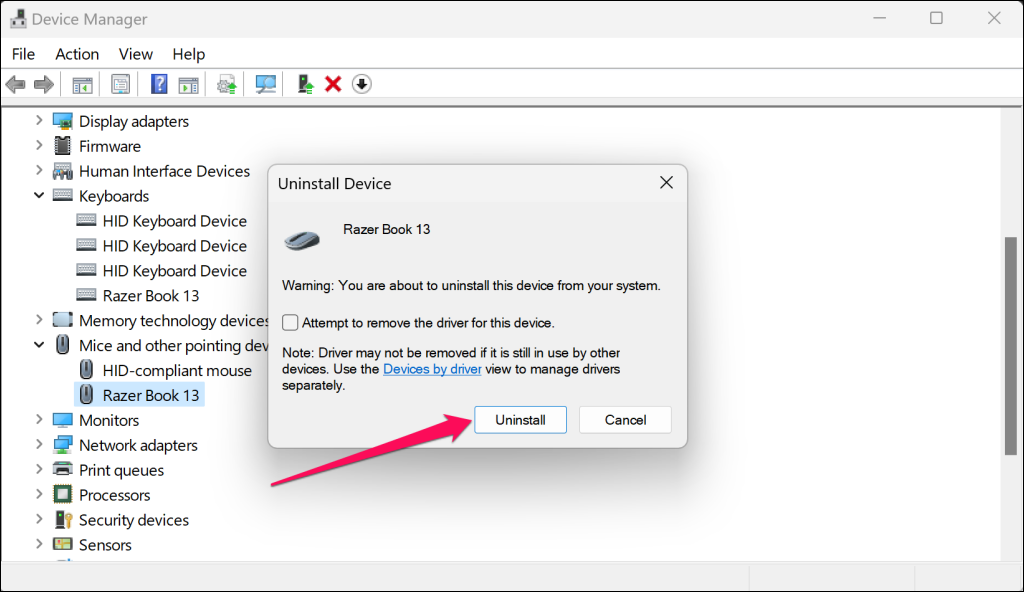
Reboot your computer and check if your mouse and keyboard work without issues.
Run the Keyboard and Mouse Troubleshooter
Windows has a troubleshooting tool that deals with the nastiest bugs and errors. It can help fix issues with your USB or wireless keyboard and mouse.
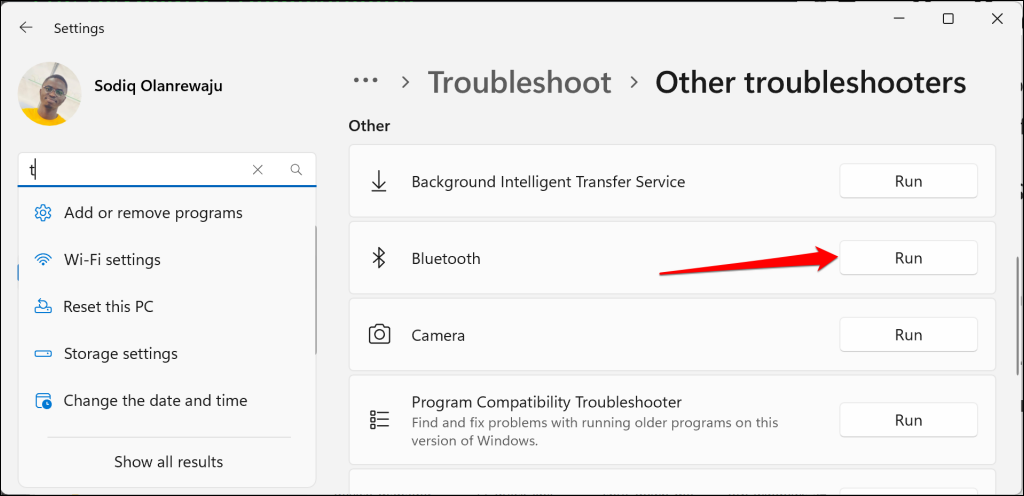
Go to Settings > System > Troubleshoot > Other troubleshooters and select the Run button next to “Bluetooth.”
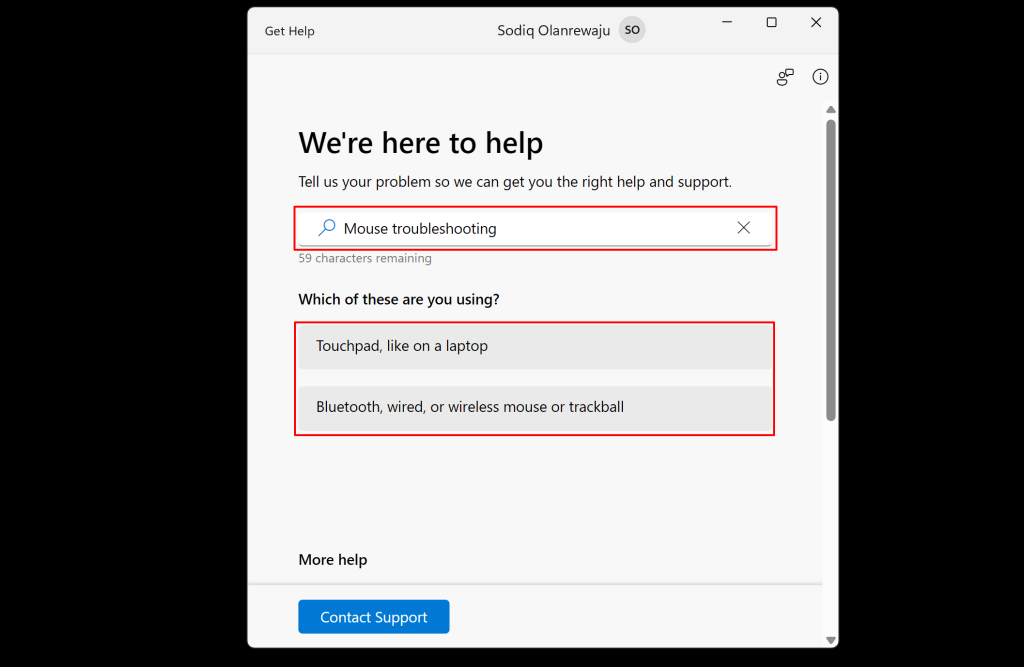
You can also troubleshoot mouse and keyboard issues through the Get Help app. Open the Get Help app, type “mouse troubleshooting” or “keyboard troubleshooting” in the search box, and follow the instructions/recommendations.
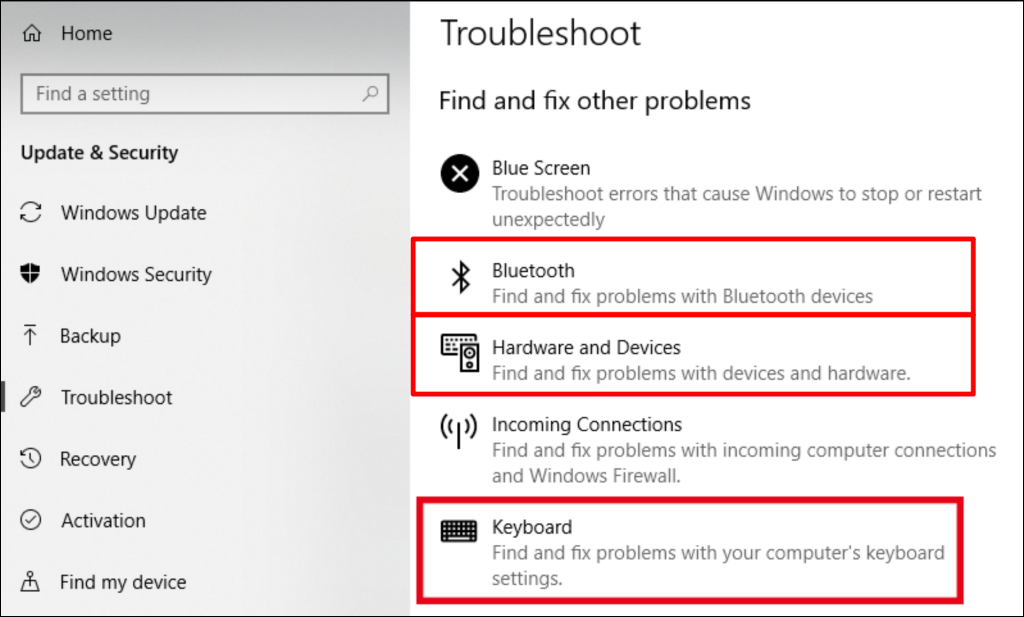
In Windows 10, head to Settings > Update & Security > Troubleshoot. Under Find and Fix Other Problems, select Bluetooth, Keyboard, or Hardware and Devices.
Select Run the Troubleshooter and wait while the troubleshooter finds and fixes issues with your keyboard.
Adjust Your Mouse and Keyboard Properties
Sometimes, your USB or wireless mouse isn’t broken; the settings just need tweaking to work correctly. Say your mouse is stuttering, lagging, or responding sluggishly. Adjusting the pointer speed or precision should fix the problem.
Also, modifying your keyboard properties/settings can resolve typing lag and repeating keys.
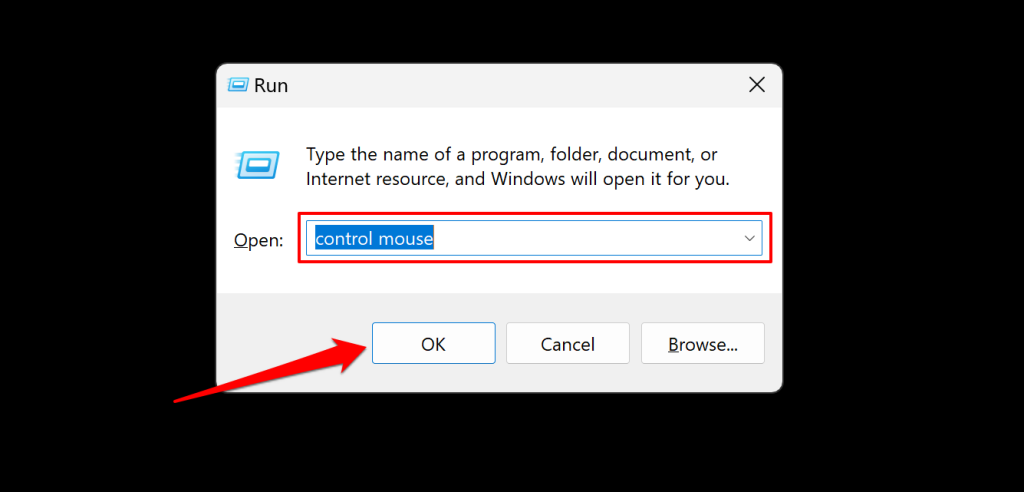
Press the Windows key + R to open the Windows Run box. Type control mouse in the dialog box and press Enter or select OK.
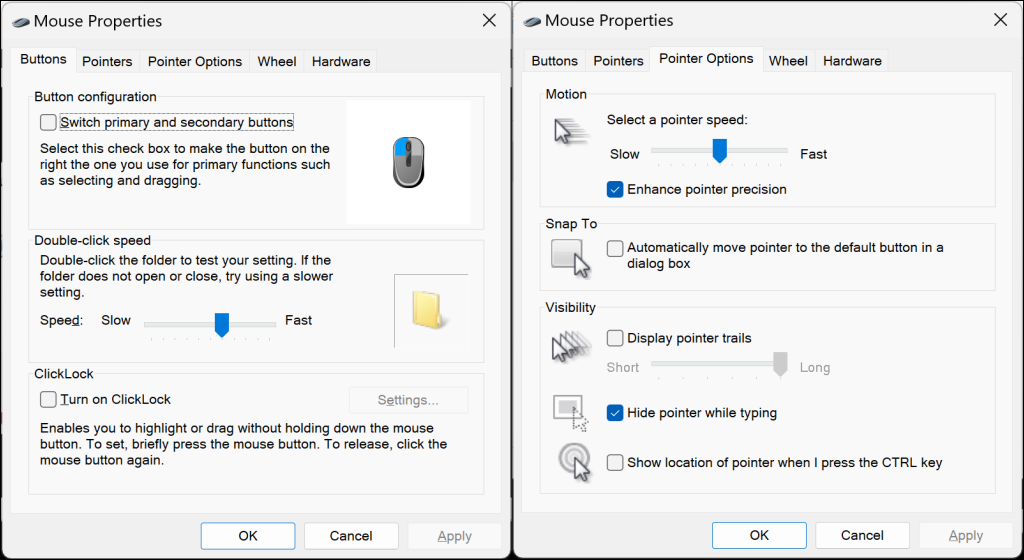
You’ll find several customizable settings in the “Mouse Properties” window. Switch to different tabs to adjust mouse features like scroll speed, (left and right) button functions, double-click speed, etc.
If your mouse speed is slow, open the Pointer Options tab and tune the speed to your preference.
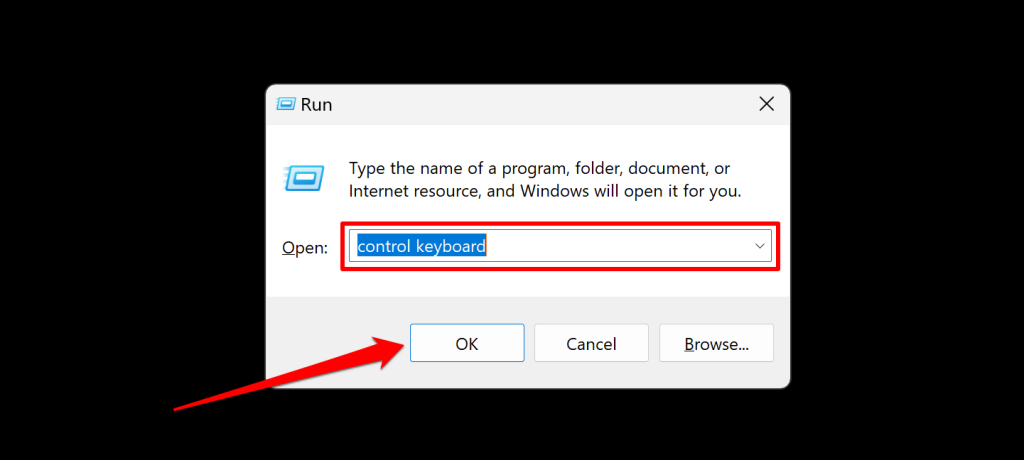
To access the Keyboard Properties window, type control keyboard in the Run box, and press Enter or select OK.
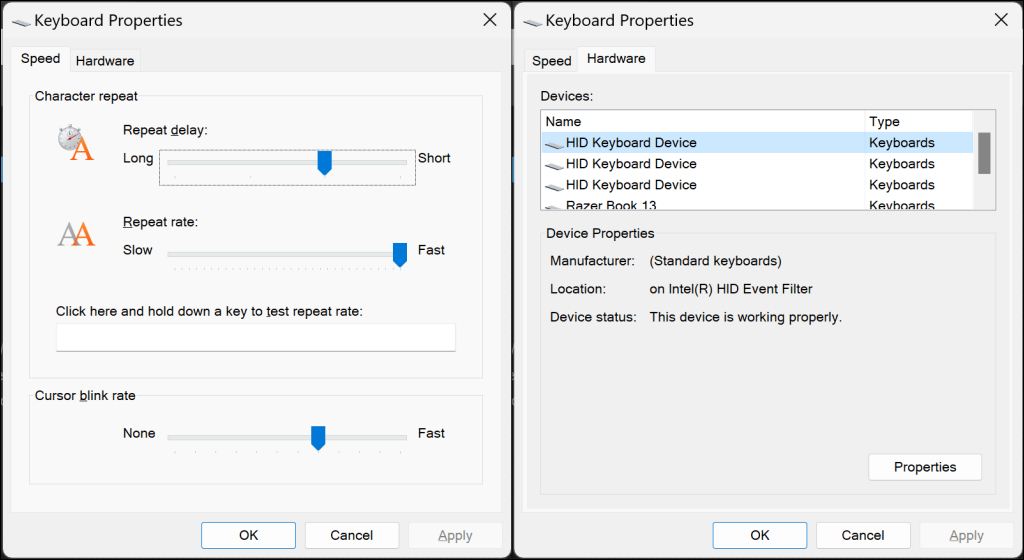
The Keyboard Properties window has options to adjust your keyboard’s repeat rate and delay. Experiment and play around with these settings until you find a sweet spot.
Get Your Keyboard and Mouse Working
Hopefully, one of these troubleshooting steps will resolve keyboard or mouse malfunctions on your Windows PC. Perform a System Restore if the issue persists, especially if your keyboard or mouse stopped working after installing an app or Windows Update.
