

What can be more frustrating than the site you’re trying to access not loading properly? Especially if the site in question is LinkedIn, which you’re using for work purposes rather than entertainment.
When LinkedIn is not working correctly, it may be difficult to troubleshoot. Try the following tips to fix the problem.
What Are the Causes of LinkedIn Not Working?
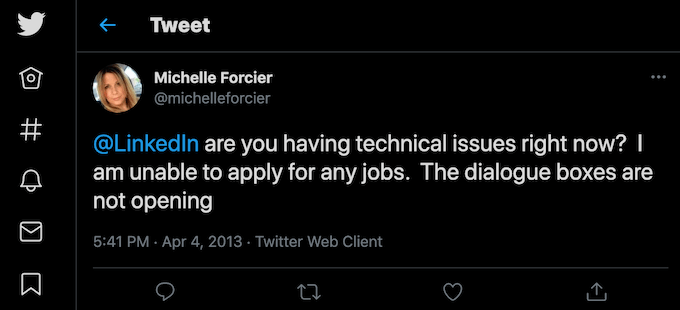
You try to visit the LinkedIn site or load the app and it’s not working. Your first thought is probably whether it’s LinkedIn or if it’s you (i.e. your internet connection). Unless you find a direct mention from the LinkedIn team on one of their official communication channels (like Twitter) about something occurring on LinkedIn’s end, the problem is probably on your side.
However, since it’s hard to determine what exactly is causing issues with LinkedIn, we recommend trying all of the following solutions one by one. That way you can not only find out what was wrong but also learn where the problem was coming from – your app, your account, the device you’re using, or your internet connection. Once you fix the issue, you can also make sure the same problem doesn’t occur again.
How to Fix LinkedIn Not Working
So you checked the official LinkedIn accounts on social networks like Twitter and Facebook and made sure that LinkedIn isn’t experiencing any issues at the moment. That means the problem is on your end. Try the following troubleshooting techniques one by one and see which one fixes the issue and gets LinkedIn working again.
1. Search LinkedIn’s Help Center for the Solution
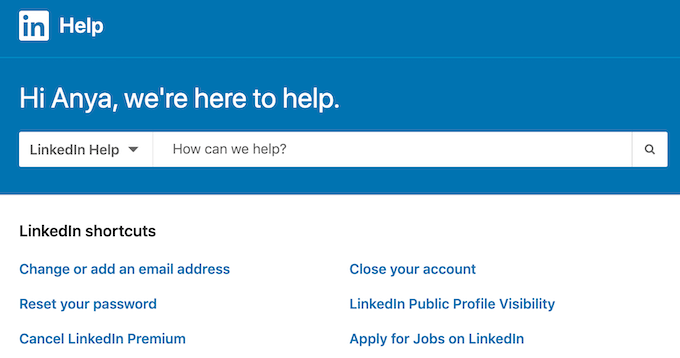
If you want to save yourself some time and effort, you can search the LinkedIn Help Center to find what’s causing problems and how to get LinkedIn back working. You can browse through the Suggested articles section or use the search bar on top of the page to enter the keywords or a phrase to find relevant information.
2. Sign Out & Sign Back Into Your Account
Similar to the process of restarting your computer, many LinkedIn issues can be solved by simply signing out and back into your account.
To sign out of your LinkedIn account, open LinkedIn and select Me in the upper-right corner of the screen. From the drop-down menu, select Sign Out.
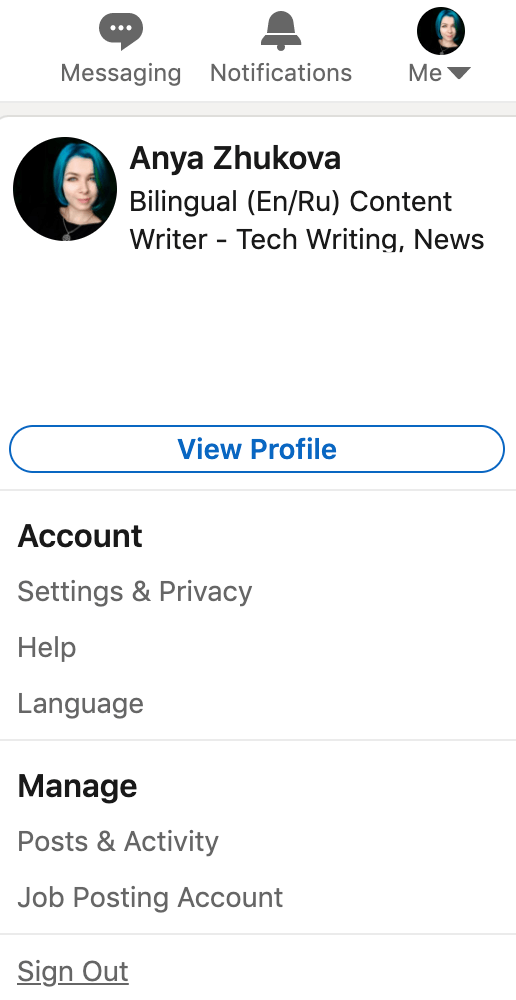
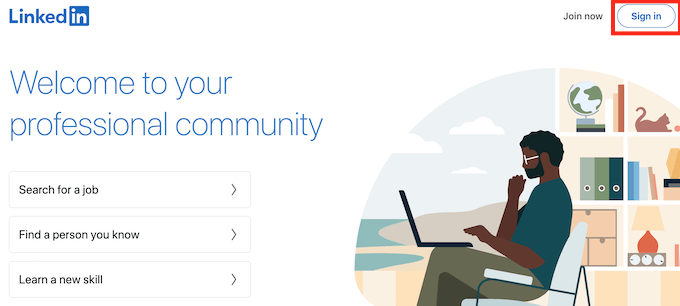
Once you’re back on the LinkedIn welcome page, select Sign in in the upper-right corner, sign back into your account and see if LinkedIn is now loading properly.
3. Clear the Browser’s Cache & Cookies
If signing out and back into your account didn’t help, you can try clearing the browser’s cache and cookies. This will wipe the saved data from your browser, so you can load all the information again from scratch. Depending on what browser you use, the process of clearing cache and cookies will be a little different.
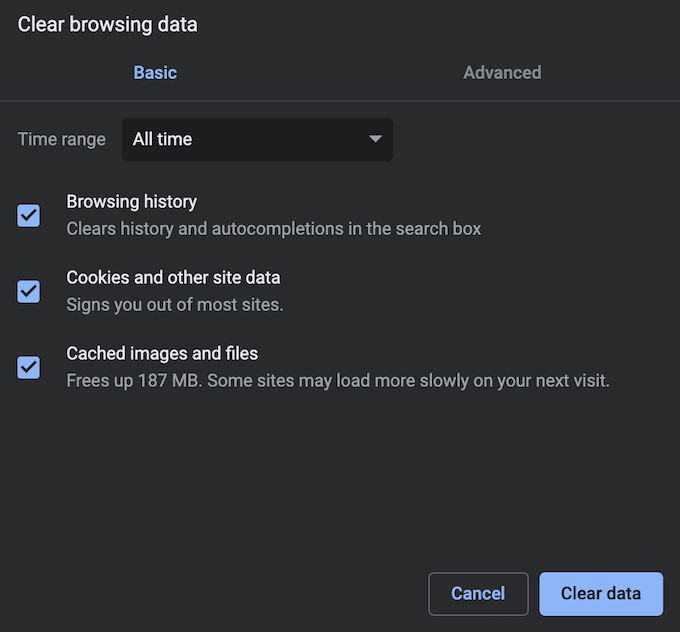
After you finish, open LinkedIn in your browser again, sign into your account and see if it fixes the problem you experienced before.
4. Disable Browser Extensions
If you have extensions installed in your browser, they may be the ones causing problems. You don’t have to remove your extensions completely to get LinkedIn working again. Instead, try disabling them while you load the LinkedIn page. If one of the extensions is interfering with how LinkedIn works, it might be what’s causing your browser to struggle while loading the website.
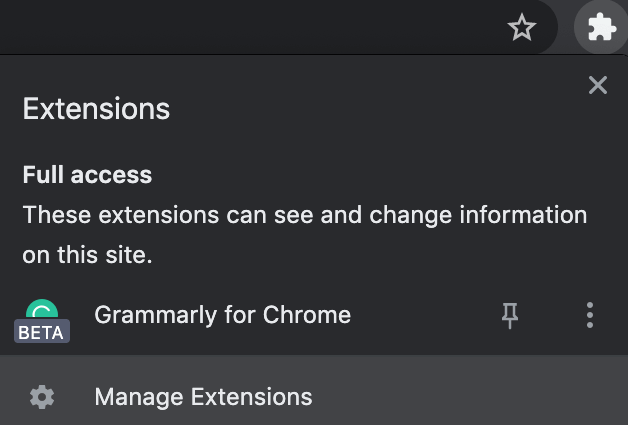
To disable the extensions in Google Chrome, open the Extensions menu in the upper-right corner of the screen and select Manage Extensions.
There, switch the toggles next to the extensions to the Off position.
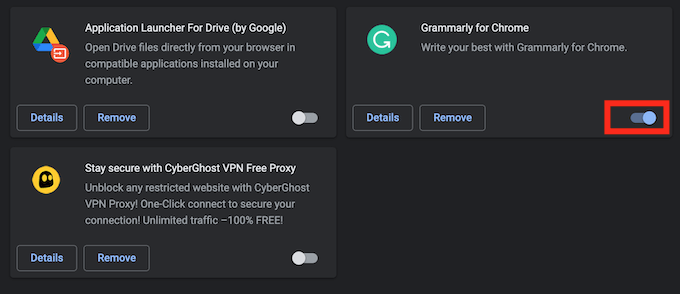
Now restart your browser and try opening LinkedIn again.
5. Turn Off Your VPN
LinkedIn not loading correctly could be a sign that your internet connection is unstable. That could be caused by various factors, including your VPN. VPN assigns you a different IP address at random for the sake of keeping your connection secure. However, that also means that your browser can’t connect to LinkedIn’s servers properly.
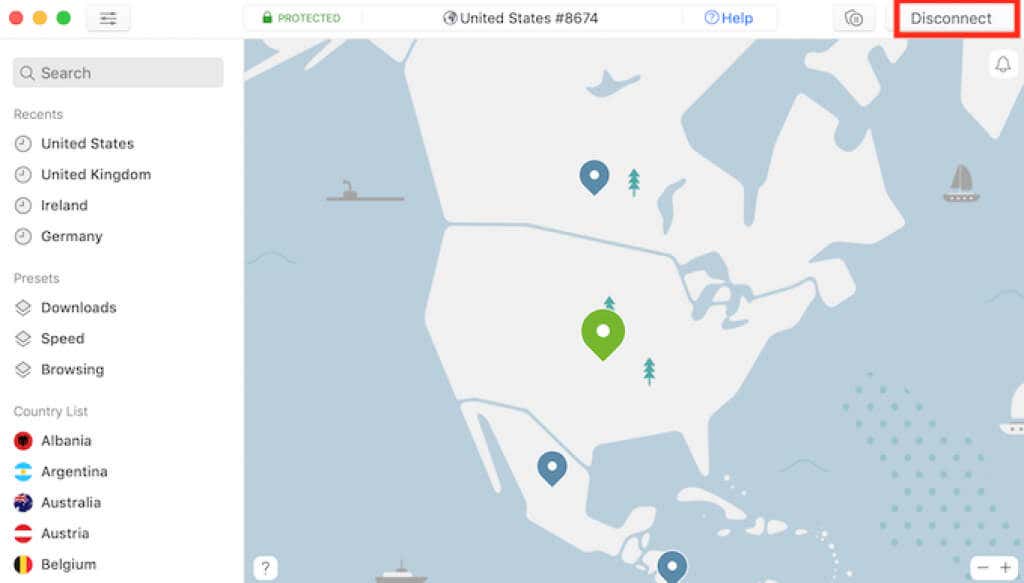
Try disabling your VPN and accessing the website again. If you need to access LinkedIn in one of the countries where LinkedIn’s blocked though, try using a different VPN client to open the site.
6. Use a Different Browser
If none of the above-mentioned techniques work for you, try switching to a different browser. Either open or download and install a new web browser and try opening the LinkedIn website in it. Sign into your account and see if you’re experiencing the same problems as in the other browser.
If using a different browser fixes the problem, try updating or reinstalling your primary browser.
7. Switch to Another Device When Using LinkedIn
If you’re using LinkedIn through the official site, try switching to the mobile app and see if you’re experiencing the same issues. If you find LinkedIn still not working for you on your smartphone, follow these steps to troubleshoot the mobile app.
- Quit the LinkedIn app on your mobile device and reopen it.
- Turn your smartphone off and back on again. Then open the LinkedIn app and see if the issue is still there.
- Check for the LinkedIn updates on Play Store or Apple Store and make sure you’re using the latest version of the app.
- Uninstall the LinkedIn app from your smartphone, then reinstall it again.
8. Report the Problem to LinkedIn
Tried all of our troubleshooting tips and nothing helped? The last resort is to contact LinkedIn and ask them to resolve your problem. The downside of this method is that it’s hard to tell how long it’s going to take before you hear from LinkedIn. Each case is unique and LinkedIn doesn’t give any deadlines for their time of response.
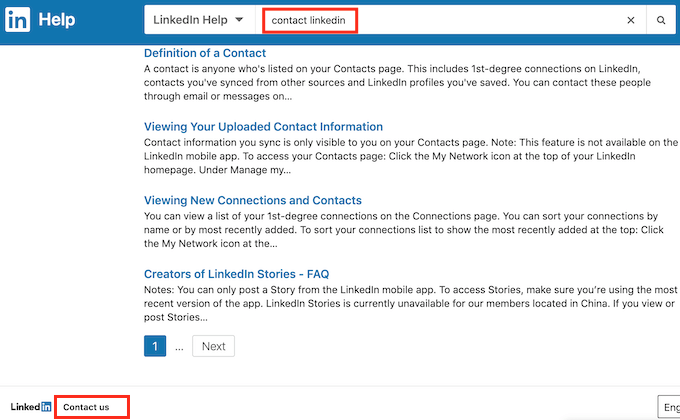
To contact LinkedIn, open the LinkedIn Help Center and type Contact LinkedIn into the search bar. Scroll down and select Contact Us at the bottom of the page.
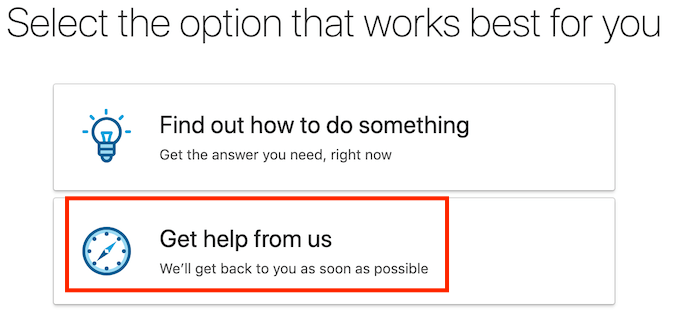
Select the Get help from us option and proceed to create your report. After that, all that’s left is waiting to hear back from LinkedIn.
If Nothing Works, Maybe It’s Time to Ditch LinkedIn?
If it’s a minor glitch that doesn’t allow you to take full advantage of LinkedIn, you should be able to fix it using the troubleshooting methods described in our article. However, if you still can’t properly load LinkedIn after trying all of the techniques, you might want to consider replacing LinkedIn with an alternative social network for reaching your professional goals.
Have you experienced LinkedIn not working properly before? What helped you fix it? Share your experience solving the issues with LinkedIn in the comments section below.
