

You spotted “taskhostw.exe” in Task Manager, and maybe your antivirus flagged it or it’s eating CPU. It’s almost always the genuine Windows process, and two quick checks (file location and digital signature) will confirm whether yours is.
What Is taskhostw.exe?
Is taskhostw.exe a virus?
No, not by itself. taskhostw.exe is listed in Task Manager as Host Process for Windows Tasks. It’s a core part of Windows 10 and Windows 11. Windows uses it as a host for certain Windows and scheduled-task components that are packaged as DLL files rather than standalone programs. You never install it or launch it yourself.
It shows up during scheduled maintenance, updates, startup, and sometimes shutdown. That’s expected behavior, according to answers in Microsoft’s community Q&A threads (Microsoft Q&A). We couldn’t find a dedicated Microsoft reference page for taskhostw.exe, so this guide leans on those threads plus the checks below, which you can run yourself.
Malware sometimes copies the names of system files to blend in. The name alone doesn’t prove anything either way, which is why you check the location and the signature.
Why are there multiple taskhostw.exe processes?
Windows can run several copies at once, and each copy hosts a different task. Seeing two or more instances is normal (Microsoft Q&A). Run the checks below on each instance.
Is taskhostw.exe the same as taskhost.exe?
No. taskhost.exe is a different, similarly named process. Verify either one the same way, by location and signature.
Prerequisites
- A Windows 10 or Windows 11 PC. There’s nothing to download, since taskhostw.exe ships with Windows.
- An account that can open Task Manager and File Explorer.
- Windows Security (Microsoft Defender) available, in case a scan is needed.
- Optional: an external hard drive with a recent backup before running an offline scan, which restarts your PC.
Step-by-Step: Verify and Fix taskhostw.exe
Fix #1: Check the file location in Task Manager
- Press
Ctrl + Shift + Escto open Task Manager. - Click the Details tab. In Windows 11, it’s in the left sidebar.
- Click the Name column header to sort the list alphabetically, then scroll to taskhostw.exe.

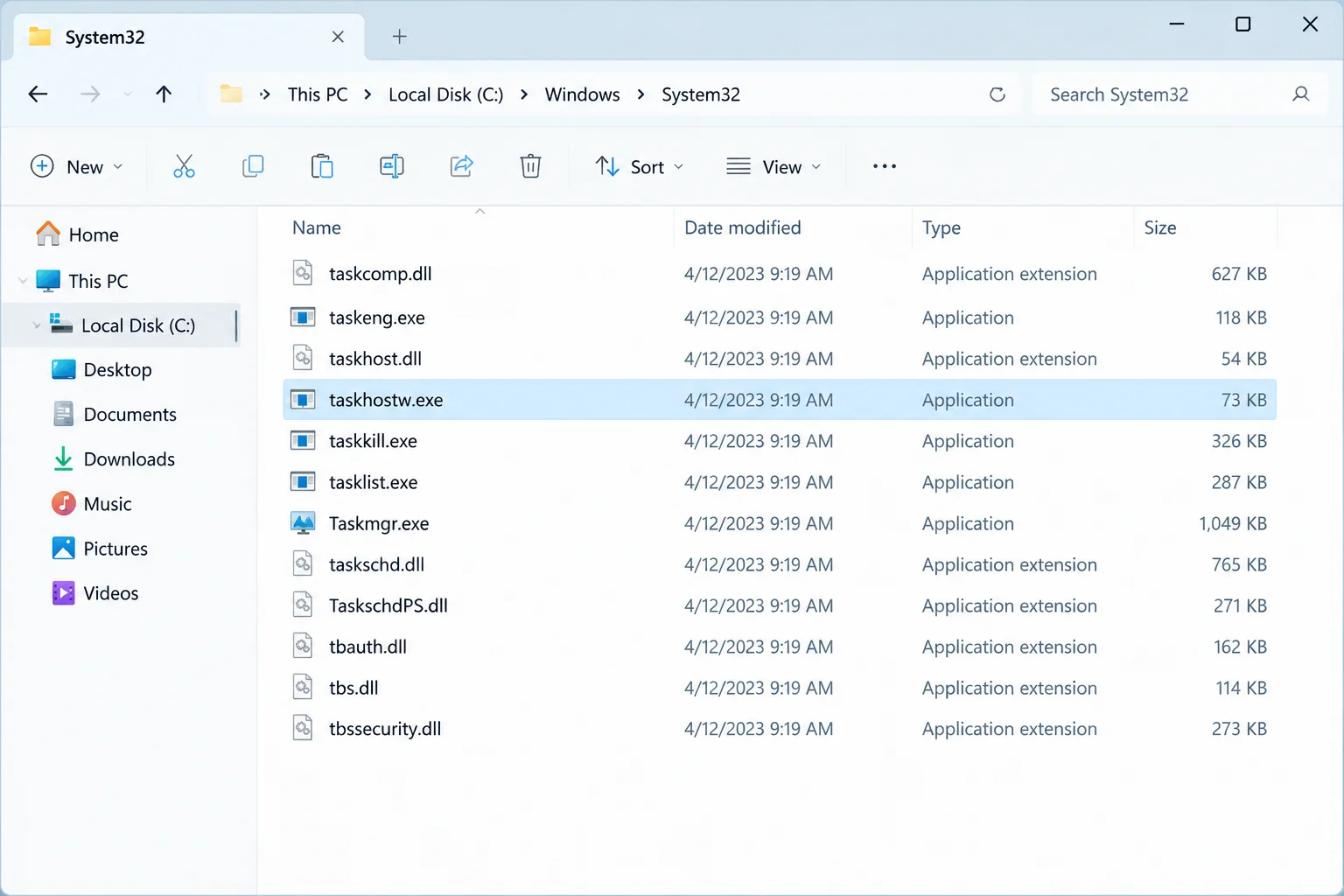
- Right-click taskhostw.exe and choose Open file location.
- Check the address bar in File Explorer.
Expected result: File Explorer opens to C:\Windows\System32 with taskhostw.exe selected. Repeat these steps for every taskhostw.exe instance.
Fix #2: Confirm the Microsoft digital signature
- In that File Explorer window, right-click taskhostw.exe and choose Properties.
- Click the Digital Signatures tab.
- Look at the Name of signer column.
Expected result: The signer is normally listed as Microsoft Windows. The exact display name can vary by build, so also select the signature, click Details, and confirm Windows reports that the digital signature is OK.
If the file is in System32 and signed by Microsoft Windows, that strongly indicates it’s the genuine file, though these two checks alone can’t guarantee the file is completely harmless. You can generally stop here unless it’s causing high usage or you still have doubts, in which case running a Defender scan (Fix #4) adds extra assurance.
Fix #3: Track down the task behind high CPU or memory
High usage usually comes from the task that taskhostw.exe is hosting rather than from the host process itself (Microsoft Q&A).
- Open Windows Update.
- On Windows 11, go to Settings > Windows Update.
- On Windows 10, go to Settings > Update & Security > Windows Update.
- Install any pending updates, then restart your PC.
- If the high usage continues, press
Win + R, typetaskschd.msc, and pressEnter. - Click Task Scheduler Library in the left pane.
- Sort the task list by Last Run Time. Look for tasks that ran around the time usage spiked.
- Select a suspect task and review its Actions and History tabs to see what it runs.
There’s no guaranteed one-to-one link between a taskhostw.exe instance and a specific task, so treat this as investigation. Don’t disable Microsoft tasks blindly, because Windows relies on many of them for maintenance. If a third-party app’s task is the culprit, update or reinstall that app.
Fix #4: Run a Microsoft Defender full or offline scan
Run this scan if the file is outside C:\Windows\System32, if the signer isn’t Microsoft Windows, or if the Digital Signatures tab is missing.
- Open Windows Security from the Start menu.
- Go to Virus & threat protection > Scan options.
- Choose the full scan option and click Scan now.
- If Defender finds a threat, follow its prompts to quarantine or remove it, then review Protection history to confirm the action.
- If anything was found, or the suspicious copy remains, return to Scan options and run the Microsoft Defender Offline scan. It restarts your PC and scans outside normal Windows, which takes a while, so save your work first.
If threats keep coming back after an offline scan, get help from Microsoft Support or a trusted technician before you keep using the PC for sensitive tasks.
Exact scan labels can vary slightly between Windows builds. Don’t whitelist or restore a taskhostw.exe copy found outside System32.
Configuration: Normal vs. Suspicious
| Check | Normal | Investigate |
|---|---|---|
| File path | C:\Windows\System32 | Any other folder |
| Signer | Microsoft Windows | Missing or anyone else |
| Instances | One or several | Several, each failing the checks above |
| CPU/memory | Brief spikes during updates or maintenance | Sustained load after updates are installed |
Tips and Troubleshooting
- Your antivirus keeps flagging the real file. Behavior-based detection can sometimes flag a legitimate file. Check the alert details in Windows Security > Virus & threat protection > Protection history. Only allow the file if the flagged path is System32 (Microsoft Q&A).
- “Task Host Window” is delaying shutdown. This is a related but separate issue: Windows is waiting for a background task to finish before it shuts down, and it needs its own fixes.
- Never delete or end the real taskhostw.exe. Windows needs it, and it will run again with the next task anyway.
- The PC is slow even when taskhostw.exe is idle. The slowdown is likely unrelated to taskhostw.exe itself. Open Task Manager’s Performance tab to see which resource (CPU, memory, disk, or network) is actually maxed out, and address that specific bottleneck rather than guessing at a fix.
Wrapping Up
For most people, Fix #1 and Fix #2 settle the question in under a minute. If the file is in System32 and signed by Microsoft Windows, that’s a strong sign it’s genuine, and installing pending updates usually calms high usage. Take things more seriously if a copy keeps reappearing outside System32, or if Defender finds threats again after an offline scan. At that point, back up to an external drive and consider a clean Windows reinstall.