

This tutorial covers troubleshooting fixes to try if WhatsApp won’t download pictures, videos, or documents from individual and group conversations. Factors that cause this problem include poor internet connectivity, low device storage space, incorrect date and time settings, etc.
We’re confident that at least one of the recommendations below will fix the problem on your Android or iOS device.
[01-how-to-fix-whatsapp-not-download-media-android-iphone]
Note: Some instructions or steps in this guide may vary based on your device’s model and operating system.
1. Troubleshoot Your Internet Connection
WhatsApp requires a strong internet connection to download and send media files and documents. A slow or sluggish network connection will frustrate the process. Switch to a Wi-Fi network if you’re using cellular or mobile data. If the problem persists on a Wi-Fi connection, restart the router and move your device closer for better signal strength.
Putting your phone in and out of airplane mode can also refresh your internet and fix connectivity issues. Contact your network provider or reset your phone’s network settings as a last resort.
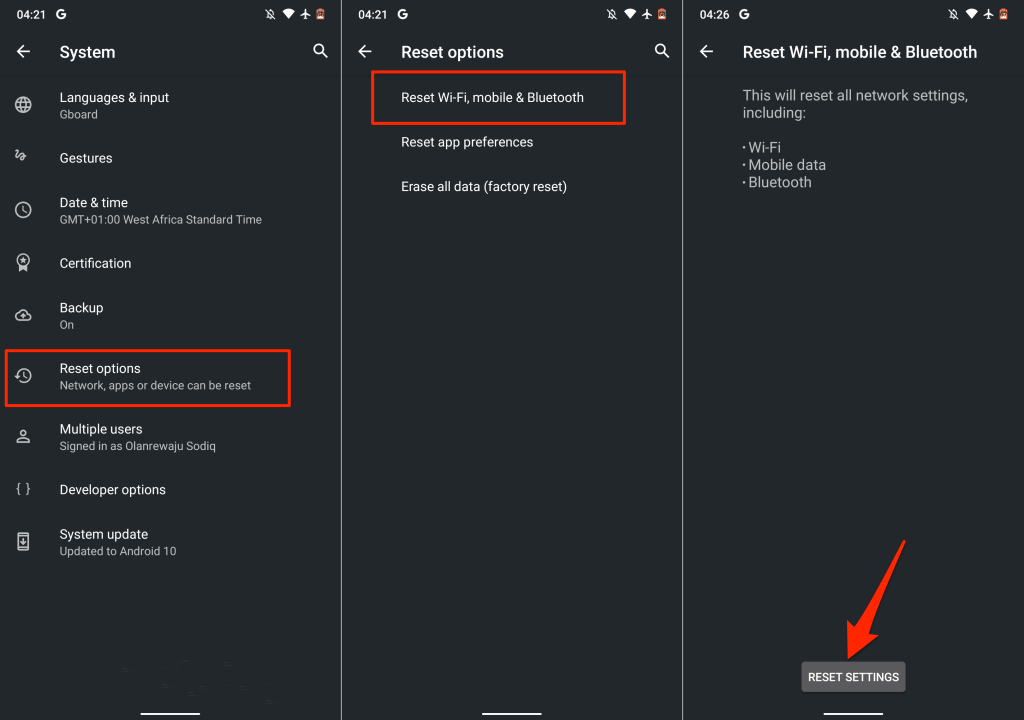
Reset Network Settings on Android
Go to Settings > System > Advanced > Reset options > Reset Wi-Fi, mobile & Bluetooth, and tap Reset Settings. Enter your phone’s password, pattern, or PIN to proceed.
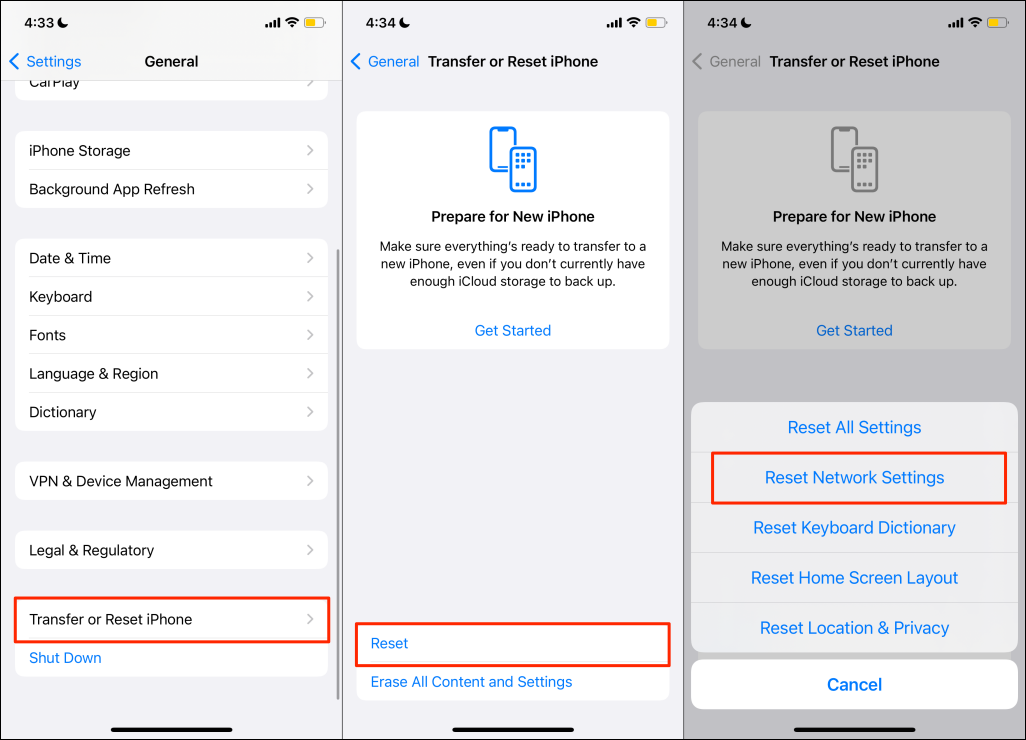
Reset Network Settings on iPhone
Go to Settings > General > Transfer or Reset iPhone > Reset > Reset Network Settings and enter your iPhone’s passcode.
2. Check WhatsApp Server Status
WhatsApp will exhibit different malfunctions when the instant messaging servers experience an outage or downtime. WhatsApp may fail to send or receive texts and media files during a server downtime while other features work correctly. Sometimes, messaging works while other functionalities (like WhatsApp Status) collapse.
If your internet is working correctly, but WhatsApp isn’t downloading media, check if the messaging app’s servers are operational. Reputable site-monitoring platforms like DownDetector and IsItDownRightNow provide reliable server status reports.
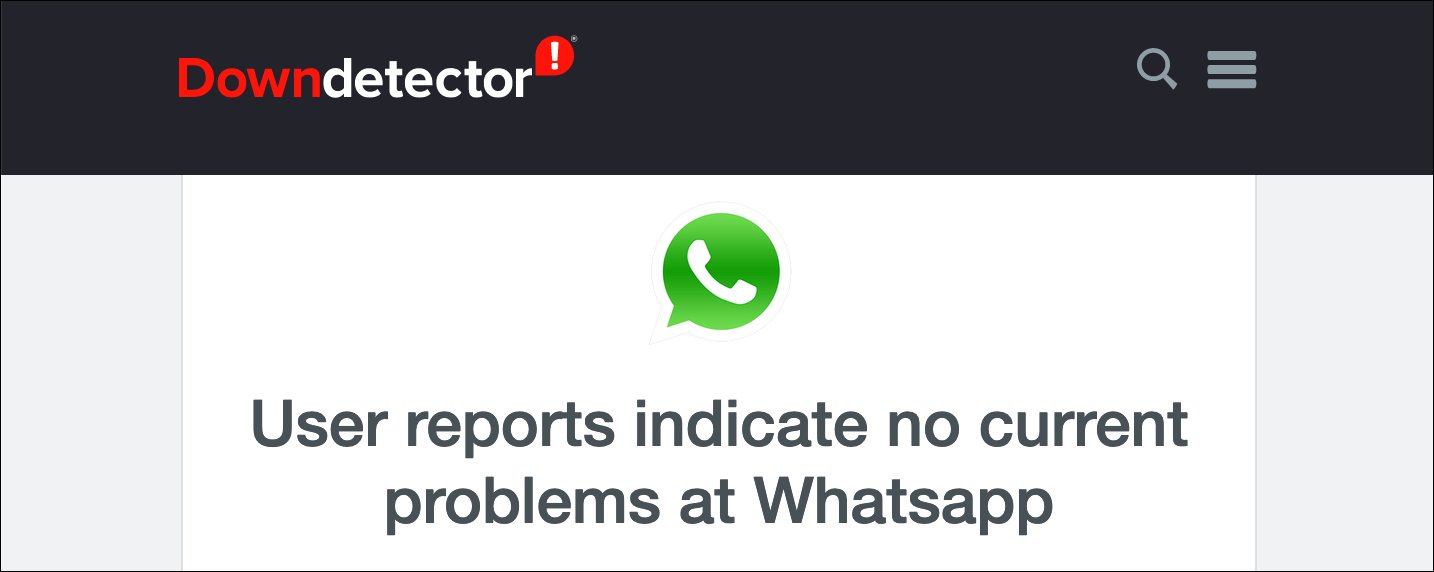
If the servers are unreachable and other WhatsApp users are experiencing similar download issues, only WhatsApp can resolve the problem. Contact WhatsApp Messenger Support to bring the downtime to their attention and wait until the servers are back up.
3. Force Stop and Reopen WhatsApp
If an app is unresponsive or some features don’t work correctly, force closing the app may resolve the problem.
Force Stop WhatsApp on Android
Go to Settings > Apps & notifications > App info (or See All Apps) > WhatsApp > Force Stop and tap OK.
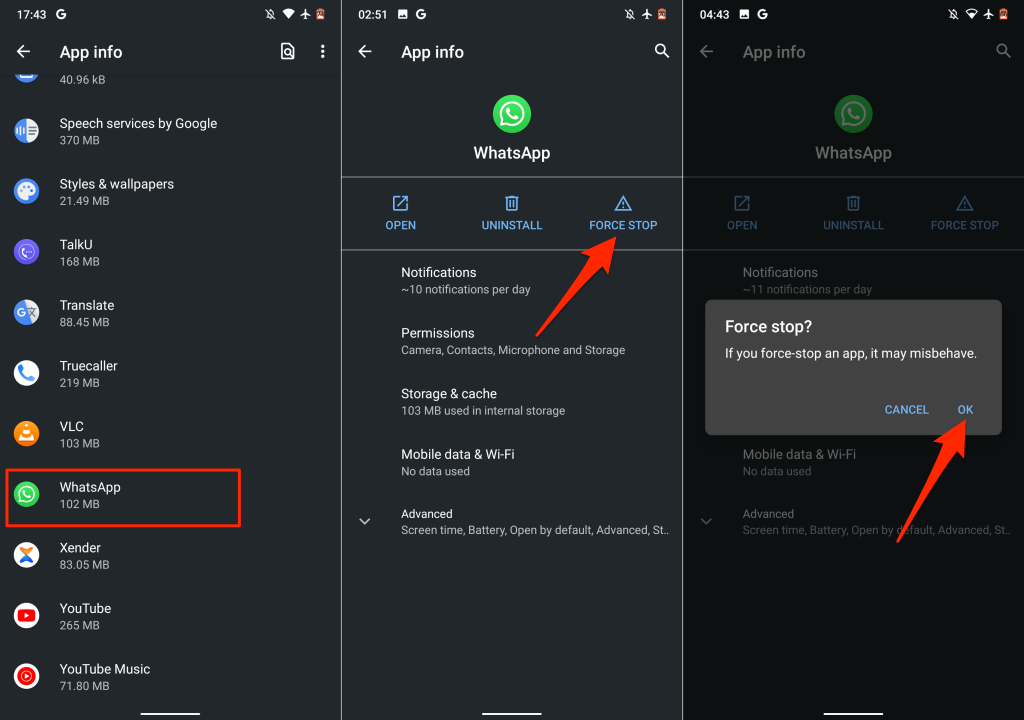
Alternatively, long-press the WhatsApp icon on the home screen or app launcher, tap App info, and select Force Stop.
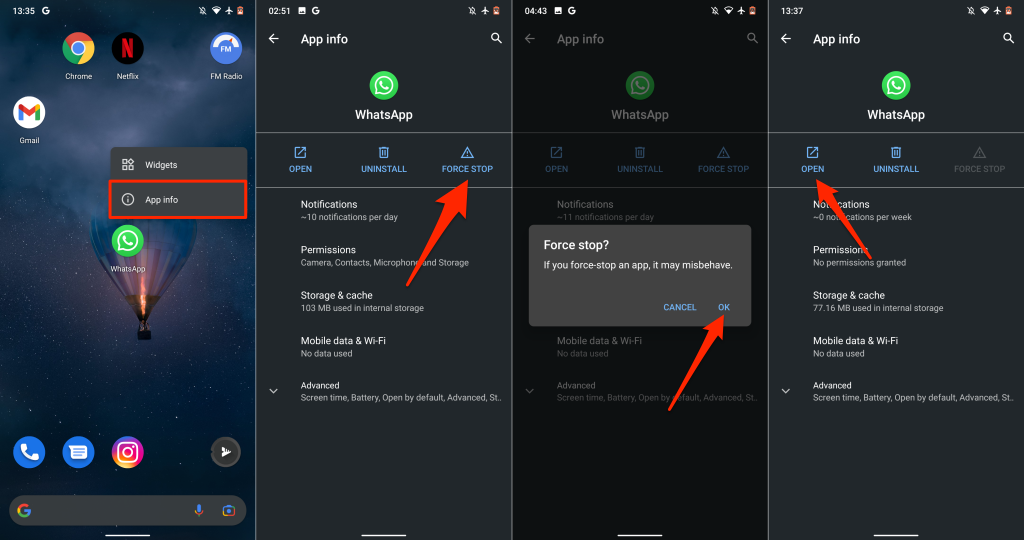
Wait a few seconds and tap Open to relaunch WhatsApp. Try downloading a file from an individual or group conversation and check if it works.
Force Stop WhatsApp on iPhones
For iPhones without a Home button, swipe up from the bottom of the screen to open the App Switcher. Swipe up on WhatsApp’s preview to close the app.
If your iPhone has a Home button, double-click the Home button, and swipe up on WhatsApp to close it.
Afterward, launch WhatsApp, open a conversation, and download images or documents that failed to download earlier.
4. Turn On “Save to Camera Roll”
Unlike Android, WhatsApp for iOS doesn’t automatically save downloaded media files to your device’s storage. Instead, media files and documents are saved as WhatsApp data. Change your WhatsApp chat settings if you want media files saved automatically to your app gallery.
Launch WhatsApp, select Settings, tap Chats, and toggle on Save to Camera Roll.

Enabling this option may increase the amount of storage space consumed by WhatsApp.
5. Check WhatsApp Storage Permission
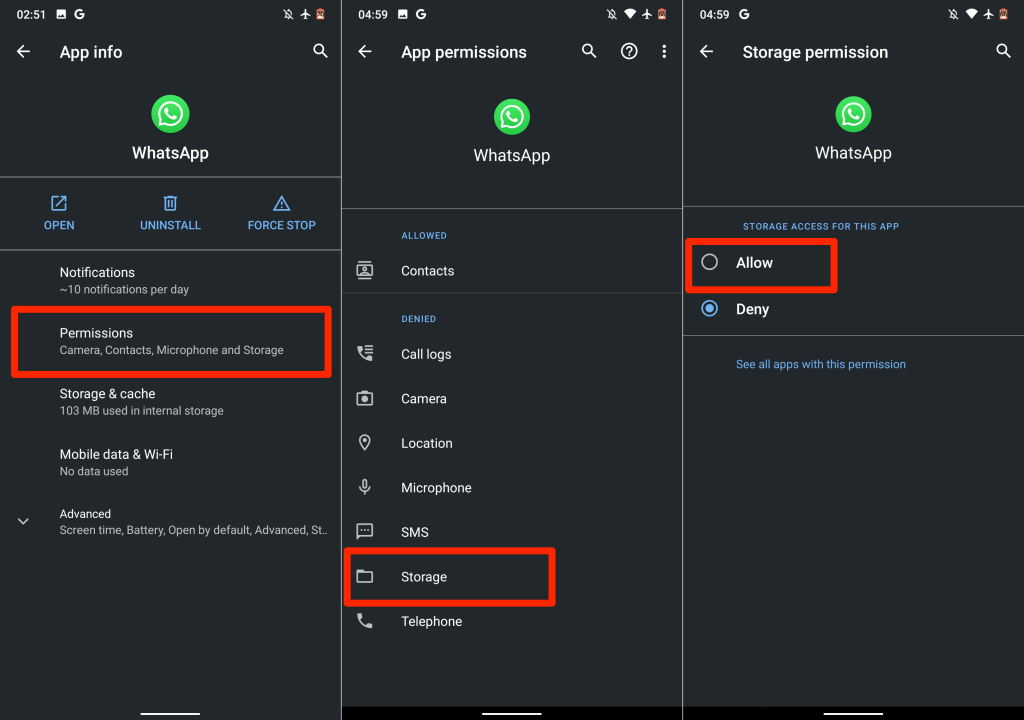
WhatsApp won’t download or save media files to your device’s storage or gallery if it doesn’t have storage permission. Open the WhatsApp info page in your device’s settings menu and grant the app storage access.
Grant WhatsApp Storage Permission on Android
Open WhatsApp’s app info page, select Permissions, set it to Allow.
Grant WhatsApp Gallery Permission on Android
Does WhatsApp display a “WhatsApp does not have access to your photos or videos” error when you save media files? That tells you the app doesn’t have access to your photo gallery.
To stop this error, go to Settings > WhatsApp > Photos and select All Photos.

That grants WhatsApp access to your iPhone’s media library. Reopen the WhatsApp conversation and try downloading the photo/video.
6. Free Up Storage Space
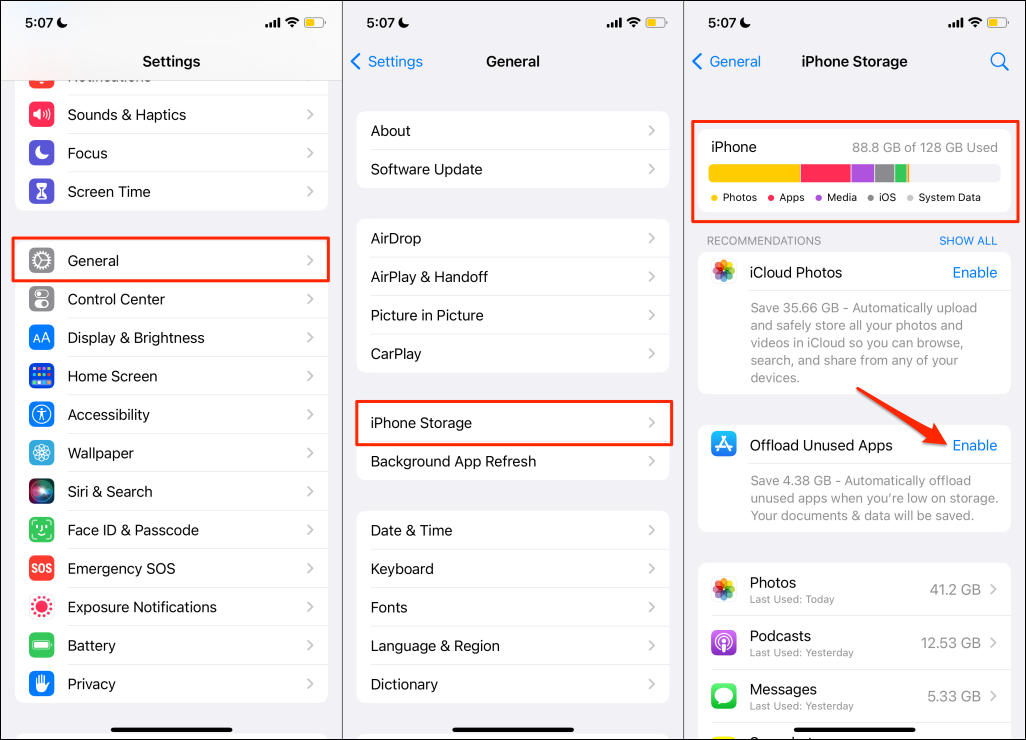
Low or insufficient storage space could also be why WhatsApp isn’t downloading media and documents. Check your phone’s storage status and ensure there’s space to house the file you want to download.
Go to Settings > General > iPhone Storage to check how much free storage your iPhone has.
On Android devices, go to Settings > Storage (or Settings > About phone > Storage) to check your device’s storage status. If your phone uses stock Android, tap Free Up Space to use the file manager’s cleaning tool to free up space.
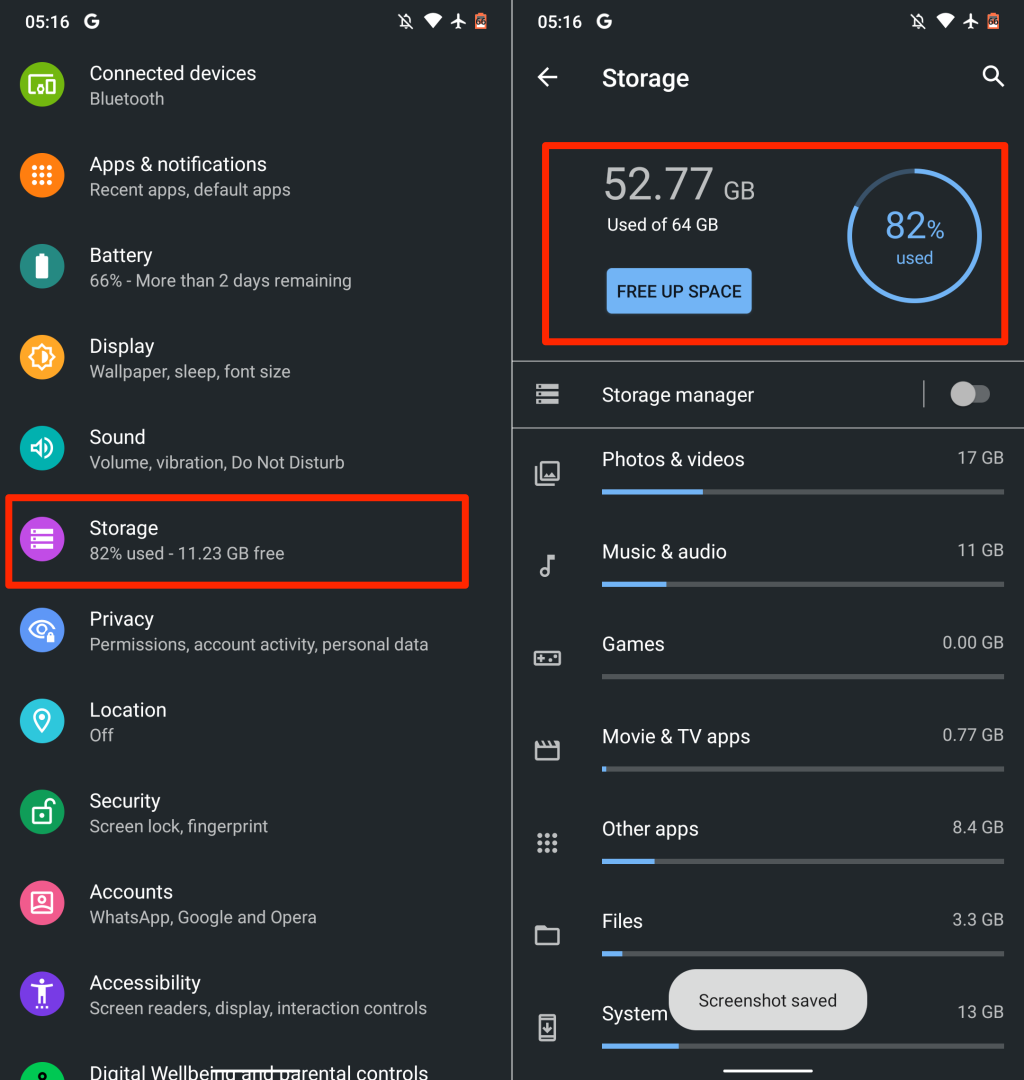
The tool will delete duplicate files, old screenshots, blurry photos, and other unneeded files consuming internal storage space. Transferring files to an external SD card is another brilliant workaround to freeing up space without deleting anything.
7. Ask the Other Person to Resend
When someone sends you photos, videos, or documents on WhatsApp, you have 30 days to download the file. WhatsApp deletes the file from its servers if you don’t download it in 30 days.
WhatsApp will display this message when you try to download the file after 30 days: “Sorry, this media file appears to be missing. Please ask [Sender Name or Phone number] to resend it.”
If you get this message, the solution is to ask the sender to resend the picture, video, or document.
8. Update Your Phone’s Date and Time
Incorrect date and time settings will prevent your phone from connecting to WhatsApp servers. Confirm that your phone’s date and time are correct. Otherwise, you may encounter issues sending and downloading media files and documents via WhatsApp.
Close WhatsApp, update your phone’s data and time settings and retry the download.
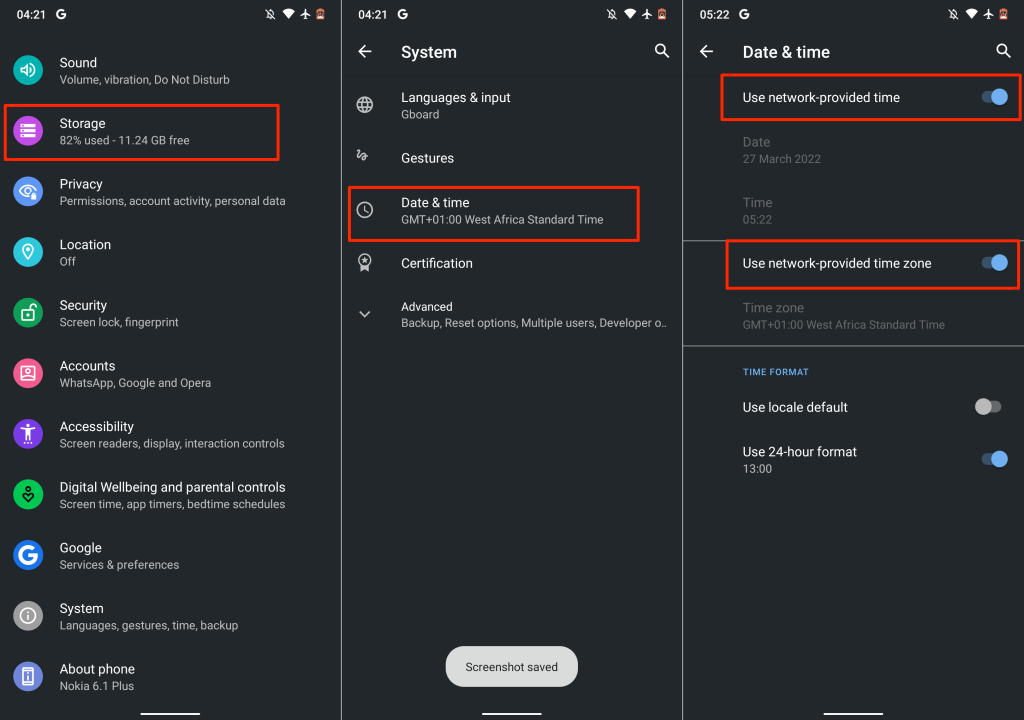
Update Date and Time Settings on Android
- Go to Settings, tap System, and select Date & time.
- Enable both Use network-provide time and Use network-provided time zone.
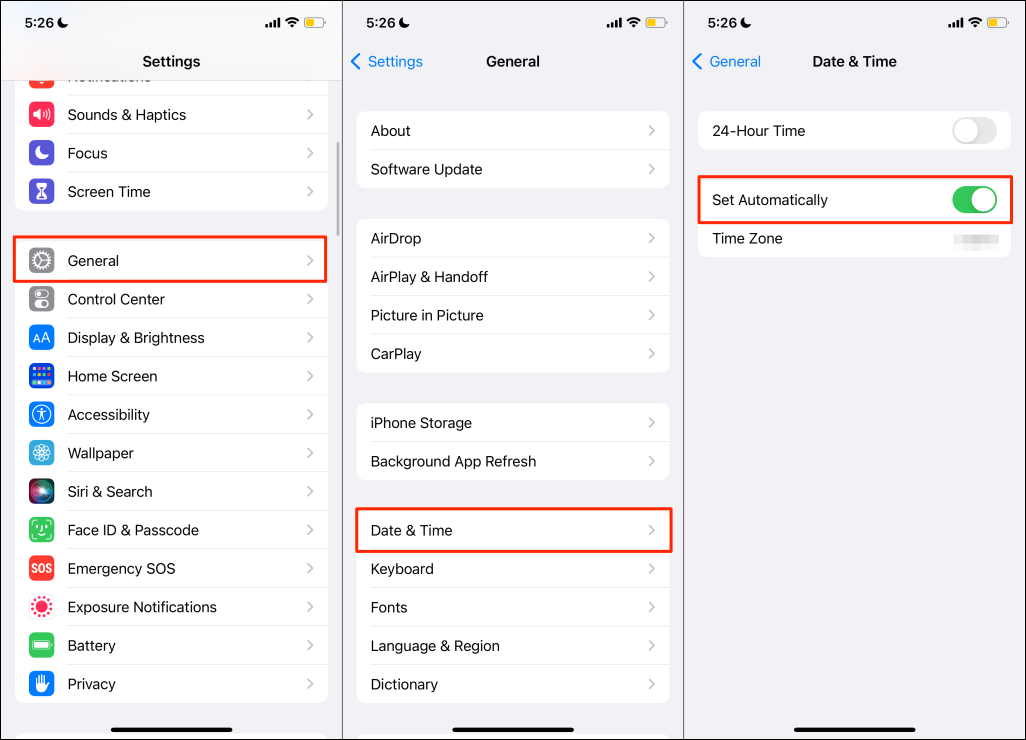
Update Date and Time Settings on iOS
Open the Settings app, tap General, select Date & Time, and toggle on Set Automatically.
9. Clear WhatsApp Cache
WhatsApp and other Android applications save temporary or cache files on your device for quick access to recently-used information. For instance, when you use stickers and emoji, you see them in the recently-used section of the keyboard. WhatsApp stores this data as temporary files.
Despite their benefits, overaccumulation of cache files sometimes causes performance issues. If WhatsApp is still not downloading media after force closing the app, clear its cache data and check again.
Note: Clearing WhatsApp cache files won’t delete conversations, chat history, files, or app data.
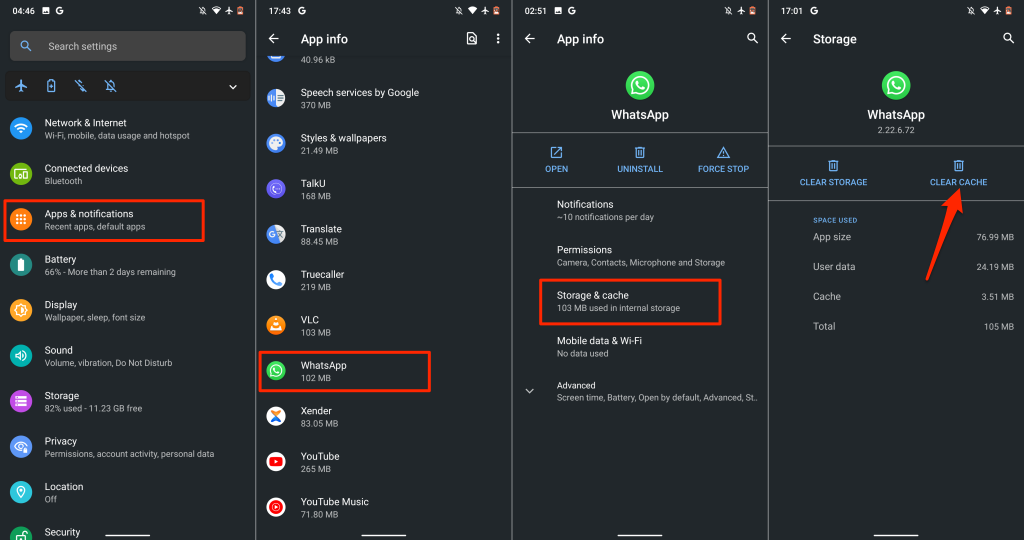
Close WhatsApp and follow the steps below to clear its cache data:
- Go to Settings > Apps & notifications > App info (or See All Apps) and select WhatsApp.
- Select Storage & cache.
- Tap the Clear Cache icon.
Reopen WhatsApp and check if you can now download images, videos, and documents.
10. Restart Your Phone
Rebooting your device’s operating system may fix system glitches causing WhatsApp to malfunction. Remember to close all applications before rebooting your phone so you don’t lose unsaved changes and data.
11. Update WhatsApp
The problem could also stem from bugs in the WhatsApp version installed on your phone. Head to the WhatsApp page on your device’s app store and update the app to the latest version. Tap these links for quick access: WhatsApp for Android (Google Playstore) | WhatsApp for iOS (App Store).
12. Update Your Device
Update your phone’s operating system if WhatsApp still doesn’t download media files or if other applications exhibit similar problems.
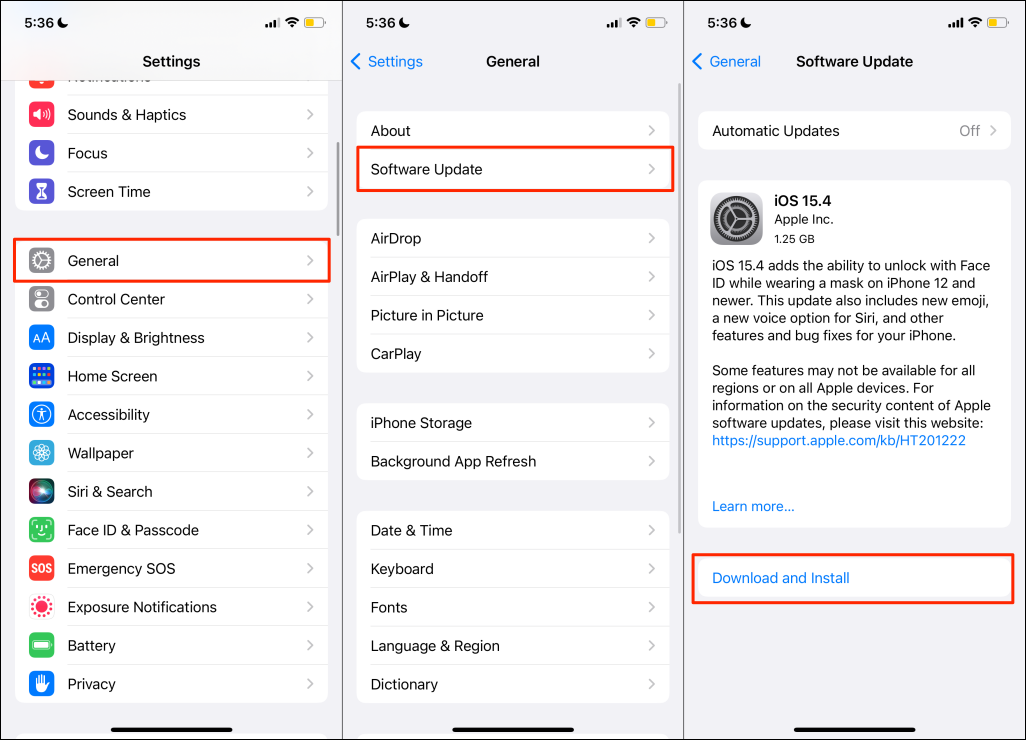
Connect your iPhone to a Wi-Fi network and plug it into a power source. Afterward, head to Settings > General > Software Update and tap Download and Install to install the update available on the page.
To update Android, go to Settings > System > Advanced > System Update and tap Check for updates.
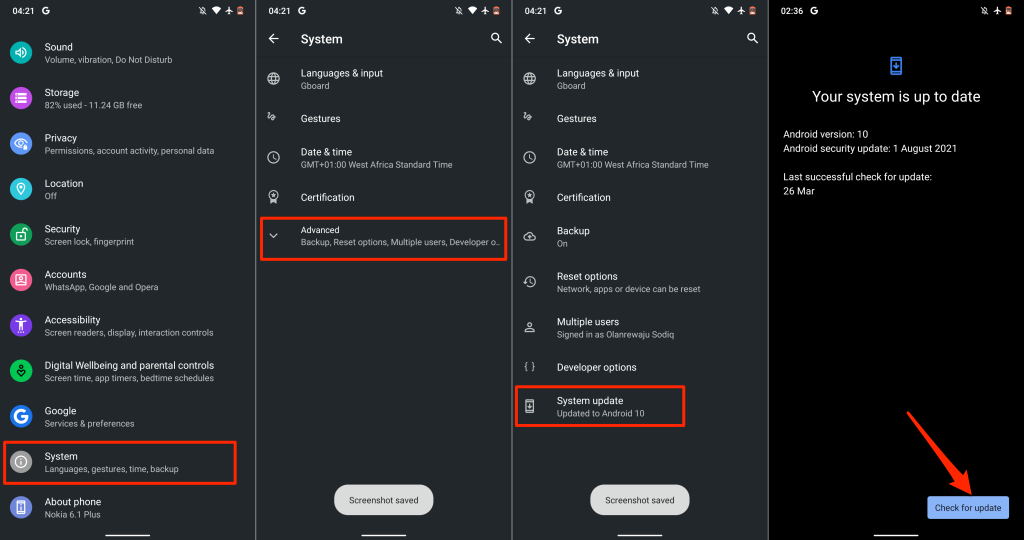
Again, the steps for updating your Android device may vary from the above. Refer to your phone’s instruction manual or contact your device’s manufacturer for specific instructions.
13. Reinstall WhatsApp
Remove WhatsApp from your device and reinstall the app if the problem persists after trying everything listed above. Remember to backup your WhatsApp data before deleting the app from your phone.
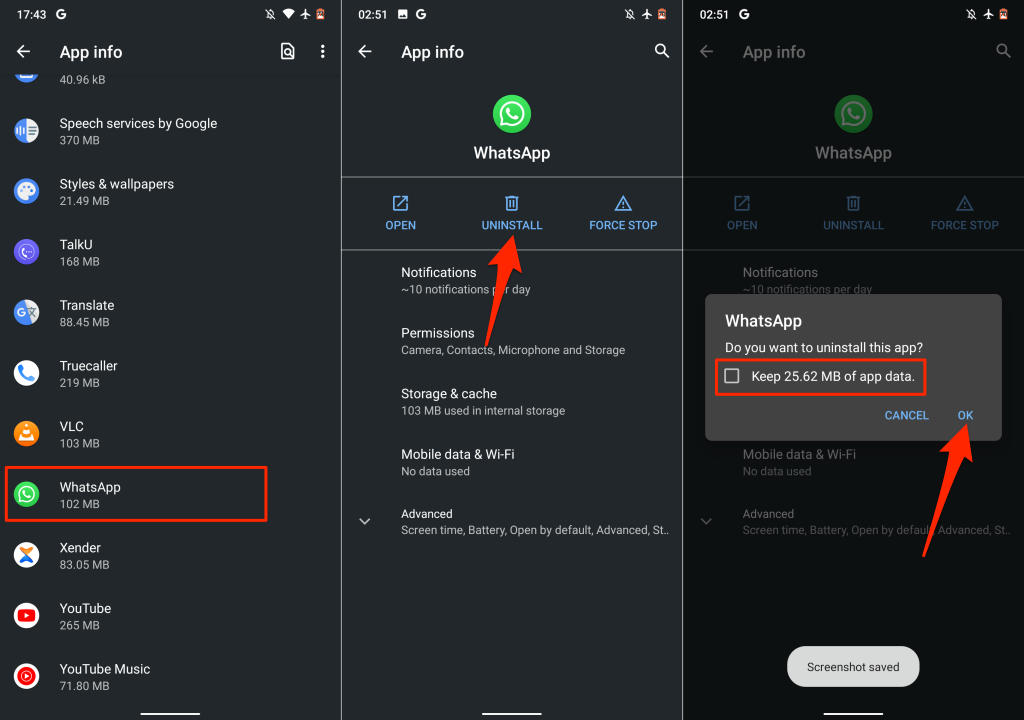
On Android, go to Settings > Apps & notifications > App info (or See All Apps) > WhatsApp > Uninstall. Check the “Keep app data box”—if you get the option on your device—and tap OK.
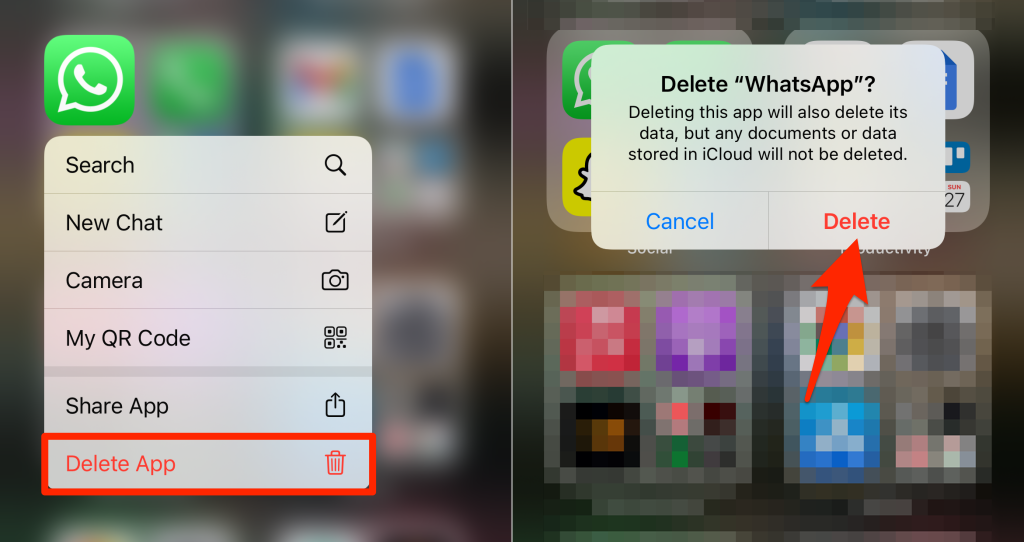
If you use an iPhone, tap and hold the WhatsApp icon, tap Delete App, and select Delete.
Restart your phone, reinstall WhatsApp from your device’s app store, and set up WhatsApp from scratch.
