
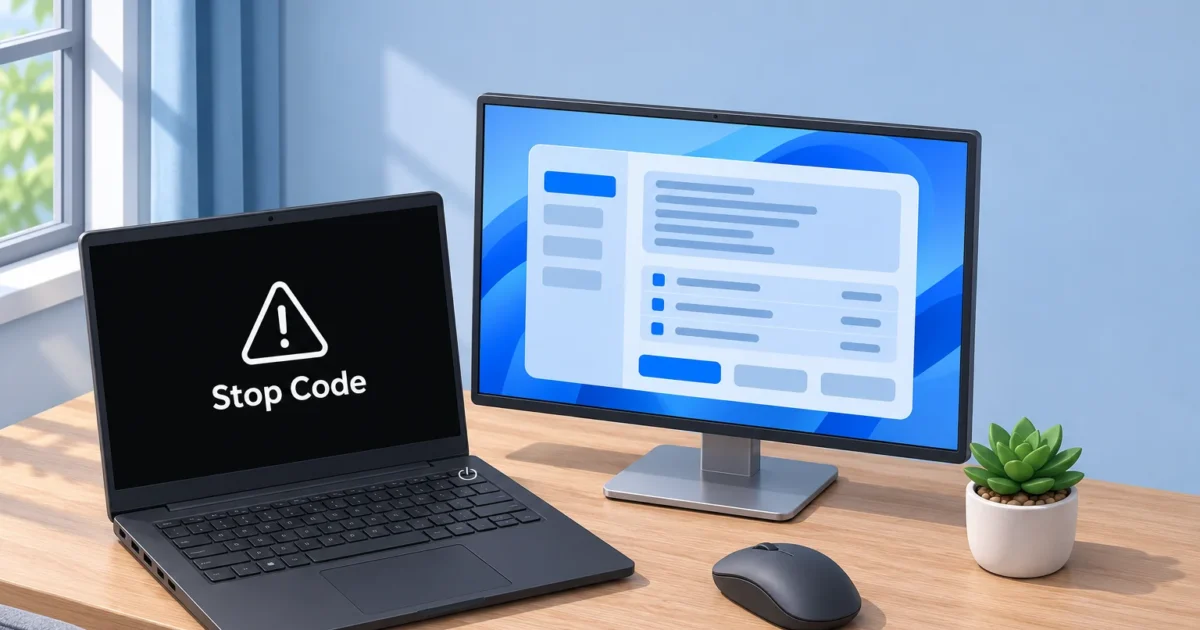
Your Windows 11 PC flashed a black screen that said “Your device ran into a problem and needs to restart,” then rebooted before you could read the stop code. That’s the same stop code crash the Blue Screen of Death used to show, in the redesigned style Windows 11 version 24H2 and later typically uses, and you can still recover the code from Windows’ own logs.
Windows 11 Black Screen Stop Code: What You Actually Saw
Microsoft calls this a stop code error. You’ll also see it called a bug check, a kernel error, a Blue Screen error, or a Black Screen error. Microsoft’s unexpected restarts and stop code errors page says the screen’s color and messaging “can vary, depending on which version of Windows 11 you are running.” It shows the 24H2-and-later screen separately from the 23H2-and-earlier one, and the current 26H2 release falls in the newer group.
The cause hasn’t changed. Windows hit a serious problem with a hardware device, a driver, or software, and restarted. The difference is that the newer screen appears only briefly, so the stop code (something like PAGE_FAULT_IN_NONPAGED_AREA) is often gone before you can write it down.
To confirm which version you’re on:
- Open Settings > System > About.
- Look at Version under Windows specifications. Anything reading 24H2 or later should show the redesigned crash screen, though Microsoft notes the color and messaging can vary by version.

Crash screen or blank black screen?
These are two different problems. A stop code crash usually shows text, typically a sad message and a stop code, and often restarts on its own, though some crashes hang or go straight into recovery. A black screen with no message, only a cursor, or no signal at all has nothing to do with stop codes.
Microsoft handles that one separately in Fix black screen problems in Windows. Typical causes there are a graphics driver, the wrong display output, or Windows Explorer hanging. If you never saw any text, start with that guide instead.
Quick Reference
| Situation | What to do first |
|---|---|
| Missed the stop code | Fix #1 (Reliability Monitor) or Fix #2 (Event Viewer) |
| Crash started after new hardware | Fix #4 (remove it and retest) |
| Crash started after an update or new driver | Fix #5 and Fix #6 |
| Drive is nearly full | Fix #7 |
| Same code keeps coming back | Fix #8 (memory and storage tests) |
| PC won’t stay up long enough to work | Fix #10 (Safe Mode, Startup Repair) |
Fix #1: Find the Stop Code in Reliability Monitor
Reliability Monitor is the friendliest place to start. It shows a day-by-day timeline of crashes.
- Click Start, type
reliability, and open View reliability history. - Find the day of the crash. A red circle with an X marks critical events.
- Click that day and look for a Windows entry that says Shut down unexpectedly.
- Double-click it to open the technical details.
- Look for a Problem Event Name: BlueScreen entry, which often includes a BCCode value. That’s the numeric form of your stop code in hex, for example
50, not the name.
To turn a BCCode into a name, match it against the hex column in the stop code table below (50 is 0x00000050, PAGE_FAULT_IN_NONPAGED_AREA) or confirm it in Event Viewer. If the entry doesn’t include a BCCode, move to Fix #2 instead.
Fix #2: Confirm the Stop Code in Event Viewer
Event Viewer gives you the full hex code plus parameters, which is handy if you plan to search for a fix.
- Right-click Start and choose Event Viewer.
- Expand Windows Logs and click System.
- In the right pane, click Filter Current Log and set the level to Error.
- Look through the entries around the time of your crash for one describing a bug check or unexpected restart.
- Open it and read the description.
The description should include a line like “The computer has rebooted from a bugcheck. The bugcheck was: 0x00000050…” The first hex value after “bugcheck was” is your stop code. You may also see a Kernel-Power entry logged around the same time, which flags that the PC didn’t shut down cleanly, useful for timing, but check the bug check entry for the actual code.
Fix #3: Check for Minidump Files
Windows can save a small crash dump file after a stop code, which is useful if you plan to hand it to a tech or analyze it yourself.
- Open File Explorer and check the
Minidumpfolder inside your Windows folder (commonlyC:\Windows\Minidump). - Approve the administrator prompt if one appears.
- Look for a
.dmpfile dated to your crash.
If the folder is empty, dump creation may be turned off, or Windows didn’t finish writing the file before restarting. To check, press Win + R, type sysdm.cpl, and open Advanced > Startup and Recovery > Settings. Make sure Write debugging information isn’t set to (none). Small memory dump or Automatic memory dump will save a file for the next crash.
Tools like WinDbg, available from the Microsoft Store, can open a dump file and help point toward the stop code and driver involved. I’d skip this step unless Fixes #1 and #2 came up empty.
Fix #4: Remove Recently Added Hardware
Microsoft’s first troubleshooting step is to remove any hardware you added recently.
- Shut the PC down completely.
- Unplug anything new, like a USB hub, webcam, docking station, extra RAM stick, or graphics card.
- Start the PC and use it normally.
If the crashes stop, the hardware or its driver is the likely culprit. Reconnect it after Fix #5 to see whether an updated driver helps.
Fix #5: Run Windows Update
Updates often include driver fixes for known stop codes.
- Open Settings > Windows Update.
- Click Check for updates.
- Install the updates offered. Check Advanced options > Optional updates for a driver update for the device you suspect, but skip optional drivers if the crashes started right after a driver change.
- Restart when prompted.
If the crashes began right after an update, go the other way. Open Settings > Windows Update > Update history > Uninstall updates and remove the most recent one.
Fix #6: Update, Roll Back, or Disable a Driver in Device Manager
Drivers are a common cause of stop codes. Device Manager shows which devices Windows has flagged. A warning icon doesn’t prove that device caused the crash, but it’s a good place to start.
- Right-click Start and choose Device Manager.
- Expand each category and look for a yellow exclamation point icon.
- Right-click a flagged device and choose Properties.
- Open the Driver tab.
- Click Roll Back Driver if the problem started after a driver update. Otherwise click Update Driver.
- If neither helps, choose Disable Device temporarily and see whether the crashes stop. Don’t disable your storage controller, your only display adapter, or the network adapter you need to download drivers, since that can leave you without a working drive, display, or connection.
If the warning icon clears after a driver change, that’s a good sign, but the real test is whether the crashes stop.
Fix #7: Free Up Disk Space
Microsoft recommends keeping about 10–15% of your system drive free. Windows needs that room for swap files and other work.
- Open Settings > System > Storage.
- Check how full your C: drive is.
- Click Cleanup recommendations and remove what you don’t need.
If you’re always near the limit even after cleanup, moving files to another drive or upgrading to a larger SSD gives Windows the room it needs.
Fix #8: Test Your Memory and Storage
Run these if the same stop code keeps returning after Fixes #4 through #7. Memory-related codes like MEMORY_MANAGEMENT are a good reason to start here.
- Press
Win + R, typemdsched.exe, and pressEnter. - Choose Restart now and check for problems. Save your work first, because the PC restarts immediately.
- After Windows reboots, check the result notification. You can also find it in Event Viewer under System by filtering for source MemoryDiagnostics-Results.
- Next, open Terminal (Admin) and run
chkdsk C: /scanto check the drive for file system errors. - Then run
sfc /scannowto repair damaged Windows system files.
Memory test errors often point to a failing or badly seated RAM module, but a faulty slot, an overclock or XMP/EXPO memory profile, or outdated firmware can cause them too. Reseat the modules and turn off any memory overclock first. If errors persist with a single module in a known-good slot, replacing the faulty module, or the whole RAM kit if it’s a matched set, is the usual next step. If new memory shows the same errors, have the motherboard checked.
Fix #9: Use System Restore
System Restore rolls Windows back to an earlier point. Your personal files stay put, but apps and drivers installed after that point are removed.
- Click Start, type
restore, and open Create a restore point. - Click System Restore.
- Pick a restore point from before the crashes started.
- Click Next, then Finish.
Our guide on how to enable and use System Restore in Windows 11 covers the full process if no restore points show up.
Fix #10: Use Safe Mode and Startup Repair in WinRE
Use this when the PC crashes too often to work in, or won’t boot at all.
- Open Settings > System > Recovery.
- Next to Advanced startup, click Restart now.
- Choose Troubleshoot > Advanced options.
- Pick Startup Repair if Windows won’t load.
- For Safe Mode, pick Startup Settings > Restart, then press
4.
If Windows can’t reach the desktop at all, Windows may open the recovery environment automatically after repeated failed boot attempts. If the crashes stop in Safe Mode, a third-party driver or startup app is the likely cause. Go back to Fix #6.
Reset this PC on the same Recovery page is the last resort. It reinstalls Windows, and it removes your apps even if you choose to keep your files.
Quick Machine Recovery
Windows 11, version 24H2 and later, includes a feature called Quick Machine Recovery. It’s designed to let Windows find and apply fixes from Windows Update when a PC is stuck failing to boot and can’t start normally.
On Windows 11 Home, it’s turned on by default. On Pro, Education, and Enterprise, the default depends on how the PC is set up, and an administrator managing the device can change that setting.
The feature also needs network access from the recovery environment, either a wired Ethernet connection or Wi-Fi using WPA or WPA2, to reach Windows Update and apply a fix (Microsoft’s Quick Machine Recovery page). It also relies on an up-to-date build, so if the option is missing on a 24H2 or later PC, install pending cumulative updates first.
To check whether it’s enabled, open Settings > System > Recovery and look for the Quick machine recovery entry. During an actual failed boot, you may also find a Quick machine recovery option under Troubleshoot > Advanced options in the Windows Recovery Environment.
If you don’t see it in either place, that doesn’t necessarily mean your build lacks the feature. Edition, management policy, network connectivity, and the PC’s current recovery state can all affect whether it appears. Fixes #1 through #10 work whether or not Quick Machine Recovery is present or visible.
Common Stop Codes and Where to Go Next
Once you have the code, search for a fix written for that exact error. These are some common stop codes; your System log entry may show a different one, and the causes listed are starting points, not a diagnosis.
| Stop code | Hex | Common possible causes |
|---|---|---|
| CRITICAL_PROCESS_DIED | 0x000000EF | Damaged system files or a bad driver |
| MEMORY_MANAGEMENT | 0x0000001A | RAM or a memory-handling driver |
| PAGE_FAULT_IN_NONPAGED_AREA | 0x00000050 | A driver, RAM, or antivirus |
| IRQL_NOT_LESS_OR_EQUAL | 0x0000000A | A misbehaving driver |
| SYSTEM_SERVICE_EXCEPTION | 0x0000003B | A driver or system service |
For any code not listed, our general Blue Screen of Death troubleshooting guide still applies. If you saw a stop code, the fixes are the same whichever color the screen was. A blank black screen with no message is a different problem, so use Microsoft’s black screen guide linked earlier instead.
Settings to Check
- Windows Update: Settings > Windows Update. Make sure updates aren’t paused.
- Device Manager: Right-click Start > Device Manager. Look for yellow warning icons after every crash.
- Storage: Settings > System > Storage. Keep 10–15% of the drive free.
- Recovery: Settings > System > Recovery. Know where Advanced startup and Reset this PC live before you need them.
Getting Help
When you ask a tech, a forum, or Microsoft Support for help, bring this:
- The stop code and hex value you found in Event Viewer or Reliability Monitor.
- The crash dates from Reliability Monitor.
- Any
.dmpfiles fromC:\Windows\Minidump. - Your Windows version and OS build from Settings > System > About.
Microsoft’s Resolve Windows blue screen errors page and its step-by-step troubleshooter are good next stops. You can also post in the Microsoft Community forums with the details above.
Prevention Tips
- Install updates promptly: Driver fixes often arrive through Windows Update.
- Get drivers from trusted sources: Use Windows Update or your PC or GPU maker’s site, and skip third-party “driver updater” tools.
- Protect against power cuts: A UPS keeps a desktop from losing power mid-write, which can corrupt system files.
- Back up regularly: An external SSD with File History running means a reset costs you an afternoon, not your files.
- Watch Reliability Monitor: A rising number of red icons is an early warning worth checking monthly.
Frequently Asked Questions
Is the black screen a different or worse error than the blue screen?
No. Microsoft treats it as the same stop code error, with a new look on Windows 11 24H2 and later. The stop codes and fixes are identical.
How do I find the stop code if I didn’t get to read it?
Open Reliability Monitor and look for the BCCode value (Fix #1). Or check the System log in Event Viewer for the bug check entry logged around the time of the crash (Fix #2).
Can I bring back the classic blue screen?
Microsoft doesn’t offer a setting for that. Skip registry tweaks online that claim to restore it. They’re unsupported, and the color doesn’t change how you fix the crash.
Does Windows 11 Home behave differently from Pro?
The crash screen and stop codes are the same on both editions. Quick Machine Recovery is on by default on Home, while Pro, Education, and Enterprise defaults depend on device configuration and management.
Check Settings > System > Recovery on either edition to see its current status, along with network connectivity if it’s failing to kick in during a boot failure.
Does a black screen crash mean my hardware is failing?
Usually it doesn’t. Drivers and software cause many stop codes.
Treat one crash as a reason to investigate. Repeated crashes with the same memory or storage code after Fixes #4 through #7 are the point to suspect hardware.
What should I try first?
Write down the stop code from Reliability Monitor, then run Windows Update and check Device Manager. Those three steps are quick and are the most common starting points.
Wrapping Up
Getting the stop code from Reliability Monitor or Event Viewer is the step that matters most, because it tells you which targeted fix to use. For crashes that started after an update, a driver rollback or uninstalling the update (Fixes #5 and #6) usually settles things.
If the crash keeps returning after a System Restore, or the memory test or chkdsk reports errors, stop troubleshooting software. Have the RAM or drive checked, or contact your PC maker’s support.
| Step | Action | Applies To |
|---|---|---|
| 1 | Get the stop code from Reliability Monitor or Event Viewer | Every crash |
| 2 | Remove new hardware, run Windows Update | Crashes after a recent change |
| 3 | Roll back or update drivers in Device Manager | Flagged devices, driver-related codes |
| 4 | Free disk space, test RAM and storage | Repeat crashes |
| 5 | System Restore, then Startup Repair or Reset | Crashes that won’t go away |
Last updated: November 22, 2026 | Applies to Windows 11, version 24H2 and later, including 26H2