

Windows 10 creates all sorts of temporary files as you use your computer. These could be anything from cached system and application data, error reports, update files, to browsing data. Not only do temporary files help speed things up, but some of them also play a role when troubleshooting system-related issues.
However, most temporary file types linger around for a long time and can end up eating a hefty chunk of storage. If you’re always running out of free space, you must take it upon yourself to delete these files regularly.
You can delete temporary files on your Windows 10 computer using the Settings app, the Disk Cleanup tool, or File Explorer. Additionally, you can utilize a built-in functionality called Storage Sense to automate the procedure.
Use Settings App to Delete Temporary Files
The Windows 10 Settings app’s Storage Management screen allows you to view and delete most temporary file types on your computer. If disk space starts to run low, a quick visit to this screen should help you free up some storage quickly.
1. Open the Start menu and select Settings.
2. Select System.
3. Switch to the Storage side-tab.
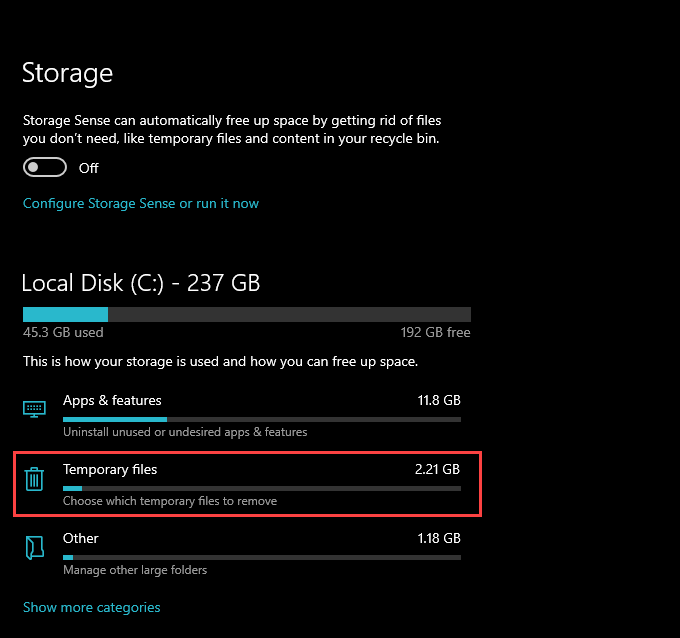
4. Select Temporary files. Wait for a moment until the Settings app finishes loading a list of temporary file types on your computer.
5. Check the boxes next to each temporary file type that you want to remove. You can see the amount of potential space savings listed next to each of them. You must read the description of each file type so that you don’t end up deleting anything important.
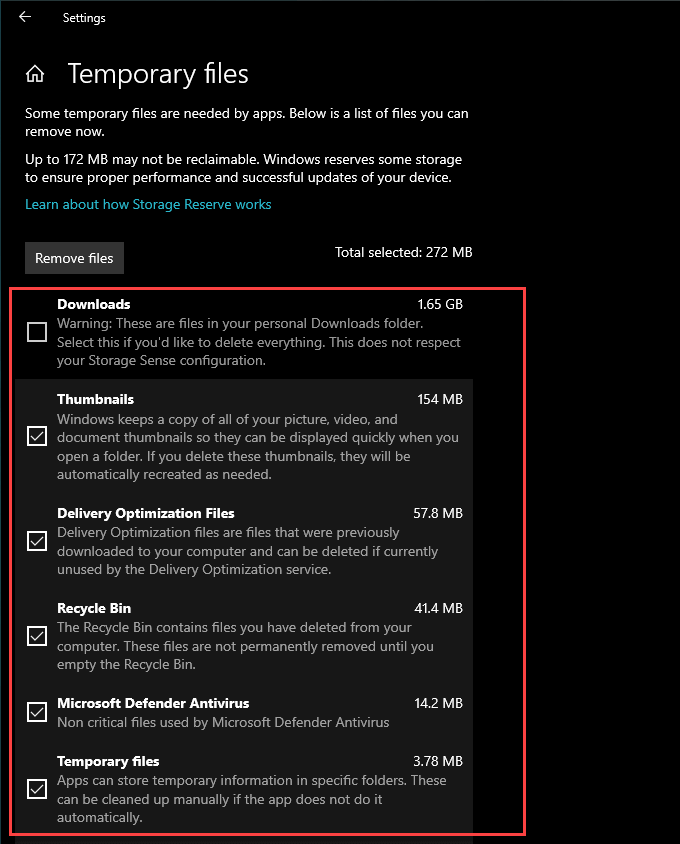
For instance, Windows 10 lists your Downloads folder as a temporary location. If you have any important files in it, it’s best to leave the box next to it unchecked.
Additionally, keep Previous version of Windows unchecked if you want to have the option to fall back to the previous version of Windows 10 intact. You’ll only see it if you upgraded Windows 10 within the last ten days, however.
Note: The Temporary Internet Files listing includes browsing data related to Microsoft Edge. You must clear browser caches in third-party web browsers separately.
6. Select the Remove Files button to the top of the screen. Windows 10 should start deleting the file types that you selected immediately.
Use Disk Cleanup Tool to Delete Temporary Files
Aside from the Settings app’s Storage Management screen, Windows 10 also comes with a Disk Cleanup tool. It looks somewhat dated. But, it usually lists temporary file types that you may not find listed within the Settings app.
1. Press Windows+R to open the Run box.
2. Type cleanmgr.exe and select OK.
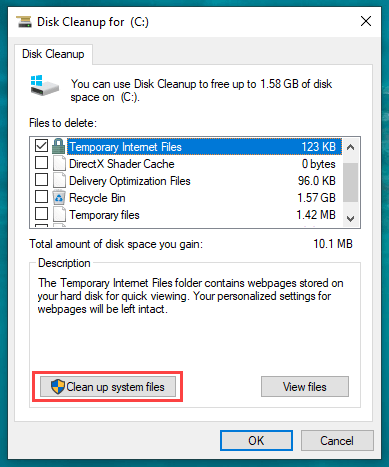
3. The default view in Disk Cleanup lists all forms of temporary file types (except for Downloads) that you’ll typically find in the Settings app. To reveal additional file types, select the Clean up system files button.
4. After Disk Cleanup updates itself, check the boxes next to each temporary file type you want to delete.
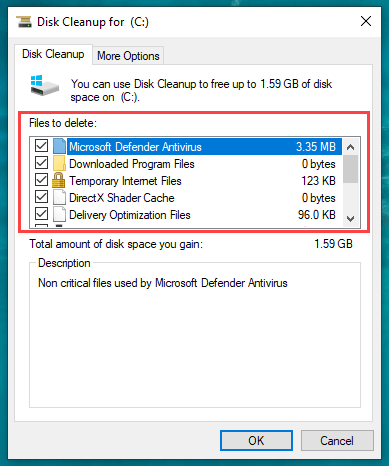
You can see a description whenever you select a specific type of data. Read it to ensure that you aren’t deleting anything important.
For instance, Device driver packages contains data needed to roll back hardware drivers—only select it if you don’t have any computer issues.
5. Select OK, and then select Delete Files to remove the selected files.
Additionally, you can run an extended version of Disk Cleanup (which reveals even more forms of temporary file types). To get to it, open the Command Prompt console (press Windows+S and search for command prompt) and run the following command:
cmd.exe /c Cleanmgr /sageset:65535 & Cleanmgr /sagerun:65535
The extended Disk Cleanup tool contains file types such as old program setup files and Chkdsk files (corrupted data fragments from the Check Disk utility) that you can delete to free up extra disk space.
Use File Explorer to Delete Temporary Files
The Settings app and the Disk Cleanup Tool usually don’t delete all temporary files used by the operating system and the apps that run on it. If you want to be thorough, you can visit the two main locations that contain these files and delete them directly. However, these folders do fill up again quickly, so go ahead if you want to free up some extra storage for the time being only.
1. Save your work and exit all open applications.
2. Press Windows+R to open the Run box.
3. Type %temp% into it and select OK.
4. Press Ctrl+A to select all files within the directory. Then, right-click and choose Delete.
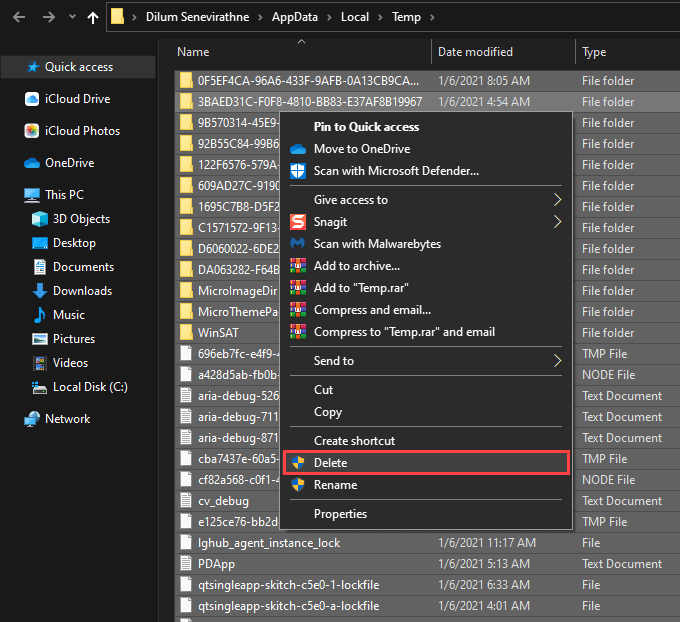
Note: If the operating system notifies that it can’t delete certain files, select Skip.
5. Open the Run box again. Then, type temp and select OK.
6. Delete all files and folders within the directory. Again, skip any files that you can’t remove.
7. Right-click the Recycle Bin icon on the desktop and select Empty Recycle Bin.
Use Storage Sense to Delete Temporary Files
You can configure Windows 10 to clear temporary files automatically by activating Storage Sense. Rather than merely turning it on, you must also configure how the functionality works automatically on your computer.
1. Open the Start menu and select Settings.
2. Select System.
3. Switch to the Storage side-tab.
4. Select Configure Storage Sense or run it now.
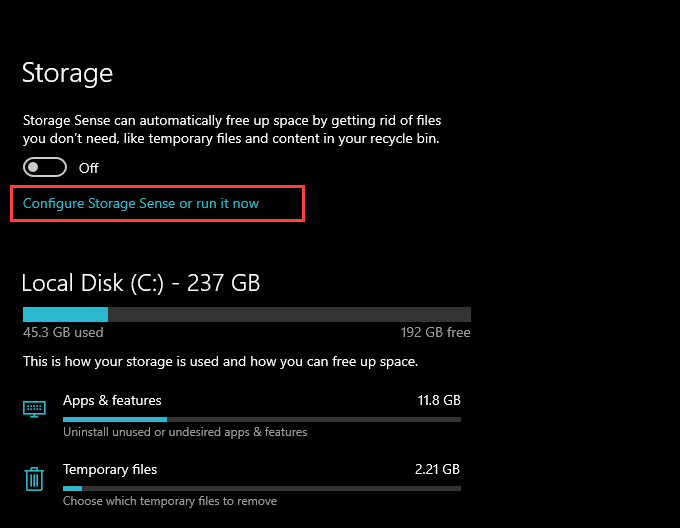
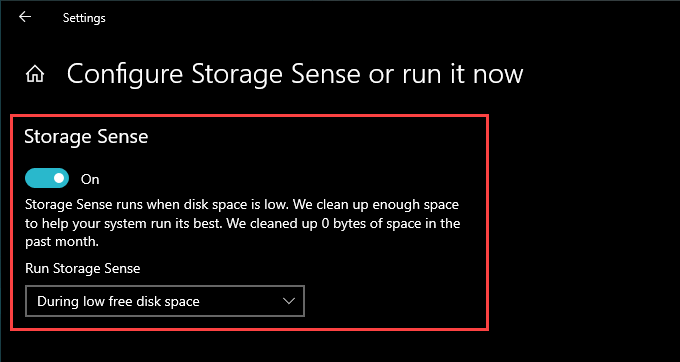
5. Turn on the switch under Storage Sense and select how often you want it to run. You can stick to the default During low free disk space setting or change that to Every day, Every week, or Every month.
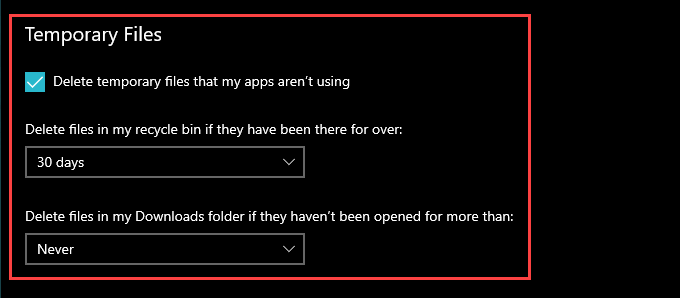
6. Scroll down the screen and specify how often Storage Sense should clean the Recycle Bin and Downloads folder. If you don’t want it to delete any file downloads, make sure to select Never.
If you use a cloud storage service with Files On-Demand capabilities (such as OneDrive or iCloud Drive), you can also specify how often Storage Sense should clear any locally cached files.
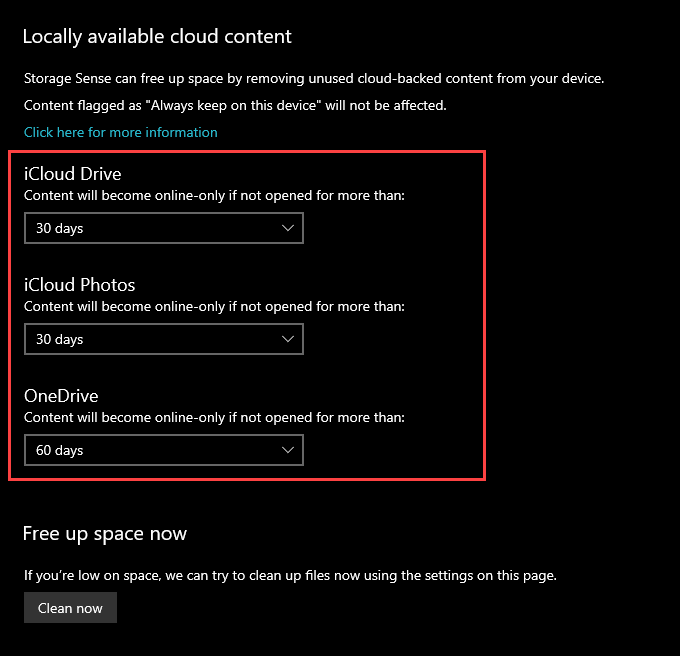
Storage Sense will automatically delete temporary files on your Windows 10 computer, depending on how you’ve set it up. You can also run it whenever you want by selecting the Clean now option located within the same screen.
Storage Not a Concern? You Should Still Delete Temporary Files
Even if you don’t have any issues storage-wise, it’s still a good idea to delete temporary files in Windows 10 once every while. That should prevent outdated files from causing any problems further down the road. However, you don’t have to go overboard with the whole thing; just set up Storage Sense to go on a cleaning spree once every month, and you should be good.
