
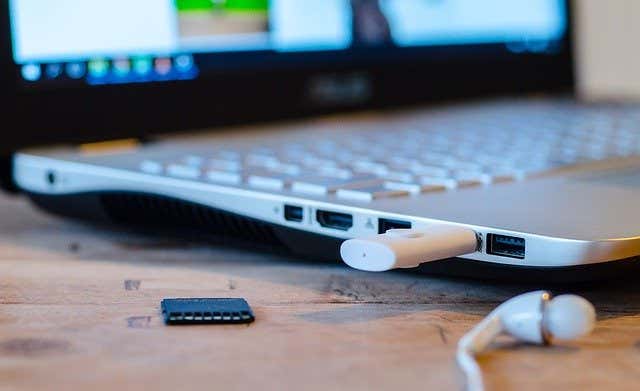
I have a bit of a soft spot for portable apps. They require no installation on your computer and can be run on a USB stick. This means your computer can stay free of all the dross files which gradually accumulates from installed software.
But the downside is that portable apps are only for Windows computers. To date, I have never seen any for MacOS or Linux (or maybe I am just looking in the wrong places).
Here are some of the portable apps specifically for maintaining the Windows operating system which have proven invaluable to me. In all cases, download the portable app from the links provided below and then unzip the folder making sure to leave the folder structure and file locations in place. If you move anything inside the app folder, it won’t work.
BleachBit
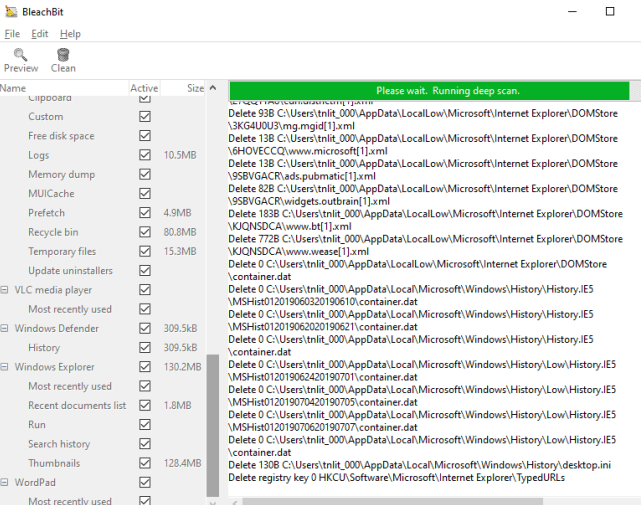
When it came to deleting crap files on the computer (temporary internet files, cookies, browser history, and so forth), I always used to rely on CCleaner. But then CCleaner got hit with major controversies ranging from trojan malware, data harvesting, installing other software without permission, and more.
So now I use BleachBit and it is just as good. Granted, it doesn’t clean as many things as CCleaner but it does the job I want it to do and that’s the main thing. As well as cleaning Windows OS crud, you can also get it to delete unneeded files for other programs, as well as overwrite deleted files, and shred files and folders.
BleachBit has had its moment of infamy as well, when it was discovered that Hillary Clinton used it to delete her emails in 2016.
FixWin 10
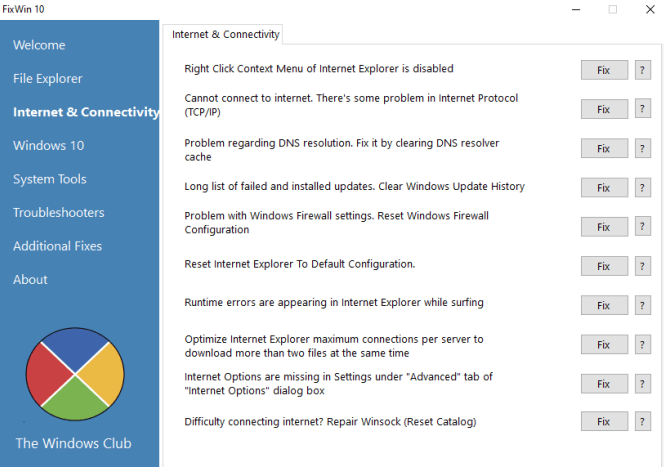
As anyone who uses Windows well knows, the operating system is far from perfect. Problems can arise at any time and you would not know the reason why. That’s why something like FixWin 10 is very useful to have in your USB toolkit.
Made by one of my favorite websites, FixWin 10 covers a whole multitude of potential Windows 10 issues. But the cardinal rule when using something like this is never to alter something if you don’t know what you’re doing. That is the fastest way to a Blue Screen of Death and total Windows meltdown.To be on the safe side, do a System Restore first so you can roll back any changes if you mess up.
If something is not working right with your Windows machine, check FixWin 10 to see if it will reset the feature for you. All it takes is a click of the mouse, and in some cases, a system reboot to see the changes.
Revo Uninstaller
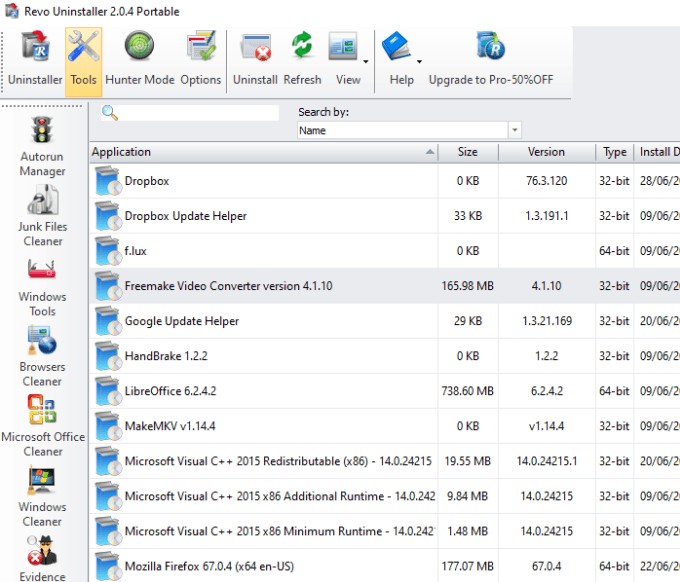
Another annoyance of Windows is that when you uninstall something from the Installed Programs section, it doesn’t always delete everything related to the program. So the actual program might be gone, but temp files and start menu entries might still be there clogging up the works.
Revo has an excellent reputation for stepping up and doing the job that Windows should be doing themselves, which is uninstalling stuff properly. As a result, it takes a while to uninstall a program but that is what happens when it is done properly.
When you start the uninstallation process for a program, Revo first makes a system restore point to roll things back if necessary. Then it uninstalls the program, hunts for associated temp files, cookies, start menu entries, folders, and more. Then you can delete them in one go.
Revo also offers a wide range of other tools such as removing Microsoft Office documents history, deleting other Windows files such as logs, a secure shredder, and more.
Zip2Fix
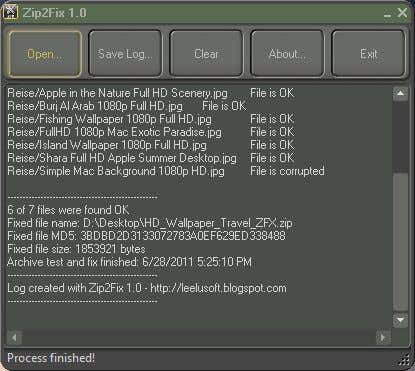
Although the website says Zip2Fix only works up to Windows 8, I have no problem with it on Windows 10. And it has saved my hide on many occasions when important files were trapped inside a corrupted zip file and I needed to get them out. Zip2Fix to the rescue.
Obviously if the files inside are damaged beyond repair, there is nothing the program can do to un-corrupt them. But if the file can be extracted from the zip archive, then Zip2Fix is your best bet to try and get it out. No more “the dog ate my homework”. Quick, fast, and free.
Default Programs Editor
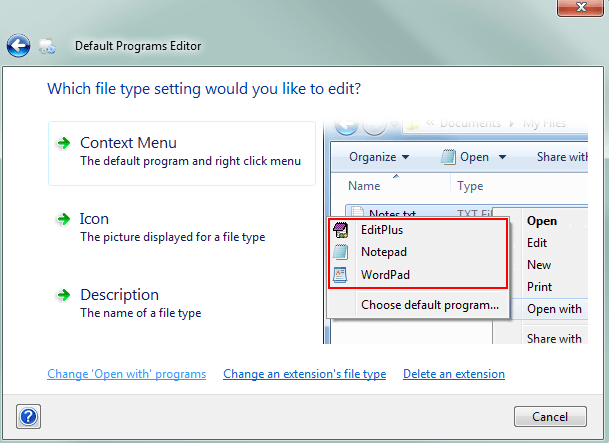
Every file format on your computer is assigned a default program to open it. So PDFs are opened by Adobe, TXT by Notepad and PSD by Photoshop.
But what if your default program preferences are somehow messed up and changed? Or what if you want to easily change the default program for a particular file format? Then the portable app Default Programs Editor is here to help make your life easier.
As well as the default programs, you can also change autoplay settings, refresh the program icons in Windows File Explorer, and edit the right-click context menu options.
Want More?
The best places online to get portable apps is Portable Apps, SnapFiles, PortApps, and Portable Freeware Collection. Obviously, be cautious what you download as you never know how vetted each app is.
